How to Respond to Ratings and Reviews
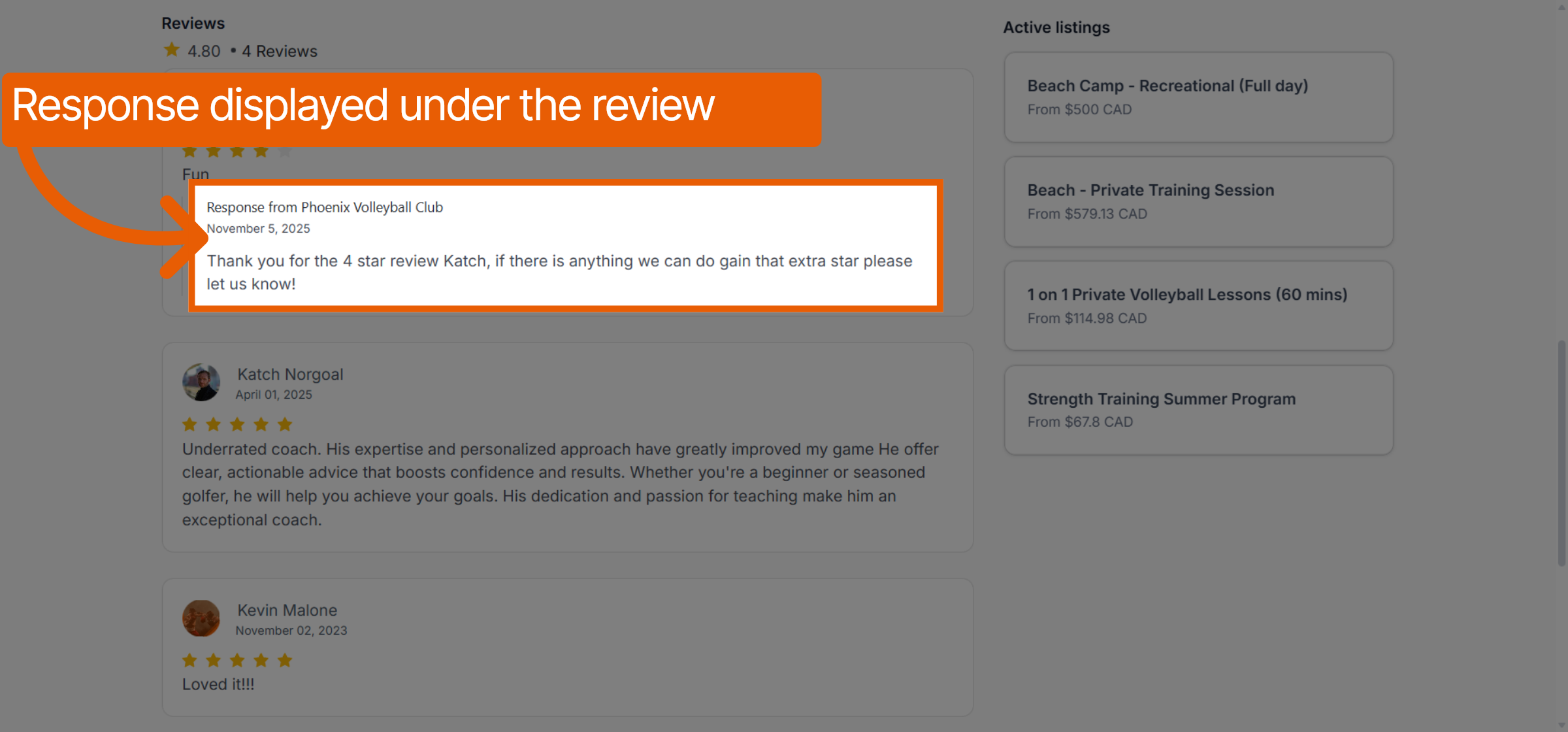
Engaging with customer feedback is a great way to show appreciation and address any concerns publicly. Responses are displayed directly under the customer's original entry on your booking page.
Written By communiti
Last updated 10 months ago
1. Locate Your Reviews
You can find and manage your feedback from two main areas in your administration portal.
Option A: From the Home Dashboard
Select Home in the left sidebar.
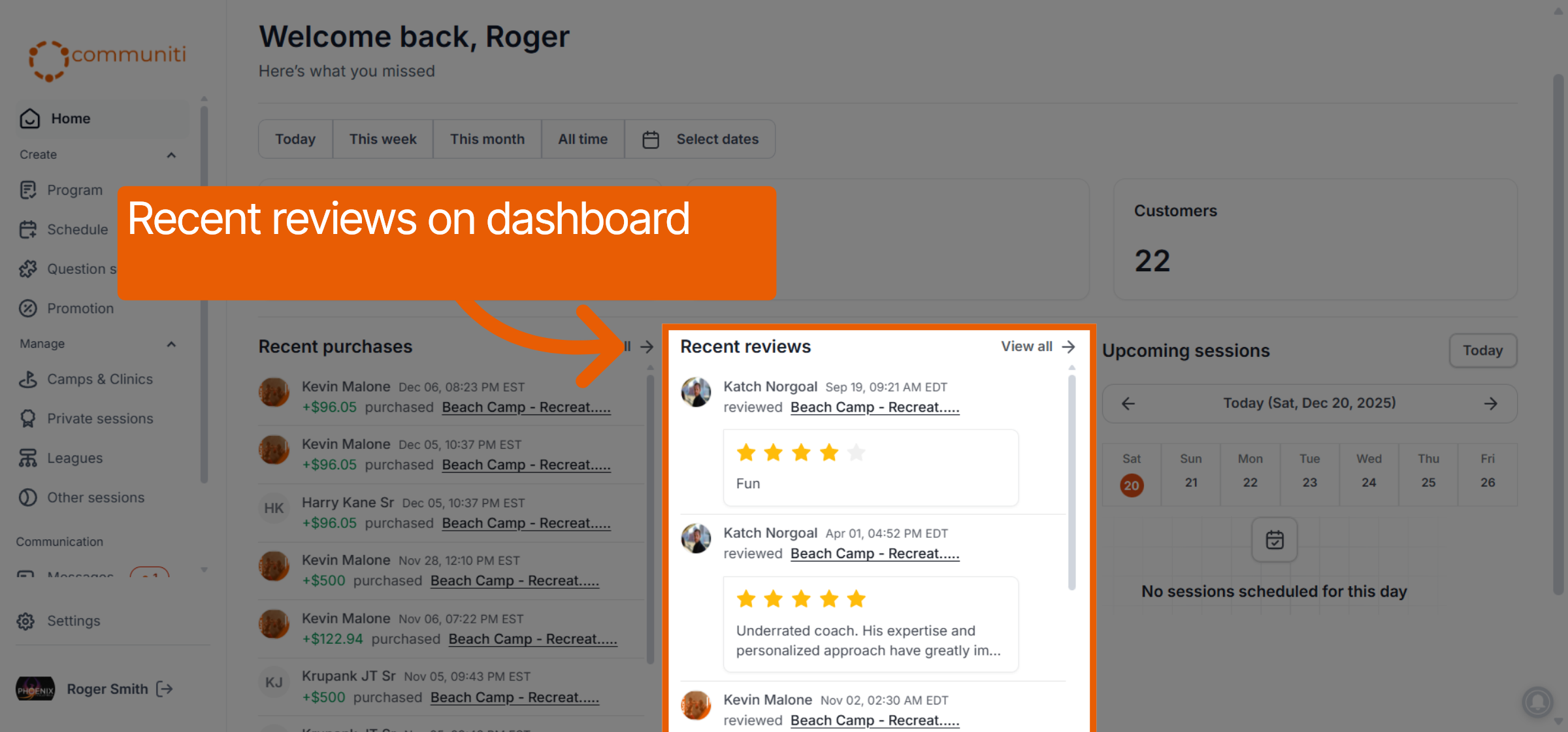
Look for the Recent reviews section.
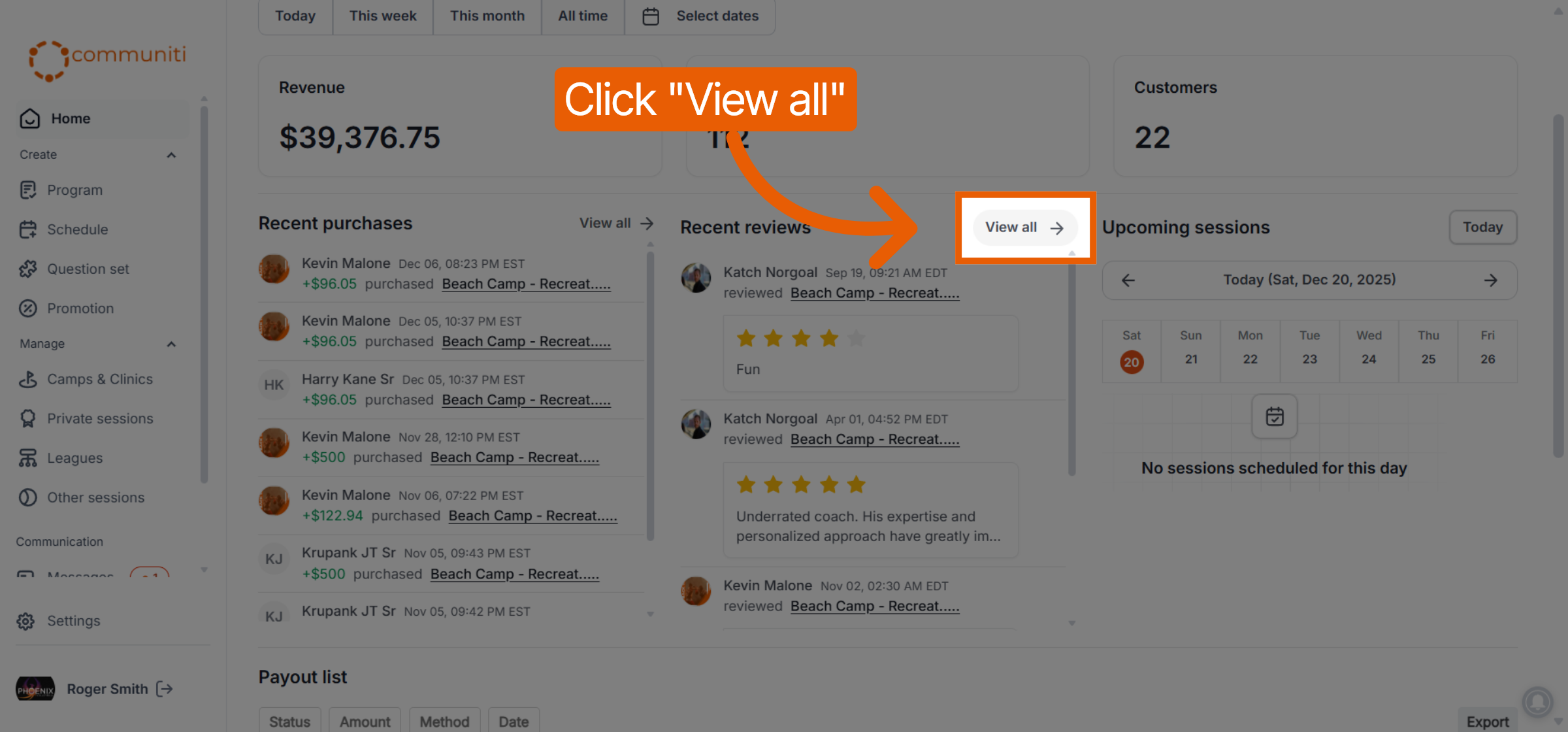
Click View all to open the full management list.
Option B: From Settings
Select Settings in the left sidebar.
Click on the Reviews tab at the top of the page.
2. Draft Your Response
Once you have located the specific feedback you want to address, you can initiate a reply.
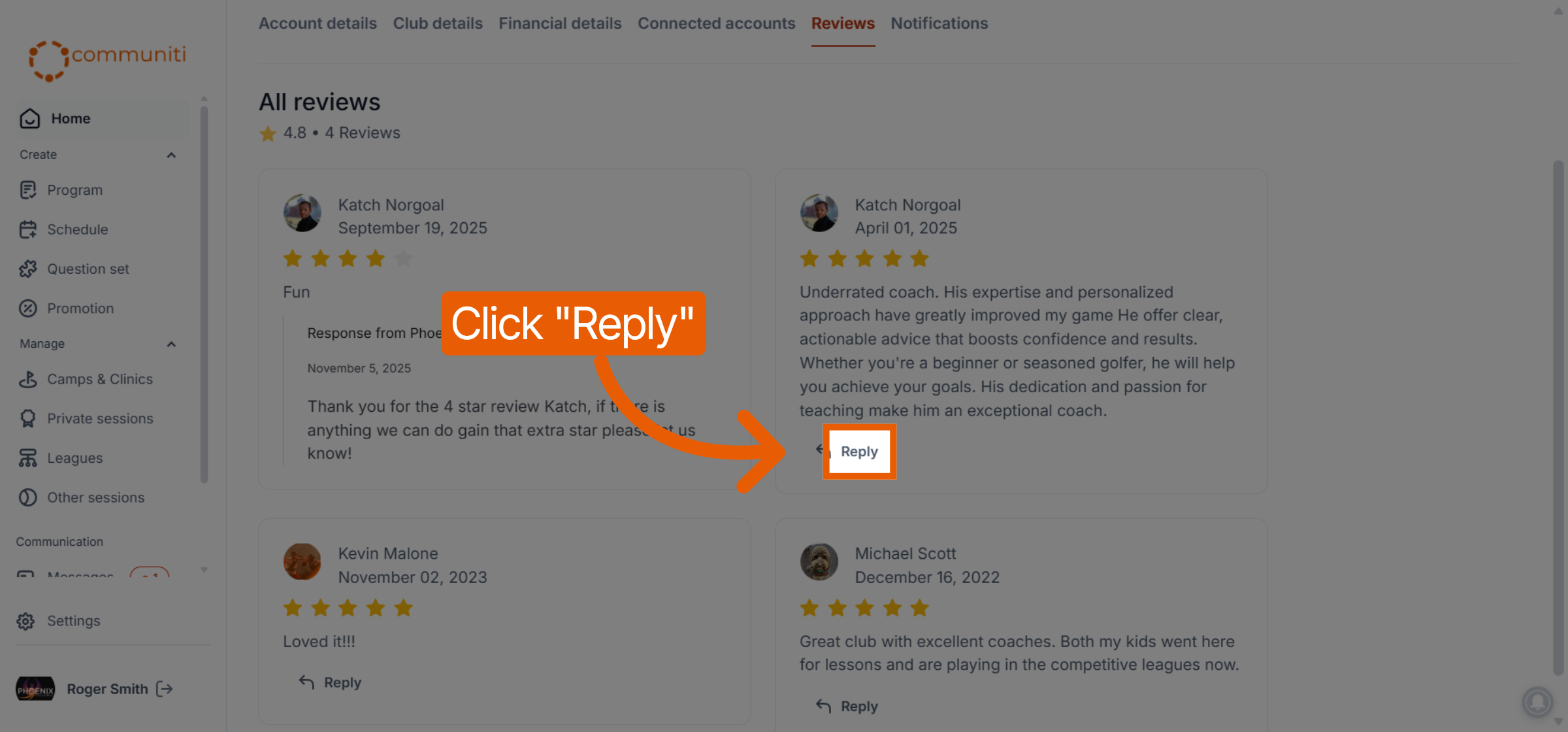
Click the Reply button located directly under the review text.
A text box will appear labeled Add a response
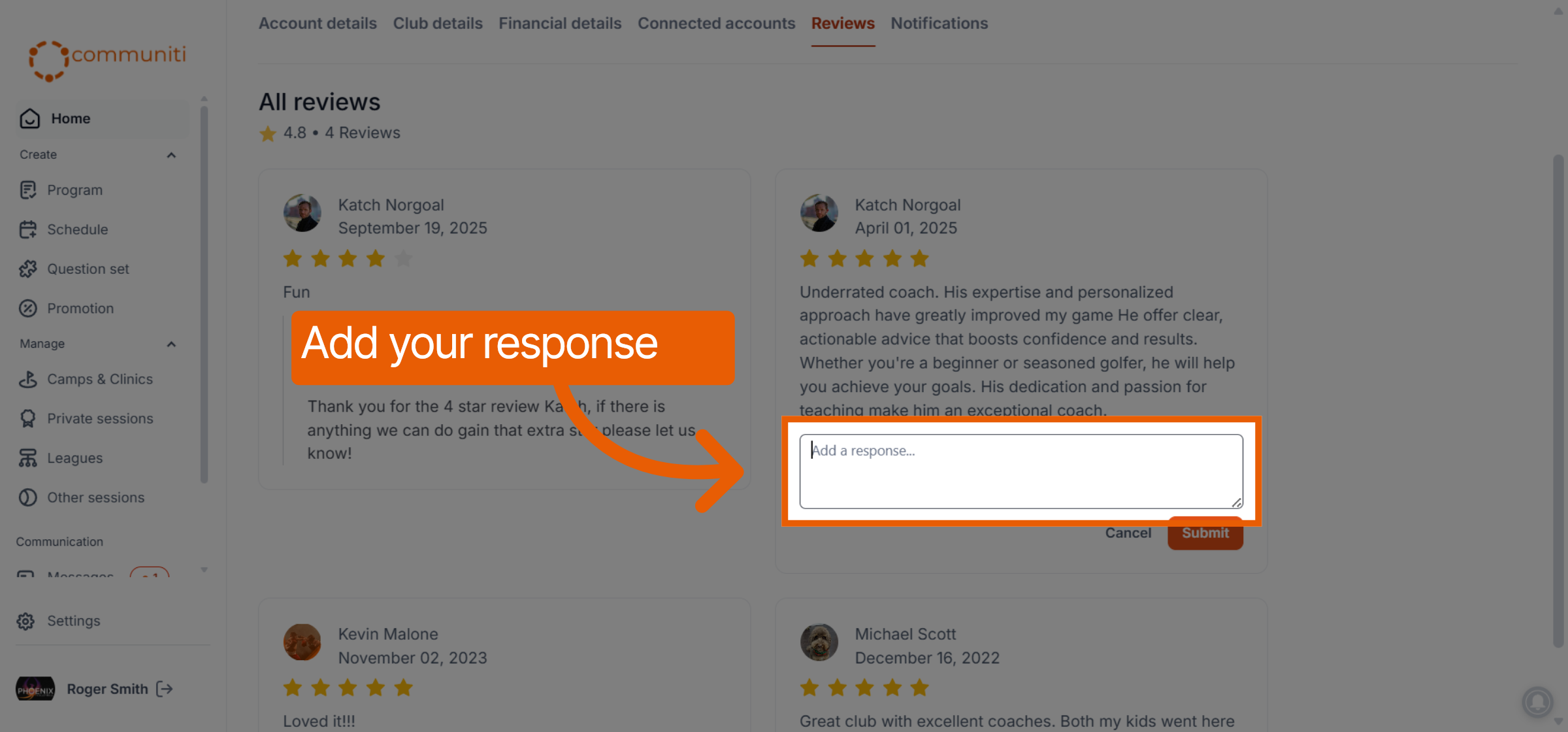
Type your message into the box.
3. Finalize and Submit
Click the orange Submit button to save your message.
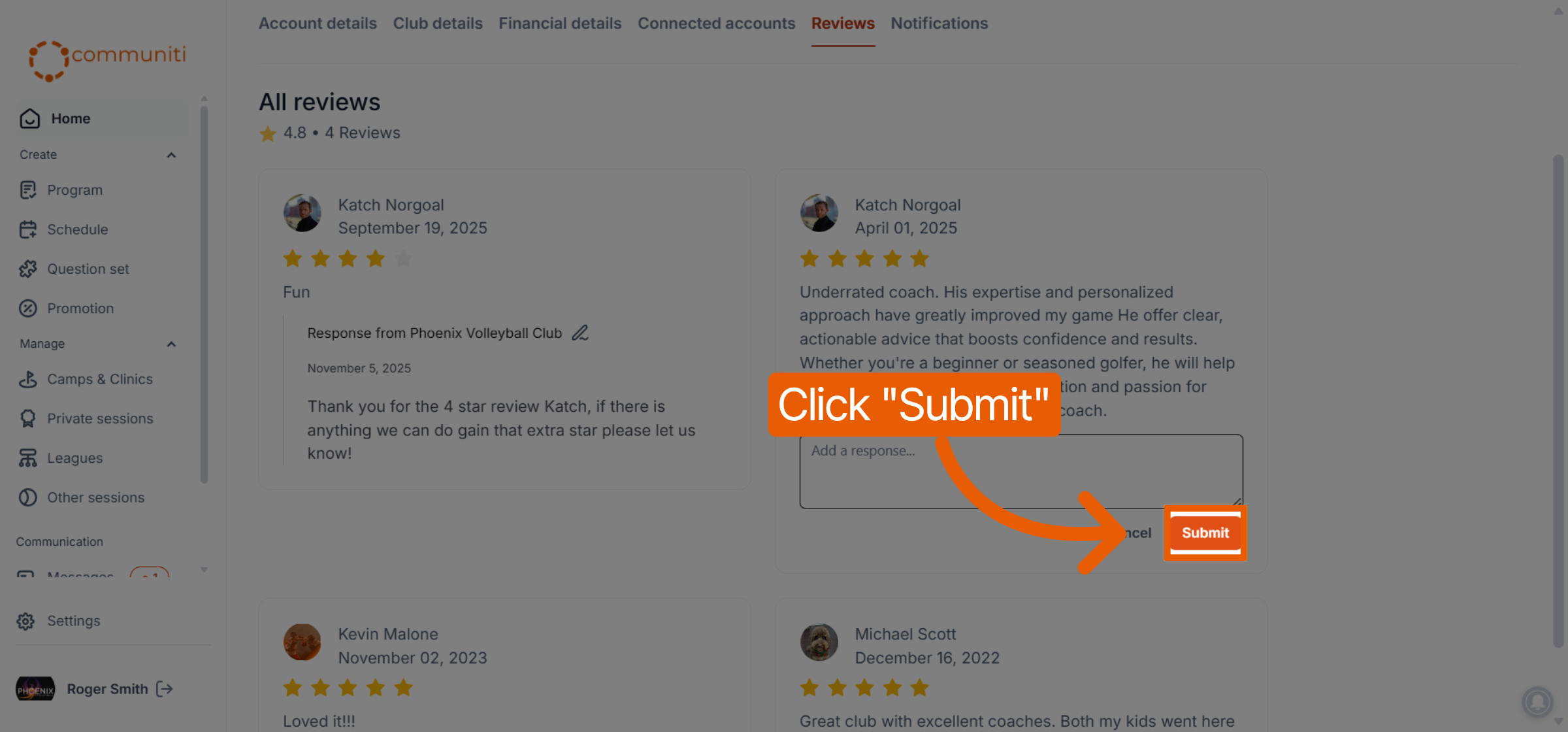
Your response will now be permanently linked to that review.
What happens next?
Your message is immediately published and will be visible to anyone browsing your public booking page. It is displayed in a dedicated box directly beneath the customer’s rating and comments, labeled as a Response from [Your Display Name].
Was this helpful?
Still need help? Ask the team