How to Create and Manage Question Sets
Question sets allow you to collect specific information from your users with customizable registration questions. The same question set can be assigned to multiple programs, or you can choose to create a unique set for each one.
Written By communiti
Last updated 10 months ago
Note: Communiti automatically collects basic information like First Name, Last Name, Gender, Date of Birth, Email, Phone Number and Address by default. Use question sets only for additional data points you need (e.g., medical info, jersey sizes, or skill levels).
1. Start a New Question Set
Access the builder from your main dashboard to begin creating your custom fields.
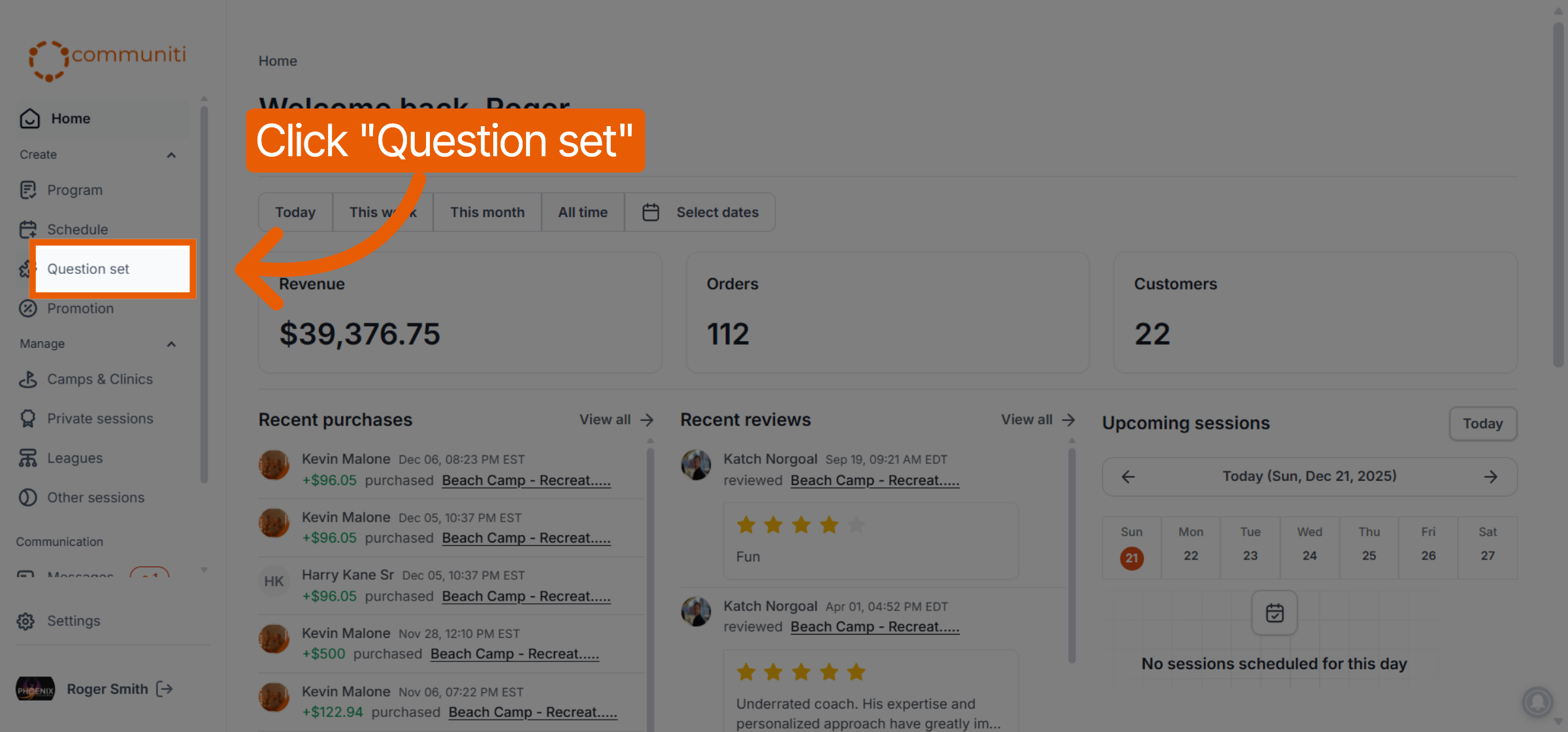
Select Question set from the left sidebar.
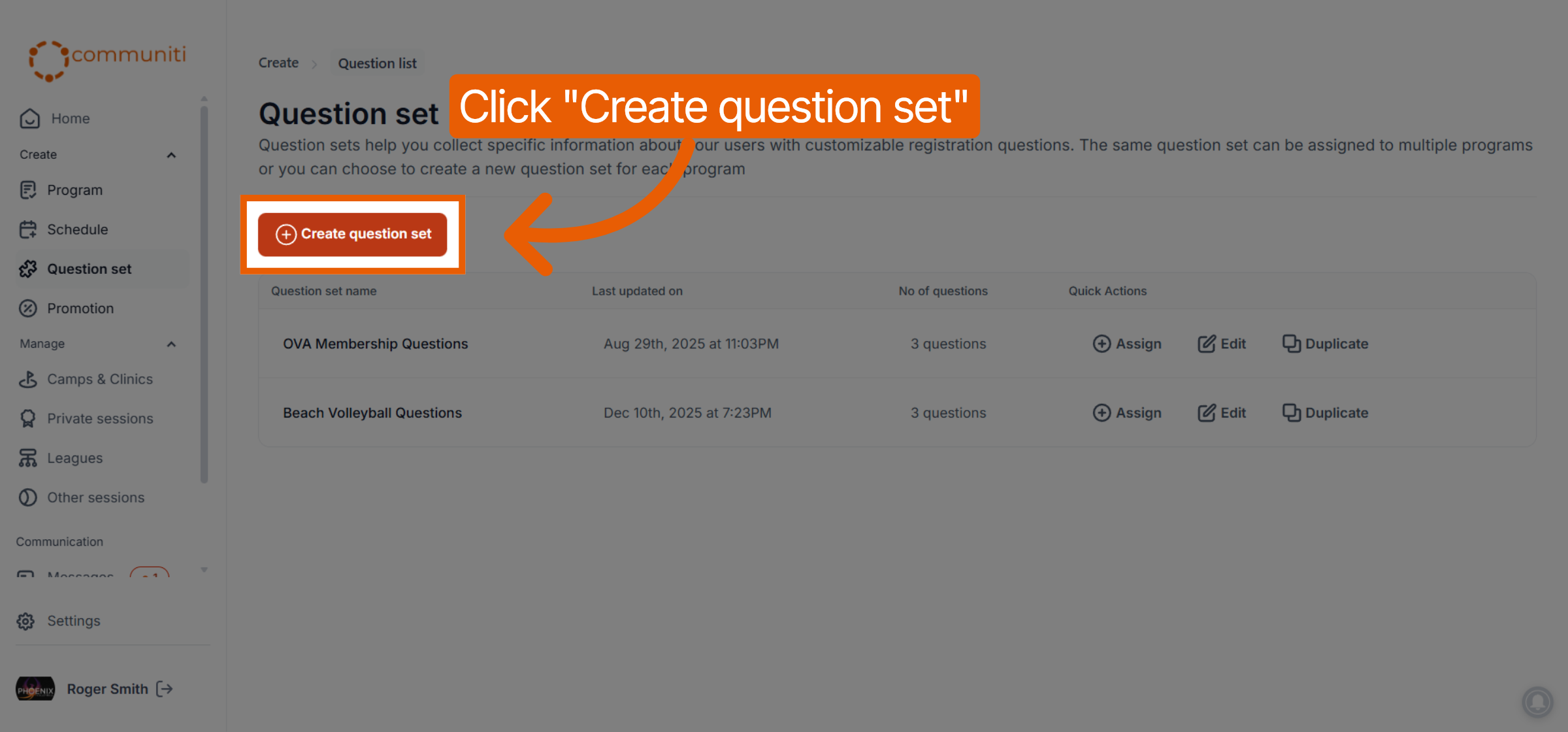
Click the orange Create question set button.
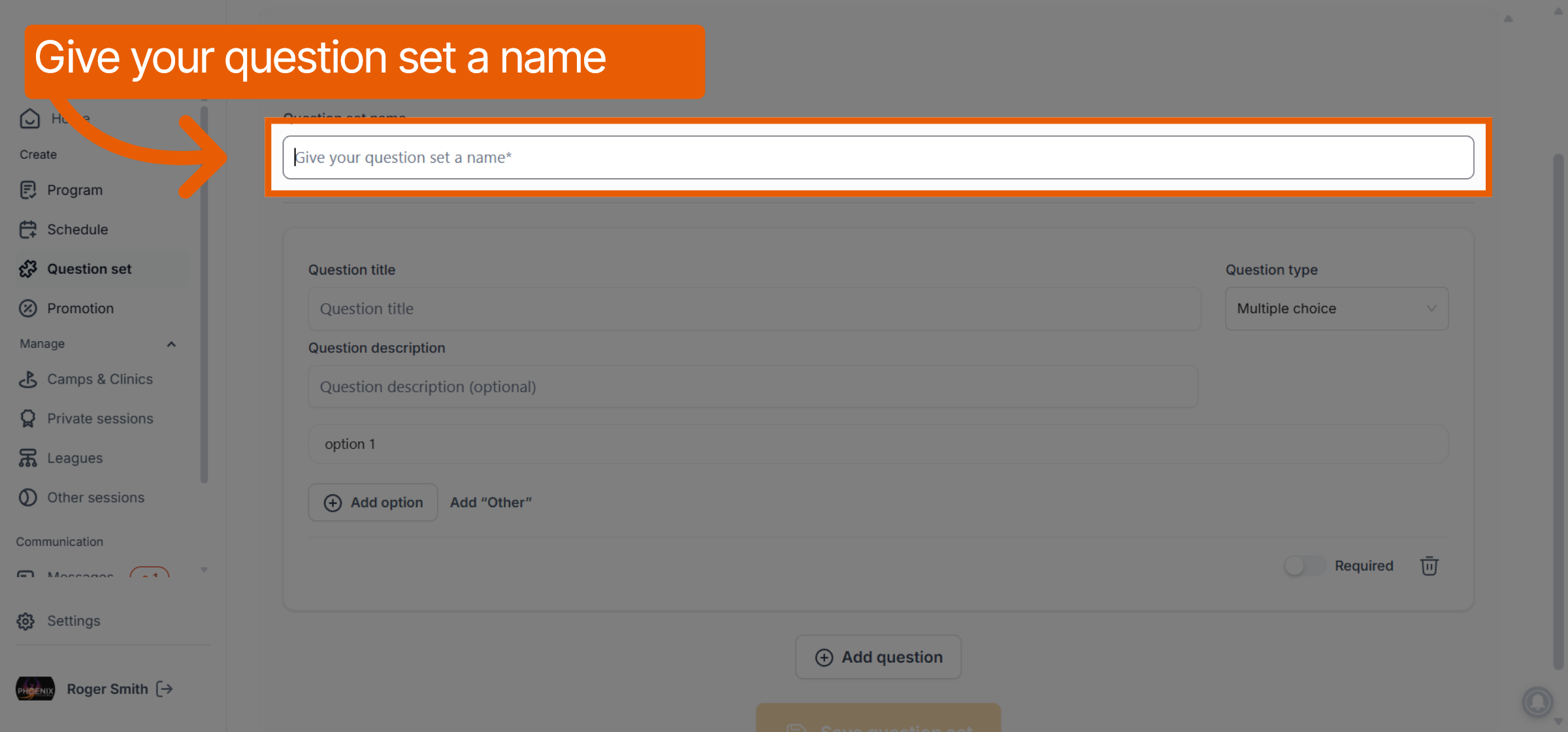
Enter a name for the set in the Question set name field to help you identify it later (e.g., "Medical & Waiver Info").
2. Define Your Questions
Customize how you want to receive information from your participants.
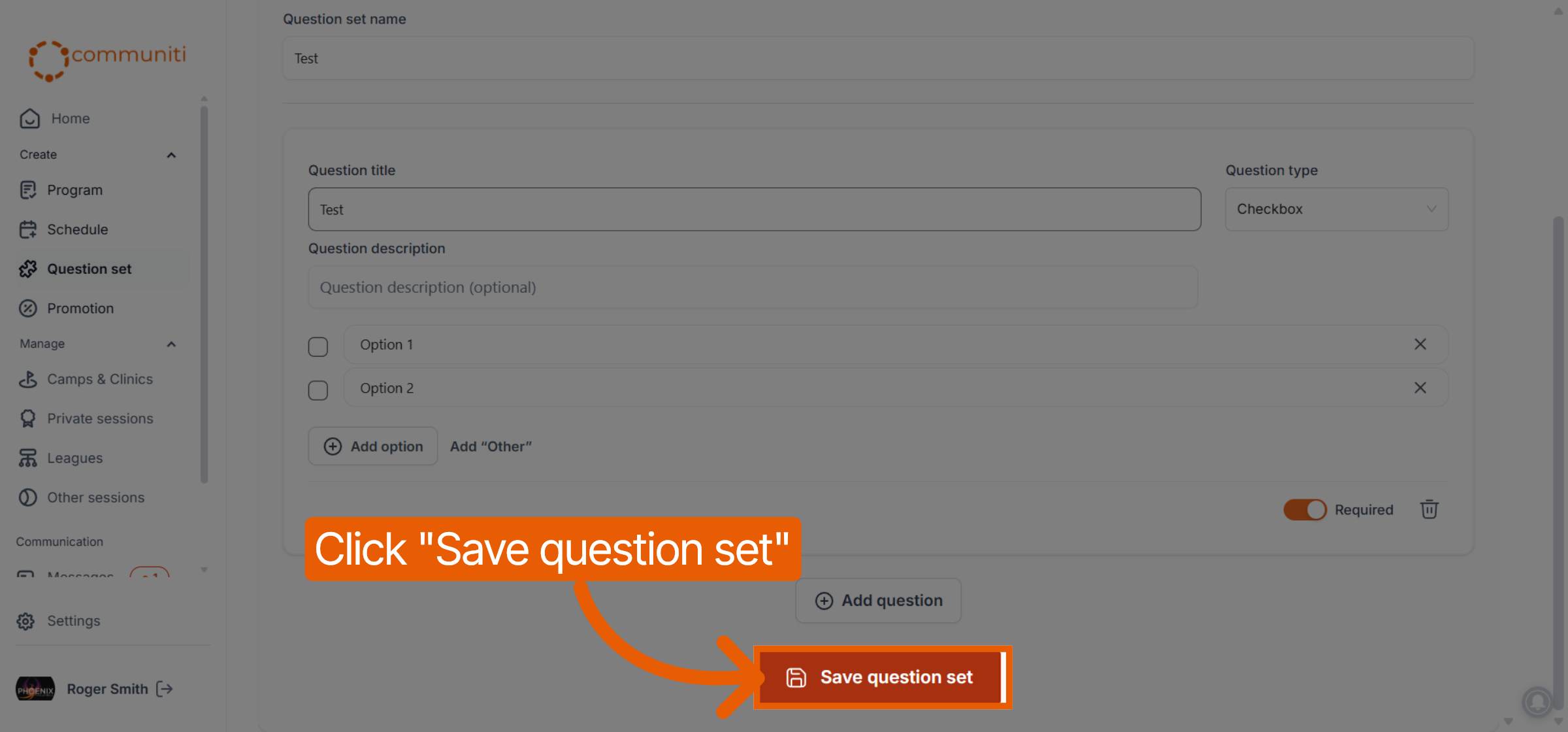
Question Title: Type the specific question you want to ask.
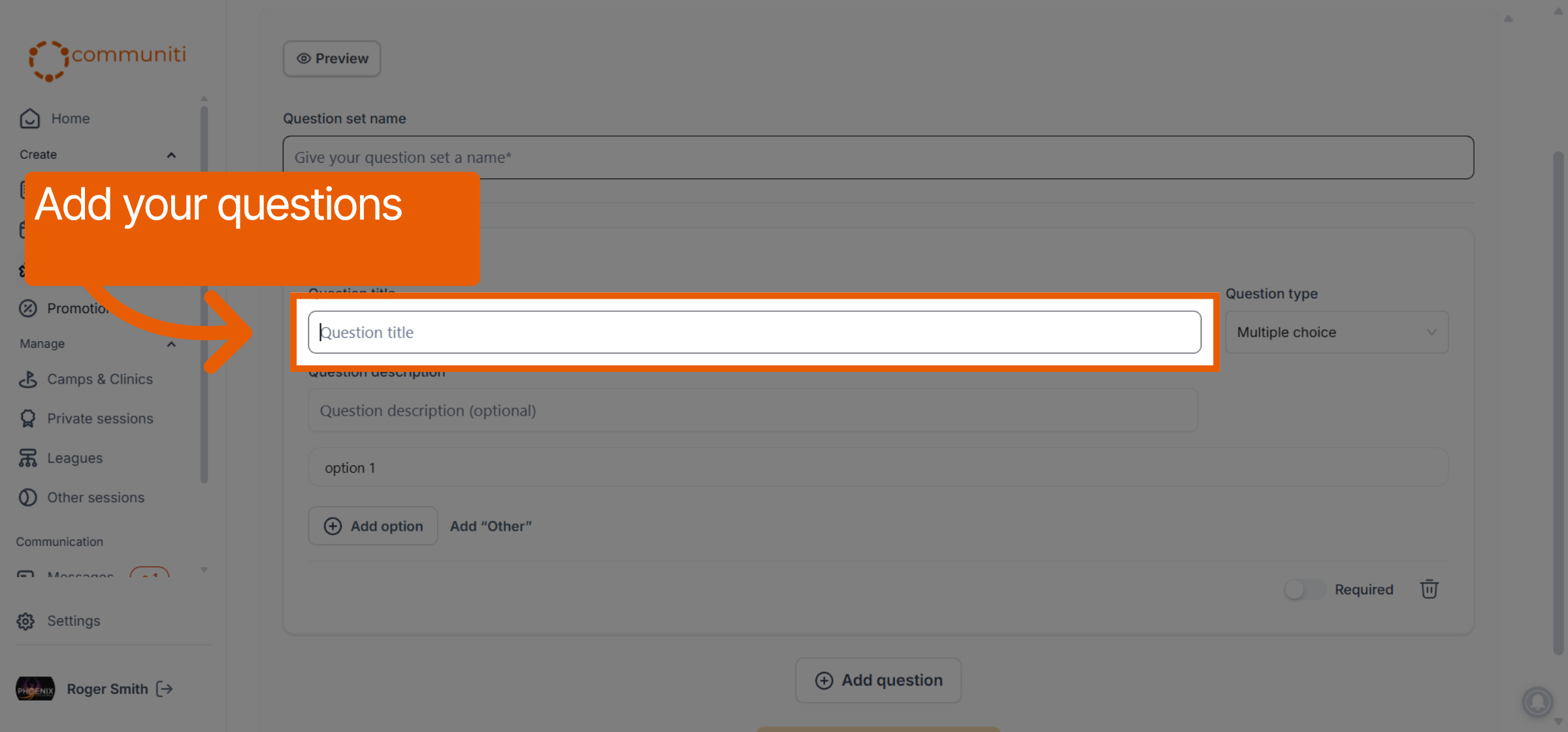
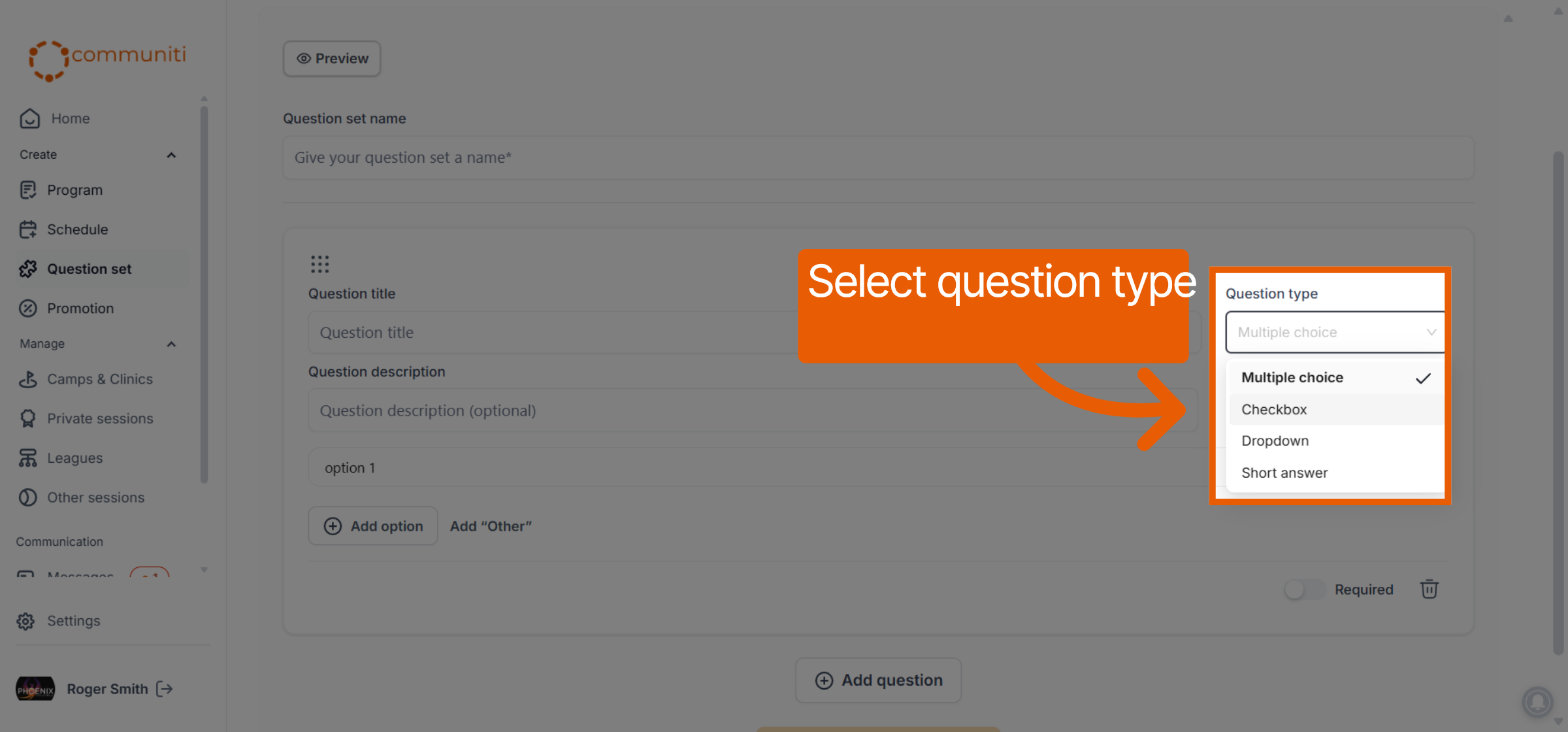
Question Type: Select from the dropdown menu to choose how the user should answer: Multiple choice, Checkbox, Dropdown, or Short answer.
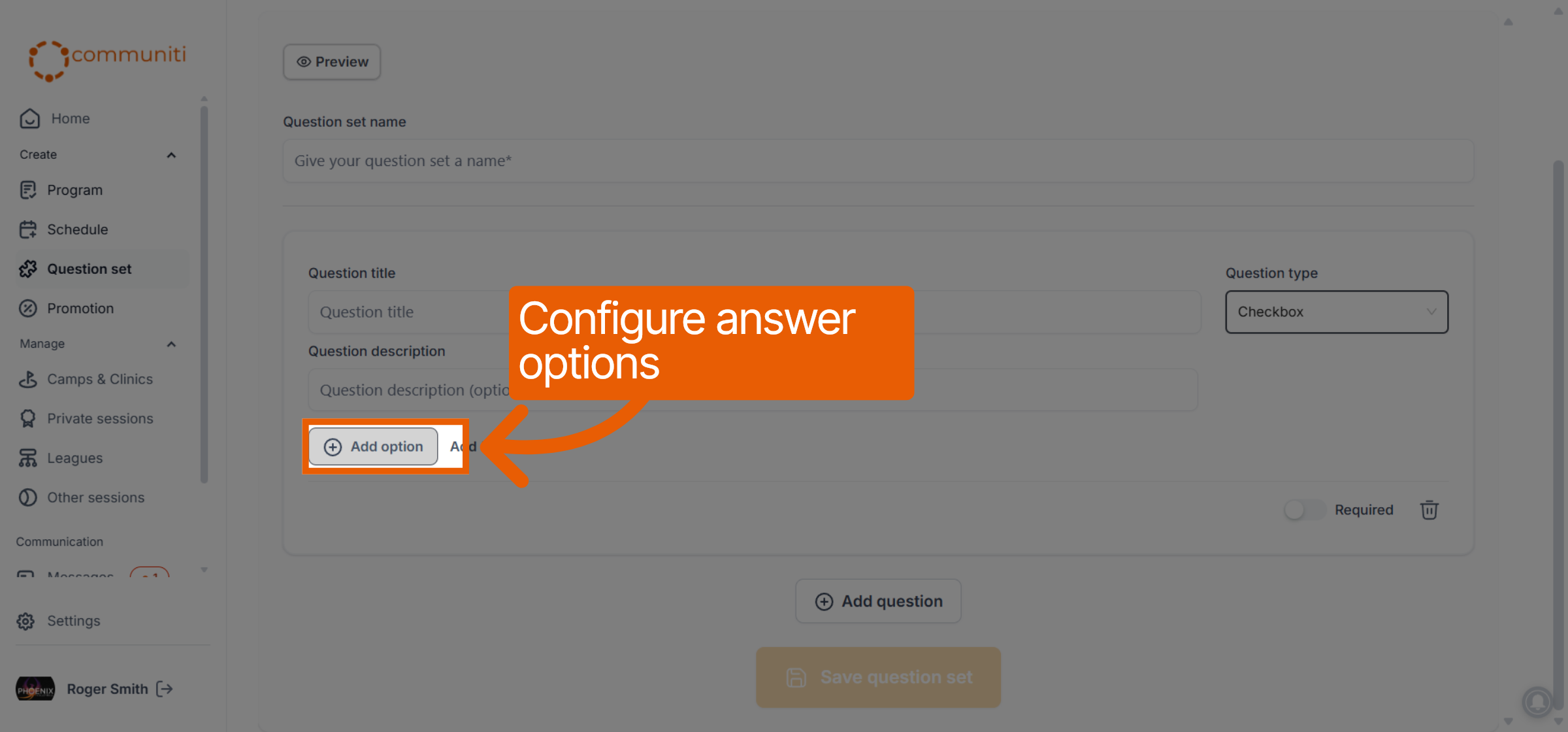
Answer Options: If using multiple choice, checkbox, or dropdown, click Add option to provide choices for the user.
3. Configure Question Settings
Manage the importance and quantity of your questions.
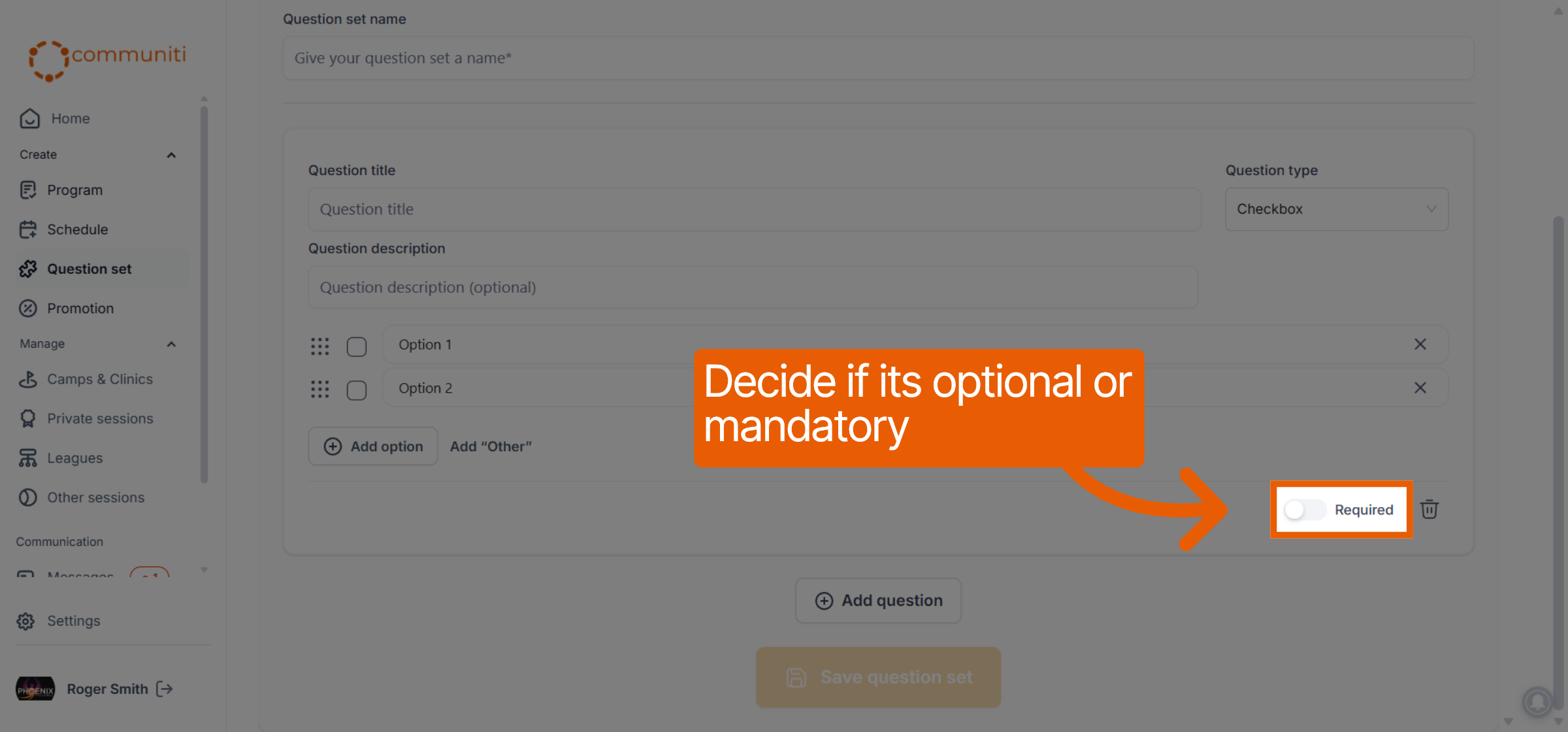
Mandatory vs. Optional: Use the Required toggle to decide if a user must answer this question to complete their registration.
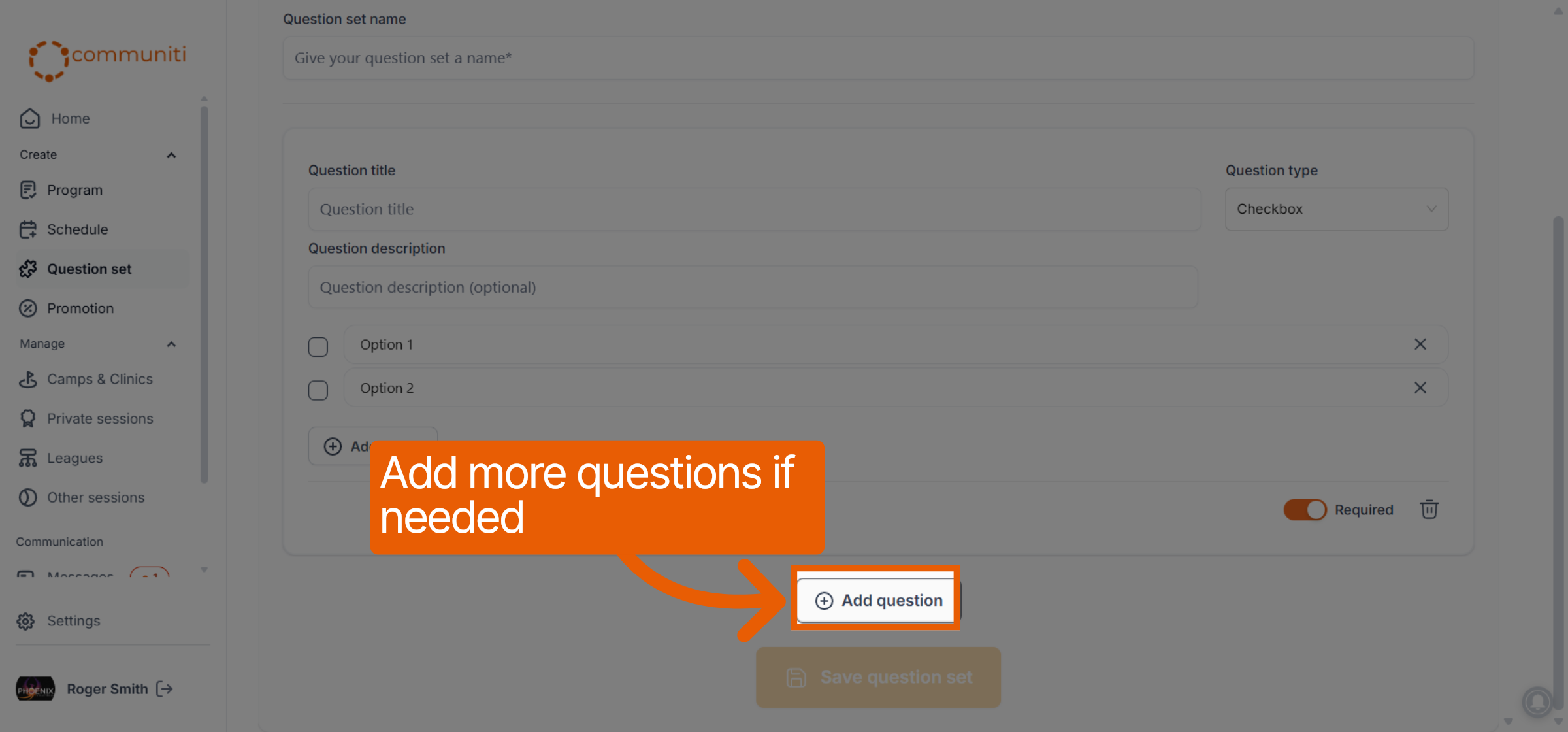
Add More: Click the Add question button at the bottom to add another question to the same set.
4. Save and Finalize
Once you have added all your questions, click the orange Save question set button.
The set will now appear in your list and is ready to be assigned to your programs.
Was this helpful?
Still need help? Ask the team