Customizing Your Profile
Your public profile is the first thing potential participants see. A complete, professional-looking page builds trust and makes it easy for users to understand what your organization offers.
Written By communiti
Last updated 10 months ago
Getting Started
After you successfully create your account, the platform will automatically present a series of pop-up windows to help you finish your setup. If you choose to Skip for now, you can always complete these details later by navigating to Settings and selecting Business Details.
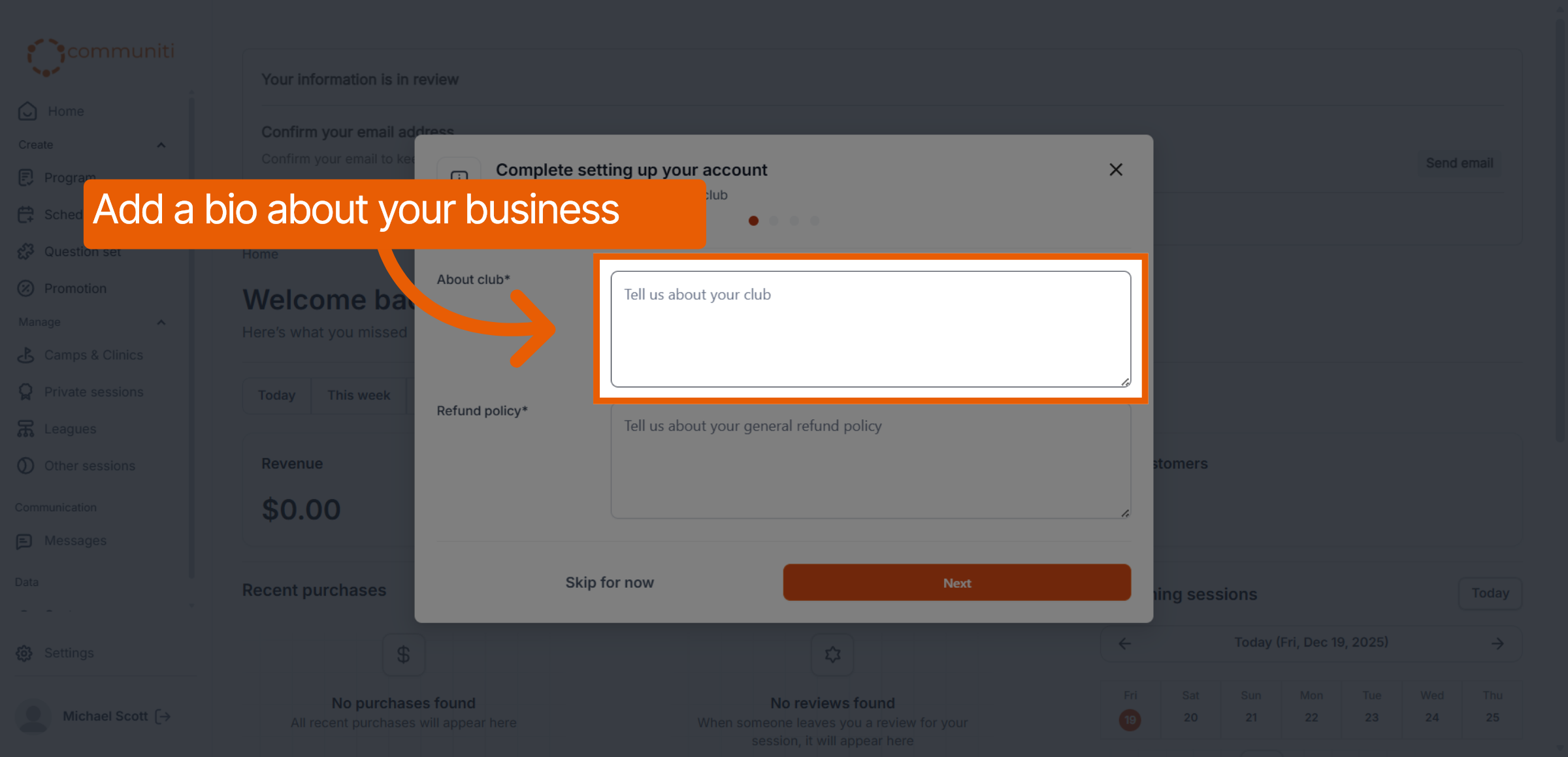
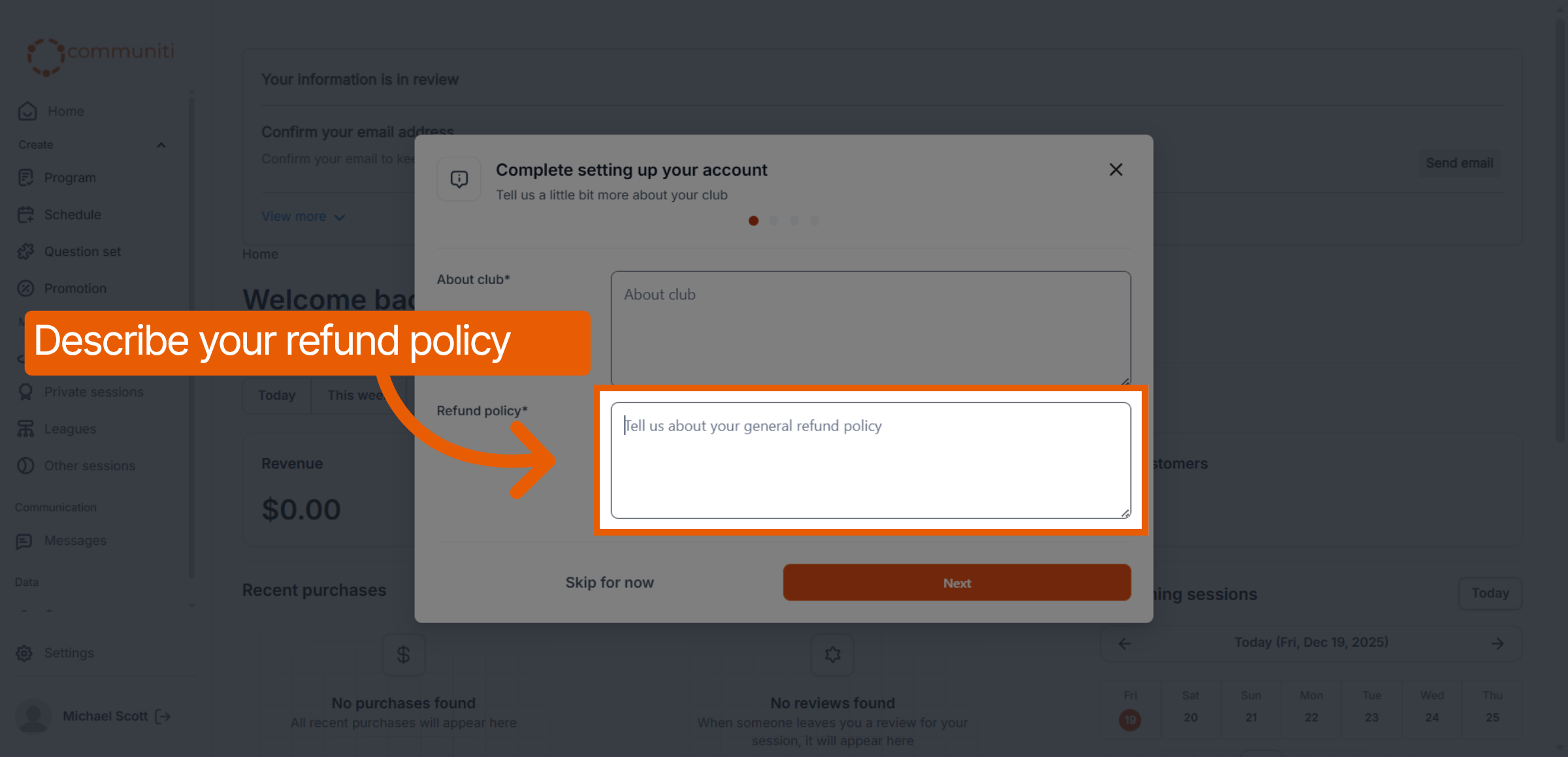
1. Add Your Bio and Refund Policy
Providing clear information upfront reduces the number of questions you'll receive later.
About: Write a compelling description of your organization's history, mission, or coaching philosophy.
Refund policy: Describe your general refund policy so users know what to expect before they book.
Click Next.
2. Select Your Attributes
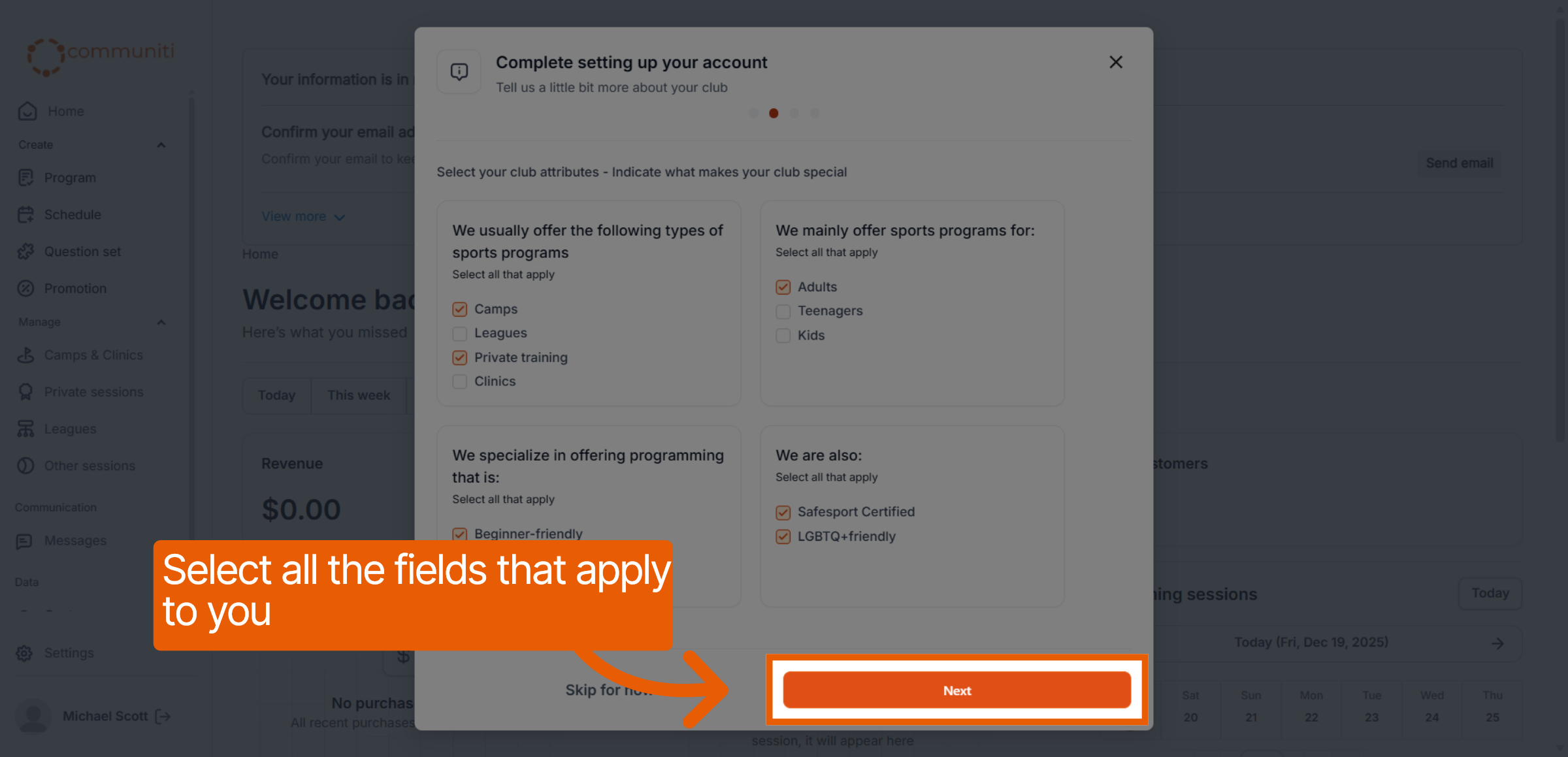
Tell users what makes your business special. This helps users filter and find programs that are the right fit for them.
Select the types of programs you typically offer (e.g., Camps, Leagues, Private Training).
Indicate your primary audience, such as Adults, Teenagers, or Kids.
Check any special certifications or community attributes, like being Safesport Certified or LGBTQ+ friendly.
Click Next to proceed.
3. Choose Your Booking Page Handle
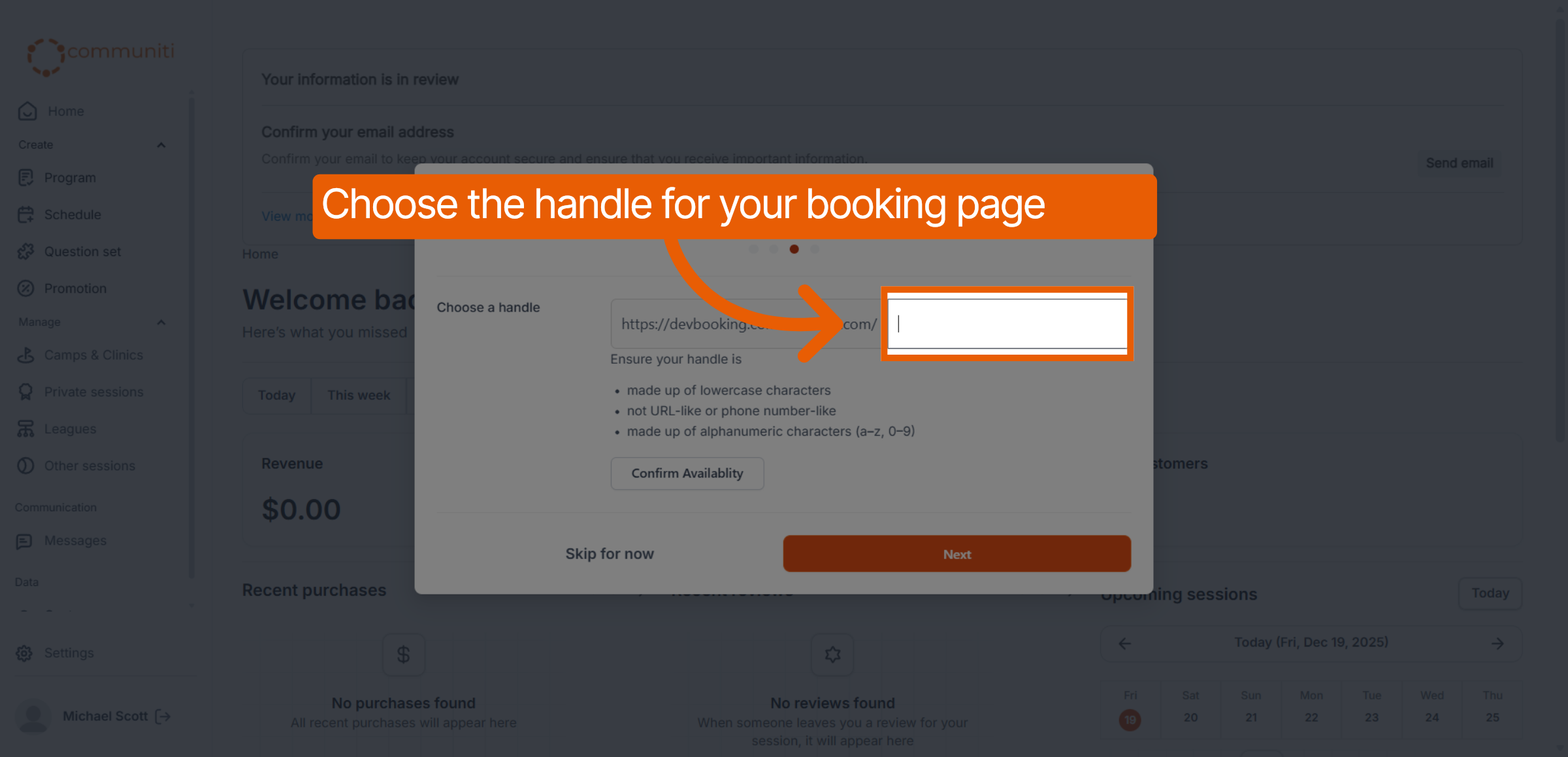
Your "handle" creates a unique, direct URL that you can share on social media or in emails.
Enter a simple, recognizable handle for your booking page.
Ensure your handle uses only lowercase alphanumeric characters (a-z, 0-9) and is not formatted like a phone number or a full URL.
Click Confirm Availability to secure your unique link.
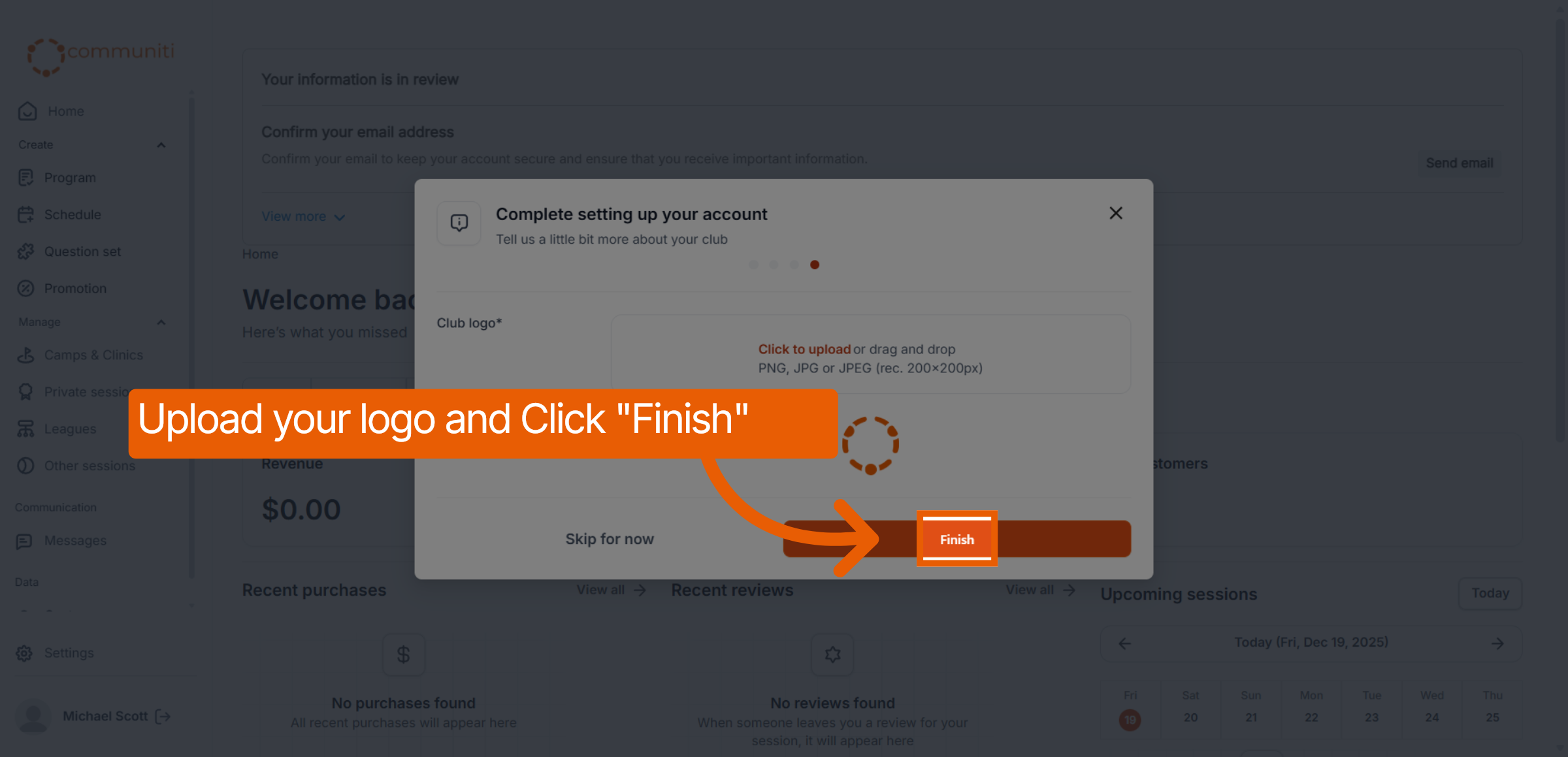
4. Upload Your Logo
Branding is key to a professional profile.
Click to upload or drag and drop your organization's logo (recommended size: 200x200px).
Supported file formats include PNG, JPG, or JPEG.
Click Finish once your logo is uploaded.
Was this helpful?
Still need help? Ask the team