The "Go-Live" Registration Checklist
Before you share your links with parents and athletes, perform this quick 60-second sanity check to ensure a smooth registration experience and guaranteed payouts.
Written By communiti
Last updated 10 months ago
1. Verify Your Payout Status
Communiti partners with Stripe to ensure secure financial services. It is critical to ensure your account is fully verified so payouts can be deposited into your bank account.
Check for Alerts: Look at your Communiti homepage/dashboard; if there are any pending items or verification requirements, an alert banner will be visible there.
Stripe Dashboard: Log in to your Stripe dashboard to confirm there are no banners asking for additional information, such as ID verification or business documents.
Ready to Receive: If your homepage and Stripe dashboard are clear of alerts, you are officially ready to receive payments.
2. Review Your Business Branding
A complete profile builds trust with your community. Make sure your public-facing page looks professional before sending it out.
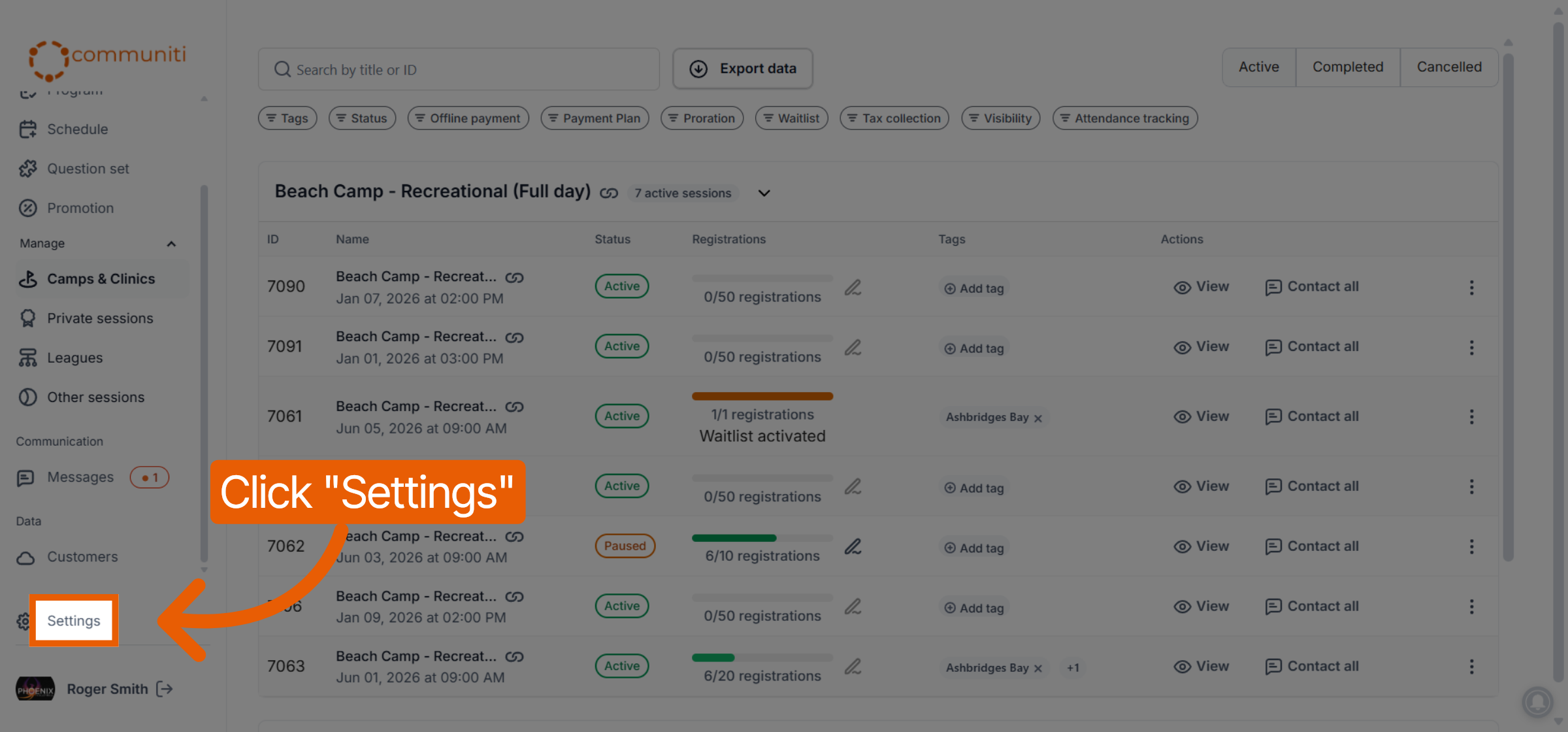
Navigate to Settings: Click on the Settings icon in the bottom-left sidebar.
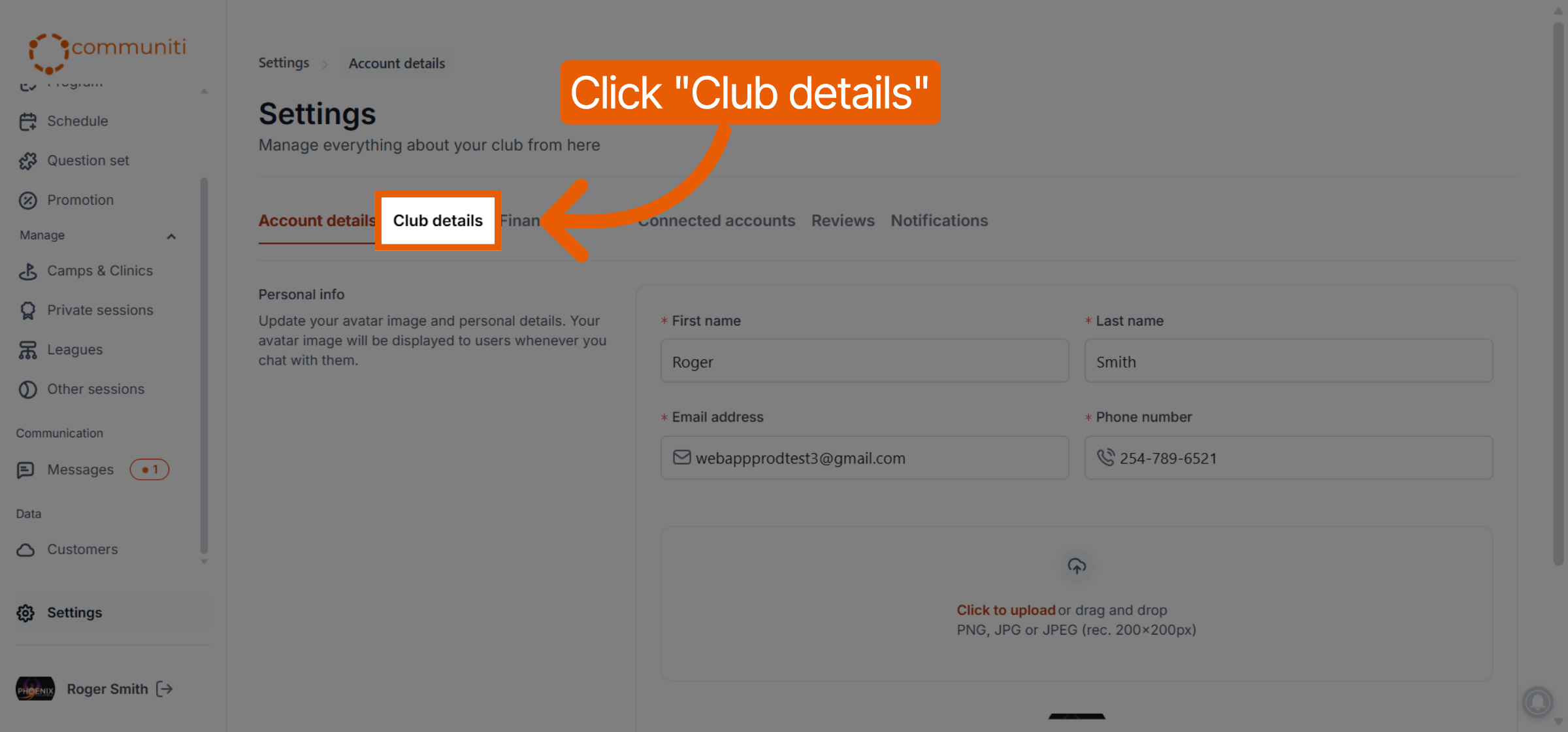
Update Details: Click on Business Details (labeled as "Club details" in some views) to review your information.
Check Content: Ensure your About bio, Refund Policy, and Logo are all uploaded and accurate.
Confirm Handle: Verify that your unique Booking Page Handle is set to a recognizable name for your organization.
3. Audit Your Session Details
Review the specific settings for the session you are about to launch to ensure everything is linked correctly.
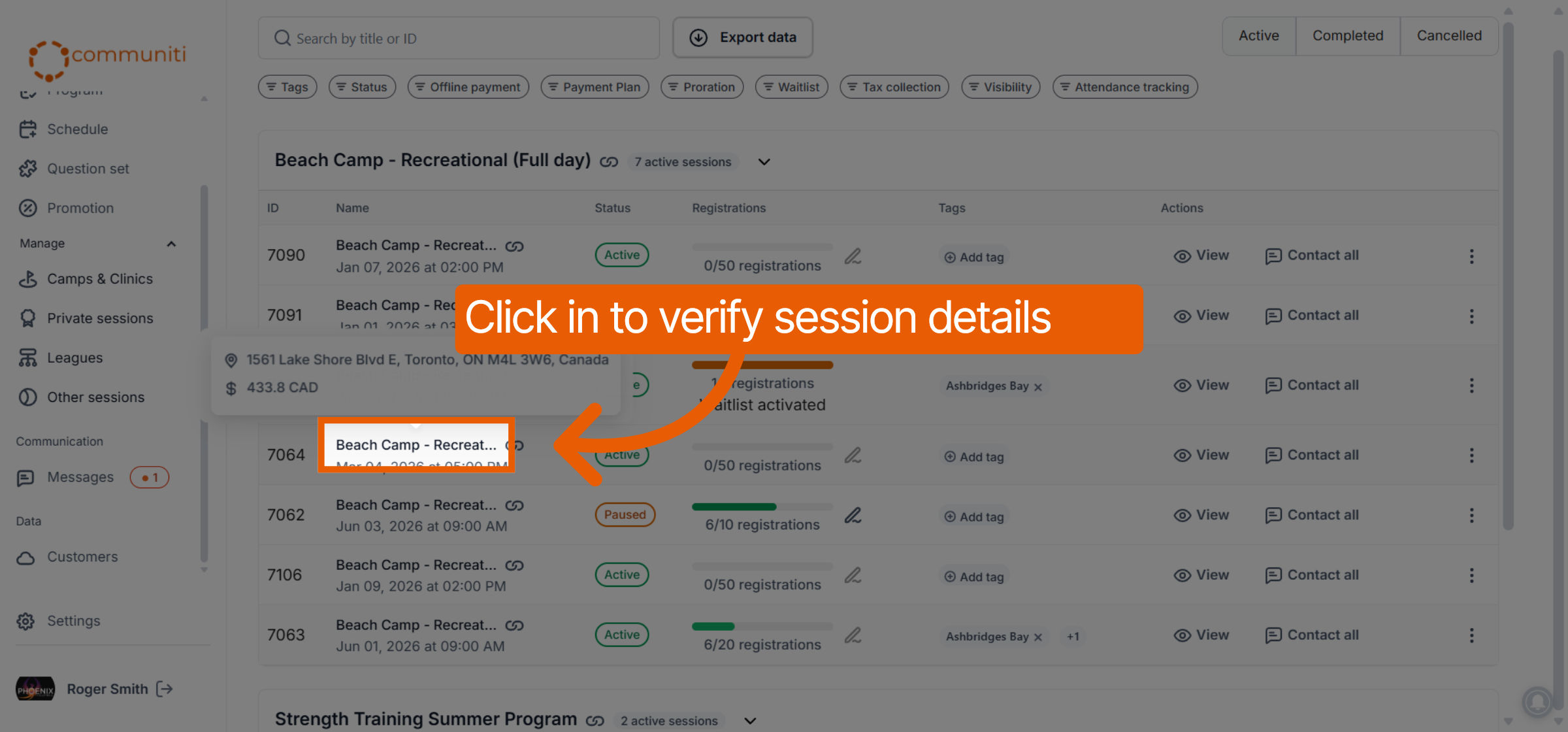
Manage Your Session: Go to your session list under the Manage section (e.g., Camps & Clinics).
Overview Check: Click into the specific session and review the Overview section.
Feature Verification: Confirm that your Question Sets, Promotions, Waitlists, and Attendance Tracking settings are correctly enabled and linked.
4. Test the User Experience
The best way to ensure a smooth registration is to view the process exactly as your users will.
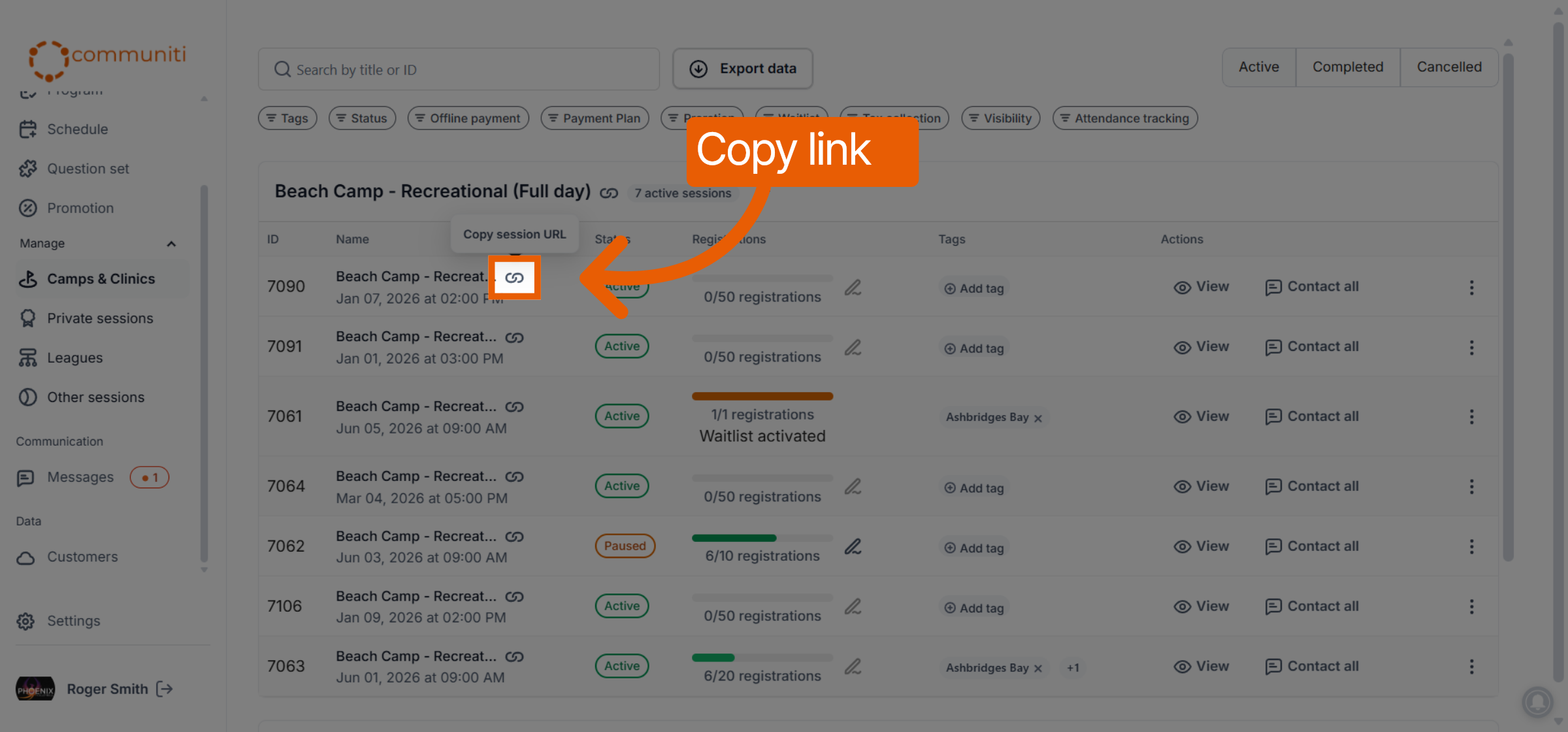
Copy Your Link: Click the Link icon next to your session to copy the registration URL.
Use Incognito Mode: Open a Private or Incognito window in your browser.
Review the Page: Paste the link to see your live registration page.
Walkthrough: Click through the first few steps to verify that your waivers and custom questions appear exactly as intended.
Was this helpful?
Still need help? Ask the team