How to Contact All Participants in a Session
You can communicate with everyone registered for a session simultaneously using either the automatic group chat or a group email.
Written By communiti
Last updated 10 months ago
. Locate the Session
To contact your entire group at once, start by finding the specific session in your management list.
Select the Manage menu in the left sidebar and choose your program category (e.g., Camps & Clinics).
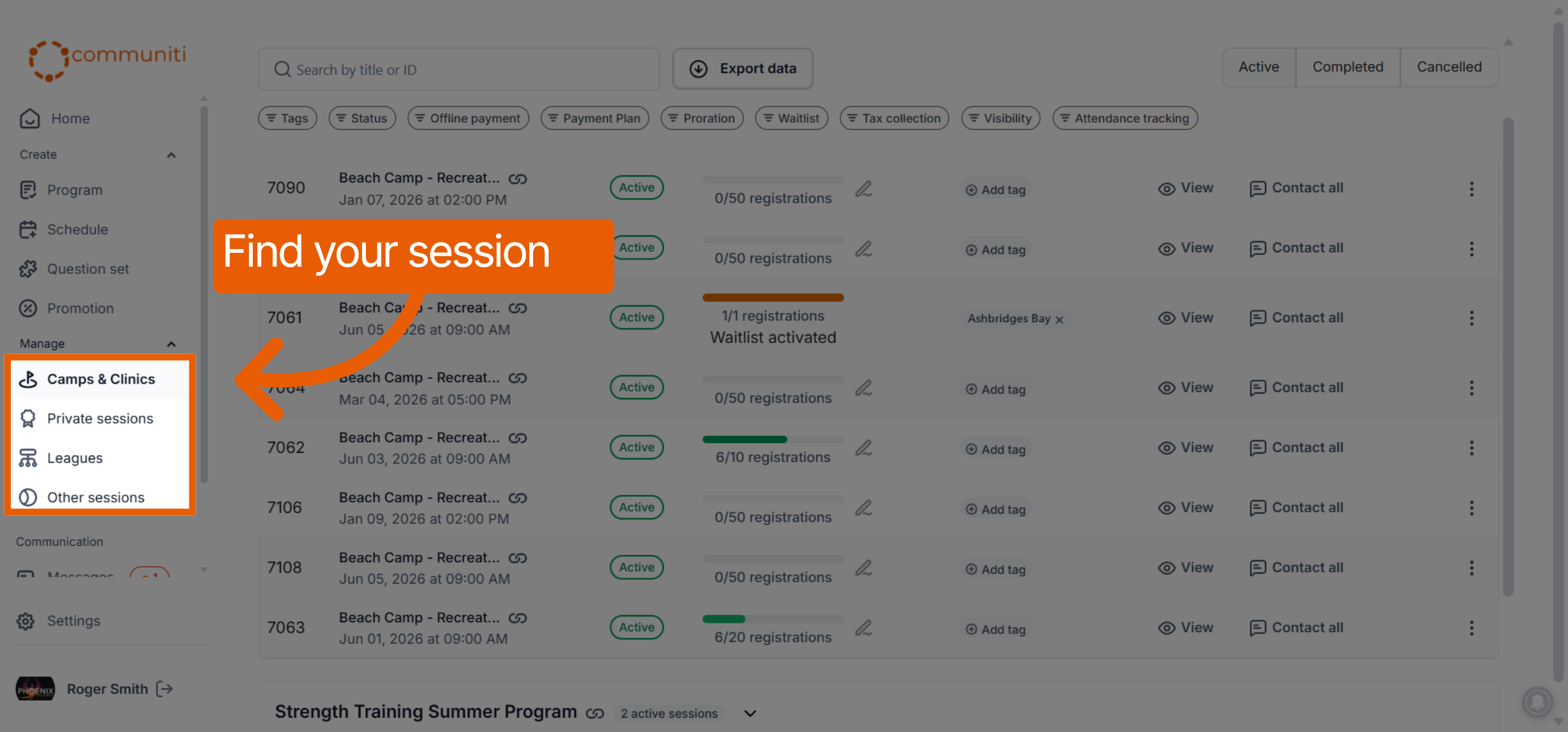
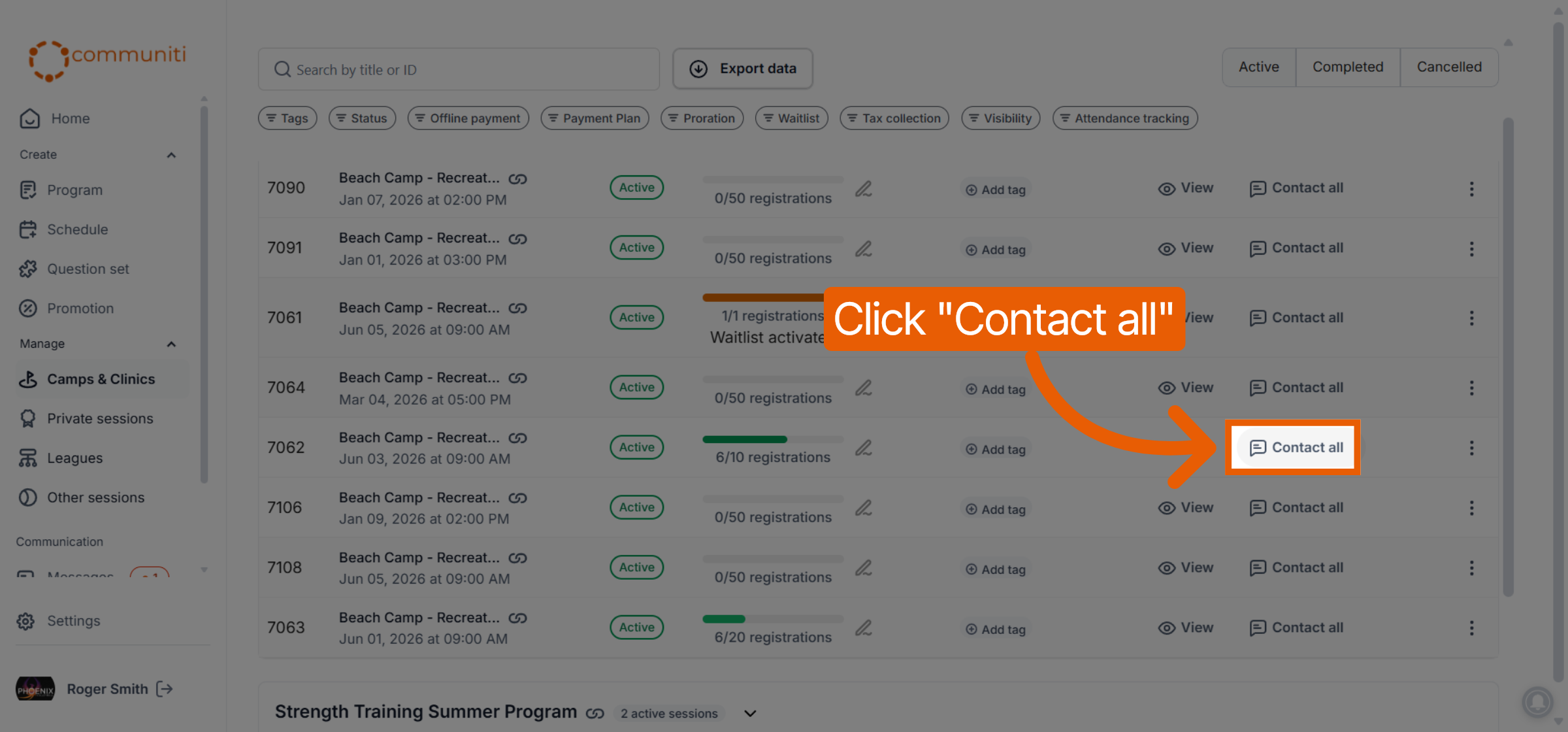
Locate the session you wish to contact and click the Contact all button in its row.
2. Use the Automatic Group Chat
The platform automatically maintains a group chat for every session, adding participants as soon as they purchase a spot.
Click the Message tab in the contact pop-up to access the session's group chat.
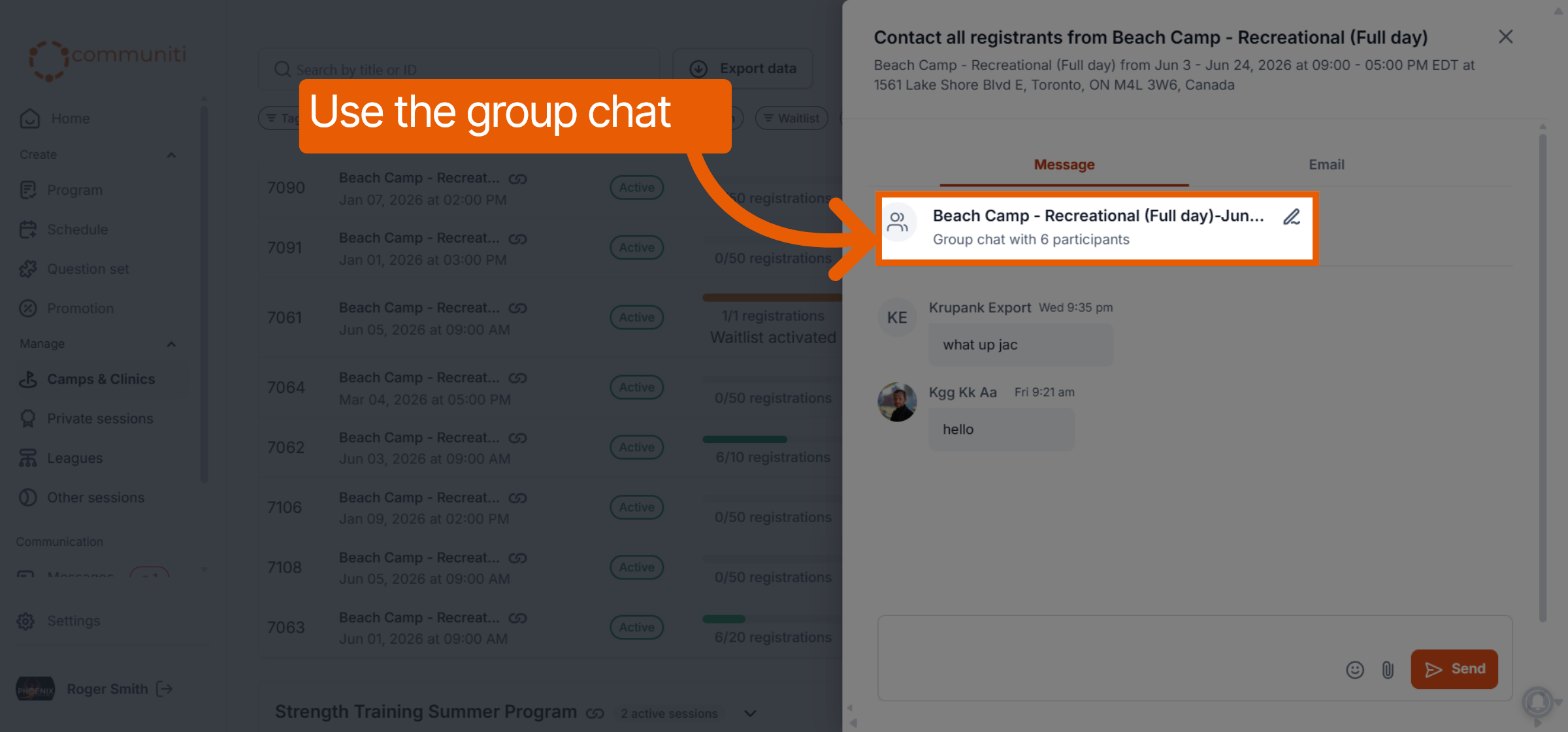
Type your note and send it; every participant will see the message in their internal chat.
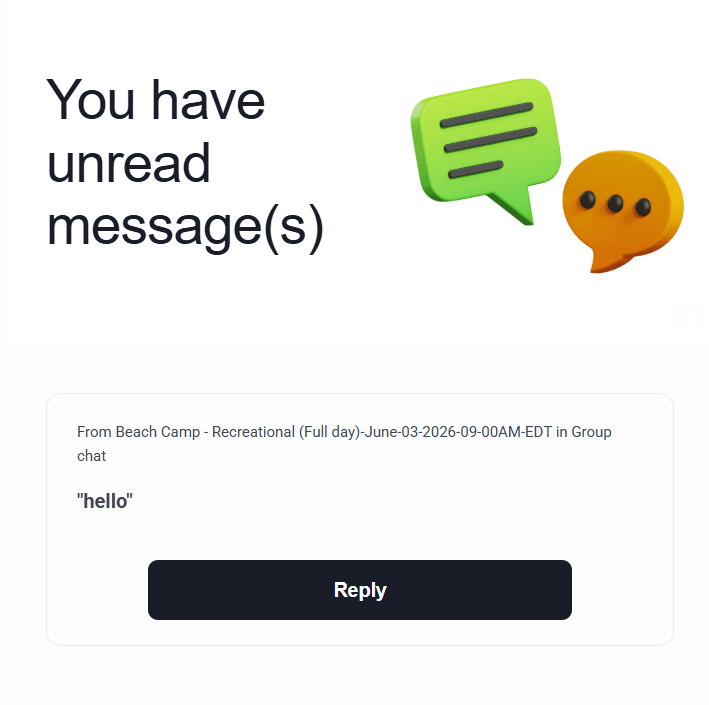
To ensure no one misses an update, users receive an unread message notification email if they have not seen your chat message after a certain period.
3. Send a Group Email
If you prefer traditional delivery, you can send an email that reaches every participant's personal inbox individually.
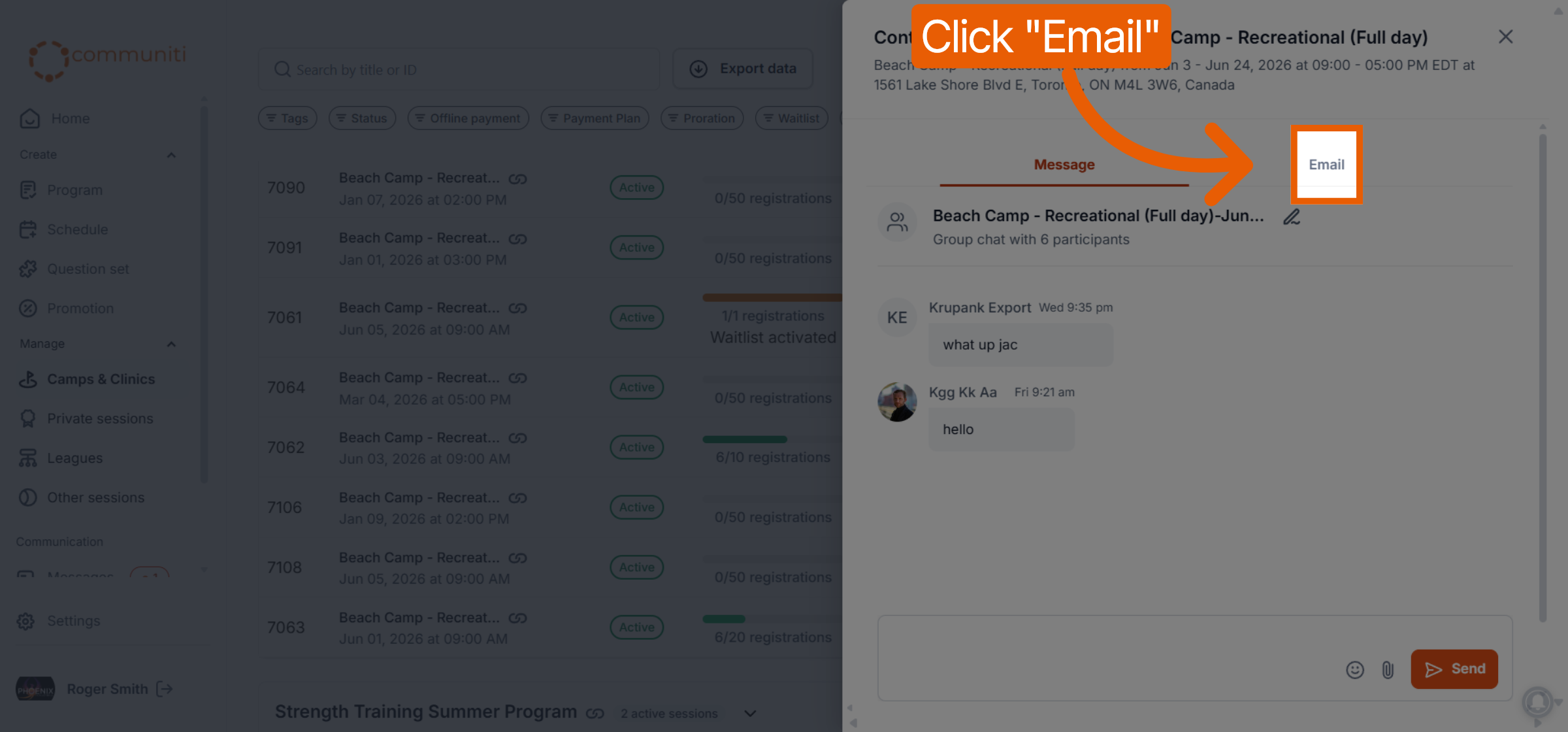
Click the Email tab at the top of the contact window.
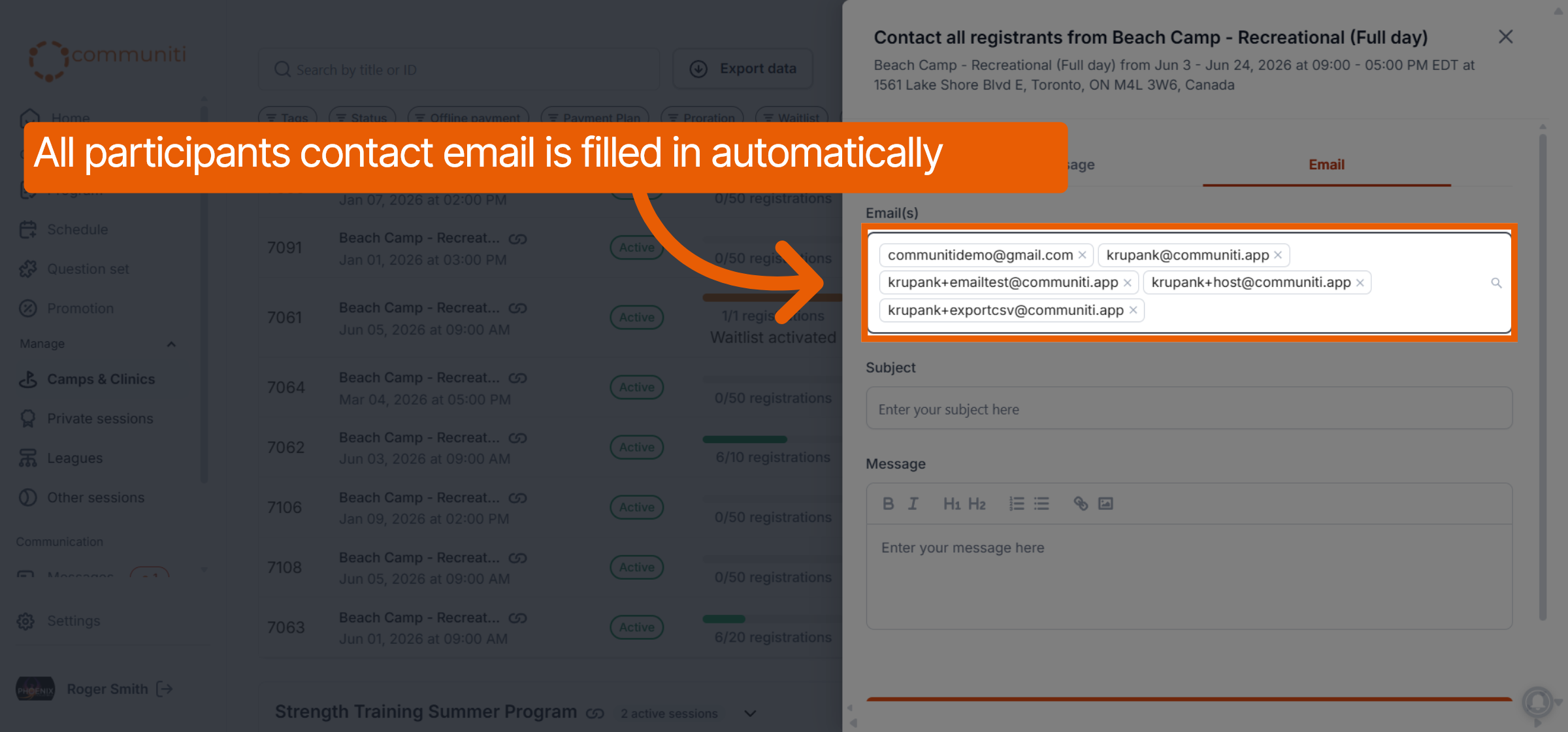
All registered email addresses for that session are automatically populated in the recipient field.
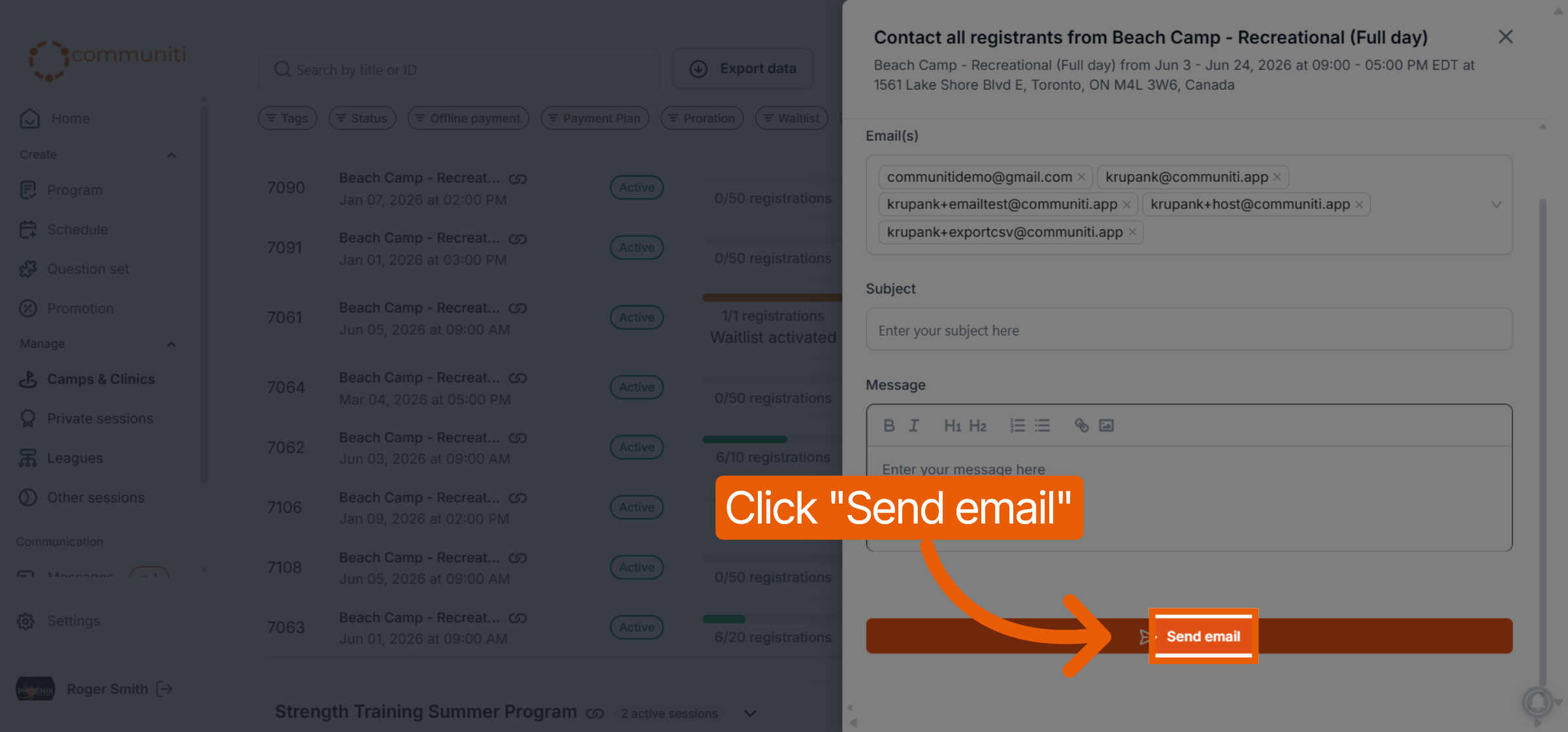
Compose your message and click Send email to deliver it to each person individually.
For your records and tracking, a copy of the group email is automatically sent to your own inbox as well.
Was this helpful?
Still need help? Ask the team