Launch Your First Program in Under 5 Minutes
Go from account creation to accepting registrations in just 5 minutes. This guide focuses on the bare essentials needed to get your program live immediately.
Written By communiti
Last updated 10 months ago
1. Create Your Program Template
The "Program" acts as your master template, containing the name and general description of your offering.
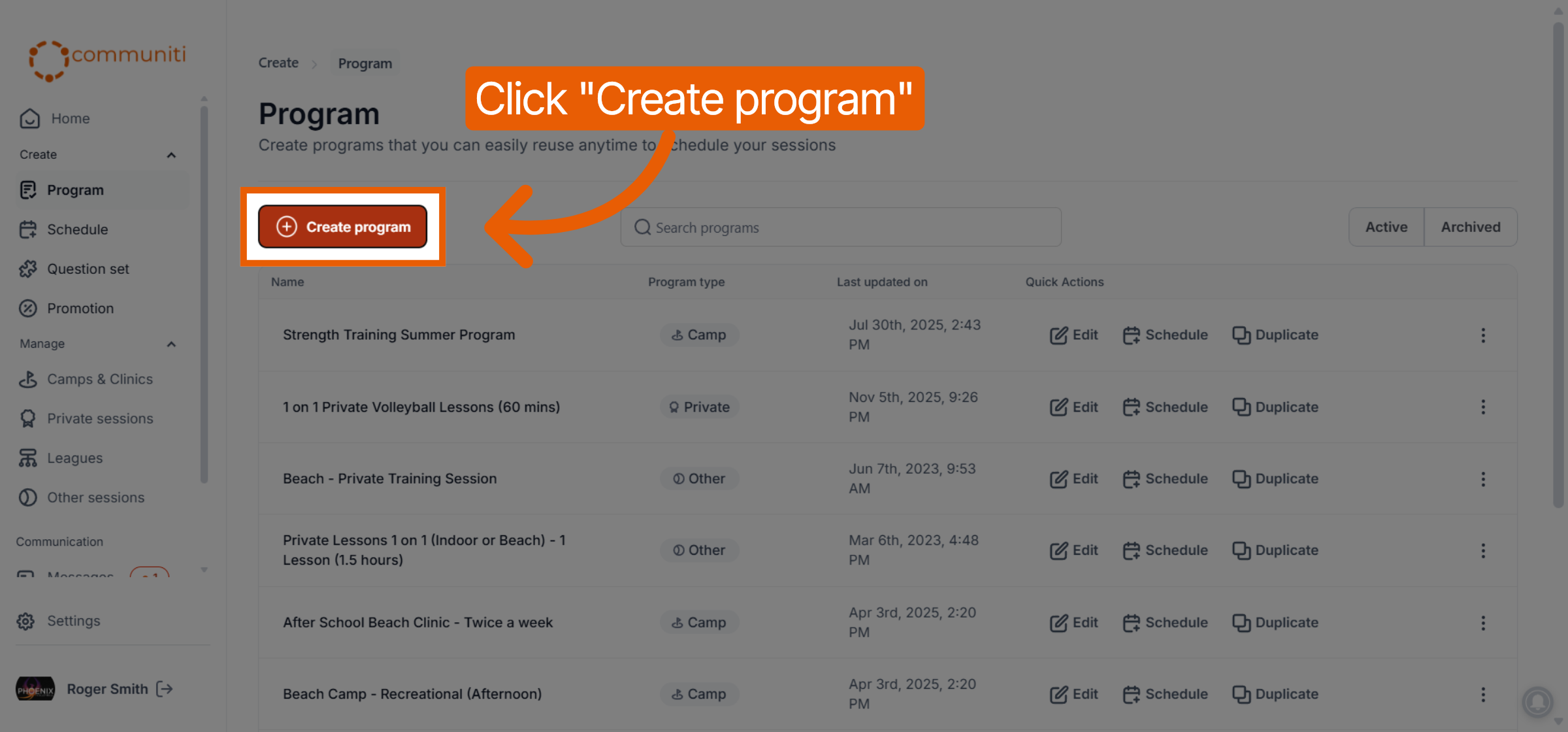
Navigate to Program in the left sidebar and click the Create program button.
Select your Program type (e.g., Camps, Clinic, or League).
Enter your Program name and add any required description or legal clauses.
Click Save program to finish the template.
2. Set Up Questions and Promotions (Optional)
Before scheduling, you can set up custom forms and discount codes to apply to your session.
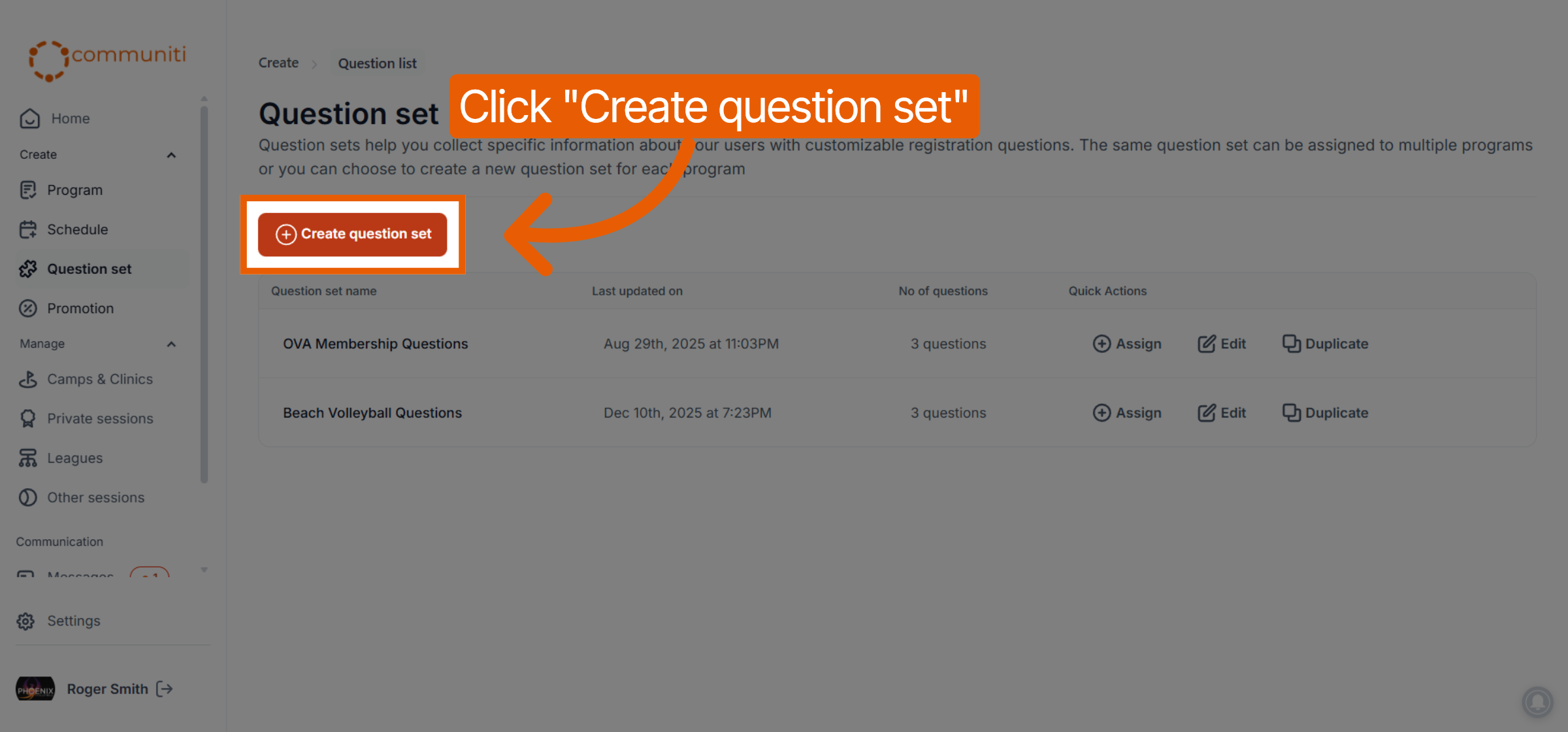
Question Sets: Navigate to Question set and click Create question set to build custom registration forms.
Note: Communiti automatically collects basic information like names, emails, and phone numbers by default.
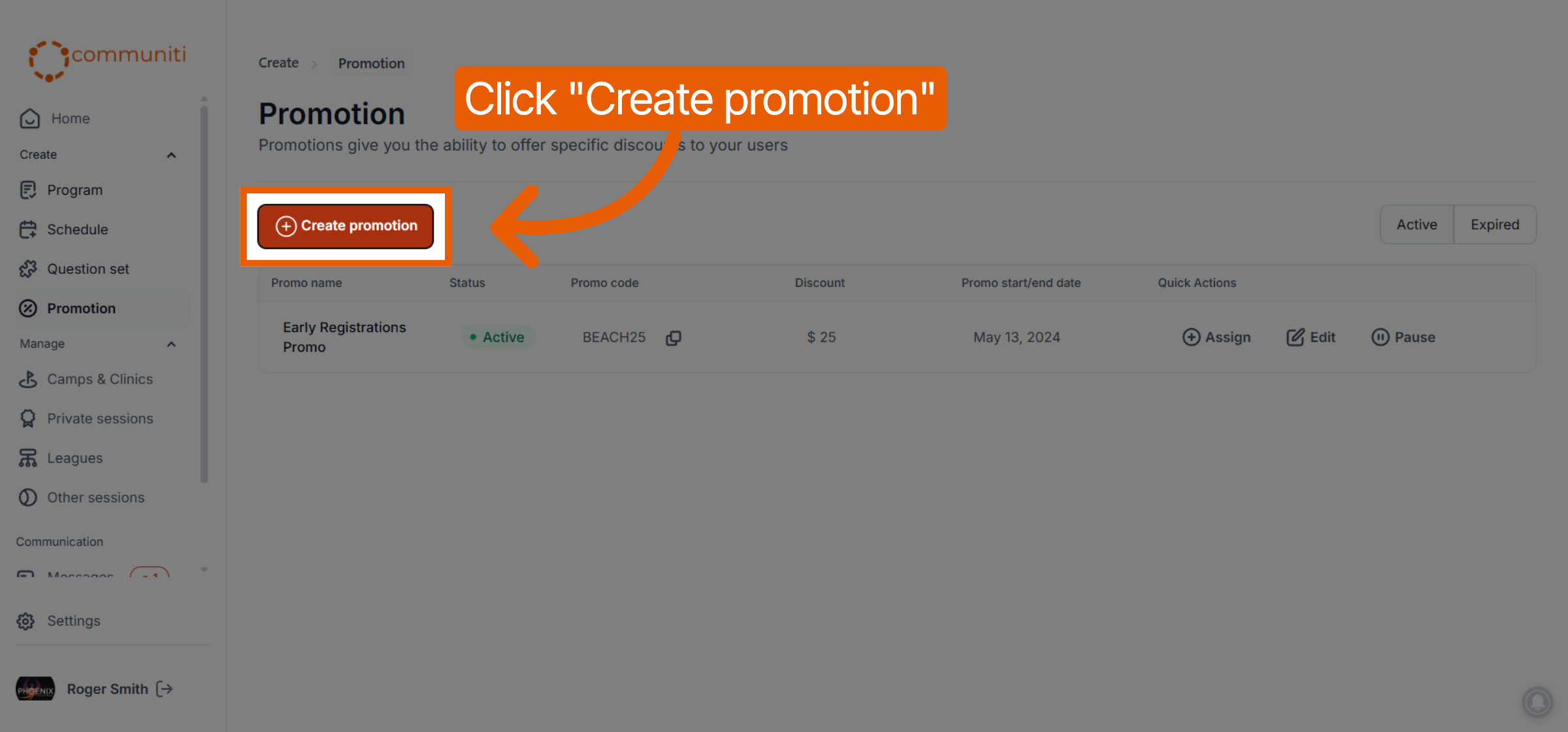
Promotions: Navigate to Promotion and click Create promotion to set up specific discount codes for your users.
3. Schedule Your Session
The Session is the actual event on your calendar where you set the specific dates, times, and price.
Navigate to Schedule in the sidebar and click Add a session.
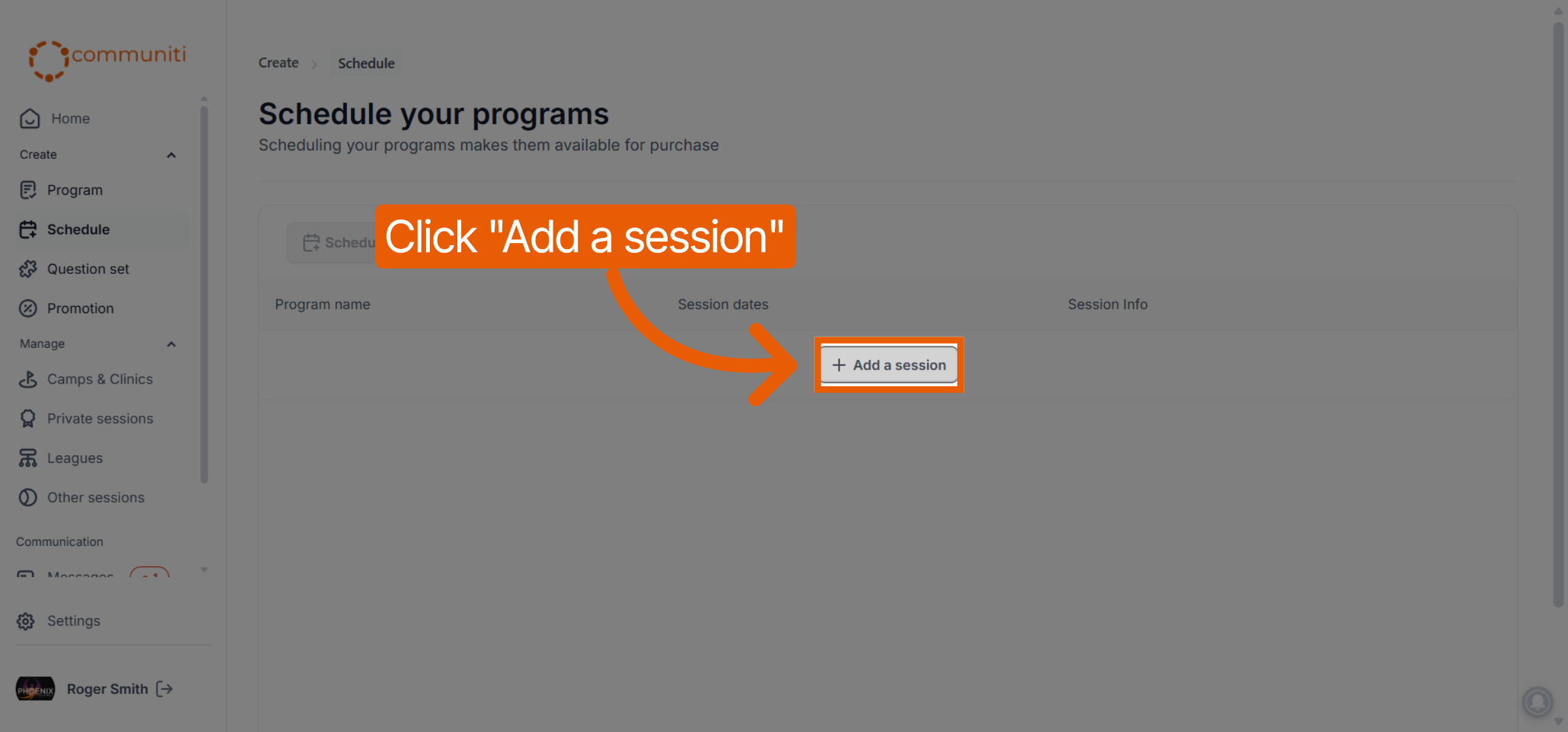
Select the Program template you created in Step 1.
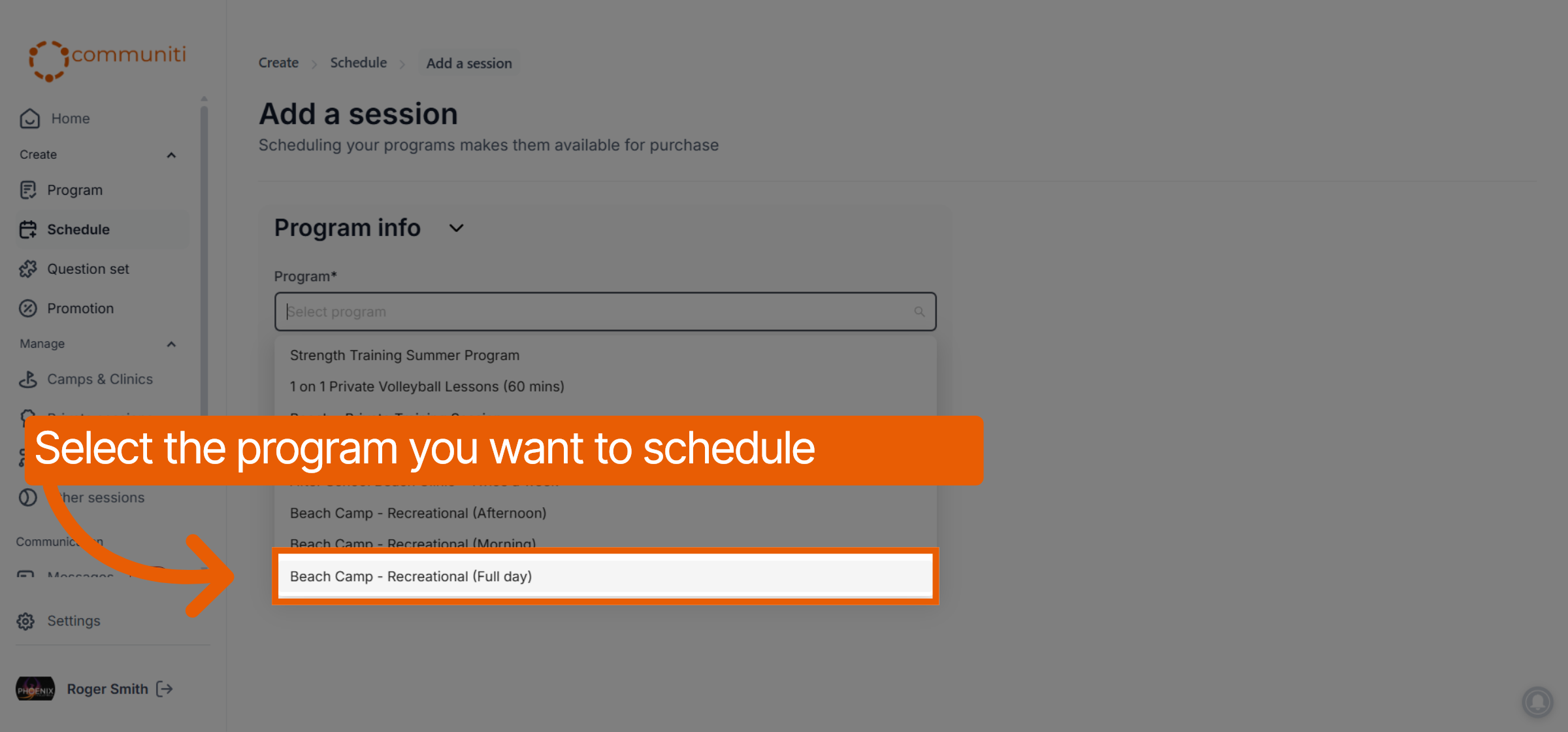
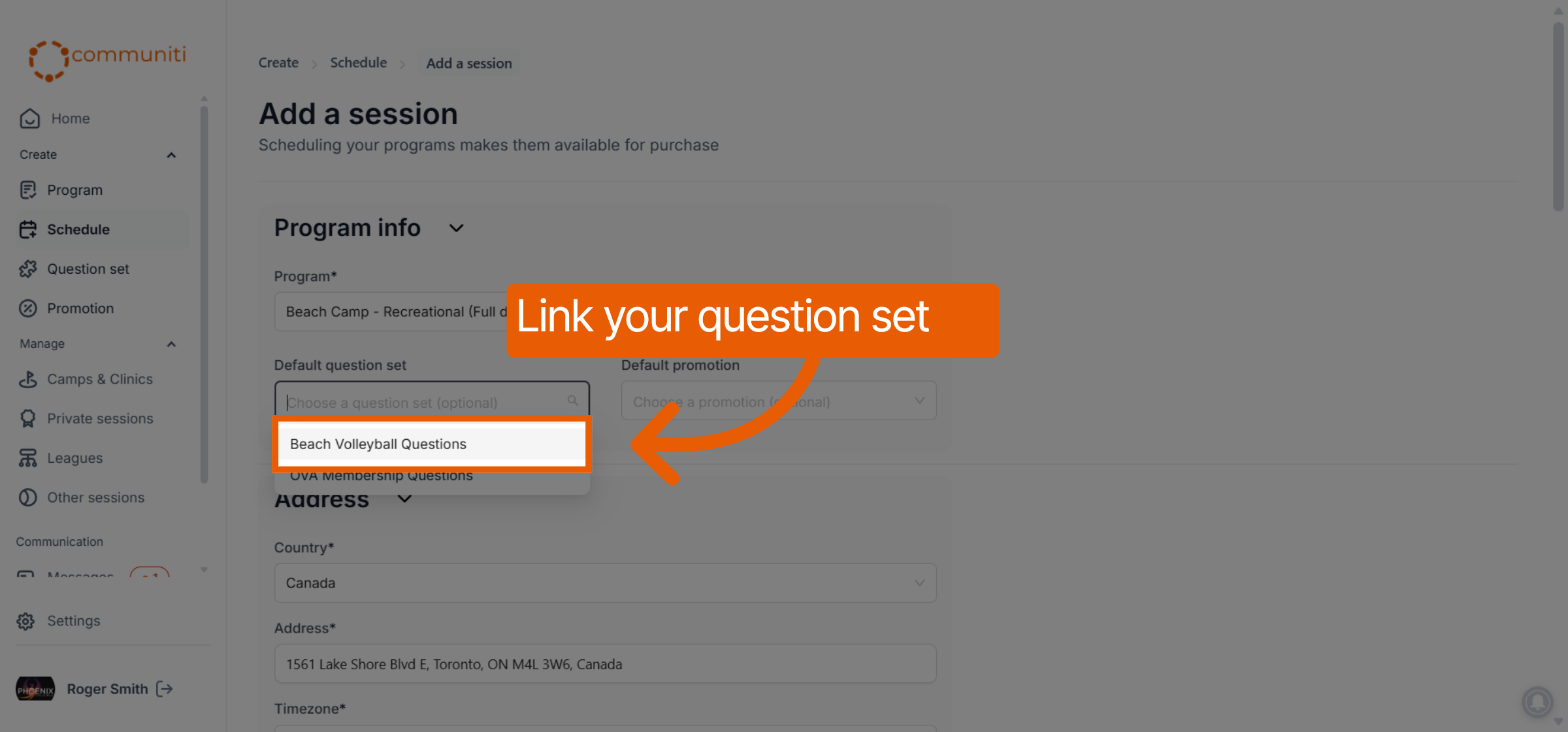
Use the dropdown menus to link your Question set and Promotion.
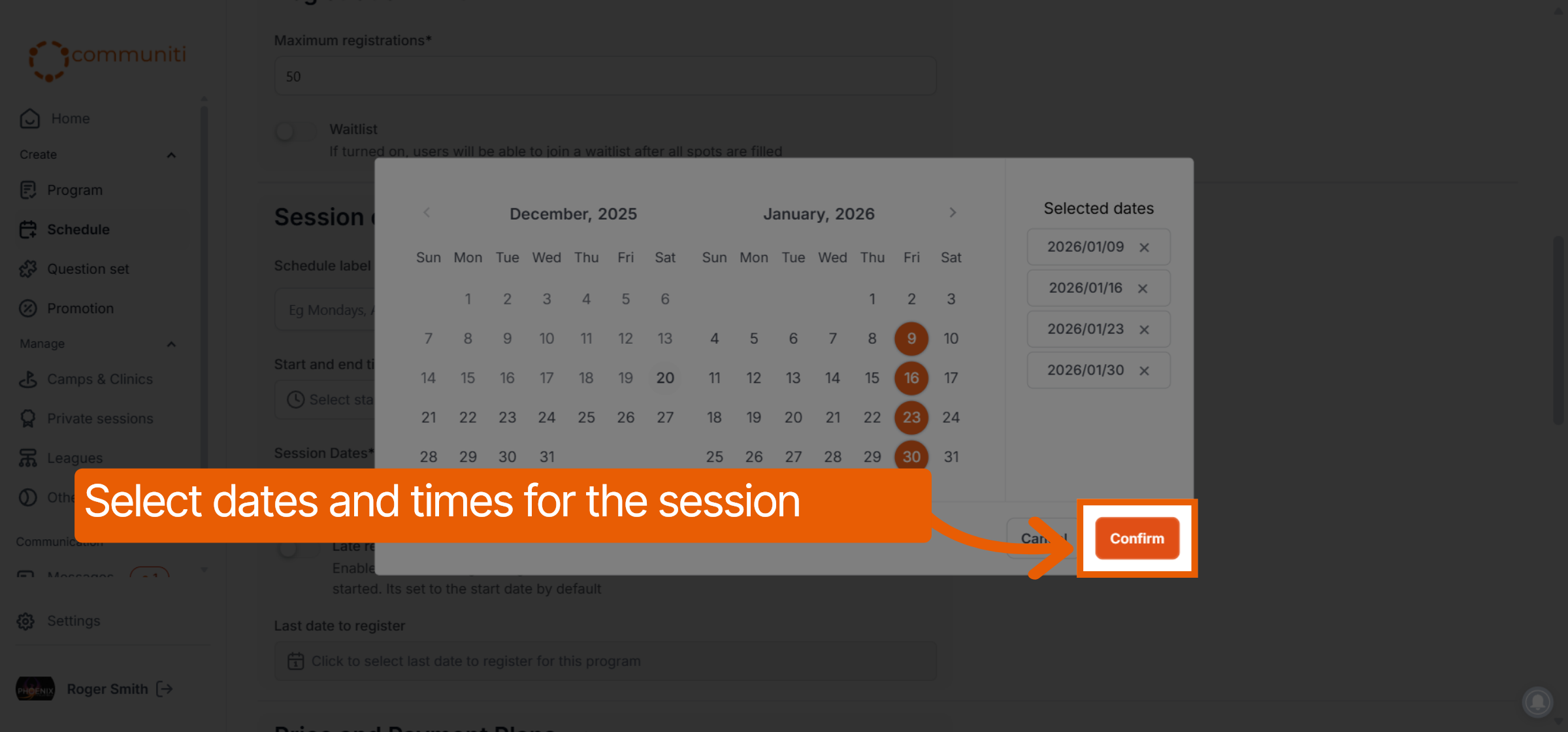
Enter your Price, select your Dates on the calendar, and set the Start/End times.
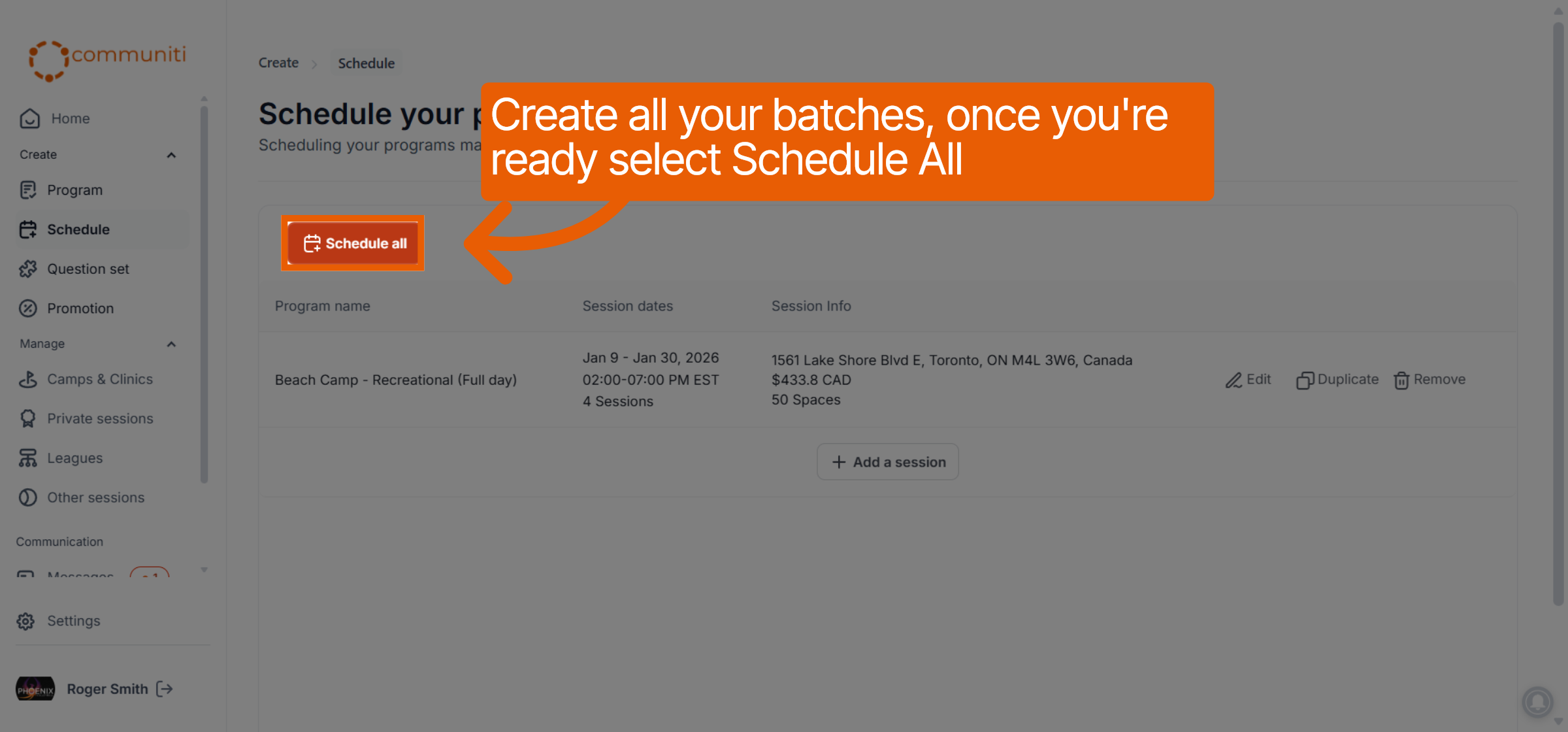
Click Add to schedule queue to push the session live.
4. Share Your Registration Link
Now that your session is live, you just need to get the link to your users.
Navigate to the Manage section in your sidebar that corresponds to your program type (e.g., Camps & Clinics).
Locate your session in the active list.
Click the Link icon next to the session name to copy your unique registration URL.
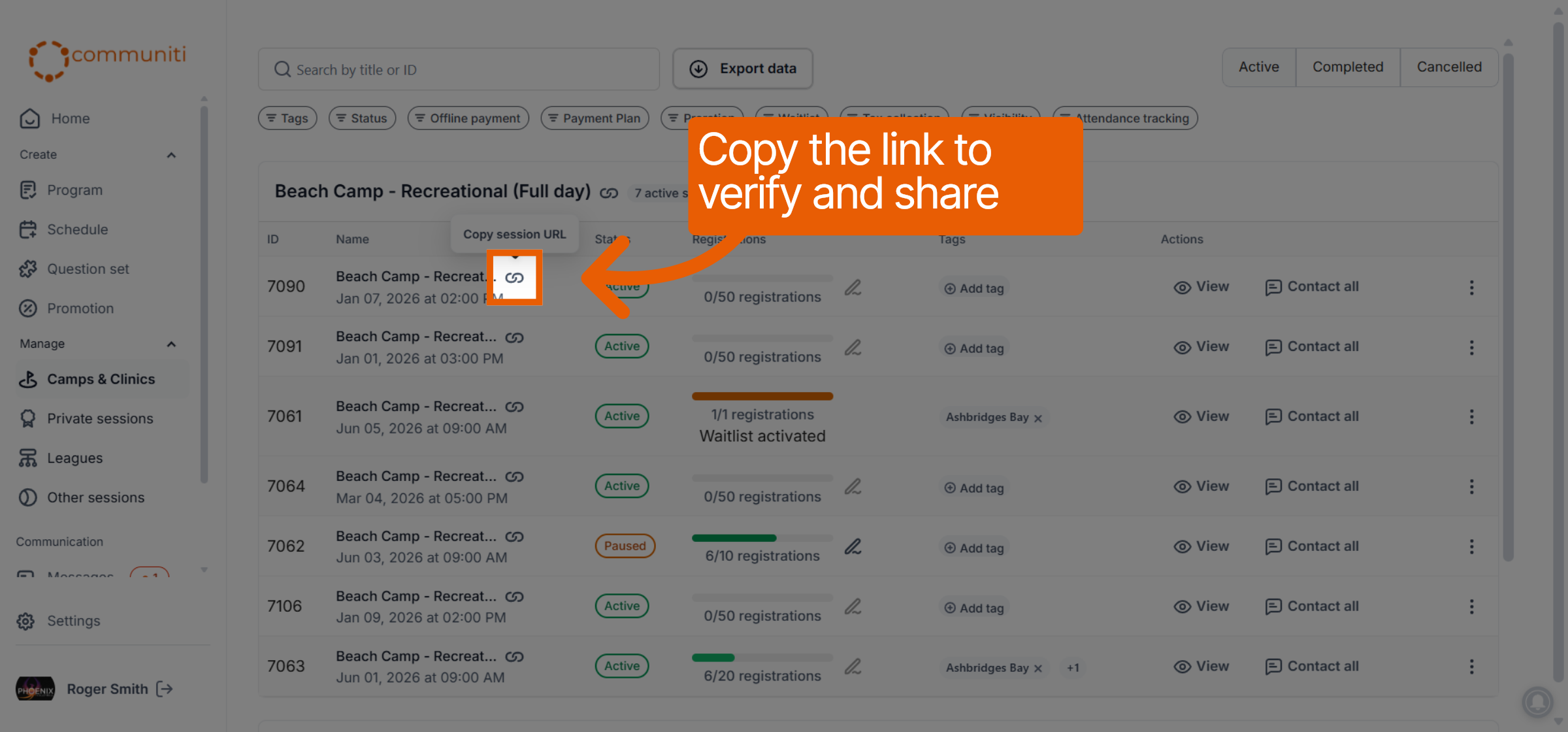
You are now live! You can paste this link onto your website, social media pages, or directly into an email to start accepting registrations instantly.
Was this helpful?
Still need help? Ask the team