How to Create Your Communiti Account
Setting up your Communiti account is a straightforward, two-step process that gets your organization ready to manage programs and collect payments securely.
Written By communiti
Last updated 10 months ago
1. Choose Your Login Method
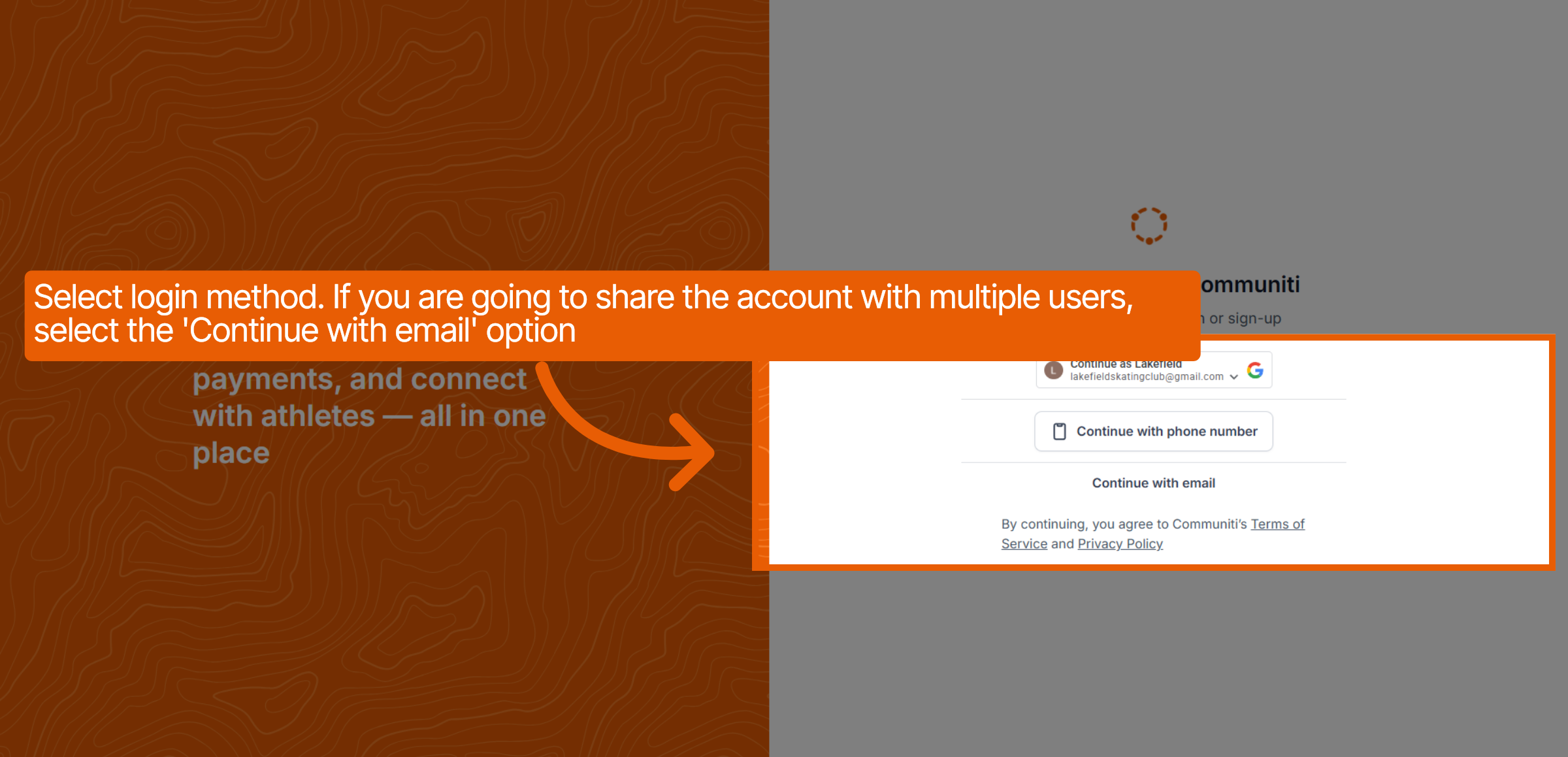
Visit the sign-up page to select how you will access your account.
Shared Accounts: If multiple people will share this login, we strongly recommend selecting the "Continue with email" option. This allows your team to share credentials easily without the complications of 2FA codes sent to a single person's phone.
Otherwise, you may choose to continue with Google or a phone number.
2. Enter Your Personal Information
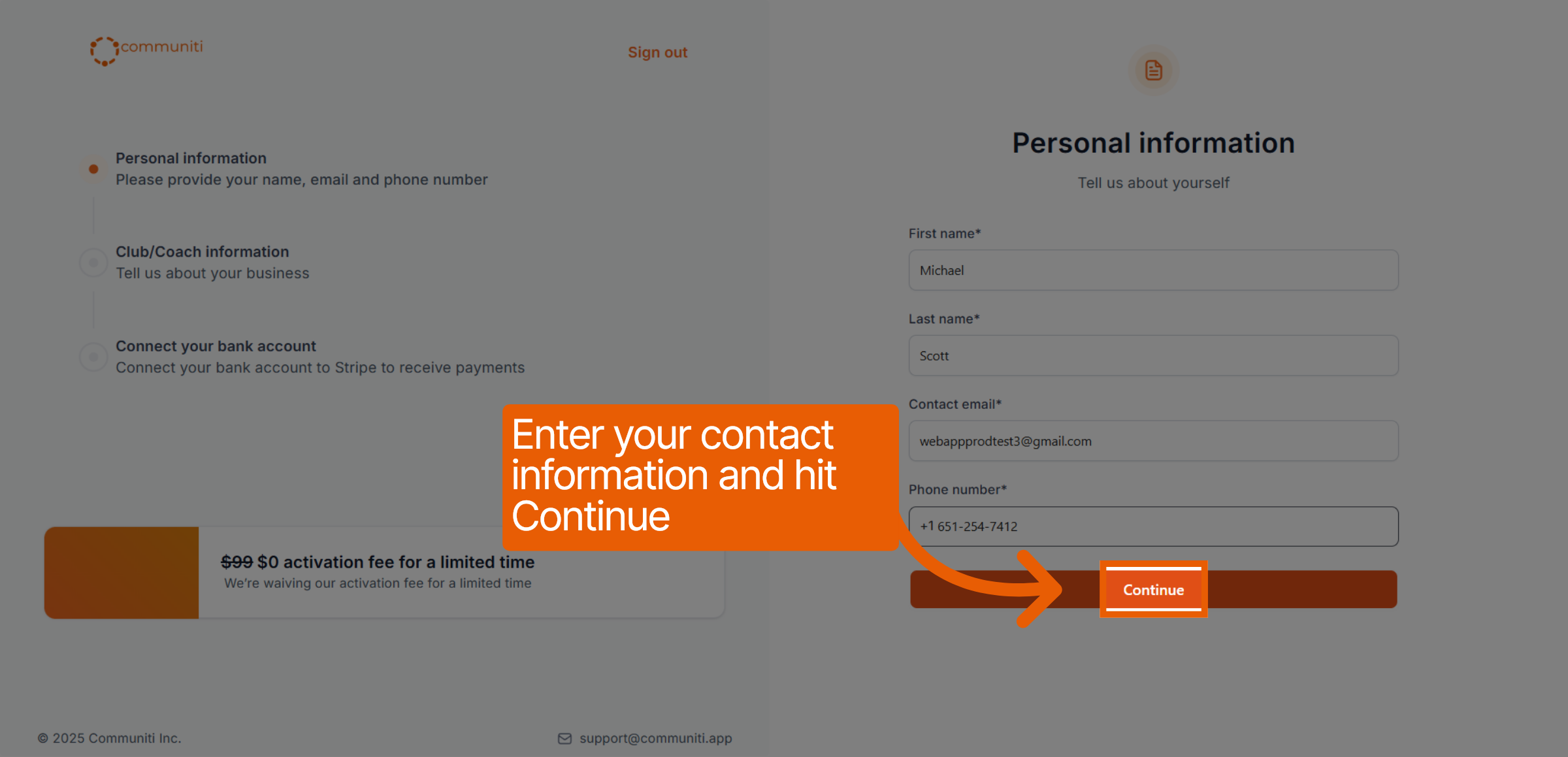
Once you click "Get started," you will provide your basic administrative details.
Enter your first and last name.
Provide a contact email address.
Enter your phone number and click Continue.
3. Add Your Business Information
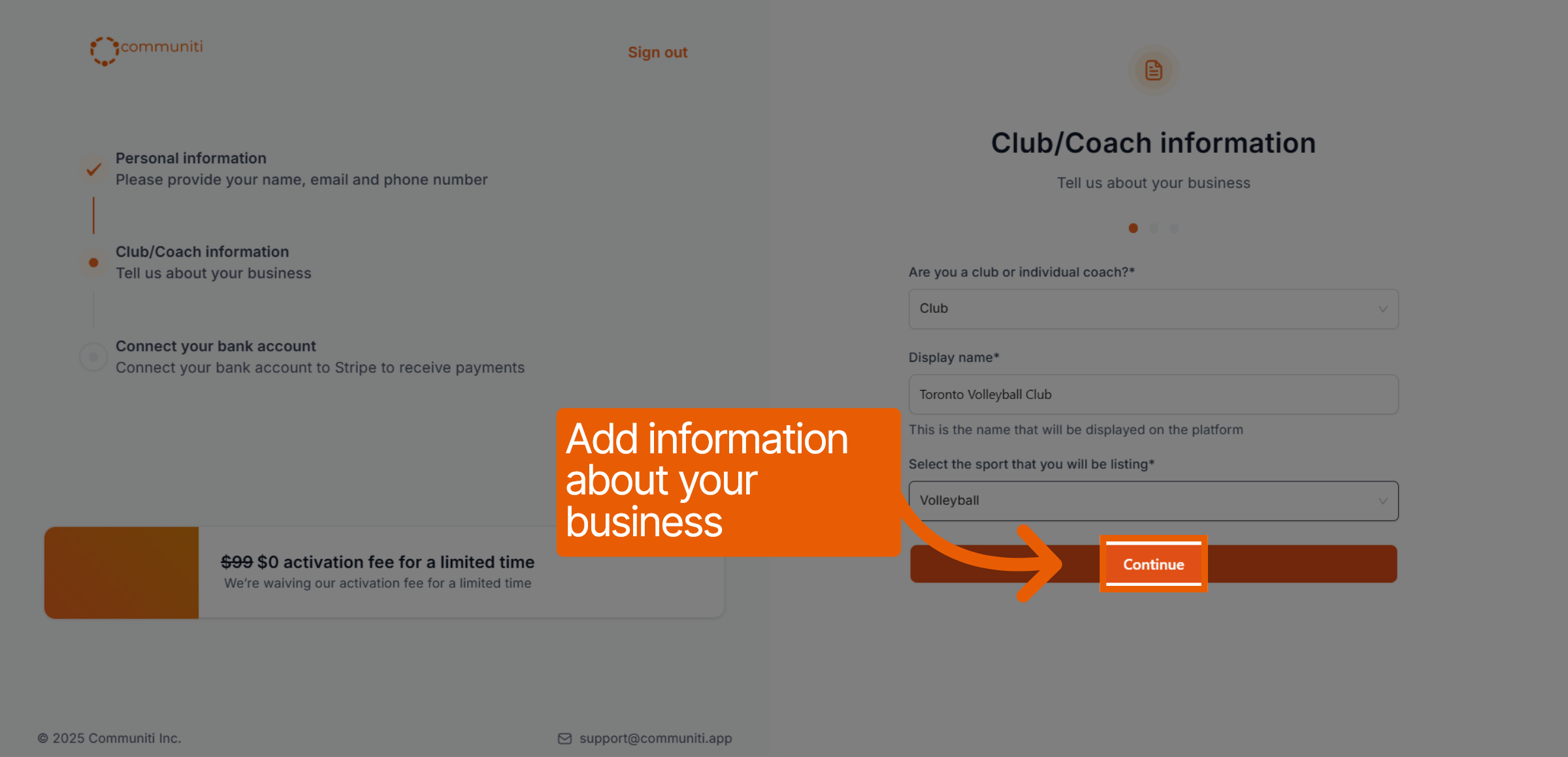
Tell us about your organization so we can customize your profile.
Select whether you are a Club or an Individual Coach.
Enter your Display Name (this is what users will see on the platform).
Select the primary sport you will be listing and click Continue.
4. Configure Business Settings
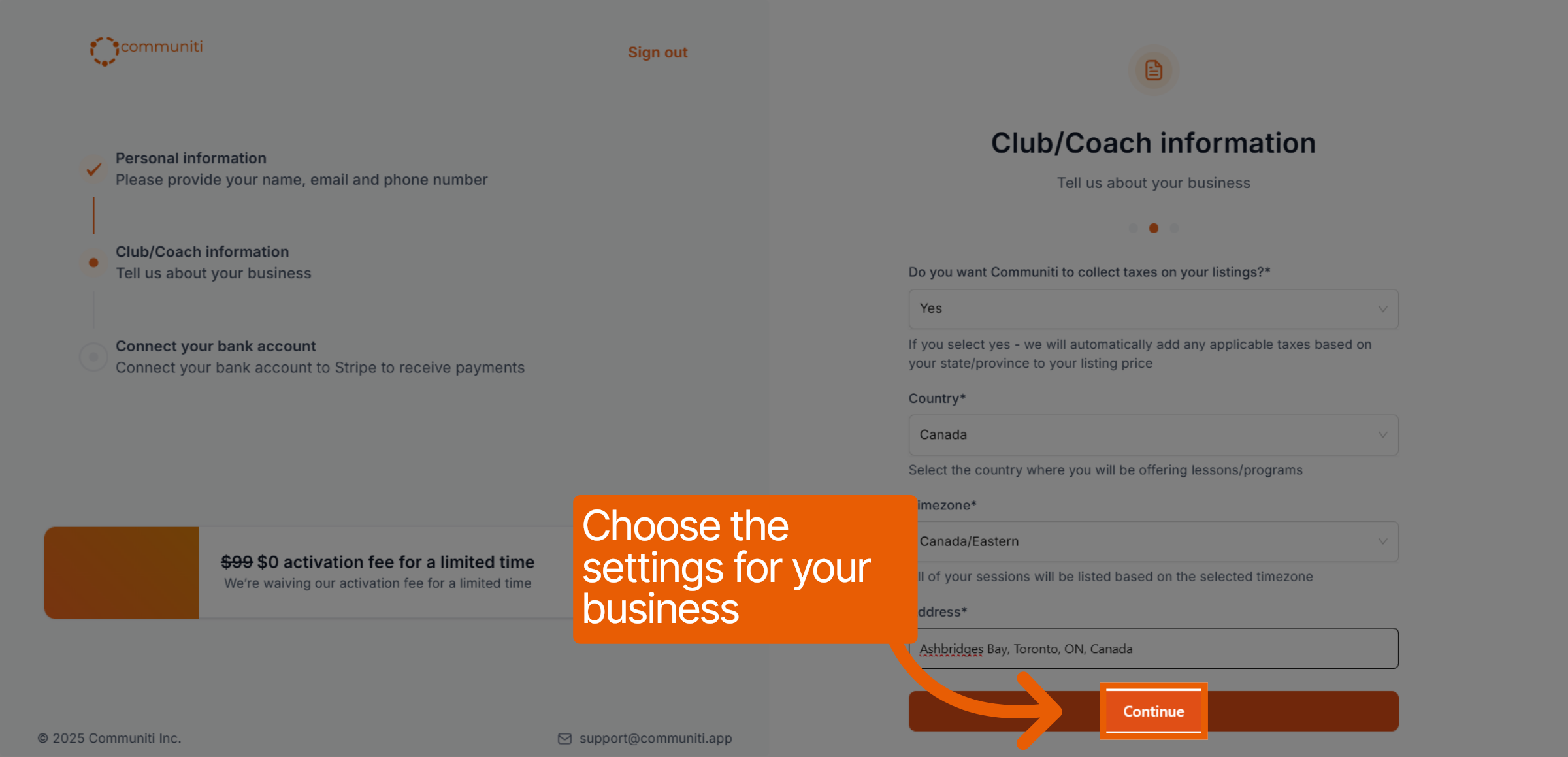
Set your location and tax preferences to ensure accurate registrations.
Indicate if you want Communiti to collect taxes on your behalf.
Select your country, timezone, and physical address.
Click Continue.
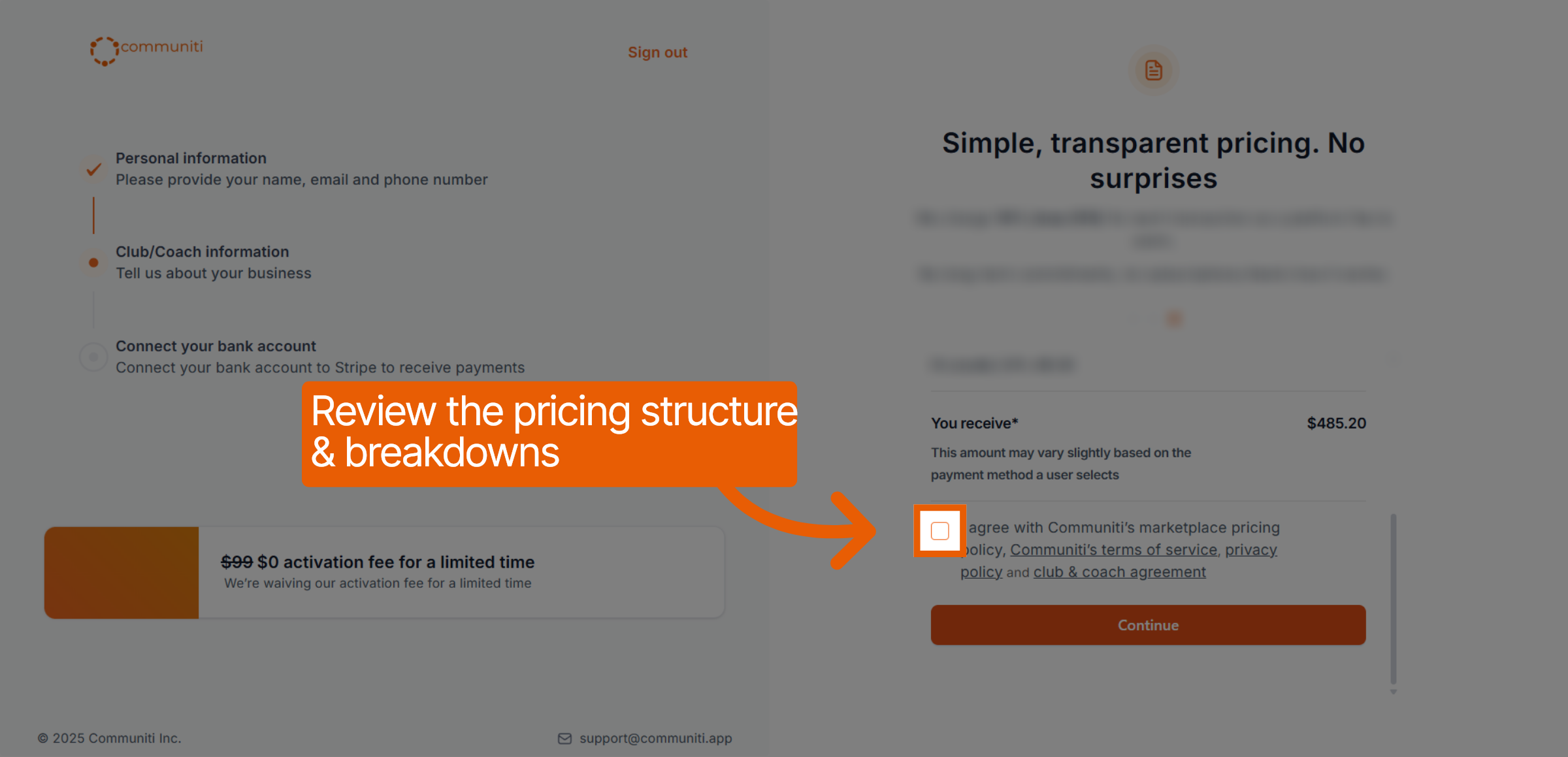
5. Review Pricing and Terms
Transparency is core to our platform. Review the pricing structure to see exactly what you will receive for each registration.
Review the fee breakdown.
Check the box to agree to the Terms of Service and Privacy Policy.
Click Continue.
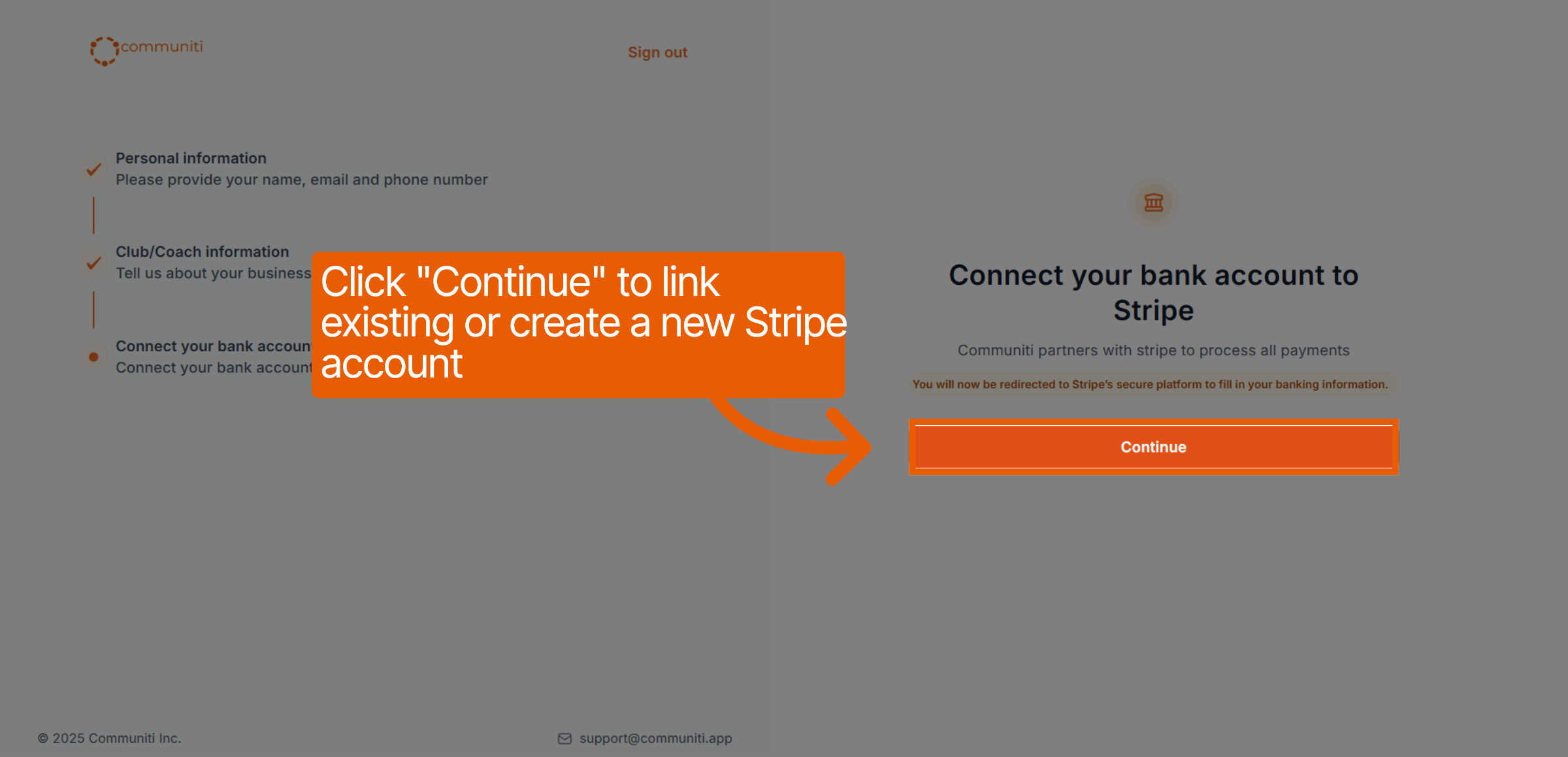
6. Connect Your Bank Account (Stripe)
Communiti partners with Stripe to ensure secure, automated financial services.
Click Continue to be redirected to Stripe's secure platform.
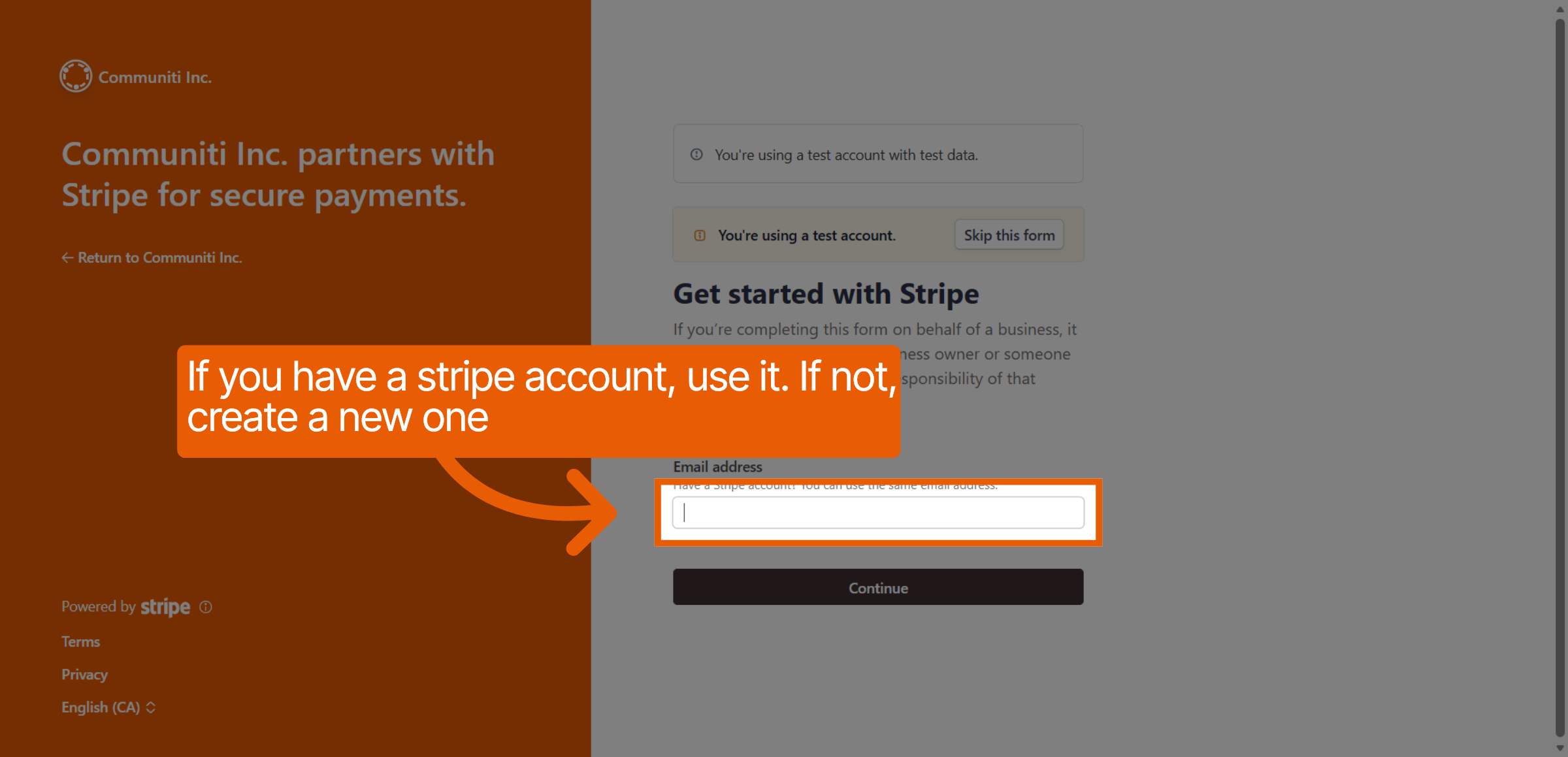
If you have an existing Stripe account, enter that email; otherwise, follow the prompts to create a new one.
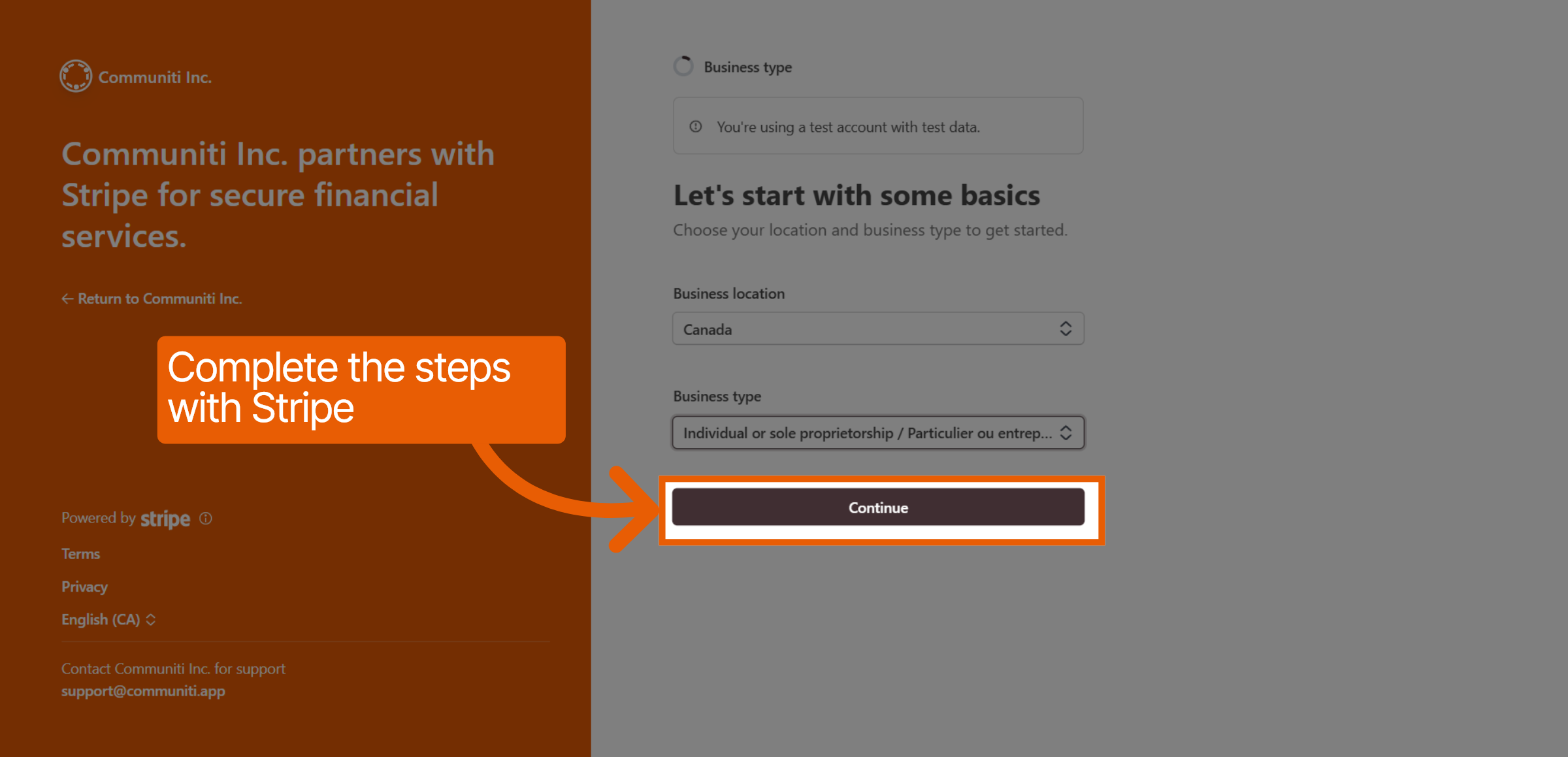
Complete the Stripe requirements, including your business location and type (e.g., Sole Proprietorship or Corporation).
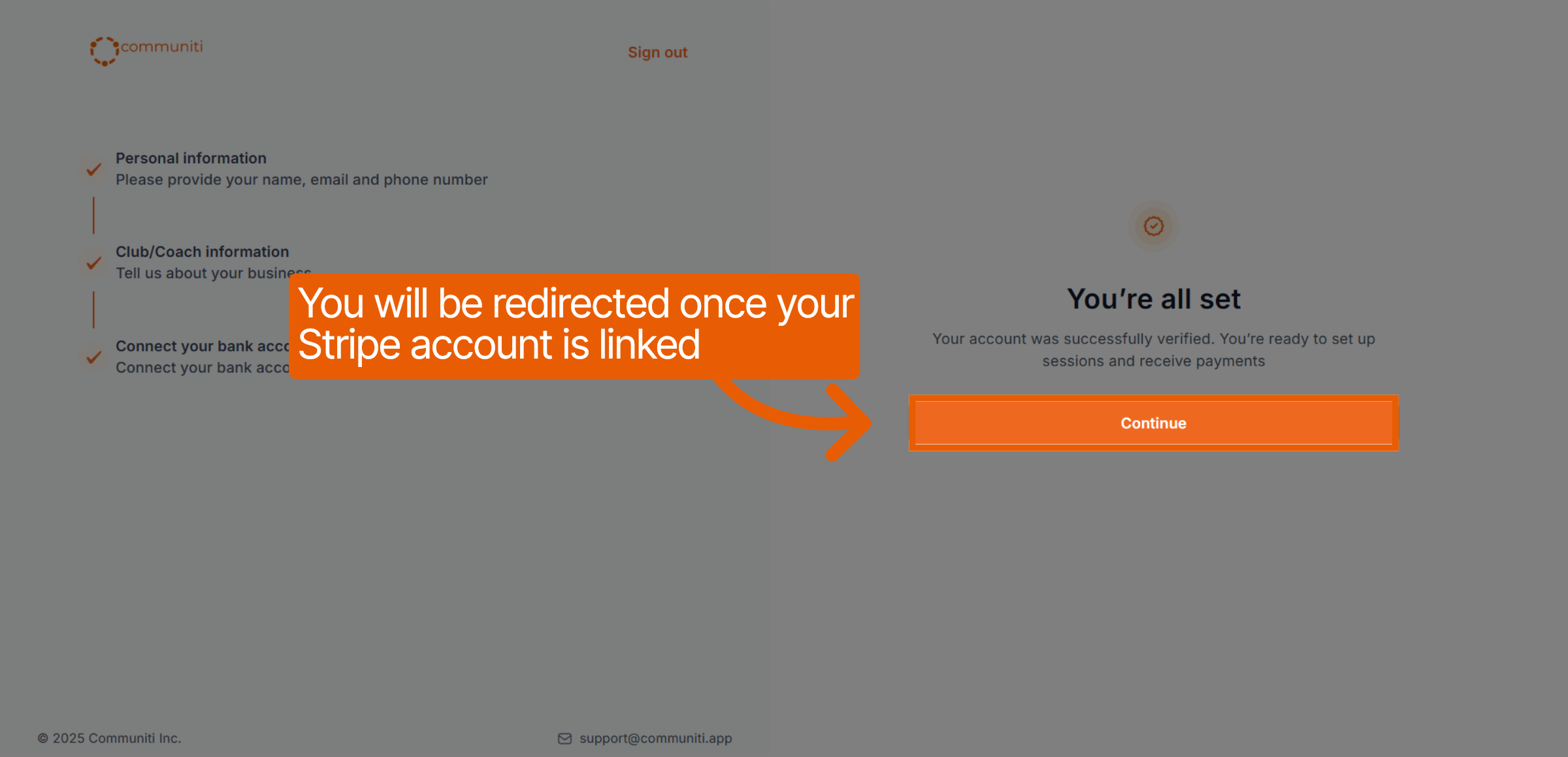
Once finished, you will be redirected back to Communiti.
7. Confirmation
Once your Stripe account is successfully linked and verified, you will see a "You're all set" message. You are now ready to create your first session and start receiving payments.
Was this helpful?
Still need help? Ask the team