How Users Can Message Your Club
Participants can easily initiate direct communication with your club through your public booking profile or their personal session dashboard.
Written By communiti
Last updated 10 months ago
1. Messaging from the Booking Page
Potential or existing participants can reach out to you directly from your club's landing page to ask questions before or after registering.
Locate the Button: On your public booking page, users will see an Ask a question button located directly beneath your club's star rating.
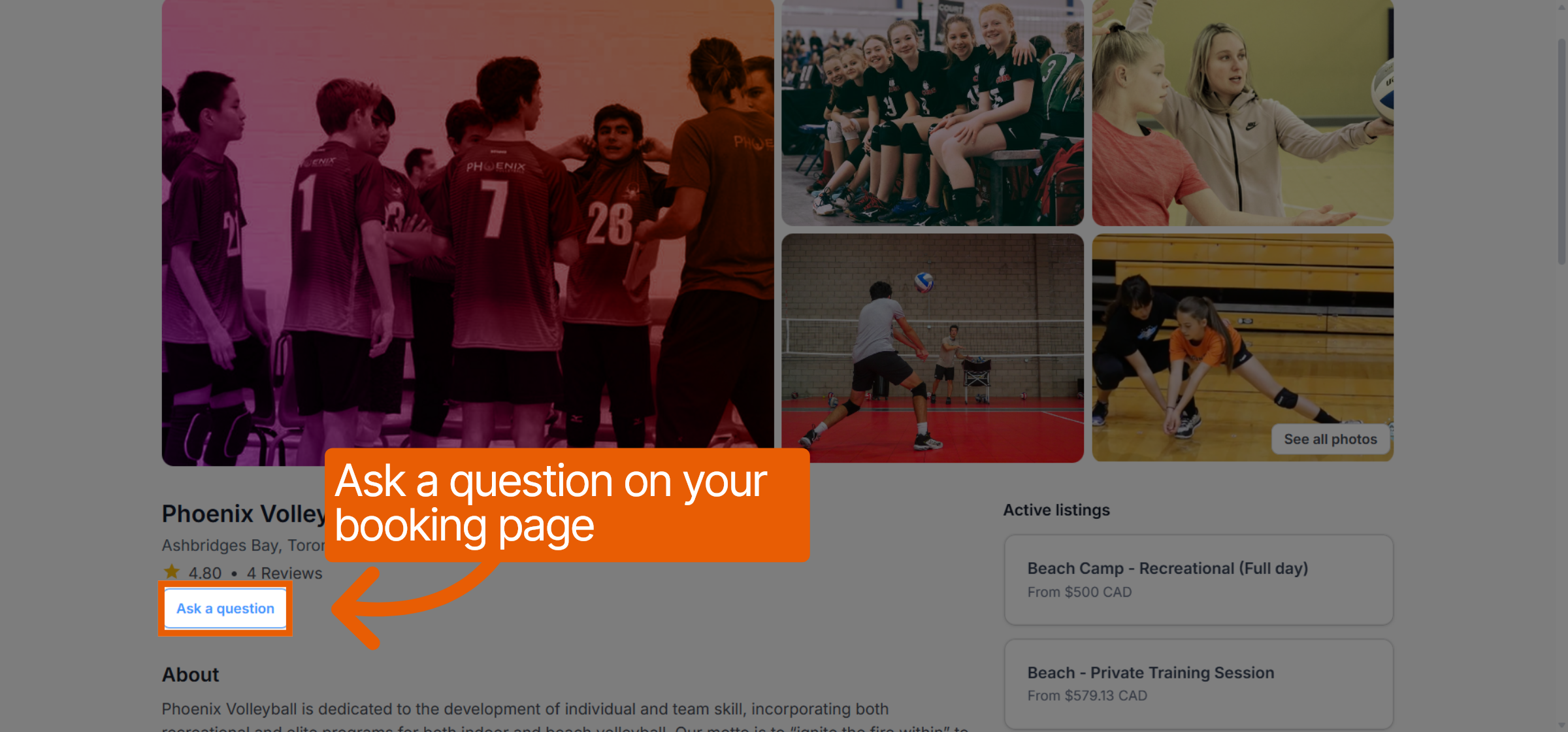
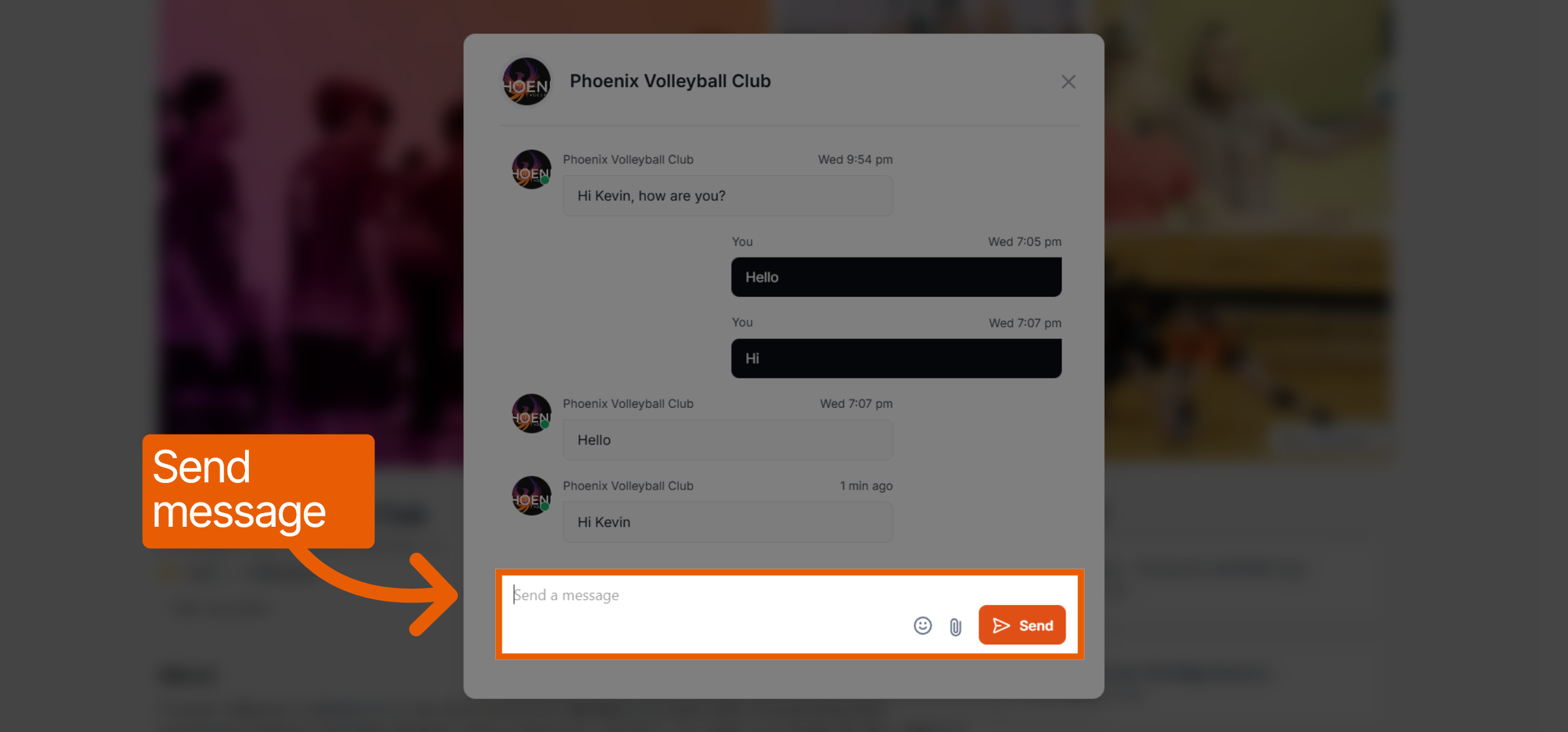
Start the Conversation: Clicking this button opens a chat interface where the user can type and send their message directly to your club admin.
2. Messaging from the "My Sessions" Page
Registered participants can message you regarding specific programs they have joined through their user account.
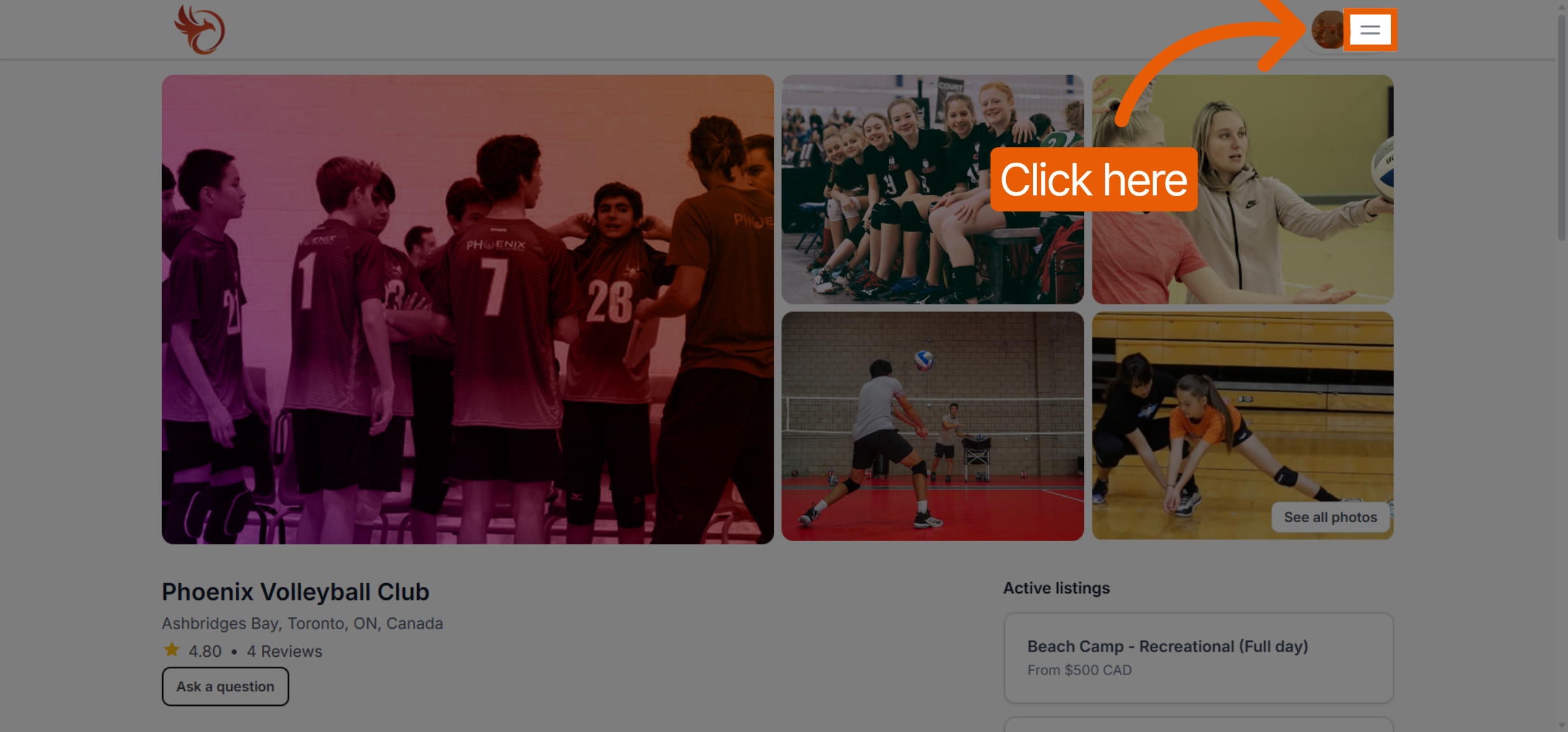
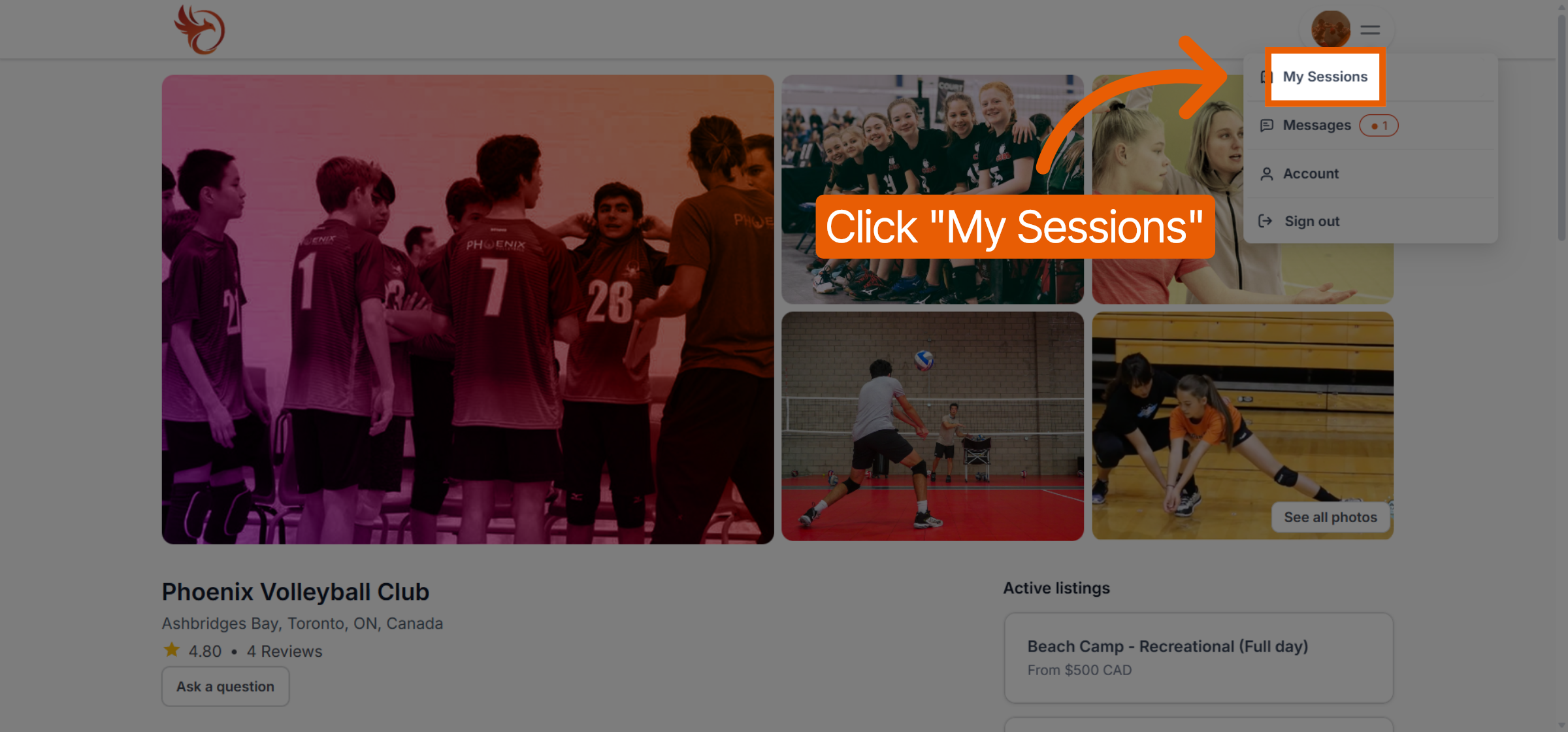
Access Sessions: The user clicks the Menu (hamburger) icon in the top right corner of the platform and selects My Sessions.
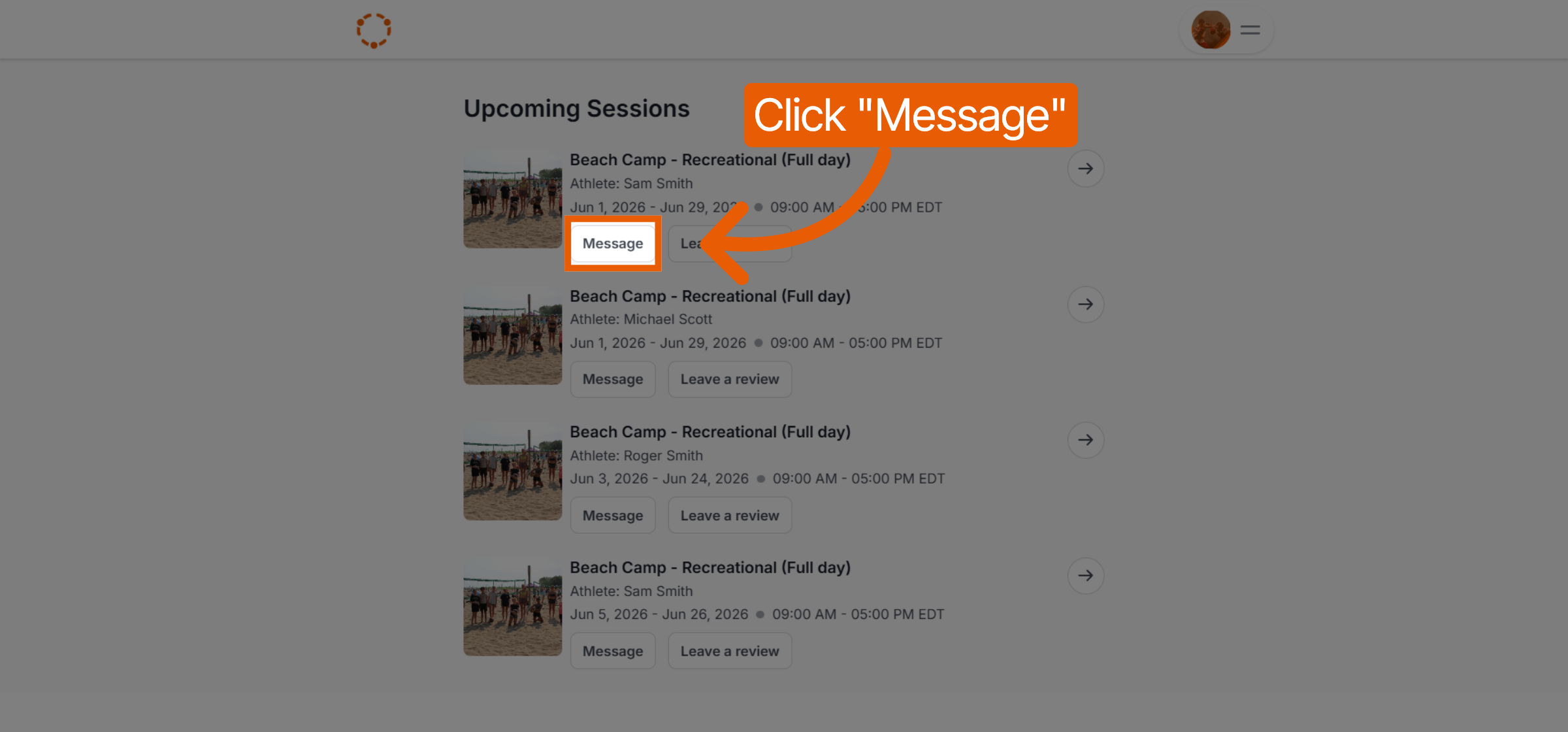
Initiate Chat: Under the Upcoming Sessions list, the user can click the Message button next to the relevant session.
Send Message: This opens the direct message window where they can communicate with the club regarding that specific booking.
3. The Messaging Interface
The chat feature provides a familiar, real-time environment for both parties.
Direct Interaction: Users type their message into the Send a message field at the bottom of the window.
Attachments: Users can also send files or images by clicking the Paperclip icon next to the text field.
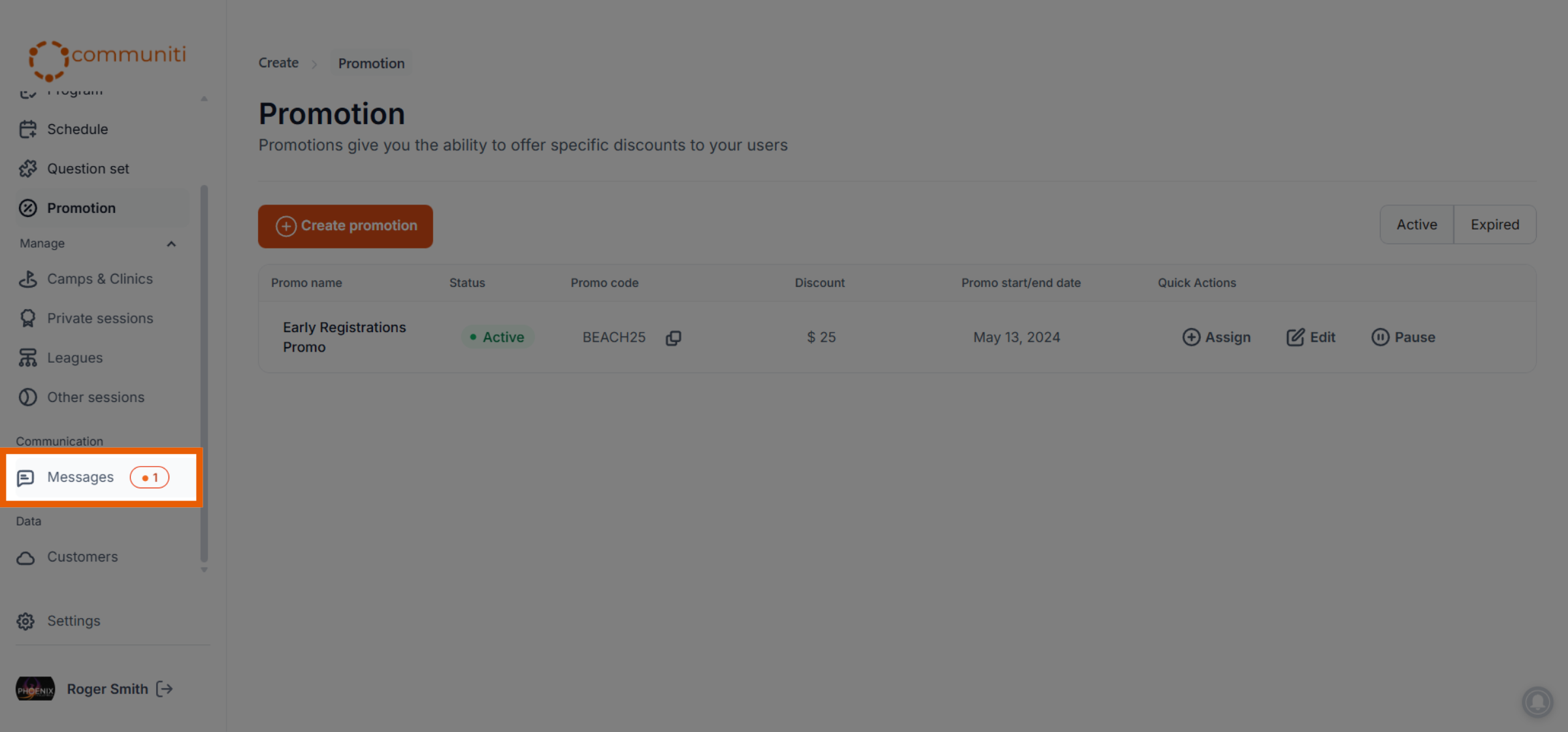
Notifications: Once a message is sent, the club receives a notification based on the platform's intelligent scanning frequency to ensure a timely response.
Was this helpful?
Still need help? Ask the team