How to Send Messages and Emails to Users
You can communicate with your participants directly through the platform using either internal chat messages or direct emails. There are two ways to find the contact button: through a specific session or via the global customers list.
Written By communiti
Last updated 10 months ago
1. Locate the Participant
Depending on whether you know the session the participant is in, choose one of the following options:
Option A: From the Session Page
Select the Manage menu in the left sidebar and choose your program category (e.g., Camps & Clinics).
Click on the specific session to open its dashboard.
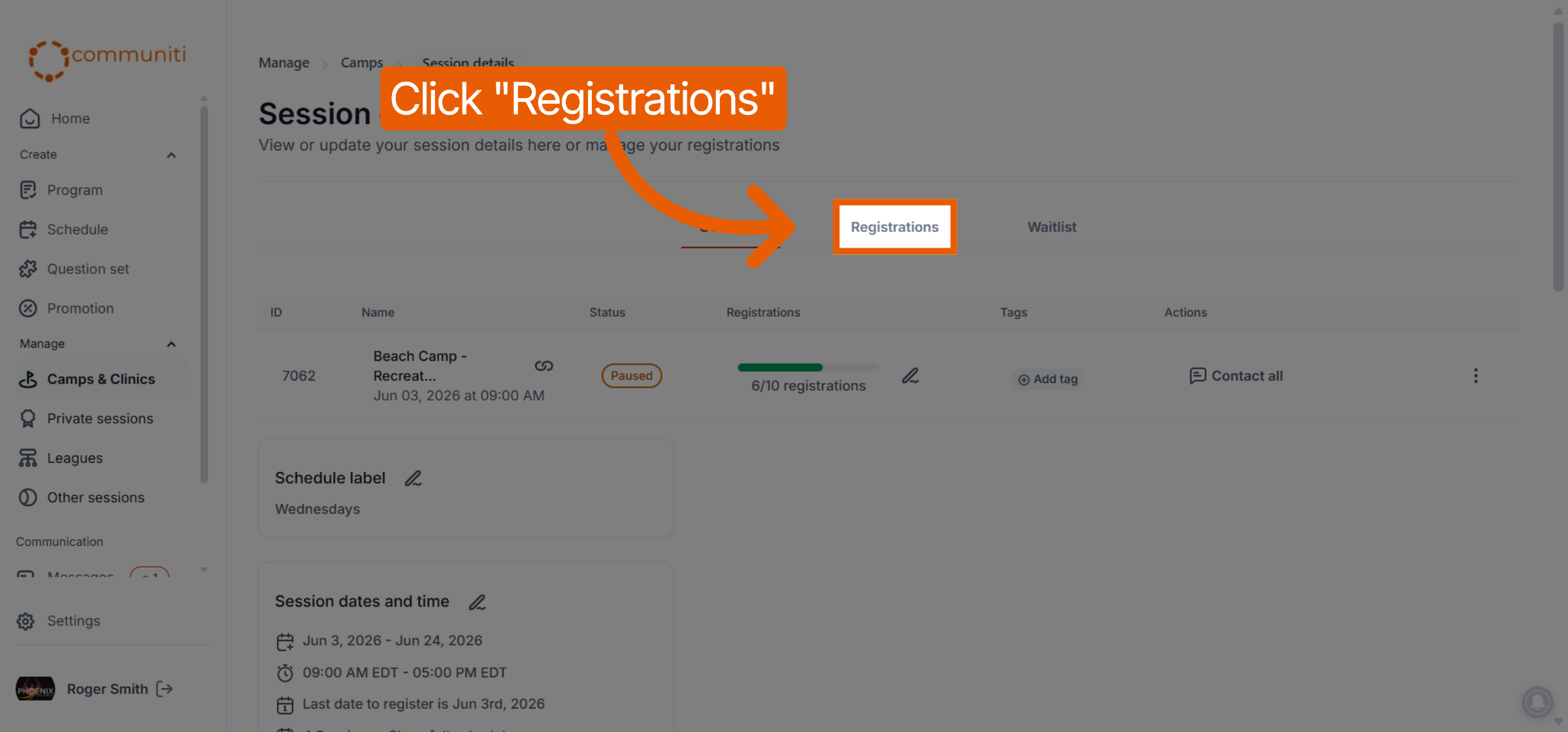
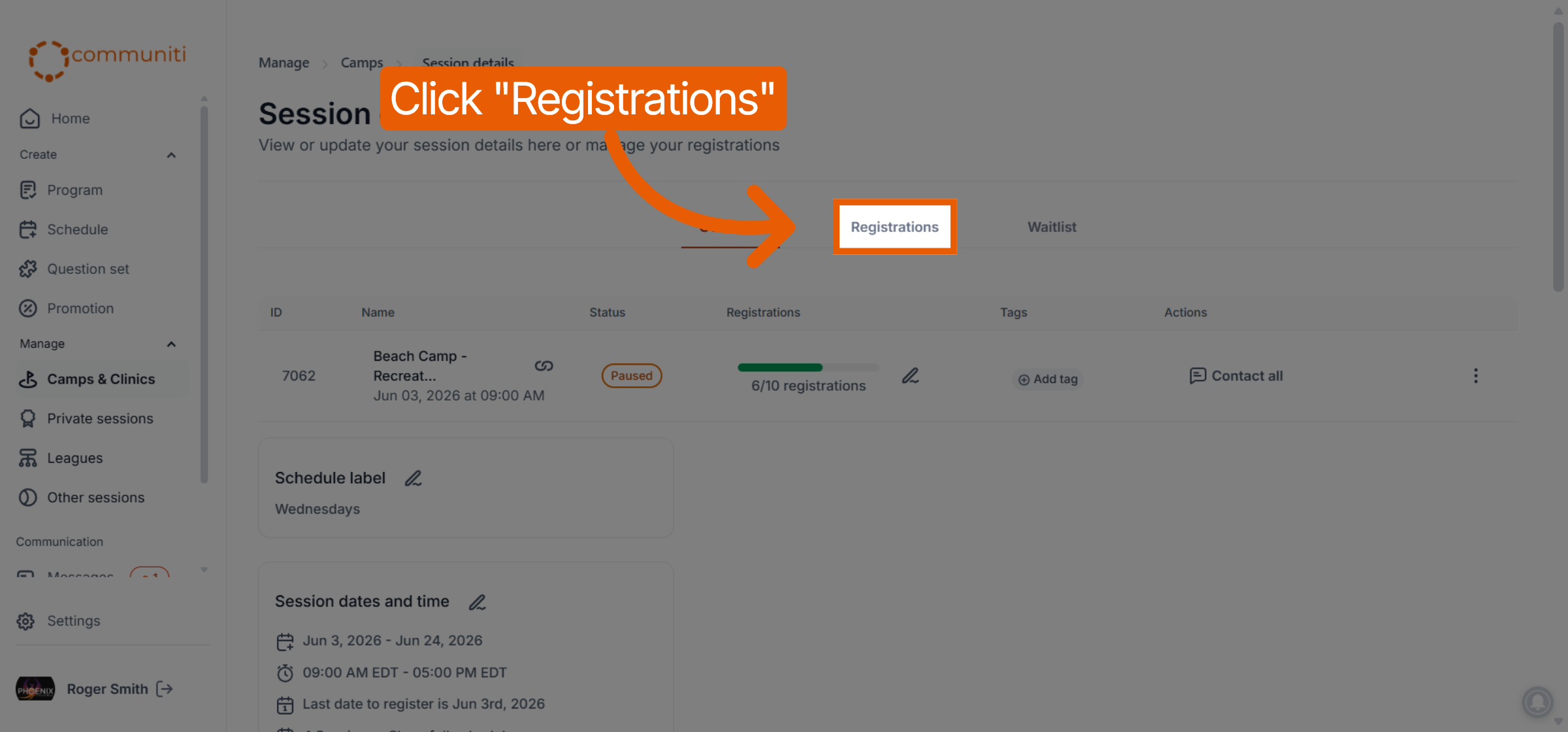
Select the Registrations tab at the top of the session page.
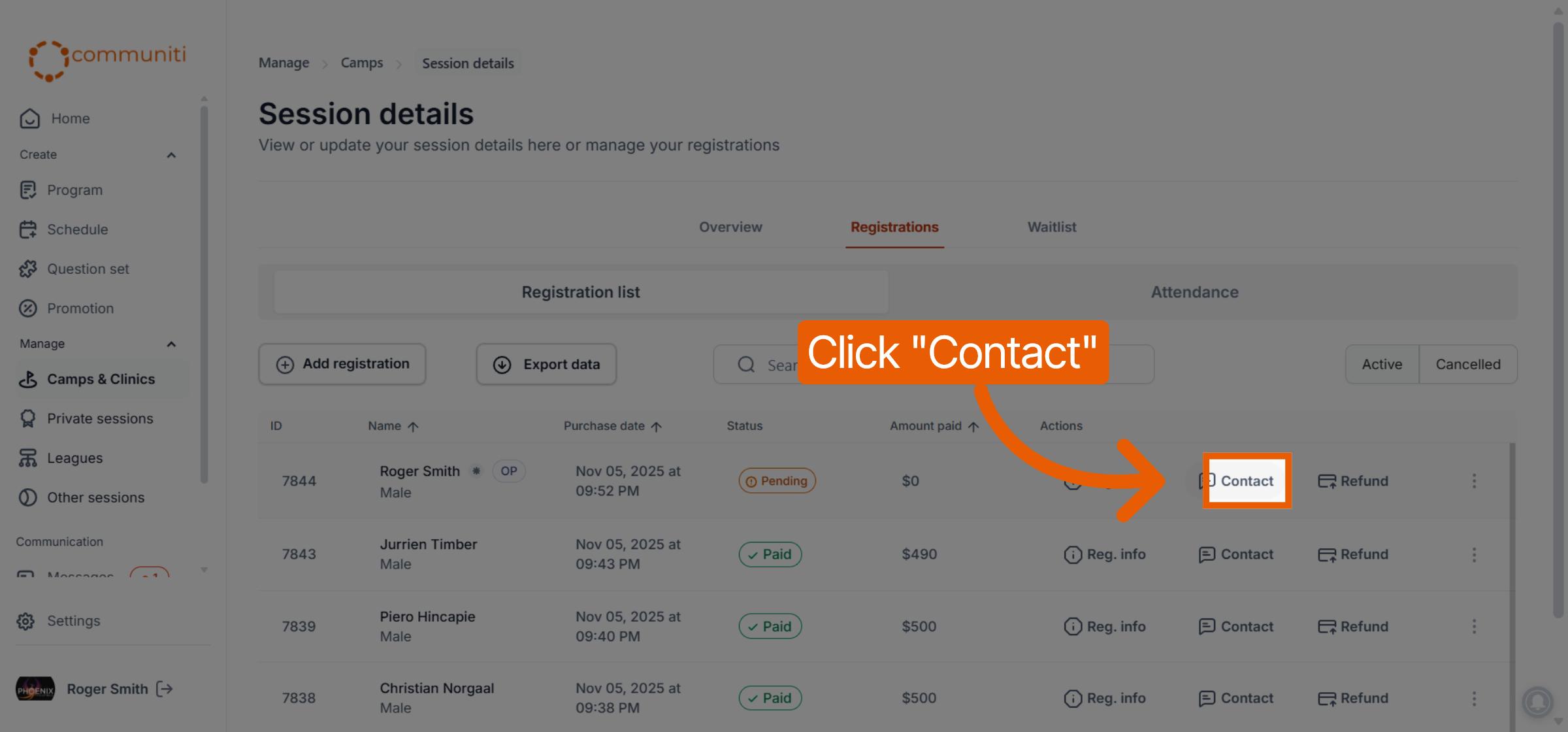
Find the participant in the list and click the Contact button in their row.
Option B: From the Customers Page
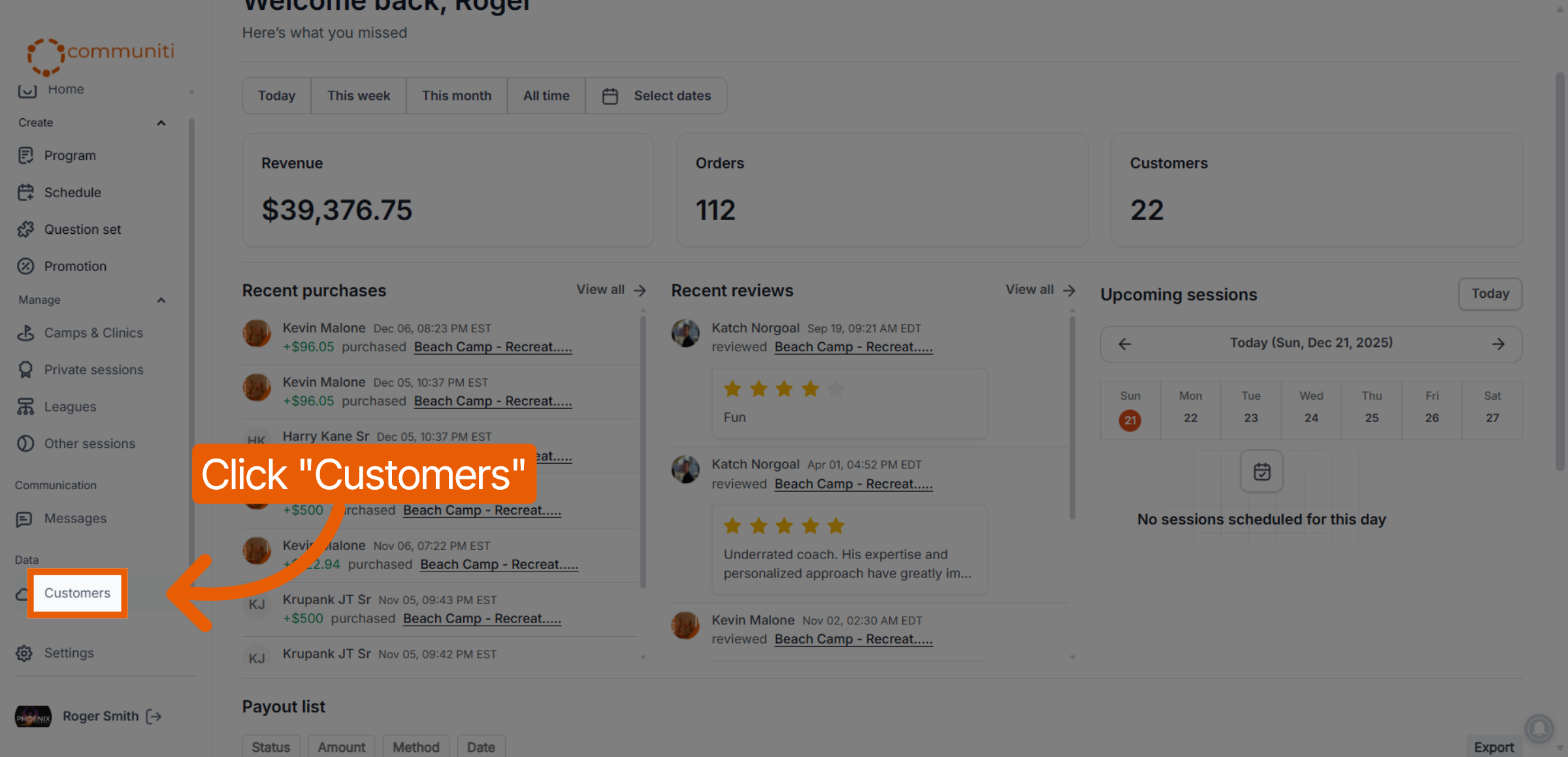
Select the Customers tab in the left sidebar.
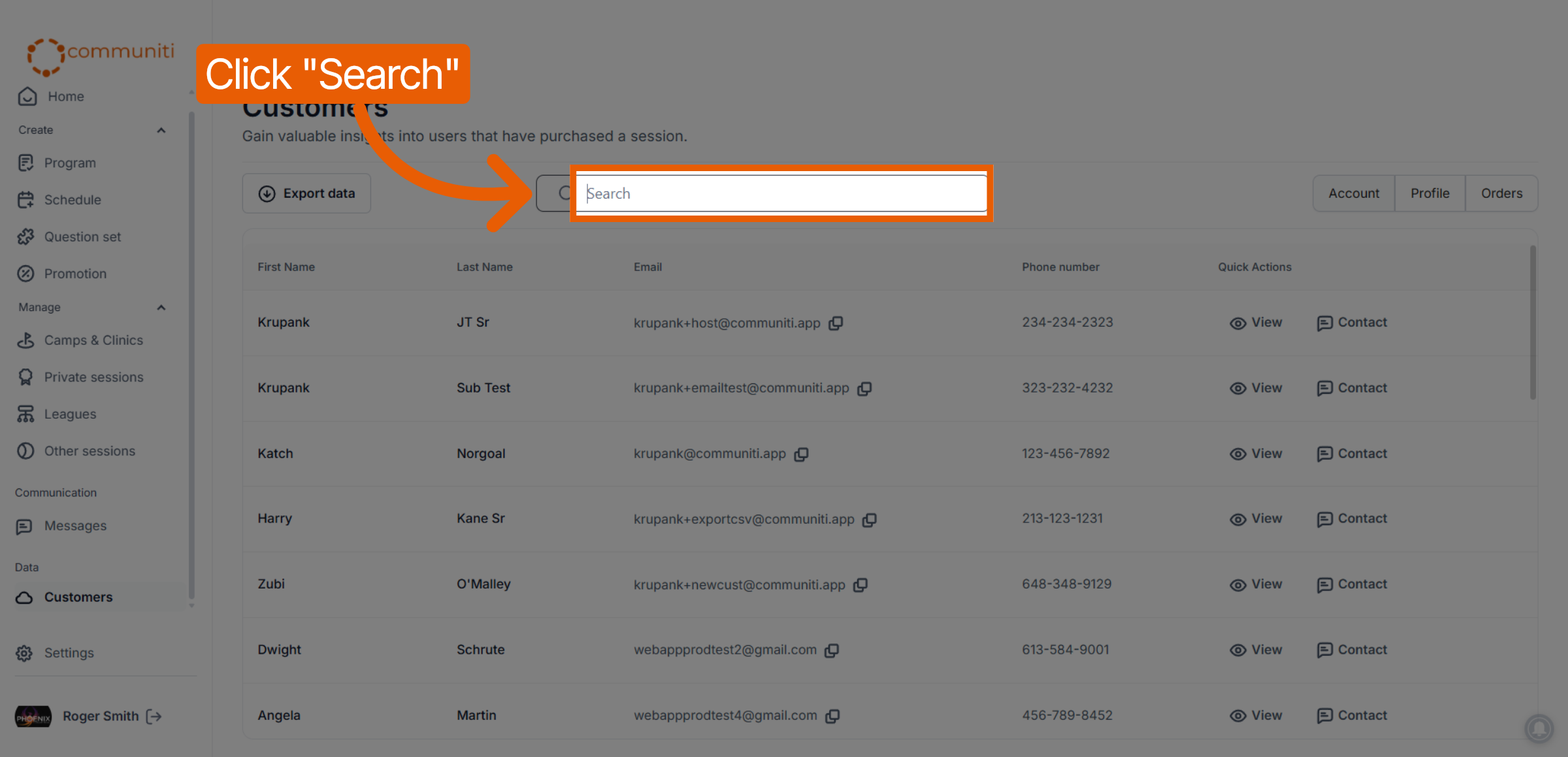
Use the search bar to find the participant by their name.
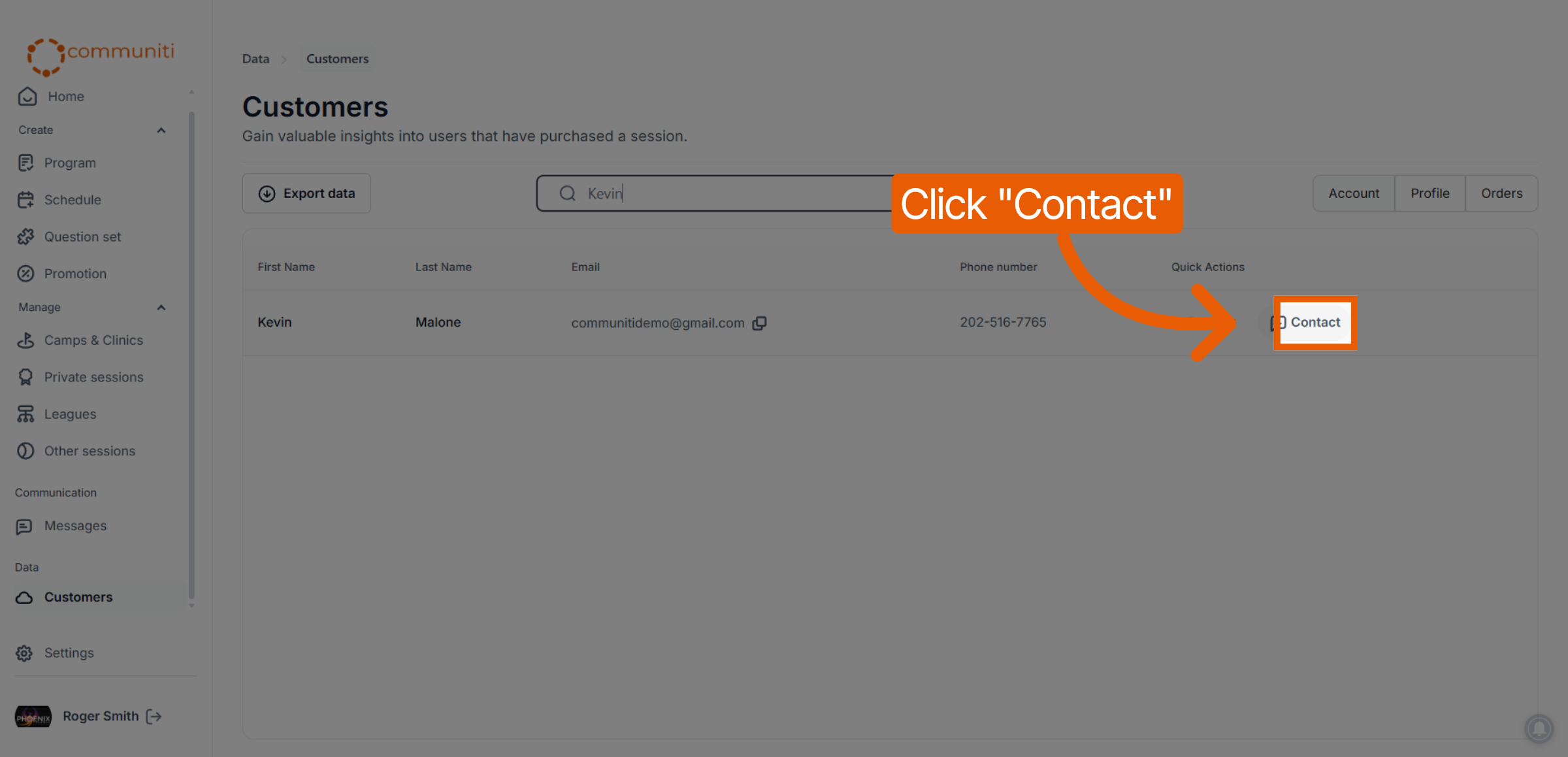
Click the Contact button next to their name to open the communication window.
2. Choose Your Communication Method
Once the contact window is open, you can toggle between two communication styles:
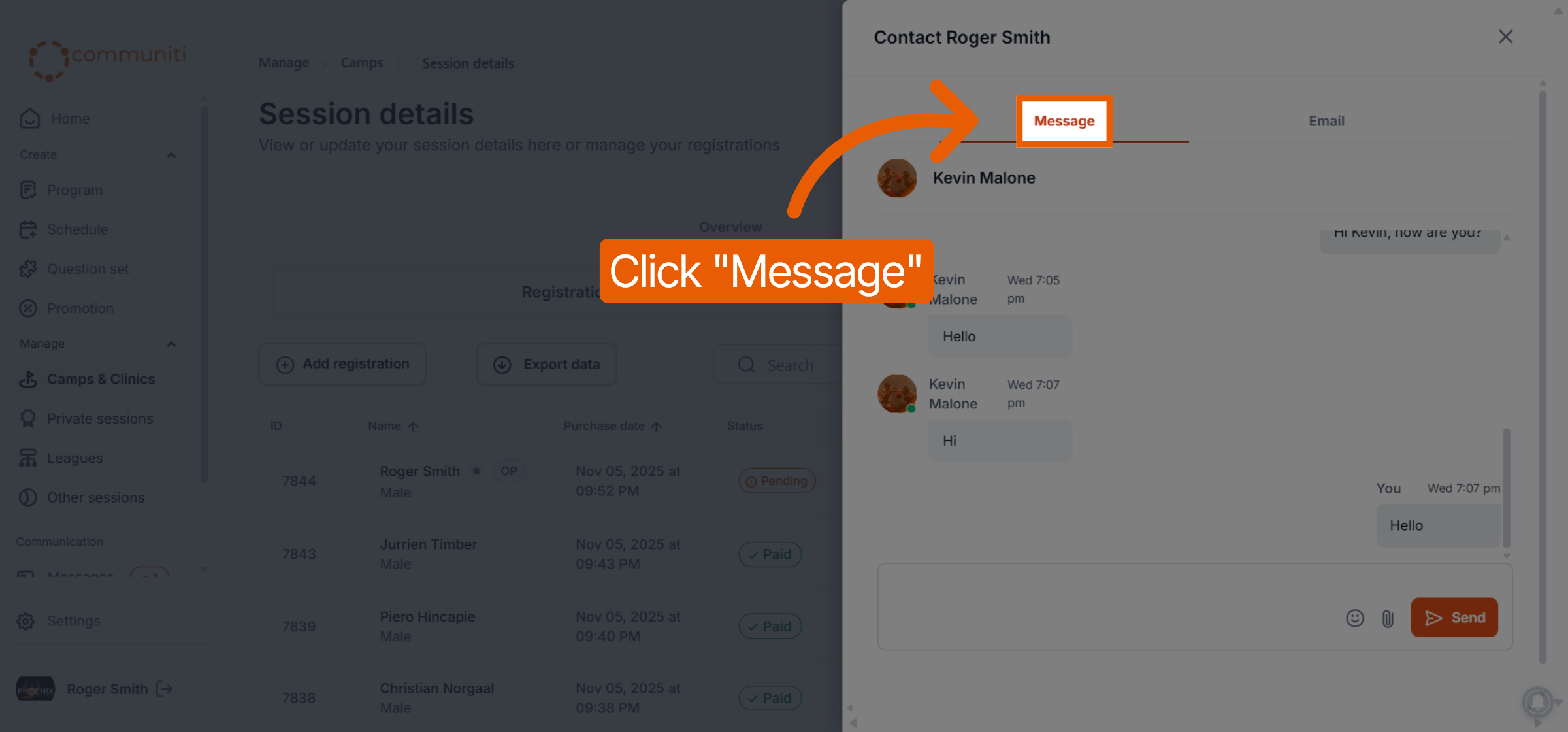
Message: Click the Message tab to use the internal chat system. This method is ideal for quick updates or ongoing conversations within the Communiti app.
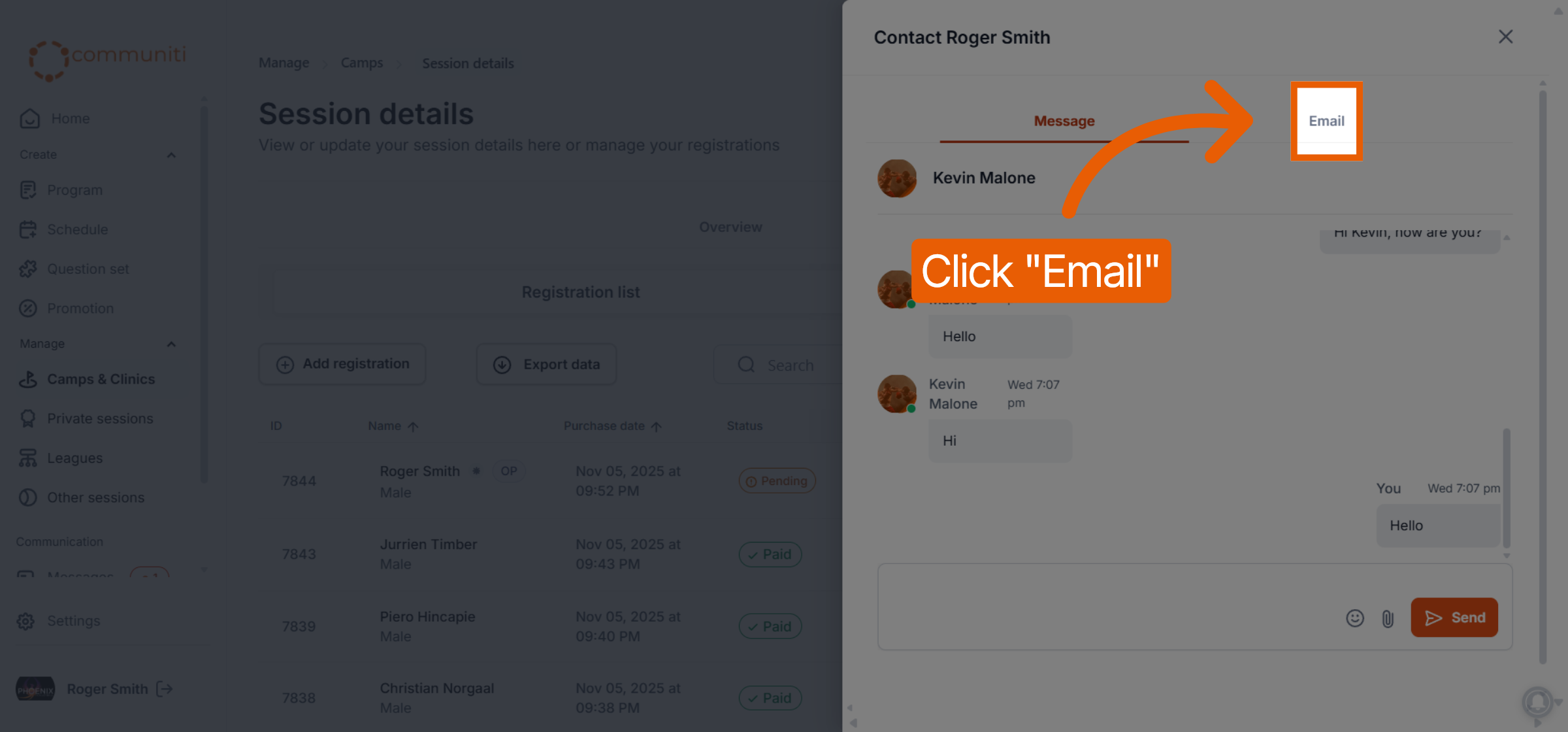
Email: Click the Email tab to send a formal message directly to the user's personal inbox.
3. Compose and Send
Enter your message details and deliver them to the participant:
For Messages: Type your text into the chat box and click the Send icon. You can also include file attachments if necessary.
For Emails: Compose your email within the editor and click send to deliver it to the participant's registered email address.
Was this helpful?
Still need help? Ask the team