Guide to Sharing Links
The platform provides several ways to share your offerings with users, ranging from your complete club profile to direct links for specific sessions.
Written By communiti
Last updated 10 months ago
1. Your Public Booking Page
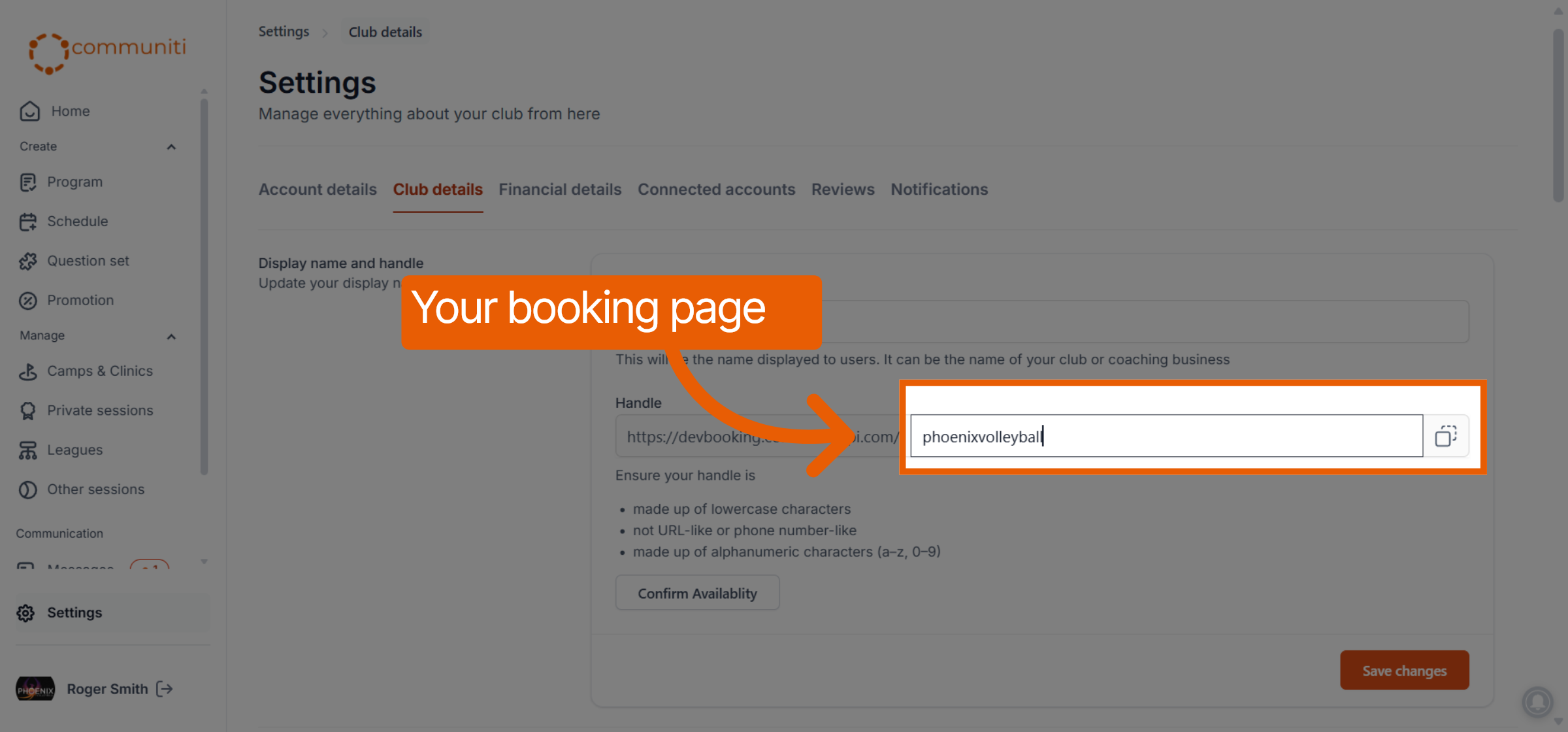
This is your main club hub. It includes your "About" section, refund policy, photos, logo, and a list of all your active programs.
To find this link, navigate to Settings in the left sidebar and select the Club details tab.
Your unique handle (e.g.,
phoenixvolleyball) is displayed here, which forms your public booking URL.Users who visit this page can see everything your club currently offers in one place.
2. Link to All Sessions in a Program
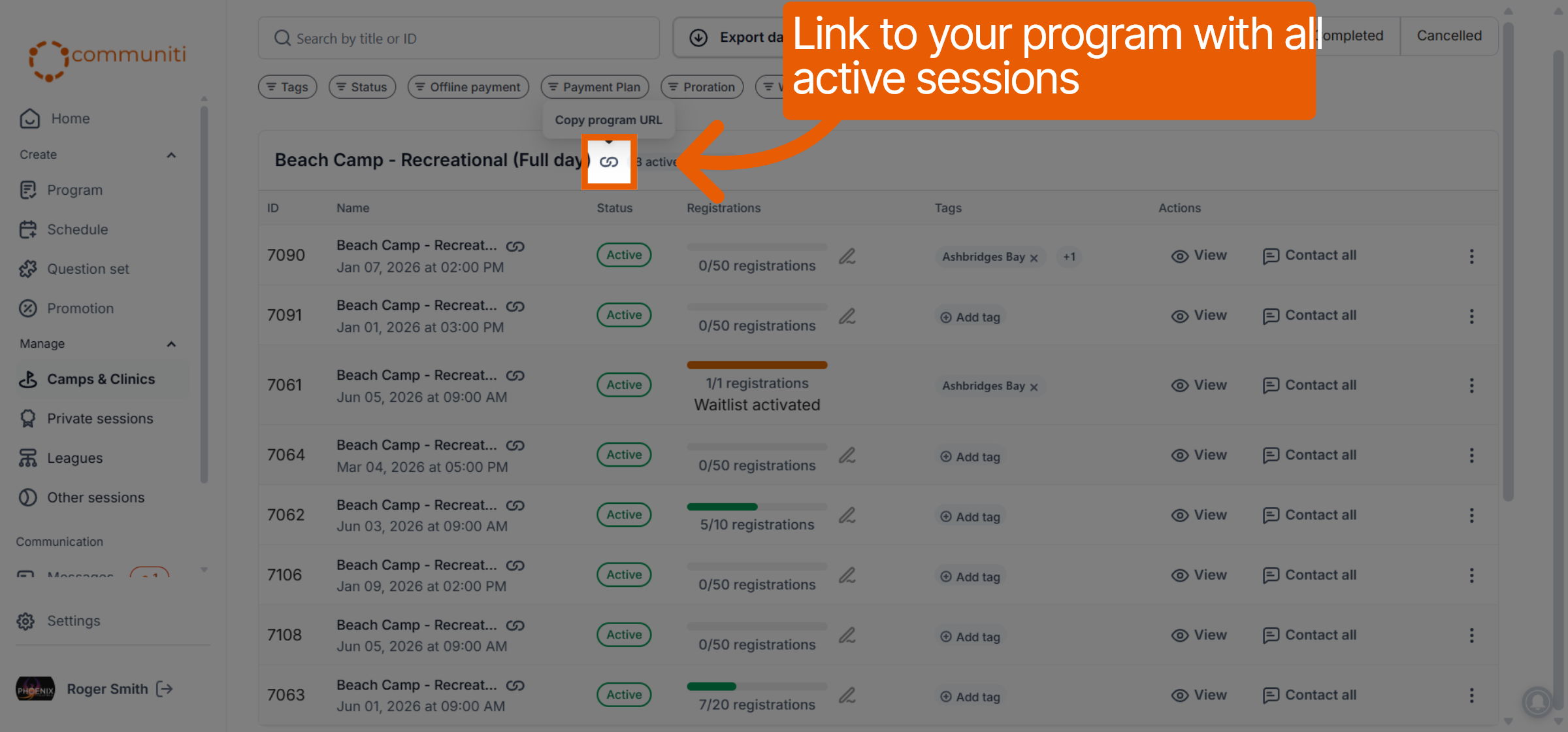
If you have a program with multiple session options—such as a summer camp with five different weeks—you can share a link that groups them together.
Navigate to the Manage menu and select your program category.
Locate the program title and click the Link icon next to it.
Select Copy program URL to get a link that shows every active session currently assigned to that program template.
3. Direct Link to a Specific Session
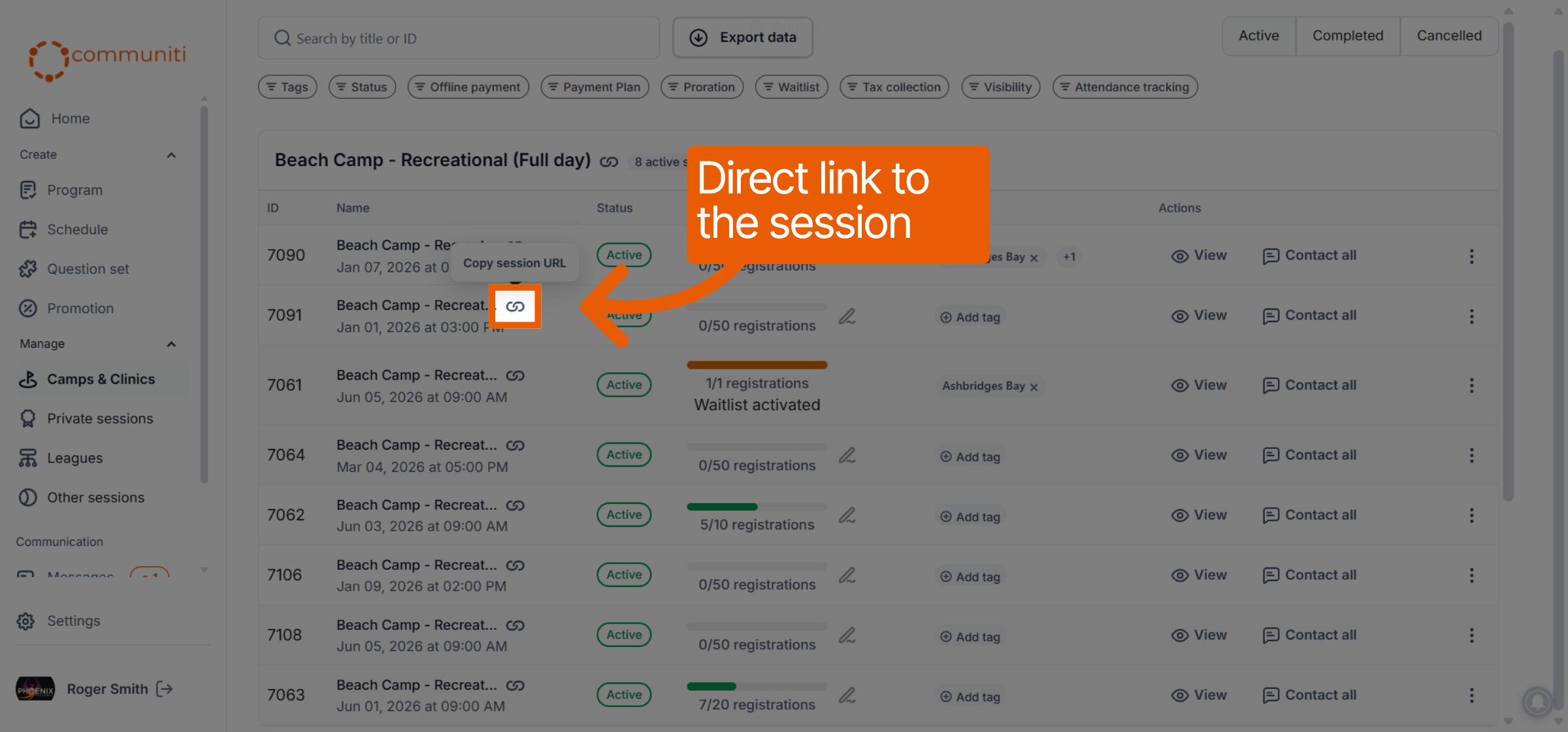
You can provide a direct link to a single session if you want to send a user to one specific date and time for immediate booking.
From your session list under the Manage menu, find the specific session row.
Click the Link icon located directly next to the session title.
Select Copy session URL to share the direct registration page for only that specific event.
Was this helpful?
Still need help? Ask the team