How to Share an Onsite Attendance Link
The onsite attendance link is a valuable feature that allows coaches or coordinators to track check-ins directly from their mobile devices without needing full administrative access to your club's portal.
Written By communiti
Last updated 10 months ago
1. Generate the Onsite Link
Access the attendance dashboard for the specific session you wish to track.
Select Manage from the left sidebar and click into the relevant session.
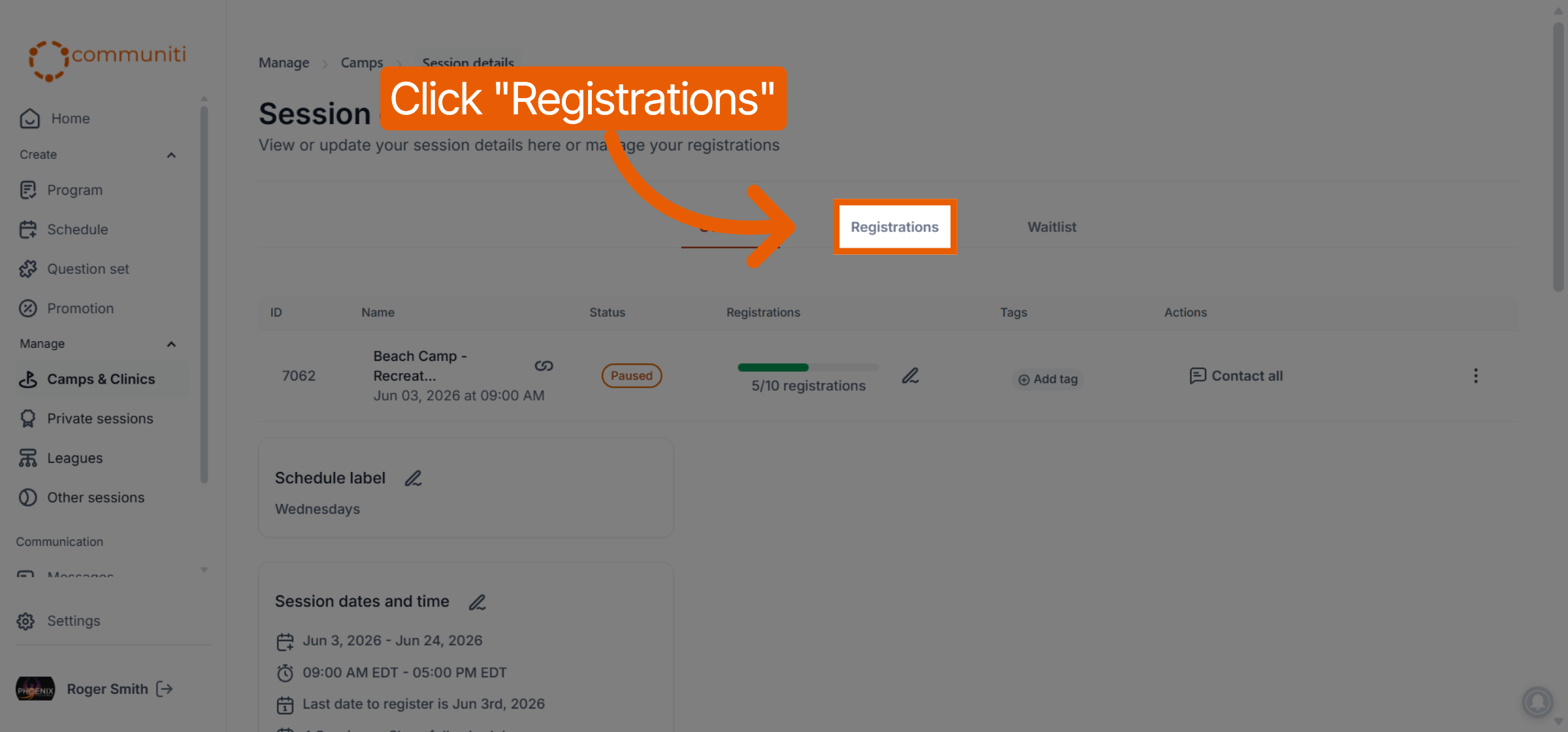
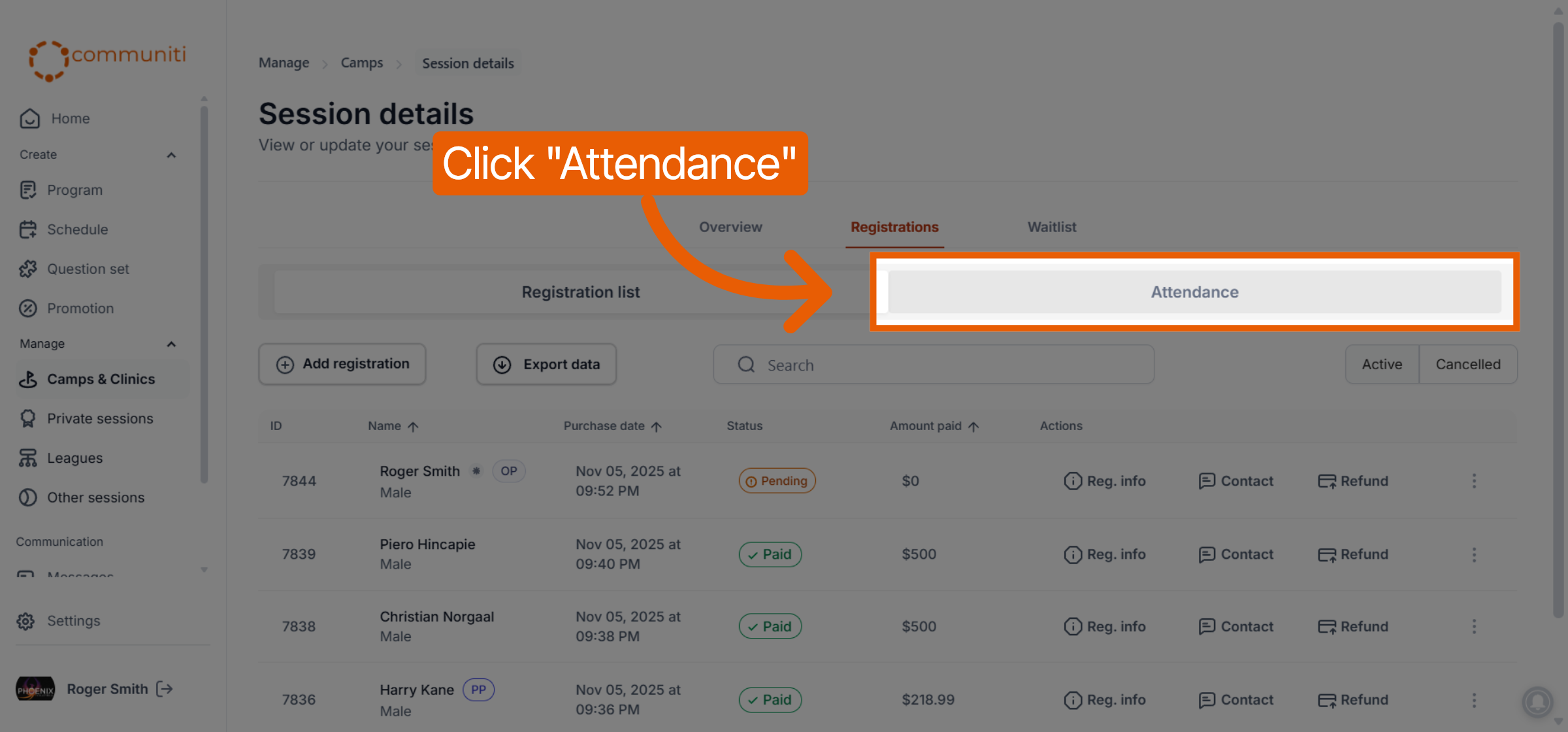
Select the Registrations tab and then click the Attendance button.
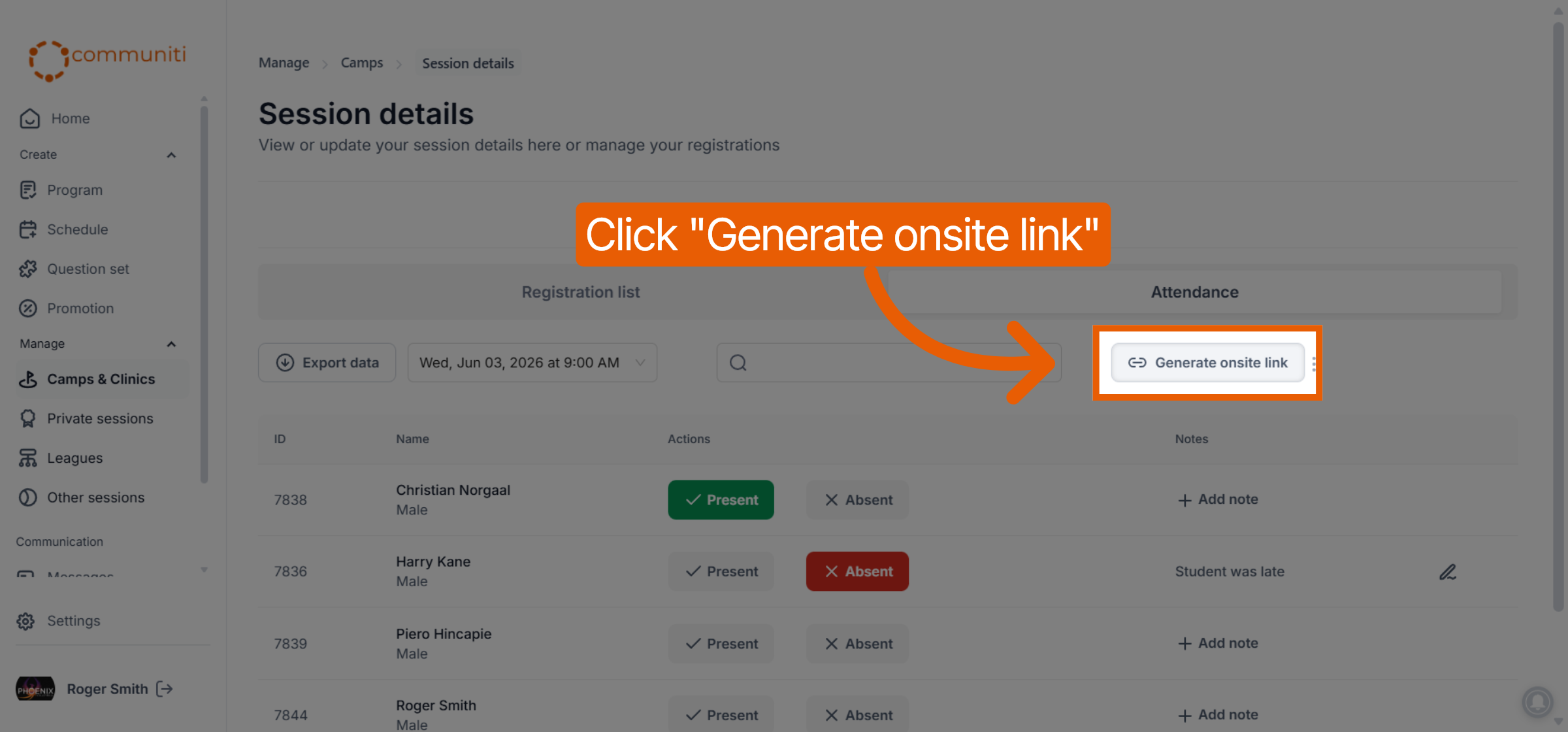
Click the Generate onsite link button located on the right side of the attendance toolbar.
2. Share the Credentials
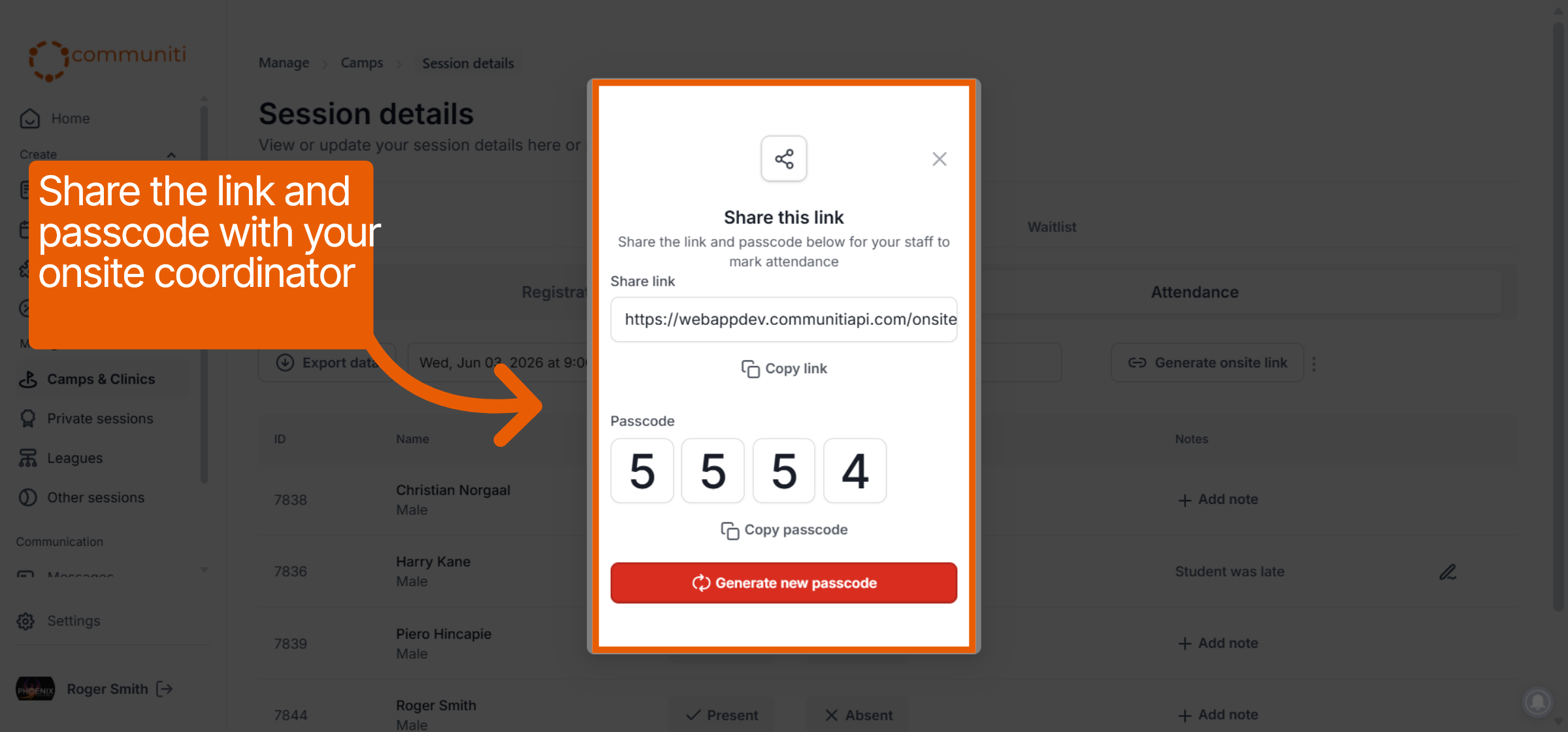
A window will appear containing a unique URL and a secure 4-digit passcode.
Copy Link: Click Copy link to save the URL to your clipboard.
Copy Passcode: Note the 4-digit Passcode provided.
Share: Send both the link and the passcode to your onsite coordinator (e.g., via text or email).
Security Note: If you need to revoke access, you can click the red Generate new passcode button to invalidate the previous one.
3. The Onsite Experience
When the coordinator clicks the link on their phone or tablet, they will follow a streamlined process:
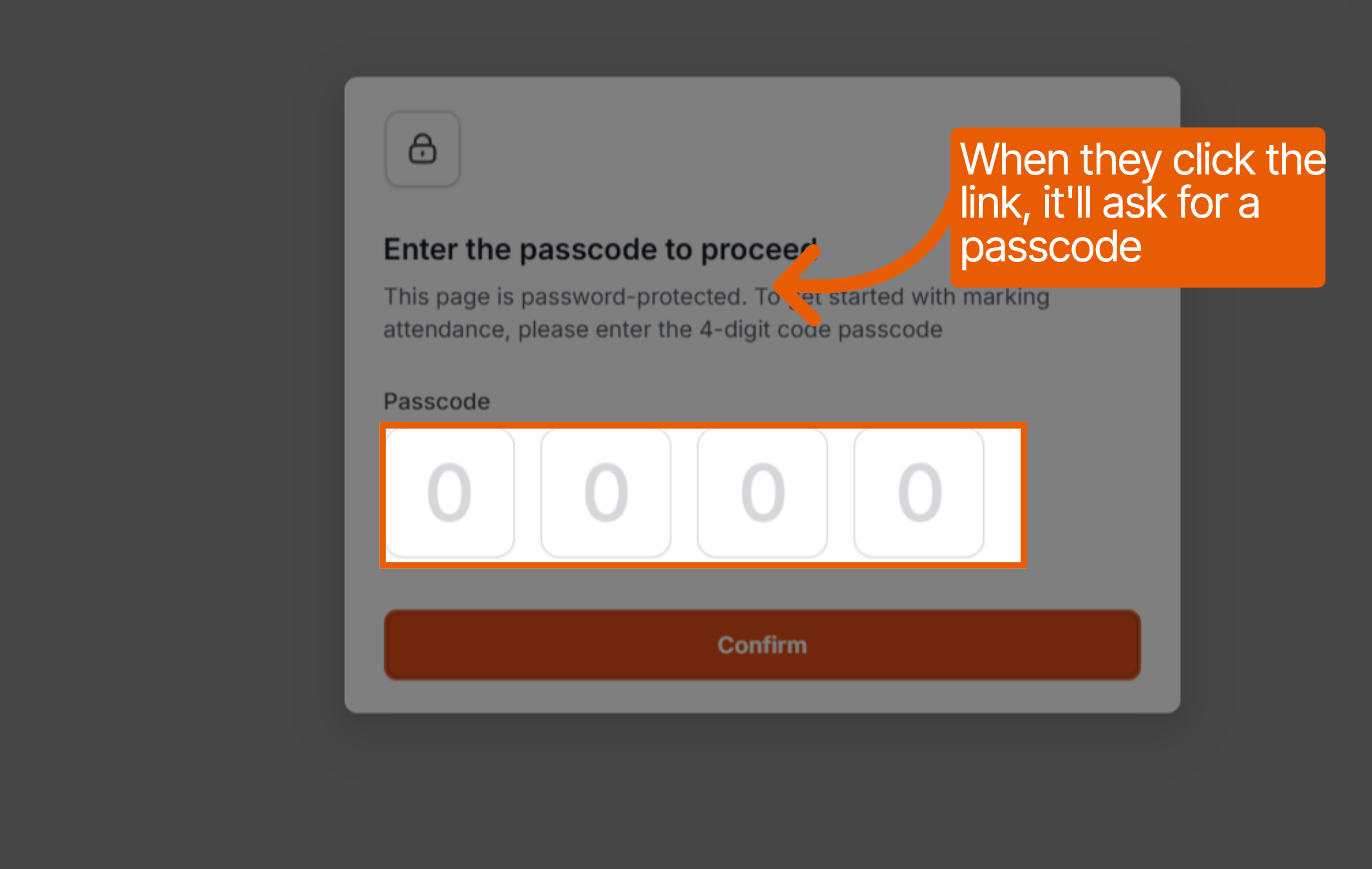
Authentication: They will be prompted to enter the 4-digit passcode to proceed.
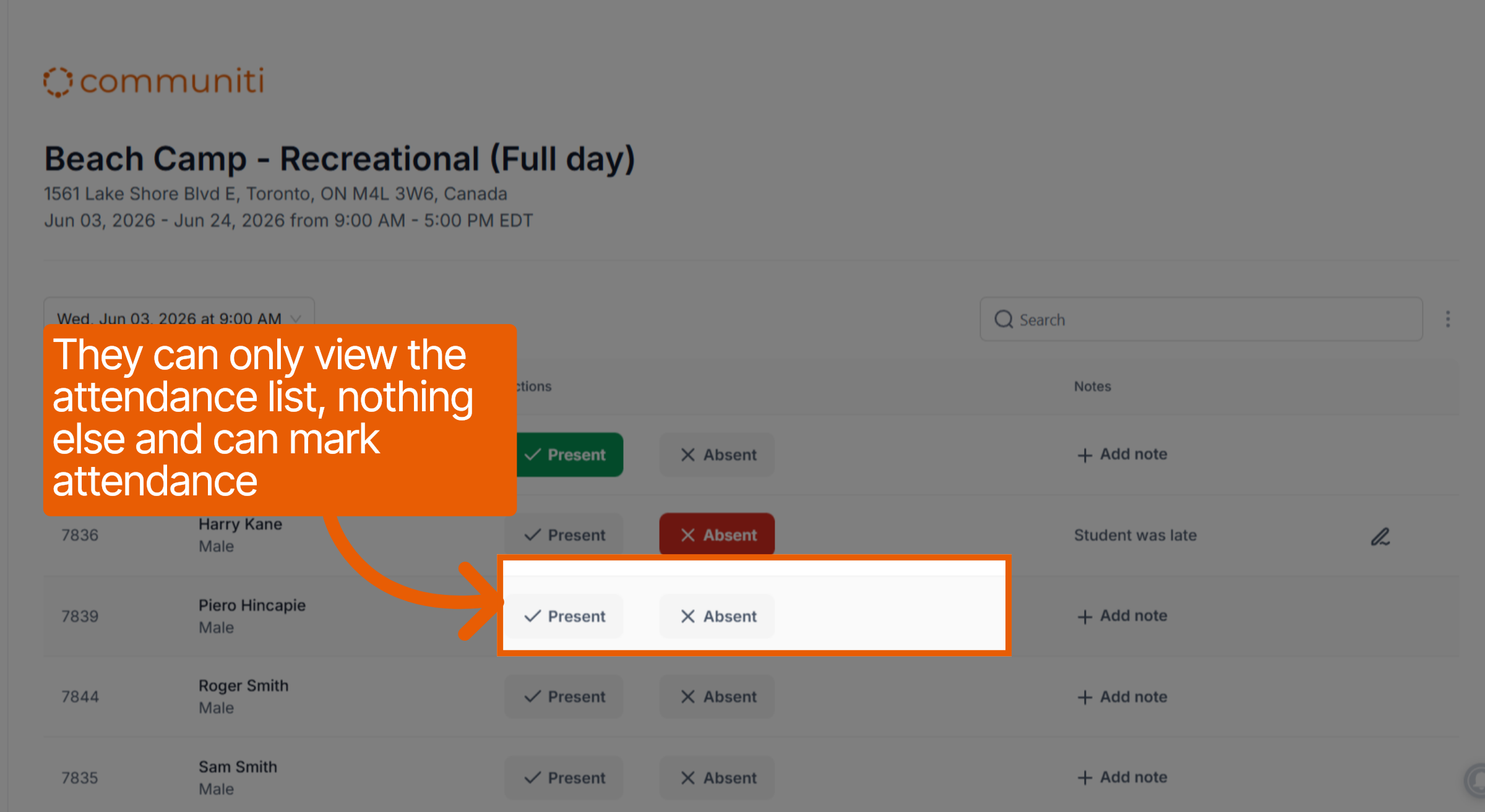
Attendance View: Once authenticated, they can see the attendance list.
Limited Access: For privacy and security, the coordinator can only view the attendance list and mark check-ins; they cannot see any other administrative data or session settings.
Real-Time Sync: As the coordinator marks participants as Present or Absent, the data is updated on your administrative dashboard in real-time.
Was this helpful?
Still need help? Ask the team