How to Track Participant Attendance
Once attendance tracking is enabled for a session, you can maintain a digital record of which participants are present for each scheduled date.
Written By communiti
Last updated 10 months ago
1. Access the Attendance Dashboard
You can manage check-ins directly from the specific session's management page.
Select Manage from the left sidebar and click into the relevant session.
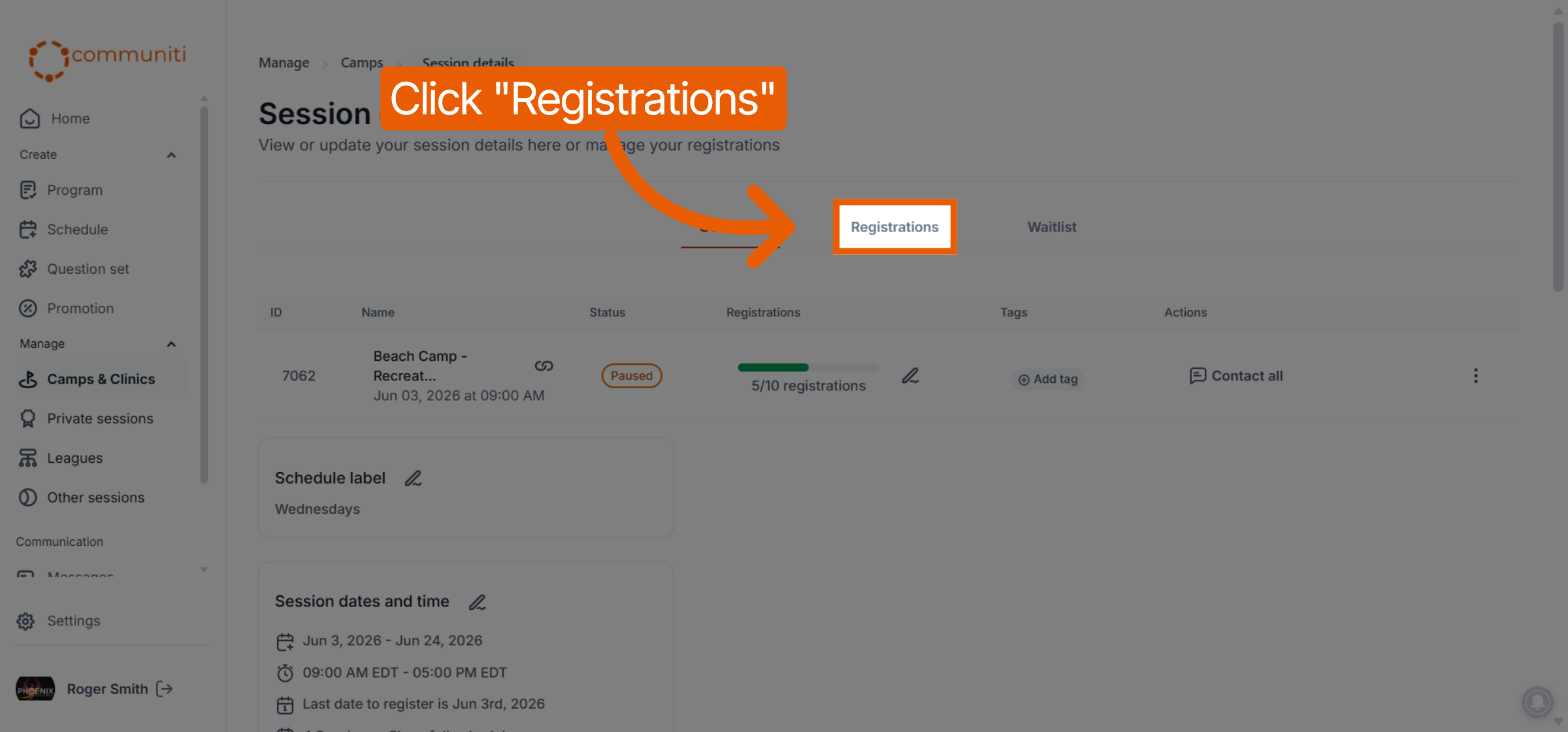
Click the Registrations tab at the top of the session details.
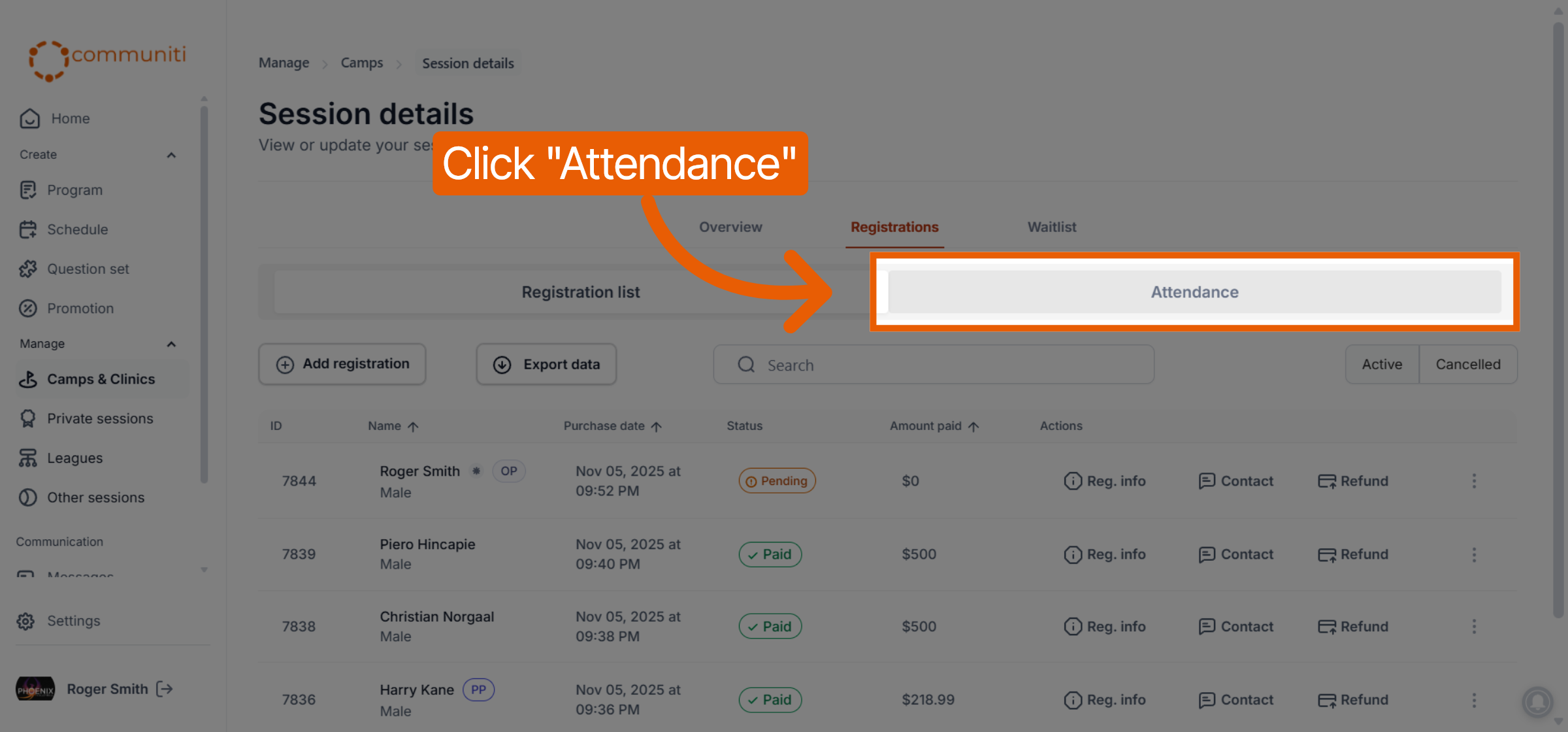
Select the Attendance button located under the main tabs.
2. Select the Session Date
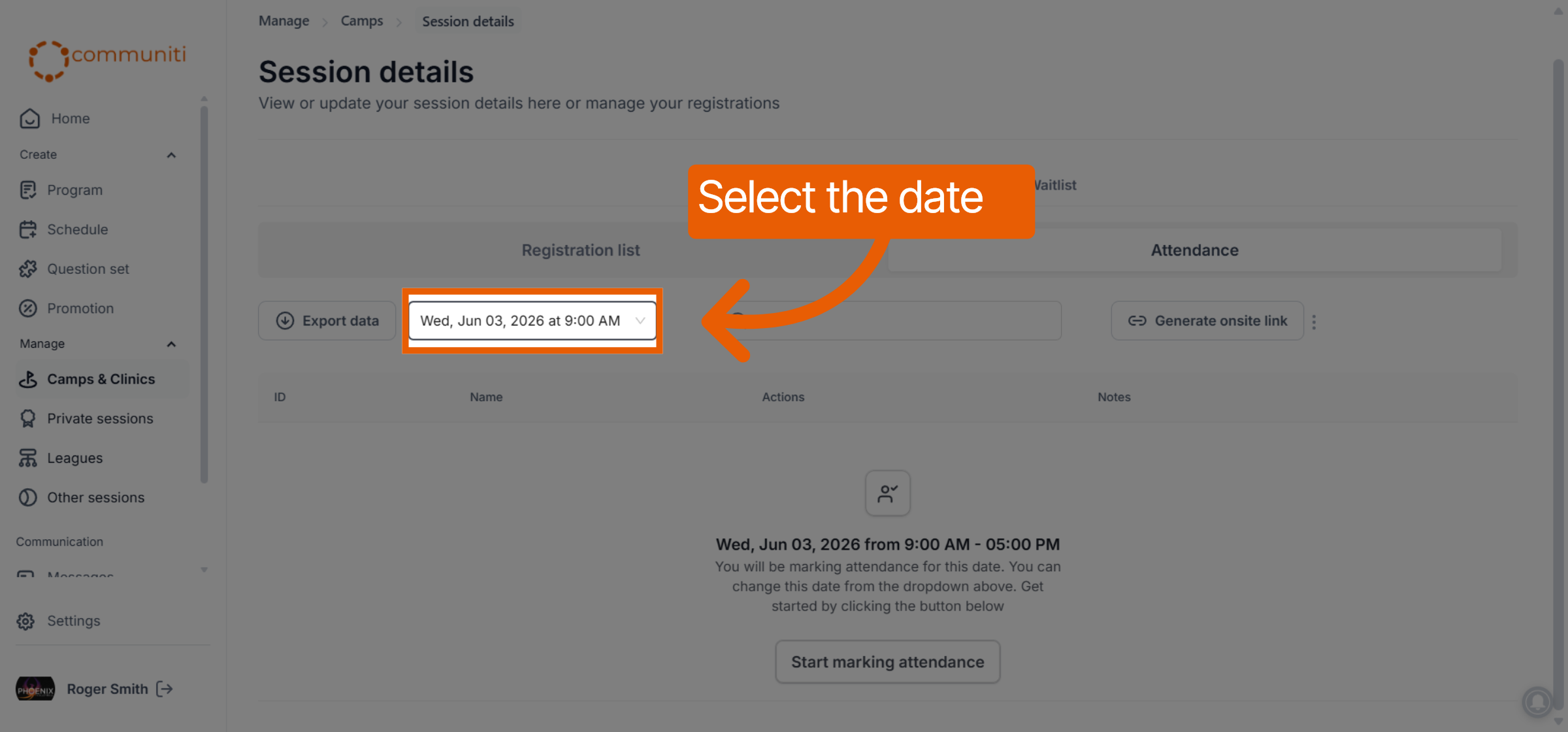
Use the date dropdown menu to select the specific date and time you wish to record.
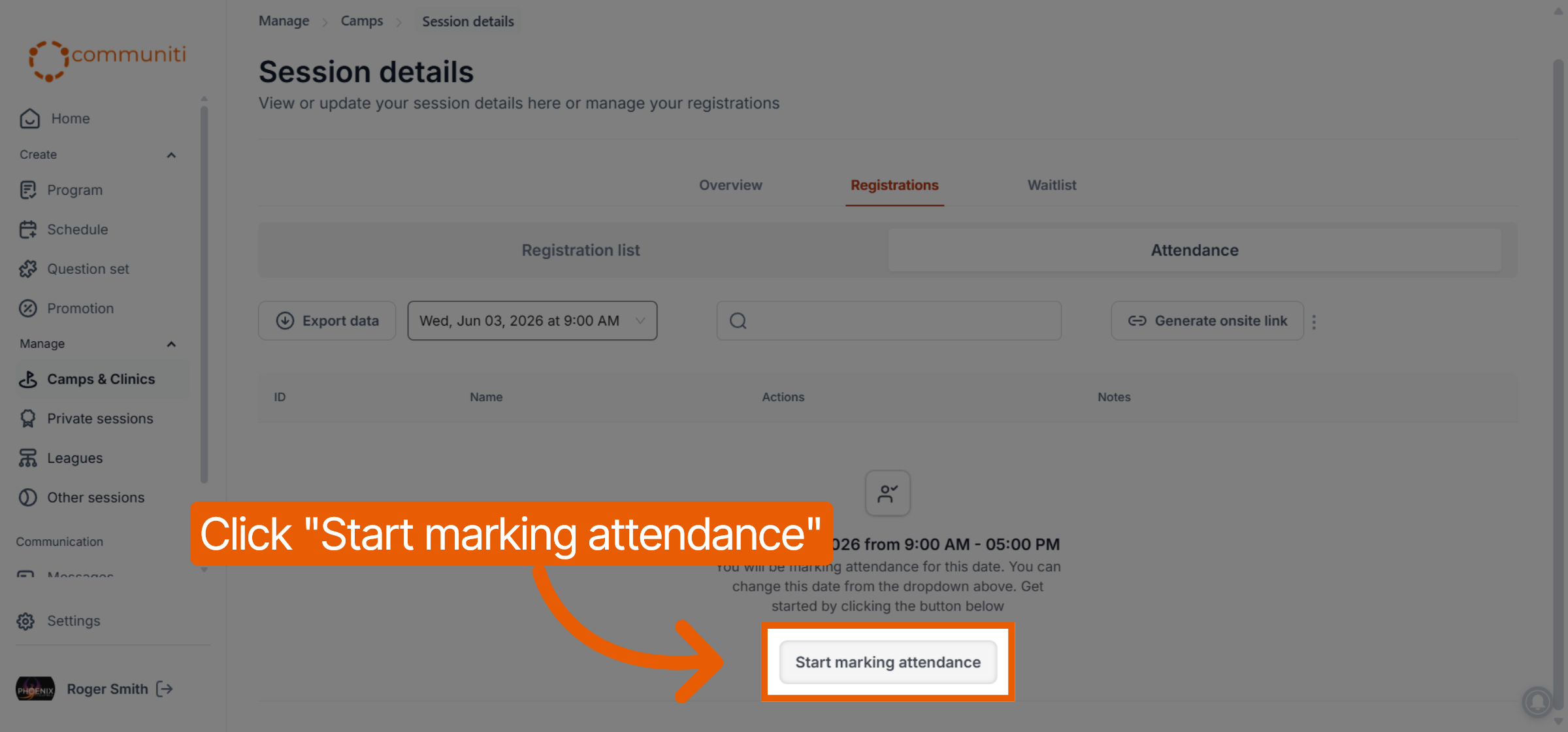
If you are starting a new record for that day, click the Start marking attendance button.
3. Record Check-ins and Absences
Mark each participant's status as they arrive.
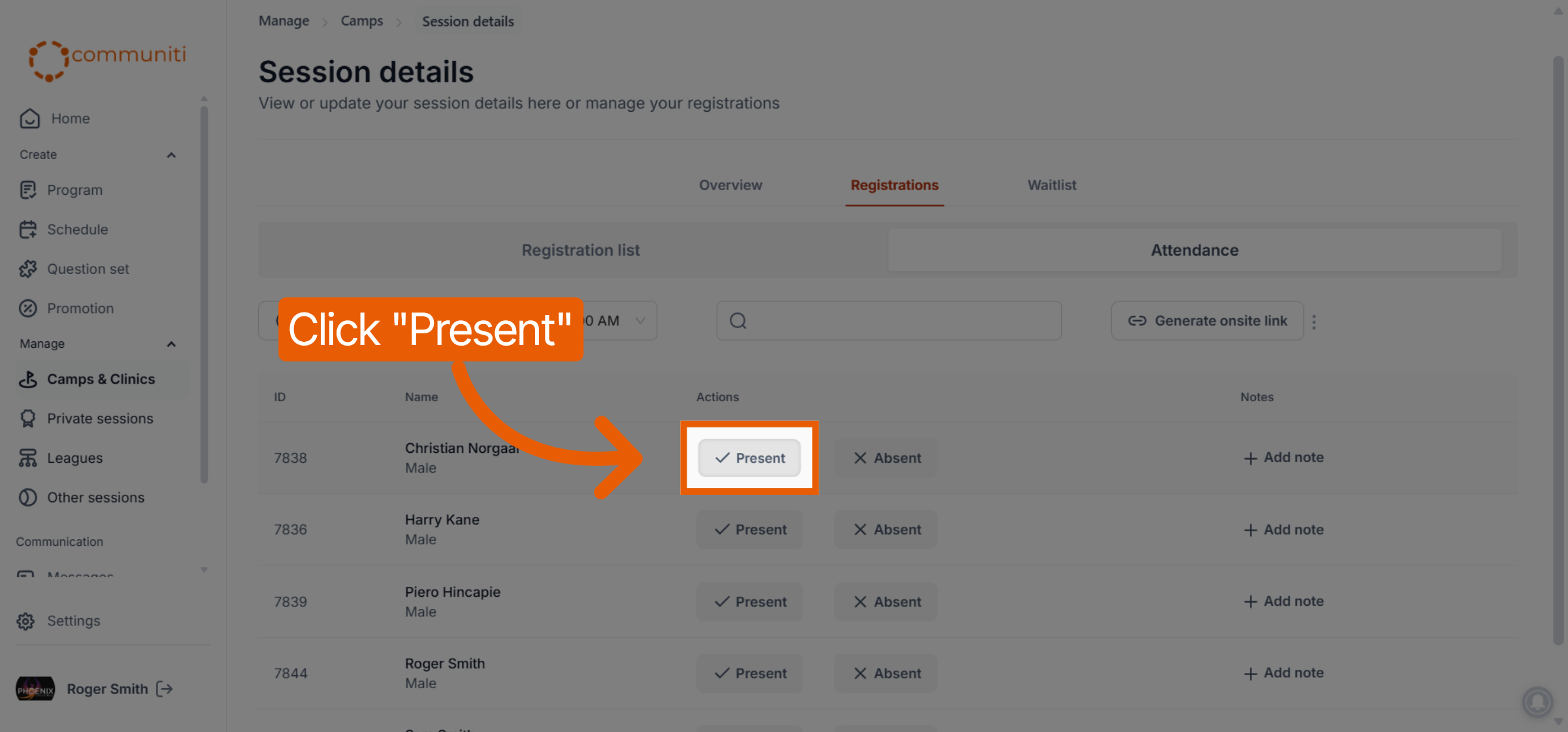
Mark Present: Click the Present button next to a participant's name. The button will turn green to confirm the status.
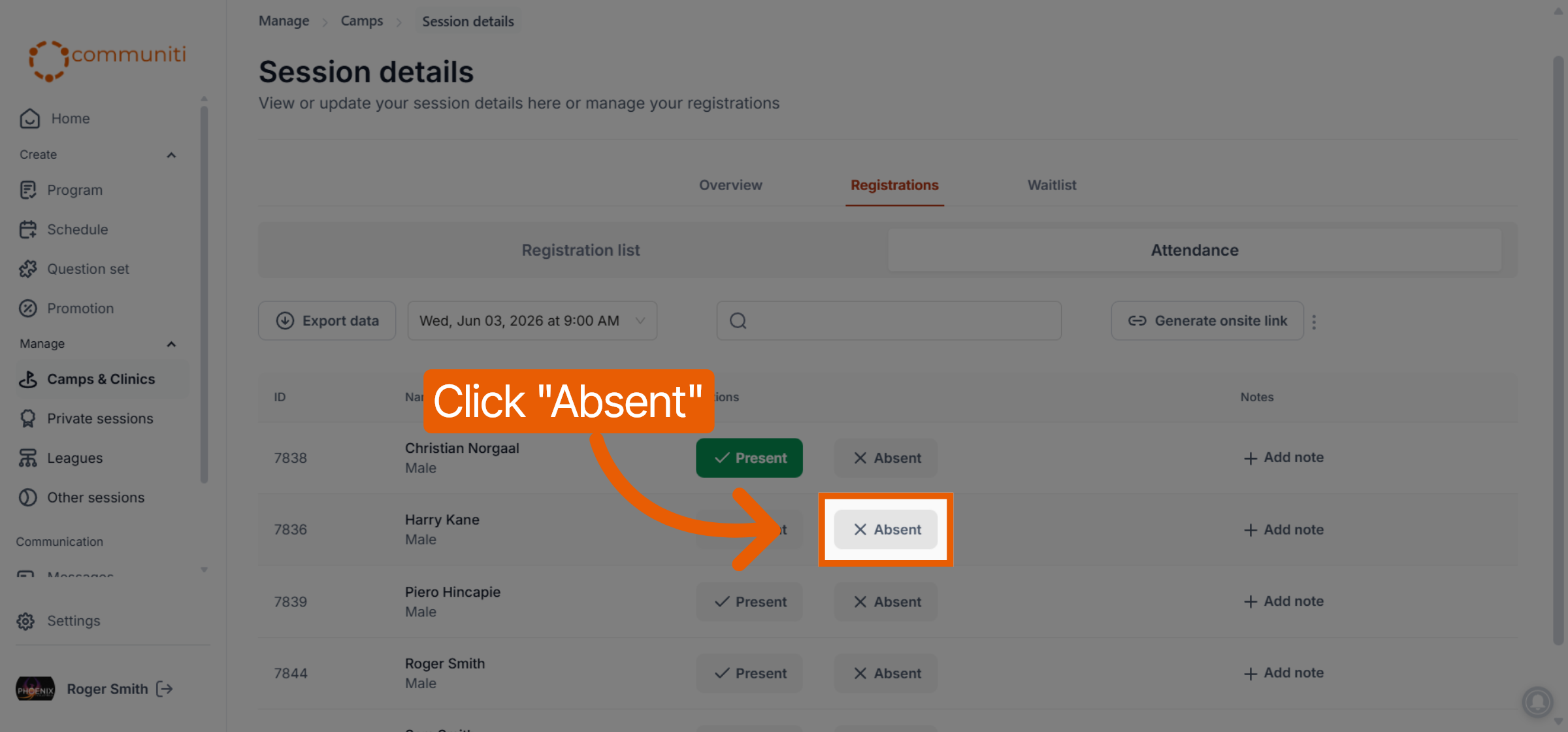
Mark Absent: Click the Absent button if a participant is not in attendance. The button will turn red to confirm the status.
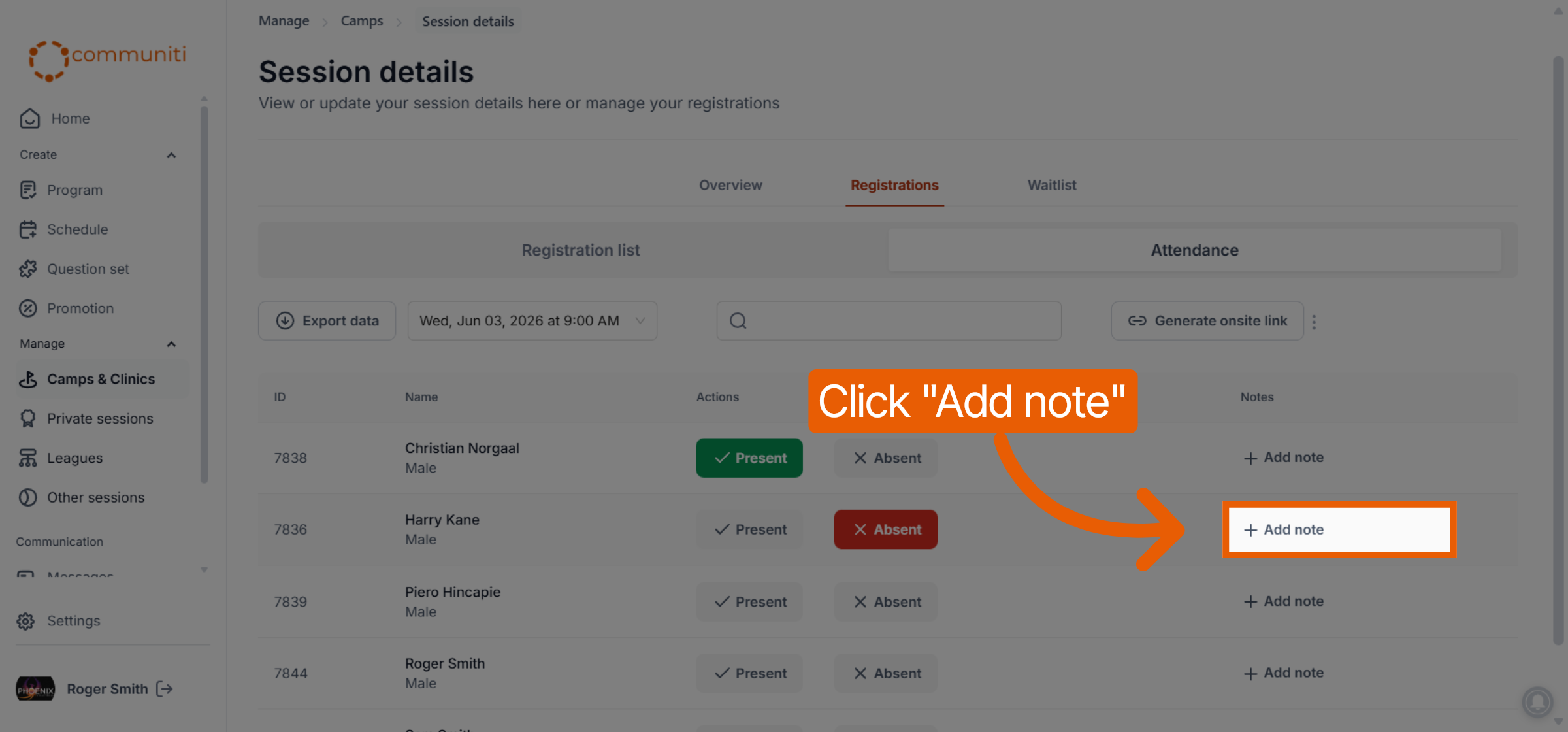
Add Notes: Click + Add note next to any participant to record specific details, such as "Arrived 15 minutes late" or "Left early for appointment".
Was this helpful?
Still need help? Ask the team