Attendance Tracking Best Practices
To ensure your digital check-in sheets are accurate and up-to-date, it is important to understand how the platform generates the attendance list for each session date.
Written By communiti
Last updated 10 months ago
1. Timing Your Start
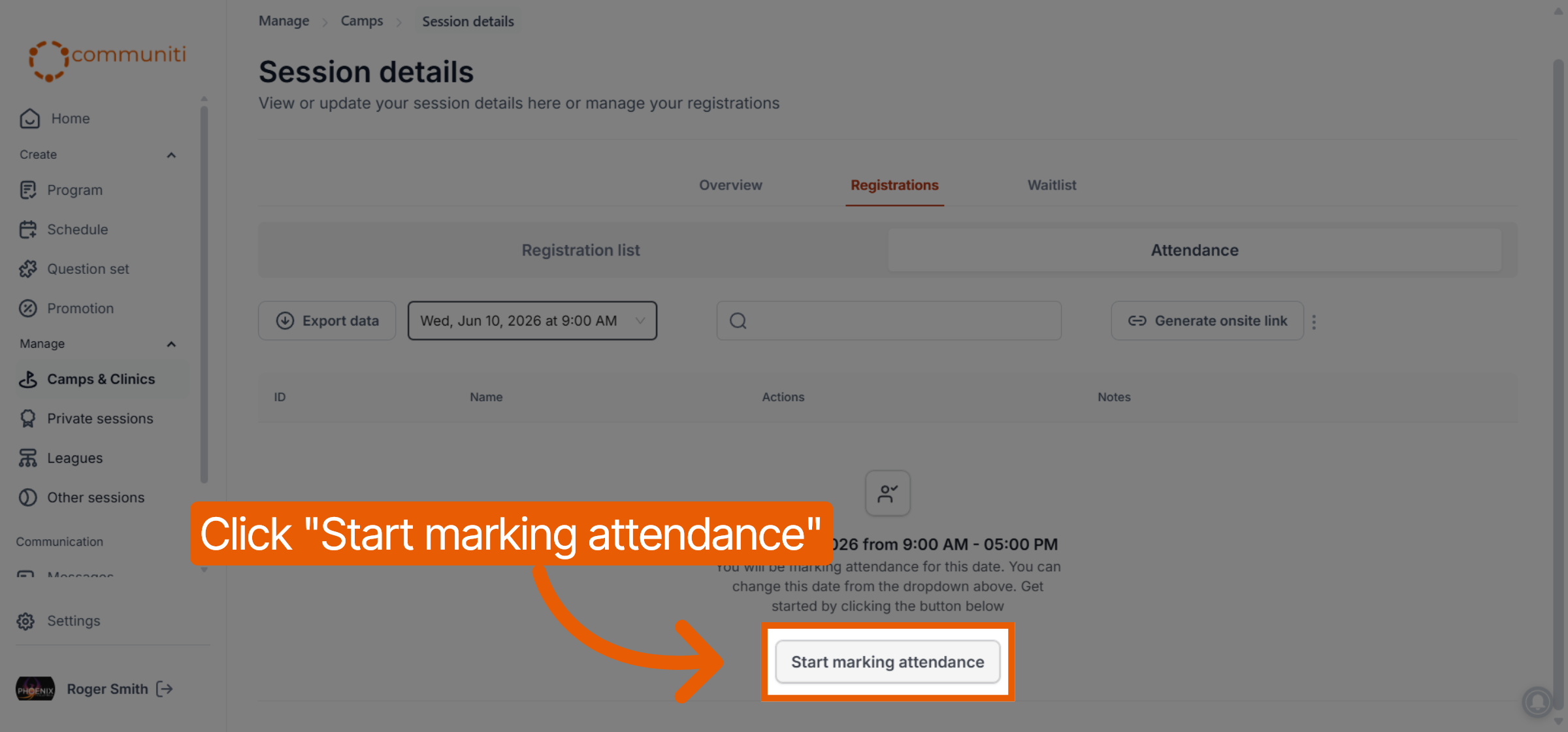
The most important best practice is to wait until just before your session begins to click the Start marking attendance button.
Real-Time Snapshots: When you click that button, the system generates a list based on your current registrations at that exact moment.
Late Registrants: If you click the button a day early and two more participants register later that evening, they will not automatically appear on the attendance sheet you already created for that specific date.
2. Refreshing Your List
If you accidentally started marking attendance too early or know that new participants have joined since you opened the sheet, you can manually update the list.
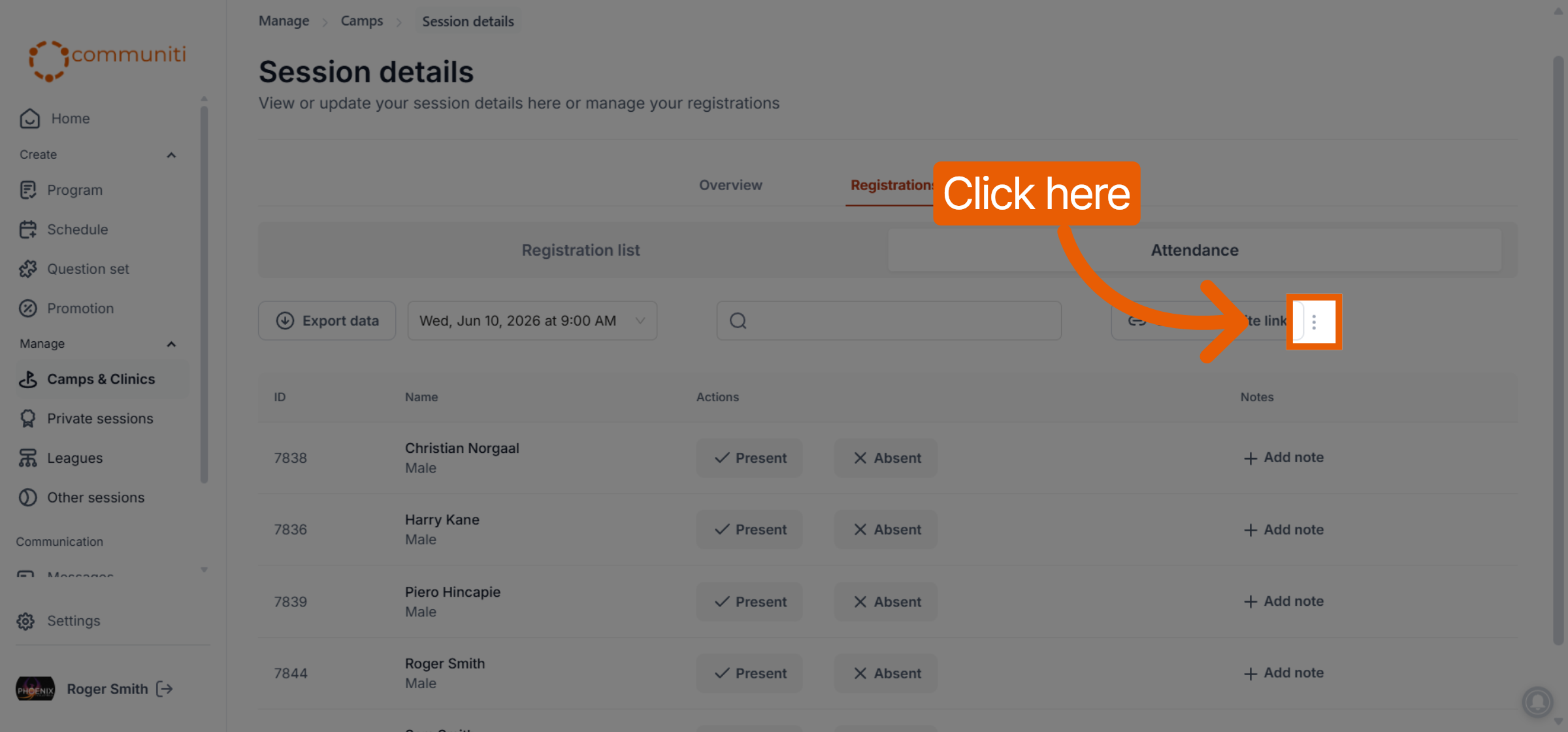
Locate the Menu: Click the Three Dots (⋮) icon located next to the "Generate onsite link" button.
Update Registrations: Select Refresh attendance list from the dropdown menu.
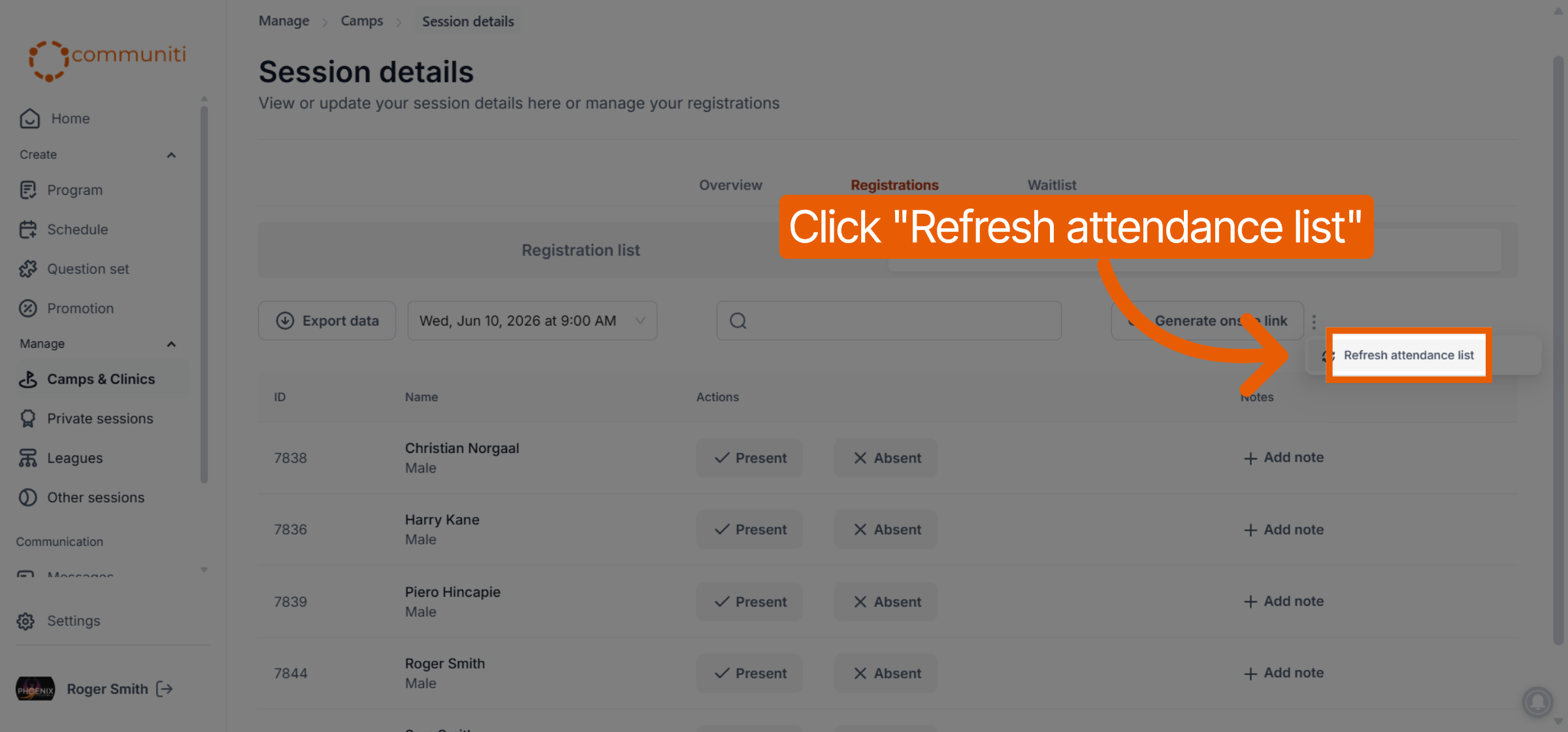
Sync Data: This action forces the system to scan for any new registrations and add them to the attendance sheet immediately.
3. Summary of Best Practices
Avoid Early Starts: Do not initialize the attendance sheet days or weeks in advance.
Onsite Initialization: Ideally, have the onsite coordinator initialize the sheet on their mobile device right before the first participant arrives.
Manual Sync: Use the Refresh feature if you are expecting "walk-in" registrations that were completed just before the session began.
Was this helpful?
Still need help? Ask the team