How to Cancel a User's Payment Plan
If a participant needs to withdraw from a program or wishes to pay their remaining balance another way, you can manually cancel their upcoming payment plan installments.
Written By communiti
Last updated 10 months ago
1. Navigate to the Session Dashboard
Access the registration list for the specific session where the participant is enrolled.
Select the Manage menu in the left sidebar and choose your program category (e.g., Camps & Clinics).
Click on the specific session from your list.
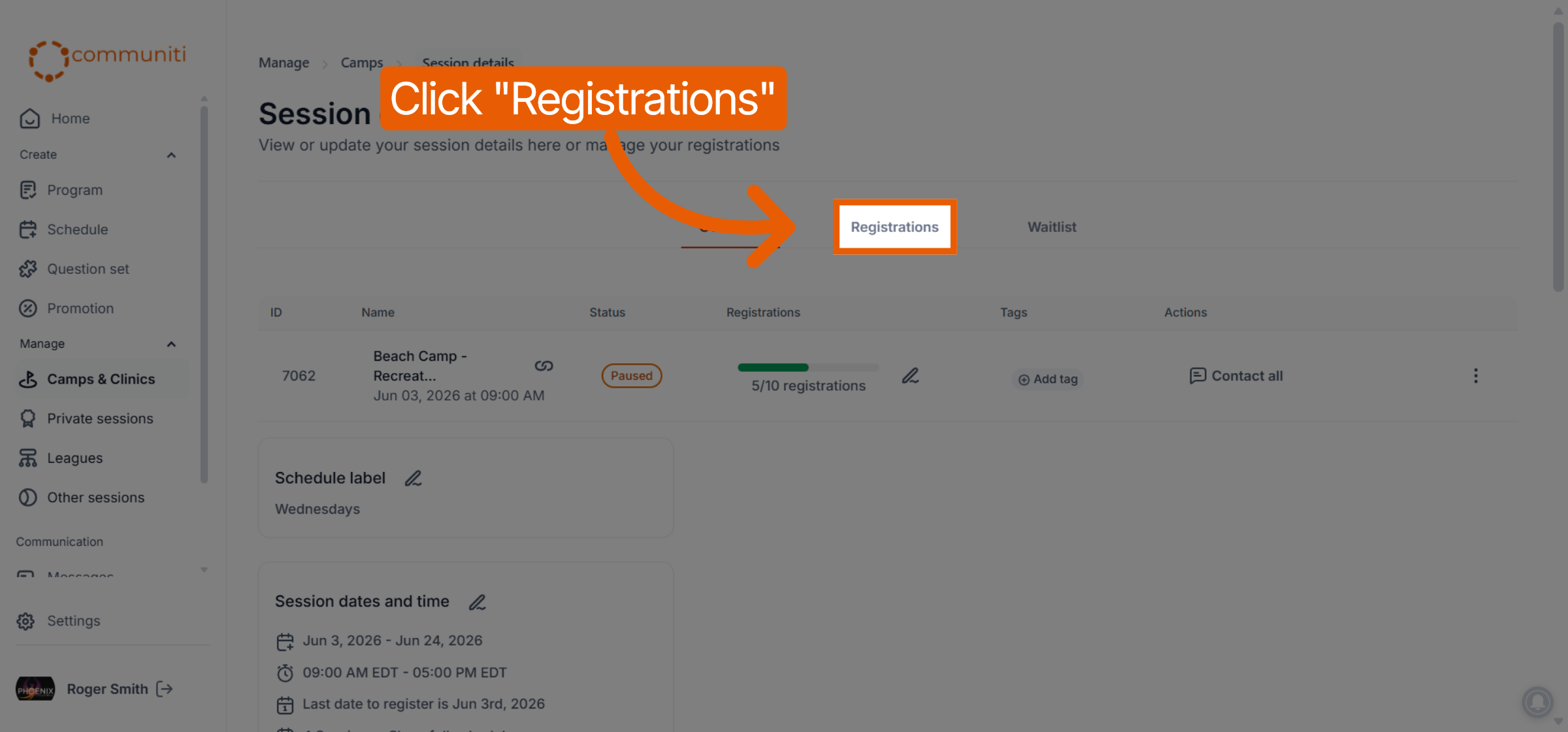
Select the Registrations tab at the top of the session dashboard.
2. Open the Participant's Financial View
Locate the user (identified by the blue PP tag) and access their registration details.
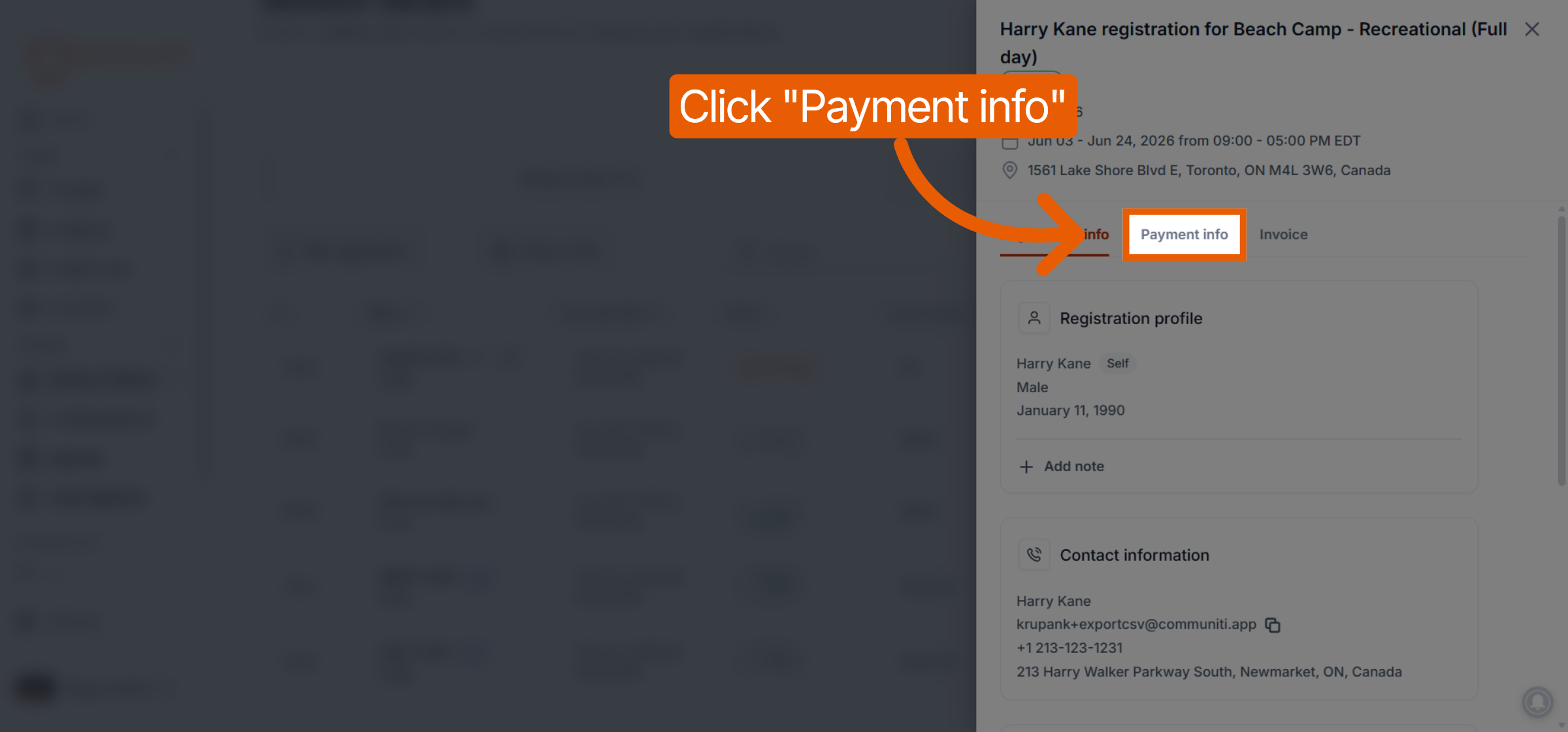
Click the Reg. info button in the Actions column for that participant.
In the side panel that opens, click the Payment info tab.
3. Cancel Future Installments
Once you are in the payment information view, you can stop the automated schedule.
Locate the active payment plan summary and click the Cancel payment plan link.
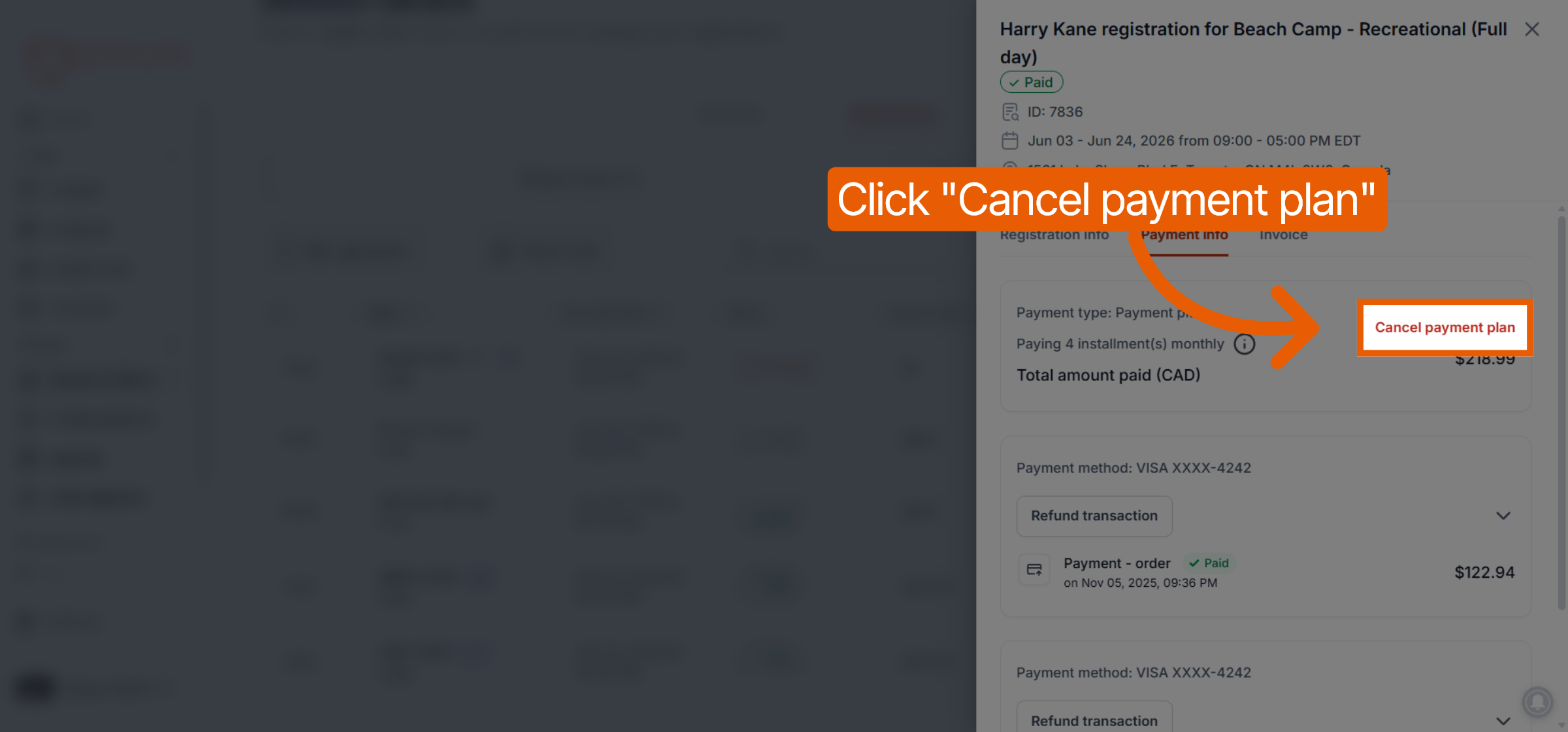
Important Note: Canceling a payment plan only stops future scheduled installments from being charged. It does not automatically issue a refund for payments that have already been processed. If a user is entitled to a refund for previous installments, you must process that separately through the Refund action in the registration list.
Was this helpful?
Still need help? Ask the team