How to Update Your Account Information
Keeping your account information current ensures that participants see the correct contact details and that you receive important platform notifications at the right address.
Written By communiti
Last updated 10 months ago
1. Navigate to Account Settings
Access your personal and administrative details from the main dashboard.
Select Settings in the left sidebar menu.
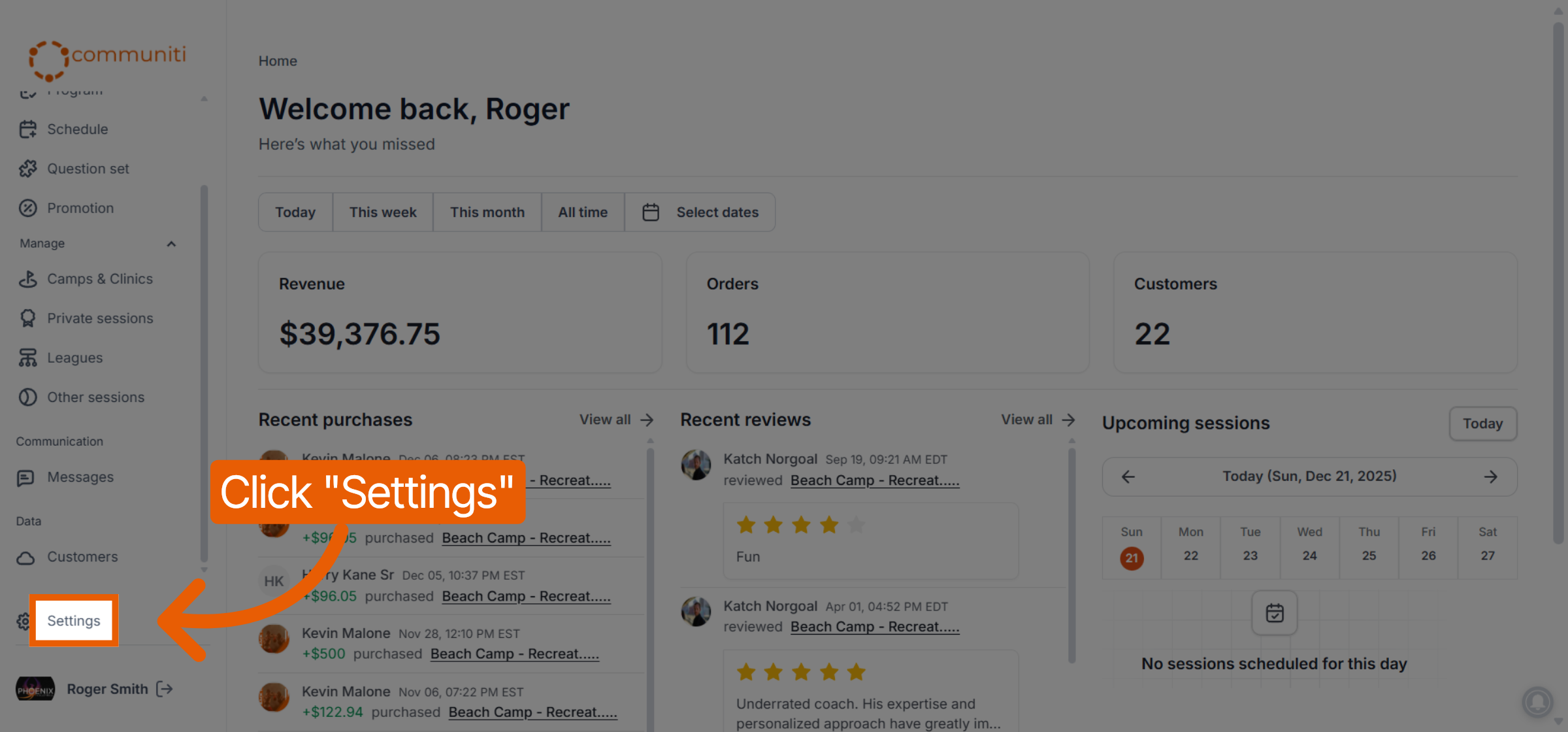
By default, you will land on the Account details tab.
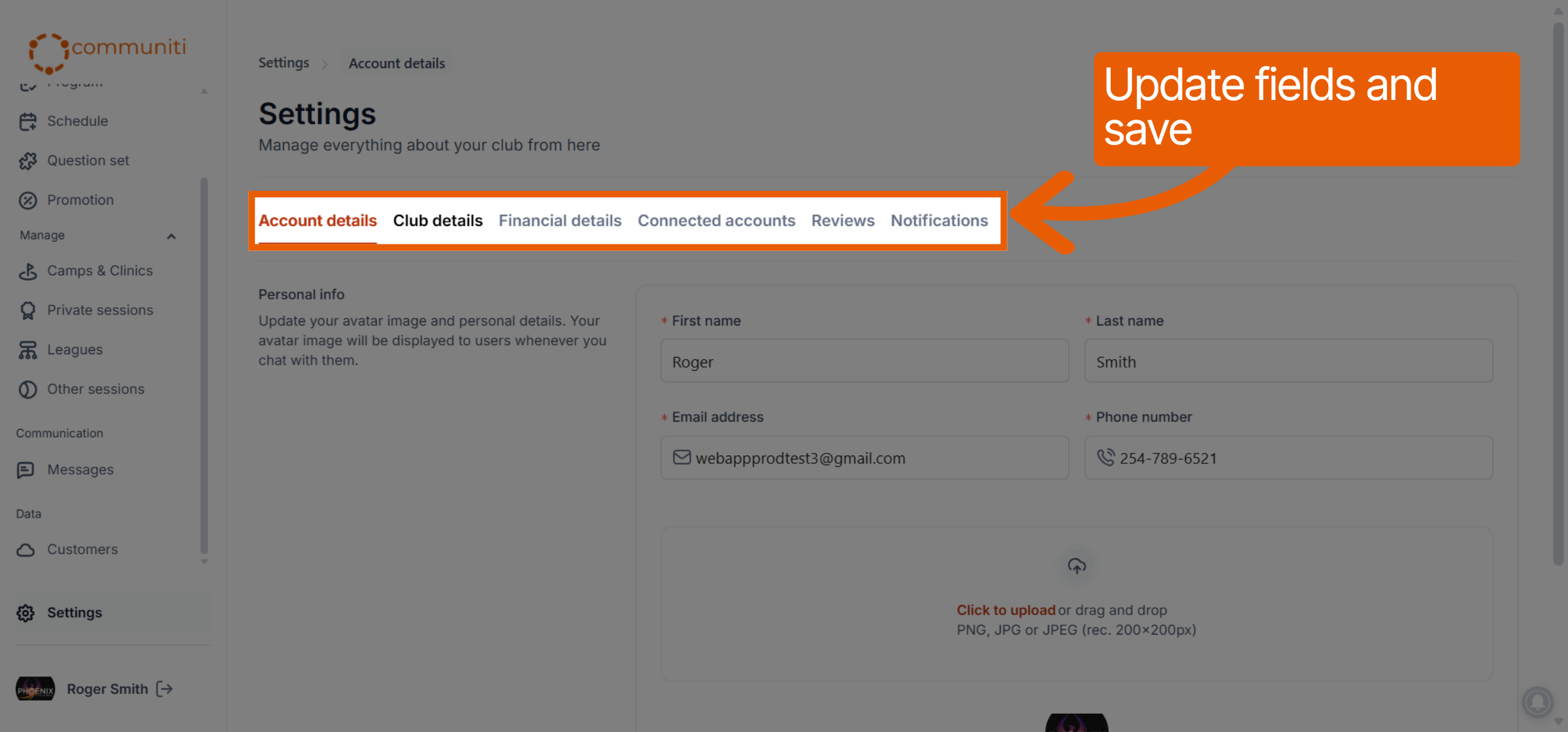
2. Update Your Personal Info
Manage the primary contact information for your administrative profile.
Name: Update the First name and Last name associated with the account.
Email Address: Modify the Email address where you receive administrative alerts.
Phone Number: Enter or change your primary Phone number.
3. Manage Your Profile Image
Your avatar image is visible to users whenever you interact with them through the direct messaging or group chat features.
Upload Image: Drag and drop a file into the upload area or click to select one from your computer.
Recommended Specs: For the best appearance, use a PNG, JPG, or JPEG file with a recommended size of 200x200px.
4. Explore Additional Settings
The settings menu also allows you to manage broader club and financial details through the other available tabs:
Club details: Update your club name, public handle, logo, and "About" description.
Financial details: Manage your payout information and tax settings.
5. Save Your Changes
Once you have finished updating your fields, scroll to the bottom and click the orange Save changes button to finalize your updates.
Was this helpful?
Still need help? Ask the team