How to Duplicate a Program
Duplicating a program is the fastest way to create a new offering that shares similar details - such as waivers, photos, and descriptions—without starting from scratch. This is especially useful if you are launching a new season or a similar camp with only minor changes to the title or content.
Written By communiti
Last updated 10 months ago
1. Navigate to Your Programs
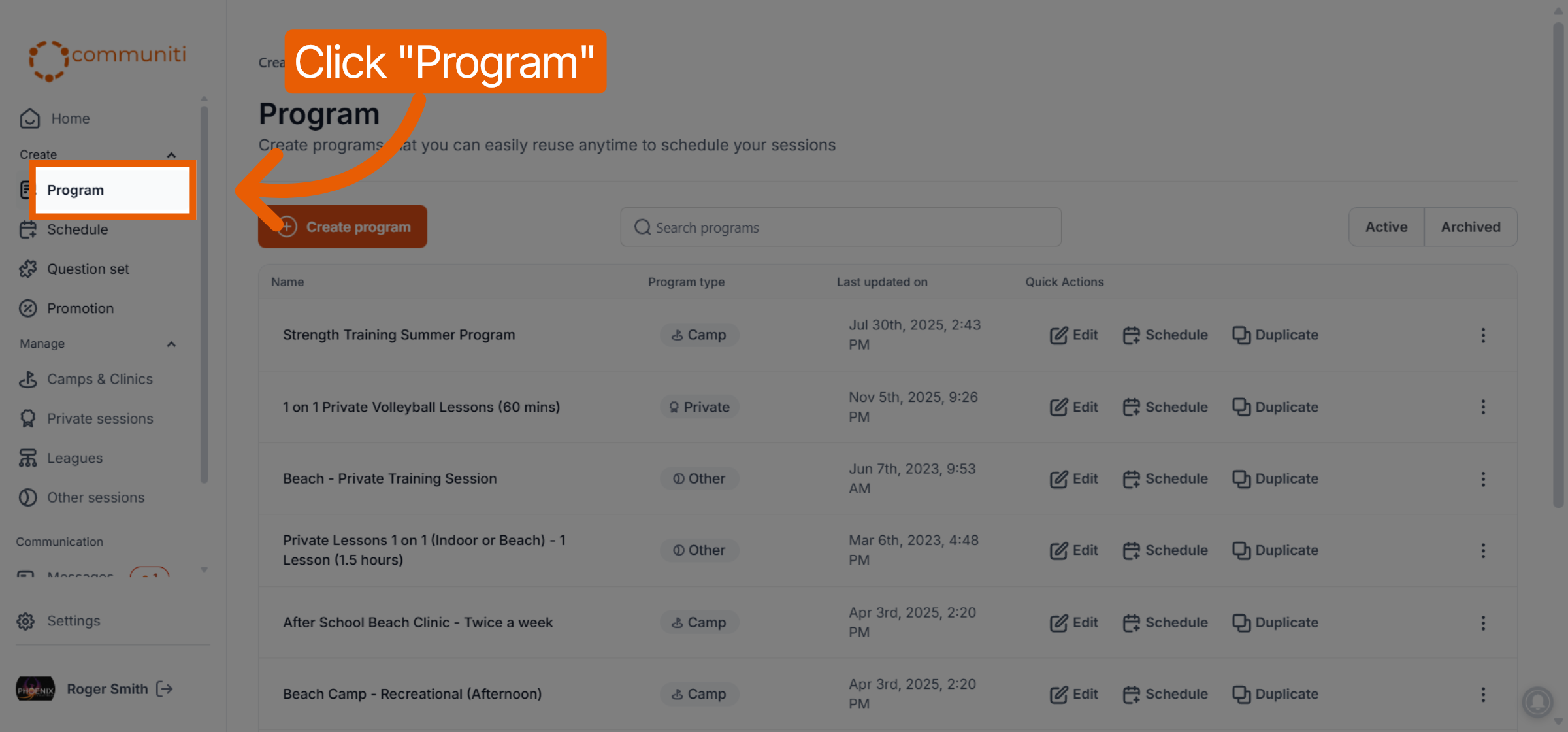
From your admin dashboard, click on Program in the left-hand sidebar to view your list of existing templates.
2. Use the Duplicate Action
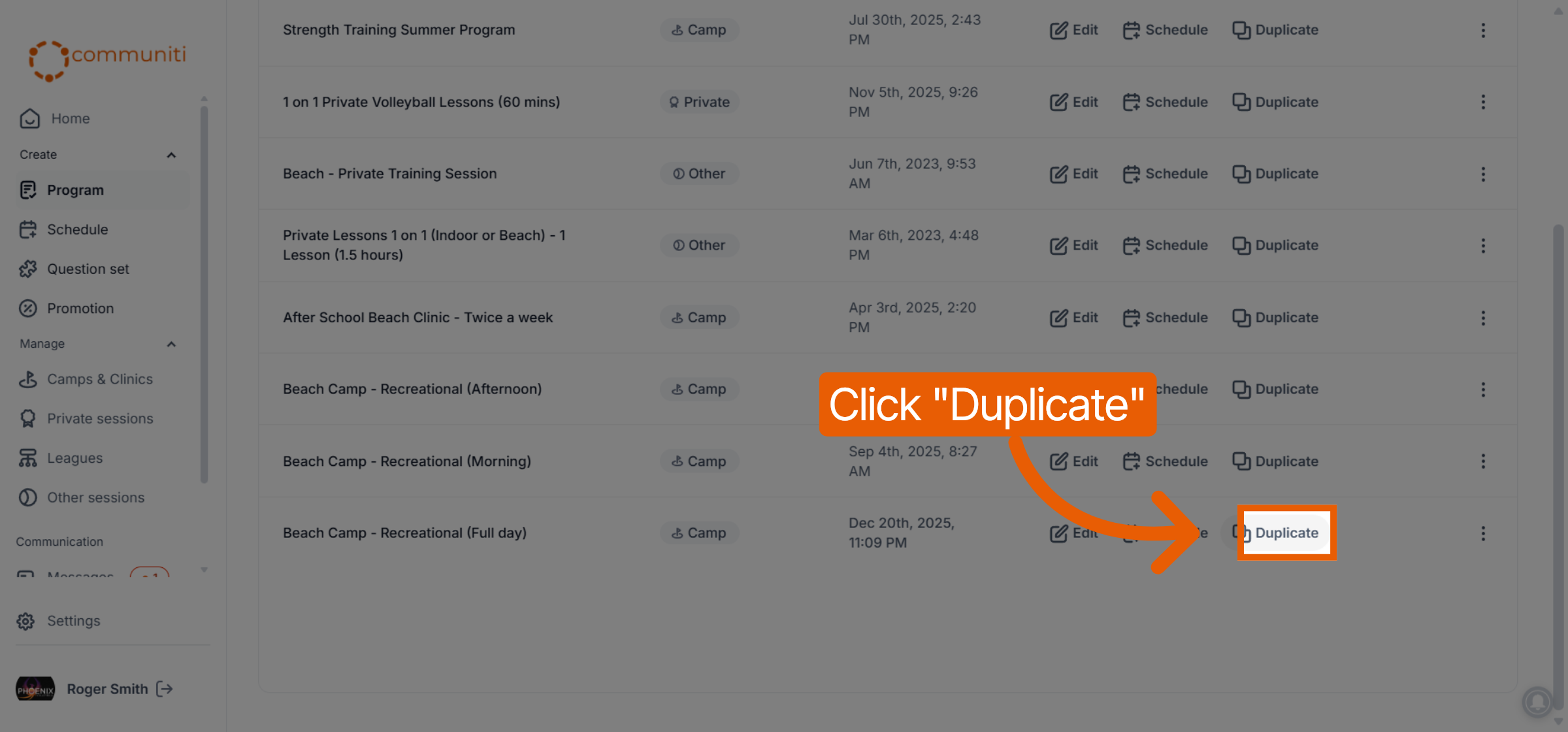
Find the program you wish to copy. In the Quick Actions column on the right, click the Duplicate icon.
3. Review and Edit the Copy
The platform will automatically generate a new program template pre-filled with all the information from the original. You should review and update the following:
Program Name: Update the name to distinguish it from the original (e.g., changing "Summer Camp" to "Fall Camp").
Description & Additional Info: Make any necessary adjustments to the program's specific details.
Location: Confirm if the venue remains the same or needs an update.
4. Save the New Program
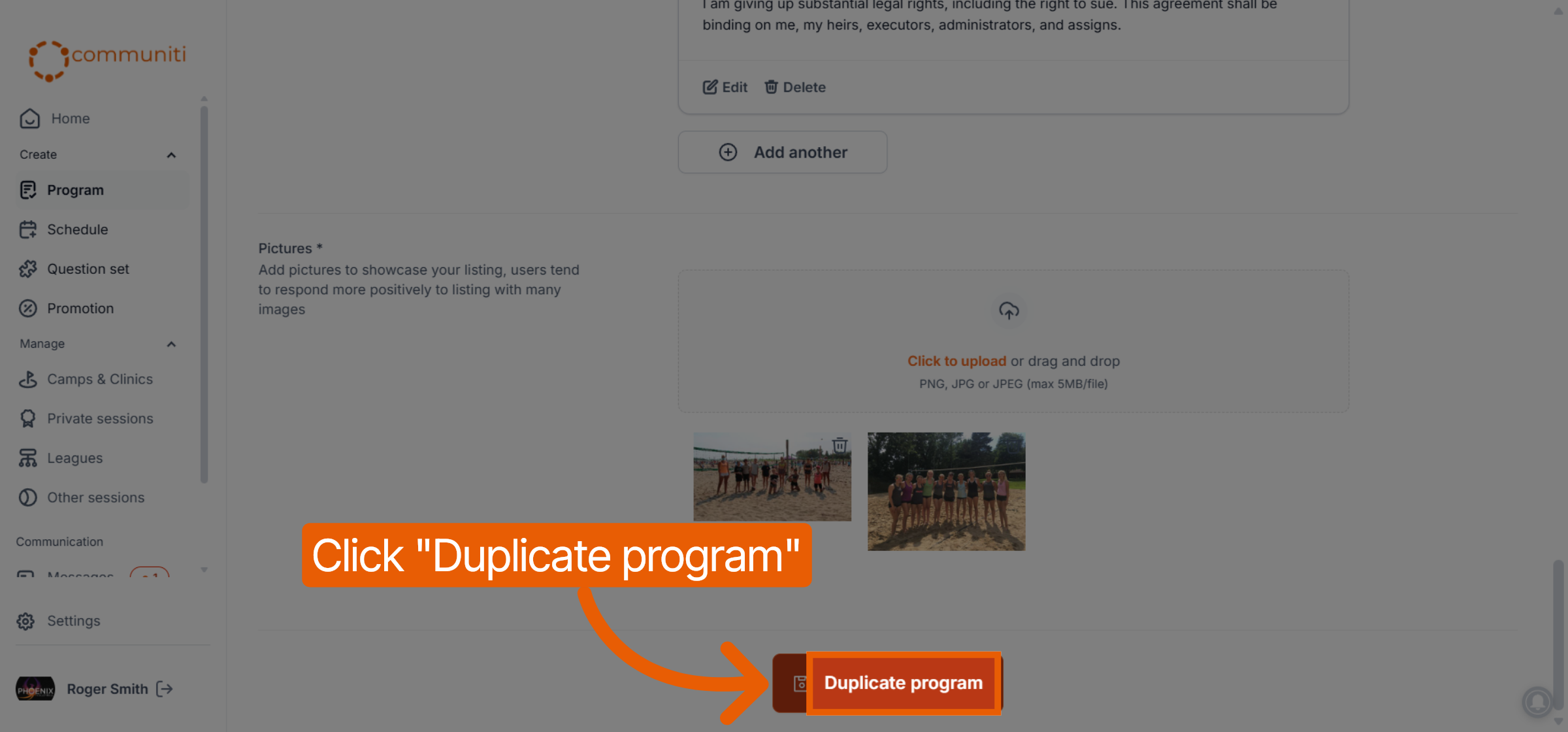
Once you have made your adjustments, scroll to the bottom of the page and click Duplicate program. Your new template is now ready to be used in the Schedule tab.
Note: Individual sessions and their specific dates/prices are not duplicated when you copy a Program template. You will need to schedule new sessions for the duplicated program separately.
Was this helpful?
Still need help? Ask the team