Creating a Program
A Program acts as the master template for your offerings. It stores the permanent details—like the description, pricing structure, and waivers—so you don’t have to re-enter them every time you schedule a new session.
Written By communiti
Last updated 10 months ago
1. Start the Creation Process
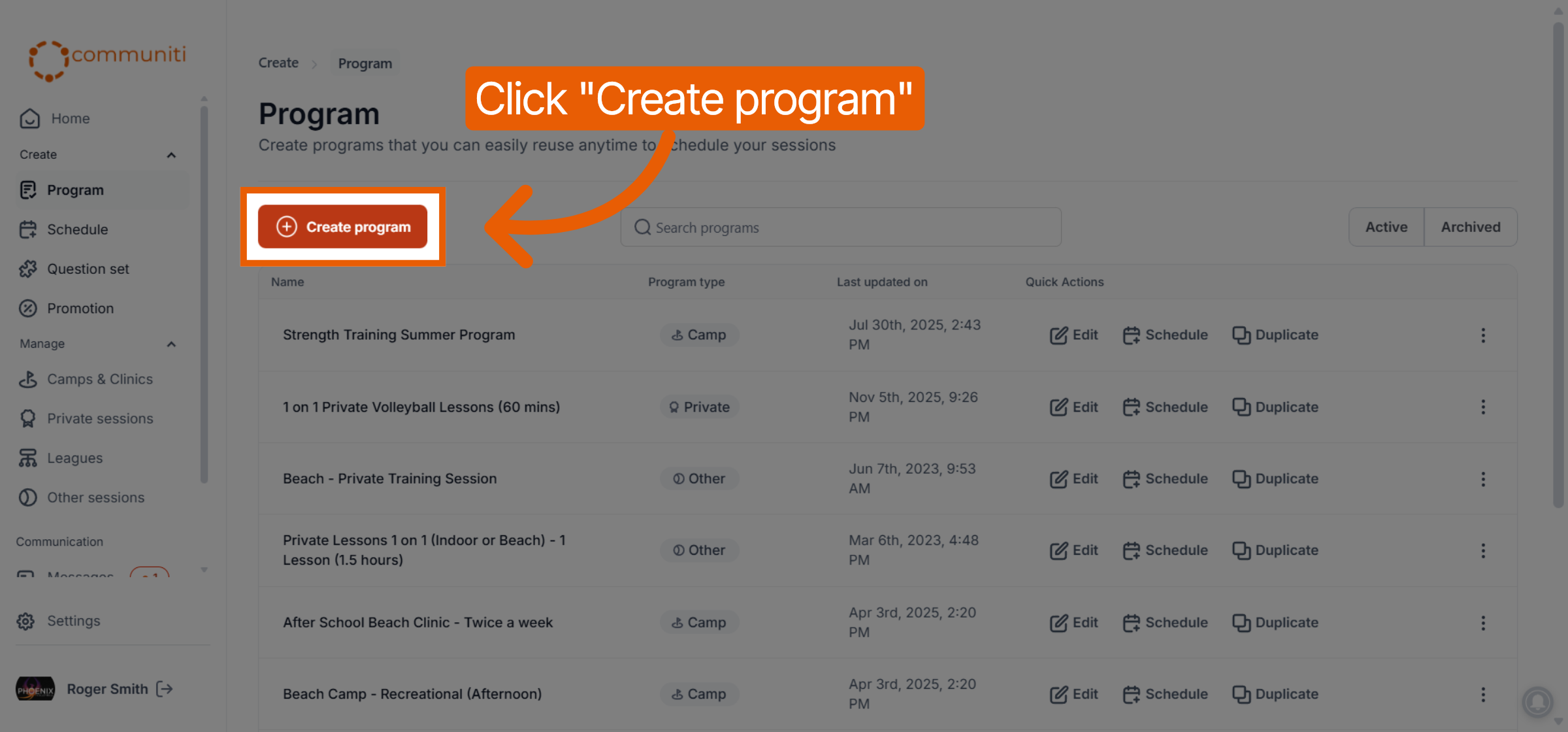
Navigate to the Program tab in the left-hand sidebar.
Click the Create program button in the top left.
2. Select Your Program Type
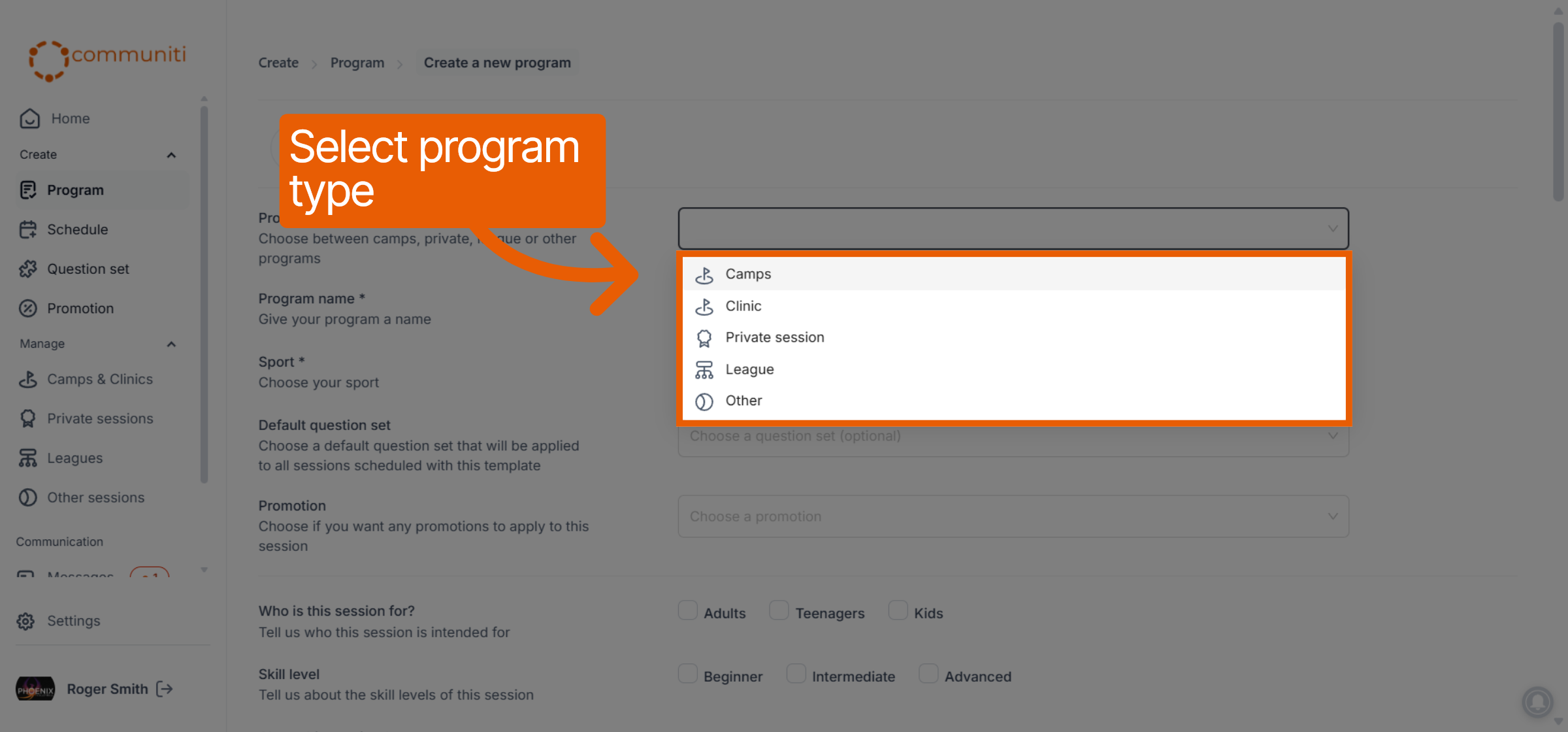
Choose the type that best fits your activity (Camps, Clinic, Private, League, or Other). This determines how your session is categorized for users on the platform.
3. Basic Information
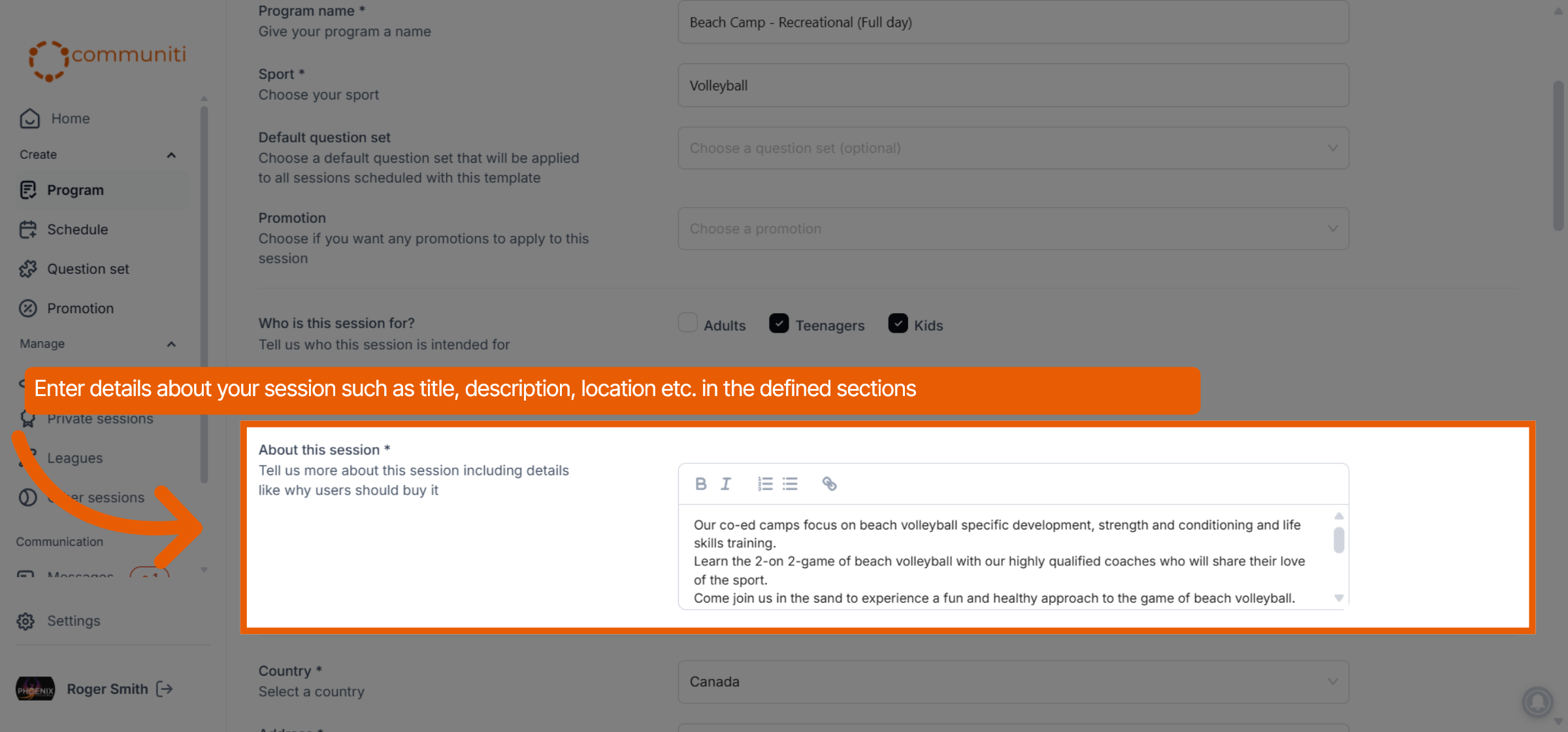
Provide the core details that identify your program to potential participants.
Program Name: Enter a clear, recognizable title.
Sport: Select the sport you are listing.
Location: Specify where the program takes place so users can find sessions in their area.
4. Additional Info Sections
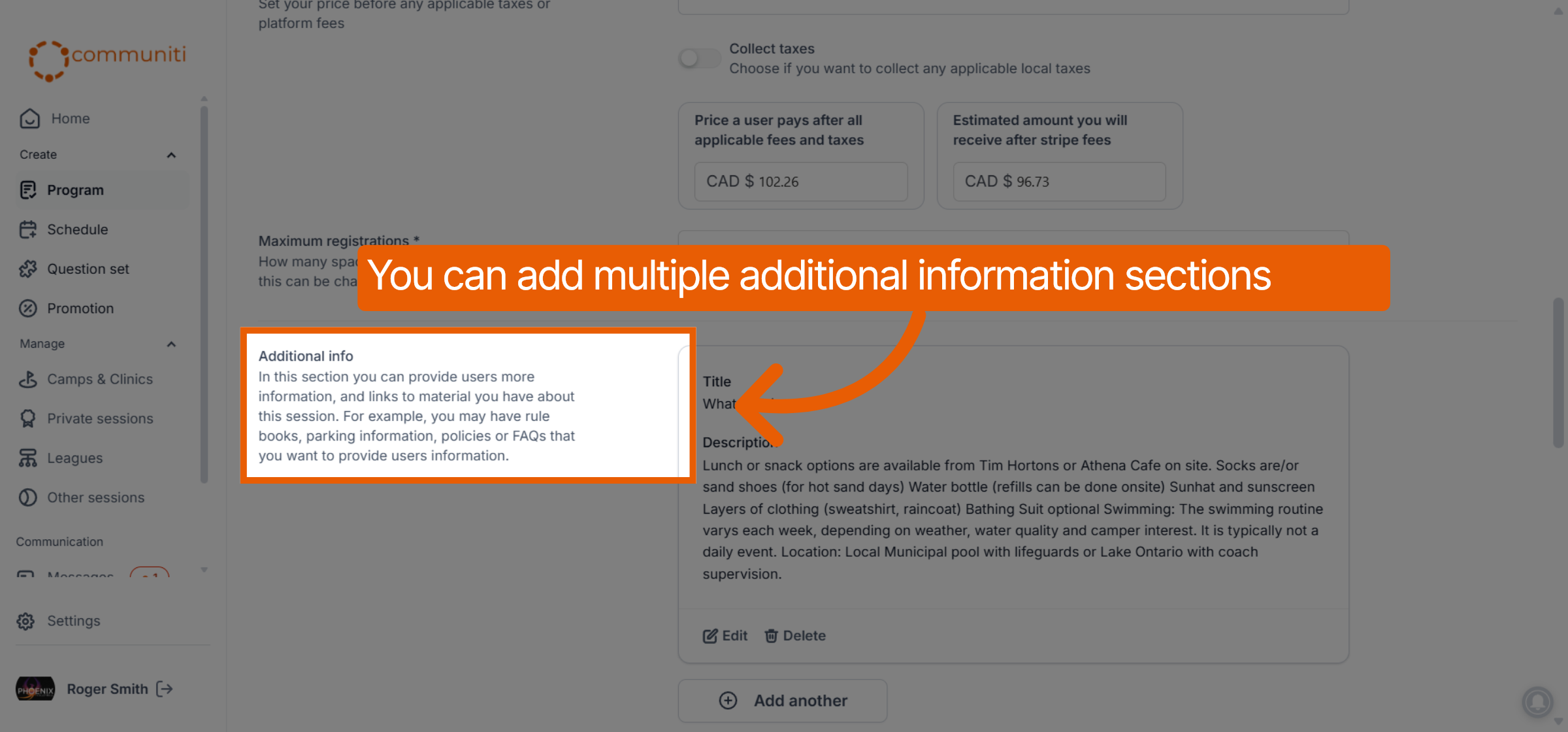
Beyond the general description, you can add custom text blocks to organize important details. Use these sections to highlight specific information such as "What to Bring," "Meet the Coaches," or "Facility Guidelines," making the page easy for users to scan and read.
5. Pricing & Payout Transparency
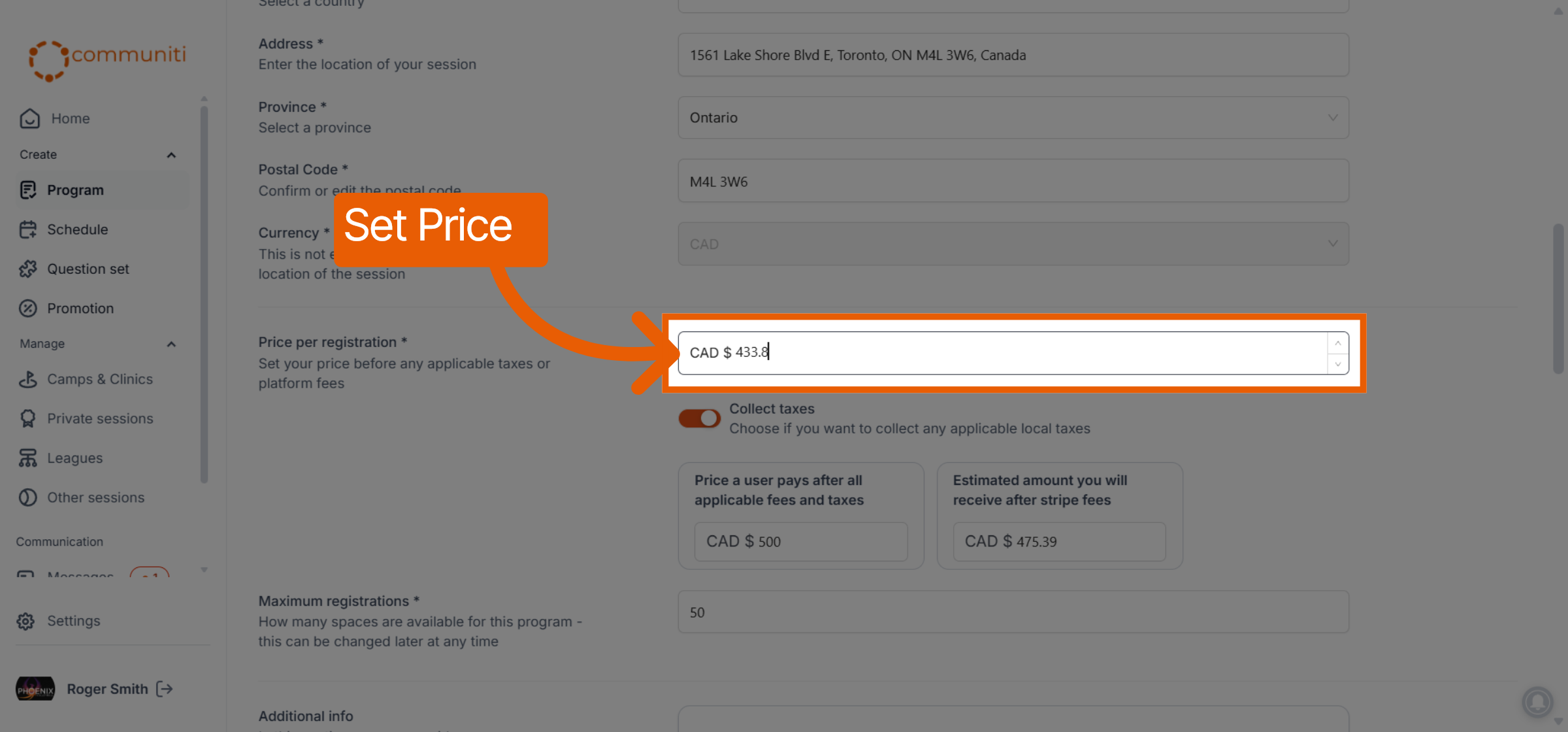
Communiti provides a transparent pricing tool that allows you to set your default rates with zero guesswork. You can toggle between three views to determine your price:
Base Price: Set your starting price before any fees.
Price Users Pay: Set the final checkout total (fees are subtracted from this).
Money You Receive: Set your desired payout (fees are added on top for the user).
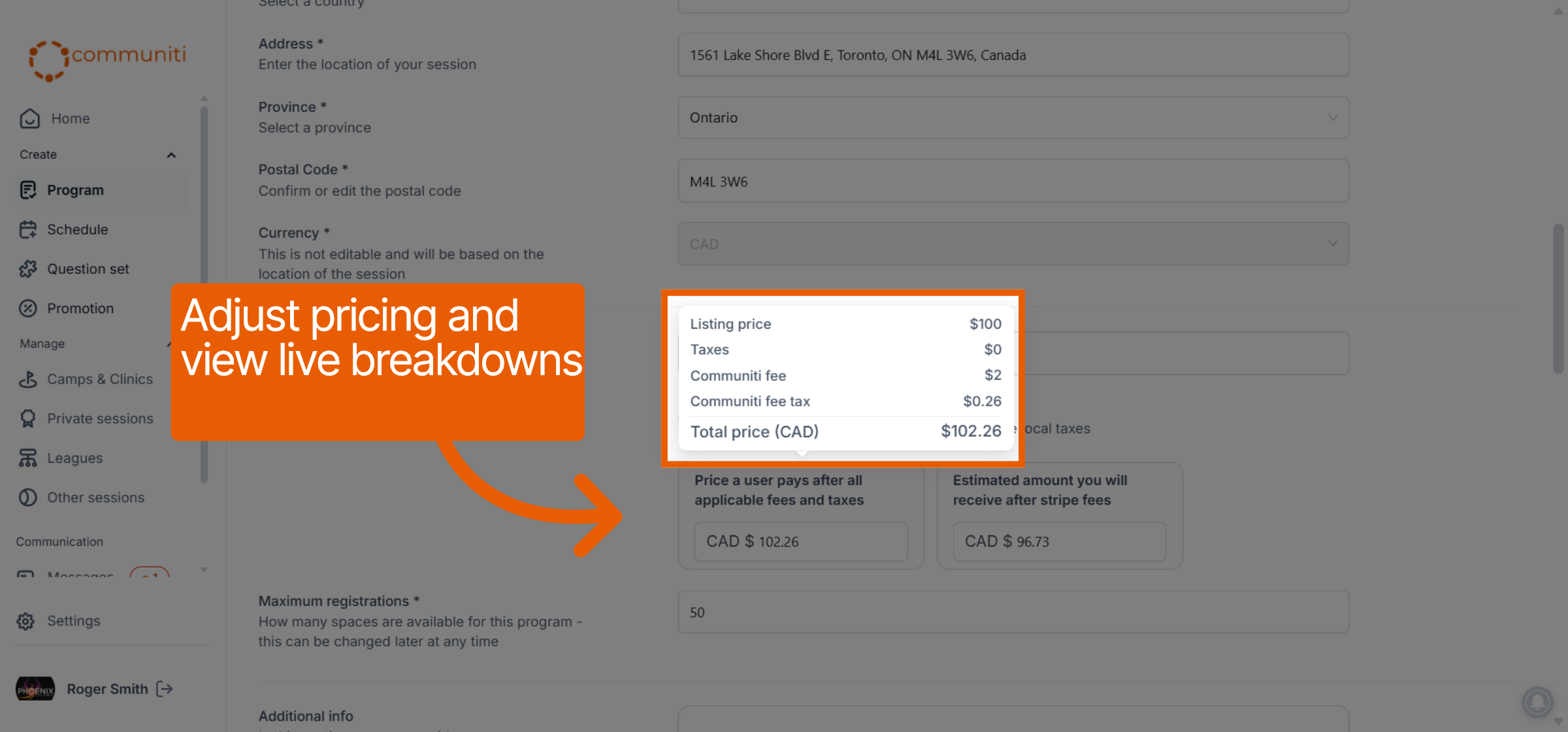
As you adjust these figures, the platform provides a live breakdown of the Communiti fee, Stripe processing fee, and your final payout amount.
6. Linking Extras (Optional)
Link custom registration tools that will be applied to every session created with this template.
Default Question Set: Link a custom form to collect data like jersey sizes or medical notes.
Note: Communiti automatically collects names, emails, and phone numbers for every registrant by default.
Promotion: Link a default discount code to be automatically available for this program.
7. Define Your Audience & Skill Level
Help participants find the right fit by tagging the intended demographic.
Target Audience: Select Adults, Teenagers, and/or Kids.
Skill Level: Tag the session as Beginner, Intermediate, and/or Advanced.
8. Clauses, Waivers & Photos
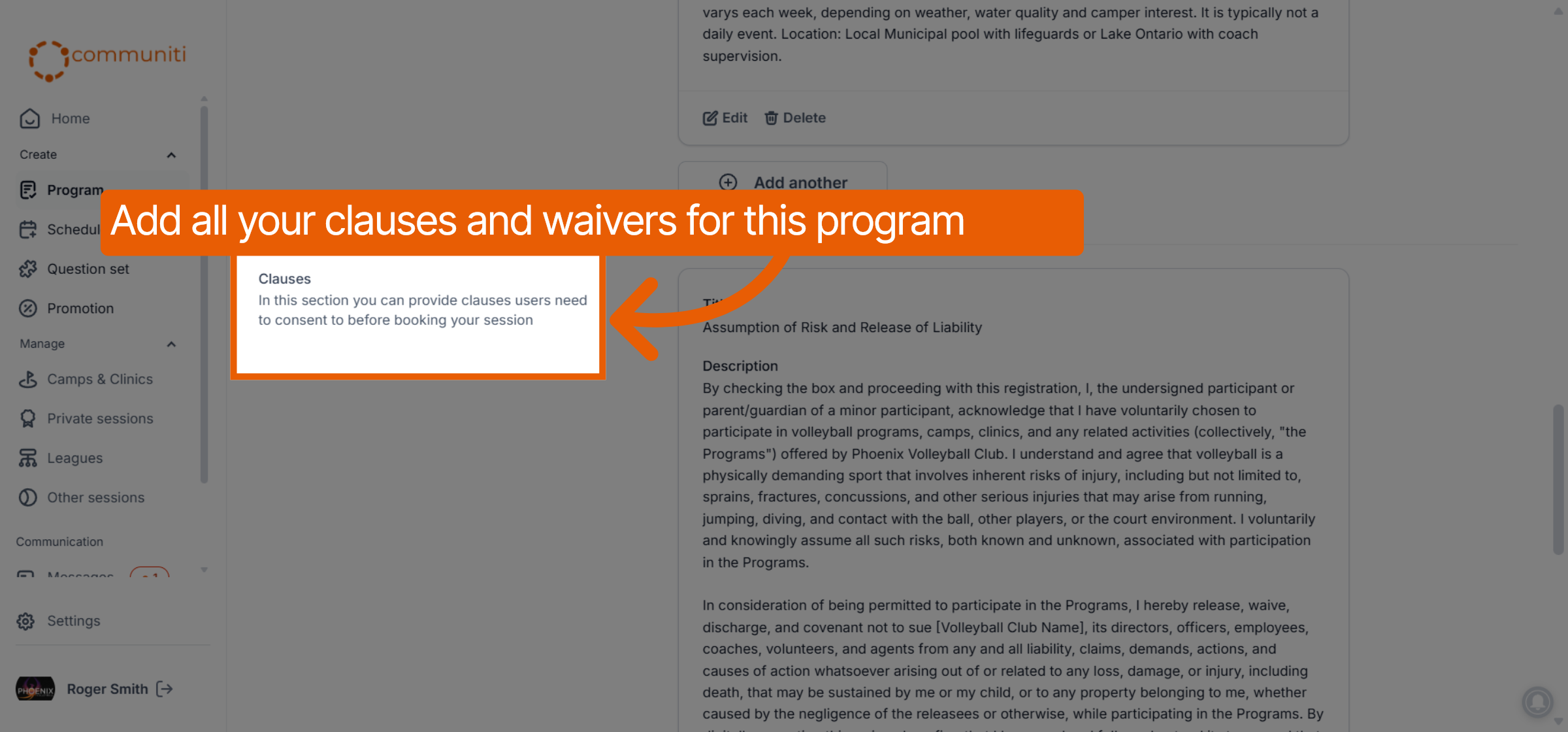
Clauses: Enter a title (e.g., "Injury Waiver") and your legal text. Users must accept these to complete their registration.
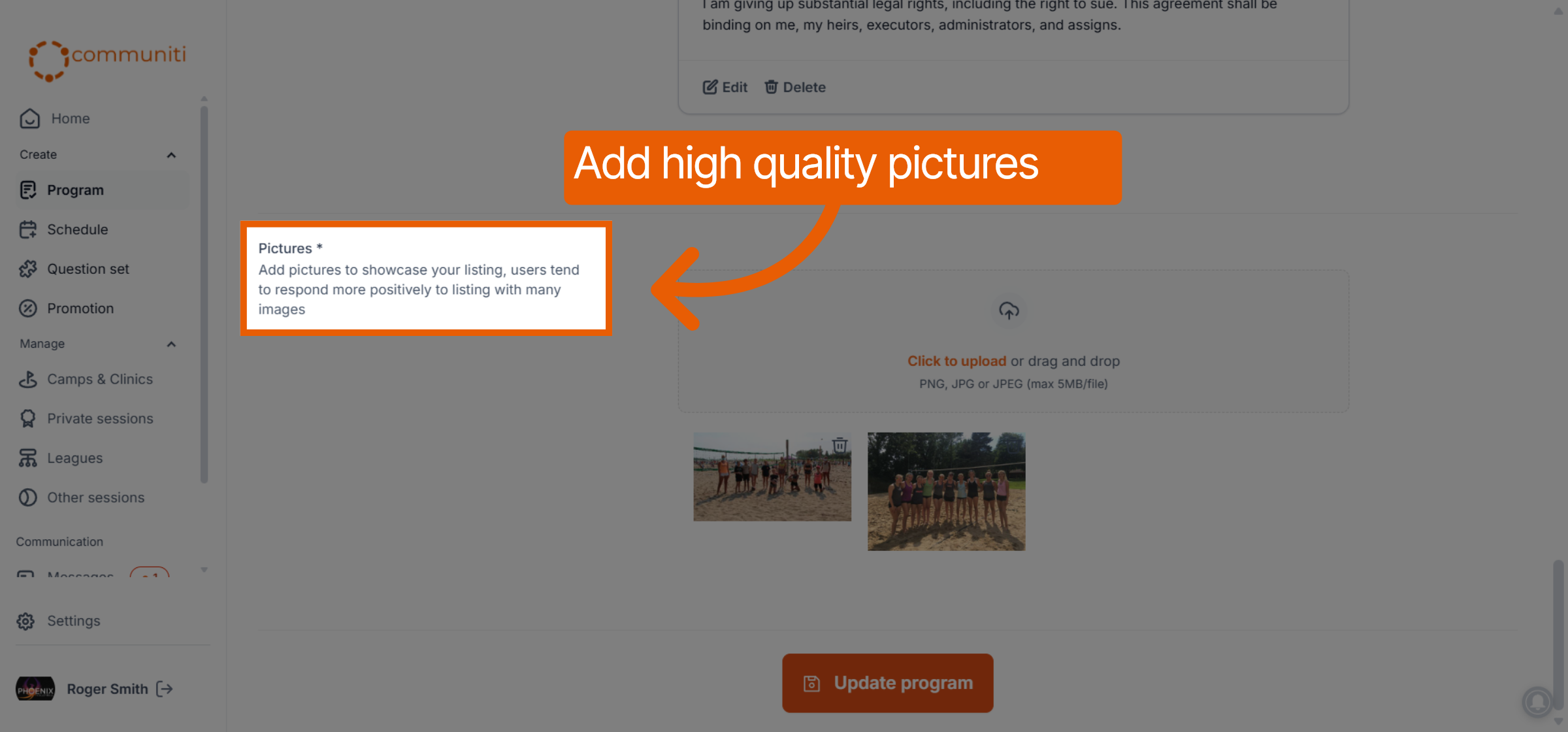
Pictures: Drag and drop high-quality images to showcase your program. Programs with photos see significantly higher registration rates.
9. Save Your Template
Once complete, click Save program at the bottom of the page. Your template is now ready to be used in the Schedule tab to create live, bookable sessions.
Was this helpful?
Still need help? Ask the team