Scheduling a Session
While a Program is your template, a Session is the actual event on your calendar. This is where you set the specific dates, times, and pricing for your users to book.
Written By communiti
Last updated 10 months ago
1. Start the Scheduling Flow
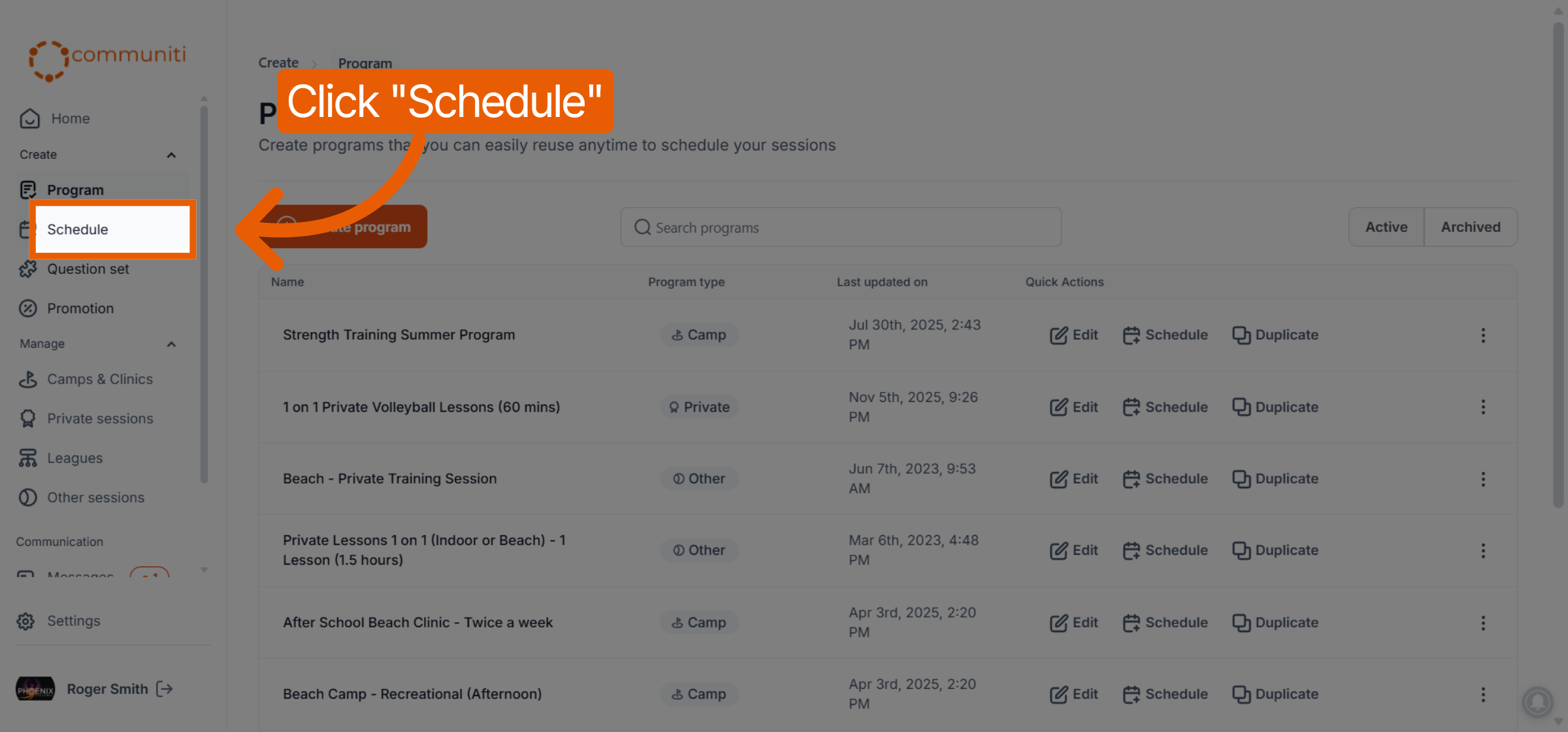
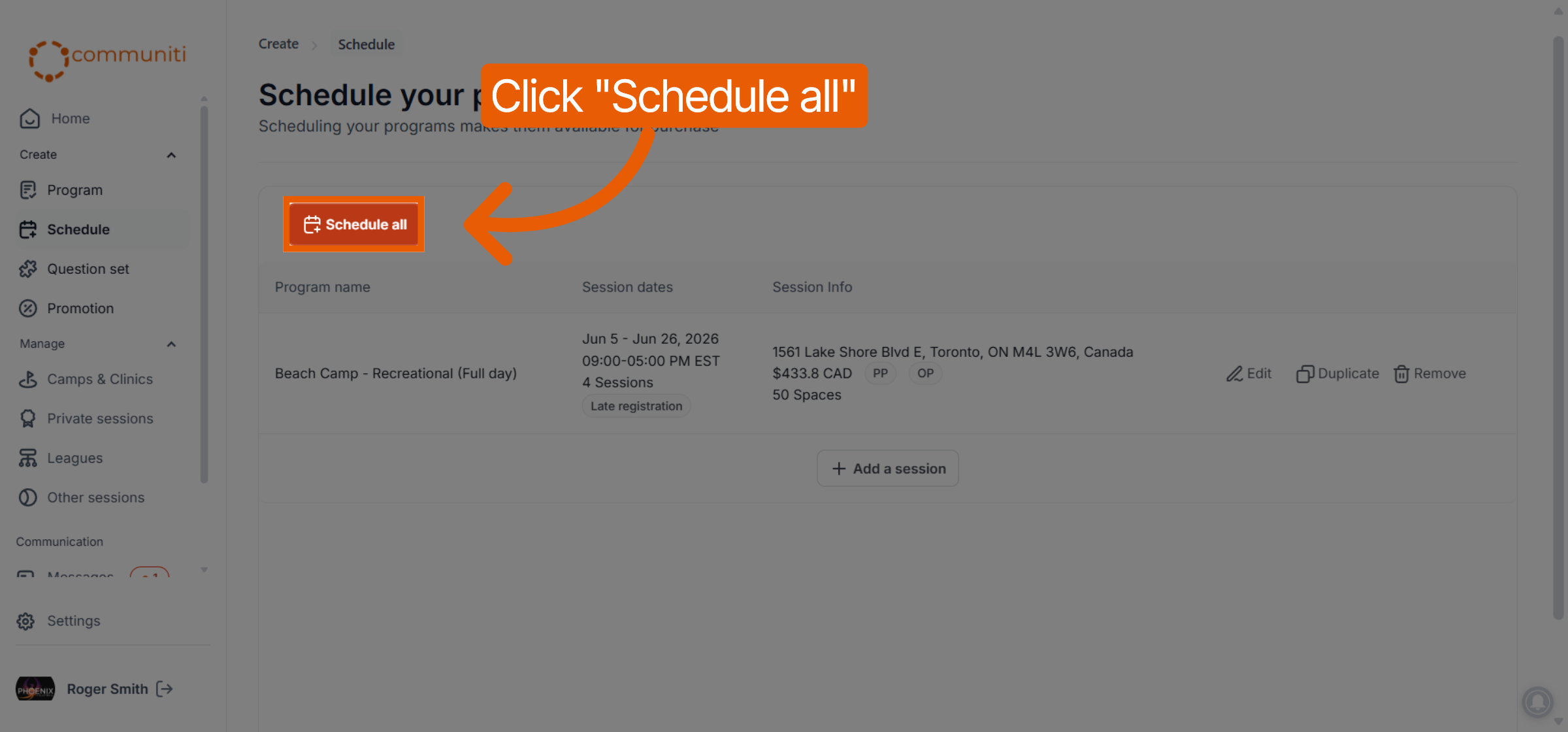
Navigate to the Schedule tab in the left sidebar.
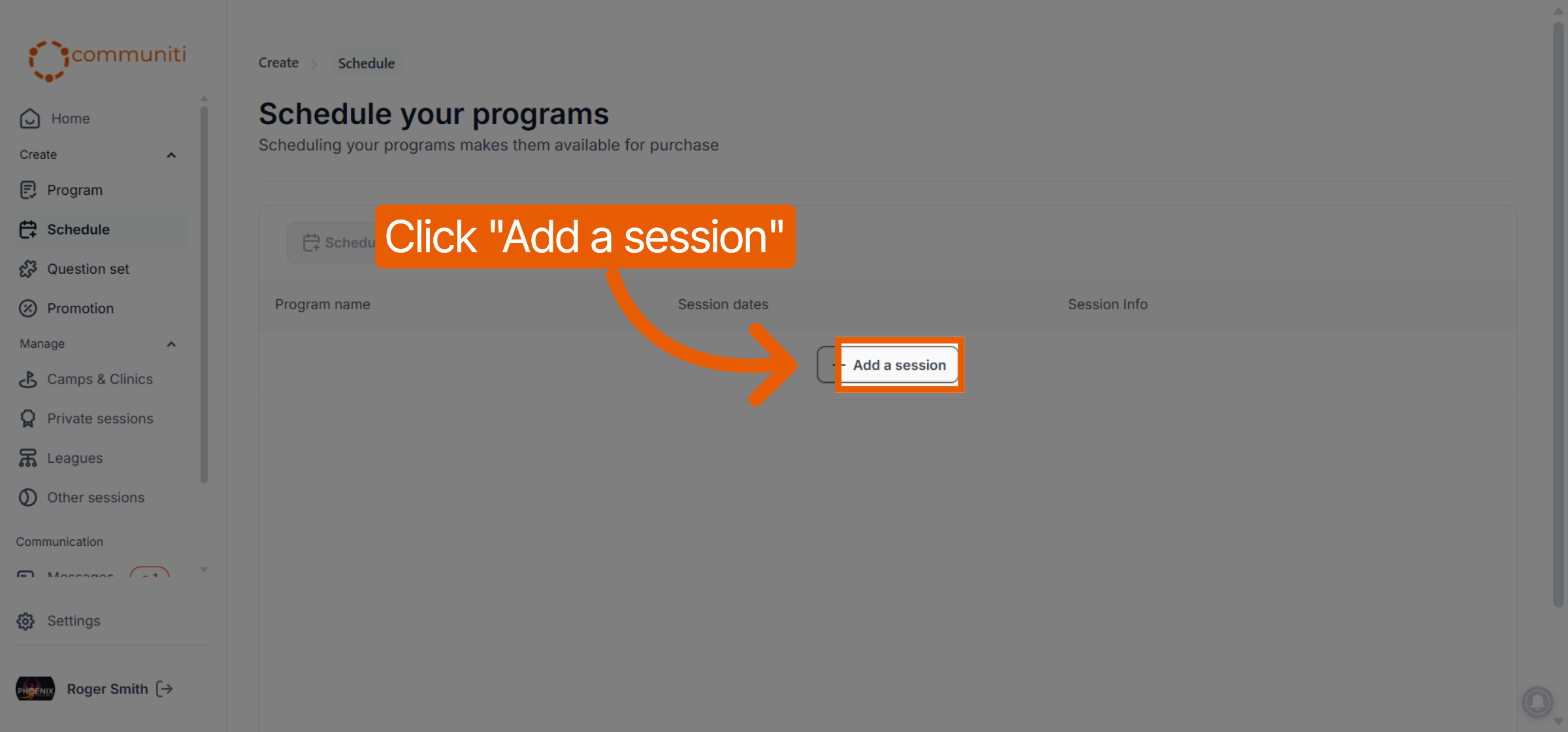
Click the Add a session button to begin.
2. Link Your Program & Extras
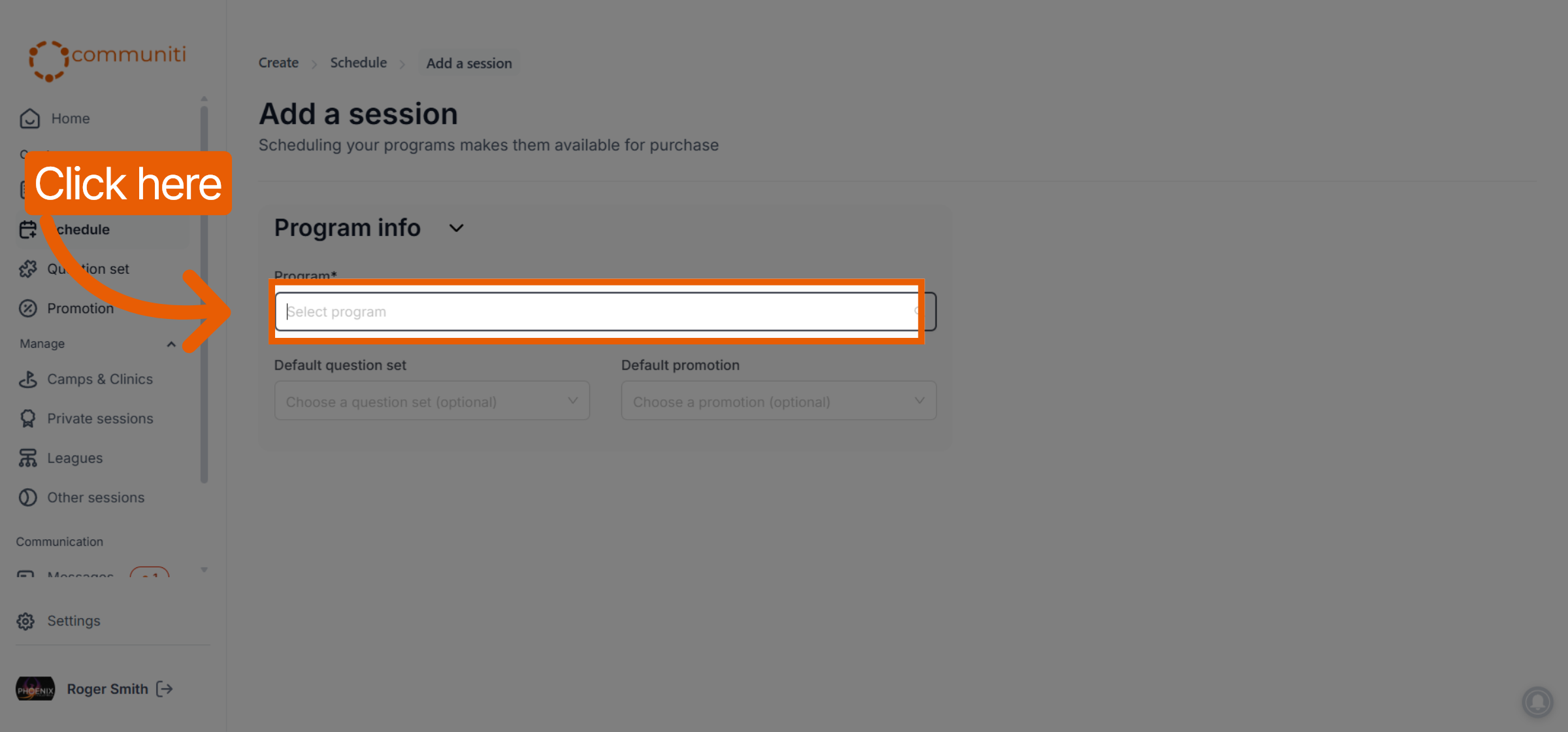
Program: Select the master template. This will pull in the default location and pricing you set previously.
Question Set (Optional): Choose the custom registration form you want for this session.
Promotion (Optional): Link any active discount codes you want users to be able to apply.
3. Set Capacity & Waitlists
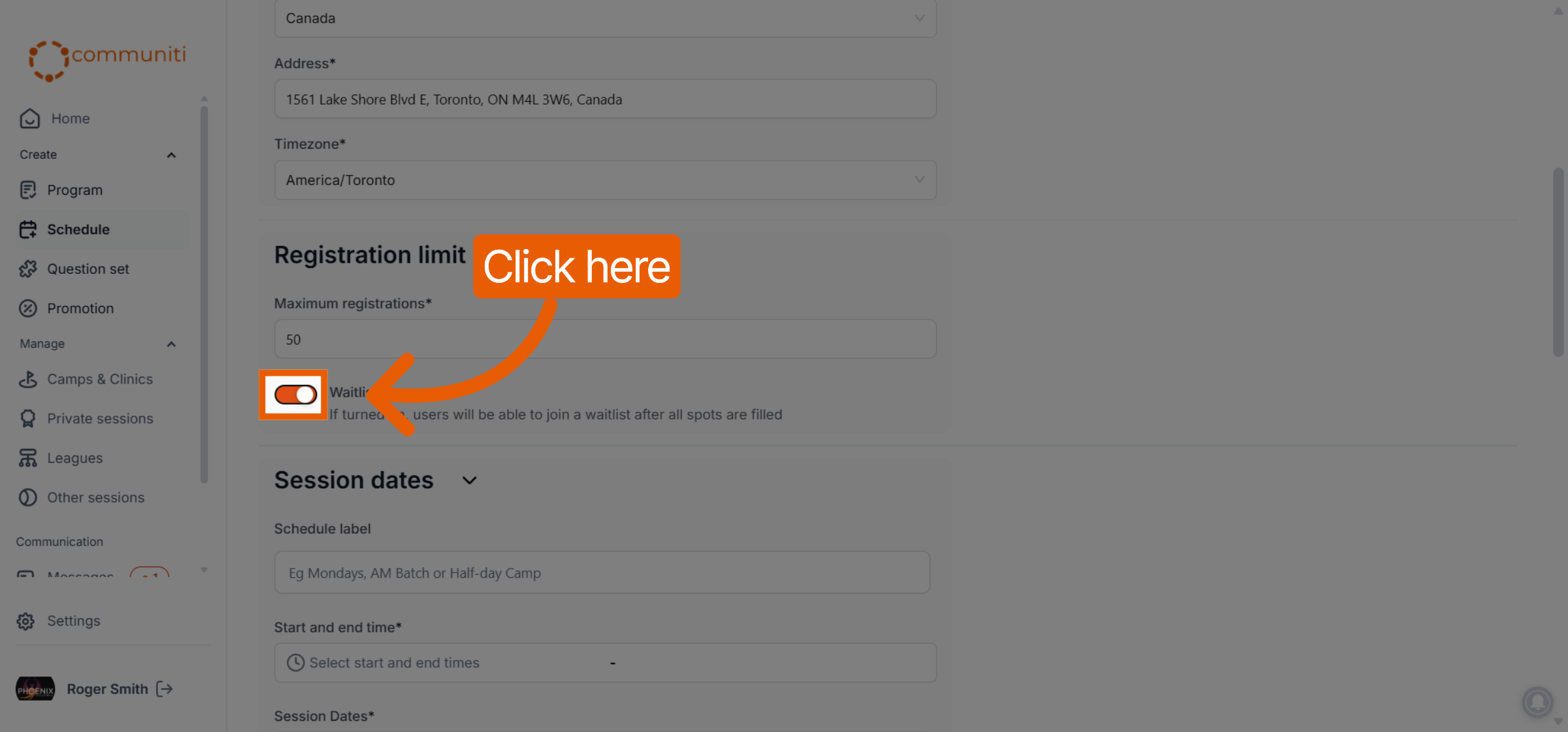
Registrations Allowed: Enter the maximum number of participants.
Waitlist Toggle: If enabled, once the session is full, users can join a waitlist. This allows you to manage leads and fill spots if someone cancels.
4. Pricing & Proration
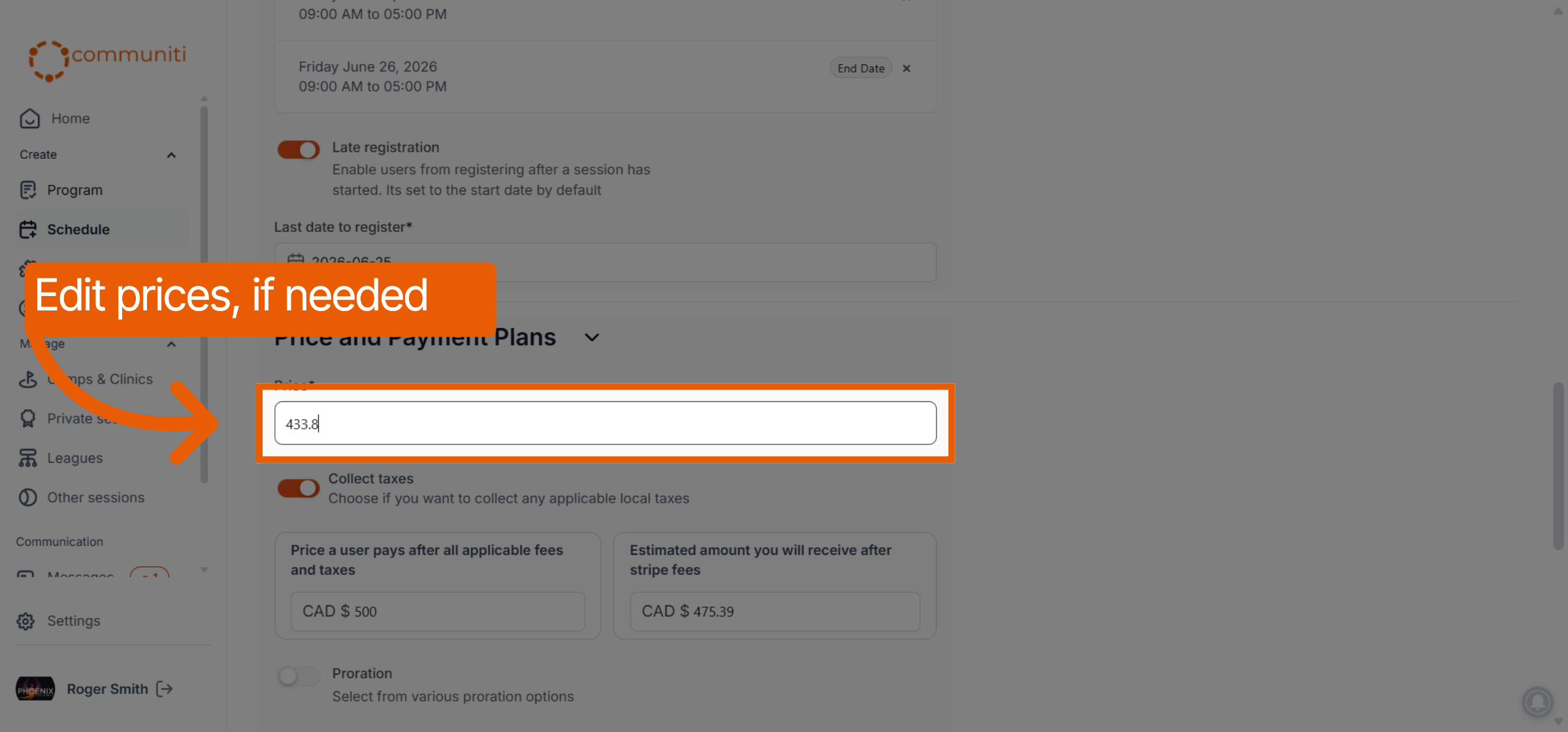
Session Price: This is pre-filled from your template but can be edited if this specific session has a different cost.
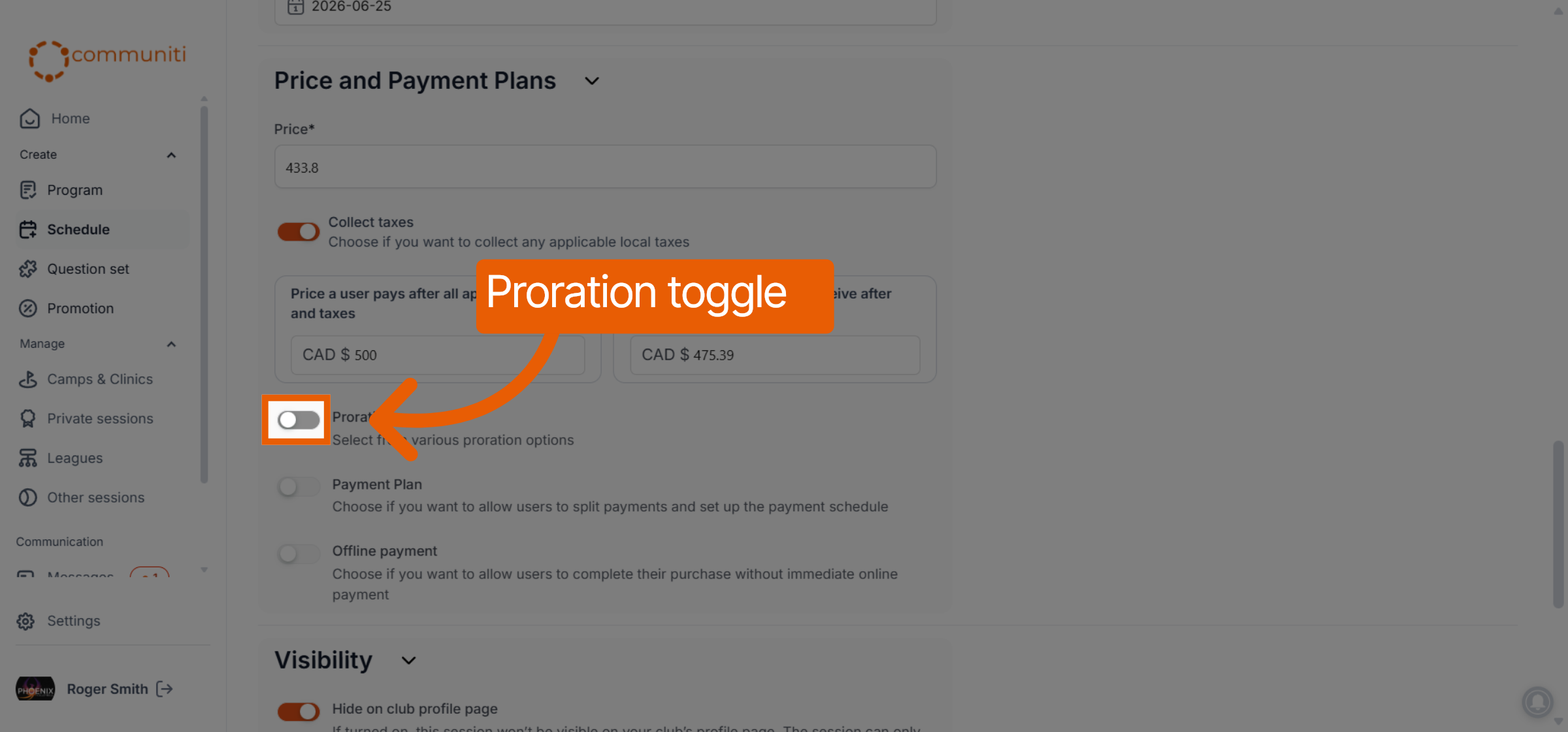
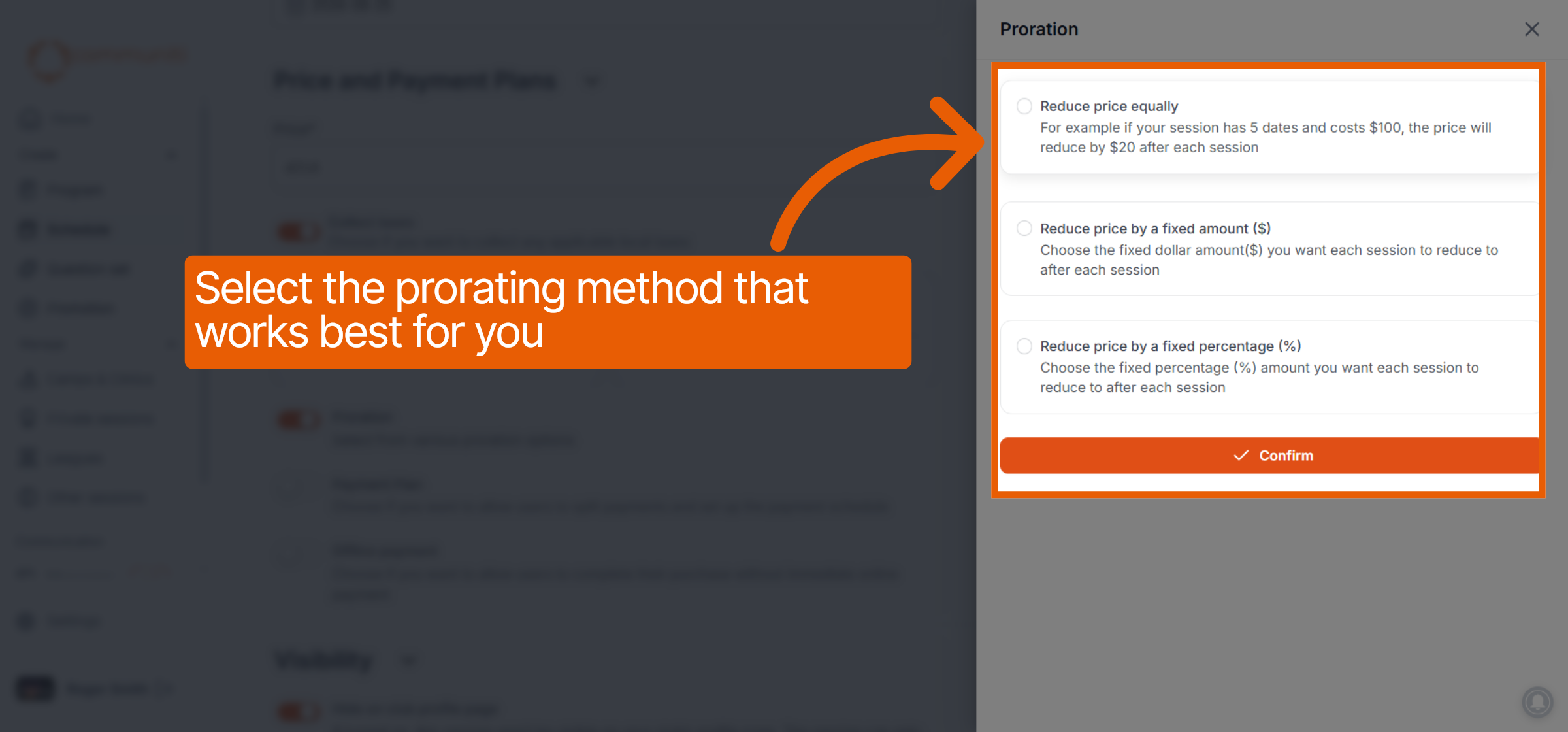
Proration: Enable this to allow users to sign up after the start date for a reduced price.
Manual Proration: You manually set the price for late registrants.
Automatic Proration: The system calculates a per-session discount automatically as dates pass.
5. Logistics: Address, Dates & Times
Address: This is pre-filled from your template. You can update it here if this specific session is at a different venue.
Calendar Selection: Click the specific dates on the calendar when this session will occur.
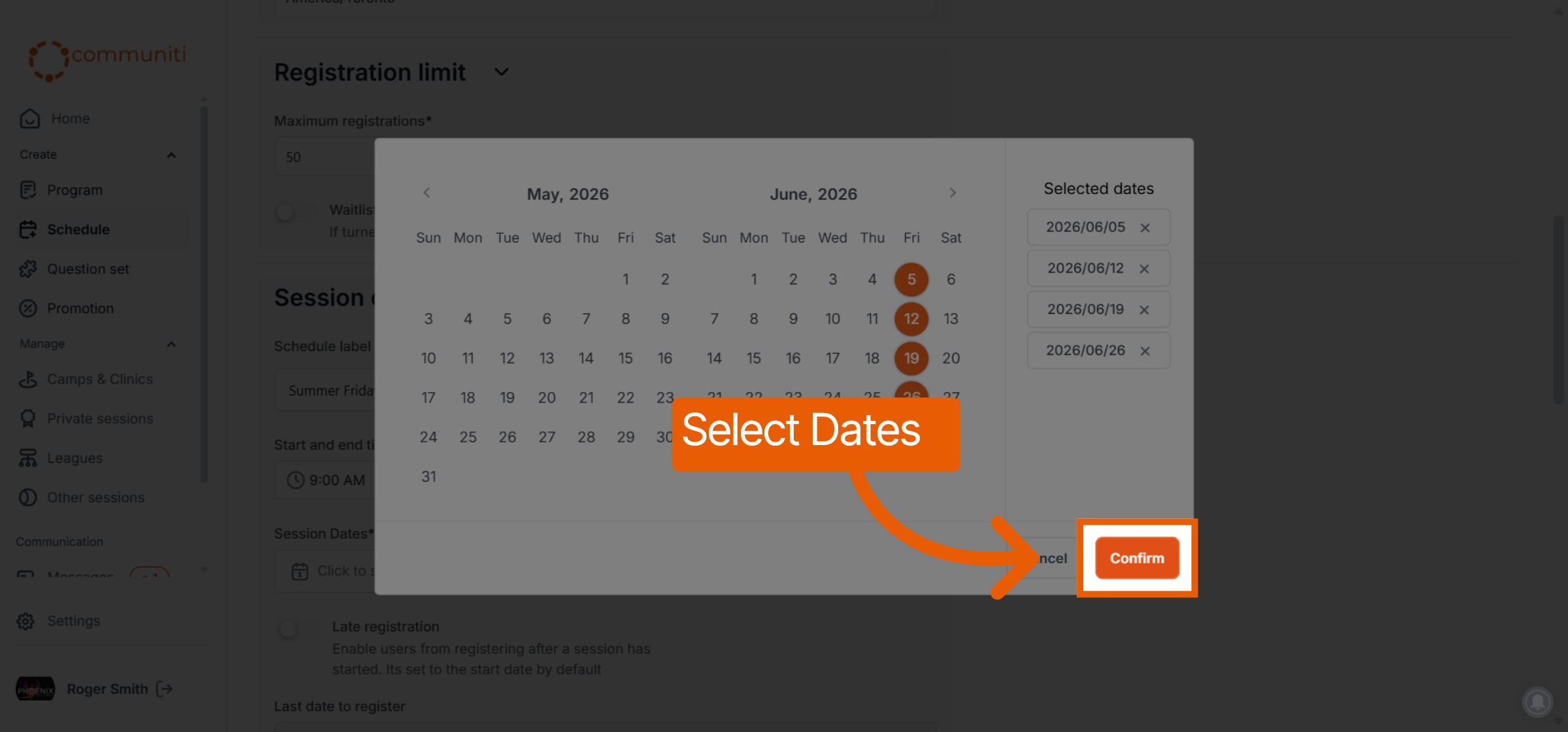
Start & End Times: Set the specific time window for the activities.
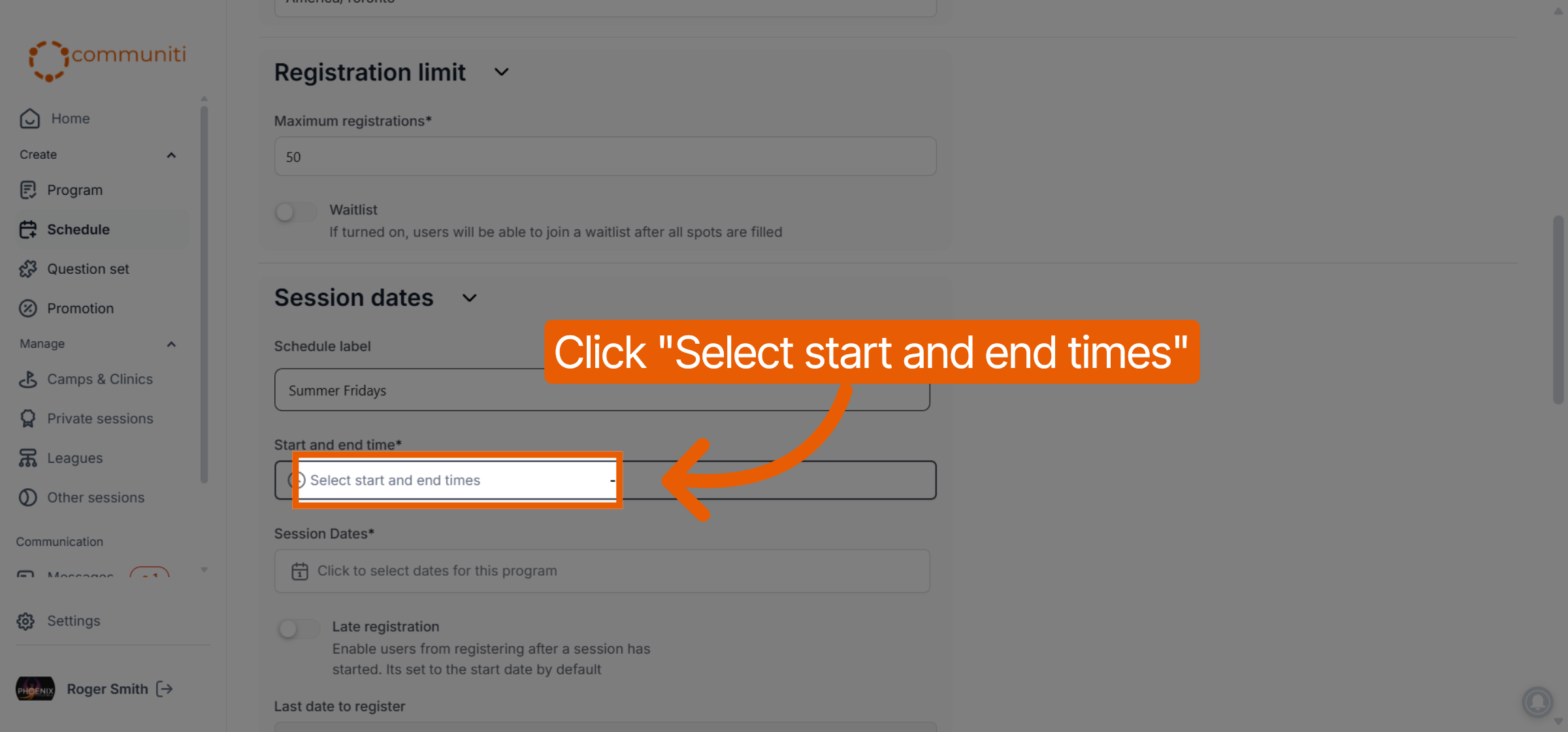
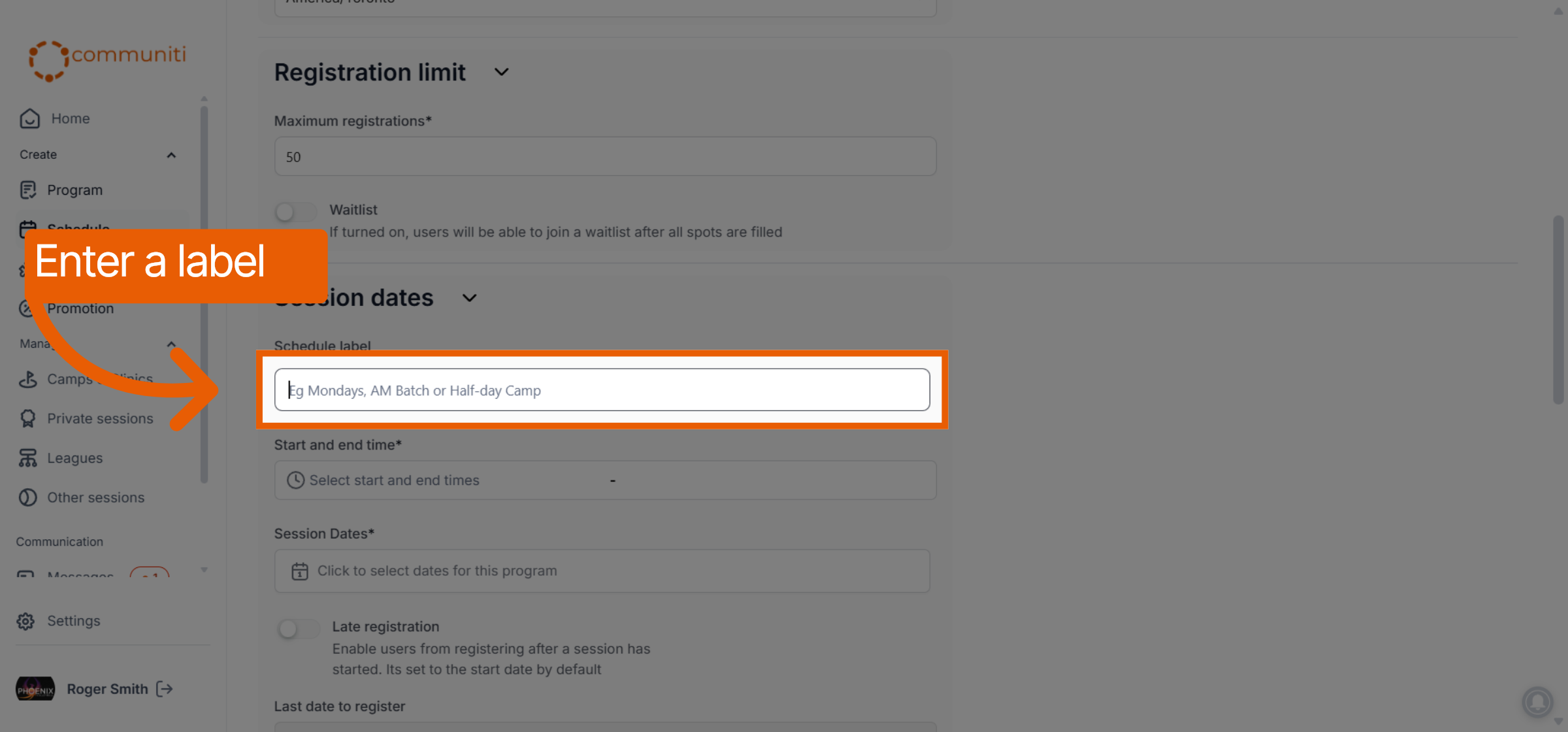
Label: Give each session a specific label to make it easy for your customers (eg. Mondays Batch, Spring Fridays etc.)
6. Advanced Toggles
Use these options to further customize the registration experience:
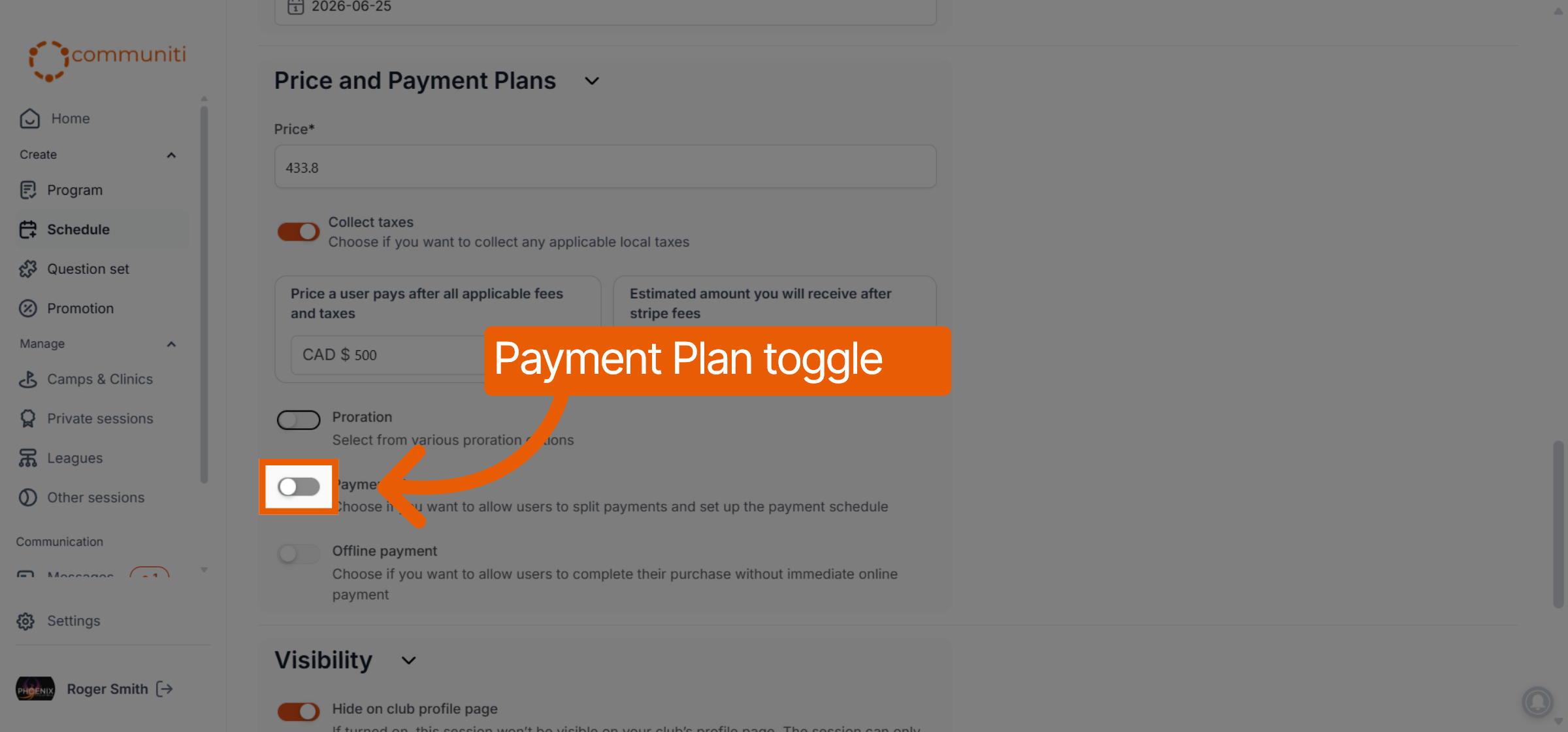
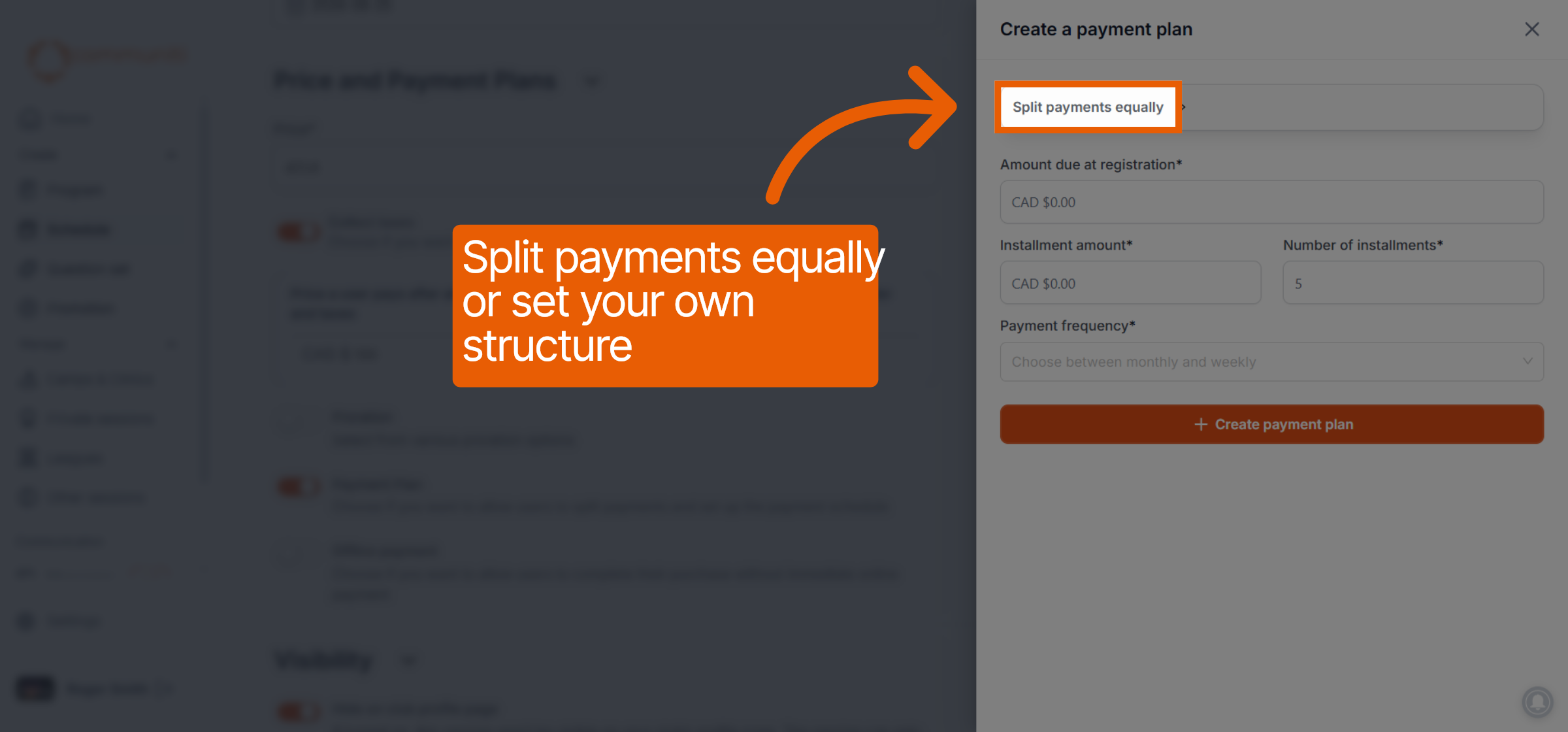
Payment Plans: Toggle this on to allow users to pay in installments rather than the full amount at once.
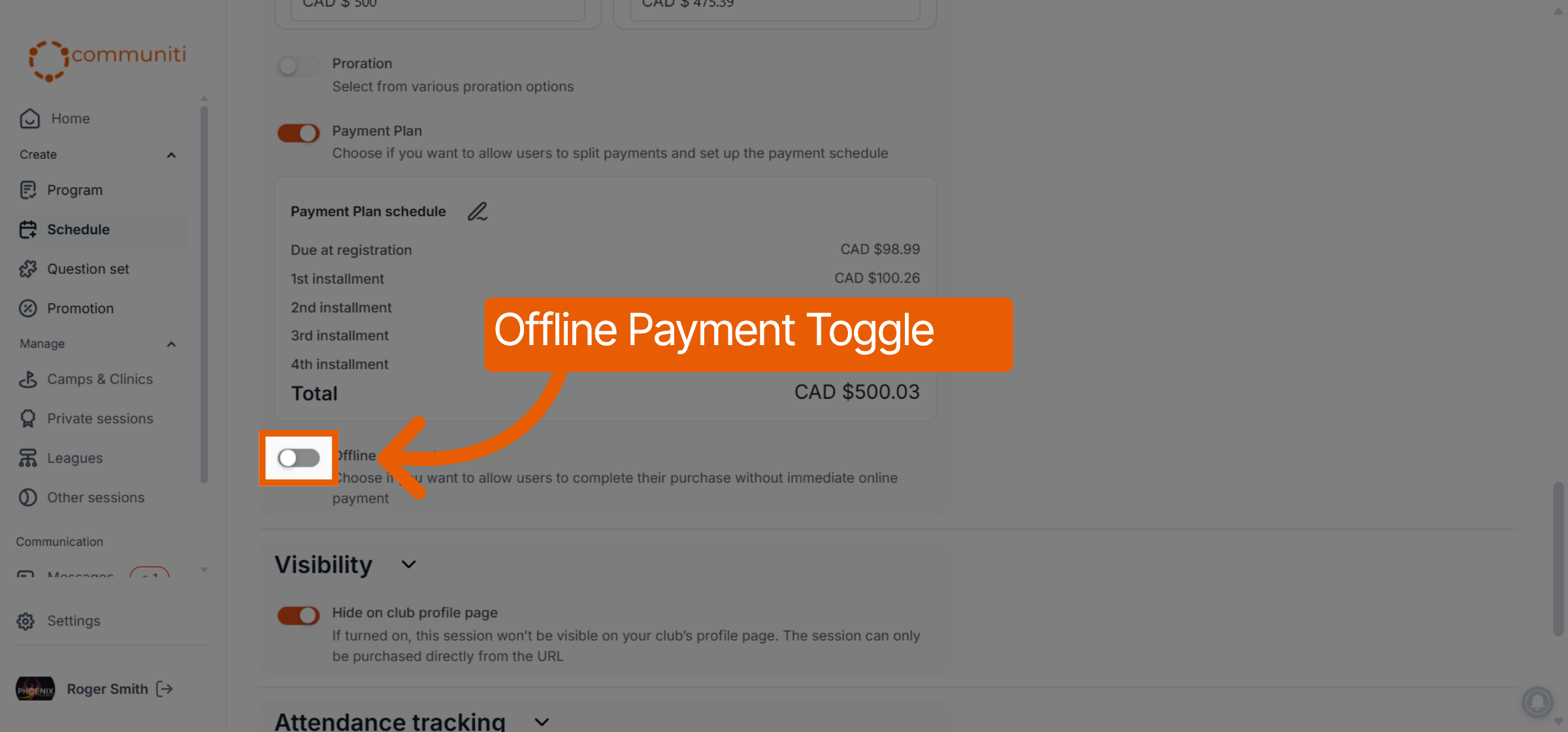
Offline Payments: If enabled, users can register without paying online (useful for cash, checks, or external e-transfers).
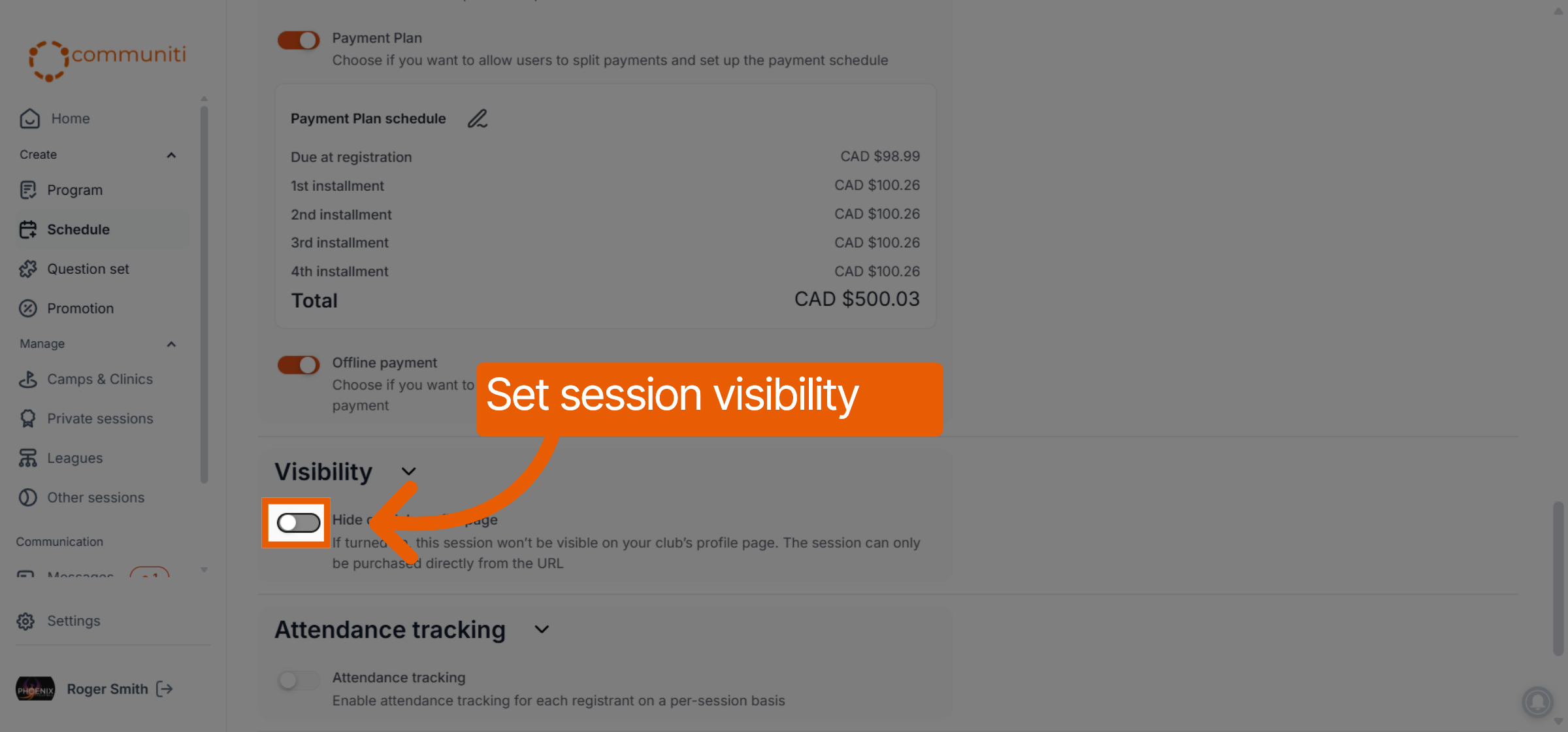
Visibility: Use the "Hide on club profile page" toggle if you want this session to be private (accessible only via a direct link).
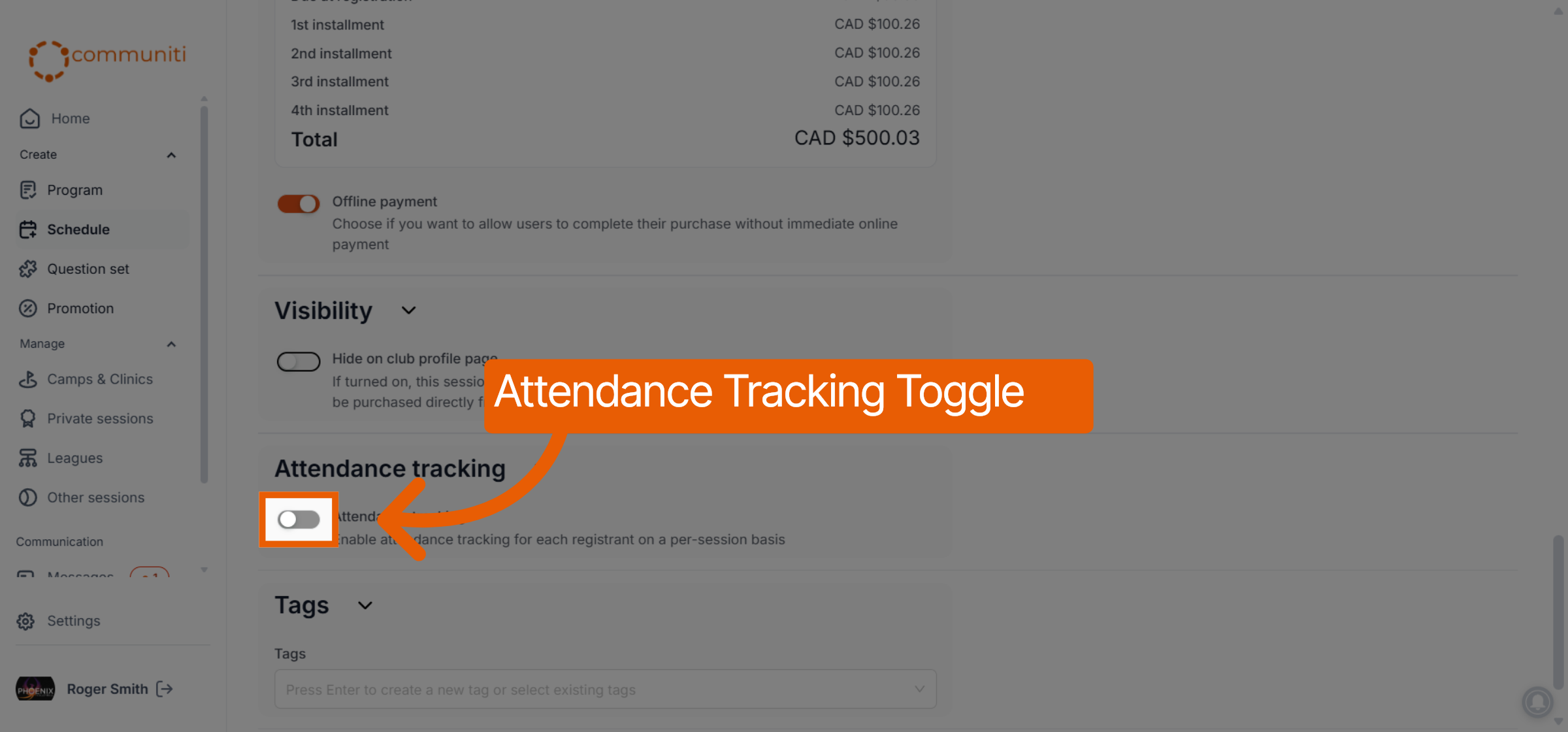
Attendance Tracking: Enable this to allow staff to mark participants as present or absent for each date.
7. Finalize and Save
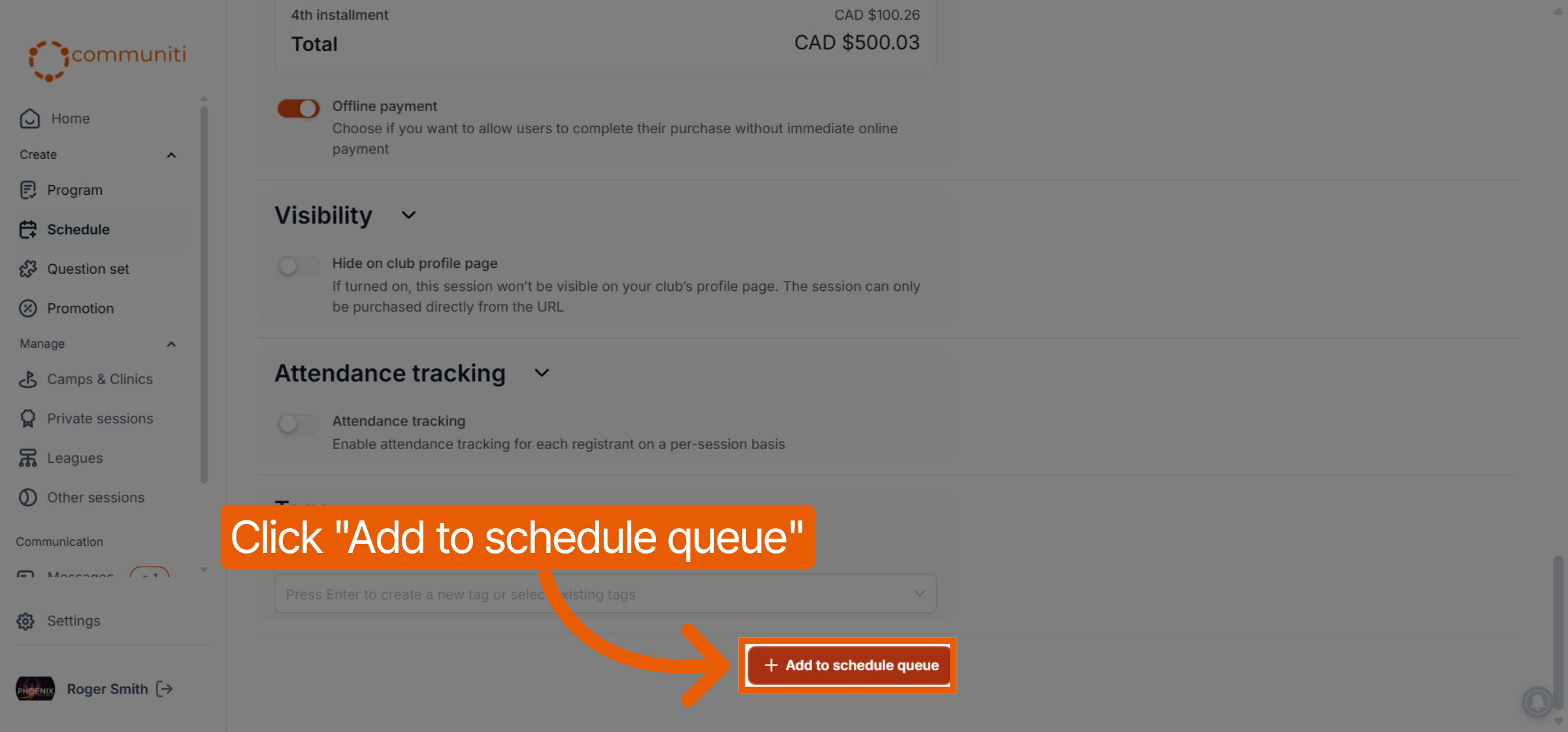
Review your settings and click Add to schedule queue at the bottom of the page. Your session is now active and ready for registration!
Was this helpful?
Still need help? Ask the team