How to Update or Edit Program Details
Programs act as the master template for your offerings. It is important to understand which changes will apply to all your sessions and which are simply defaults for the scheduling process.
Written By communiti
Last updated 10 months ago
Template vs. Session: What Changes?
When you edit a program, you are updating the core "DNA" of that offering.
1. Global Updates (Applies to ALL Sessions) Updating the following fields in the Program editor will automatically reflect across all sessions (active or future) linked to that program:
Program Name and Description: Any changes to the title or main summary.
Location: The primary venue or address.
Additional Info Sections: All custom text blocks like "What to Bring."
Clauses and Waivers: Any legal text or required checkboxes.
Photos: The gallery of images displayed to users.
2. Default Updates (New Sessions Only) Some fields in the program are used only as a starting point for when you create a new session. Updating these in the Program template will not change sessions that are already live:
Default Pricing: Changing the price in the program template does not retroactively update live sessions, as pricing is configured individually during the scheduling process.
Default Question Sets and Promotions: These are simply pre-filled defaults for new sessions.
Steps to Edit a Program
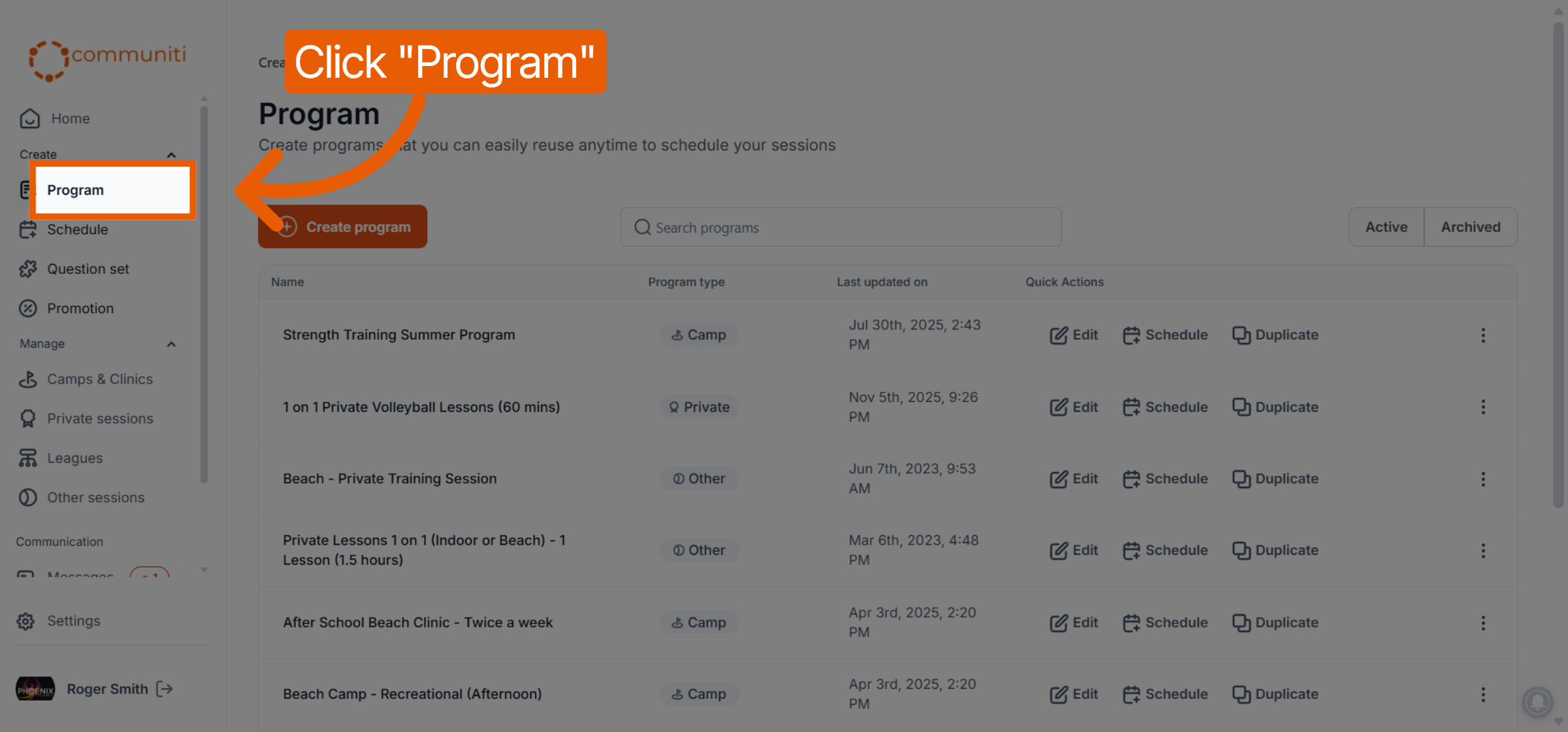
Navigate to Programs: Click on Program in the left sidebar to see your list of templates.
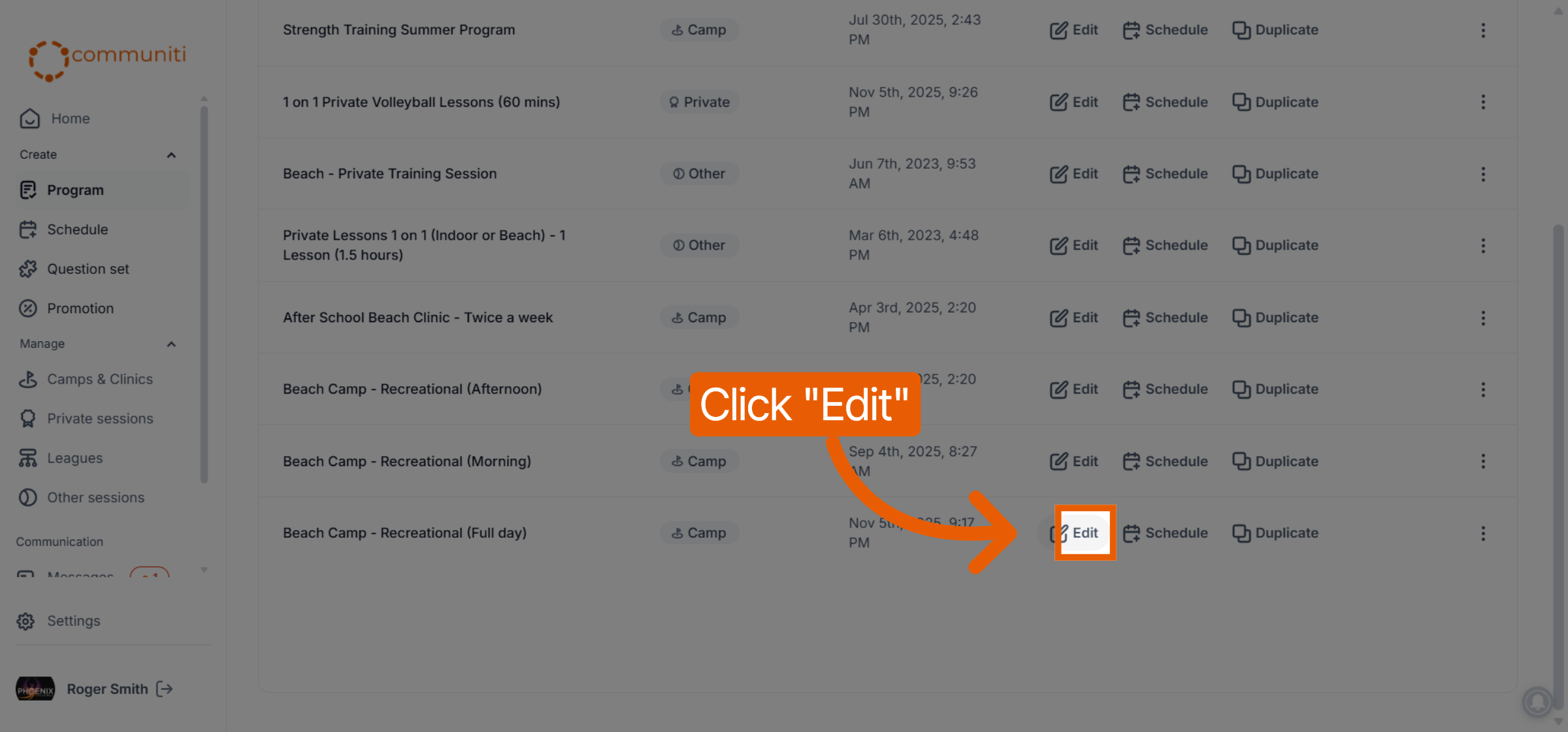
Select Edit: Find the program you want to change and click the Edit (pencil) icon under the Quick Actions column.
Update Information: Modify the Title, Description, Location, or any other global fields.
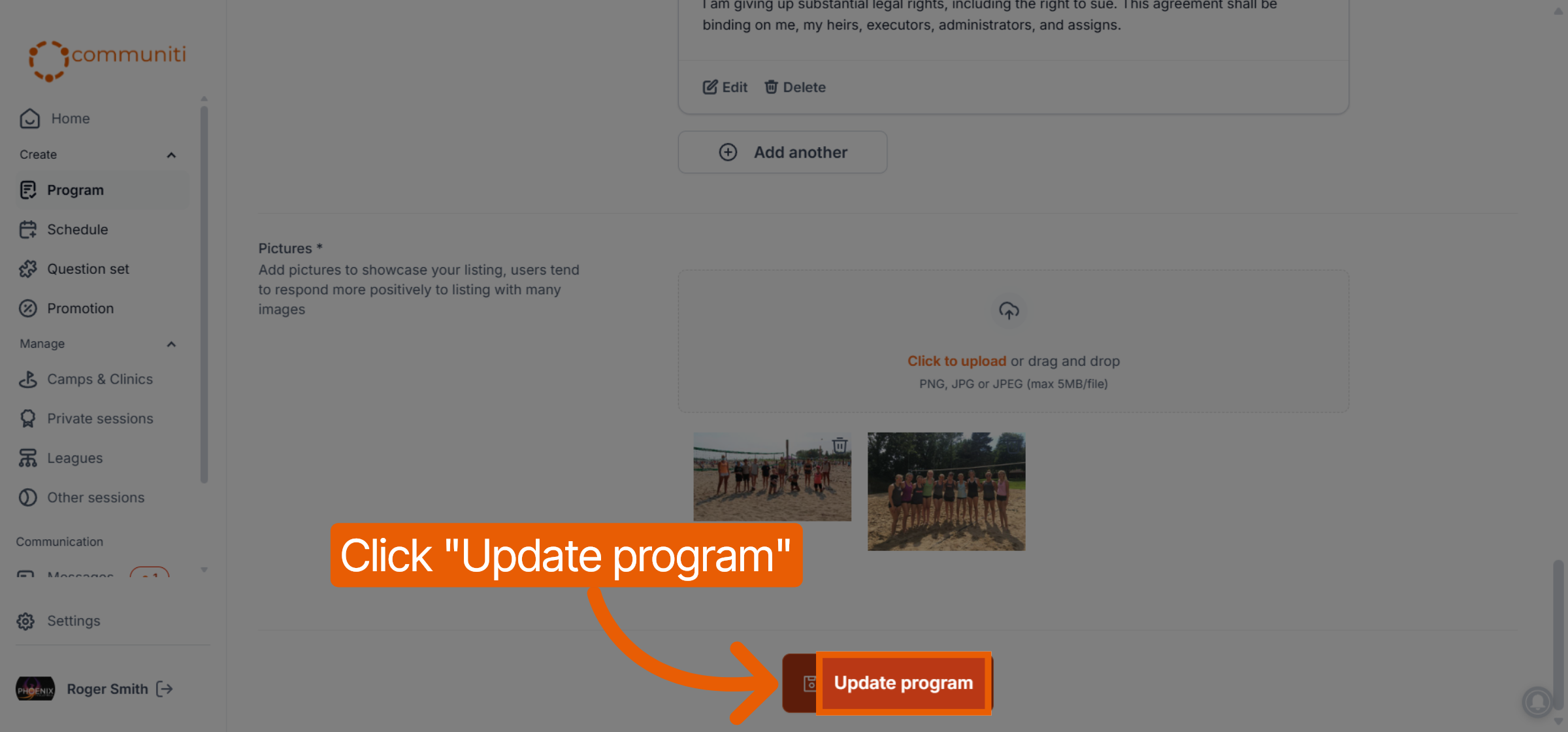
Save Changes: Scroll to the bottom and click Update Program. All linked sessions will now show these updated details to your users.
Was this helpful?
Still need help? Ask the team