How to Assign Question Sets to Programs
You can assign your custom question sets to sessions at two different stages: either while you are initially scheduling them or later from the global question set list.
Written By communiti
Last updated 10 months ago
Option 1: During Initial Scheduling
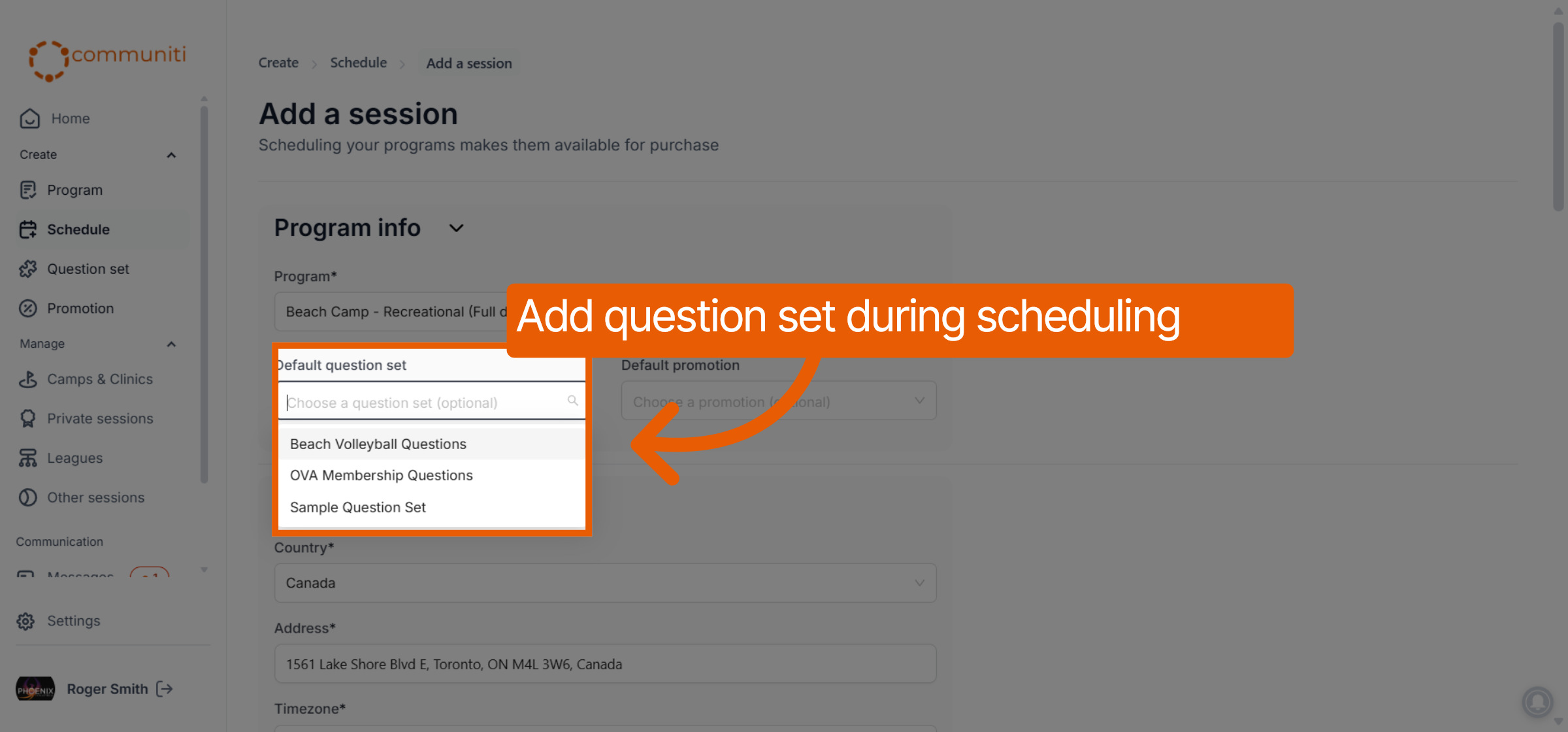
This method is best if you already have your question set ready when creating a new session.
Navigate to the Schedule tab and select Add a session.
Under the Program info section, locate the Default question set field.
Select your preferred question set from the dropdown menu to link it to the session immediately.
Option 2: From the Question Set List
Use this method to assign a single question set to multiple existing sessions at once.
Select Question set from the left sidebar.
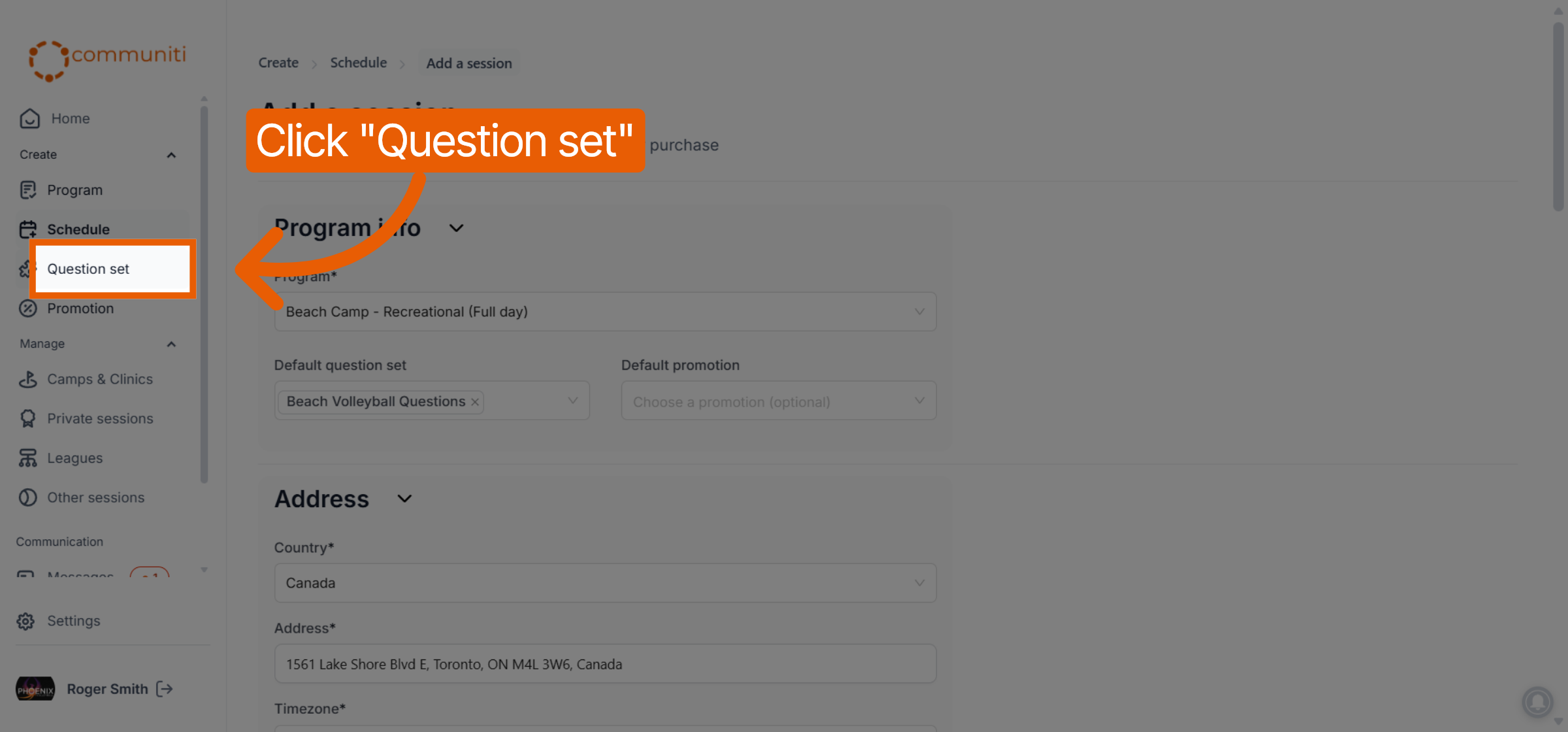
Find the specific question set you want to use and click the Assign button in its row.
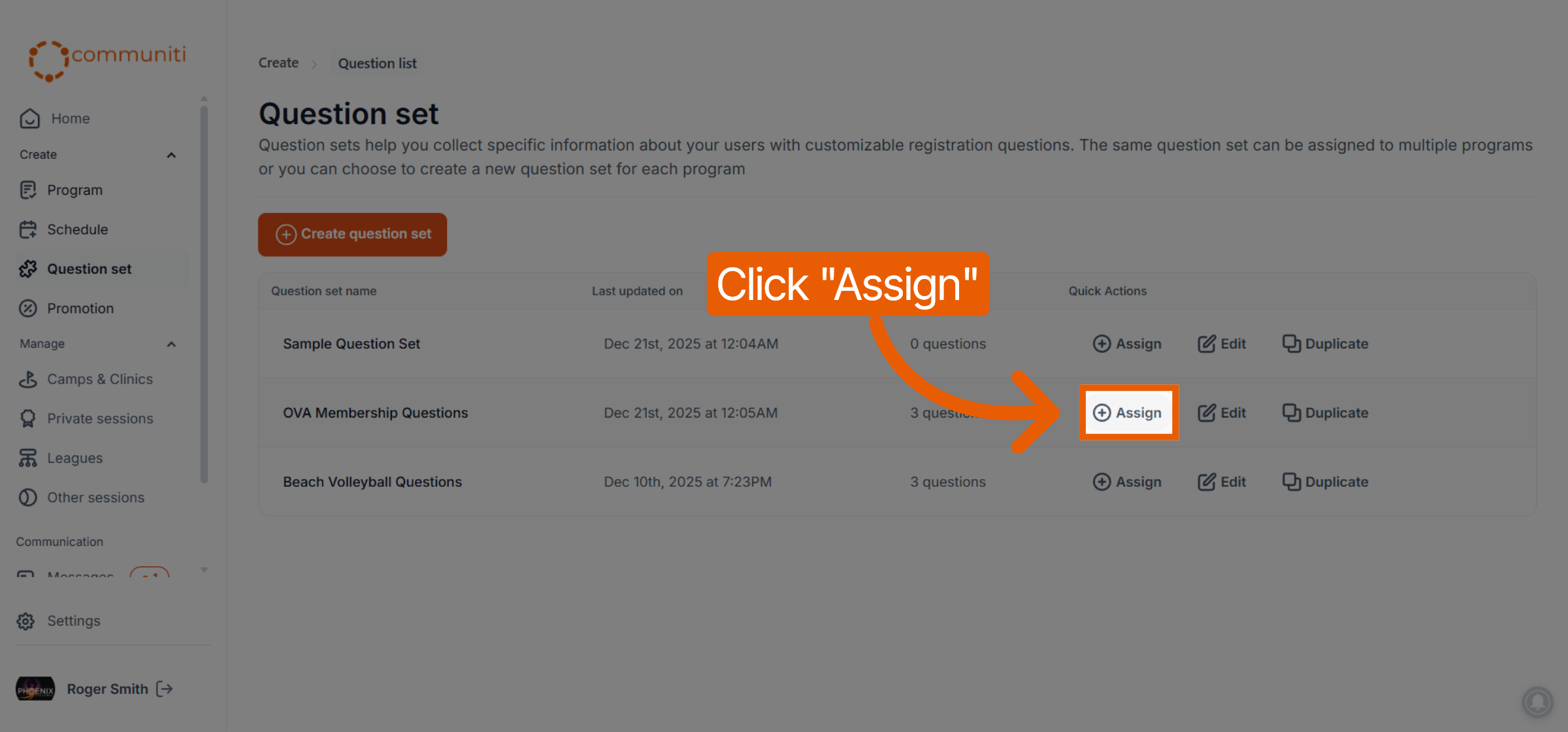
On the next screen, click the Assign session button.
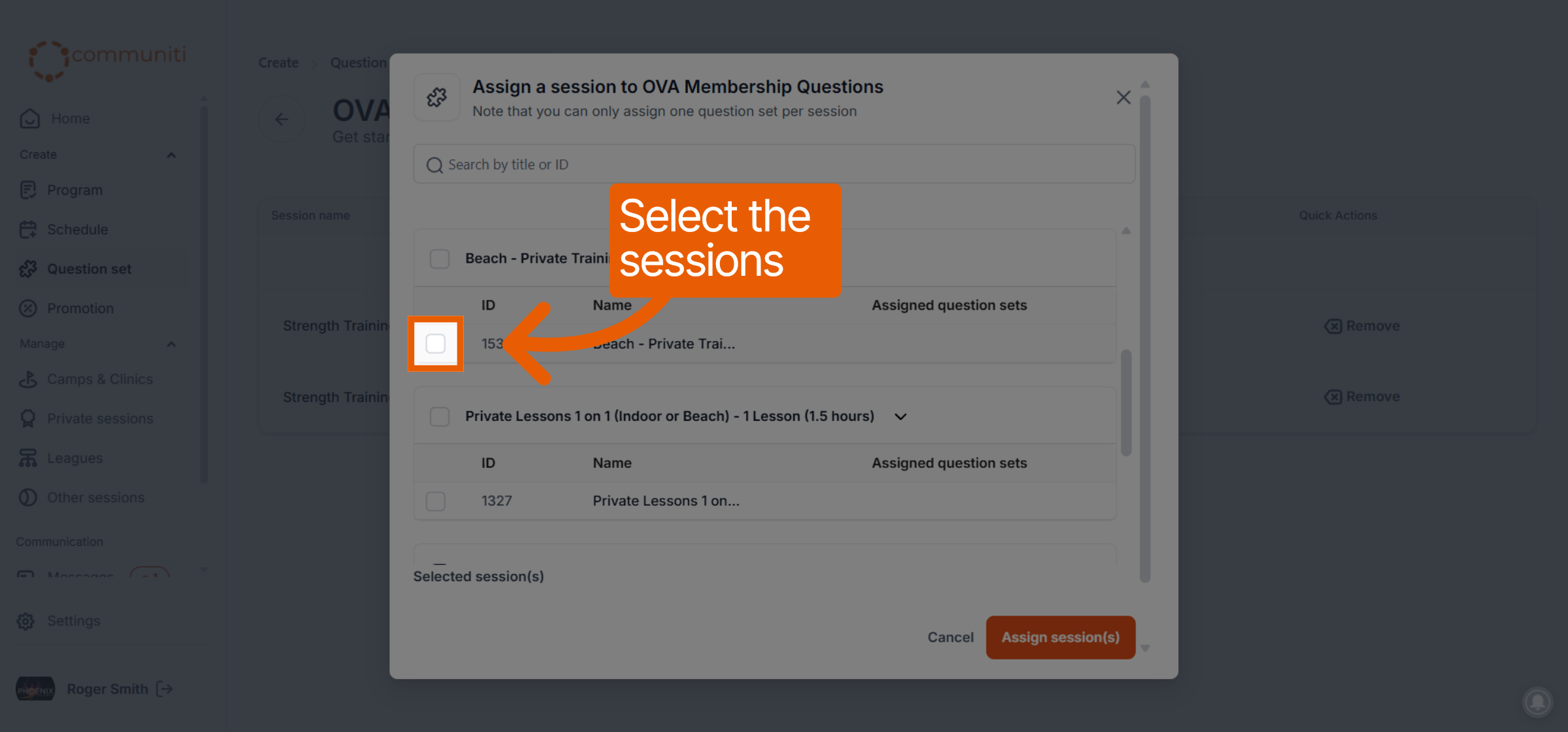
A list of your active sessions will appear. Select the checkboxes for all sessions that should use these questions.
Click the orange Assign session(s) button to finalize the link.
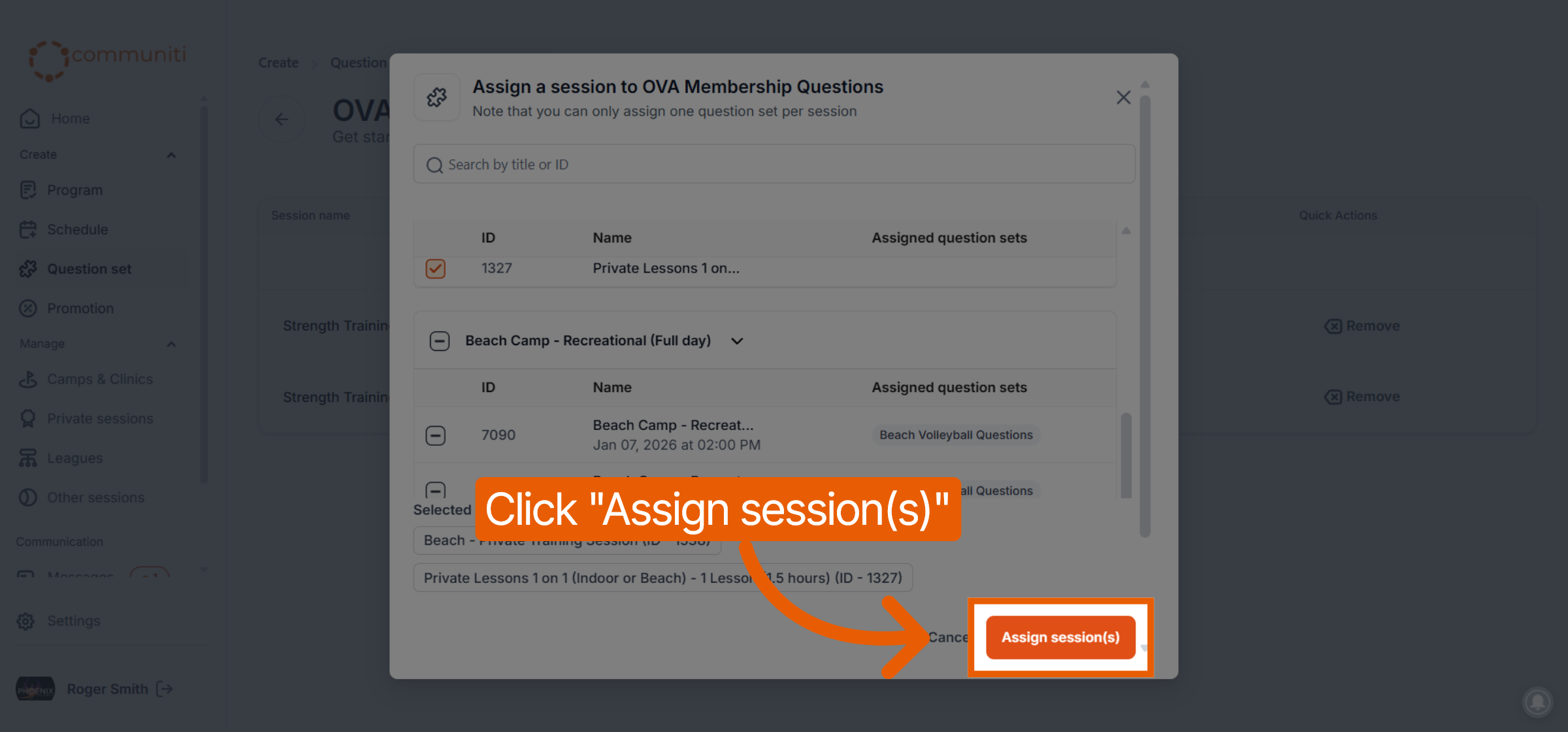
Note: Only one question set can be assigned to a session at a time.
Was this helpful?
Still need help? Ask the team