How to Edit Question Sets
You can update your custom registration questions at any time to collect new information or clarify existing fields for your participants.
Written By communiti
Last updated 10 months ago
1. Locate the Question Set
Access your full list of custom forms to find the set you need to change.
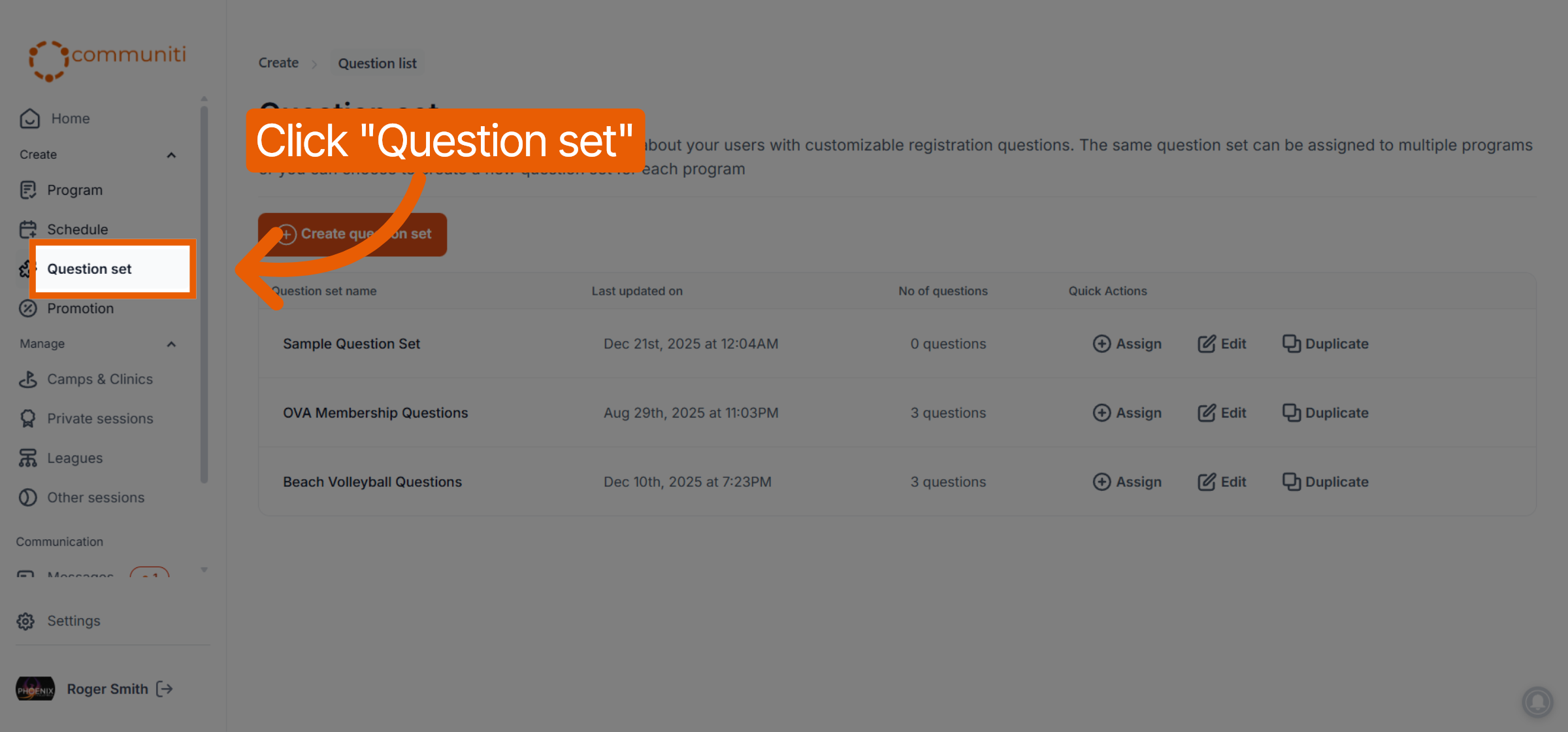
Select Question set from the left sidebar menu.
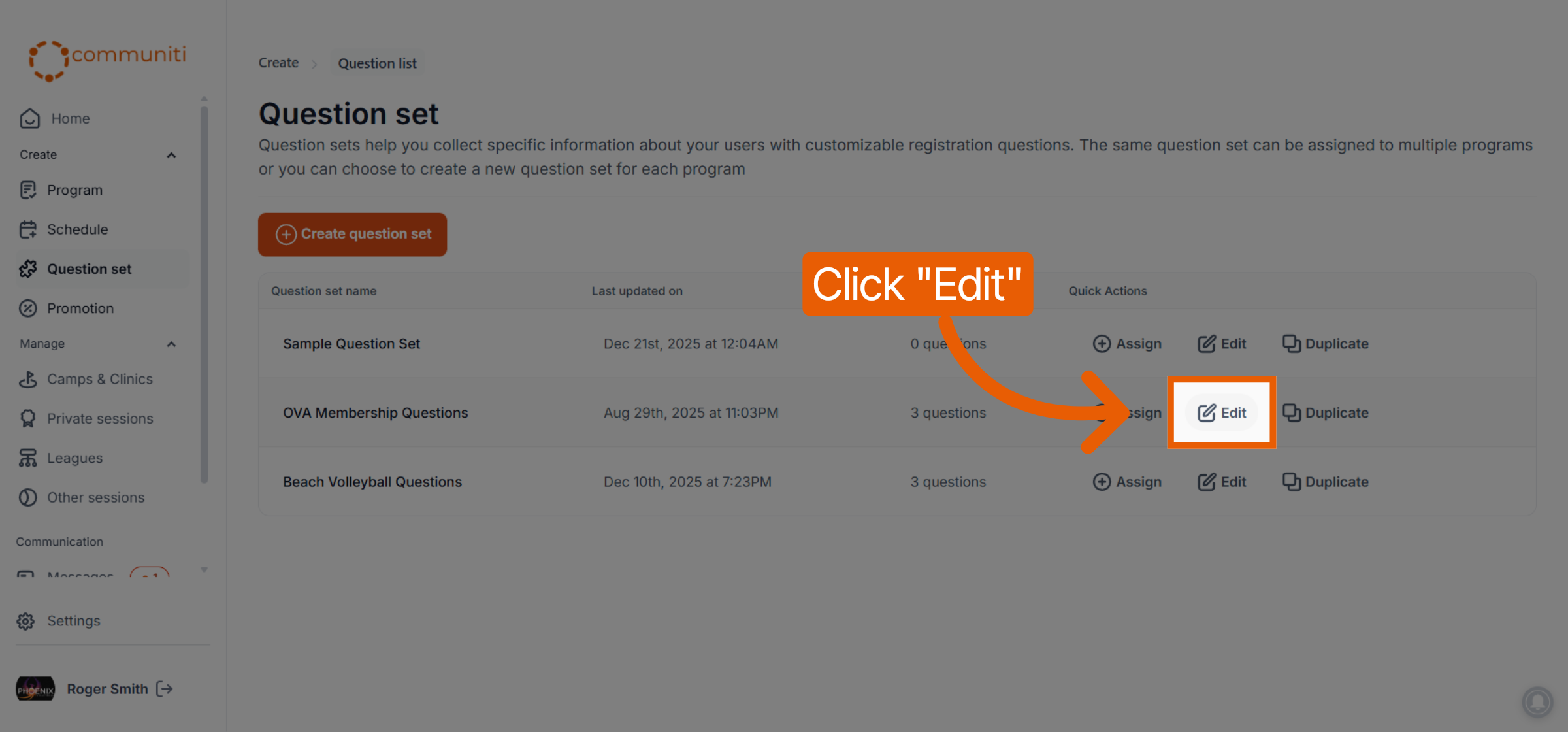
Find the specific set in the list and click the Edit button in its row.
2. Modify Your Questions
The editor allows you to adjust every aspect of your registration form.
Update Content: You can change the Question title, add or clarify the Question description, and modify Answer options for multiple choice or dropdown questions.
Adjust Requirements: Use the Required toggle to change whether a question is mandatory or optional for registrants.
Manage Question Order: Use the Drag (six-dot) icon to reorder questions within the set.
Add or Remove: Click Add question to include new fields, or use the Delete (trash can) icon to remove a question entirely.
3. Save and Apply Changes
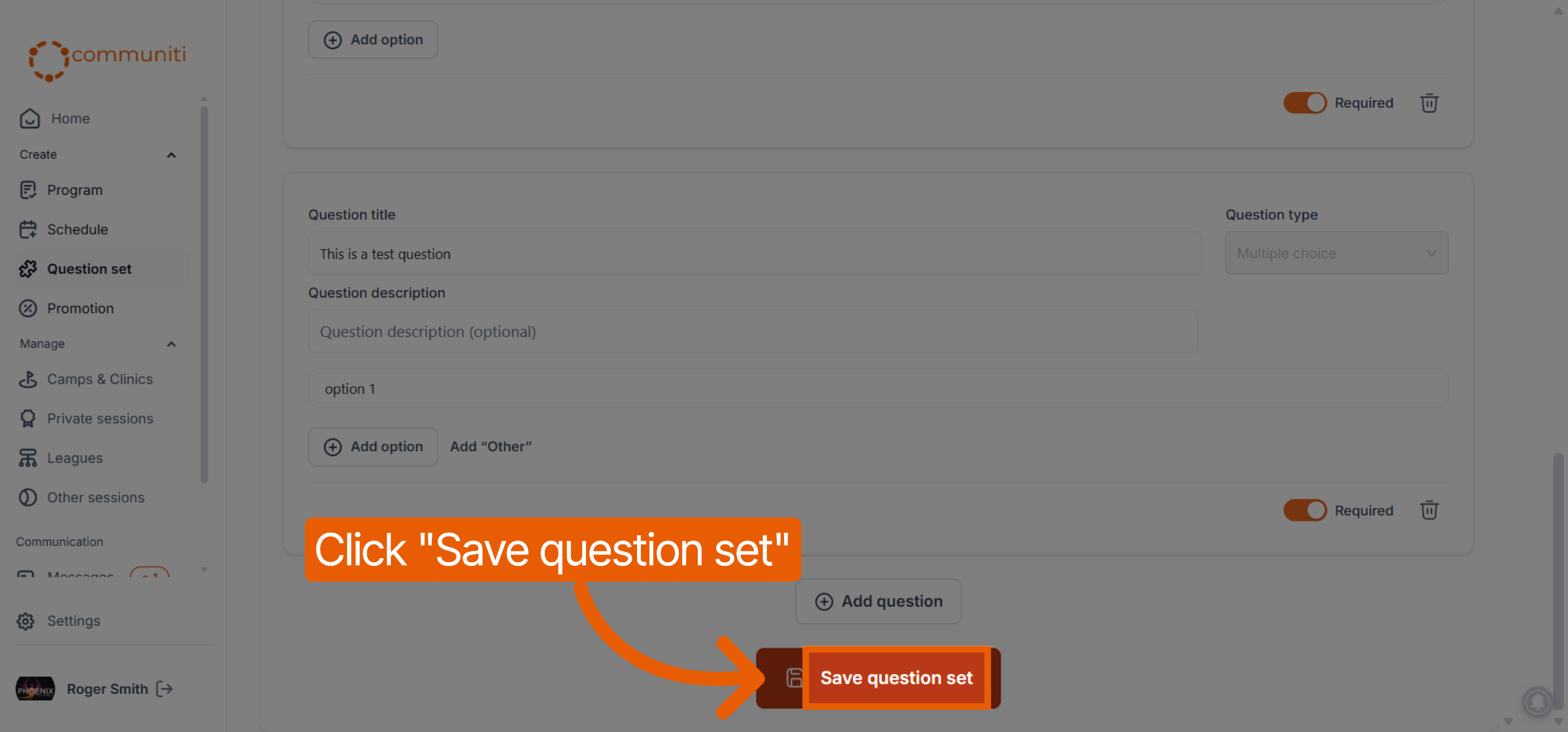
Once your updates are complete, click the orange Save question set button at the bottom of the editor.
Your changes are applied immediately; any sessions currently using this question set will display the updated version for all future registrations.
Was this helpful?
Still need help? Ask the team