How to Preview Question Sets
Before finalizing your registration forms, you can use the preview tool to see exactly how your custom questions will appear to participants during the checkout process.
Written By communiti
Last updated 10 months ago
1. Access the Question Set Editor
To see your questions in action, you must first open the specific set you are working on.
Select Question set from the left sidebar menu.
Locate the question set you wish to view from your list and click Edit, or click the orange Create question set button to start a new one.
2. Launch the Preview Mode
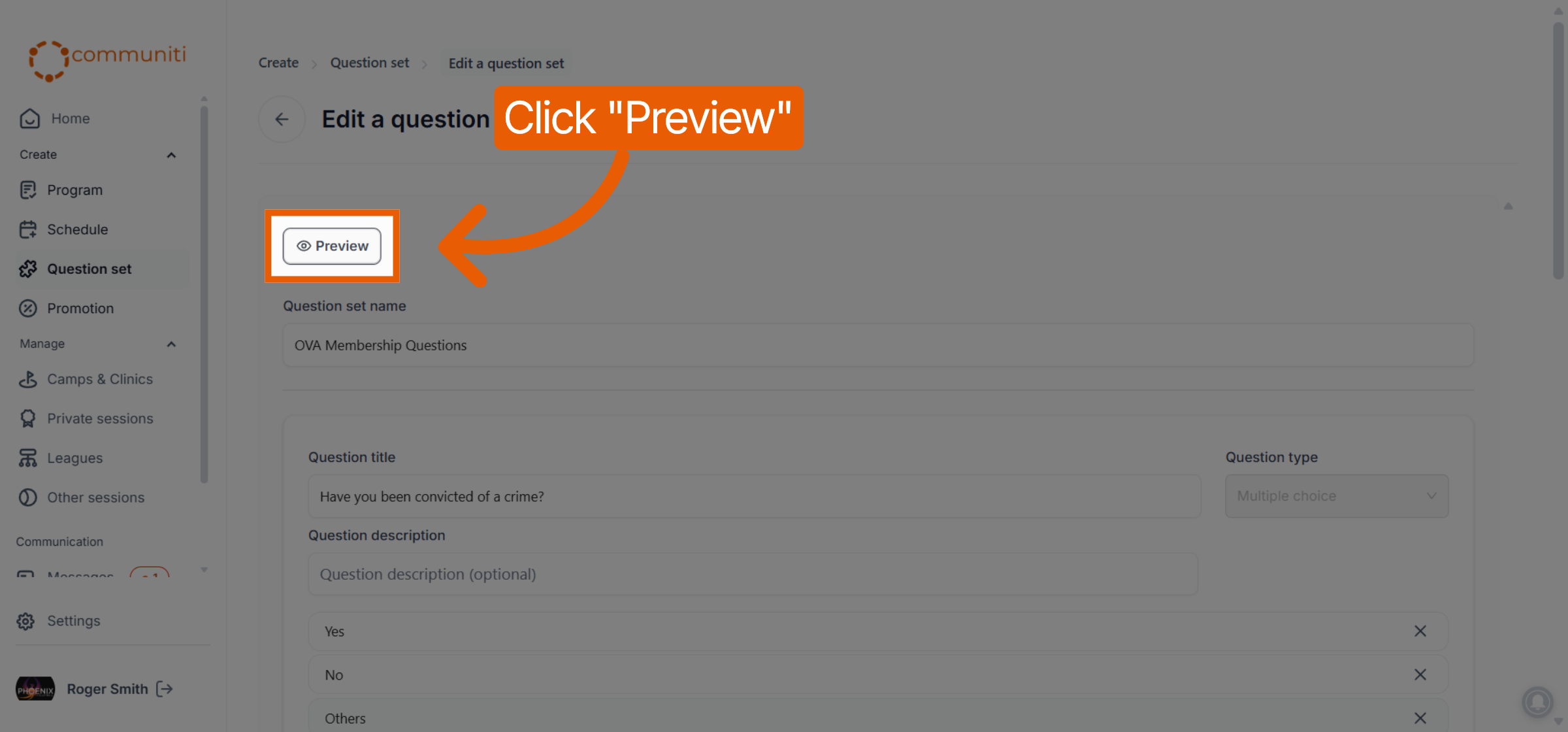
The preview tool allows you to check your work without needing to navigate through a live registration.
Once inside the question set editor, click the Preview button located at the top left of the screen.
3. Review the User Experience
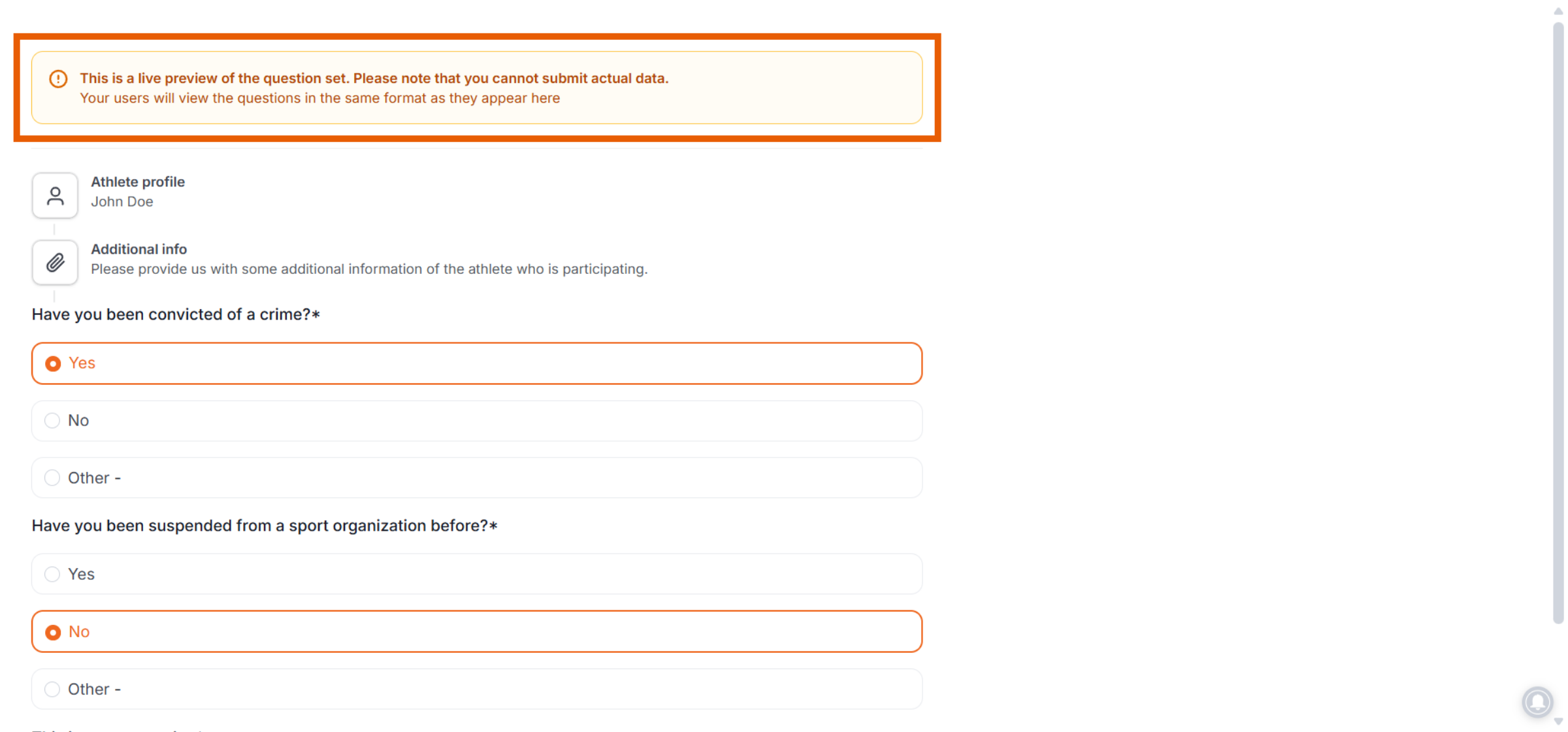
A new window or overlay will appear showing the live format of your questions.
Live Layout: This view shows the exact format (checkboxes, dropdowns, etc.) that users will interact with.
Mandatory Indicators: Verify that any required questions are correctly marked with an asterisk (*) to ensure users don't skip them.
Non-Functional View: Please note that this is a live preview of the format only; you cannot submit actual data or save answers while in this mode.
Was this helpful?
Still need help? Ask the team