How to Move a Registration to a Different Session
Moving a registration allows you to transfer a participant from one session to another without requiring them to re-register. This is useful for schedule changes or moving a participant to a different skill level.
Written By communiti
Last updated 10 months ago
1. Locate the Original Session and Participant
Start by finding the participant in their current session.
Select the Manage menu in the left sidebar and choose your program category.
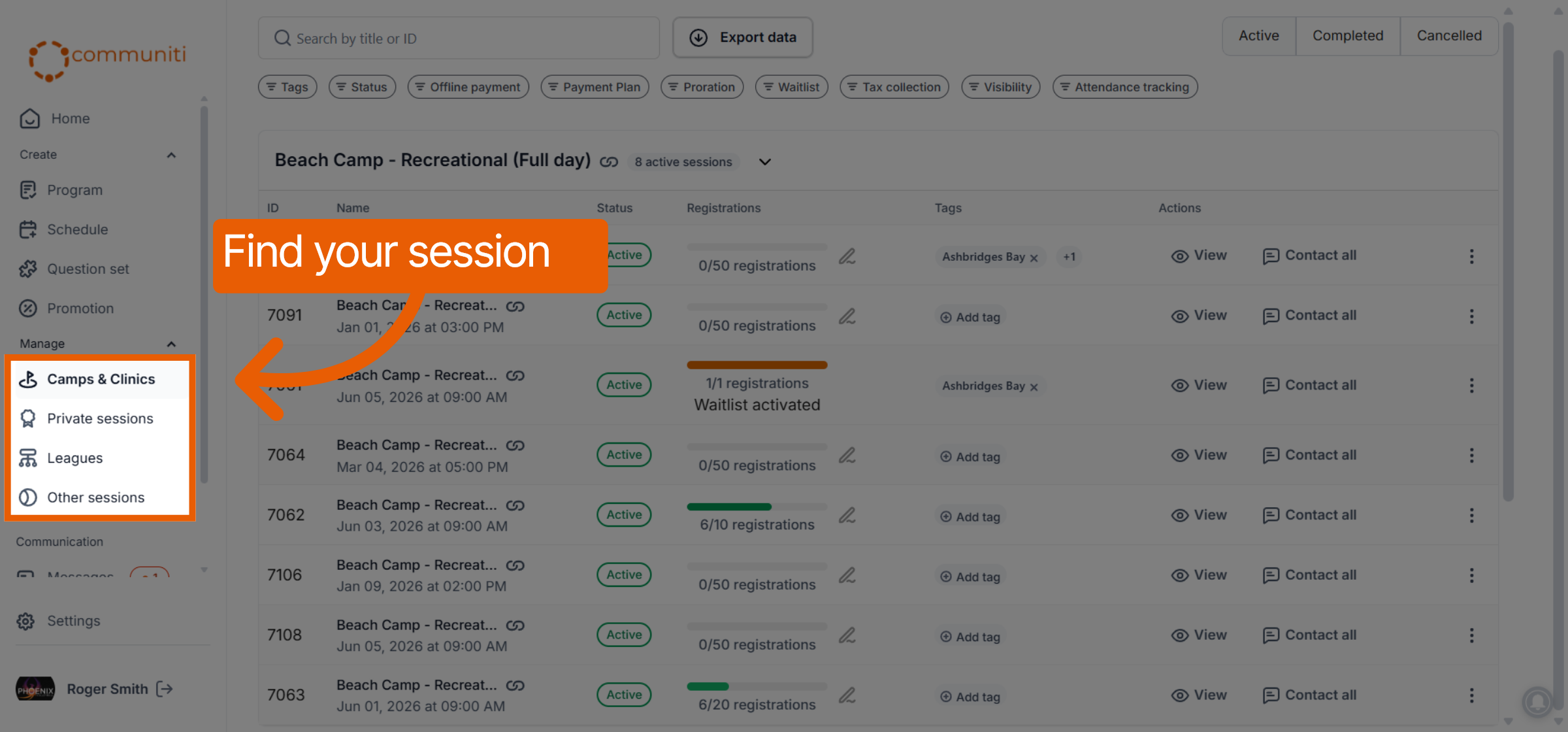
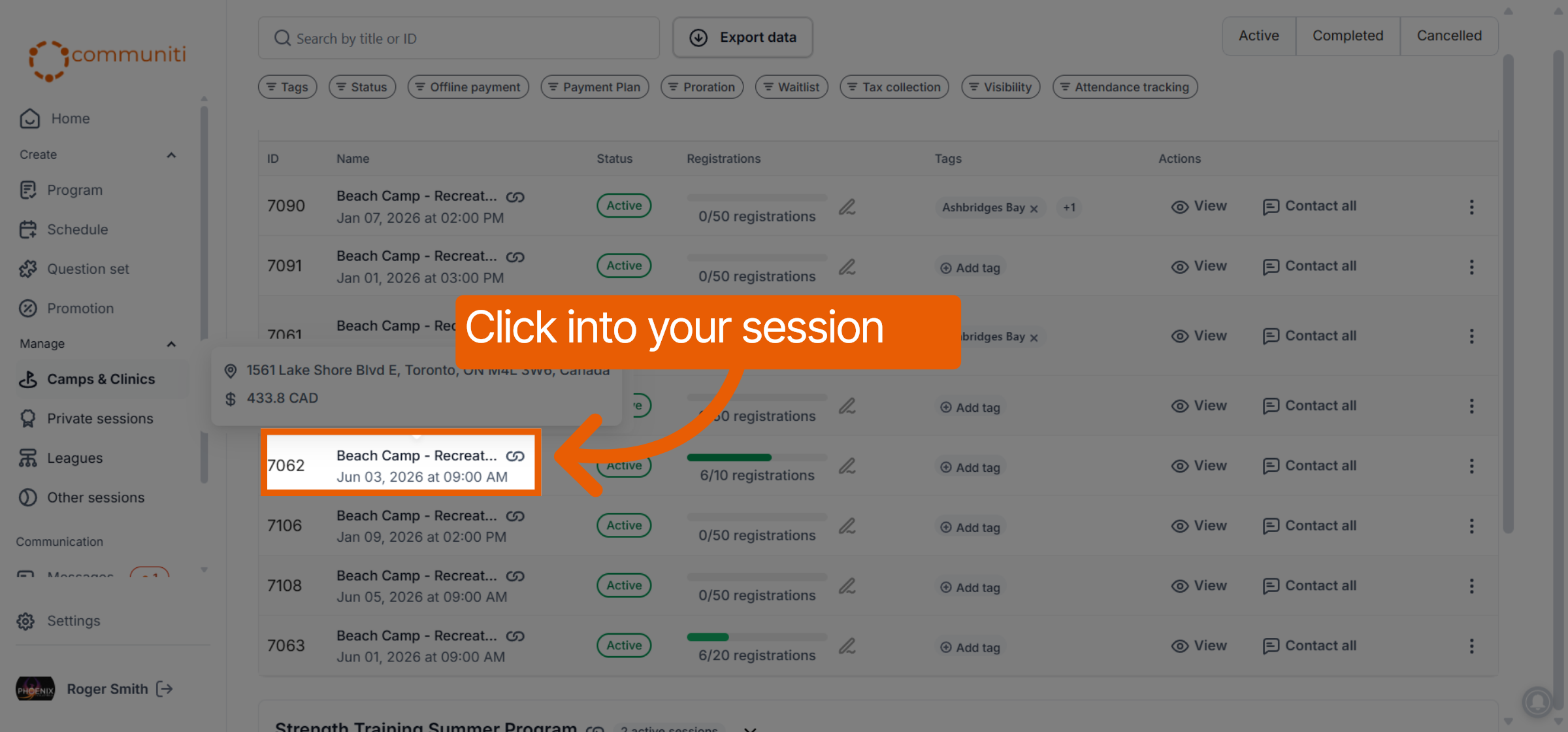
Click into the specific session where the participant is currently registered.
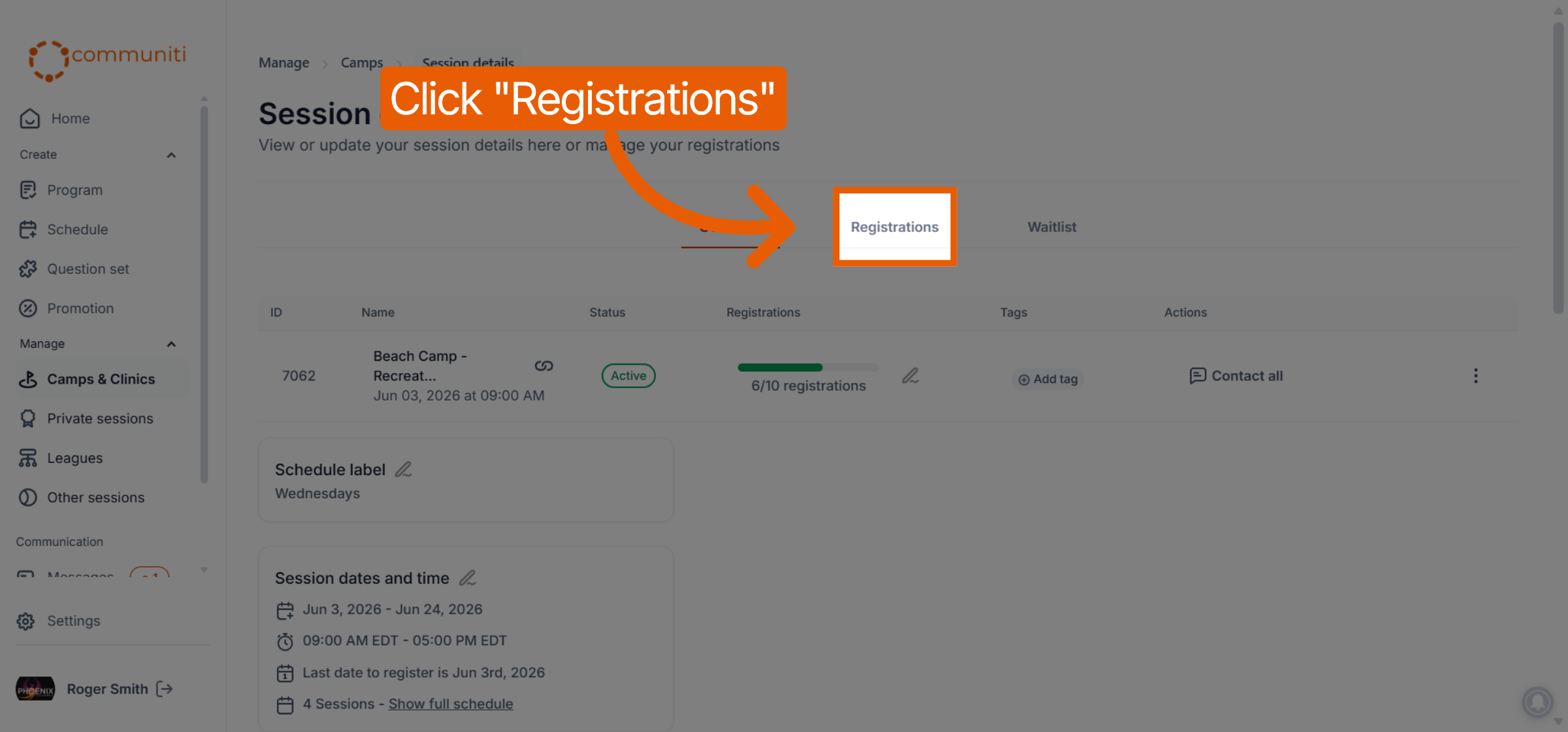
Select the Registrations tab at the top of the session dashboard.
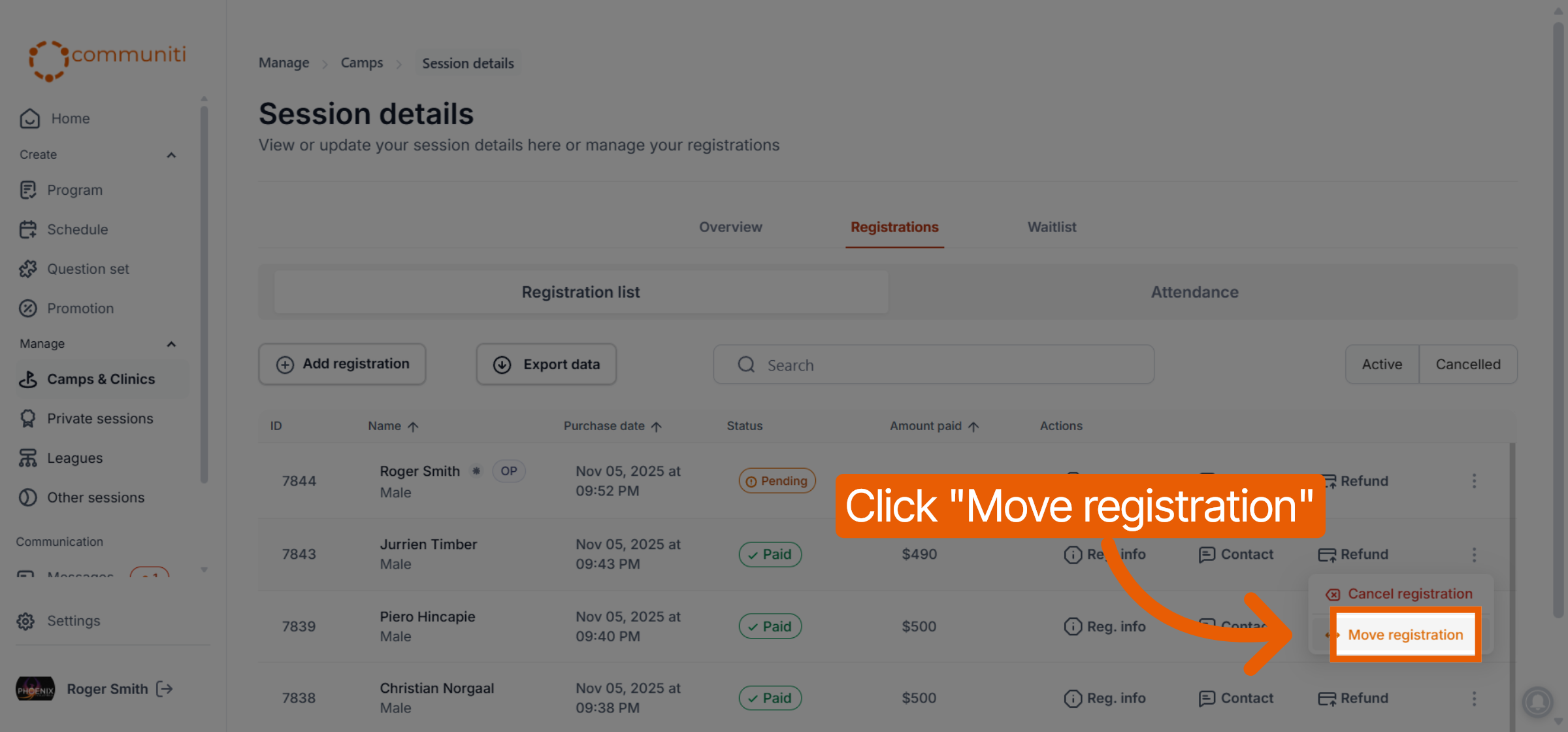
Find the participant in the list and click the Three Dots (⋮) icon on the far right of their row.
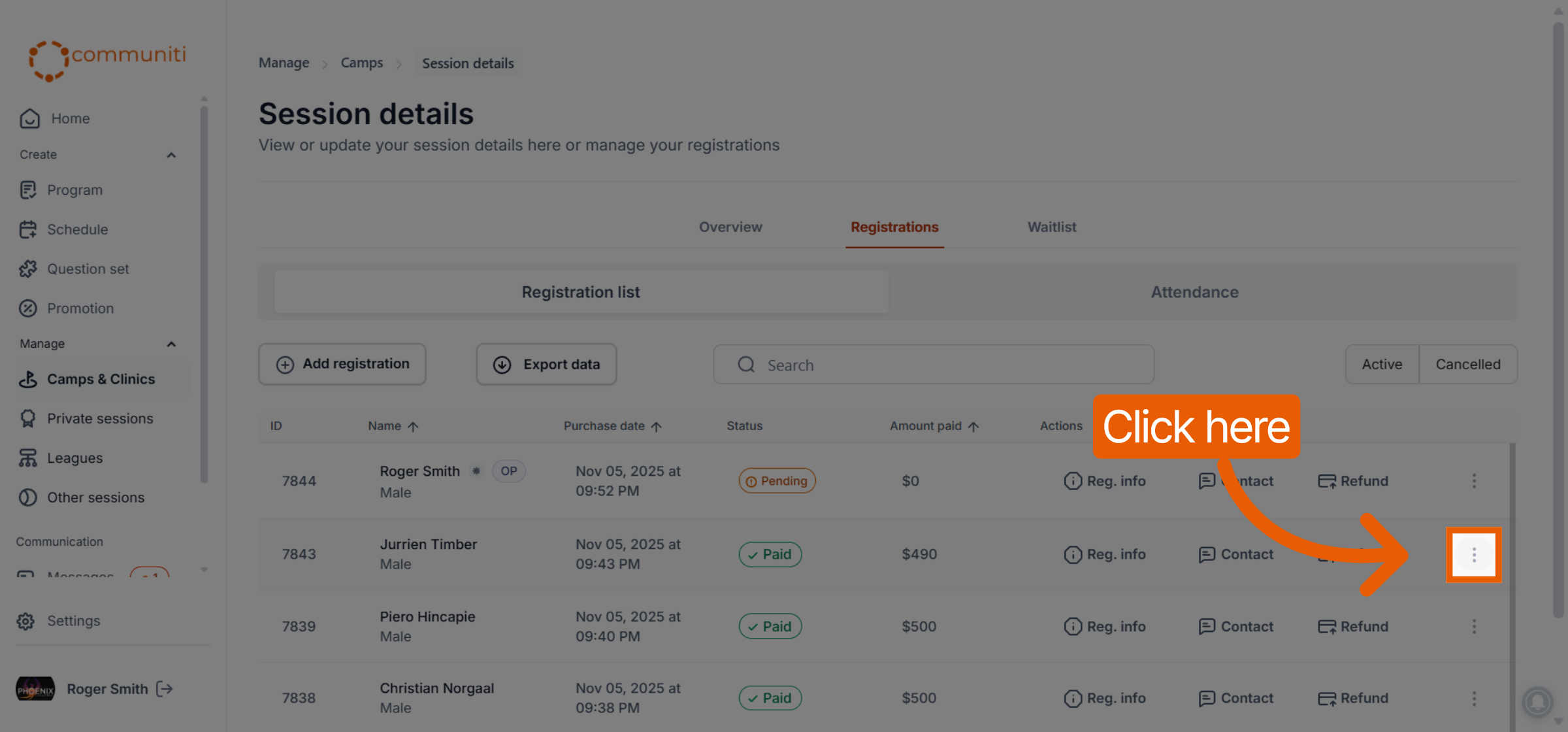
Select Move registration from the dropdown menu.
2. Select the New Session
Choose the destination session for the transfer.
Use the search bar in the pop-up window to find the new session by Title or Session ID.
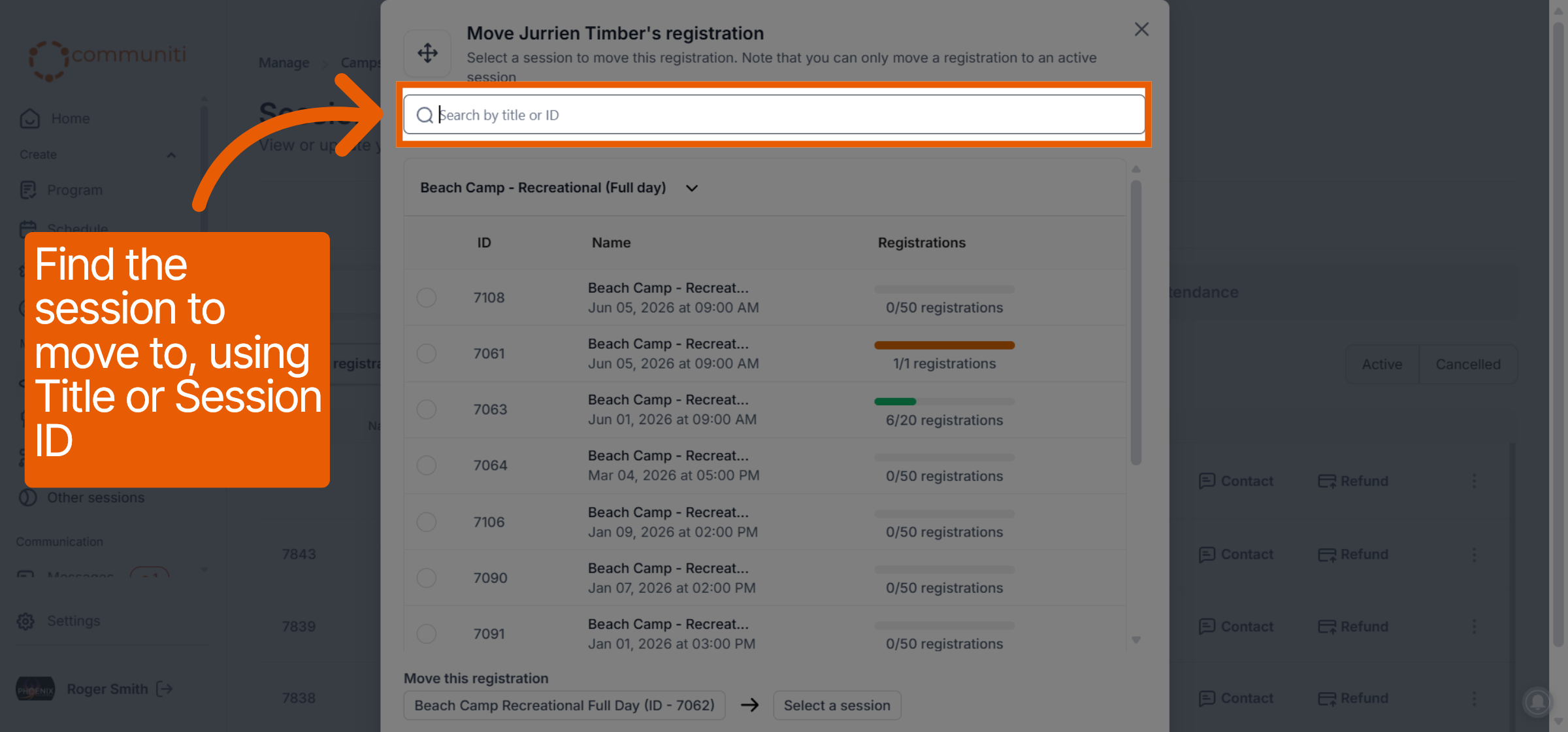
Select the radio button next to the desired new session from the results list.
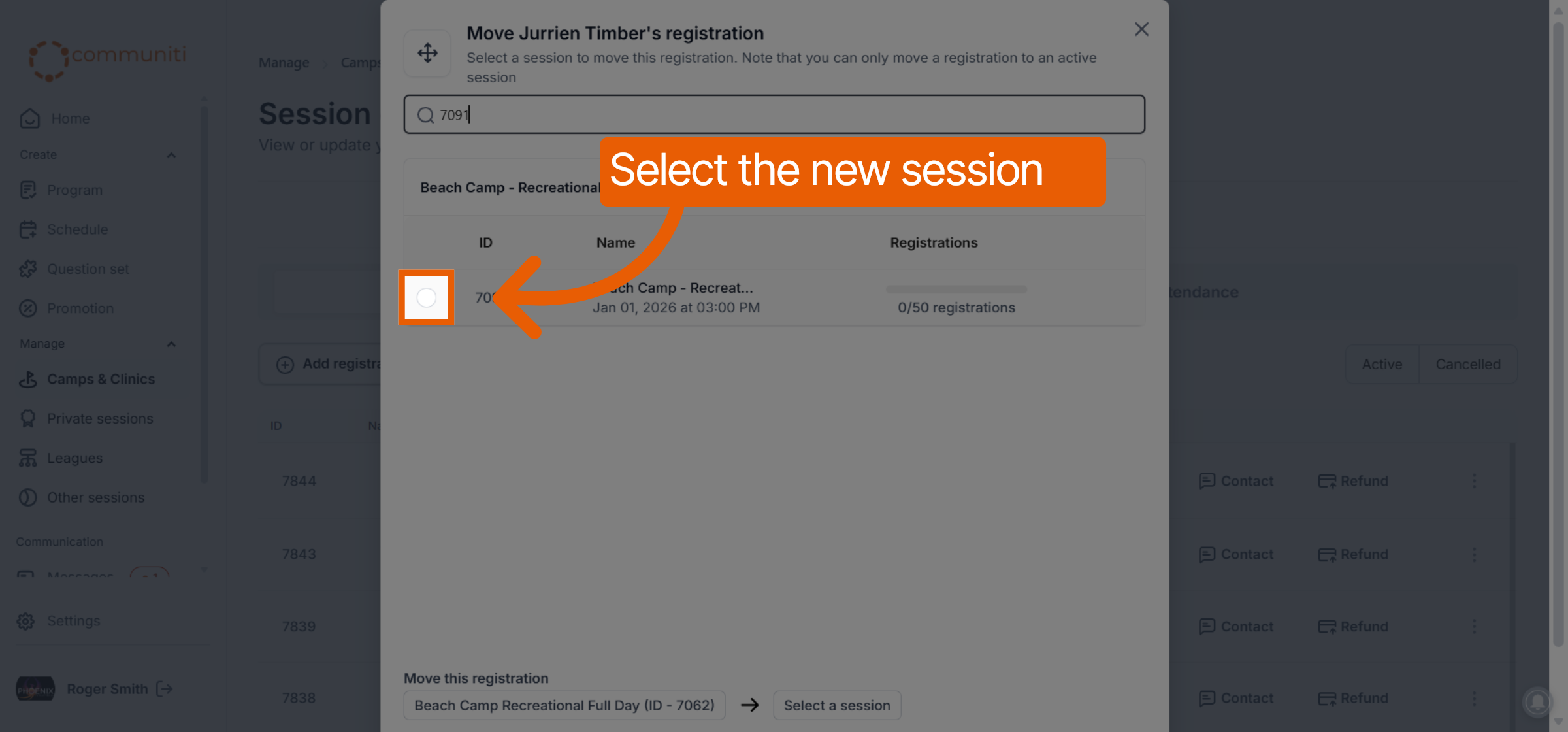
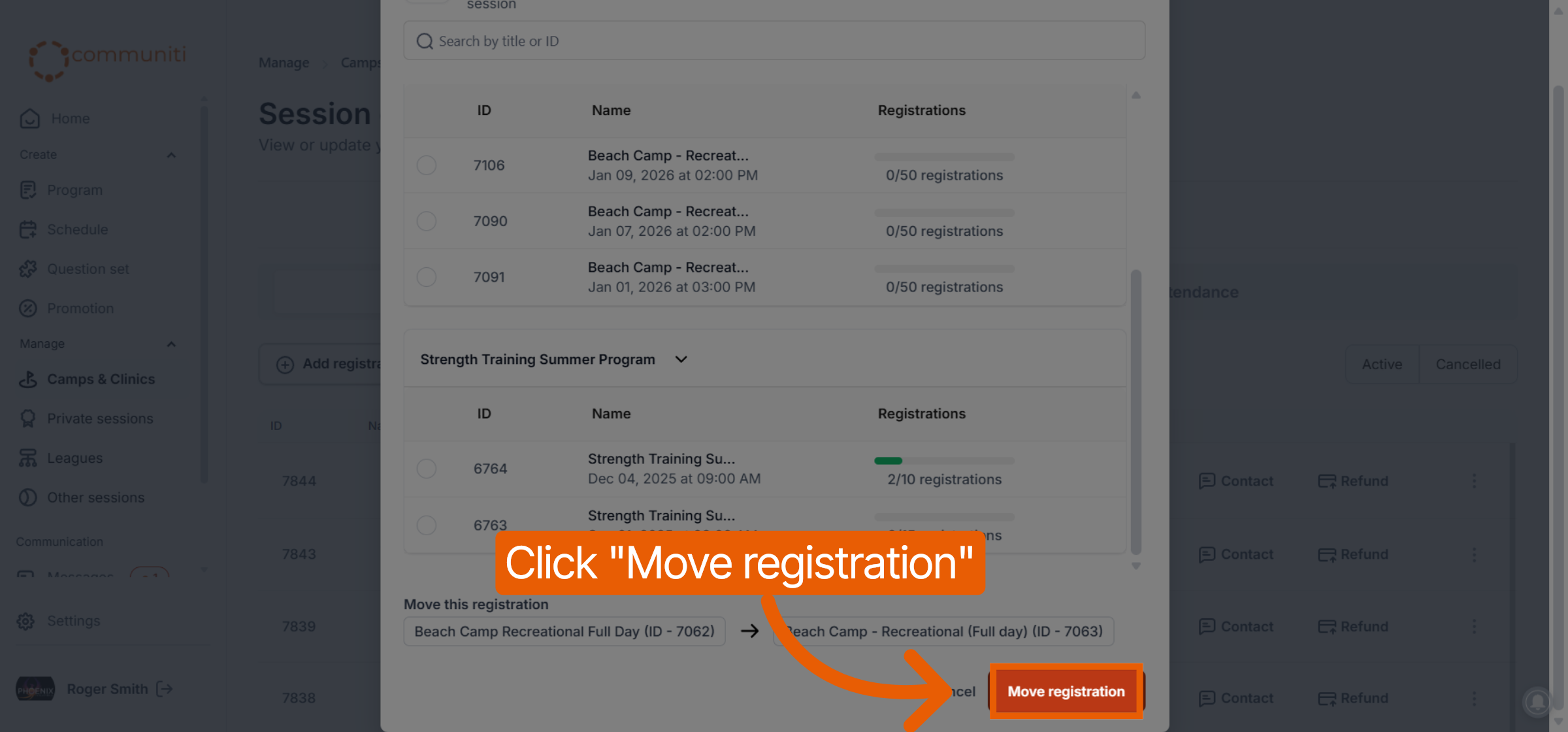
Click the orange Move registration button at the bottom of the window to confirm the transfer.
3. Resolve Payment Differences
Because sessions may have different costs, you must manually handle any pricing discrepancies.
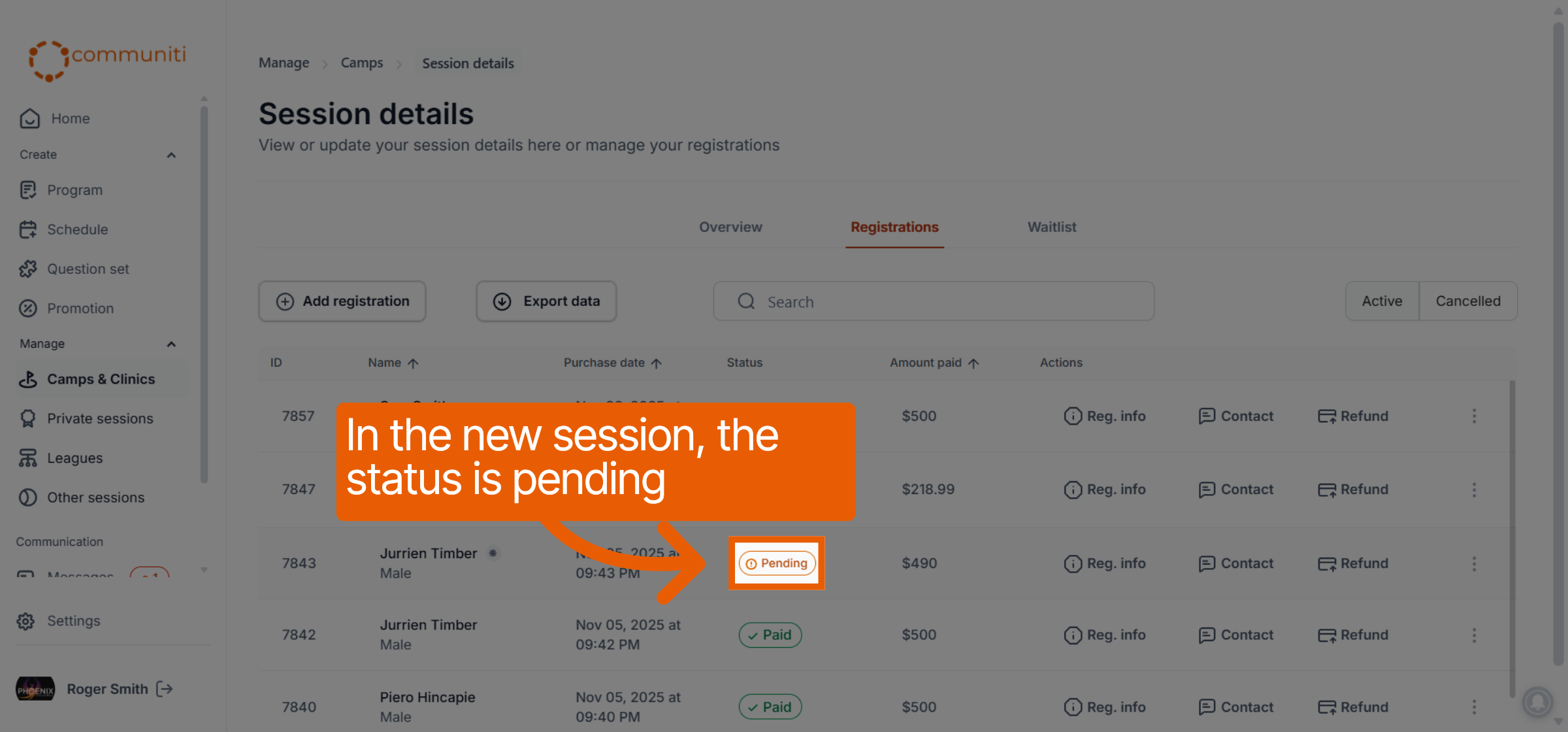
In the new session, the participant's status will initially show as Pending.
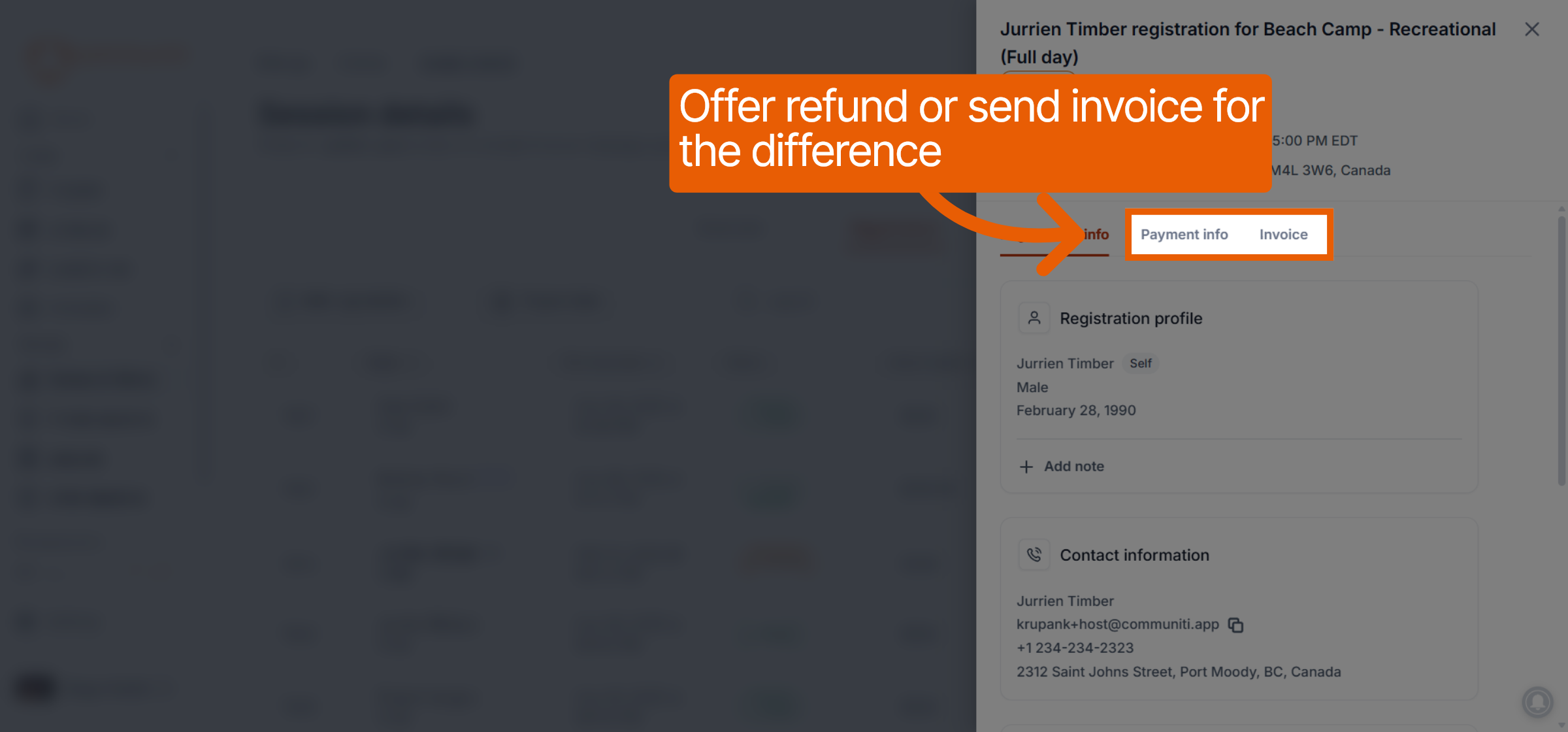
If the new session is more expensive: Navigate to the participant's Invoice tab to send an invoice for the remaining balance.
If the new session is less expensive: Navigate to the Payment info tab to offer a partial refund for the difference.
4. Finalize the Transfer
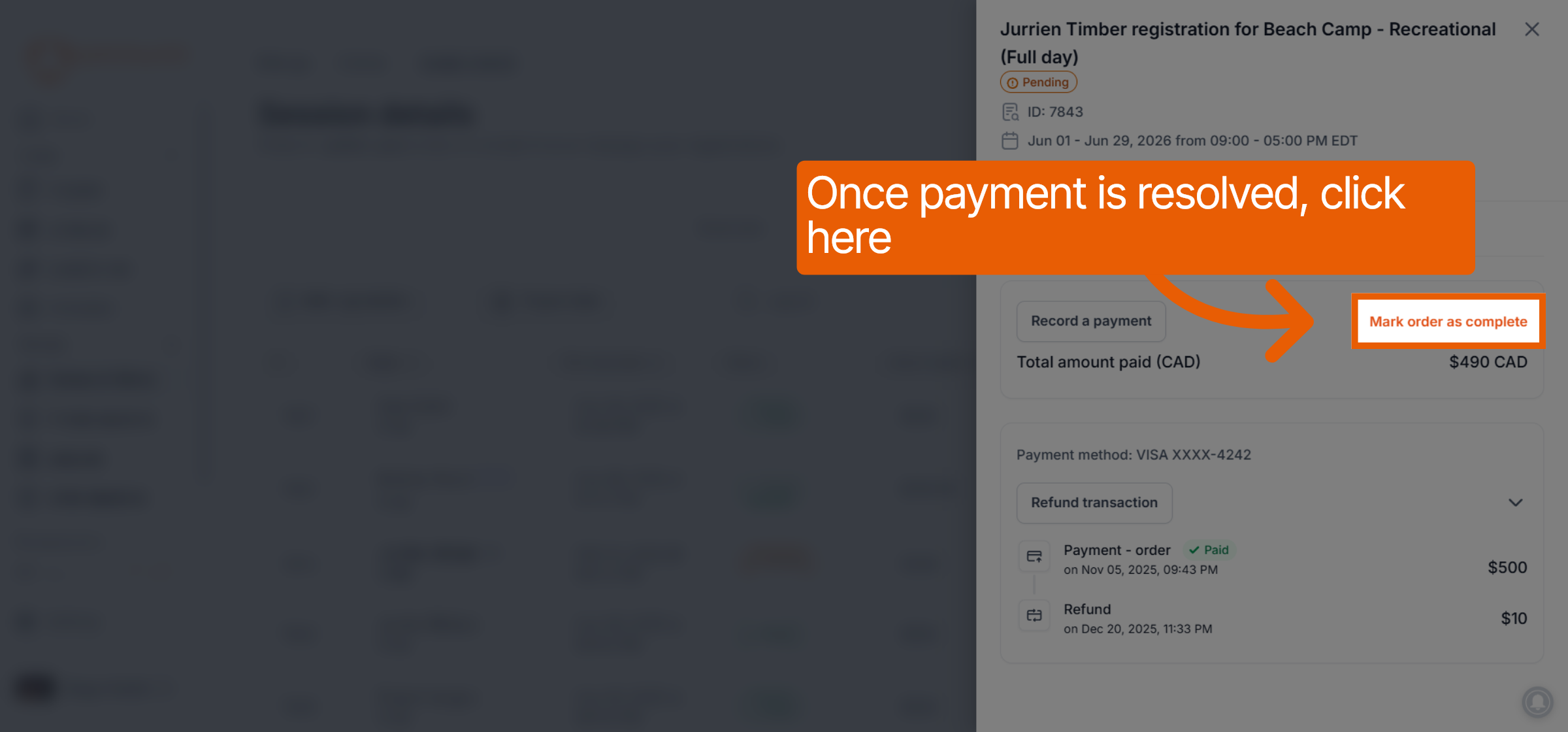
Once the financial balance is resolved, you can officially complete the move.
Click the Mark Order as complete button within the participant's registration details.
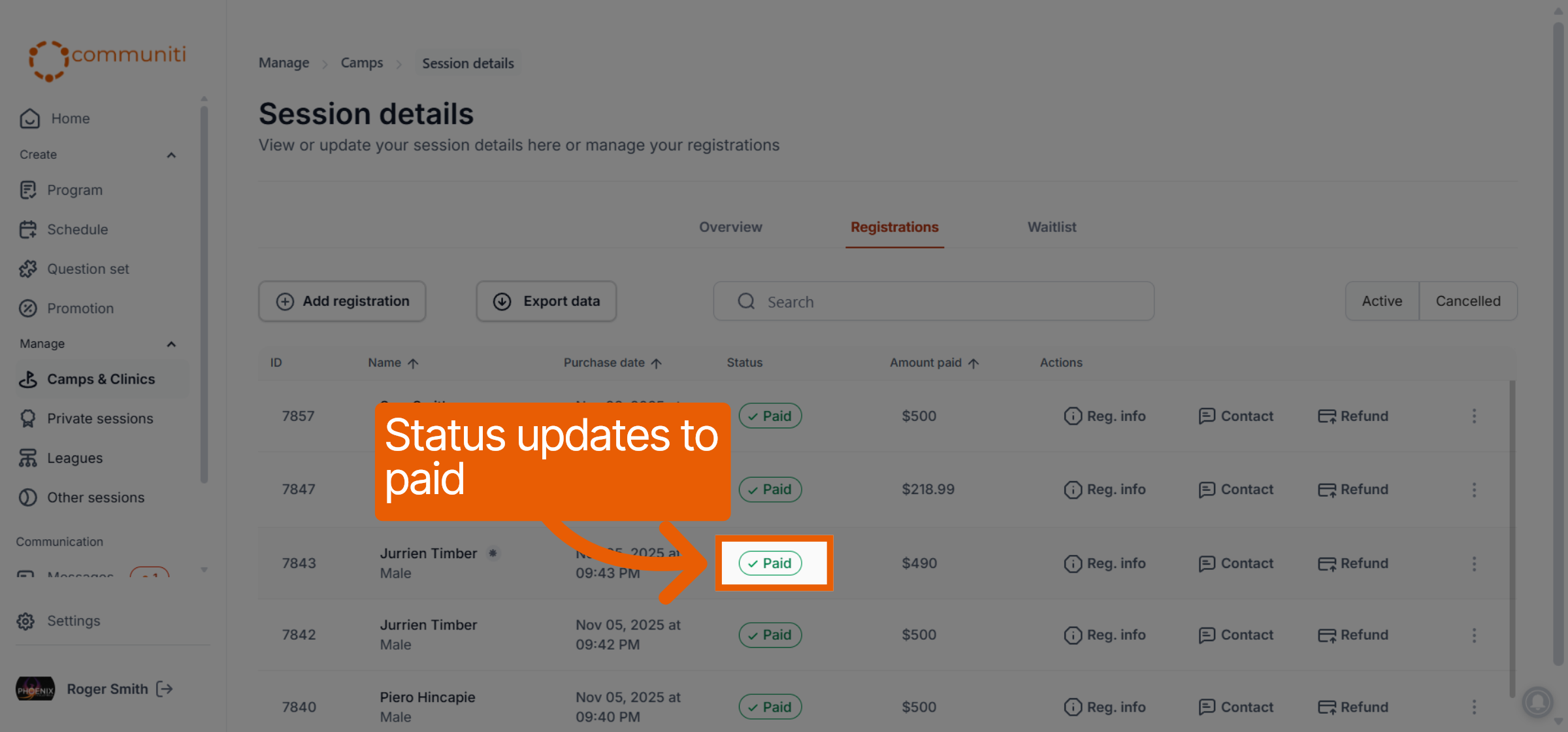
This action will update their status from Pending to Paid in the new session.
Was this helpful?
Still need help? Ask the team