How to Pause and Resume Sessions
Pausing a session hides it from public view, which is a necessary step whenever you need to edit session details or temporarily stop new registrations.
Written By communiti
Last updated 10 months ago
1. Locate the Session
Before you can change a session's status, you must find it within your management dashboard.
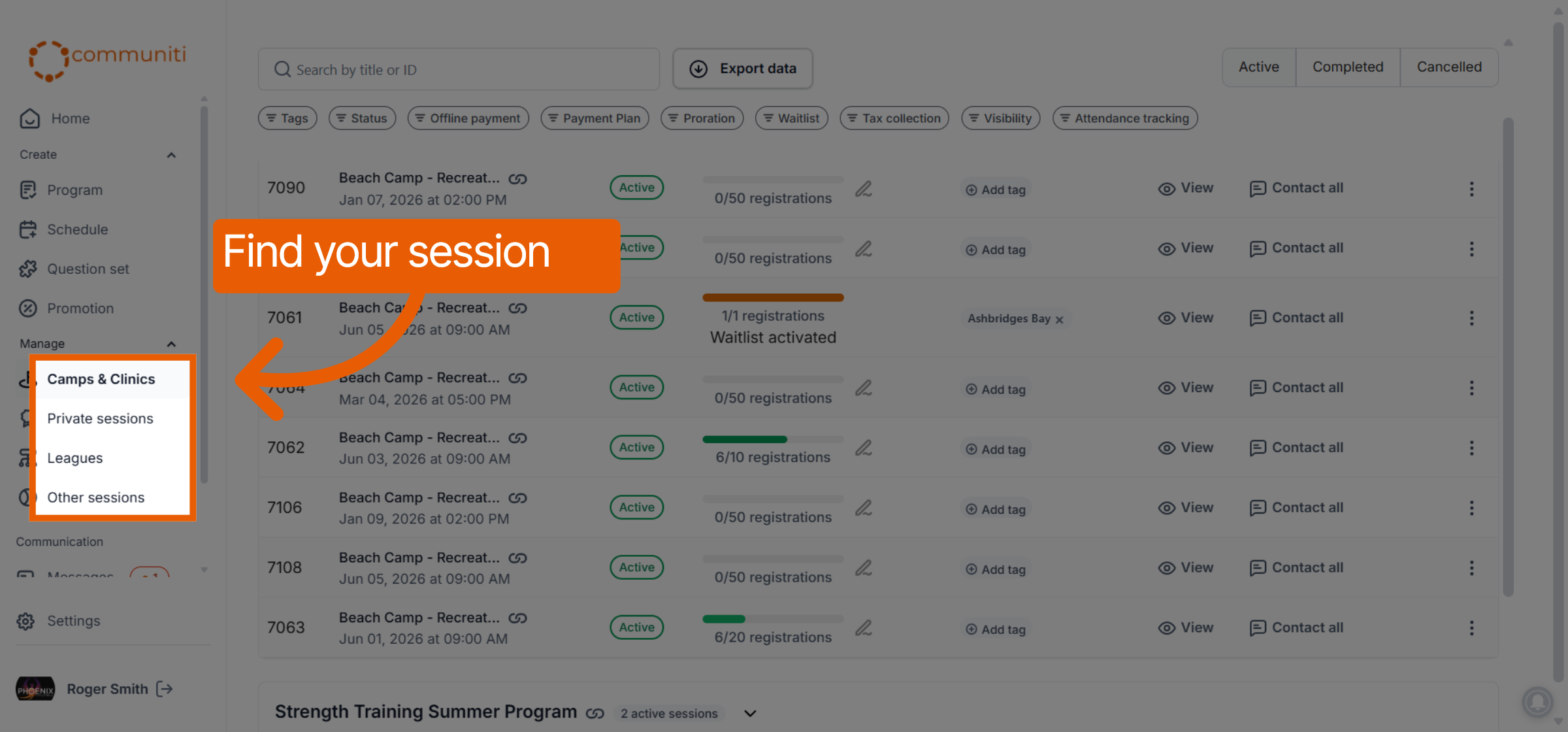
Select the Manage menu in the left sidebar and choose your program category (e.g., Camps & Clinics).
Use the list to find the specific session you wish to update.
2. Pause the Session
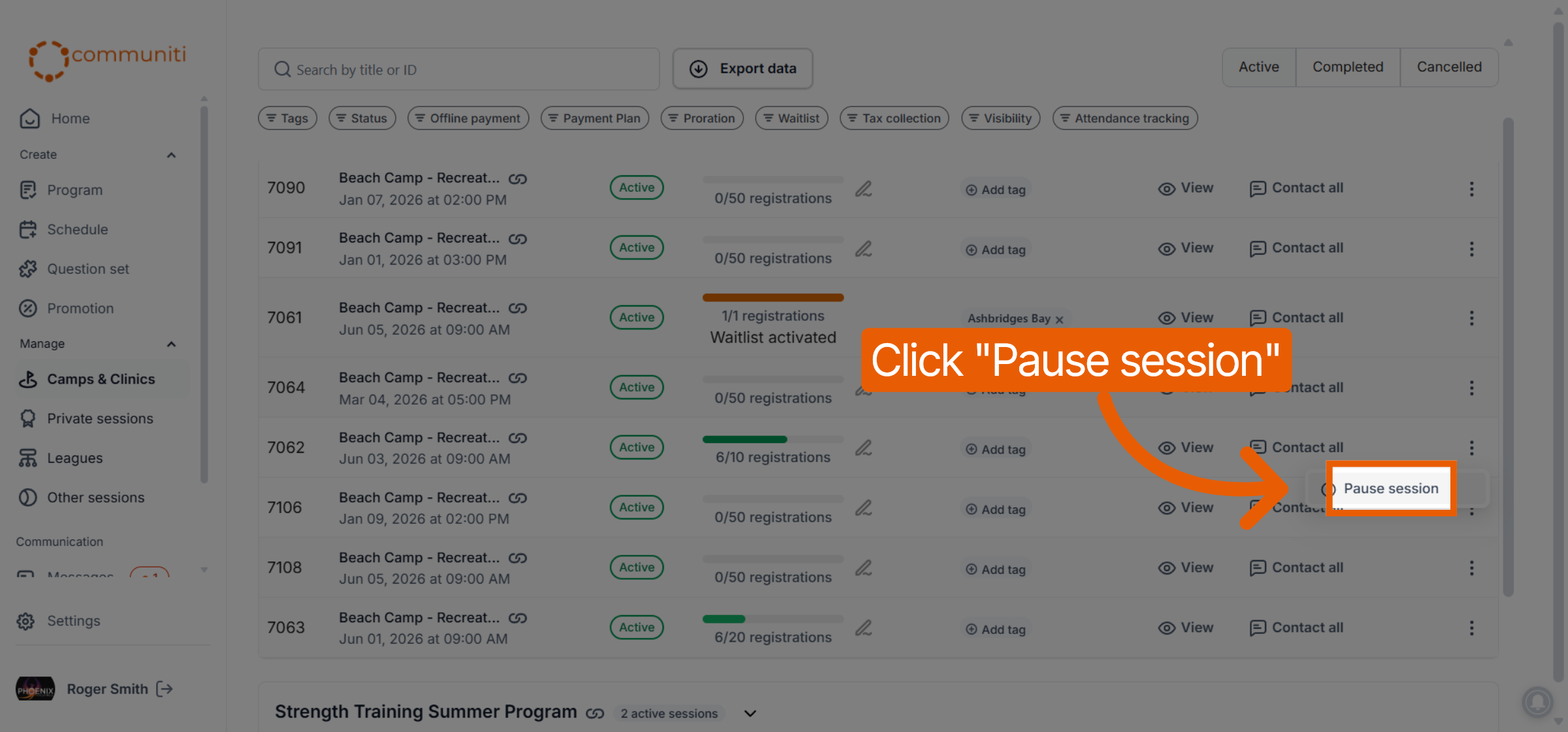
Pausing will hide the session so users cannot see or register for it until it is resumed.
Click the Three Dots (⋮) icon on the far right of the session row.
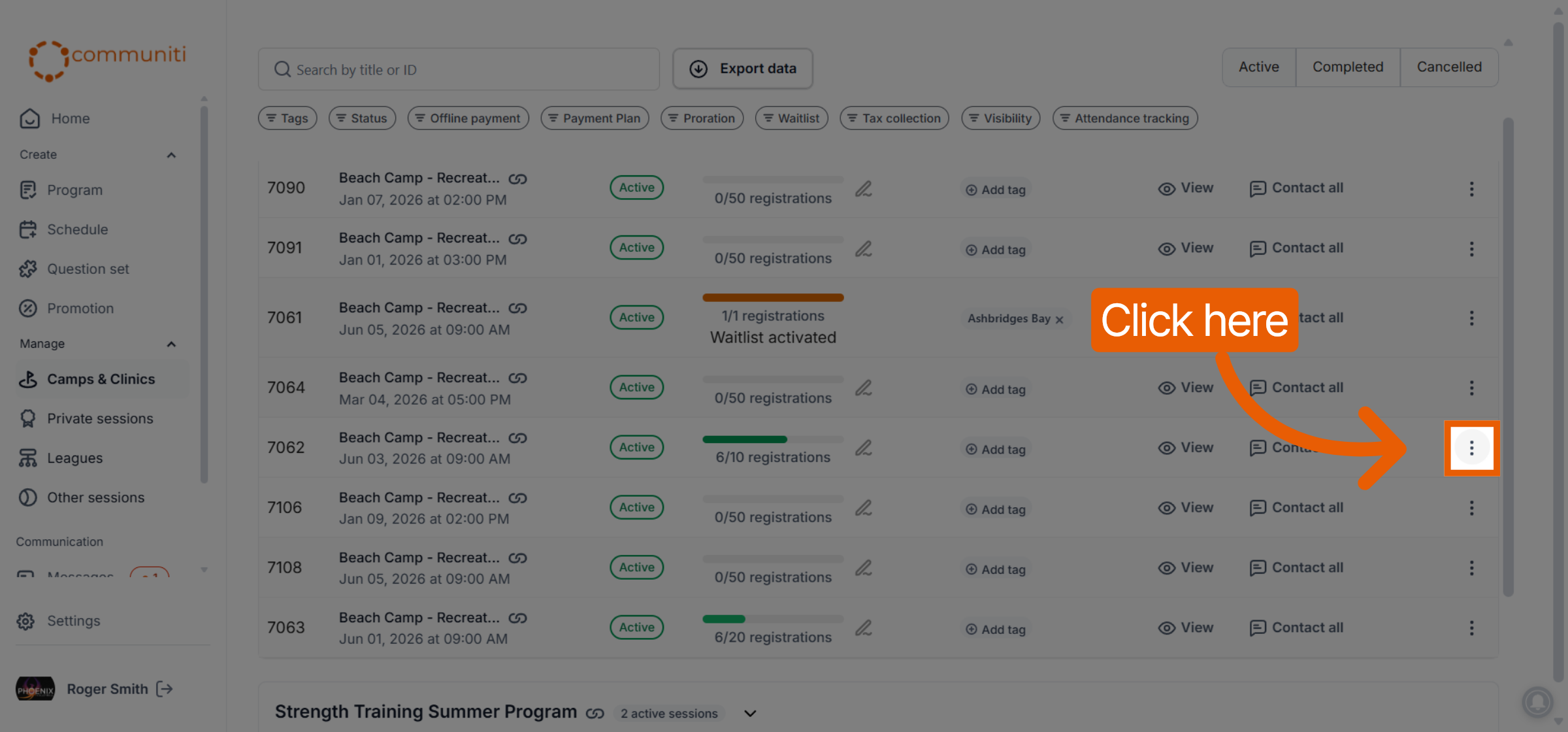
Select Pause session from the dropdown menu.
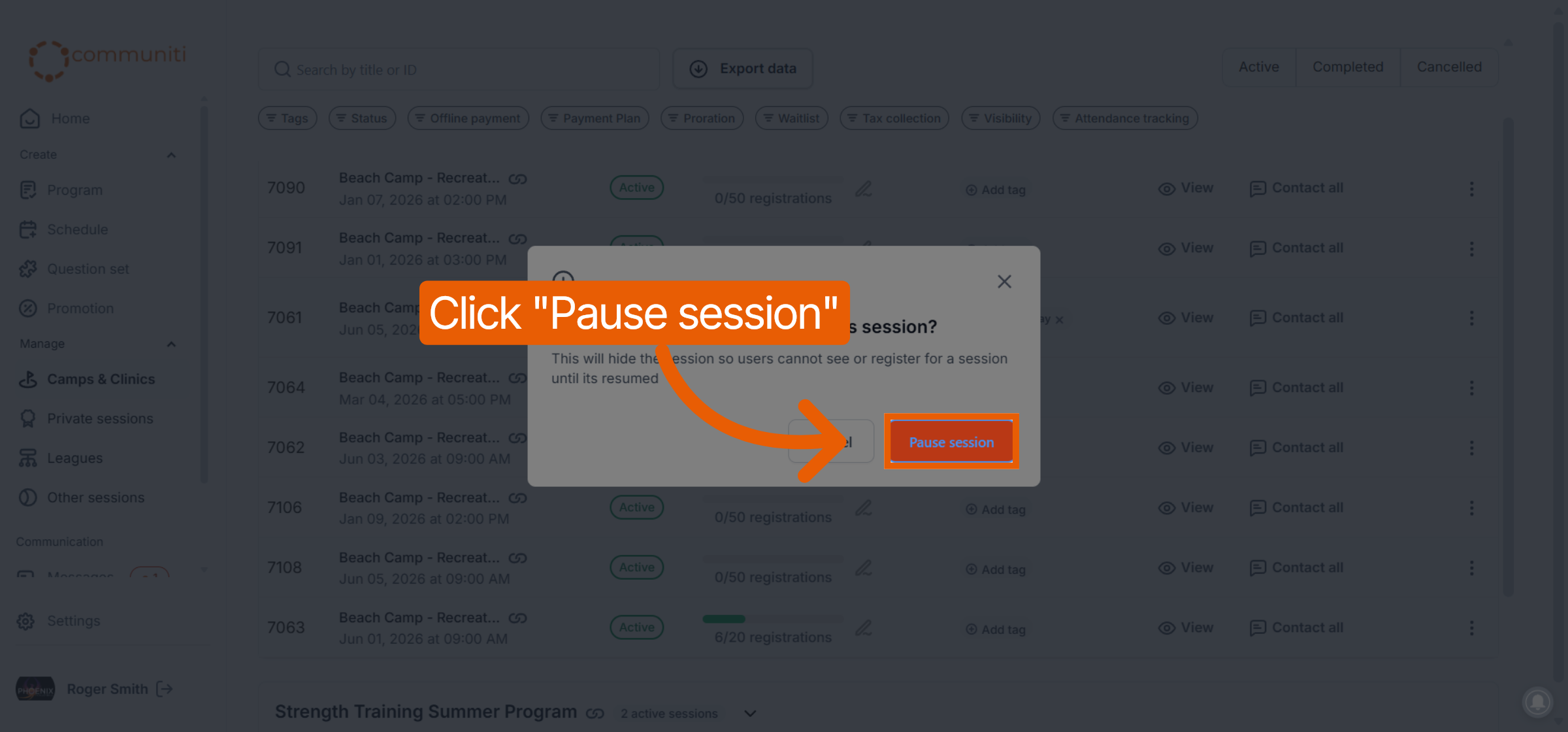
Click the orange Pause session button in the confirmation pop-up to finalize the action.
3. Resume the Session
Once your edits are complete, you must resume the session to allow users to see and register for it again.
Locate your paused session in the list.
Click the Three Dots (⋮) icon in the Actions column.
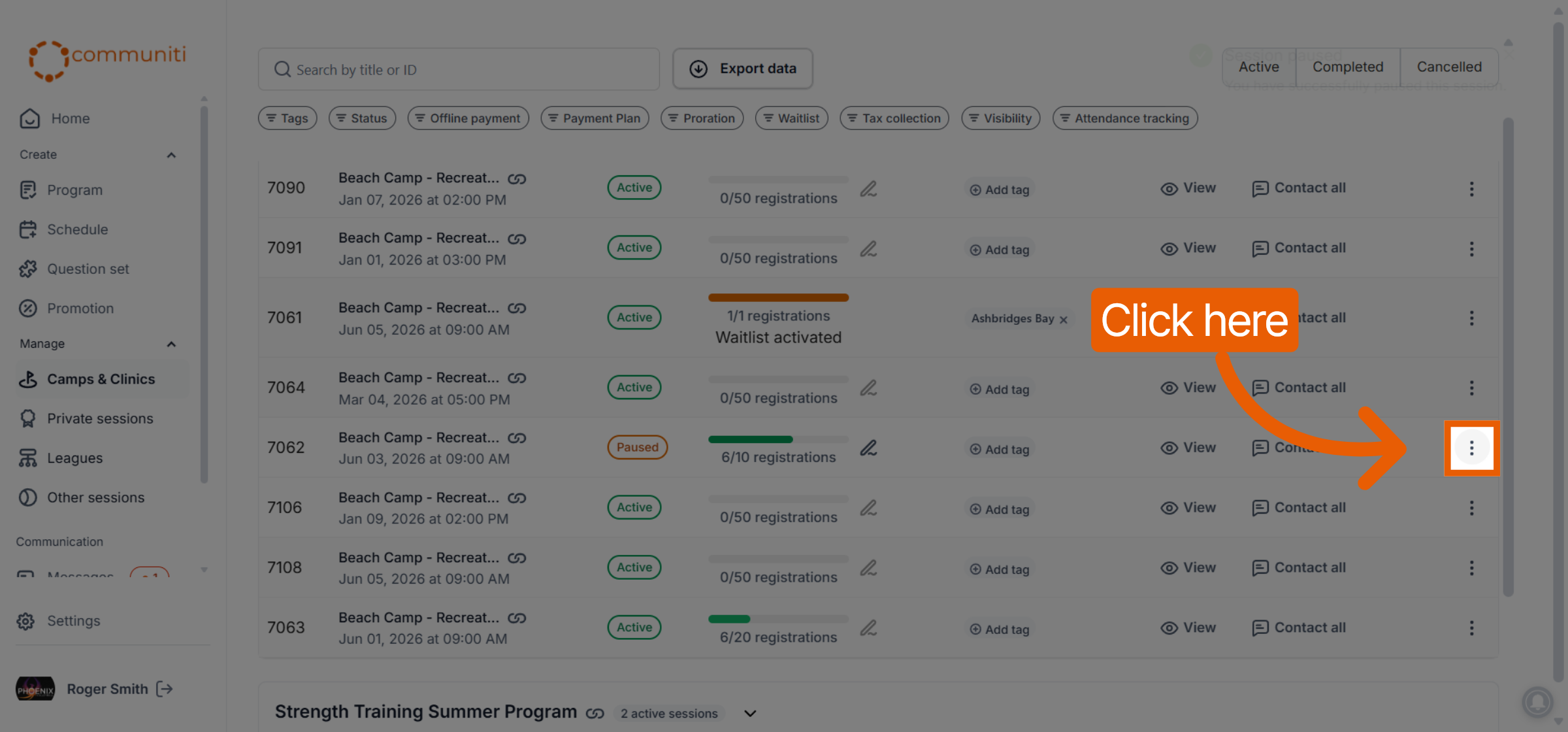
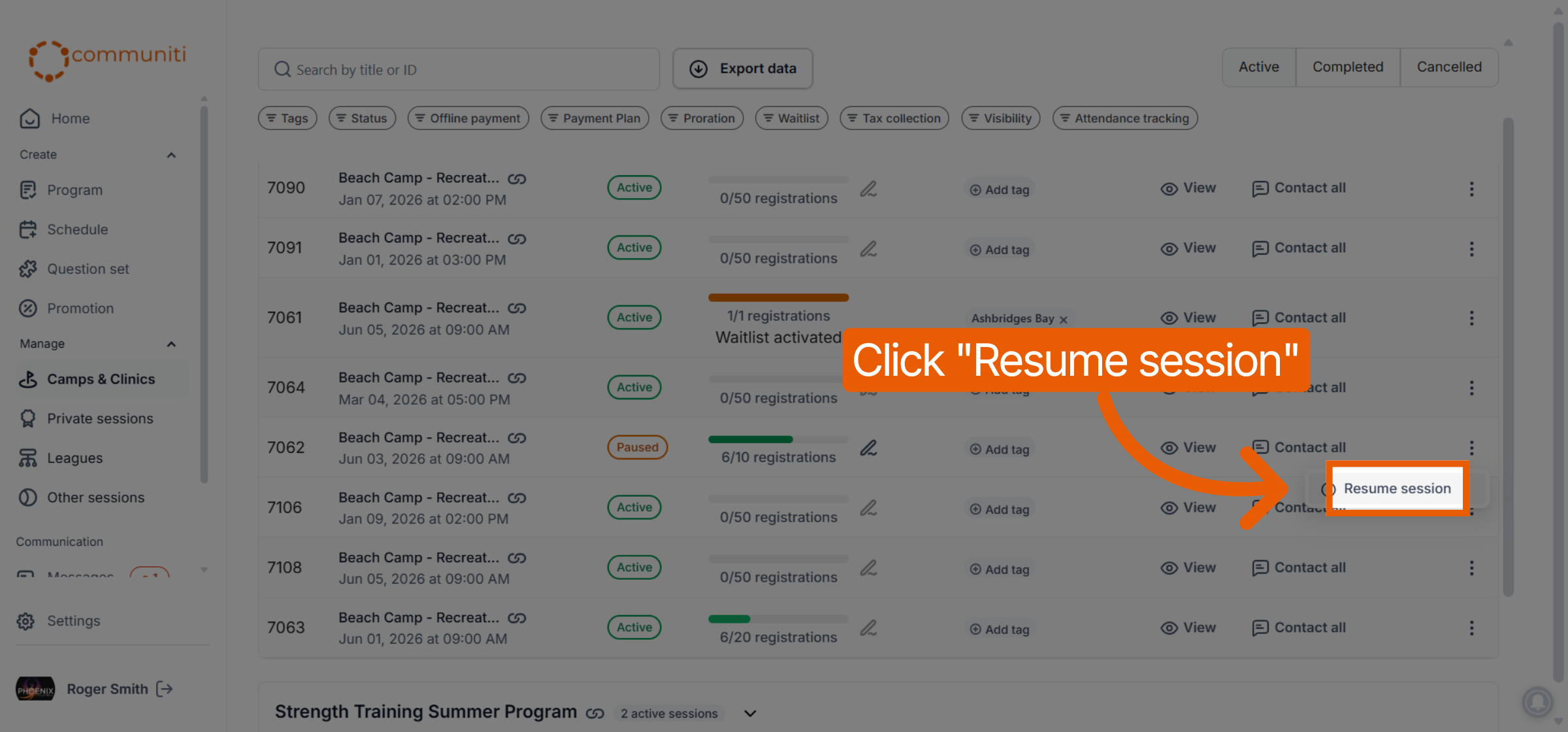
Select Resume session from the menu.
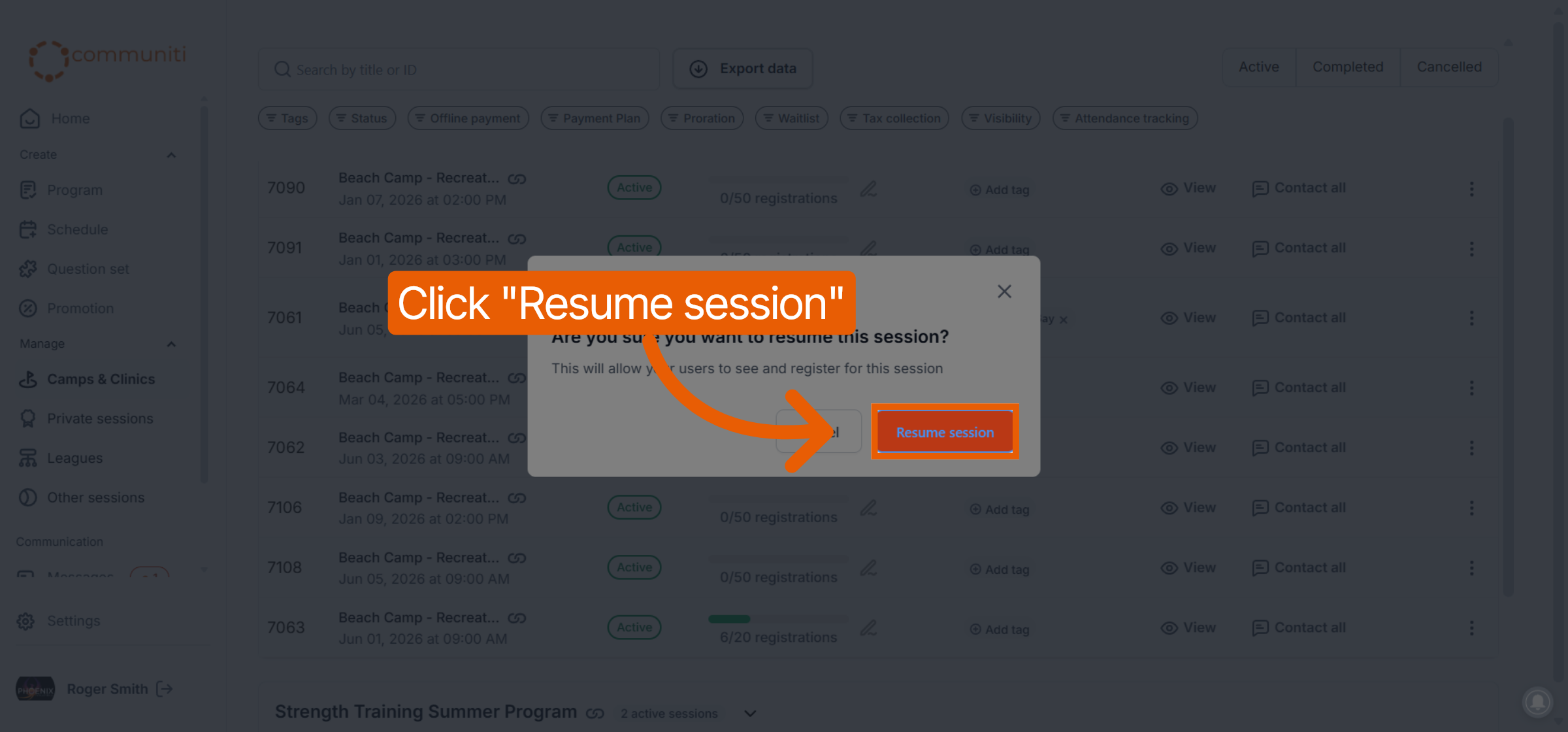
Click the orange Resume session button in the confirmation pop-up.
What happens next? When a session is paused, its status label will change to an orange Paused tag in your list. Once resumed, it will return to a green Active status and reappear on your public profile for users to book.
Was this helpful?
Still need help? Ask the team