How to Issue Refunds
Refunds are returned to the original method of payment through Stripe and typically take a few business days to process.
Written By communiti
Last updated 10 months ago
1. Locate the Participant
To initiate a refund, you must first navigate to the specific participant's registration profile.
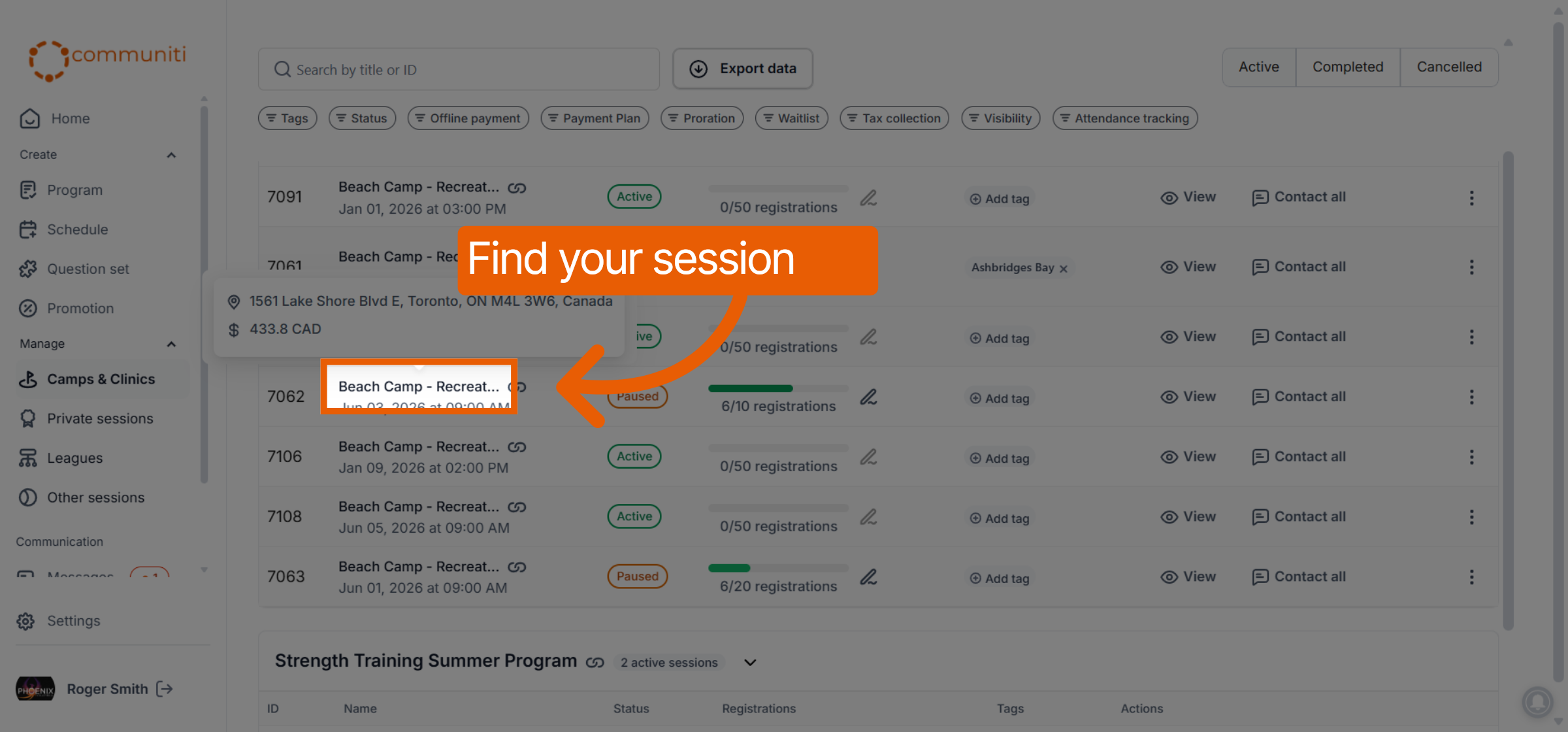
Select the Manage menu in the left sidebar and choose your program type.
Click on the specific session.
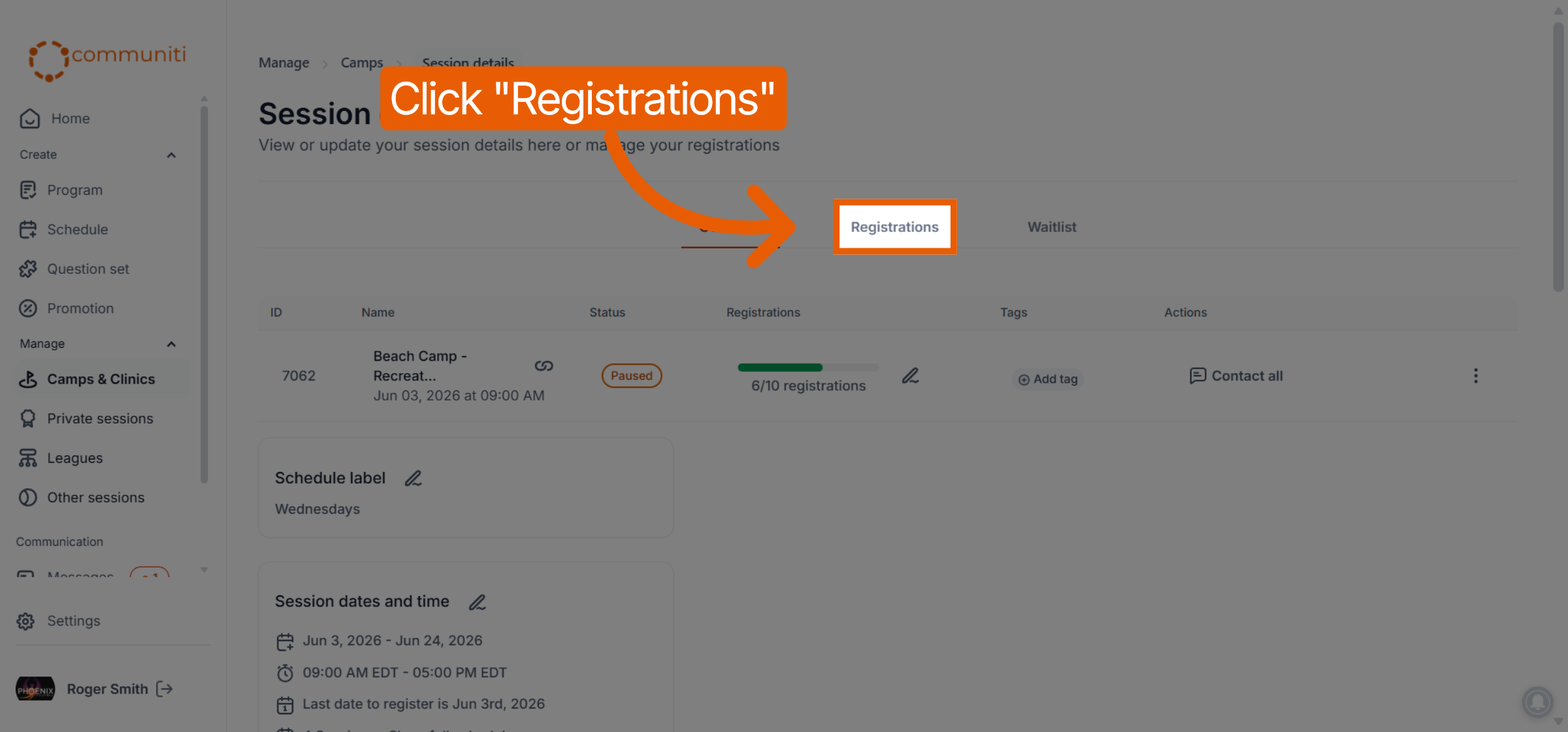
Select the Registrations tab at the top of the session dashboard.
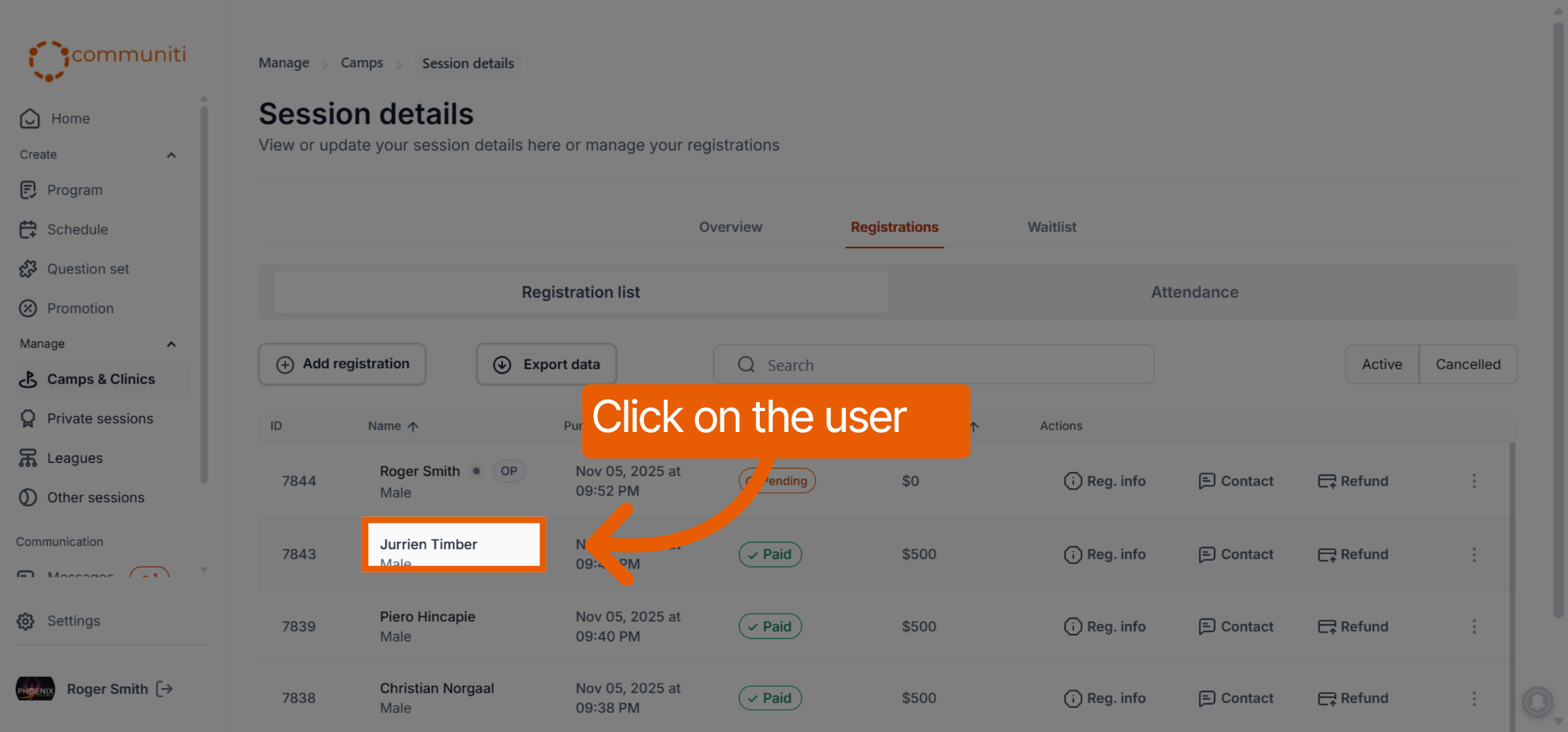
Find the participant in the list and click on their name to open their registration details.
2. Access Payment Info
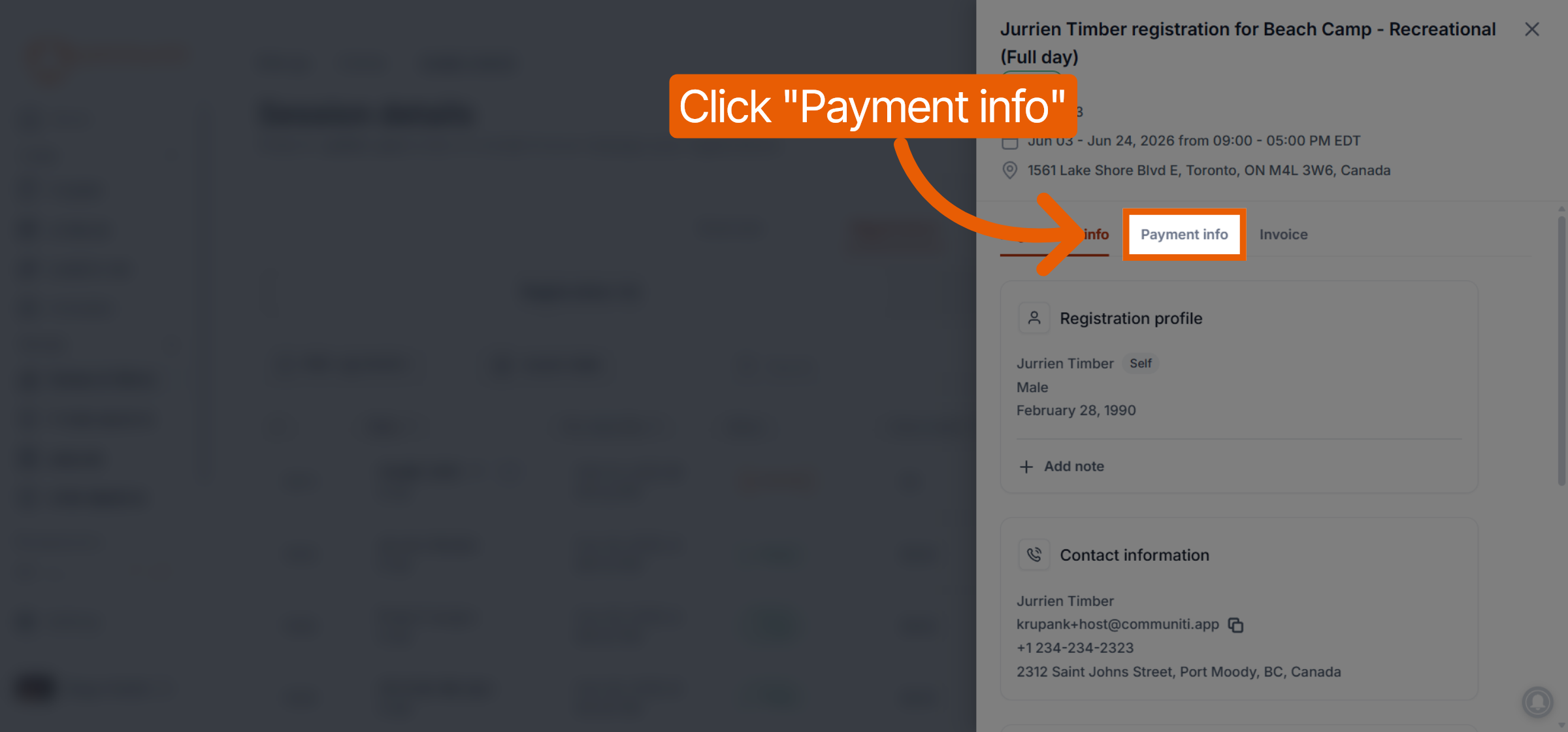
Once the participant's profile is open, navigate to their financial transaction history.
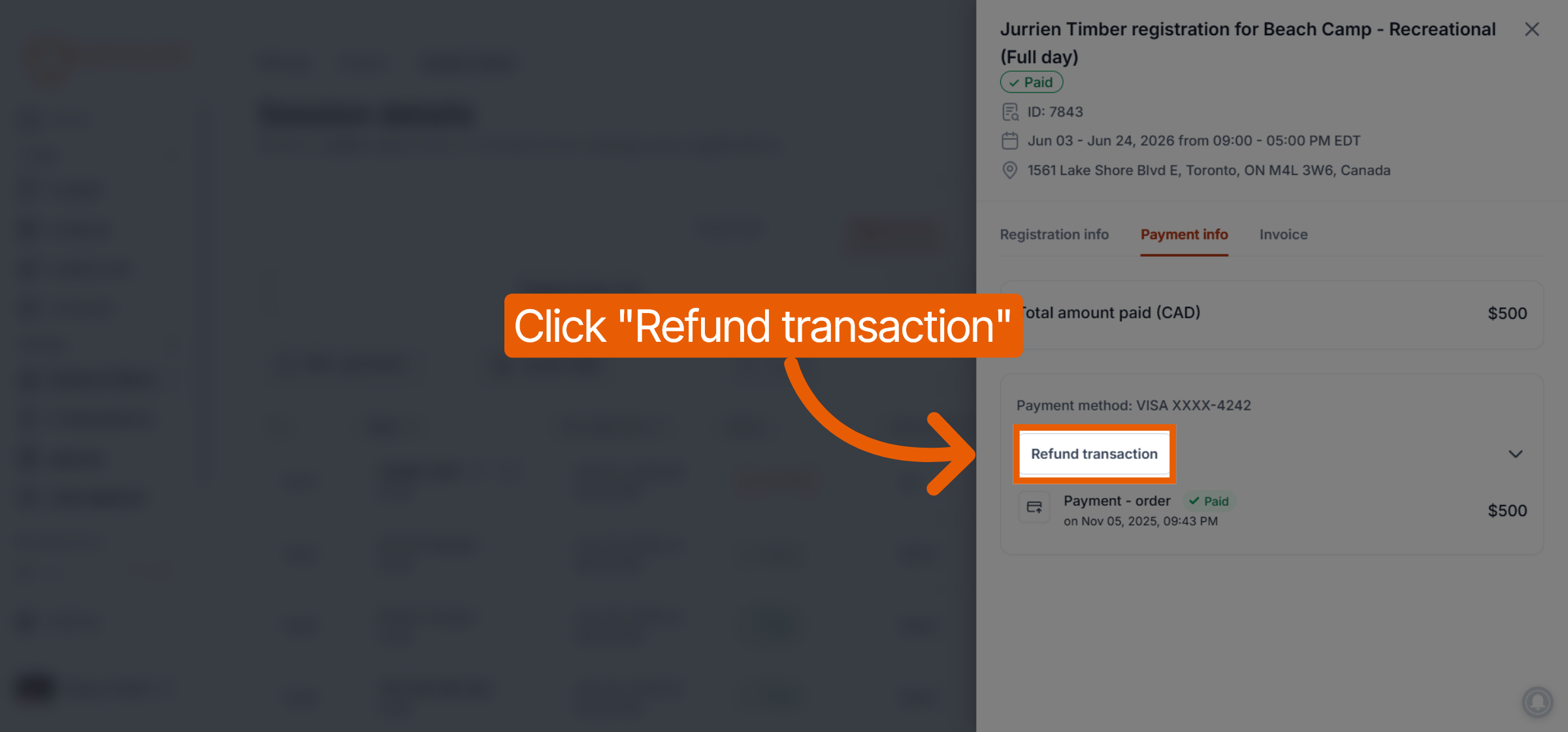
Click on the Payment info tab at the top of the registration window.
Click the Refund transaction button on the specific payment record you wish to reverse.
3. Configure and Confirm the Refund
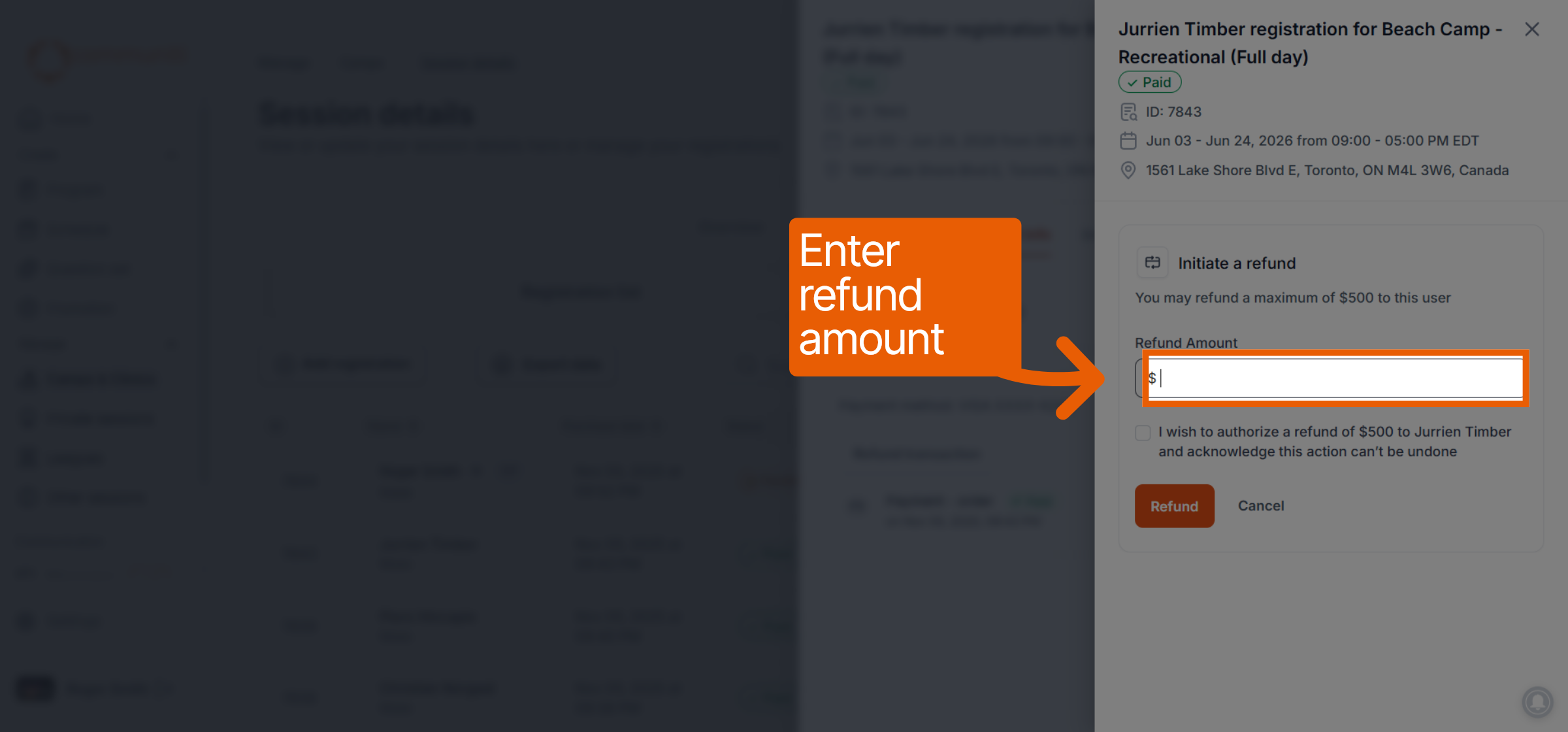
Specify the details of the refund to return the funds to the user.
Refund Amount: Enter the specific dollar amount you wish to return to the participant.
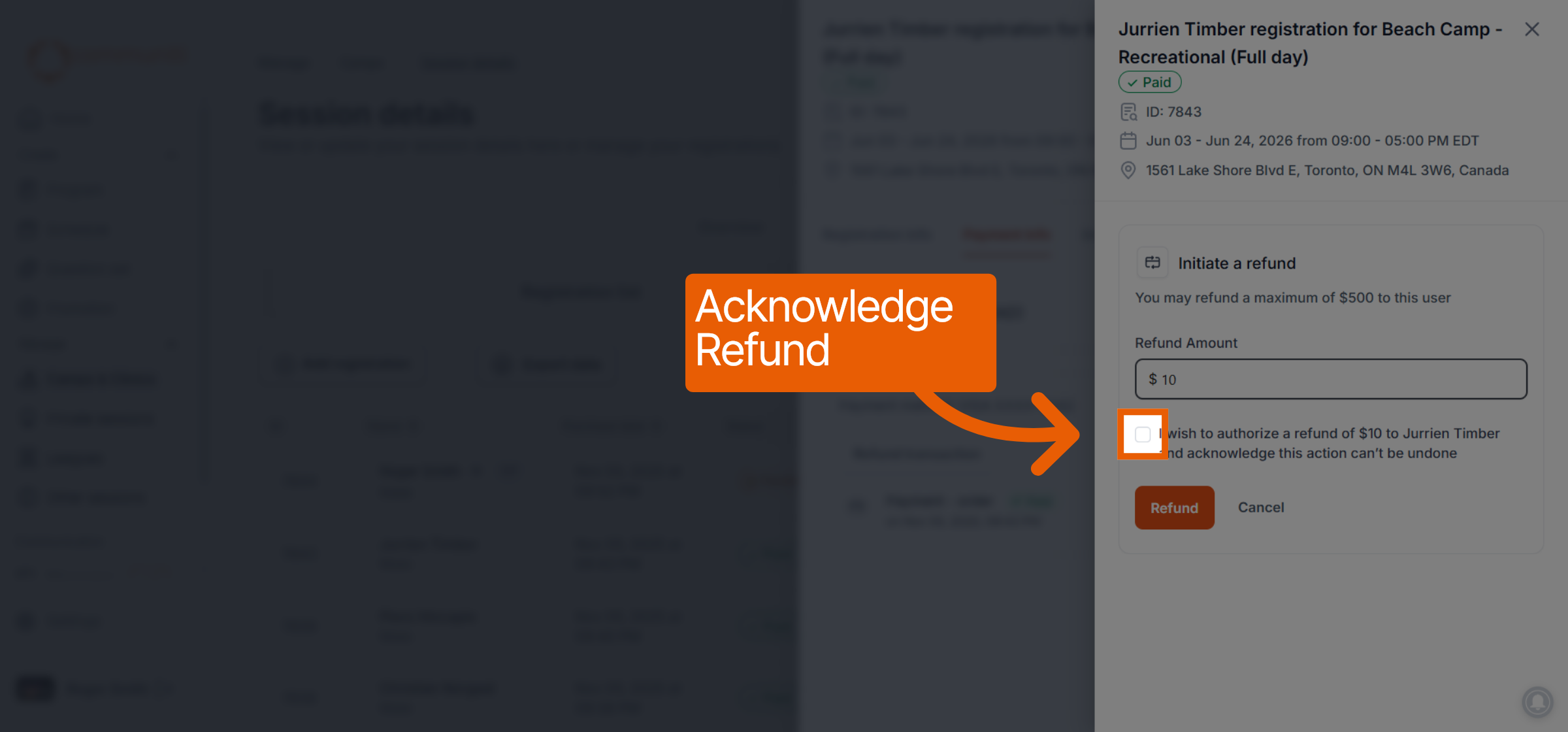
Authorize: Click the checkbox to acknowledge and authorize that you wish to process the refund.
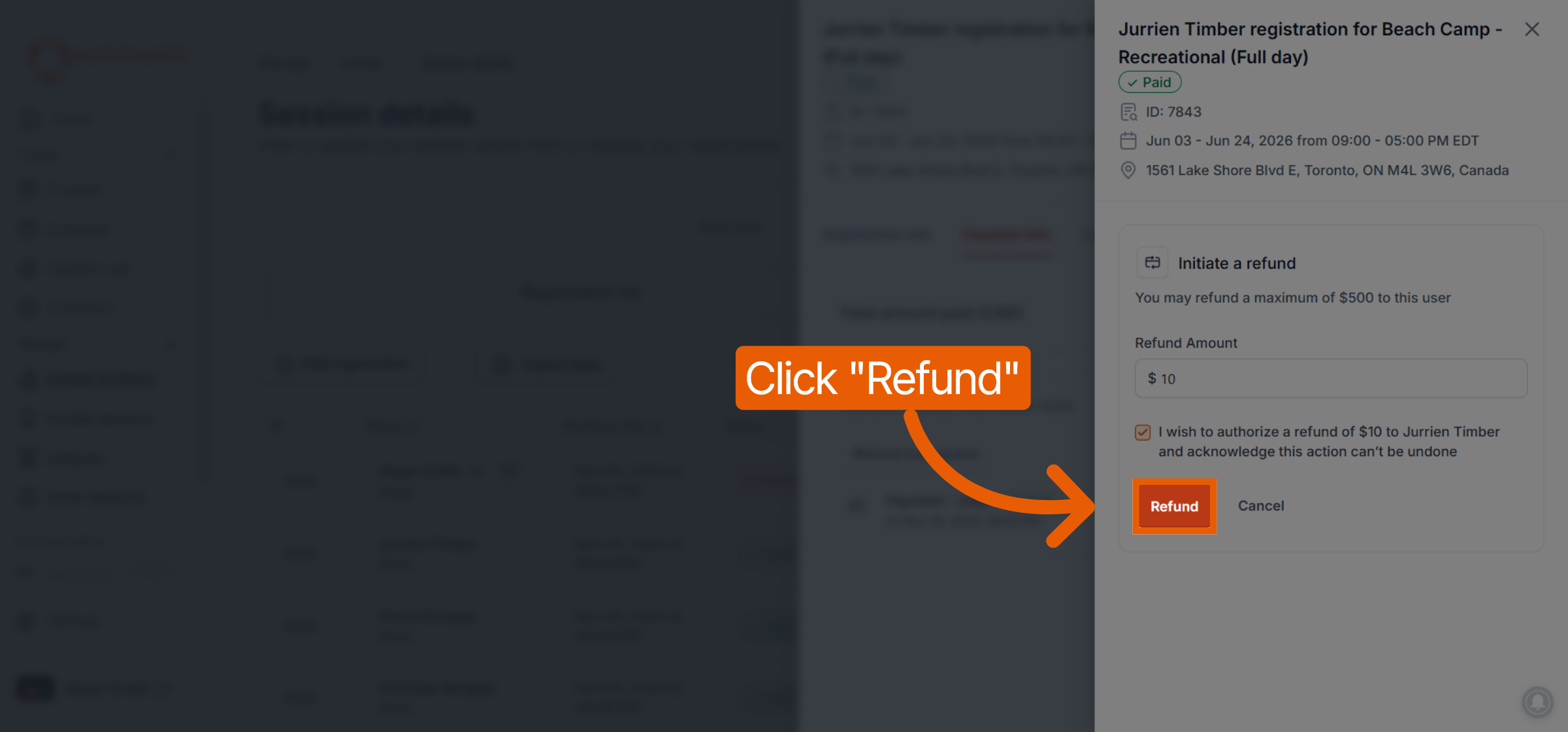
Finalize: Click the red Refund button to initiate the transfer back to the user's original payment method.
What happens next?
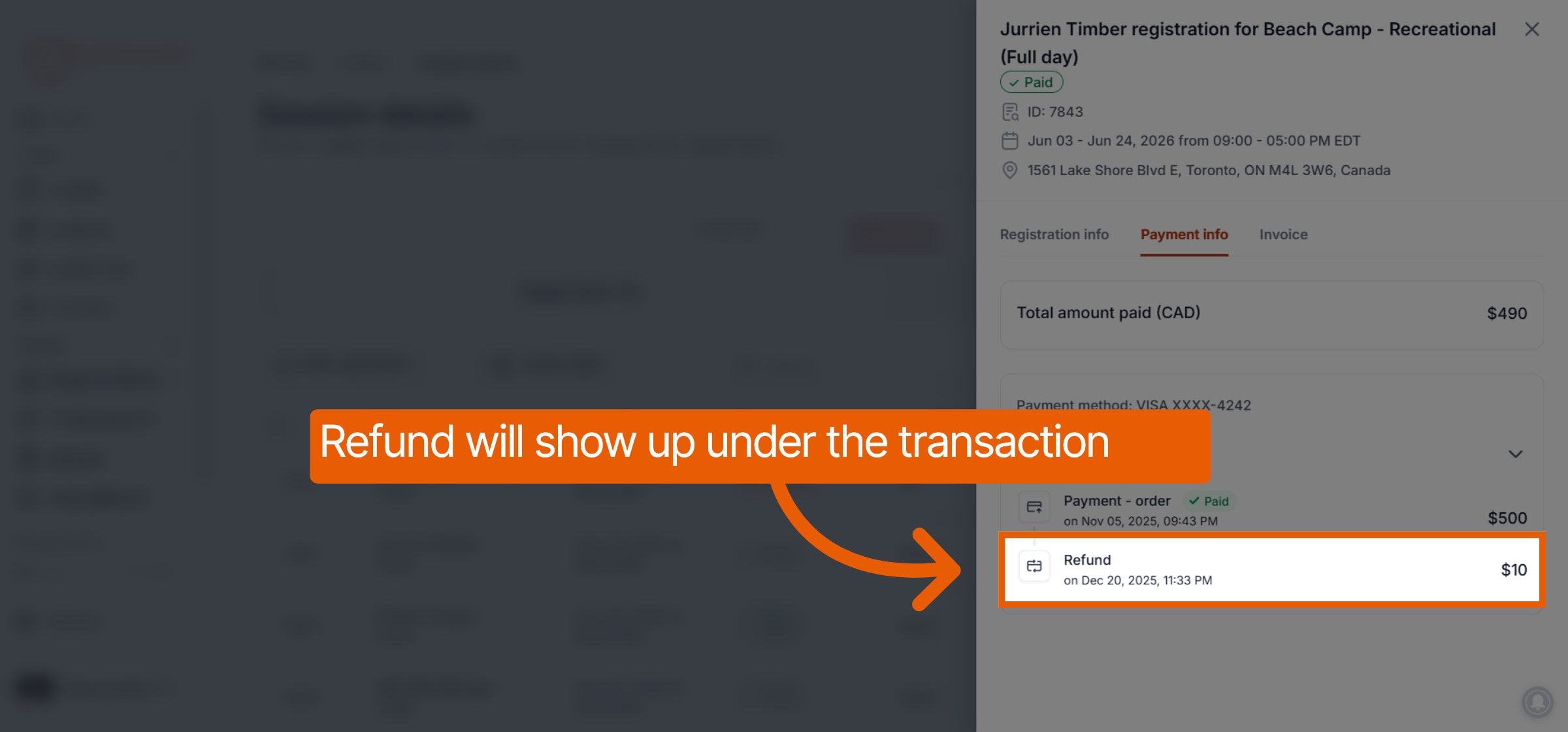
The refund will be listed immediately under the transaction record for your reference. The funds will be processed by Stripe and returned to the participant's original payment method within a few business days.
Was this helpful?
Still need help? Ask the team