How to Cancel a Registration
Cancelling a registration immediately opens up the participant's spot for another user to book. It is important to note that cancelling a registration does not automatically trigger a refund; if you wish to return funds, you must process the refund manually.
Written By communiti
Last updated 10 months ago
1. Navigate to the Session Dashboard
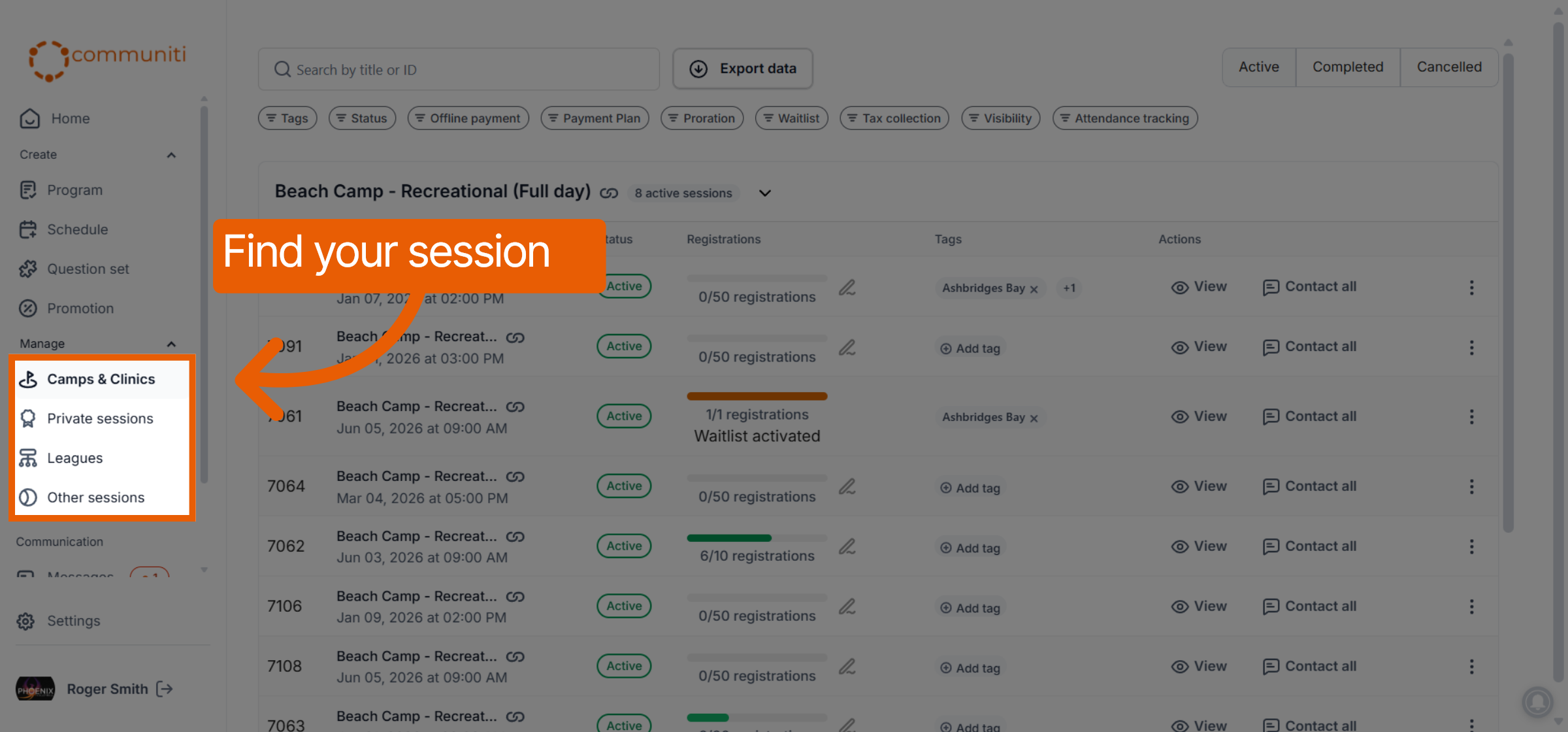
Before you can cancel an individual's spot, you must find their session.
Select the Manage menu in the left sidebar and choose your program category (e.g., Camps & Clinics).
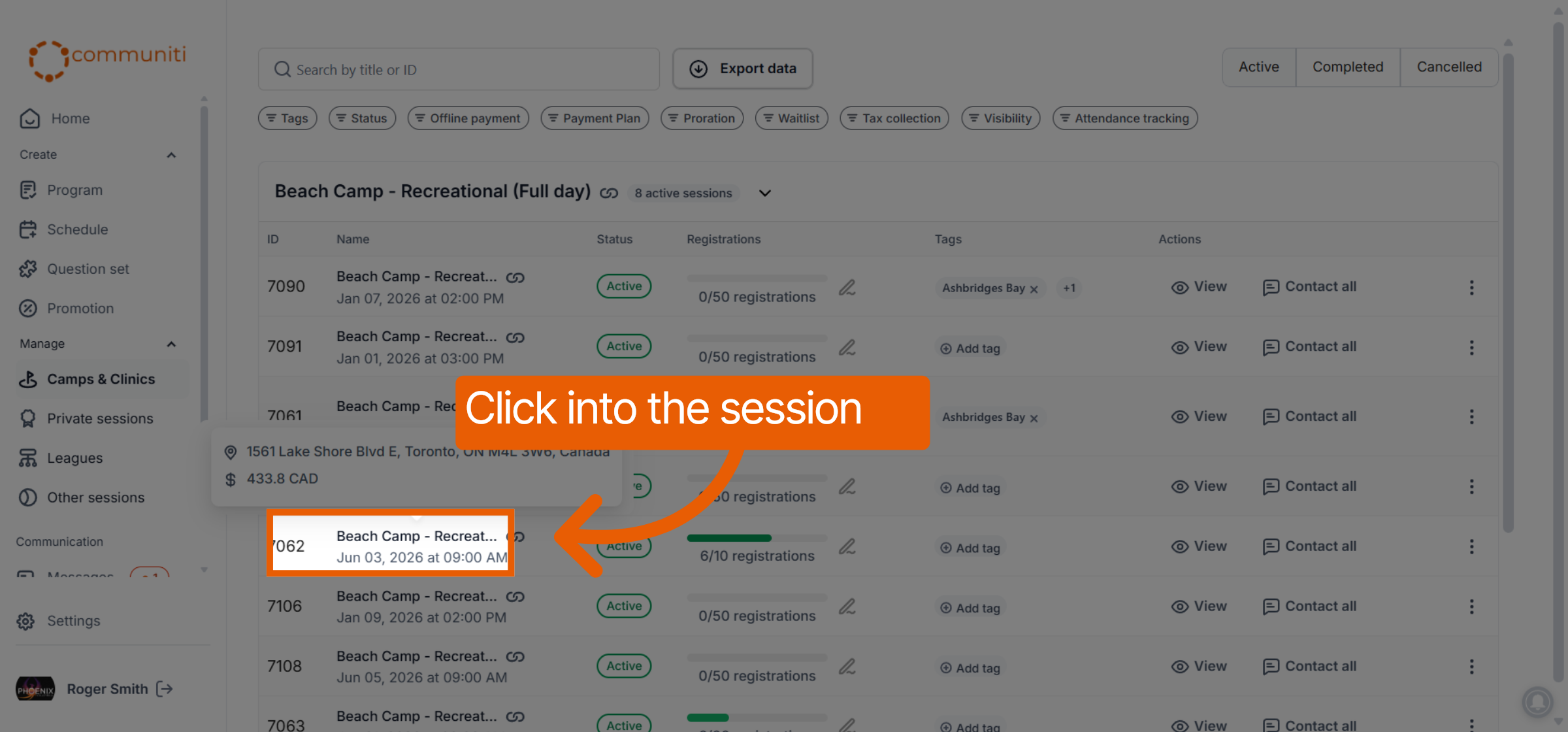
Click on the specific session where the participant is registered.
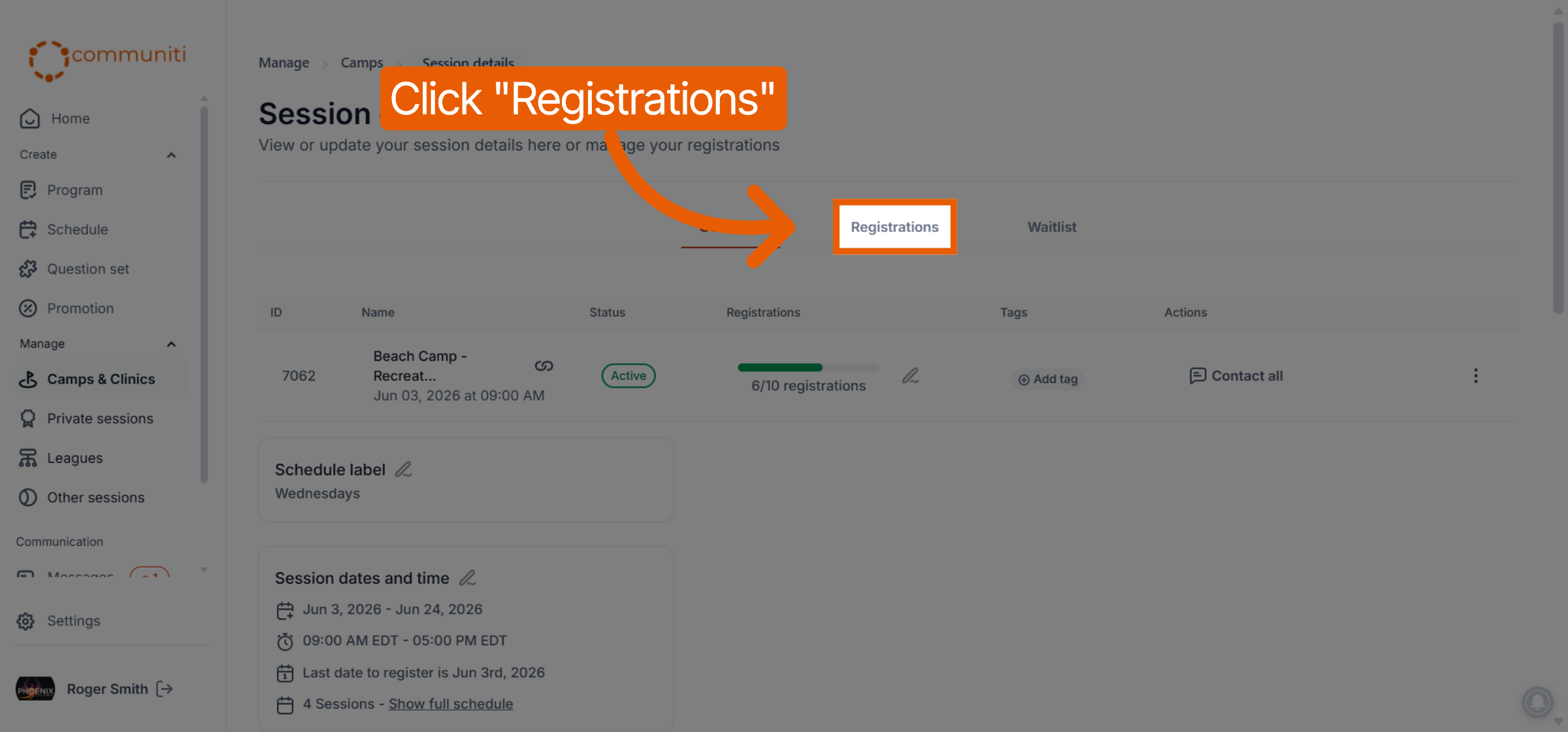
Select the Registrations tab at the top of the session dashboard.
2. Locate the Participant and Initiate Cancellation
Find the participant in the registration list.
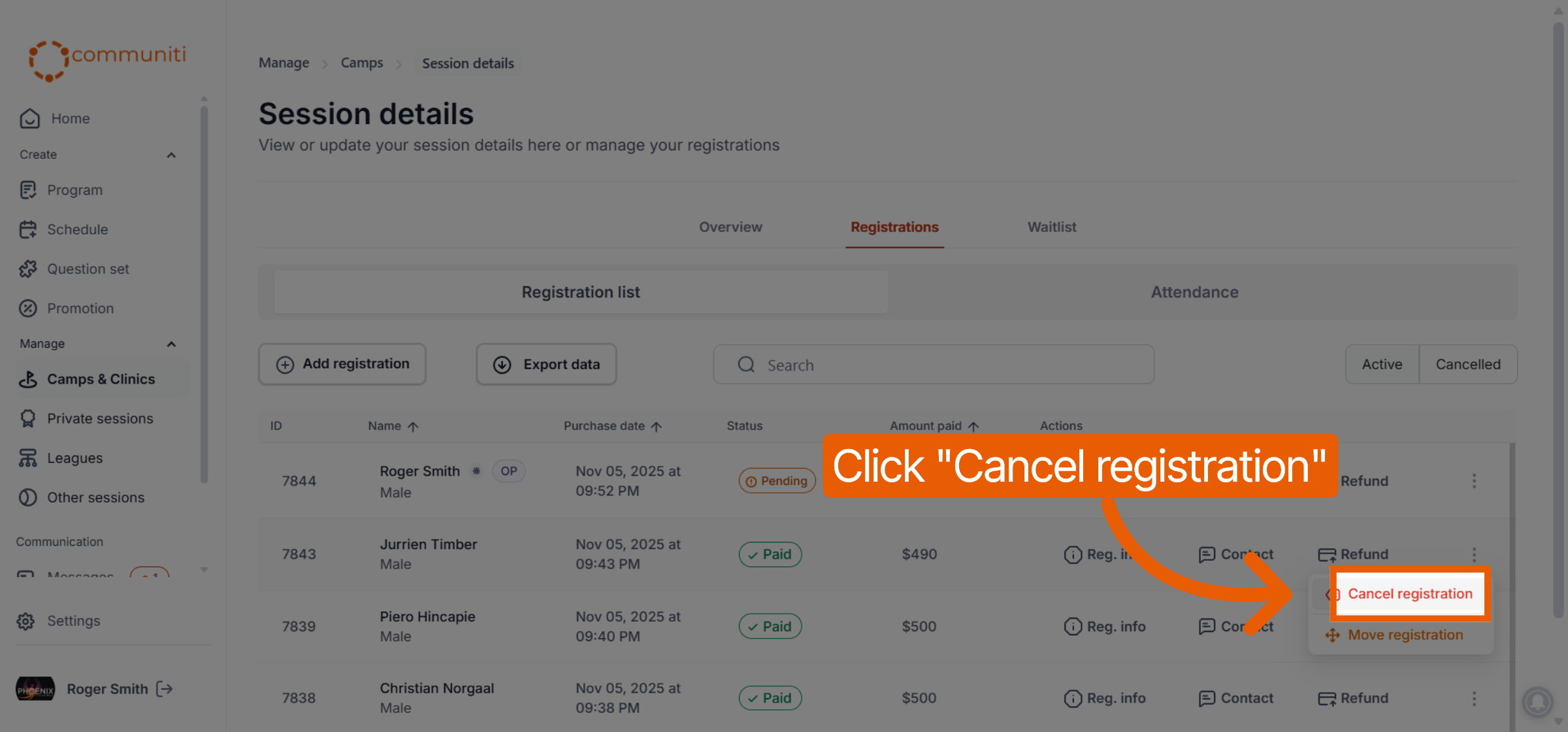
Click the Three Dots (⋮) icon on the far right of their row.
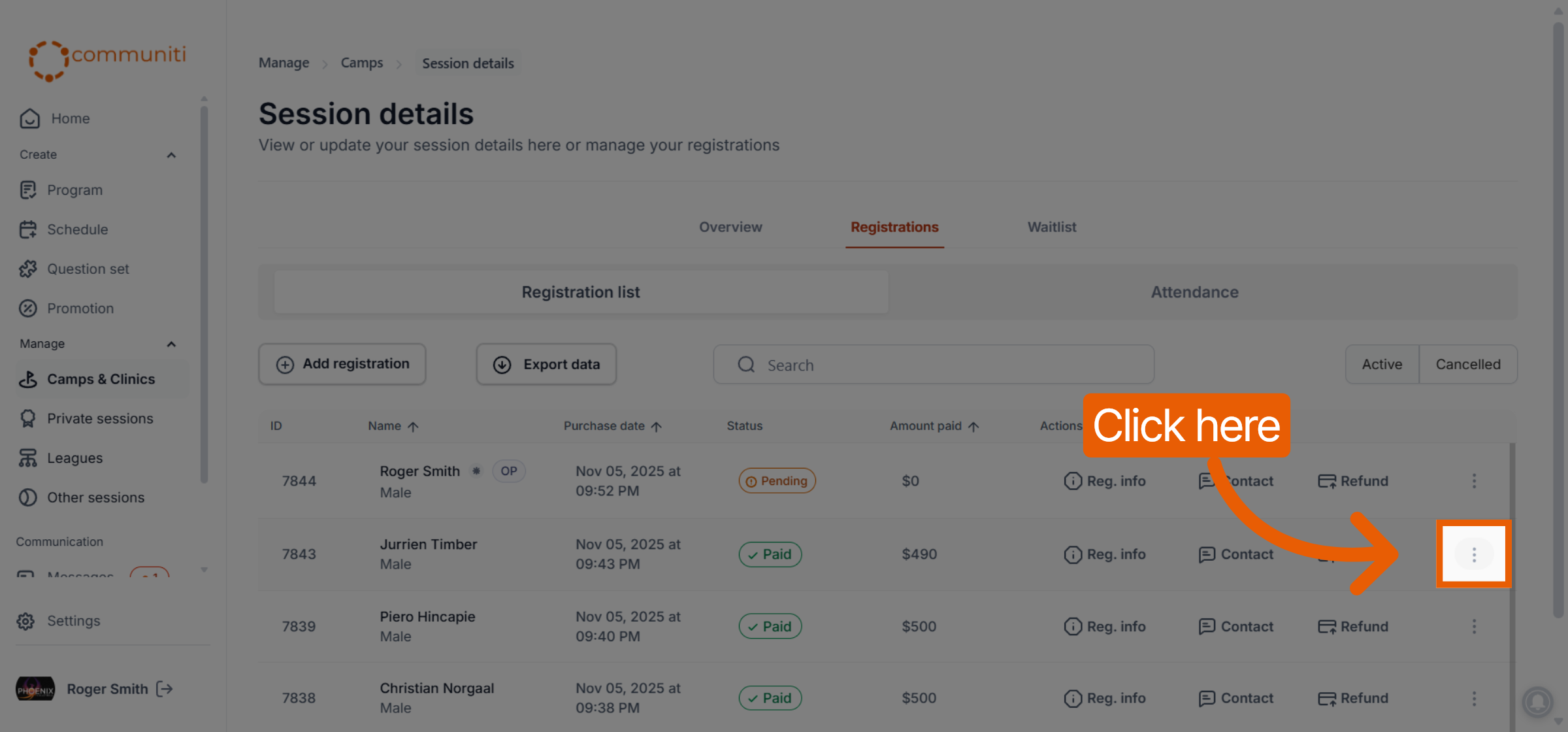
Select Cancel registration from the dropdown menu.
3. Confirm and Finalize
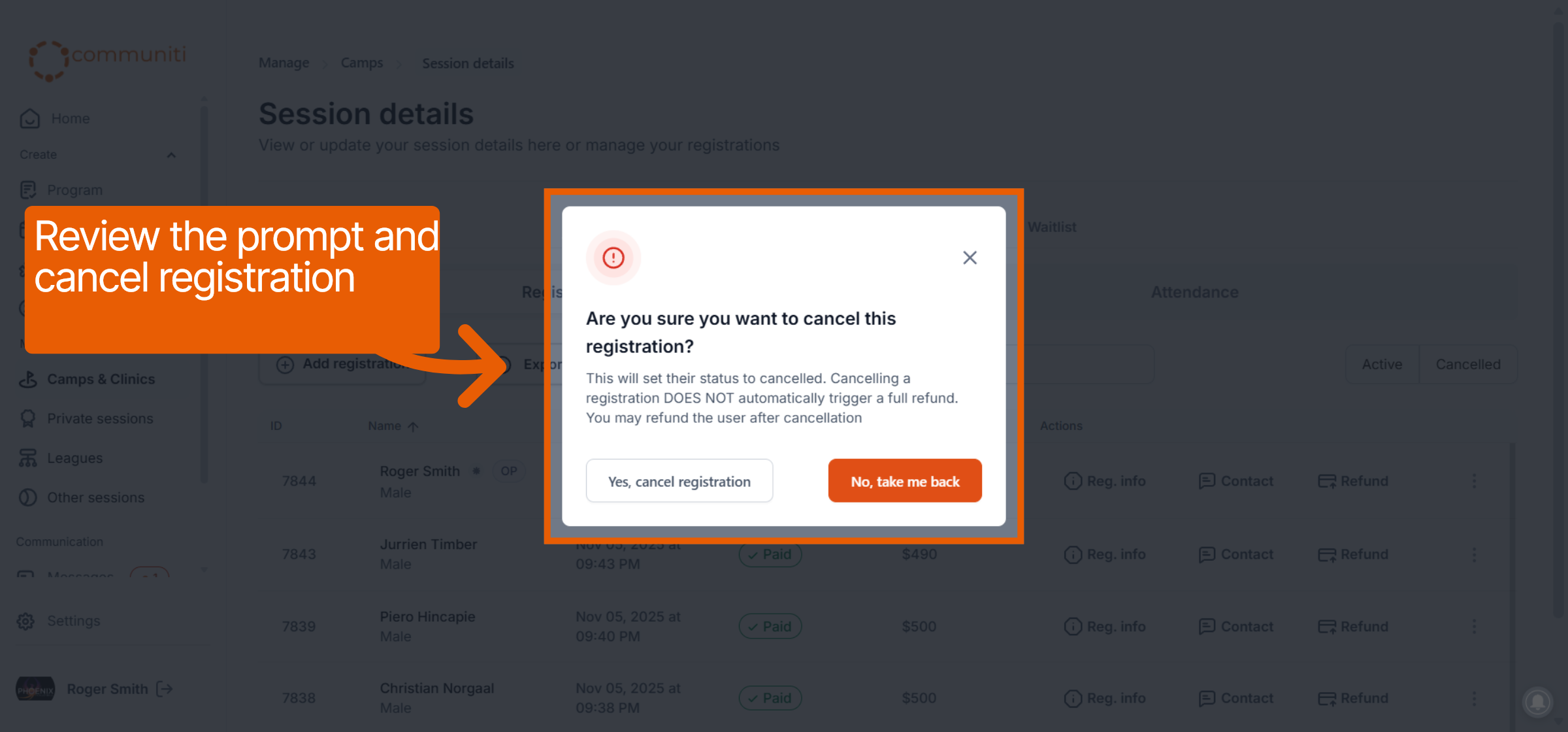
A confirmation prompt will appear explaining that this action will set their status to cancelled.
Review the prompt, which notes that cancelling does not automatically trigger a full refund.
Click the Yes, cancel registration button to finalize the removal.
Important Note on Refunds
Manual Process: Because no automatic refunds are performed during cancellation, you must decide whether to offer a refund separately.
Timing: You can choose to process a manual refund either before or after you cancel the registration based on your club's policy.
Was this helpful?
Still need help? Ask the team