How to Create and Manage Promotions
Promotions allow you to offer specific discounts to your users, such as early bird specials or seasonal promo codes, to encourage registrations.
Written By communiti
Last updated 10 months ago
1. Start a New Promotion
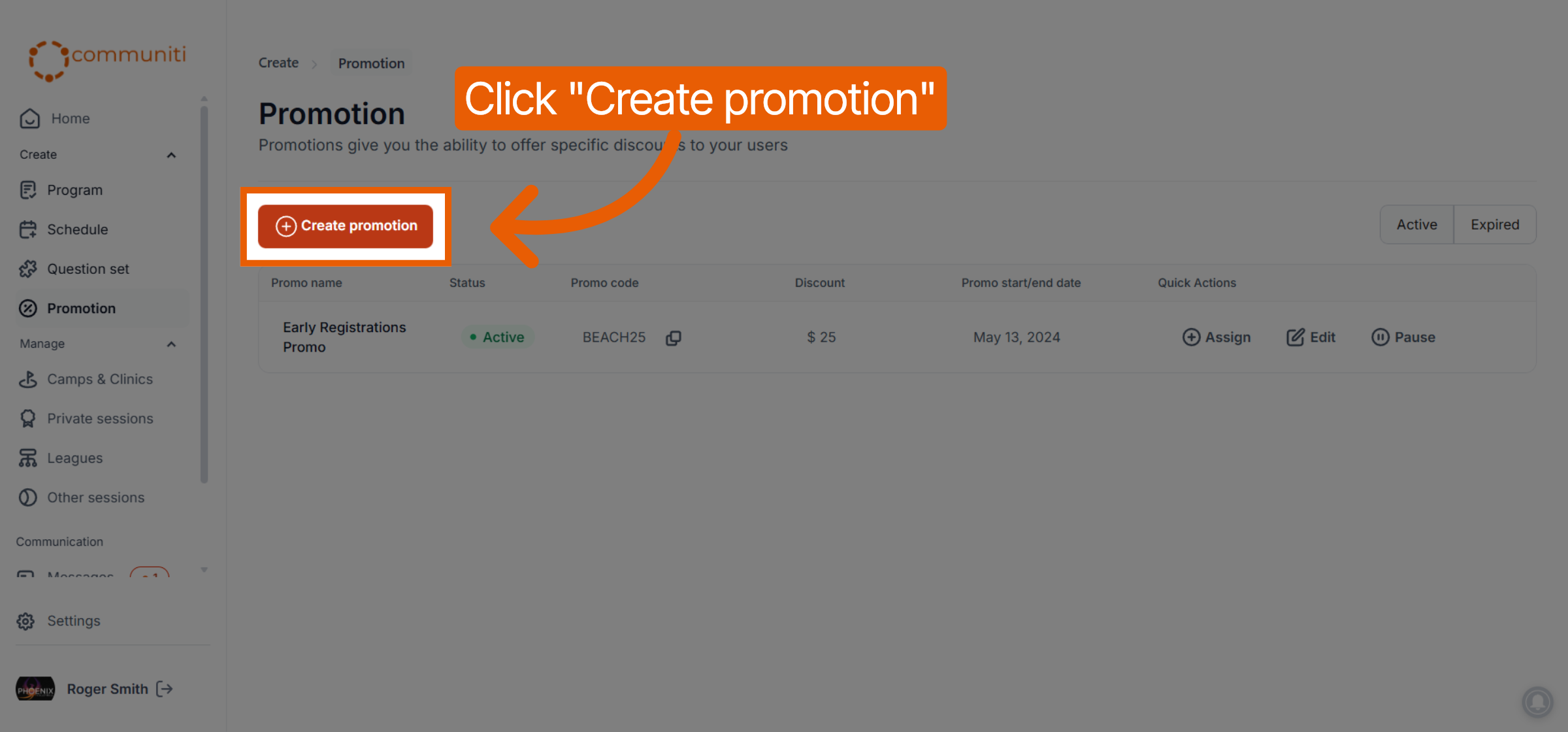
Access the promotion builder from your main dashboard.
Select Promotion from the left sidebar menu.
Click the orange Create promotion button.
Select Discount code from the Promotion type dropdown menu.
2. Configure Promotion Basics
Define the name and the specific code users will enter during checkout.
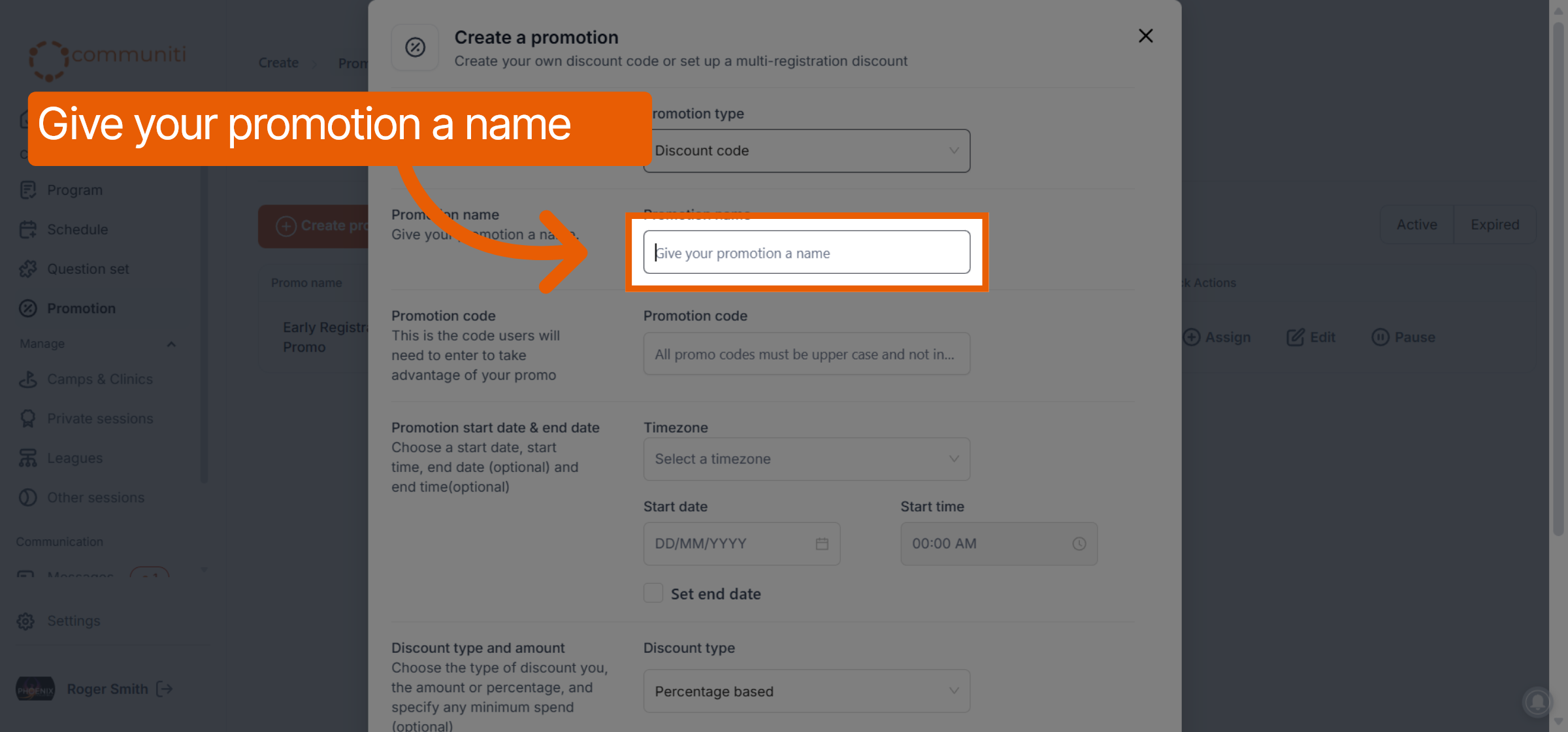
Promotion Name: Give your promotion a name for internal tracking (e.g., "Summer Early Bird").
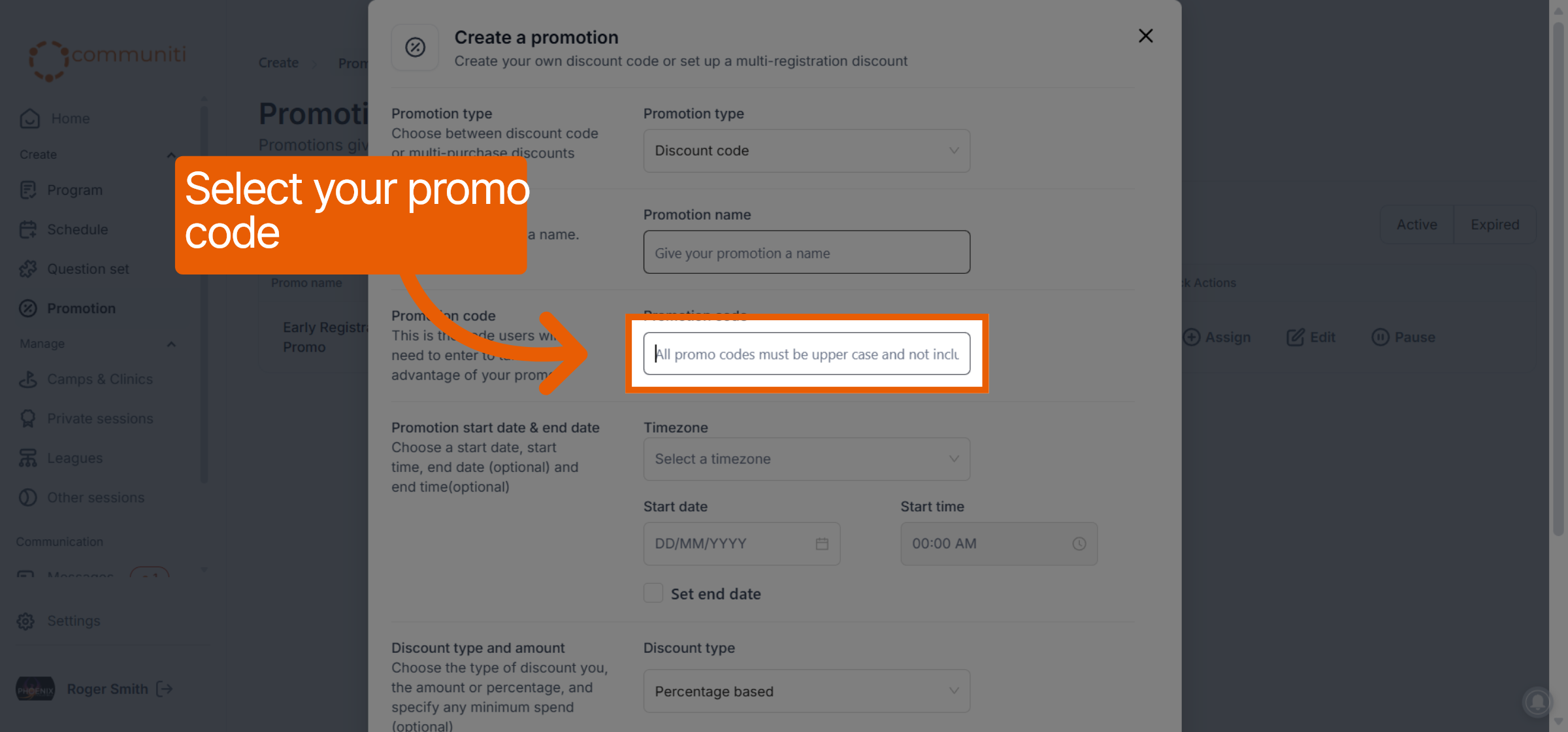
Promotion Code: Enter the actual code users will use. Note that all promo codes must be uppercase and cannot include spaces.
3. Set Validity Dates and Timezones
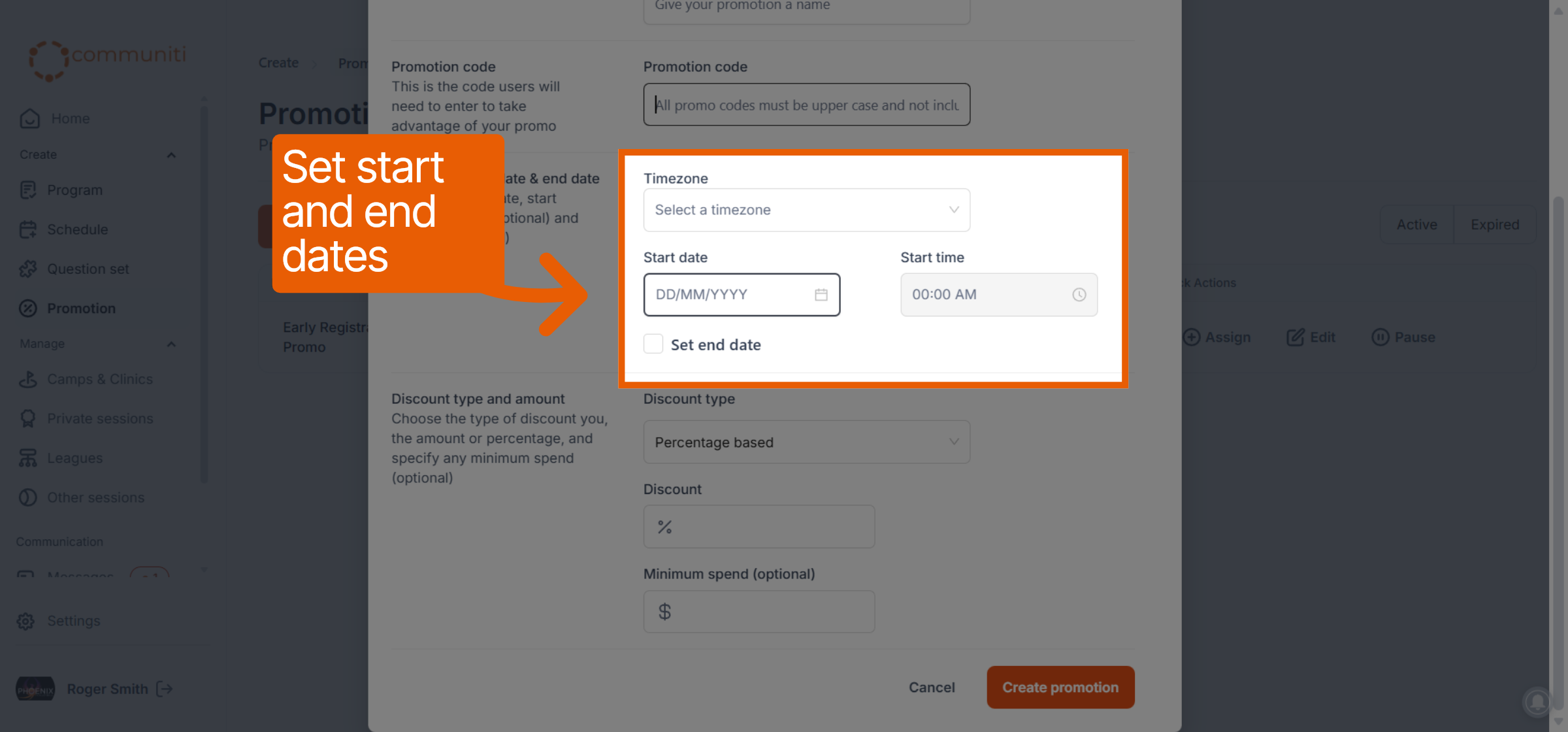
Control exactly when your discount is active.
Timezone: Select your local timezone from the dropdown menu.
Active Range: Set a Start date and Start time.
Optional End Date: Check the Set end date box if you want the promotion to expire automatically on a specific day.
4. Define Discount Type and Values
Choose how much you want to discount your sessions.
Discount Type: Choose between Percentage based (e.g., 10% off) or Fixed Amount (e.g., $25 off).
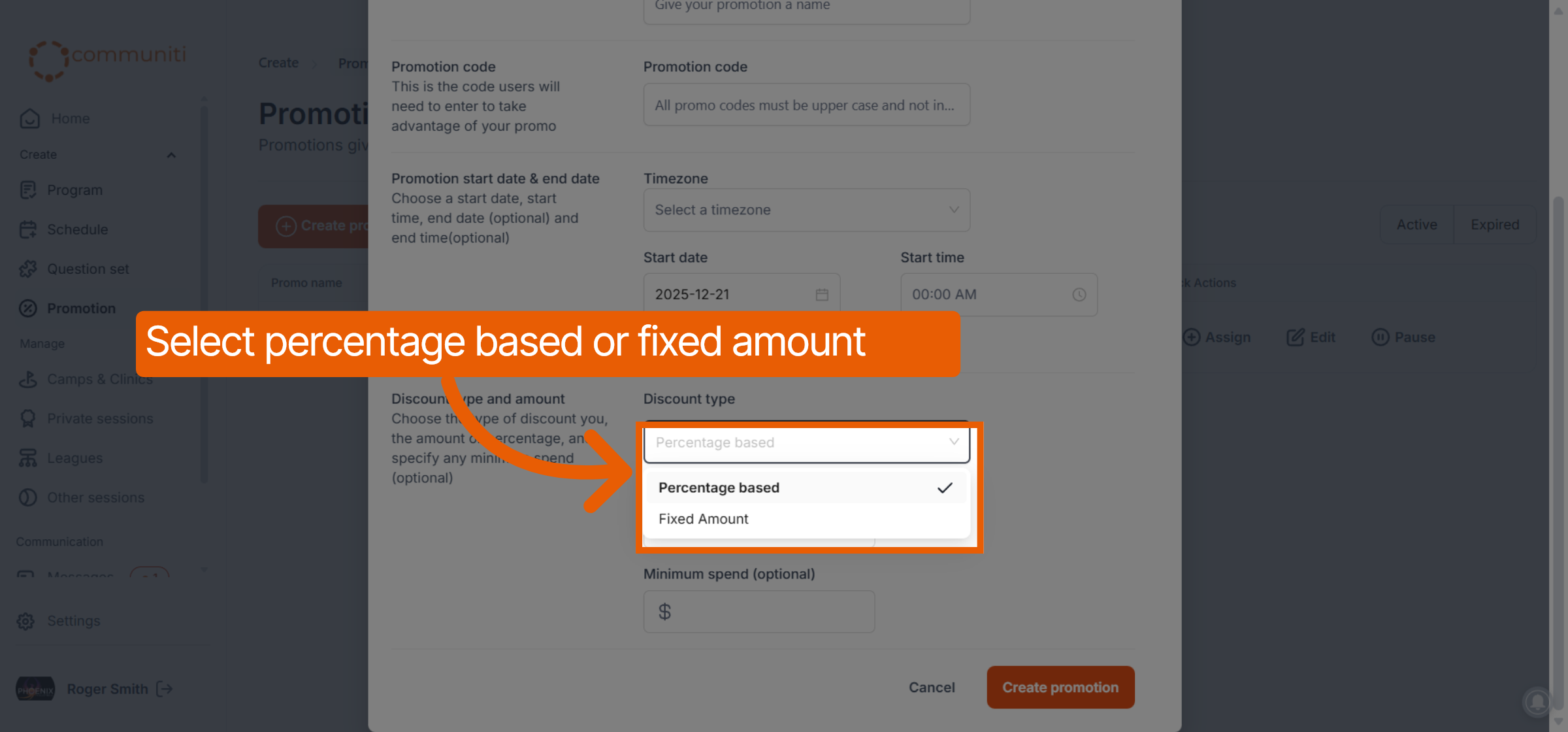
Discount Value: Enter the percentage or dollar amount for the discount.
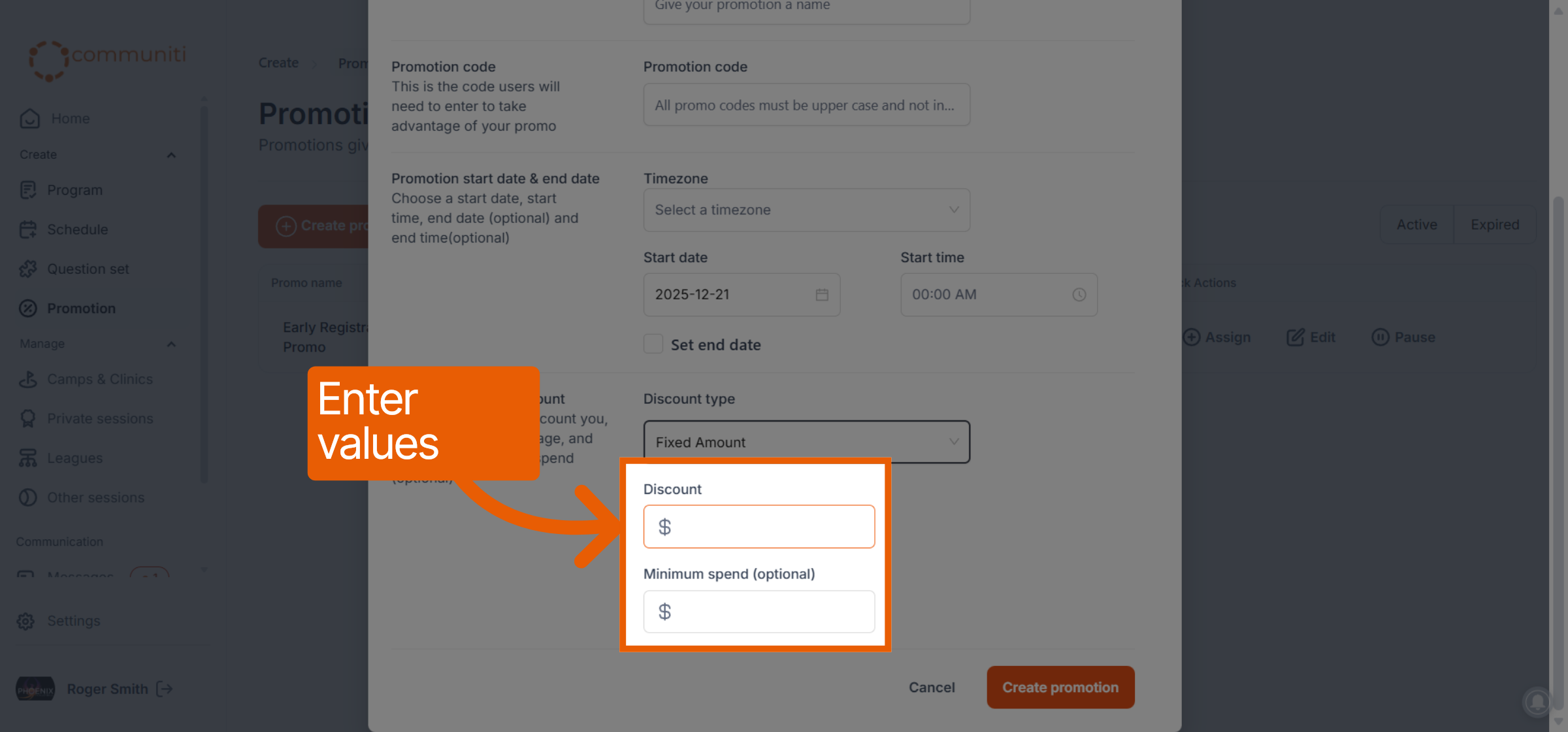
Minimum Spend (Optional): Enter a dollar amount if the discount should only apply to orders over a certain total.
5. Save and Finalize
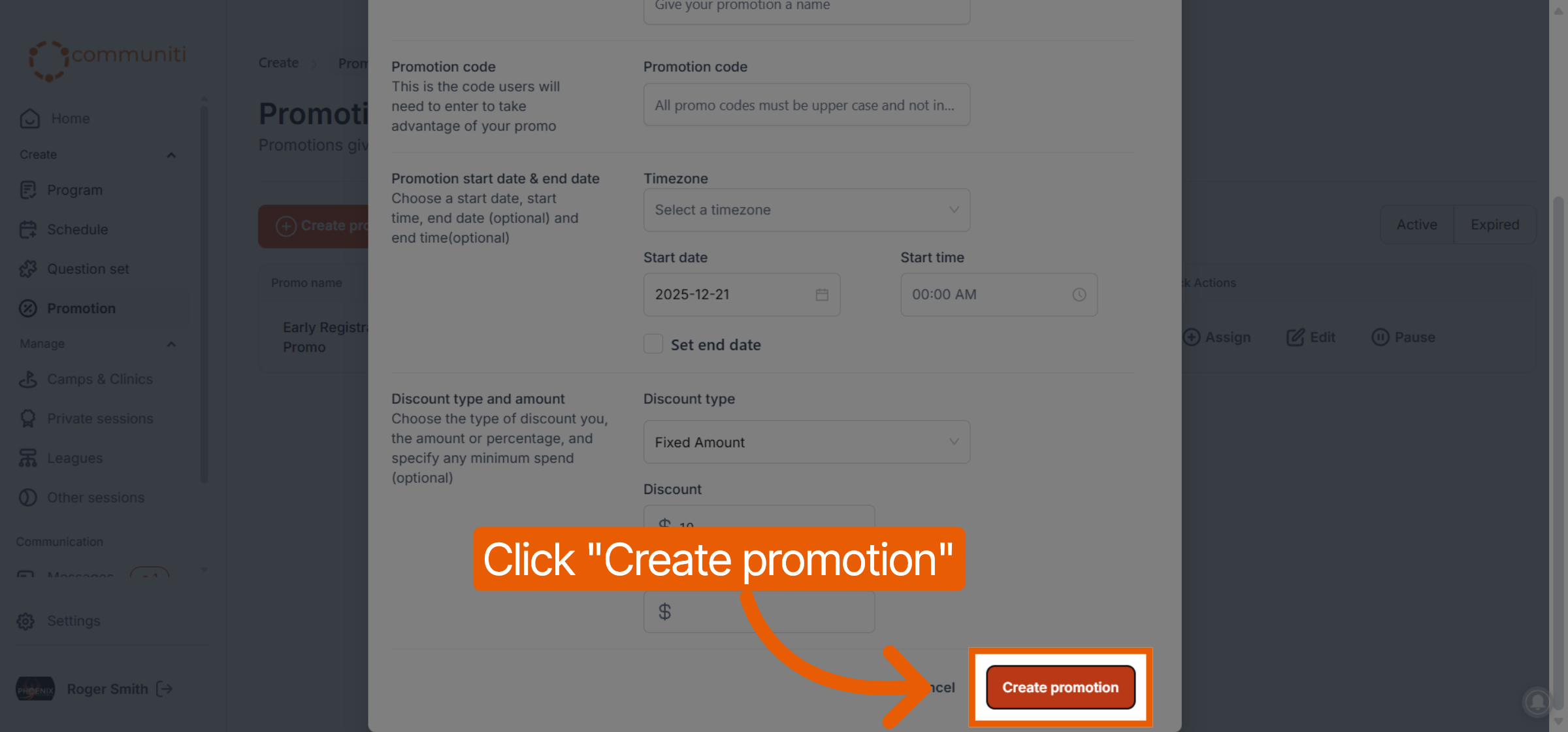
Once all details are entered, click the orange Create promotion button to save it to your list.
The promotion is now ready to be assigned to your specific sessions.
Was this helpful?
Still need help? Ask the team