How to Assign Promotions to Sessions
You can assign your custom promotions to sessions at two different stages: either while you are initially scheduling a session or later from the global promotion list.
Written By communiti
Last updated 4 days ago
Option 1: During Initial Scheduling
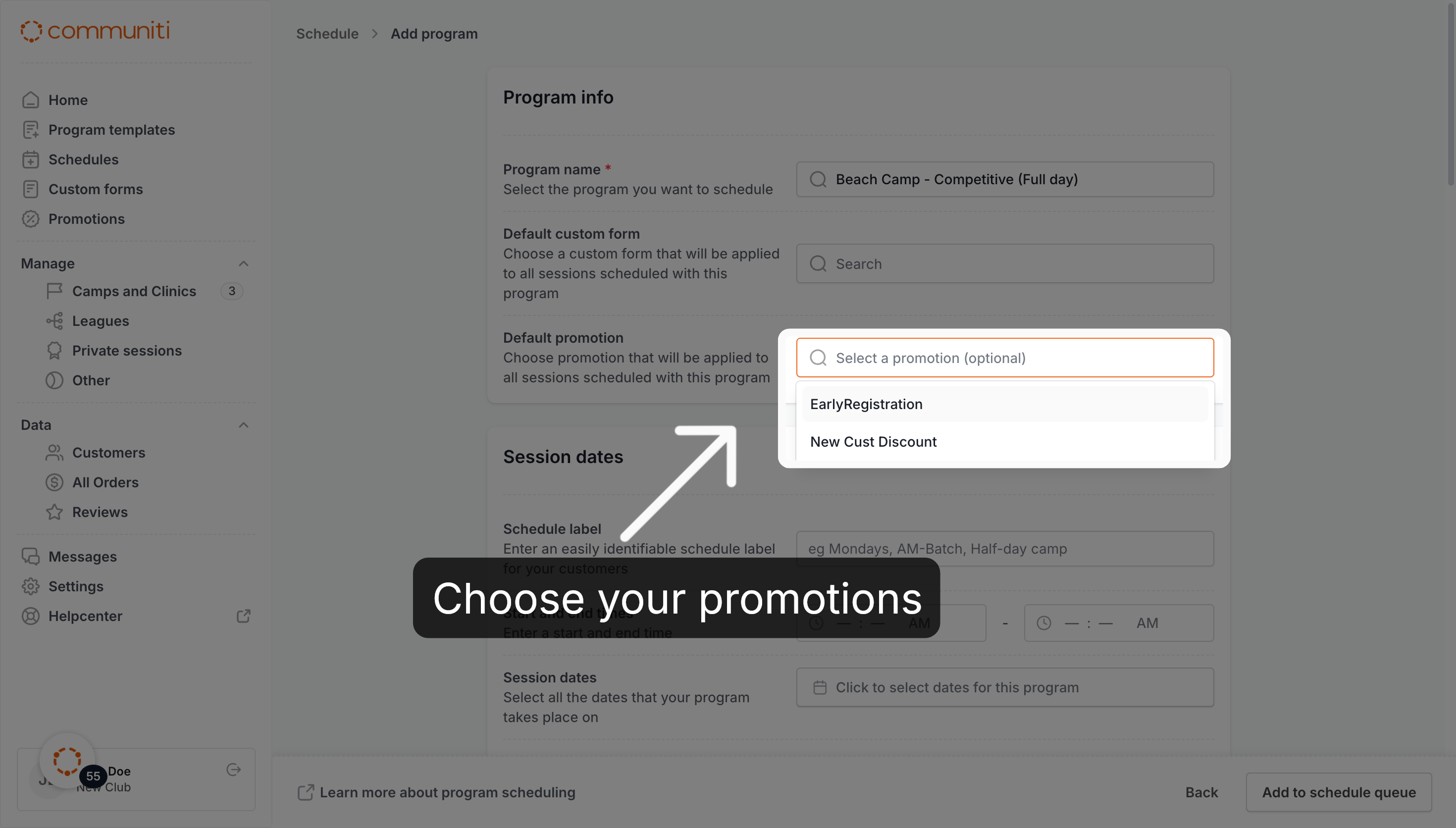
This method is best if you have already created your promo code and want to link it immediately to a new session.
Navigate to the Schedule tab and select Add a session.
Under the Program info section, locate the Default promotion field.
Select your preferred discount from the dropdown menu to apply it to the session.
Option 2: From the Promotion List
Use this method to assign a single promotion to multiple existing sessions at once.
Select Promotion from the left sidebar.
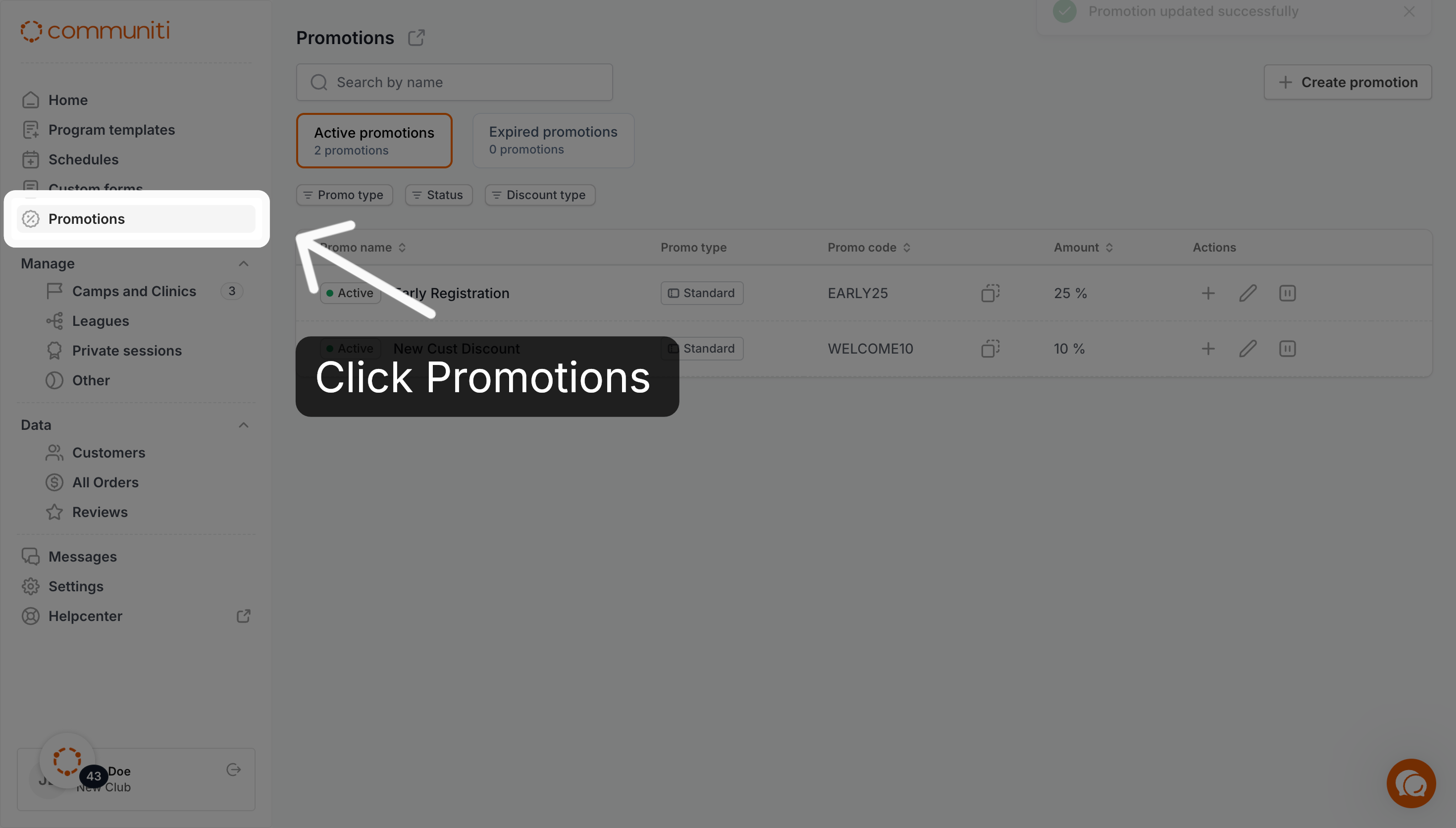
Find the specific promotion you want to use and click the Assign button in its row.
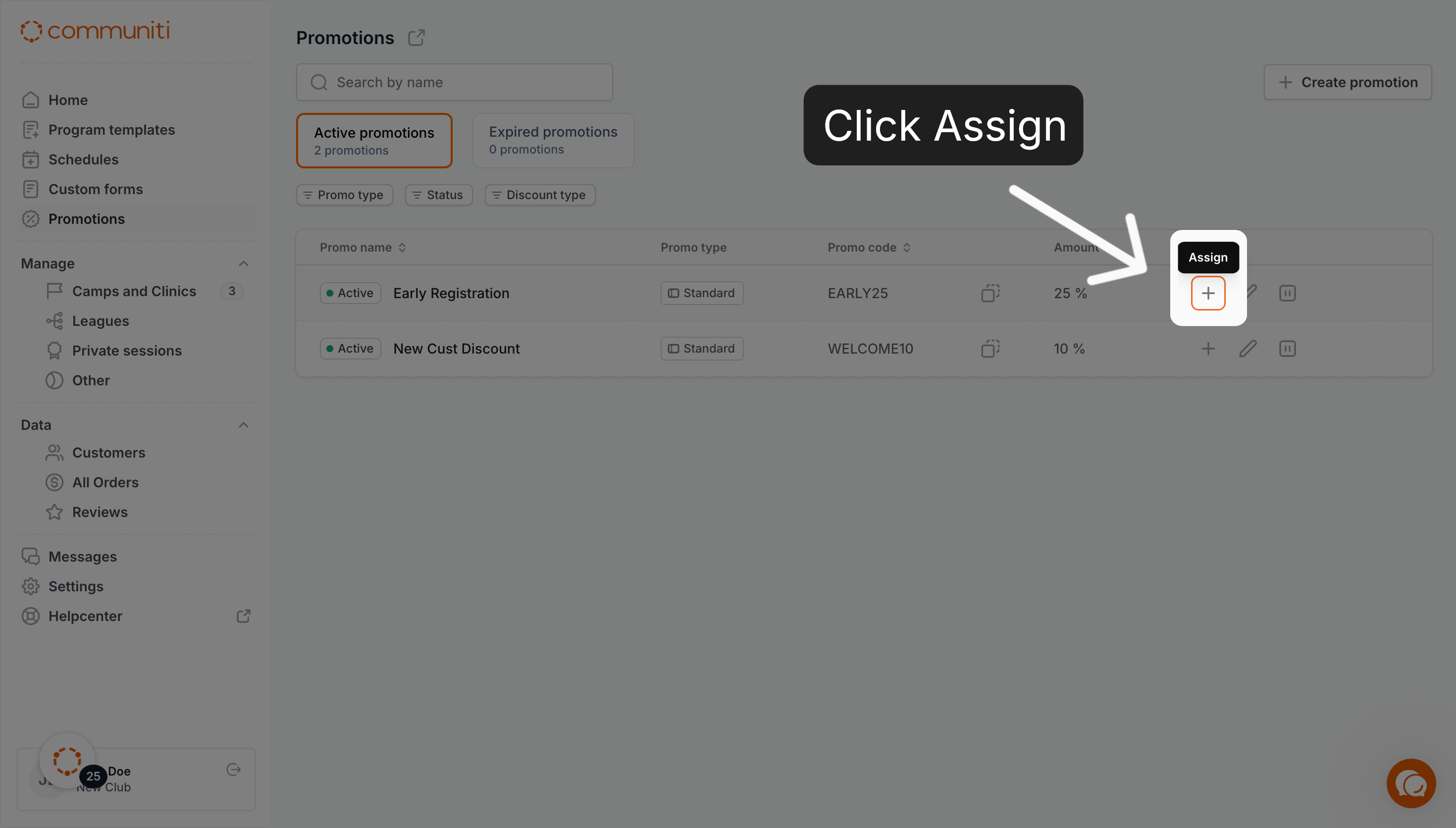
On the next screen, click the Assign session button.
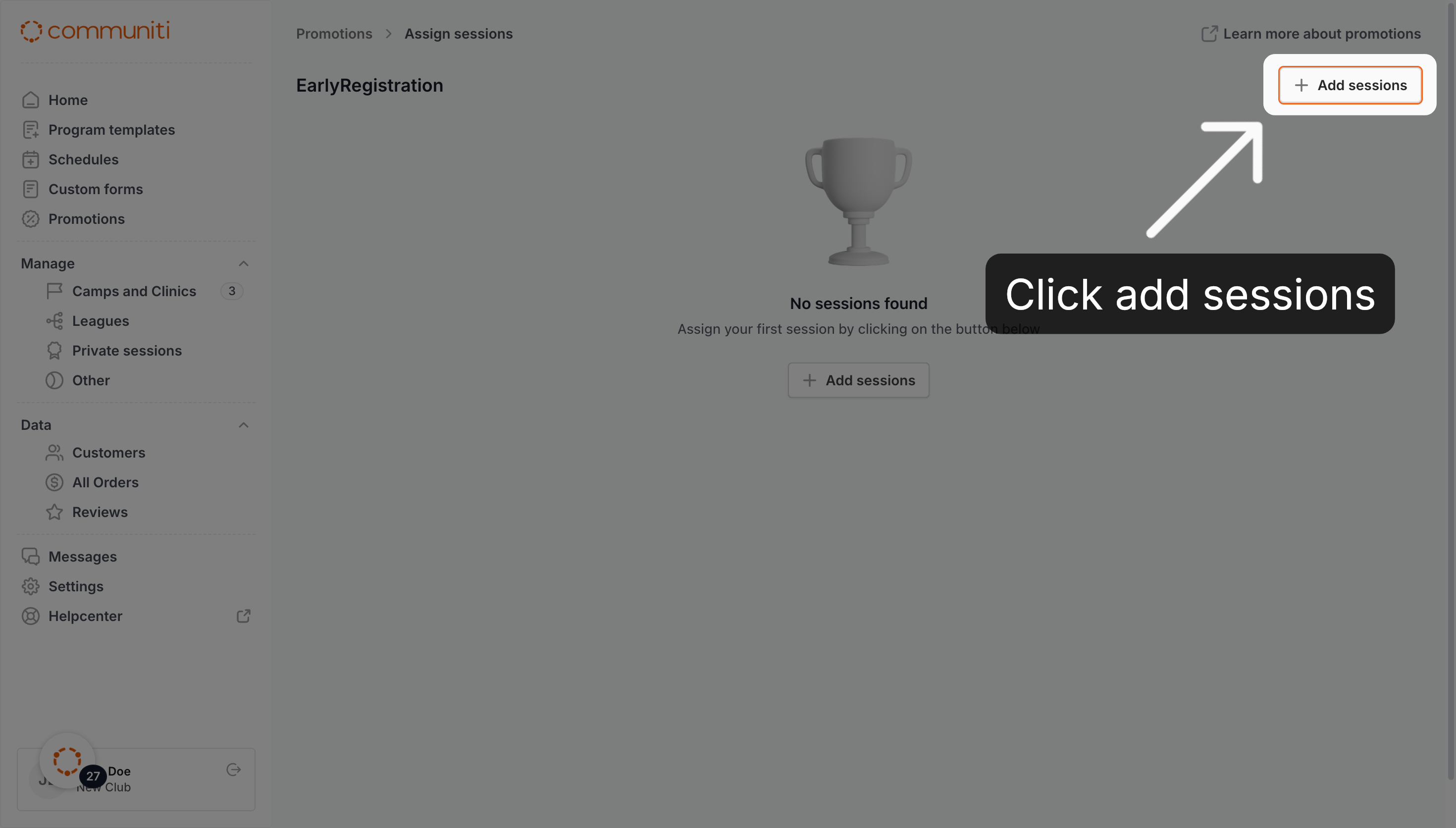
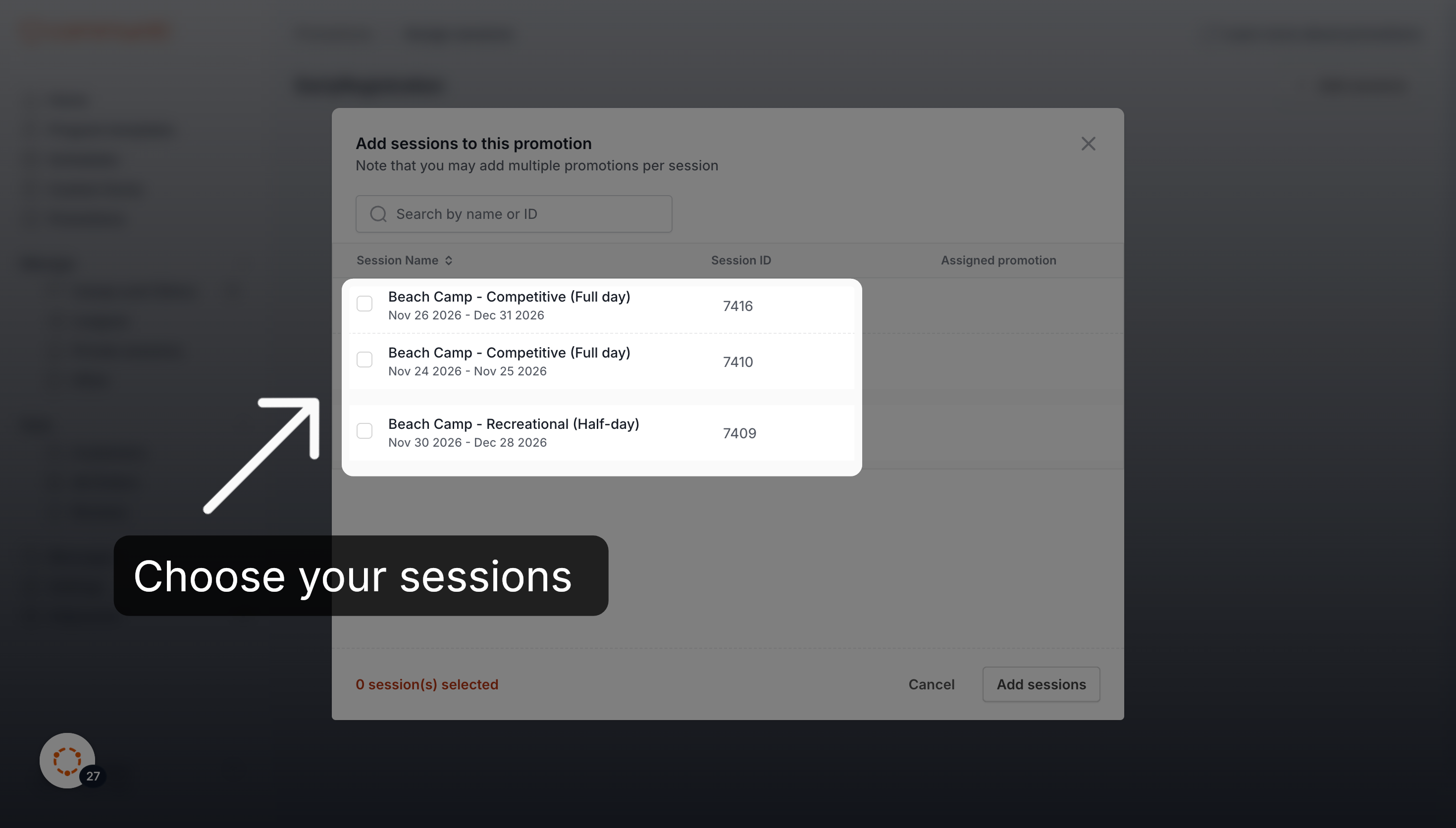
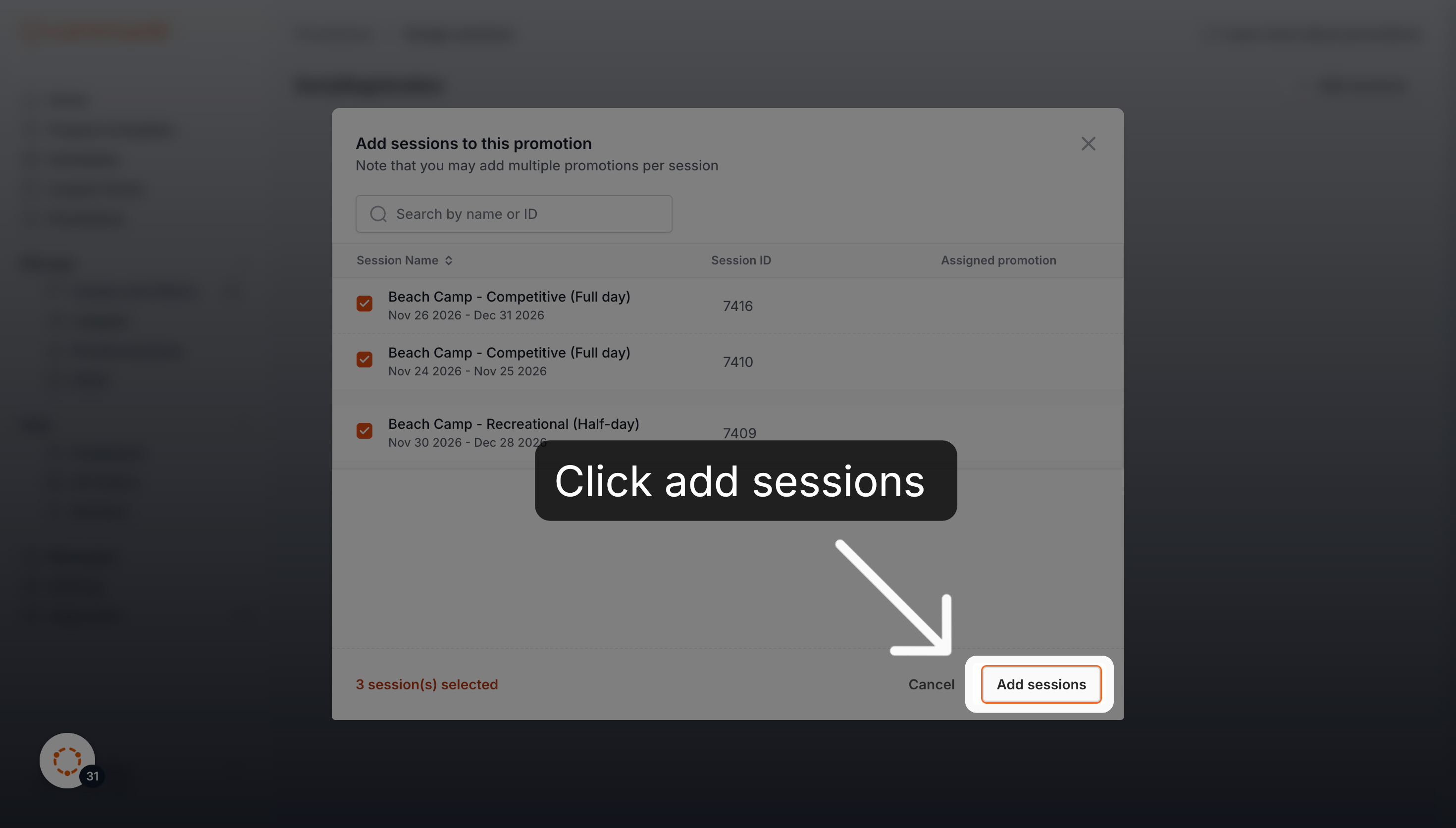
A list of your active sessions will appear. Select the checkboxes for all sessions that should offer this discount.
Click the orange Assign session(s) button to finalize the link.
Was this helpful?
Still need help? Ask the team