Updating Session Details
Once a session is live, you can still modify the details that were selected during the initial scheduling process. Whether you need to adjust the capacity, change a date, or update the pricing, the platform provides a clear workflow to ensure your registrations remain accurate and secure.
Written By communiti
Last updated 10 months ago
1. Pause the Session
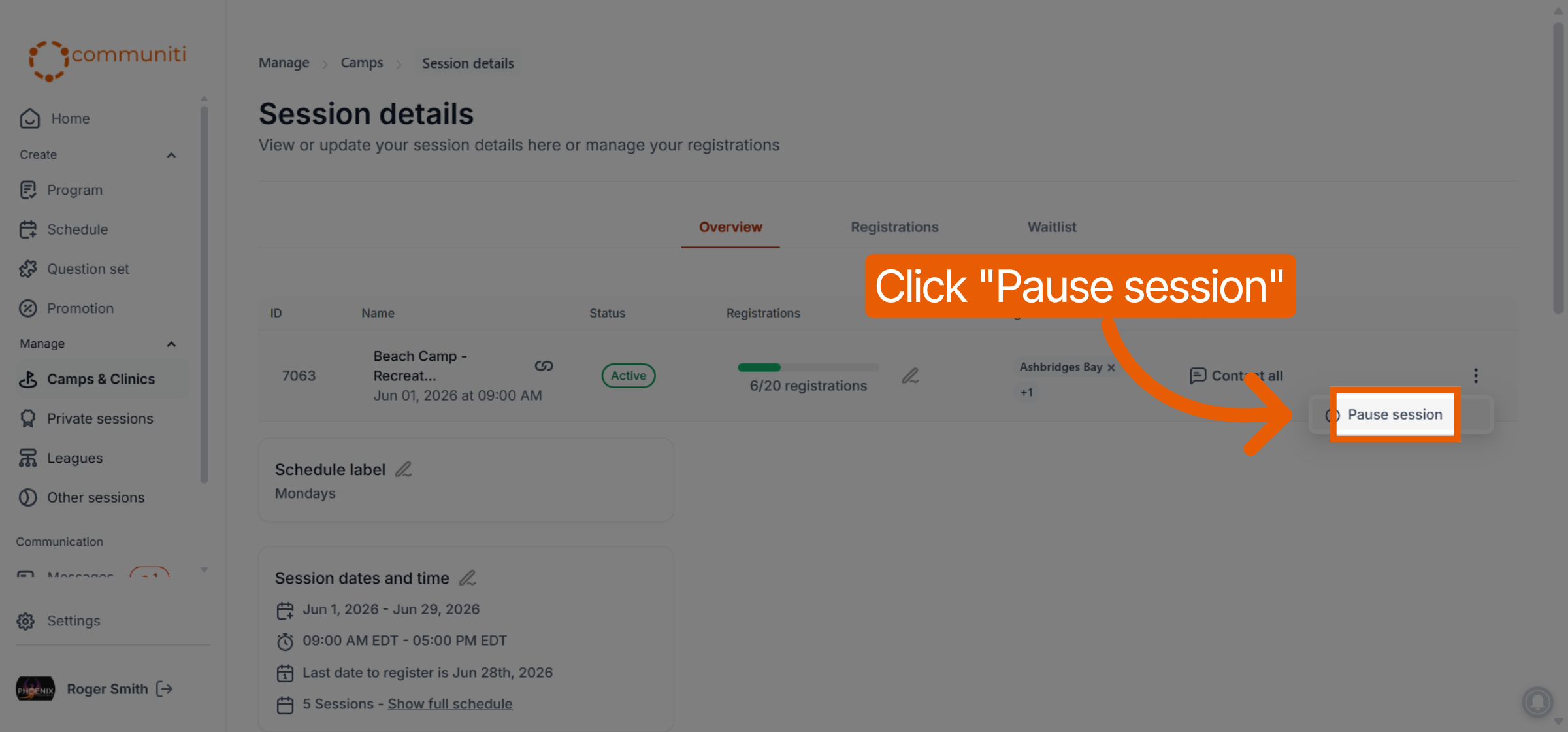
Before making any changes, you must first Pause the session. This is a safety measure to ensure that no one is attempting to purchase a spot while you are in the middle of updating the details, which prevents booking errors or price discrepancies.
Navigate to your session list under the Manage section.
Locate the session you wish to edit.
Click the Pause button

2. Access the Overview Tab
Once the session is paused, click on the session name to open its management dashboard. By default, you will land on the Overview tab.
The Overview tab is organized into neat sections that mirror the scheduling process (e.g., Basic Info, Pricing, Schedule, and Advanced Settings).

3. Edit Specific Sections
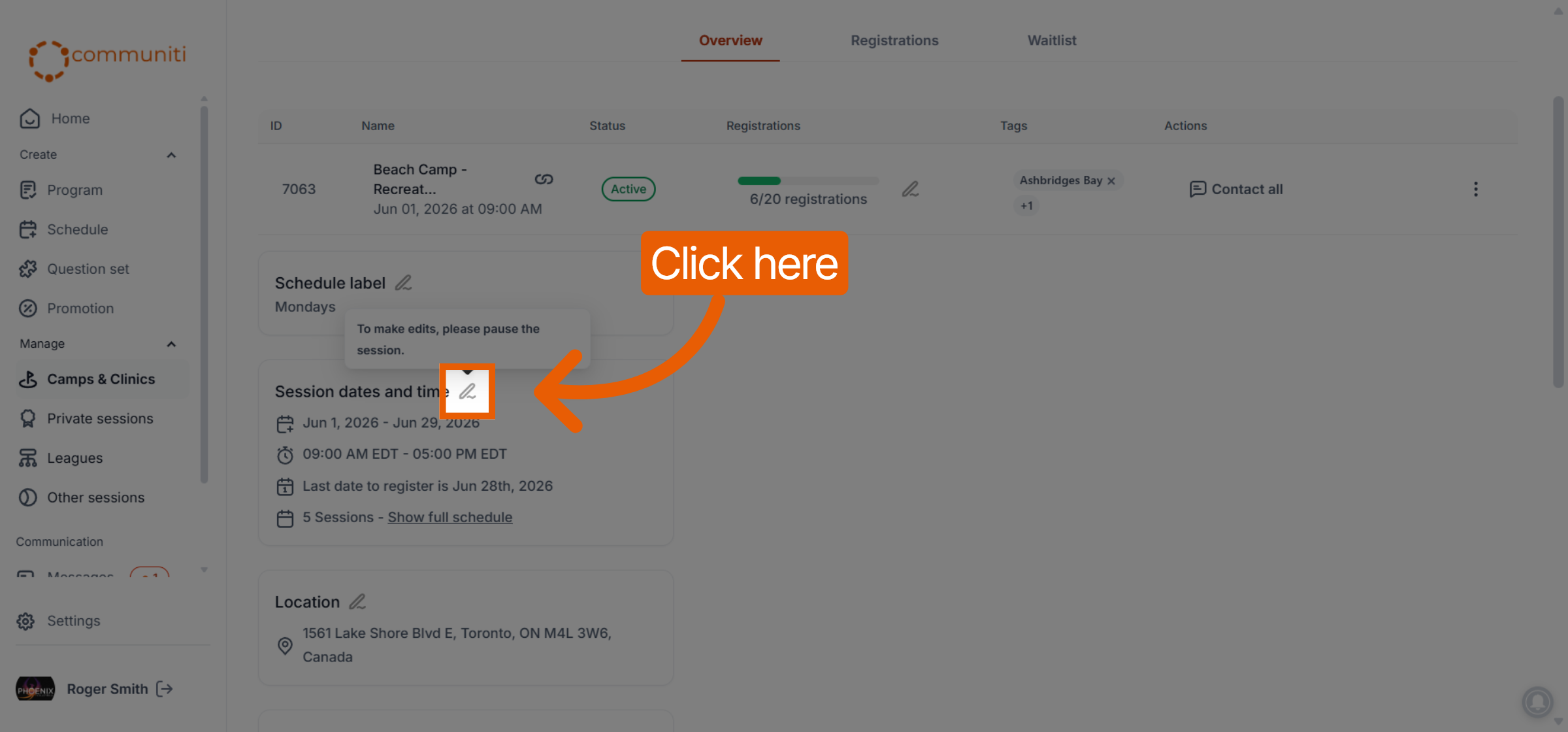
Each section within the Overview tab has its own Edit button. This allows you to pinpoint exactly what needs to be changed without having to scroll through a long form.
Scroll to the section you need to update (e.g., "Waitlist & Capacity").
Click the Edit button for that specific section.
Make your required changes in the pop-up or inline editor.
Click Save or Confirm for that section.

4. Resume Your Session
After you have finalized all your edits, you must bring the session back online to continue accepting registrations.
Return to the top of the session management page or the main session list.
Click the Resume button.
Your session is now live again with the updated information immediately visible to users.
What can be edited? You can update everything configured during scheduling, including:
Waitlist & Capacity: Change the number of available spots or toggle the waitlist on/off.
Proration: Switch between automatic and manual proration settings.
Visibility: Toggle whether the session is public or hidden on your profile.
Logistics: Update the specific dates, times, or the session address.
Payment Options: Enable or disable payment plans and offline payments.
Was this helpful?
Still need help? Ask the team