How to Send and Manage Invoices
Invoices allow you to request payments for registrations manually, providing a professional way to handle custom billing or balances.
Written By communiti
Last updated 10 months ago
1. Locate the Participant
To send an invoice, you must first navigate to the specific participant's registration profile.
Select the Manage menu in the left sidebar and choose your program type.
Click on the specific session.
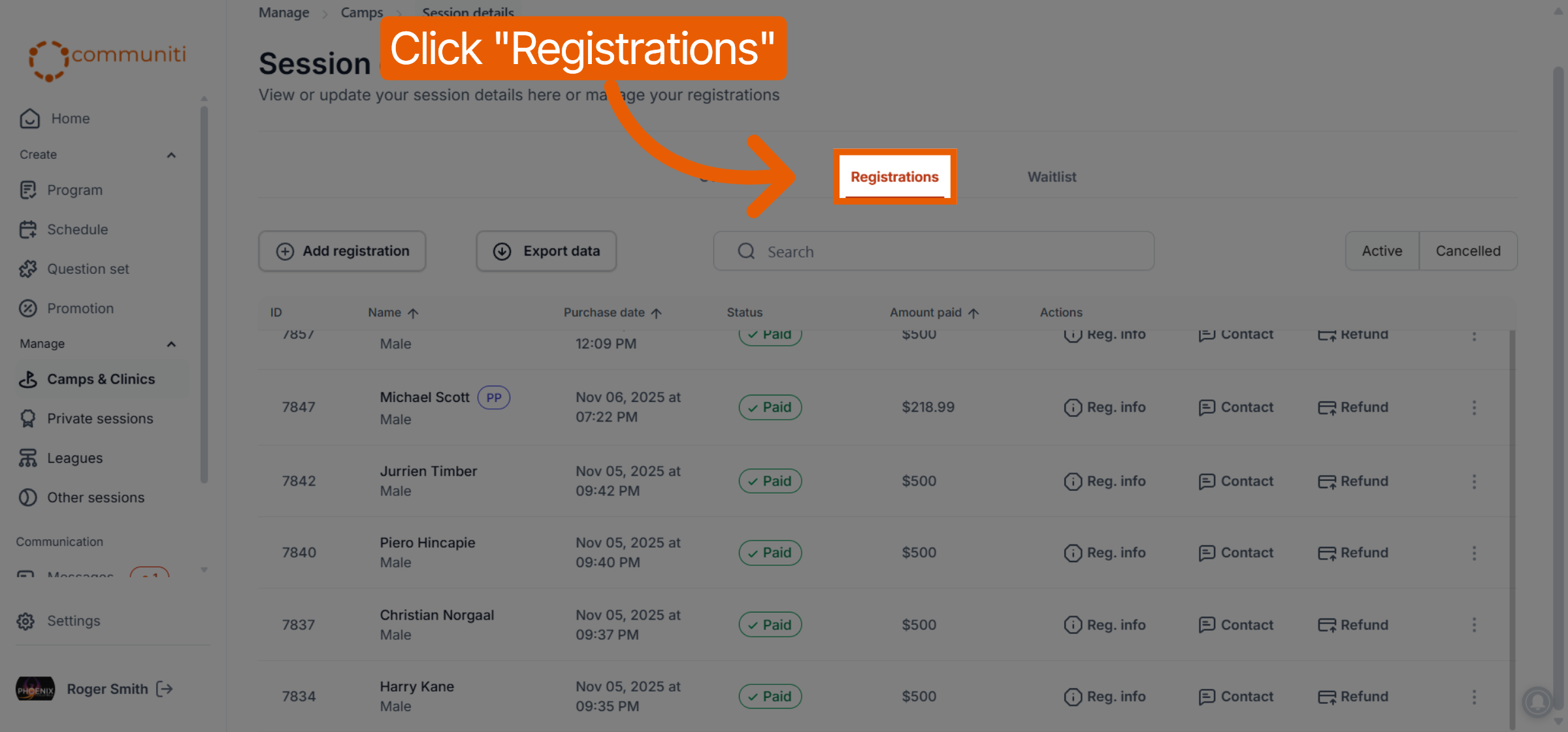
Select the Registrations tab at the top of the session dashboard.
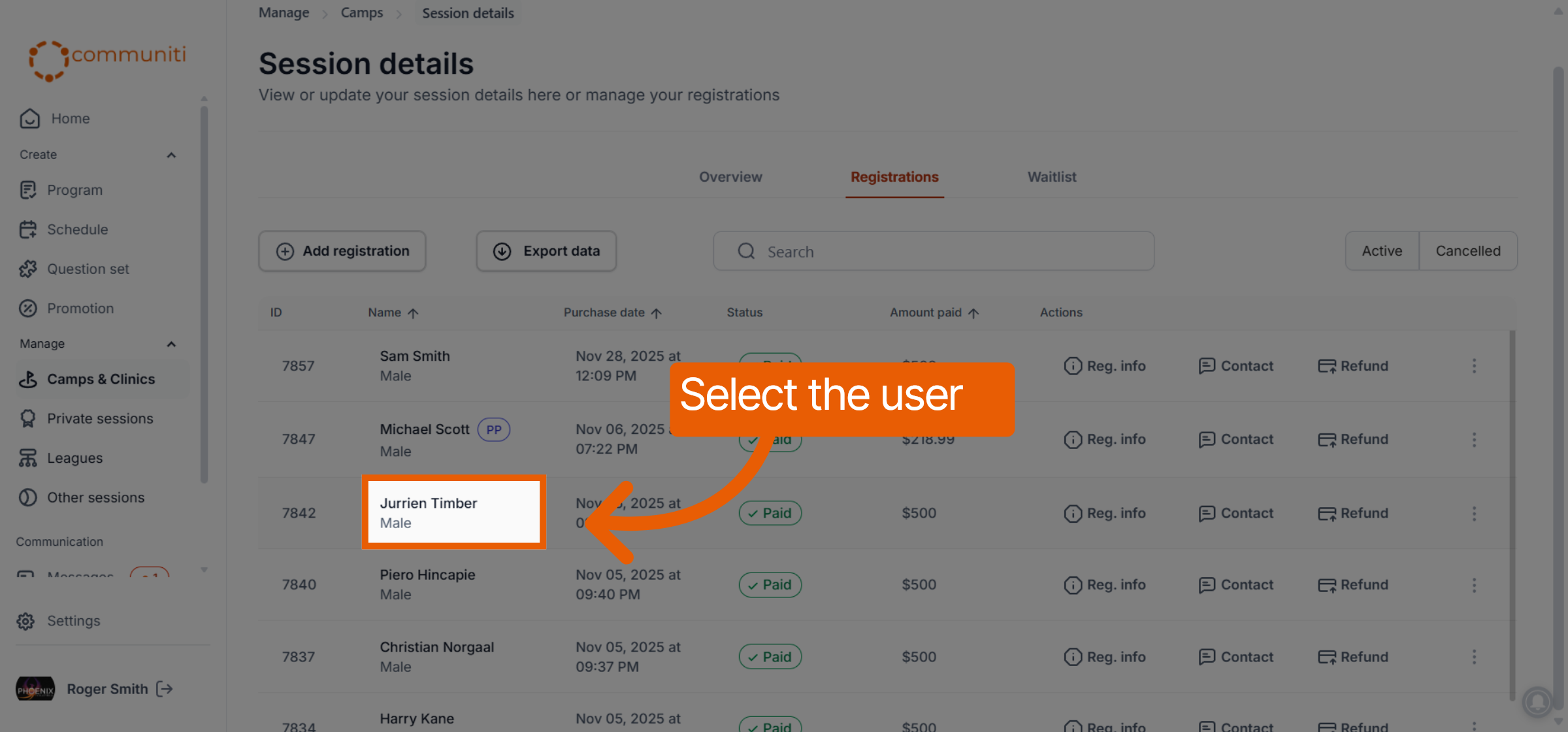
Find the participant in the list and click on their name to open their registration details.
2. Open the Invoice Tool
Once the participant's profile is open, you can access the billing tools.
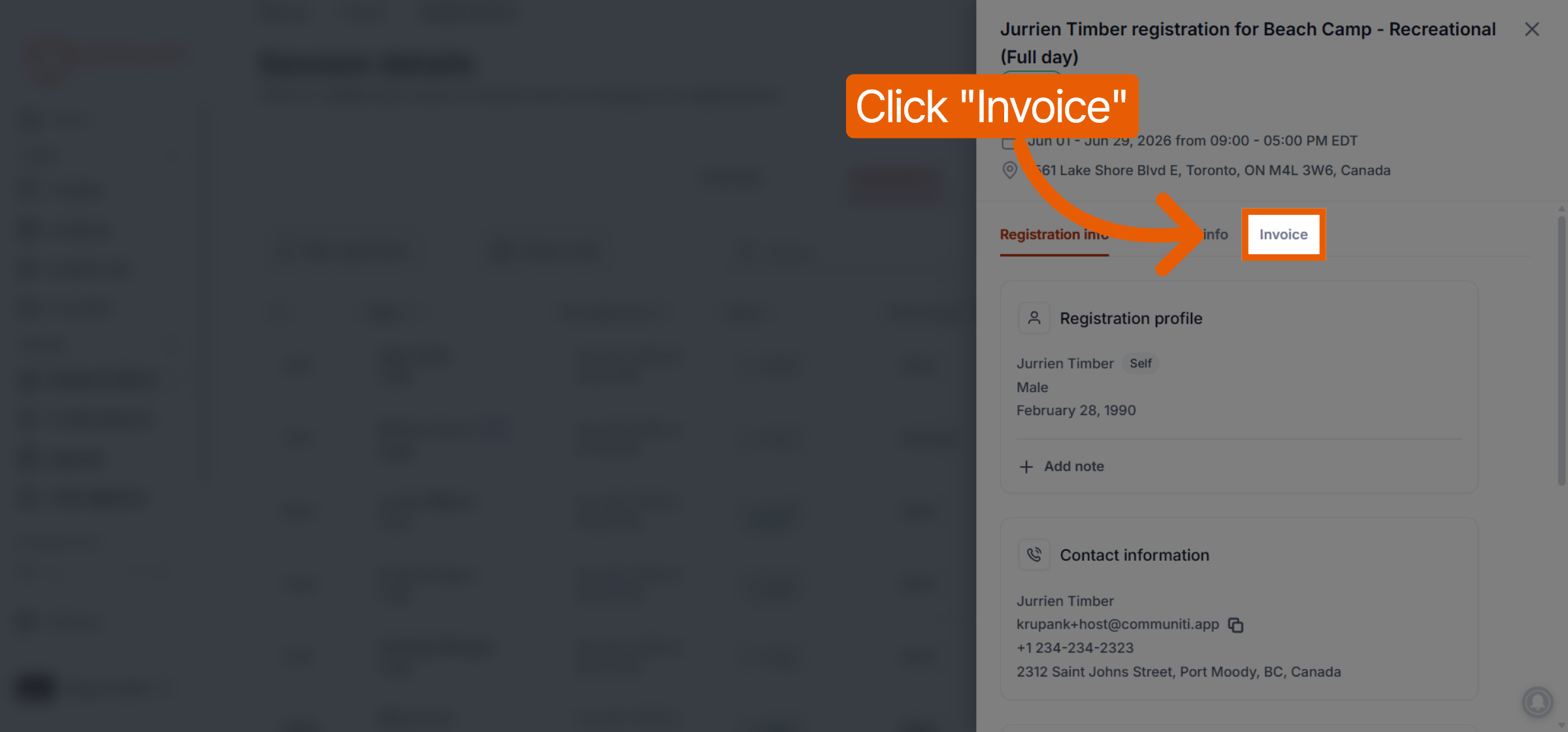
Click on the Invoice tab at the top of the registration window.
3. Configure and Send the Invoice
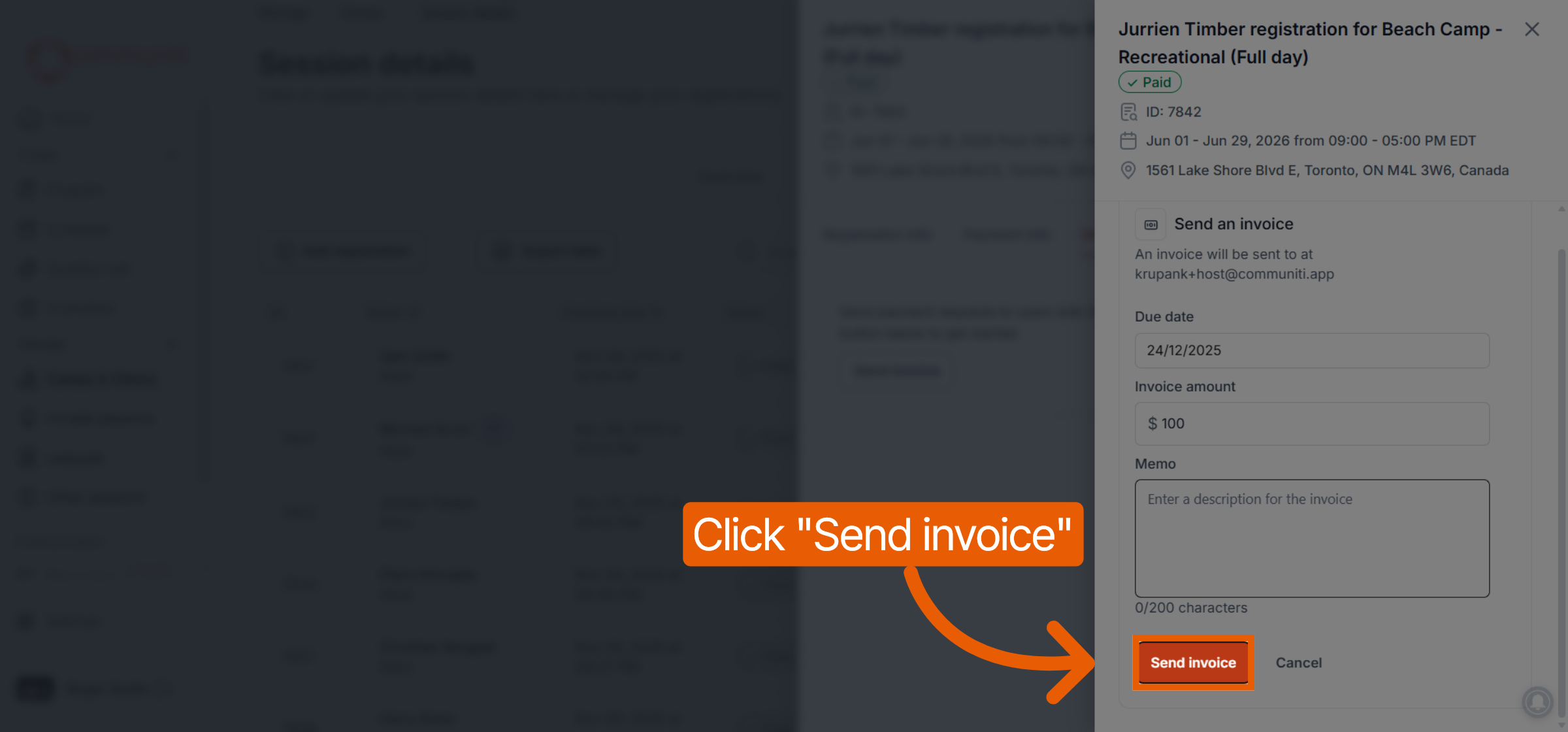
Enter the billing details required to request payment from the user.
Due Date: Select the date by which the payment should be completed.
Invoice Amount: Enter the specific dollar amount being requested.
Memo: Add an optional description or note for the user to explain what the charge is for.
Click Send invoice to deliver the request to the user's email.
What happens next?
The user will receive an automated email with a link to view and pay the invoice online securely through Stripe. Once paid, the status will automatically update in the participant's Payment info tab.
Was this helpful?
Still need help? Ask the team