How to Search and Filter Sessions
Manage your schedule efficiently by using search and filtering tools to find specific sessions based on their ID, title, status, or registration settings.
Written By communiti
Last updated 10 months ago
1. Search by Title or ID
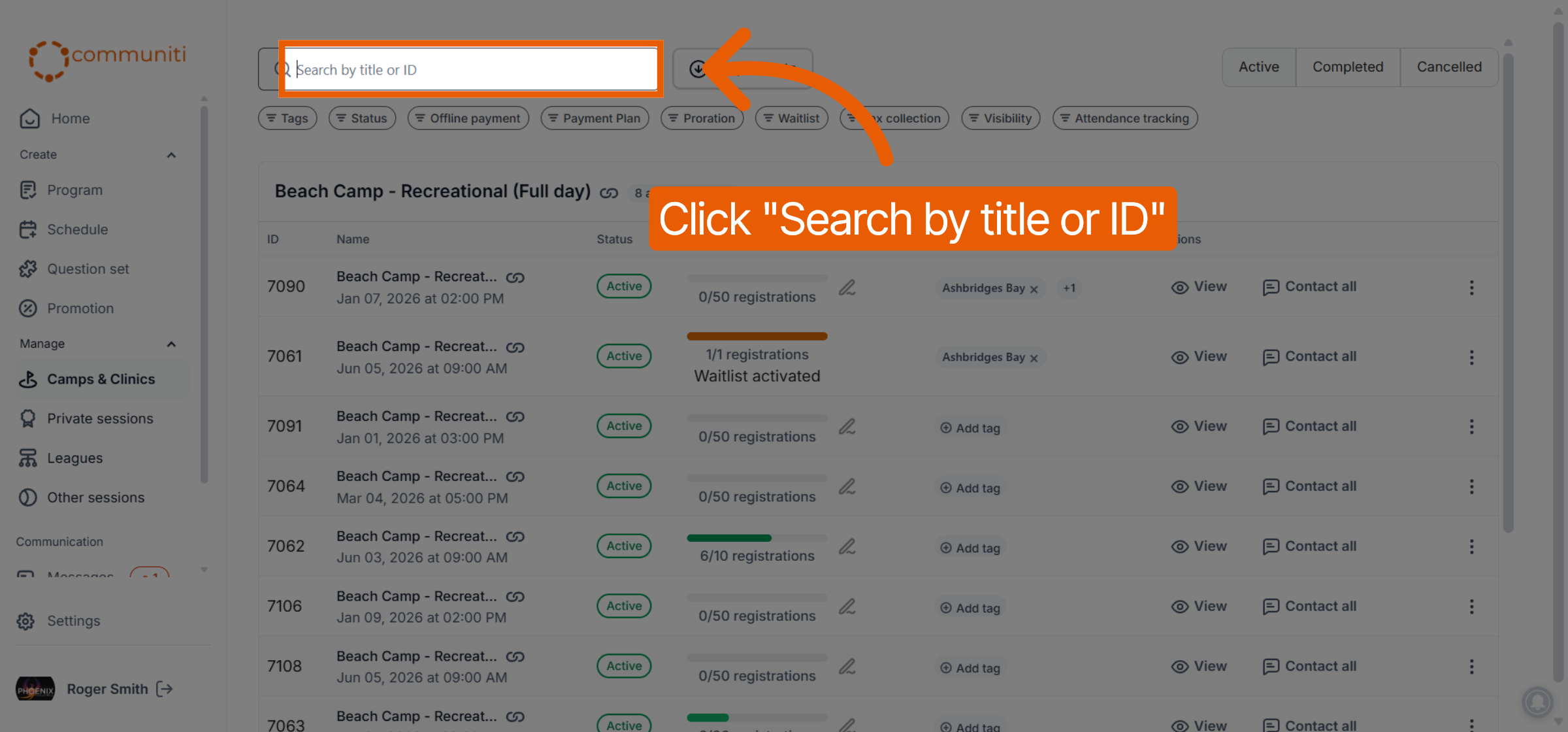
Use the search bar at the top of the management page to quickly locate a single session among many.
Click the Search by title or ID bar at the top of your session list.
Type in the specific Session Title or the unique Session ID.
The list will automatically update to show sessions that match your search criteria.
2. Filter by Session Status
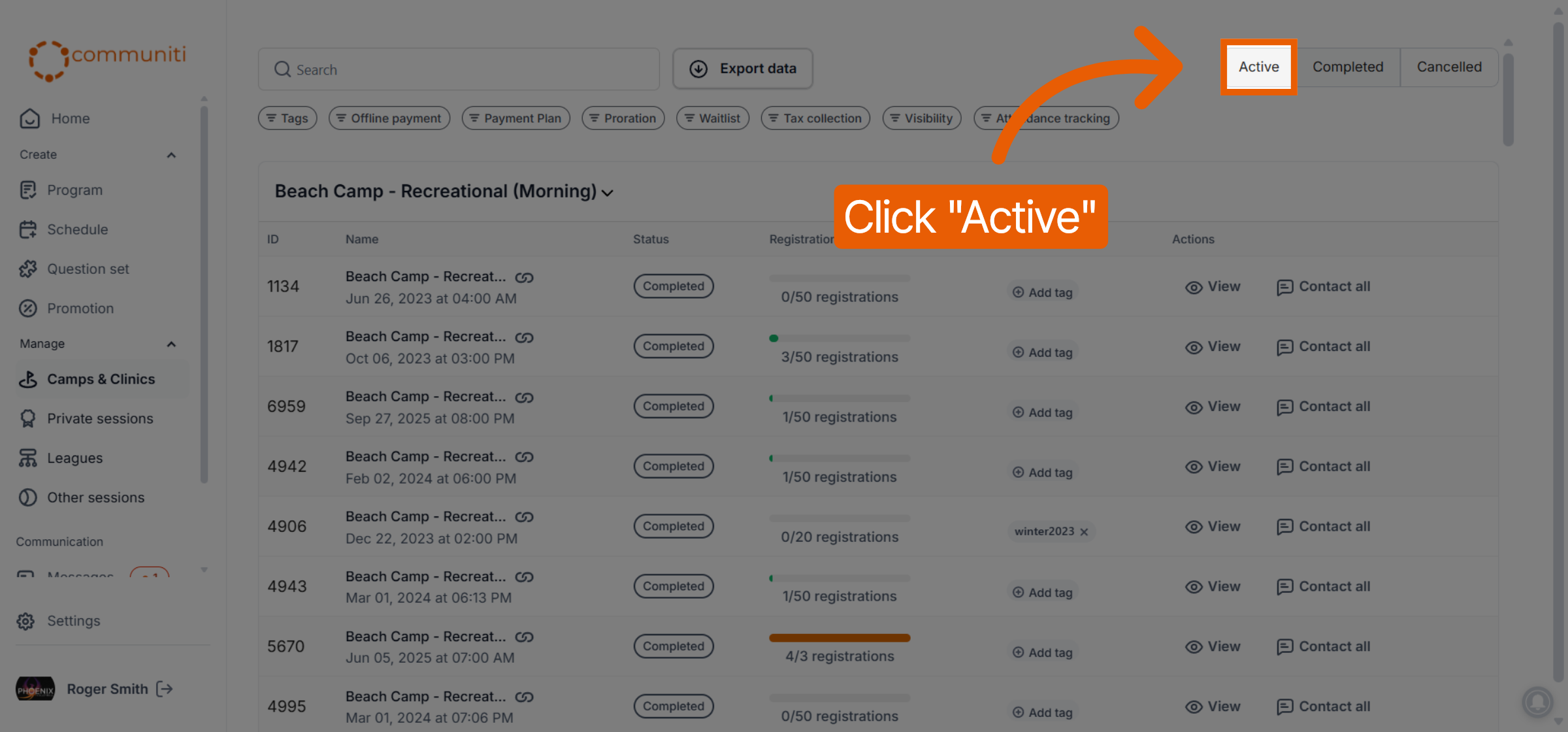
Organize your view based on whether sessions are current, finished, or have been removed.
Active: Click the Active button to see all sessions currently open for registration or in progress.
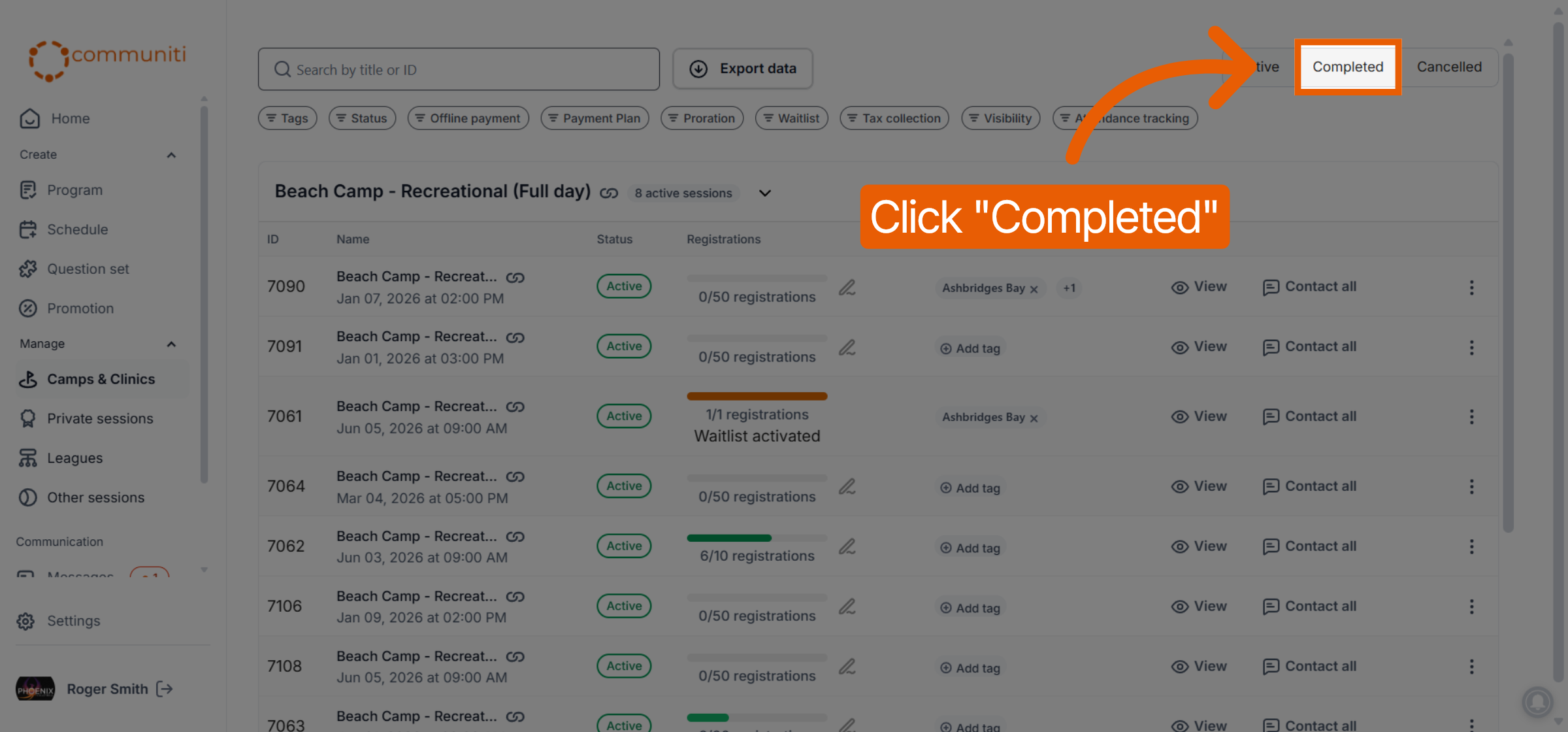
Completed: Click the Completed button to view a history of sessions that have already finished their scheduled dates.
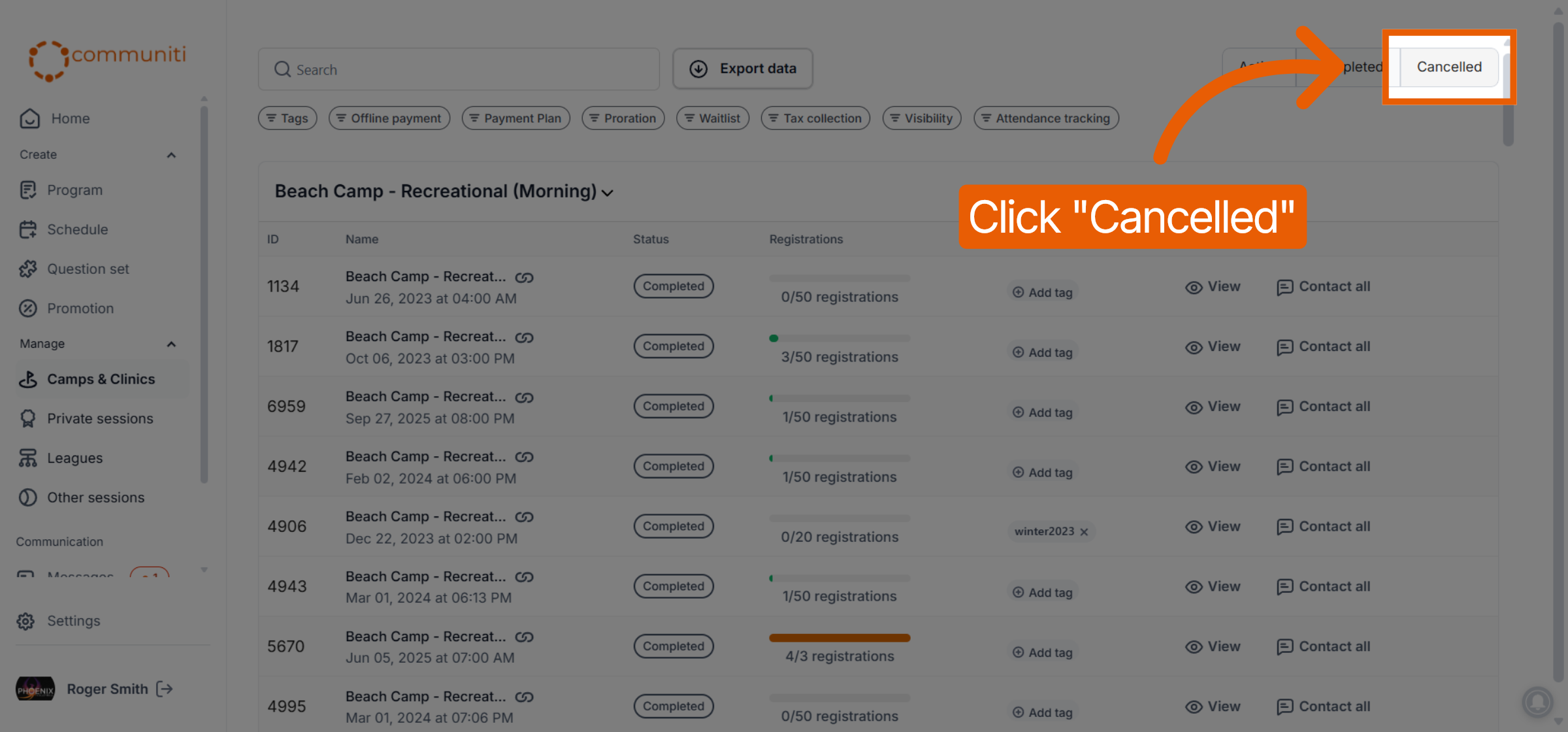
Cancelled: Click the Cancelled button to review sessions that were called off.
3. Use Advanced Registration Filters
Refine your search further by filtering for sessions with specific logistical or financial settings.
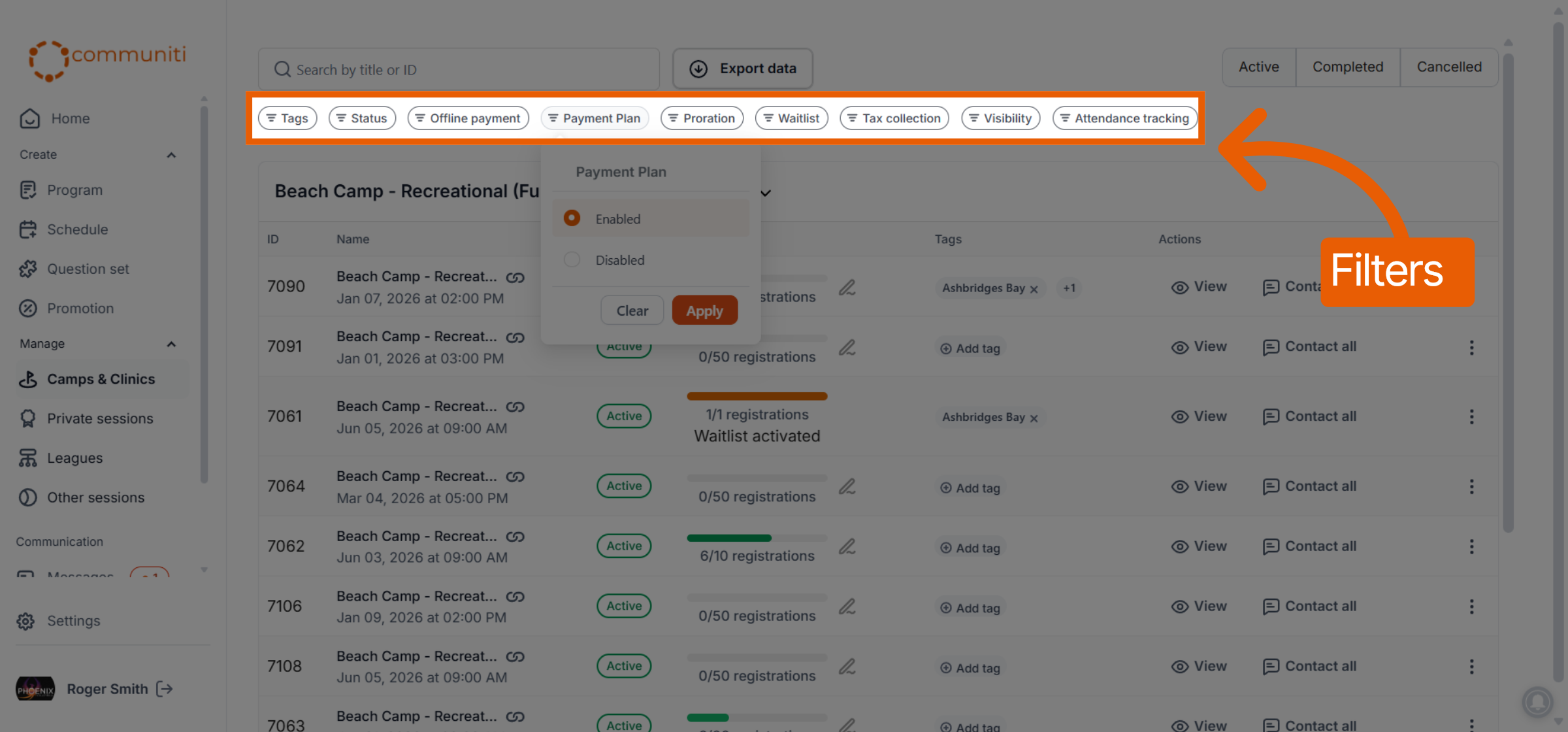
Click on the Filters row above the session list to see all available options.
Filter by categories such as Tags, Status, Offline payment, Payment Plan, Proration, or Waitlist.
You can also filter by Tax collection, Visibility (public vs. hidden), and Attendance tracking status.
Once you select your desired criteria, click Apply to update your session view.
Was this helpful?
Still need help? Ask the team