How to Update Slots from the Manage Page
Need to change your registration limit quickly? You can adjust the number of available spots directly from your session list without entering the full session dashboard.
Written By communiti
Last updated 10 months ago
1. Locate the Session
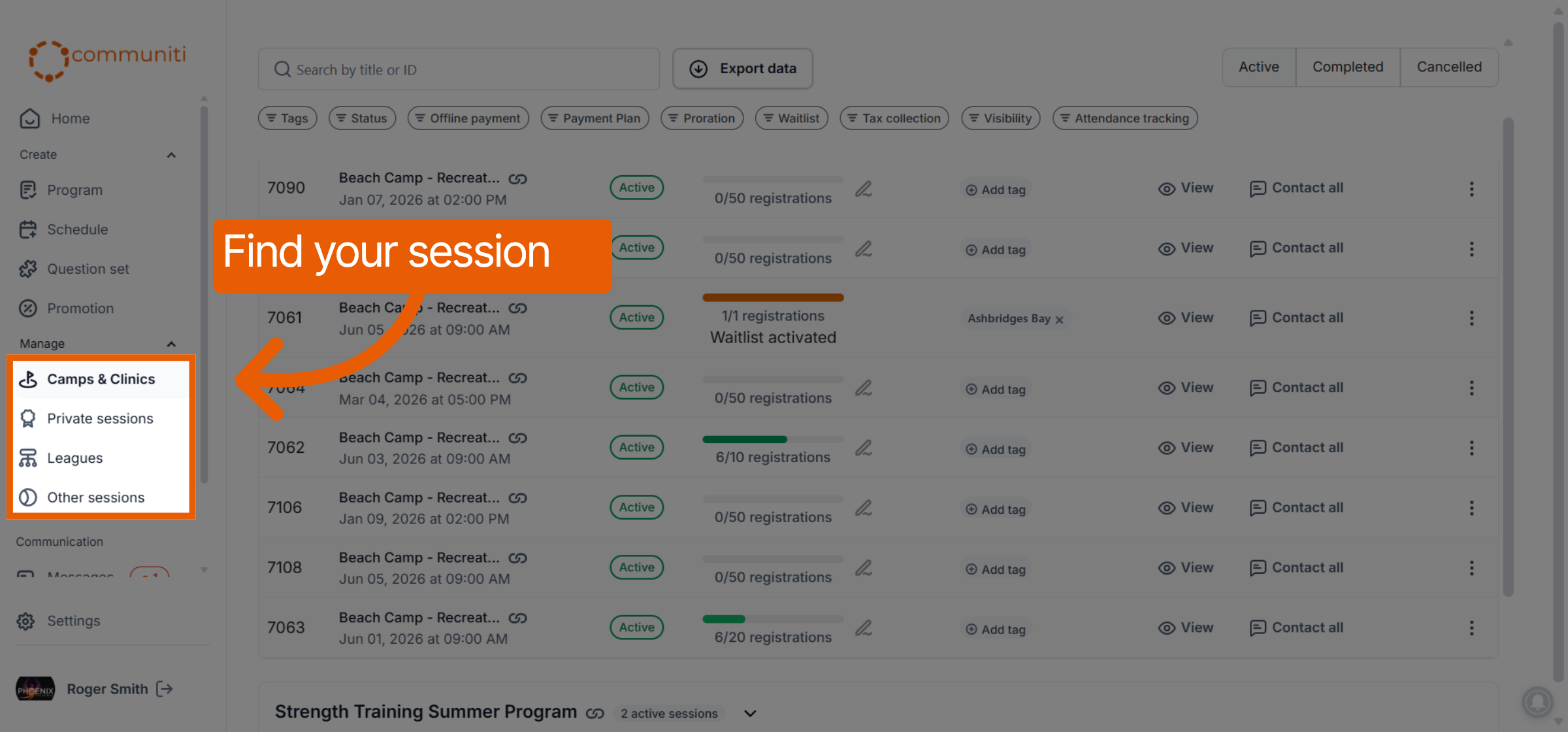
Select the Manage menu in the left sidebar and choose your program category, such as Camps & Clinics.
Find the specific session in your list that requires a capacity update.
2. Pause the Session
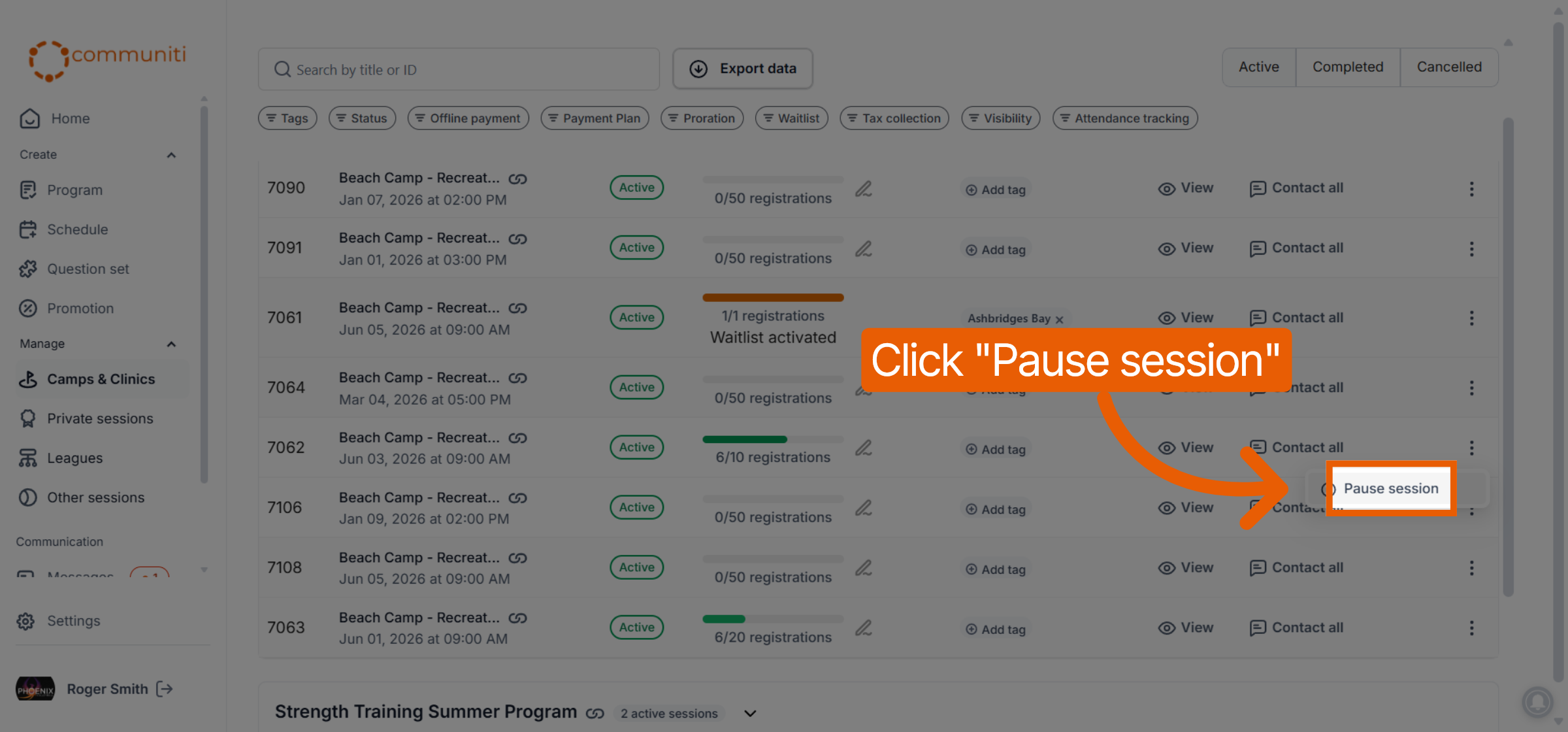
To modify registration limits, you must first pause the session to prevent any overlapping bookings during the update.
Click the Three Dots (⋮) icon on the far right of the session row and select Pause session.
3. Access the Slot Editor
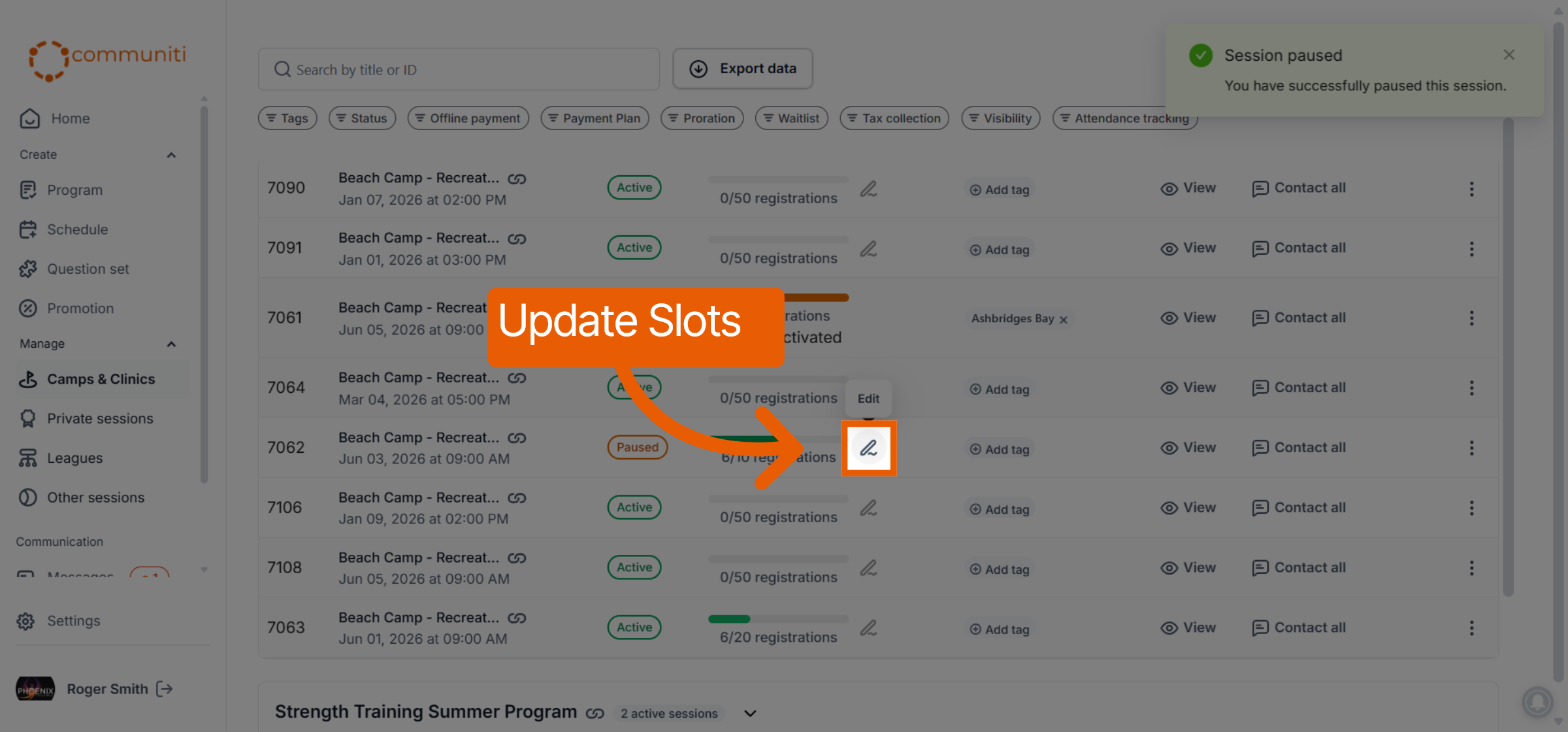
Once the session status changes to Paused, look at the Registrations column.
Click the Edit (pencil) icon located next to the registration count bar.
4. Adjust and Save Capacity
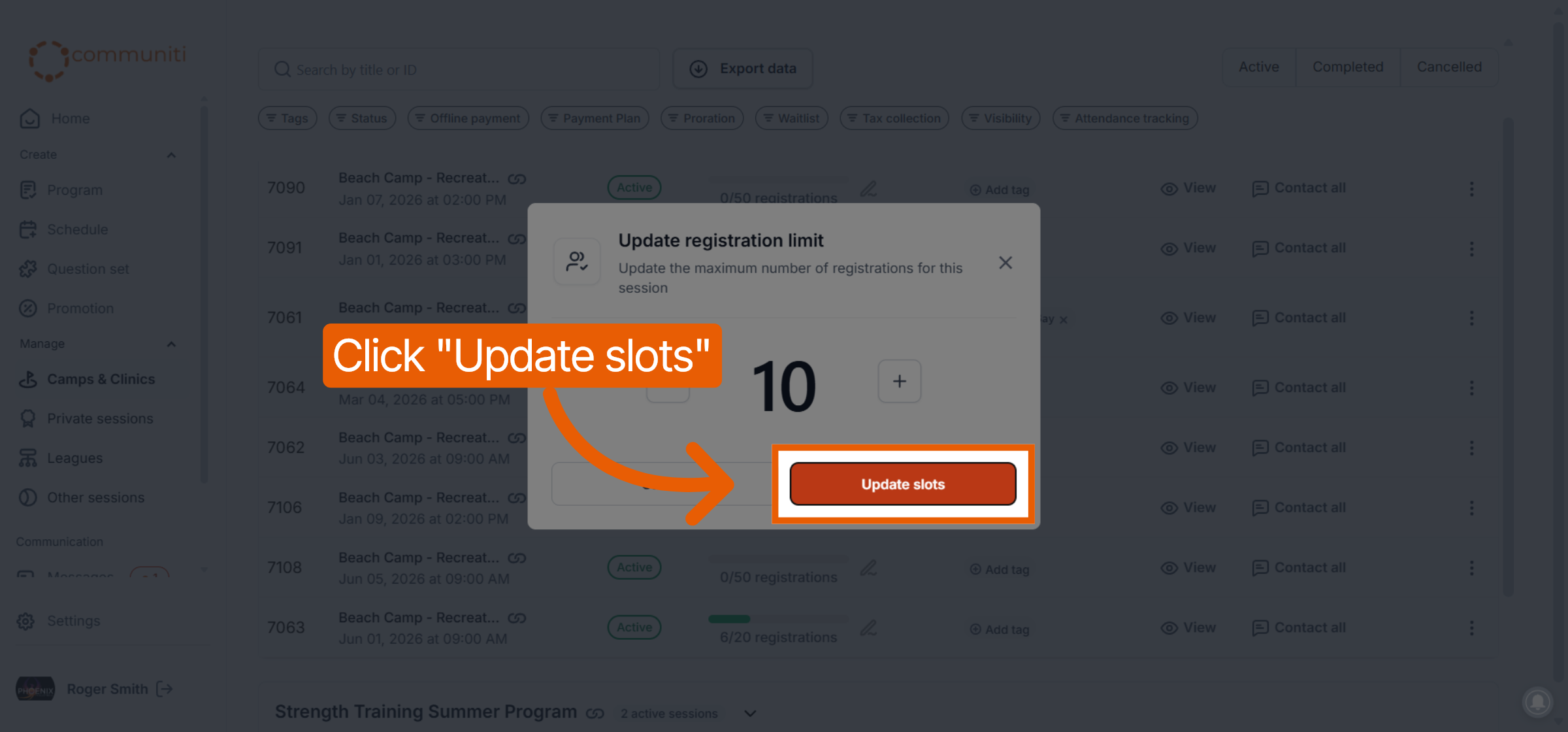
Use the plus (+) or minus (-) buttons to add or remove available slots for the session.
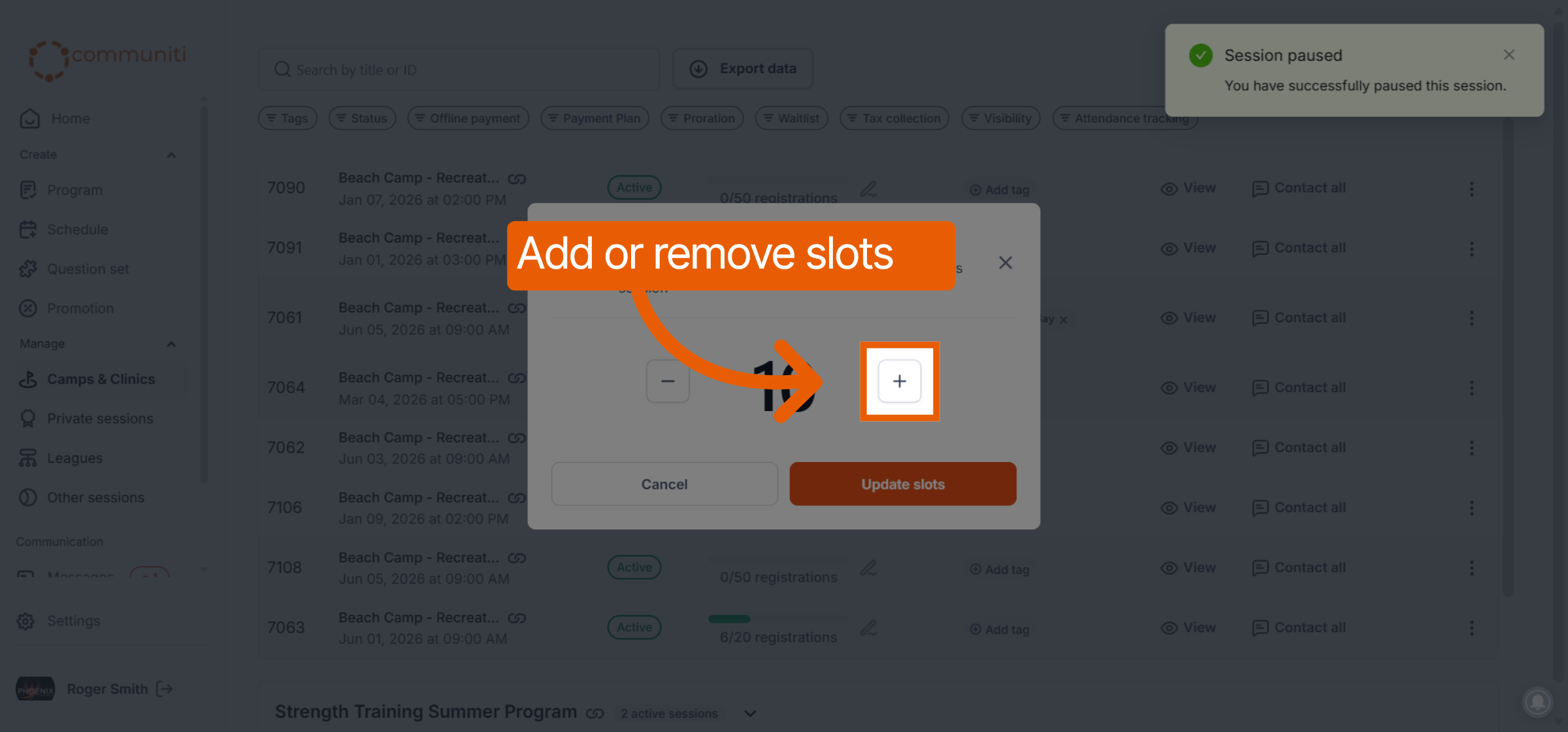
Click the orange Update slots button to save your new registration limit.
5. Resume the Session
Bring the session back online immediately to allow users to book the new spots.
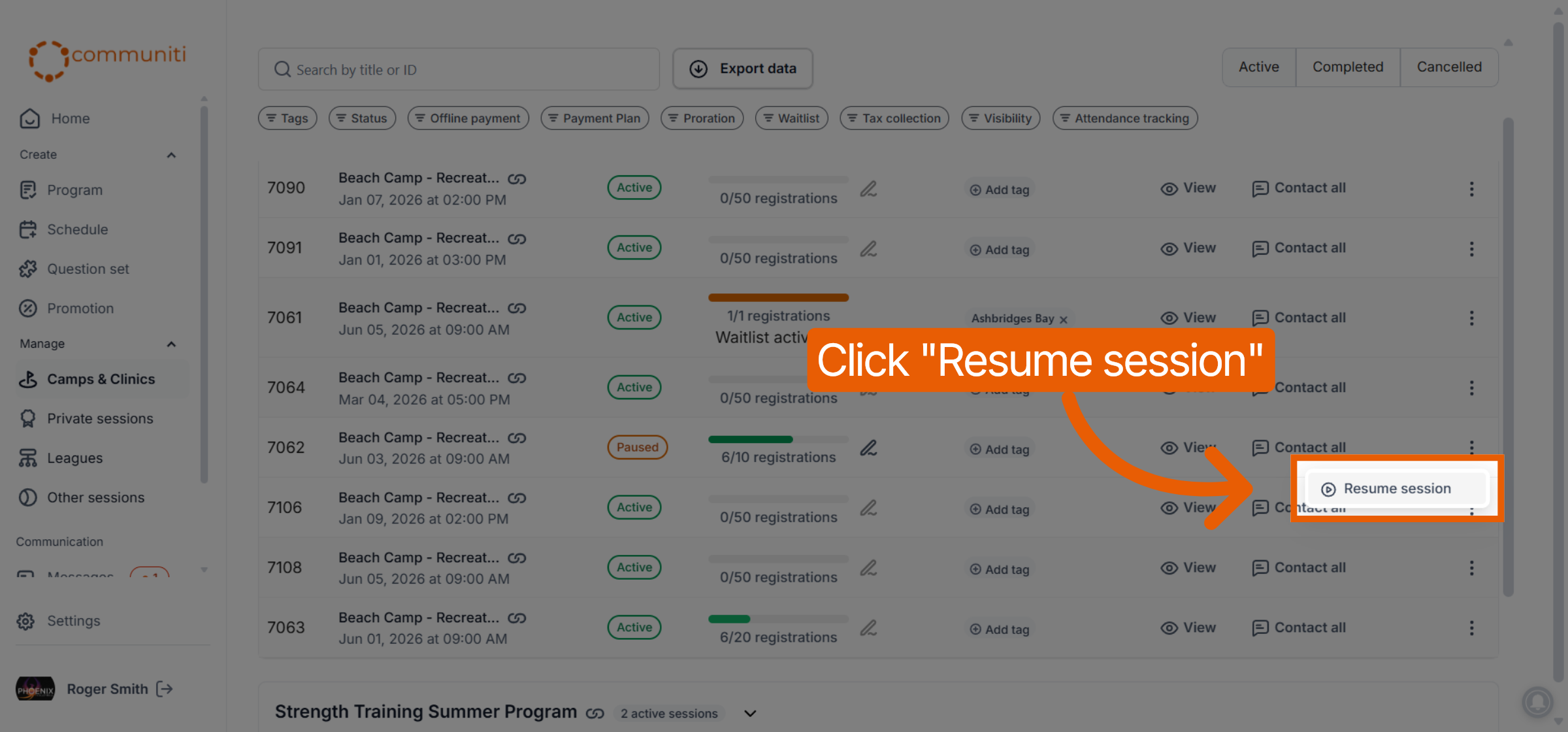
Click the Three Dots (⋮) icon and select Resume session to make it live again.
Was this helpful?
Still need help? Ask the team