Viewing Registration Information
Accessing detailed information about your participants is a simple process. From their custom form responses to their legal waiver timestamps, everything is available within the registration details view.
Written By communiti
Last updated 10 months ago
1. Locate the Participant
To find a specific registrant, first navigate to the correct session dashboard.
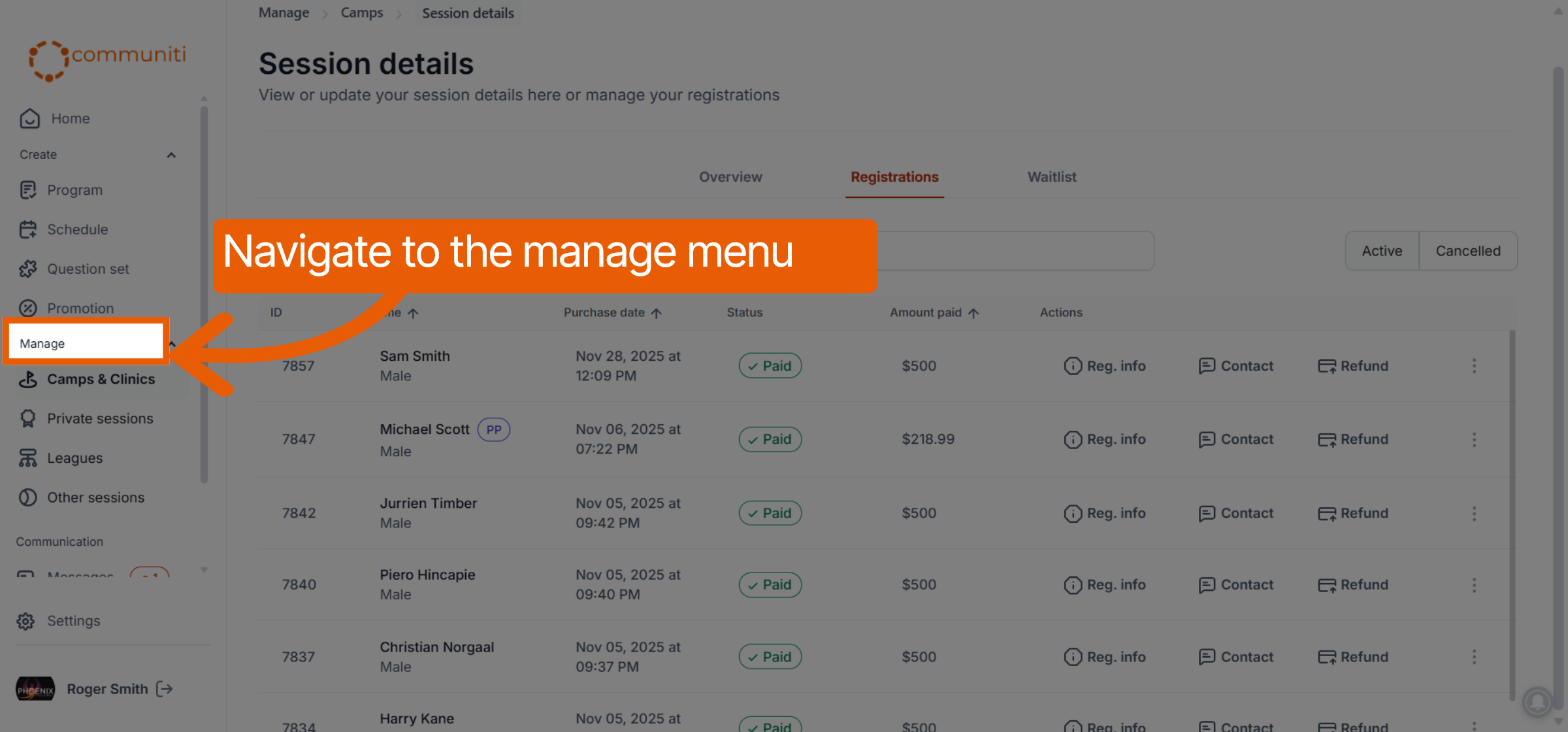
Select the Manage menu in the left sidebar and choose your program type (e.g., Camps & Clinics).
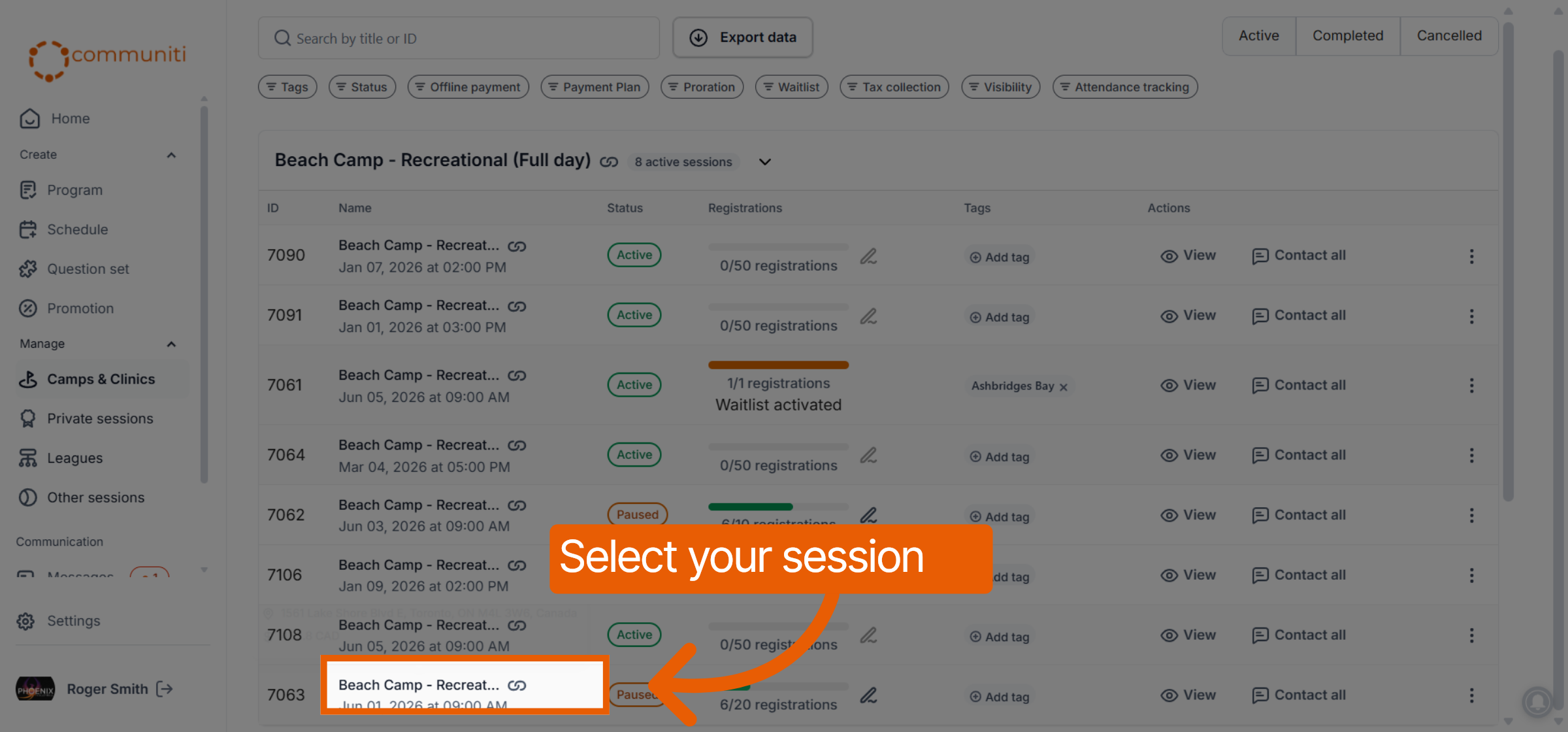
Click on the specific session you want to review.
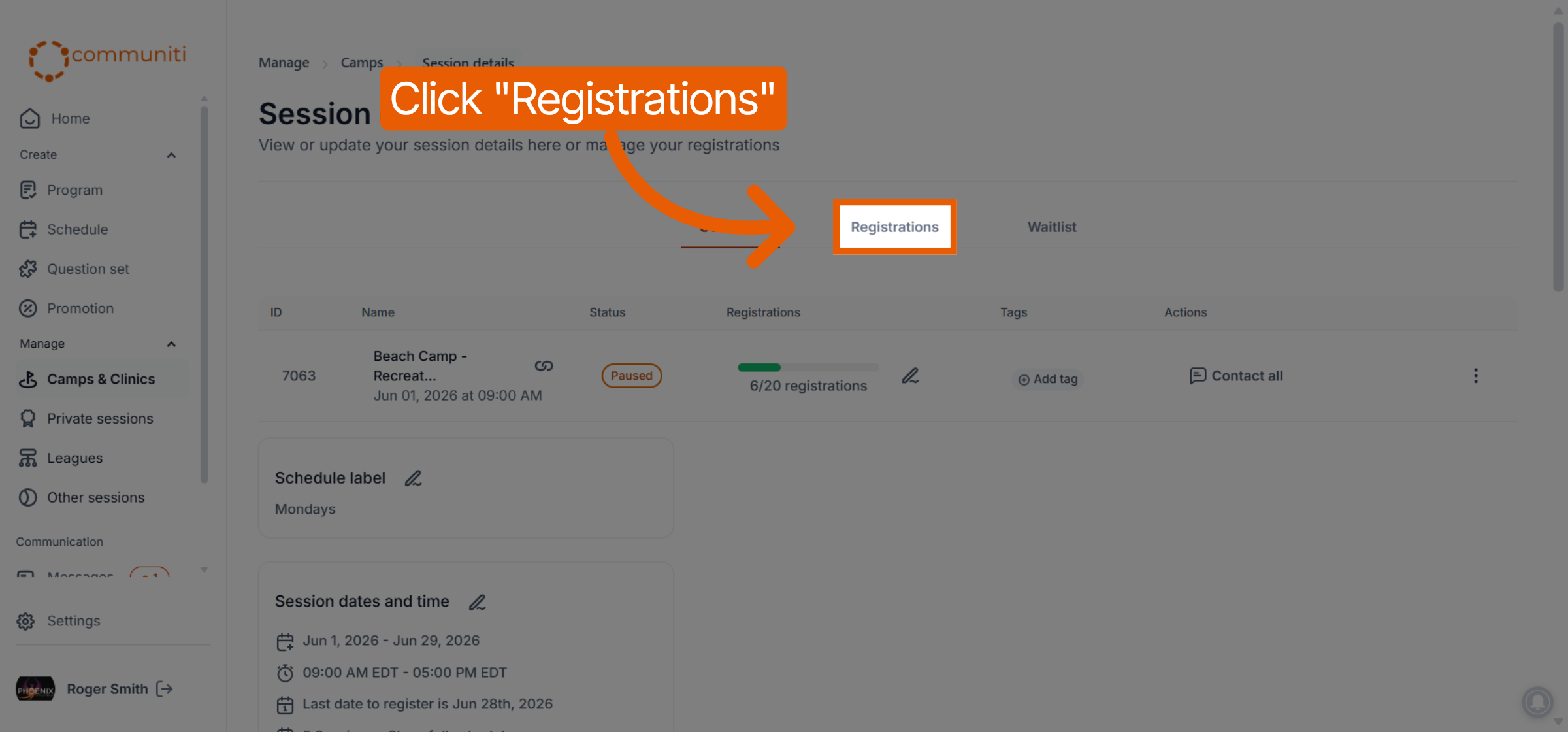
Select the Registrations tab at the top of the session dashboard.
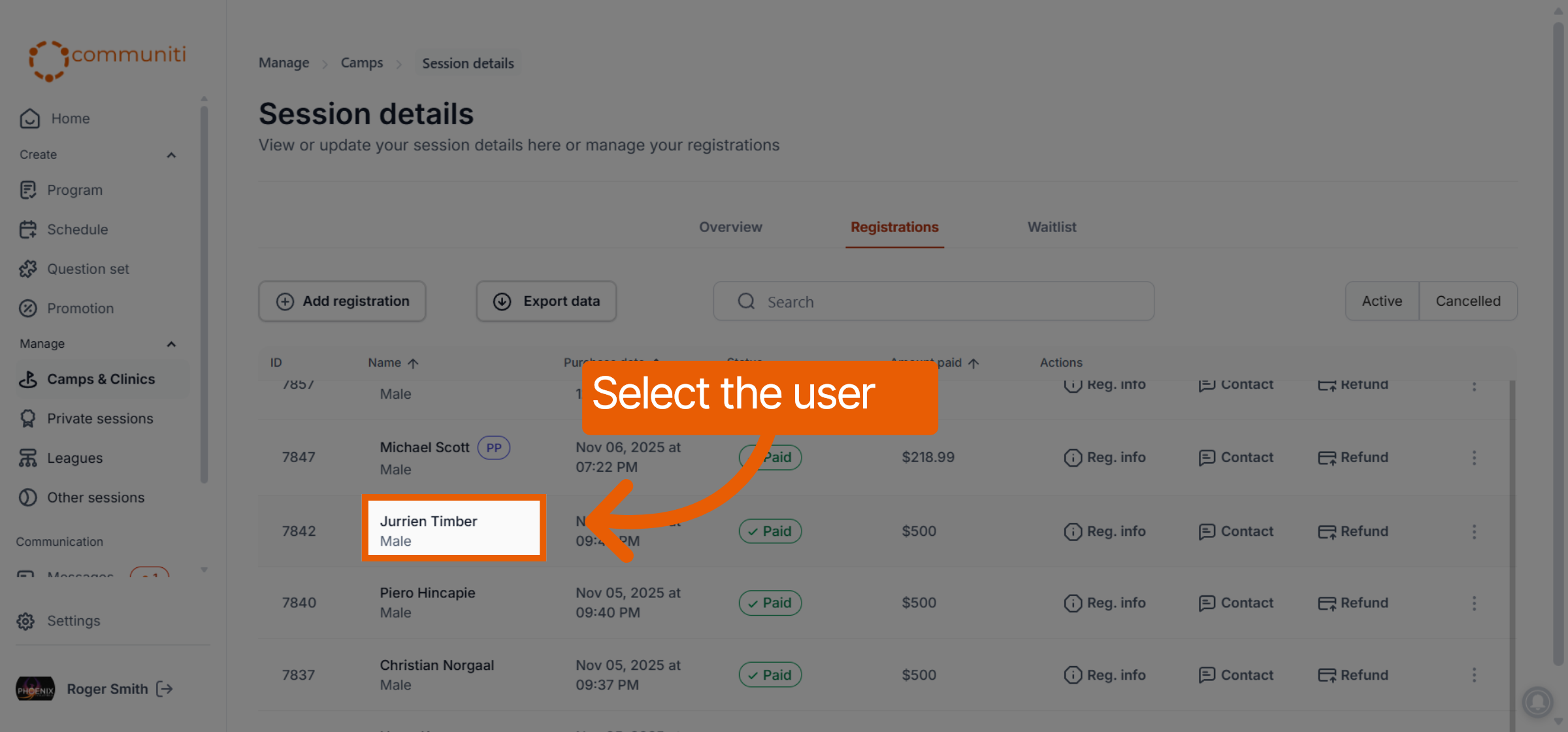
Locate the participant in the list and click on their name to open their full profile.
2. Review Participant Profile & Contact Info
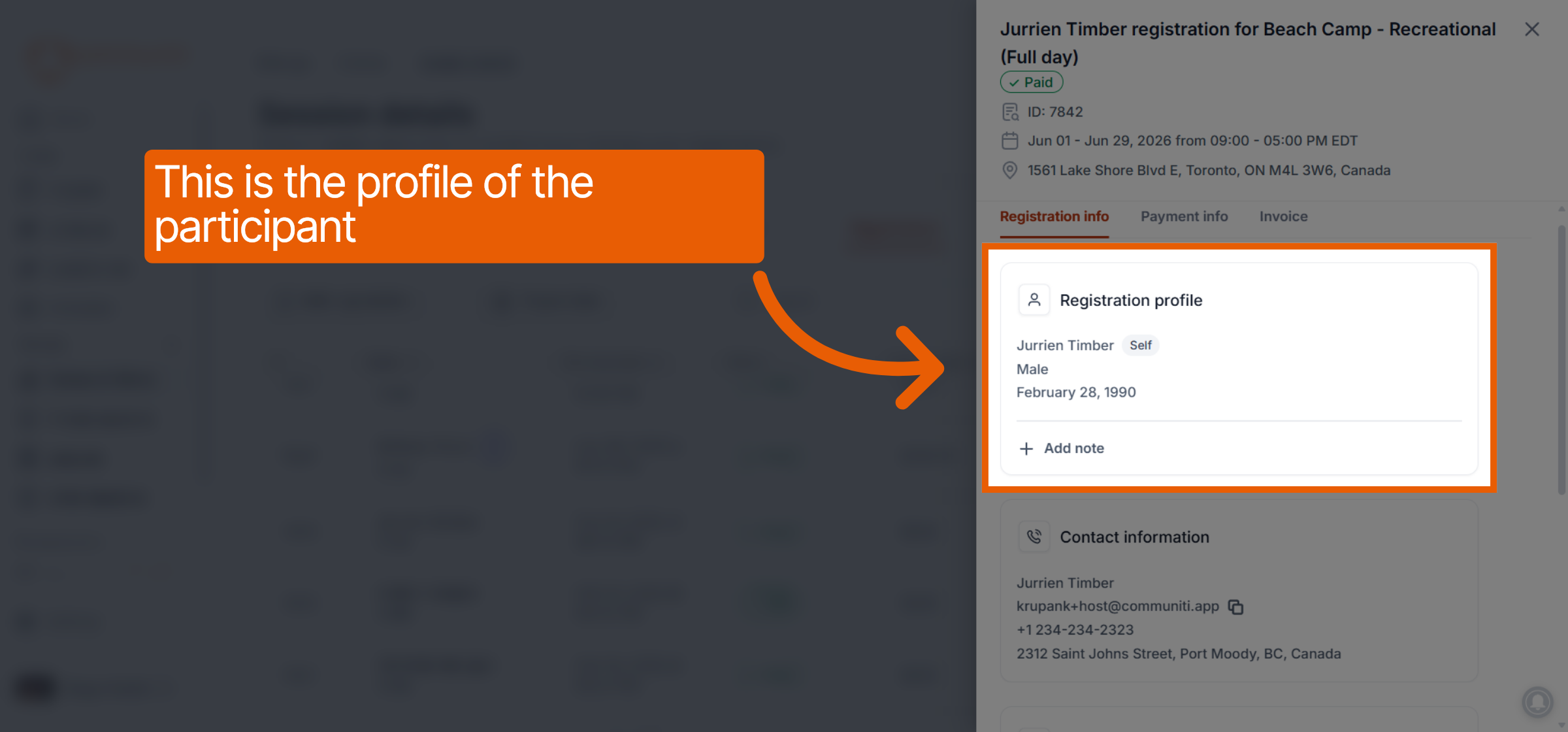
The first section provides a snapshot of the attendee and how to reach the person who registered them.
Registration Profile: View the participant's basic details such as name, gender, and date of birth.
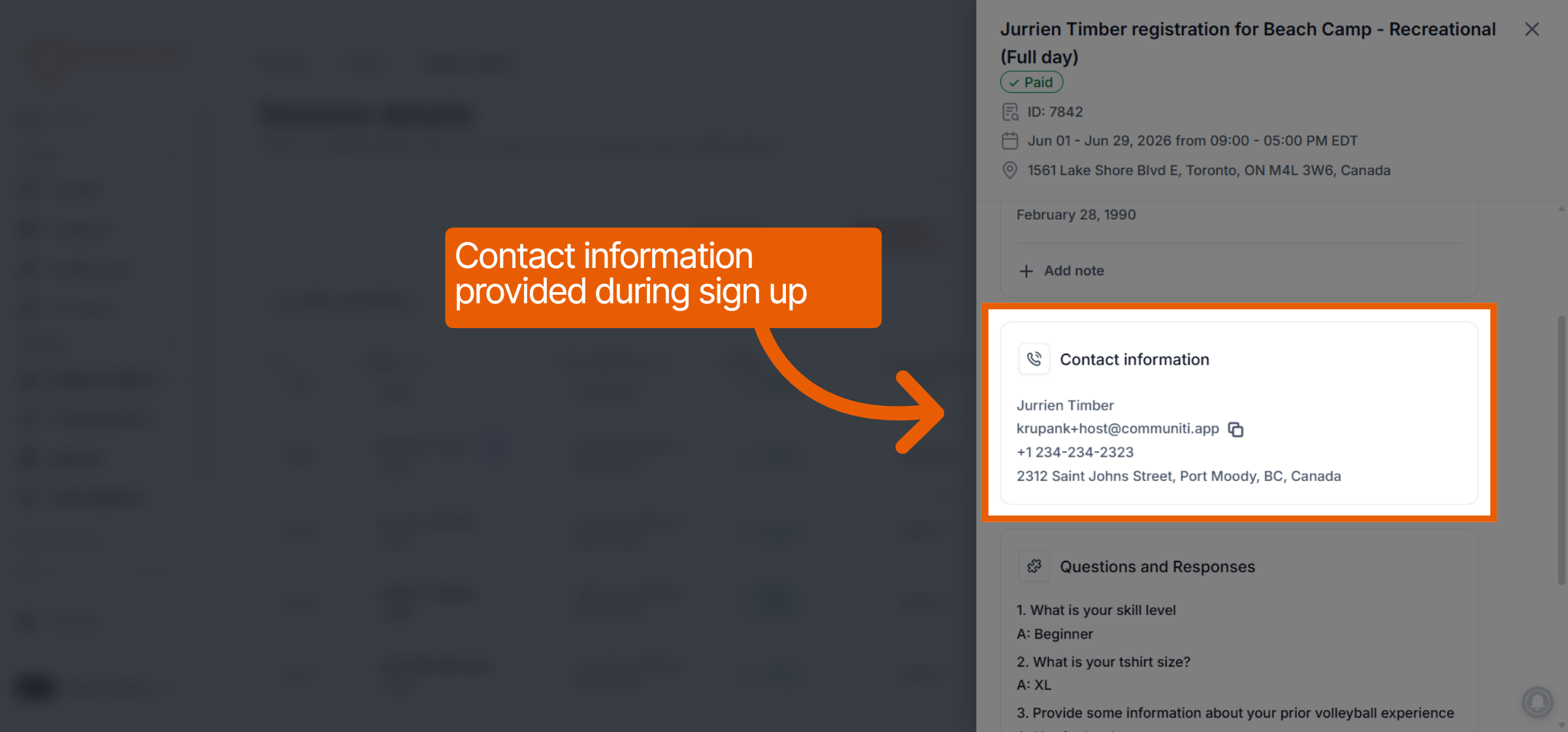
Contact Information: Access the email address, phone number, and physical address provided during the sign-up process.
3. Form Responses & Legal Waivers
If you linked a Question Set or Clauses to your session, you can audit those specific responses here.
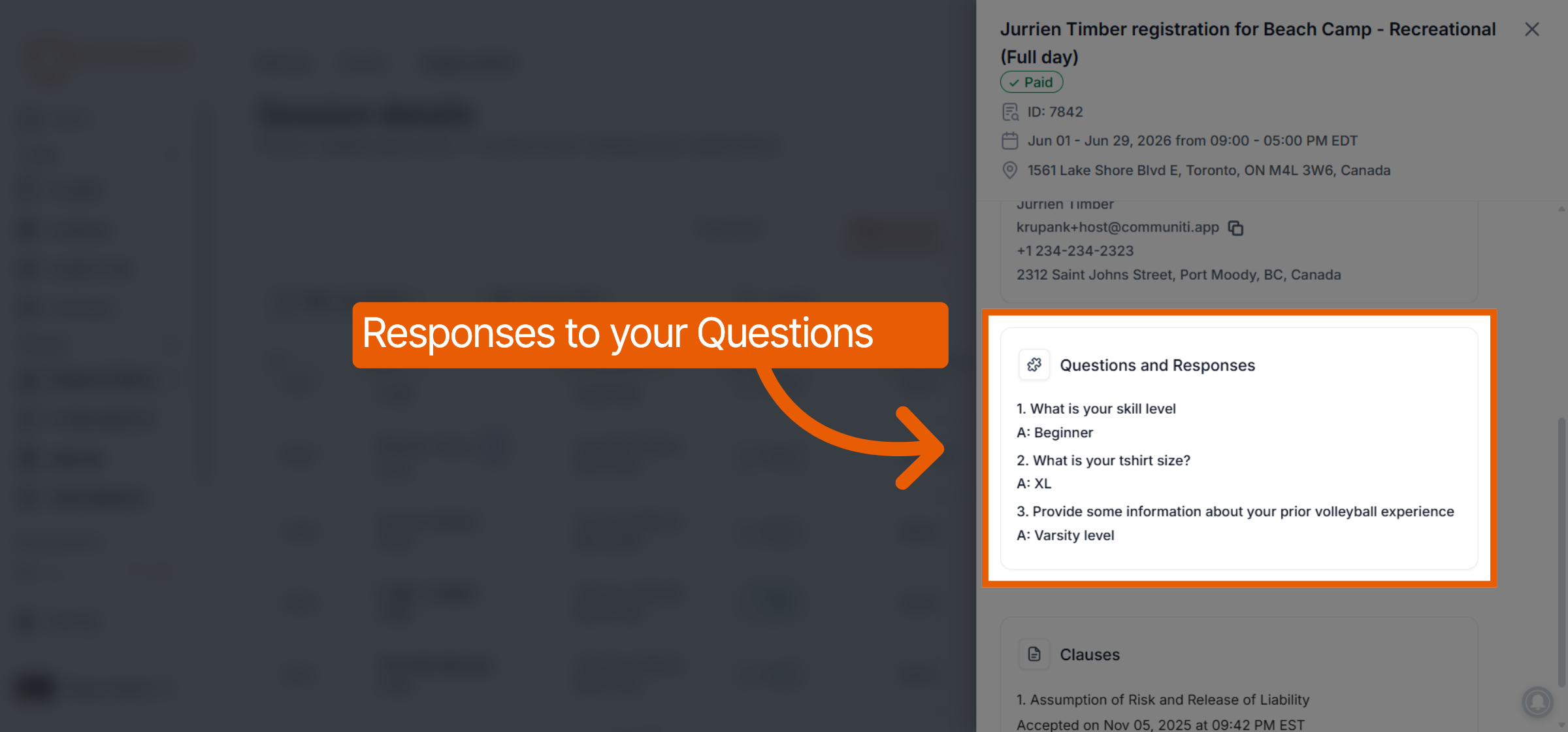
Questions and Responses: Review the answers to your custom registration questions, such as skill levels, jersey sizes, or emergency info.
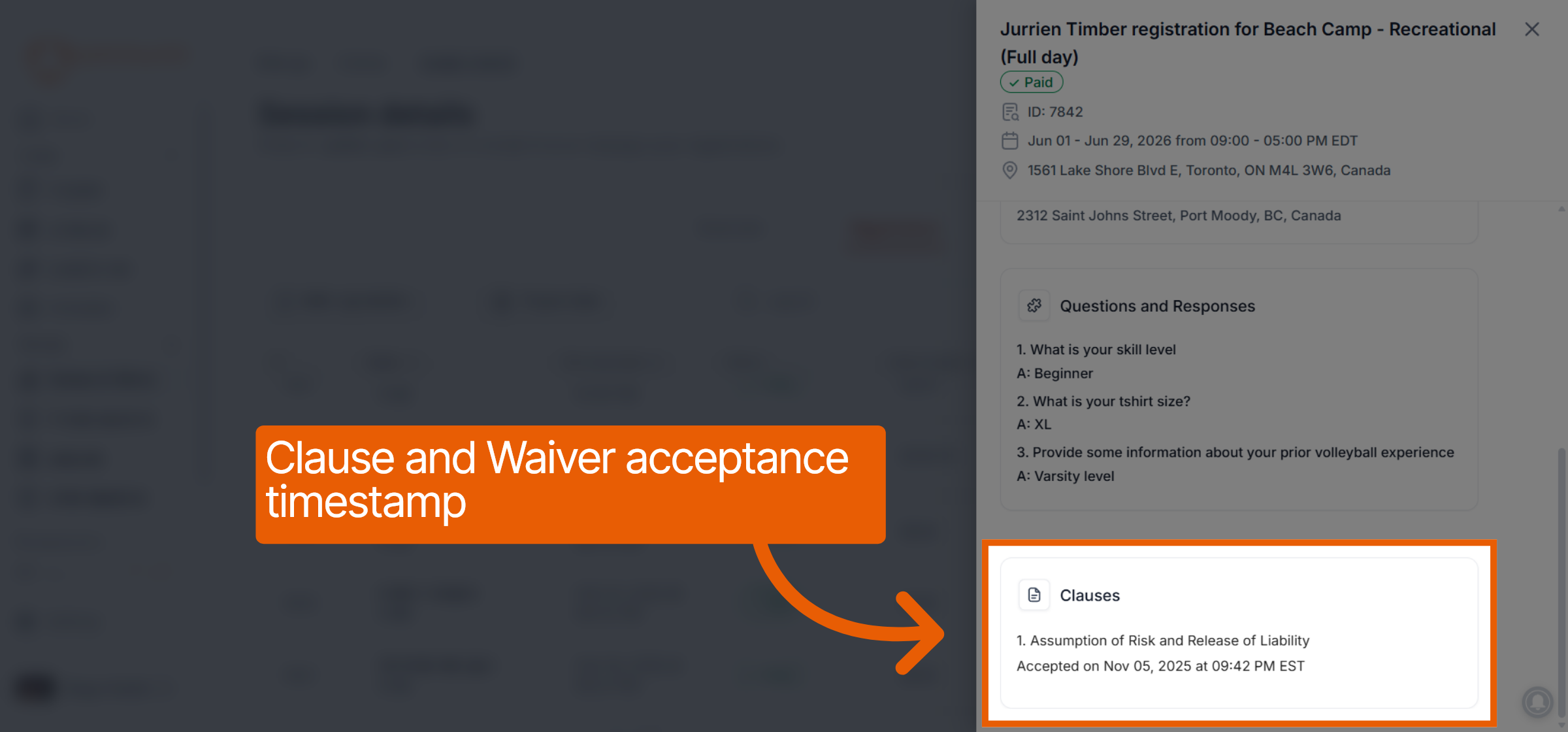
Clauses: Verify exactly which legal waivers were accepted, including a precise timestamp of when they were agreed to.
4. Financial & Payment Information
For a full audit of the transaction, navigate to the financial tabs.
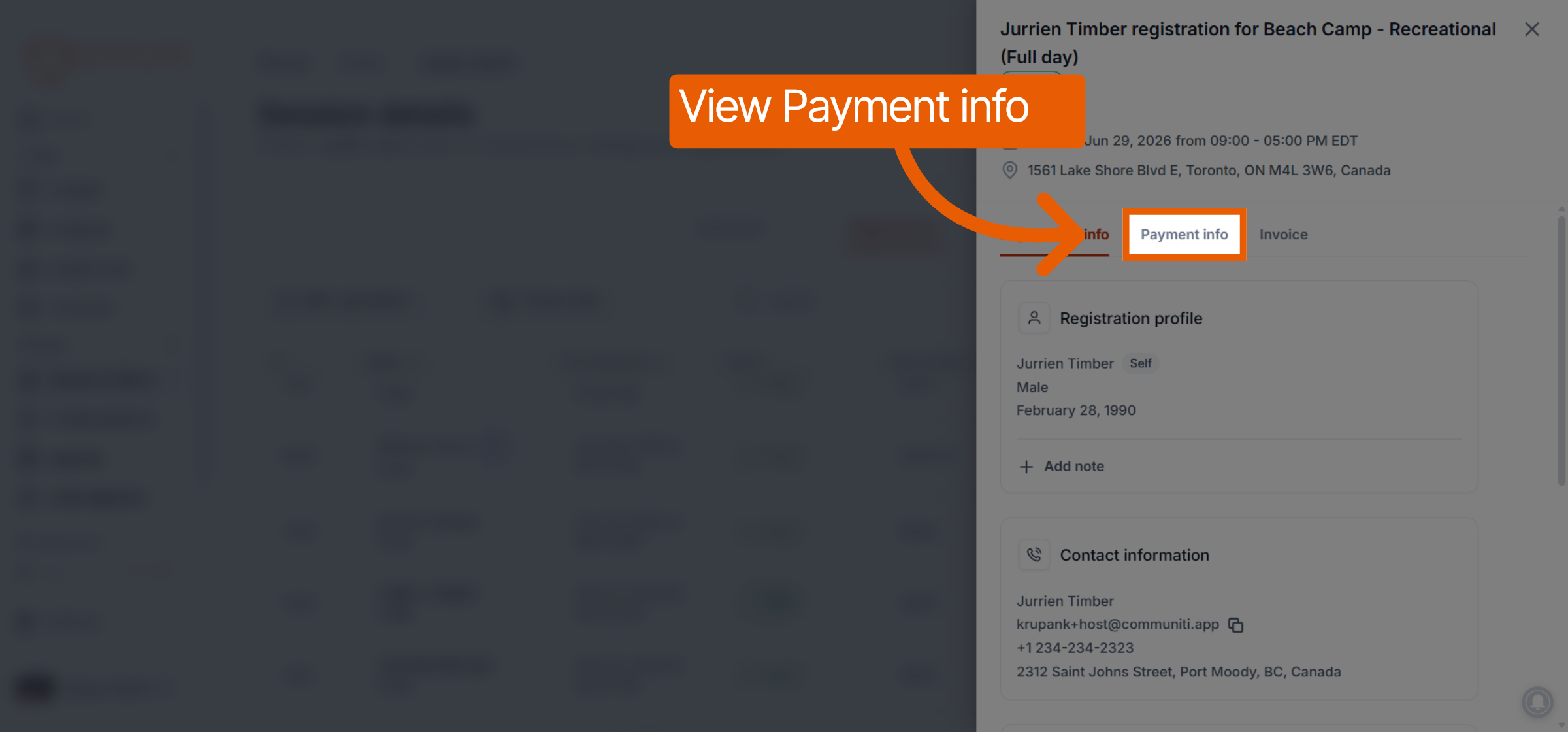
Click on the Payment info tab at the top of the registration window.
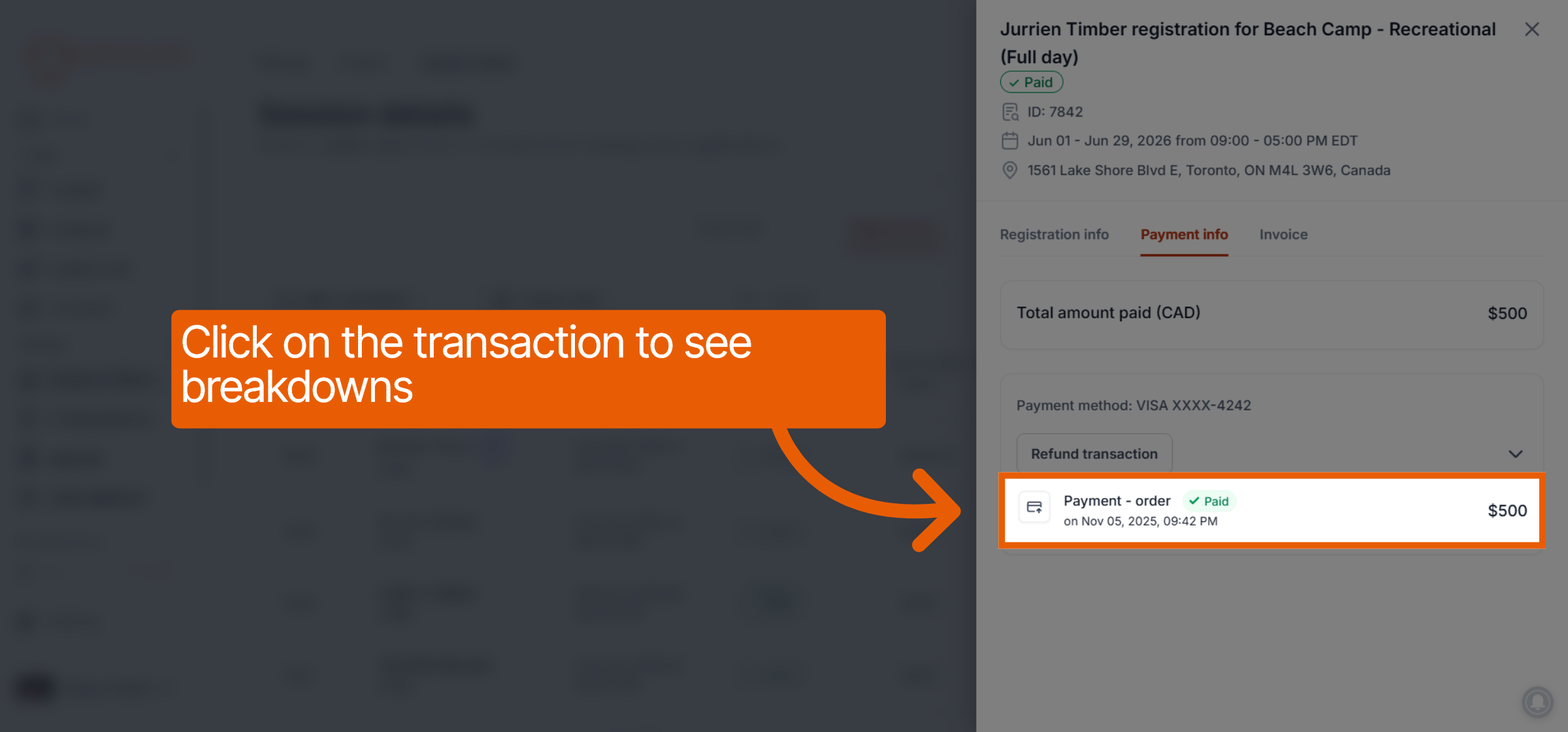
Transaction Breakdown: Click on a specific transaction to view a detailed breakdown of the total amount paid and the payment method used (e.g., VISA).
Was this helpful?
Still need help? Ask the team