How to View a User's Payment Schedule and History
For participants on a payment plan, you can monitor their upcoming installments and review all successful transactions directly from their registration profile.
Written By communiti
Last updated 4 days ago
1. Navigate to the Session Dashboard
Access the specific session where the participant is registered.
Select the Manage menu in the left sidebar and choose your program category (e.g., Camps & Clinics).
Click on the specific session from your list.
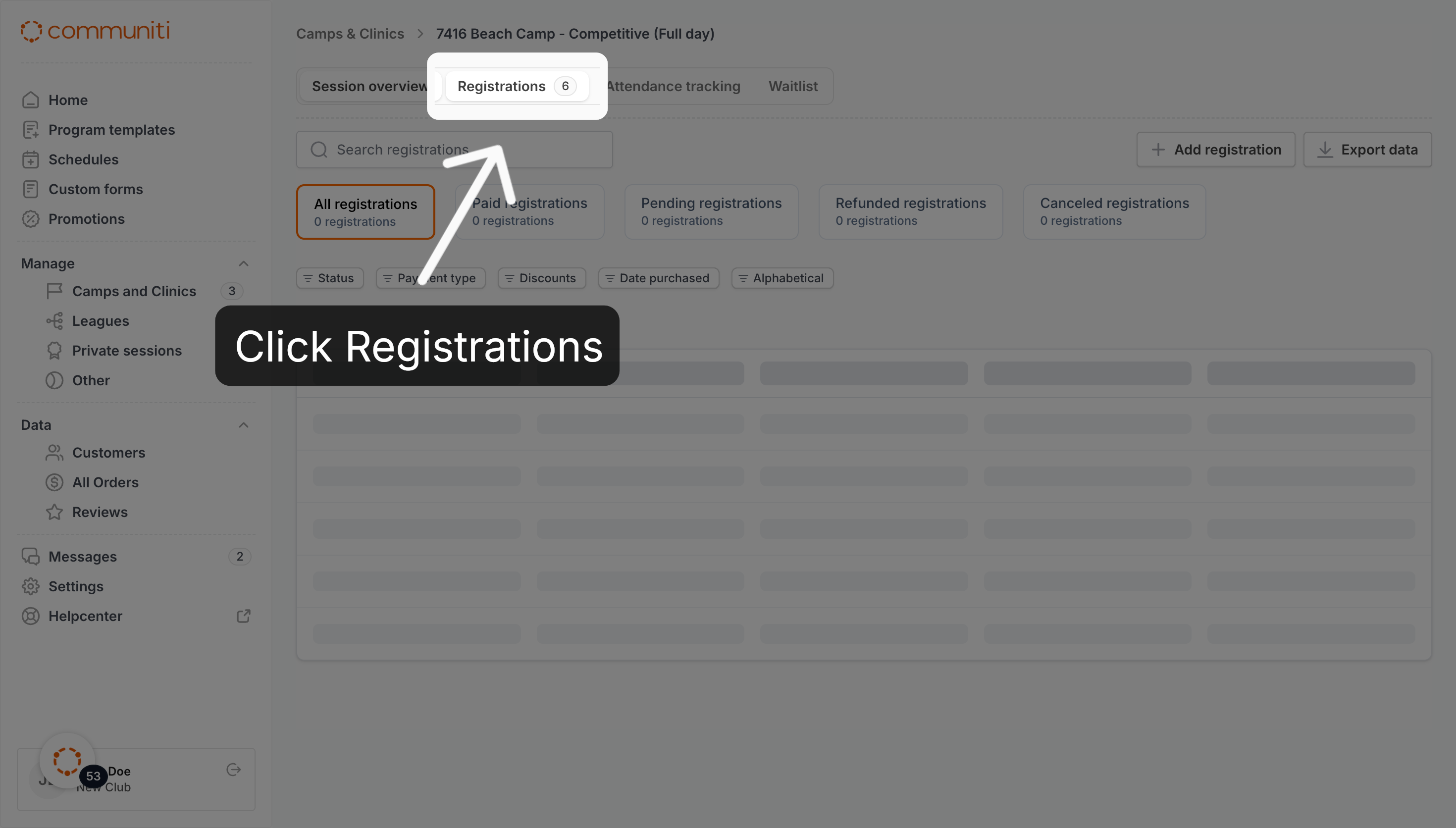
Click the Registrations tab at the top of the session dashboard.
2. Open the Participant's Payment Info
Locate the user in your registration list (marked with a blue PP tag) to view their financial details.
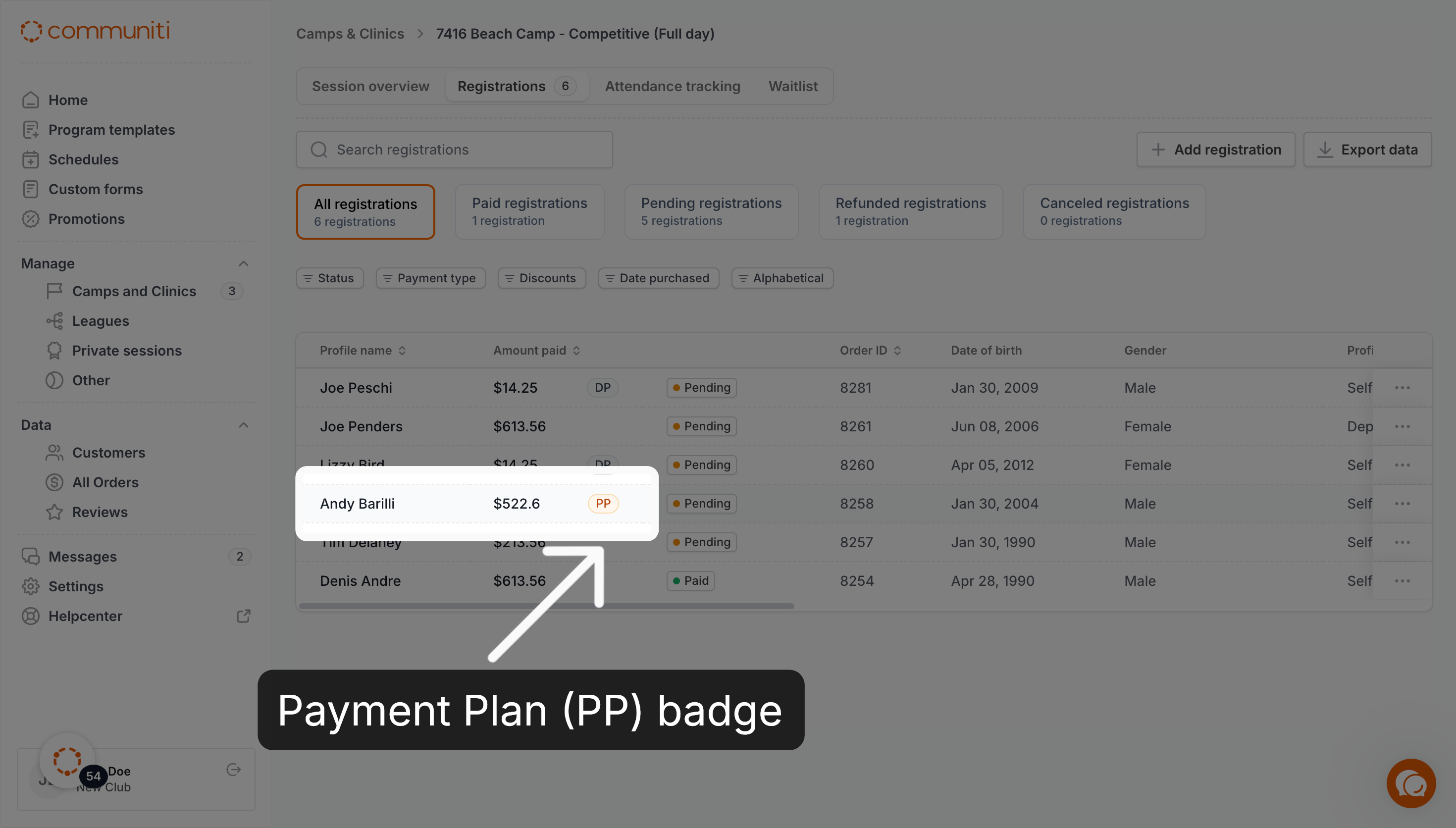
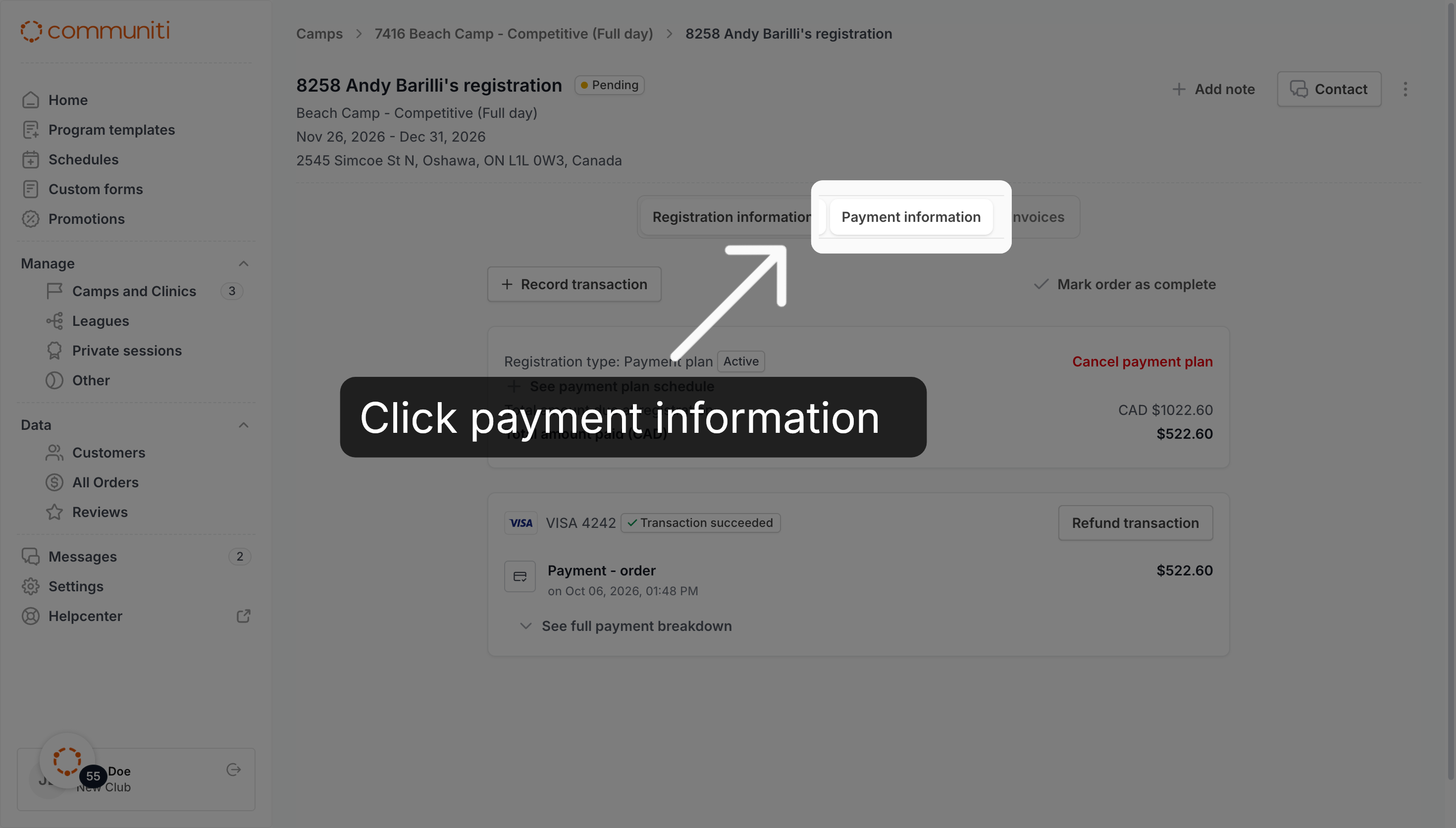
In the side panel that appears, click the Payment info tab.
3. Review the Payment Schedule
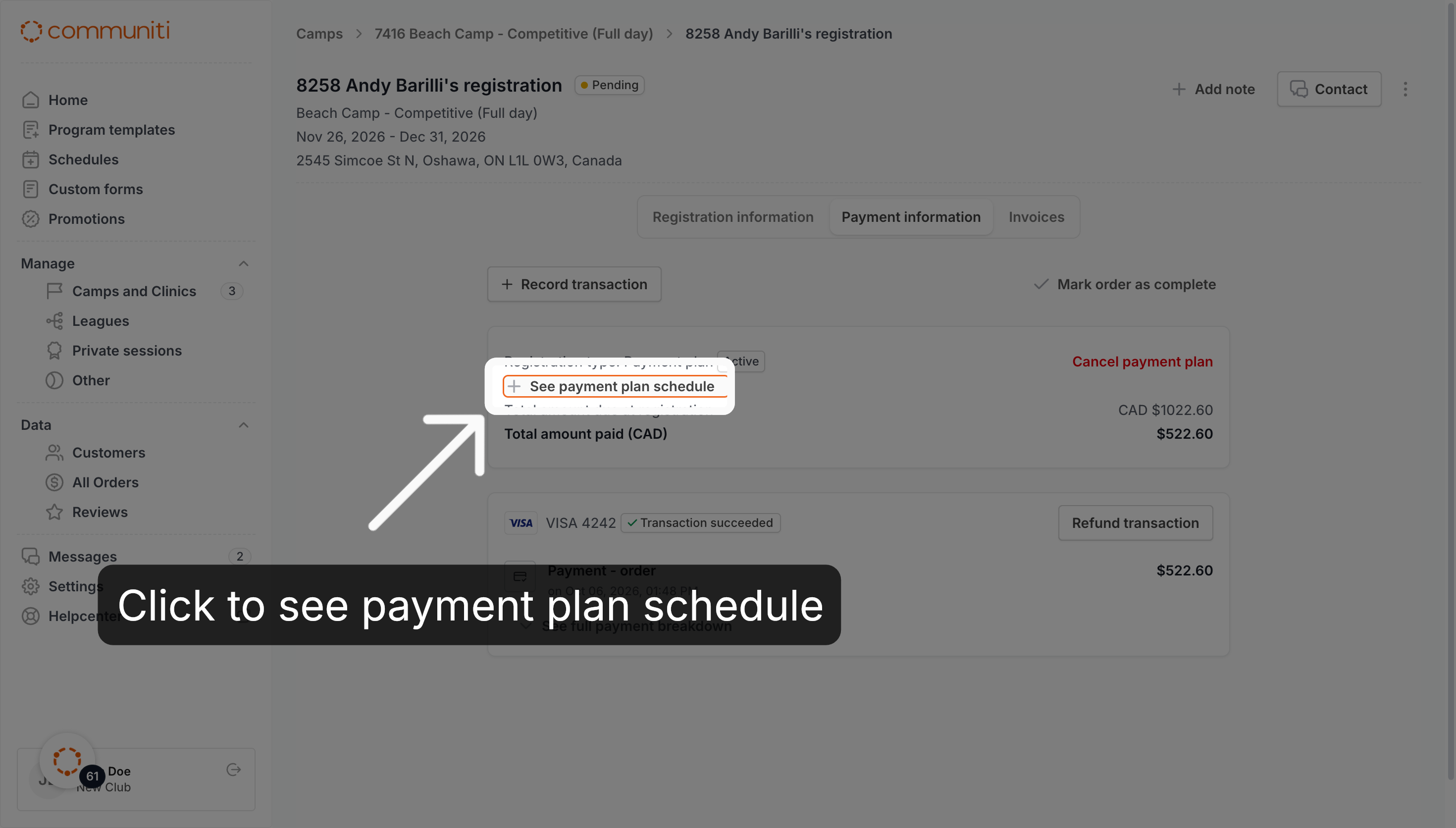
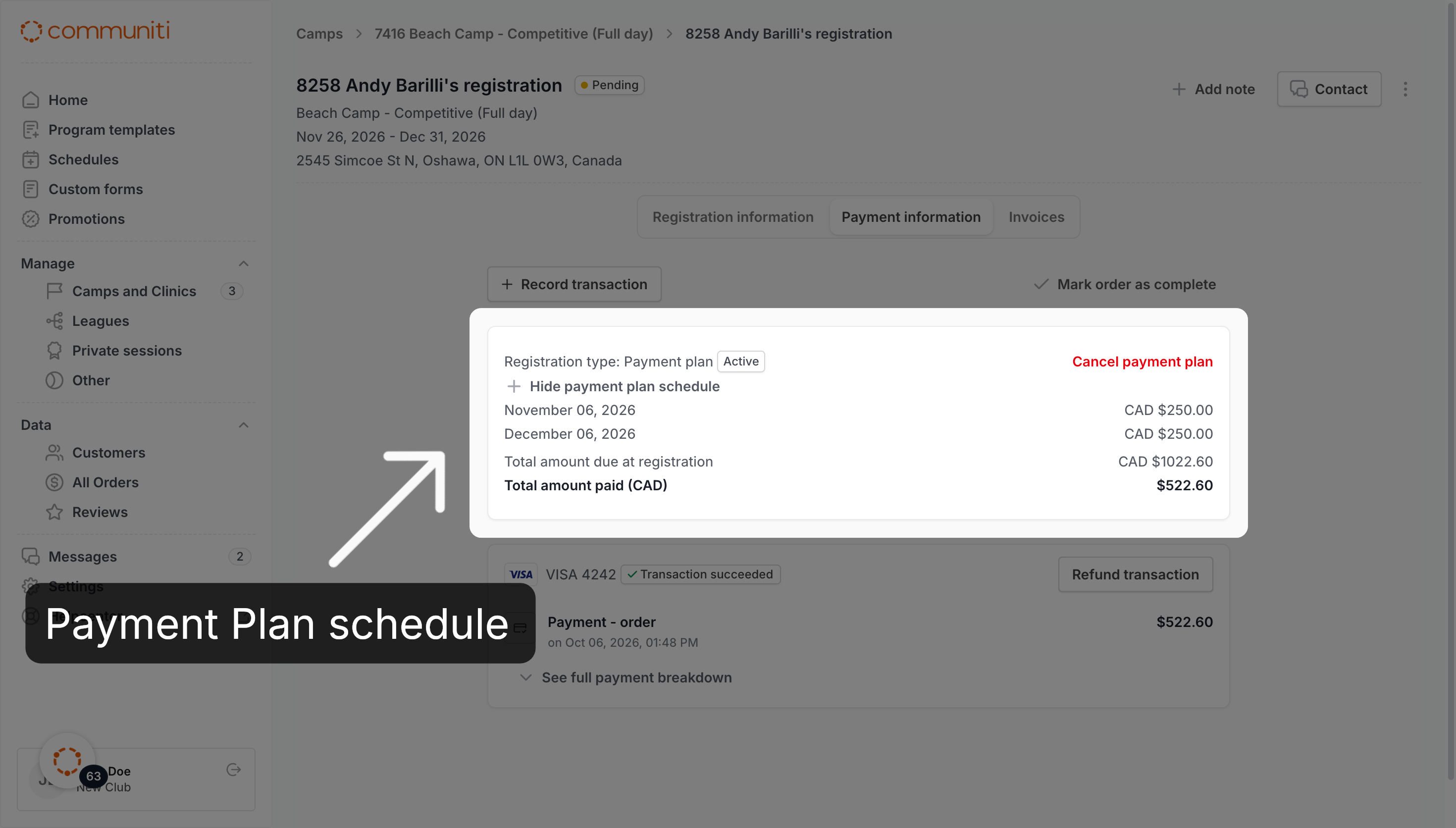
The schedule shows the exact dates and amounts for every installment in the user's plan.
Click the Information (i) icon next to the installment description to open the schedule overlay.
This view displays the Payment schedule - Monthly (or Weekly), listing the specific due date and CAD amount for each upcoming installment.
4. Monitor Transaction History
You can verify which payments have already been processed successfully.
Scroll down within the Payment info tab to the transaction list.
Successful transactions appear here, labeled with their status (e.g., Paid), the date of the transaction, and the specific amount.
This includes both the initial registration deposit and subsequent instalments
Was this helpful?
Still need help? Ask the team