How to Export Registration Data for a specific Session
You can export your registration lists to CSV files for external record-keeping
Written By communiti
Last updated 10 months ago
1. Navigate to the Session Registrations
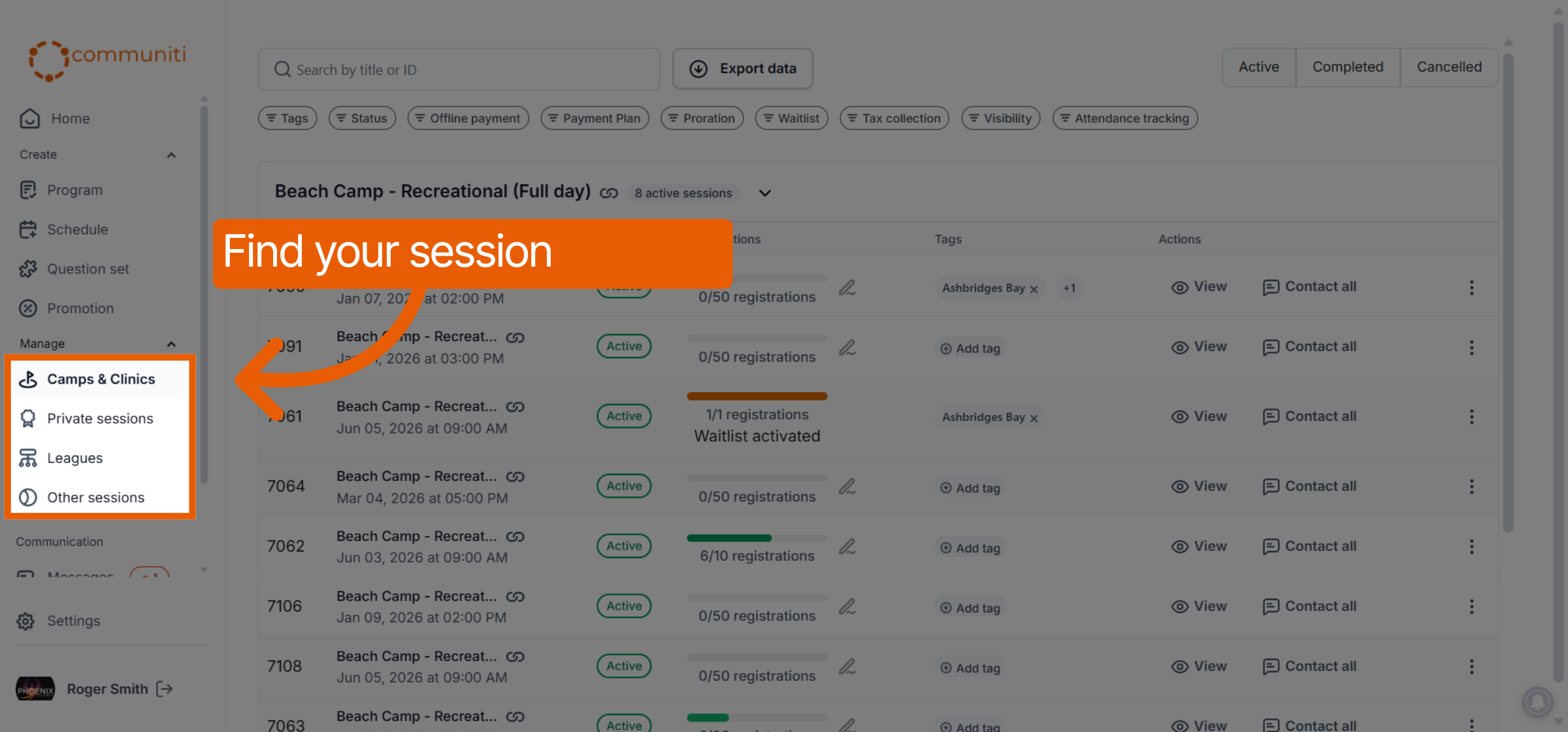
Select the Manage menu in the left sidebar and choose your program category (e.g., Camps & Clinics).
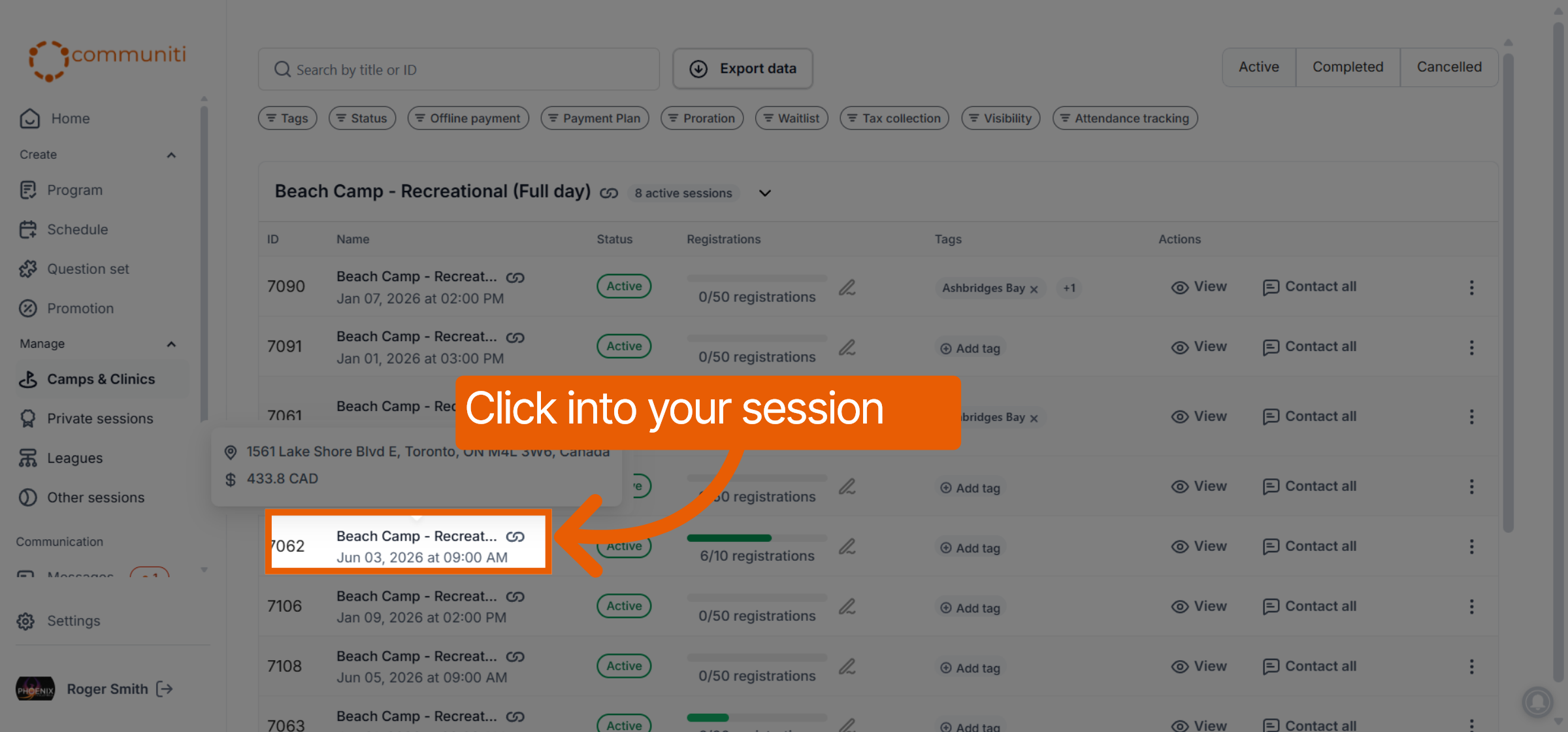
Click on the specific session you want to export data from.
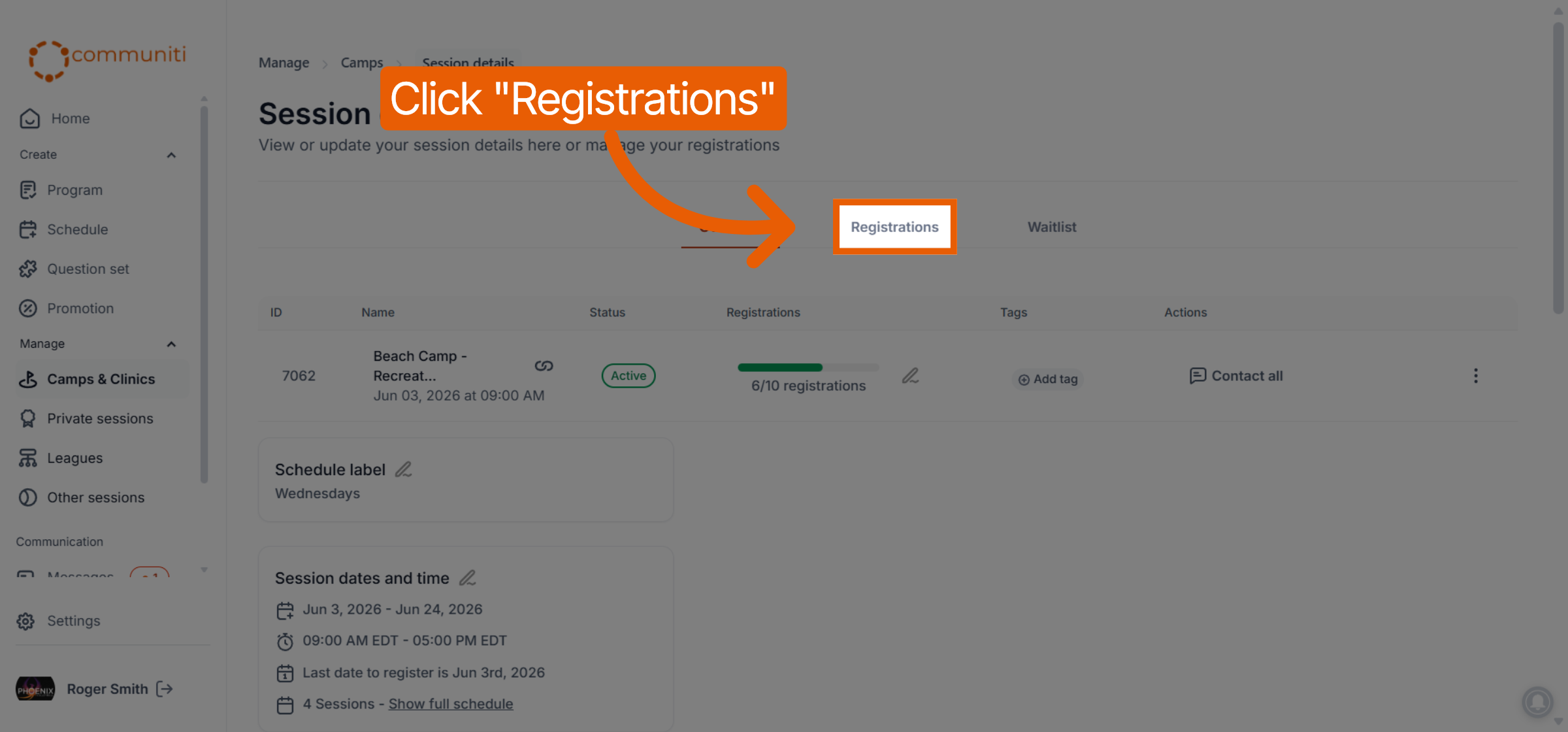
Select the Registrations tab at the top of the session dashboard.
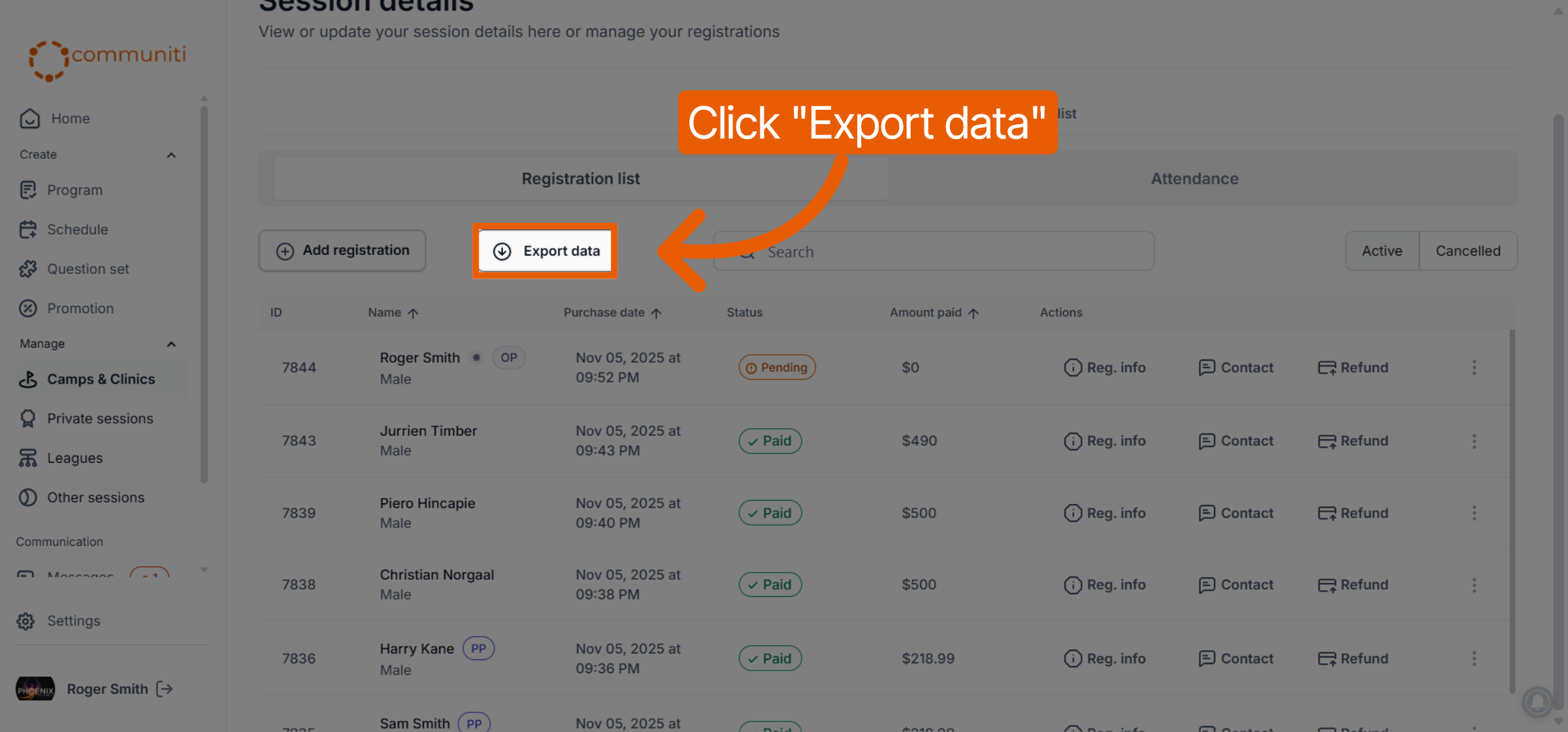
Click the Export data button located above the participant list.
2. Select Your Export Criteria
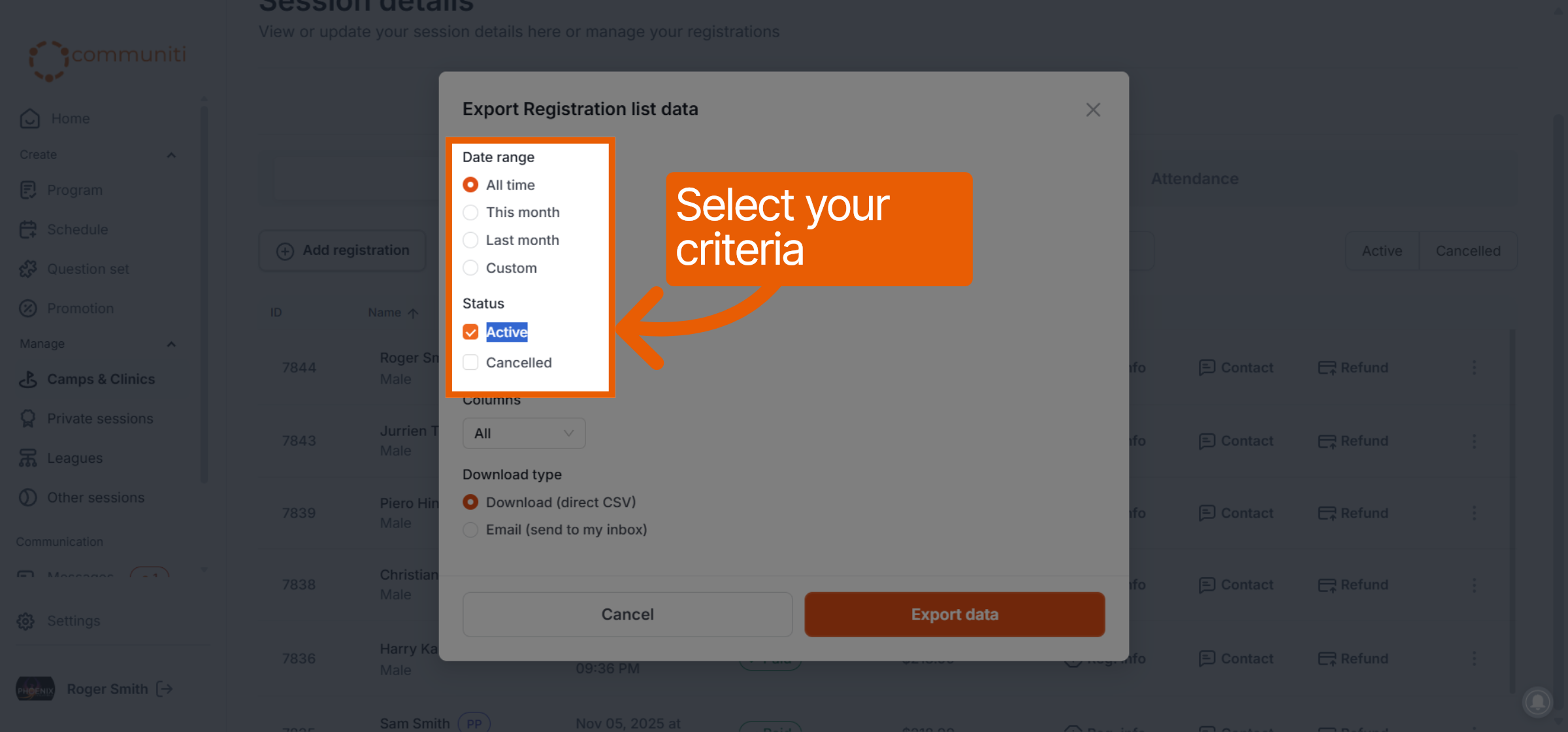
A pop-up window will appear allowing you to filter the data you want to include in your file.
Date Range: Choose to export all data, or limit it to this month, last month, or a custom range.
Status: Select whether you want to include Active registrations, Cancelled ones, or both.
3. Choose Your Columns
Use the Columns dropdown to select All data points or a Custom selection.
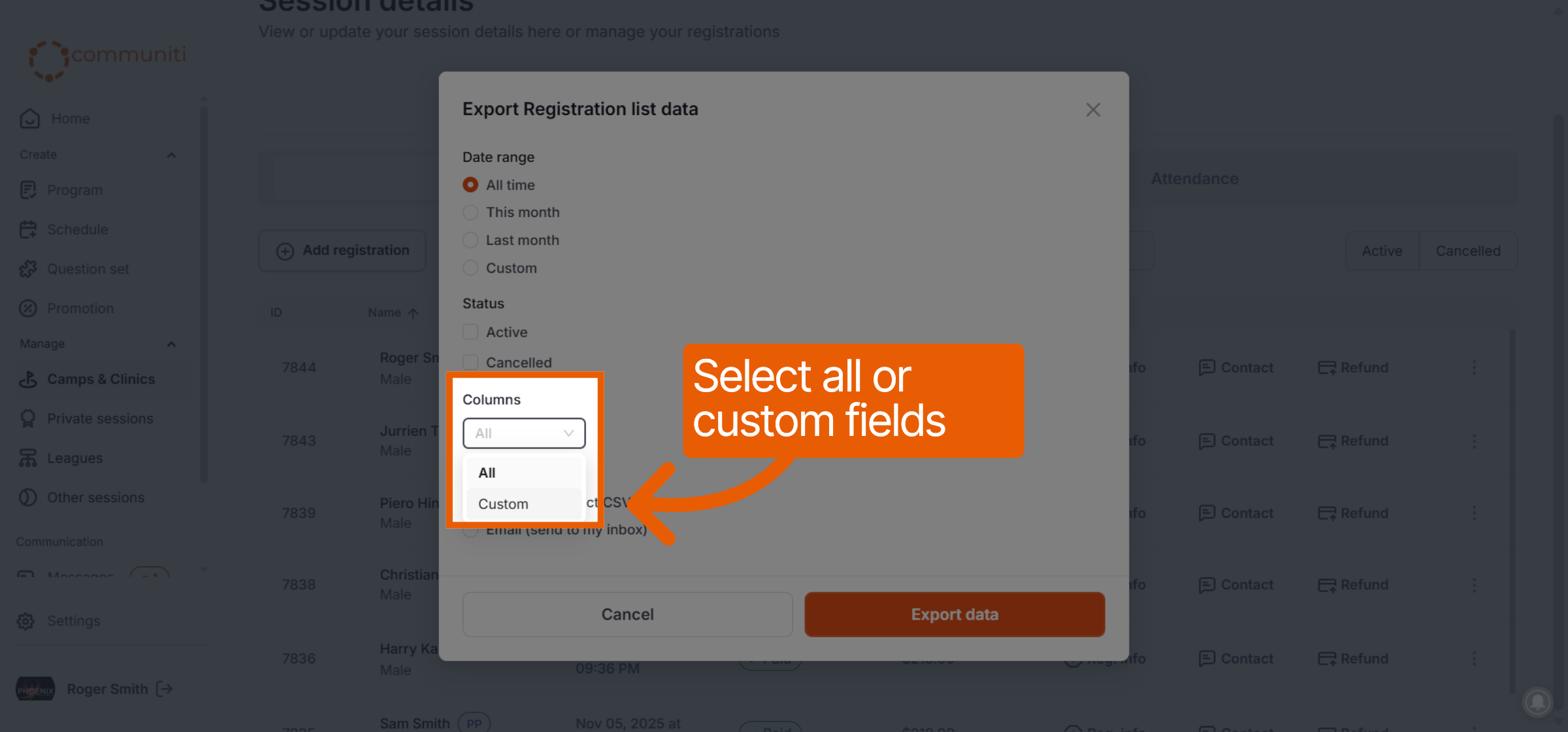
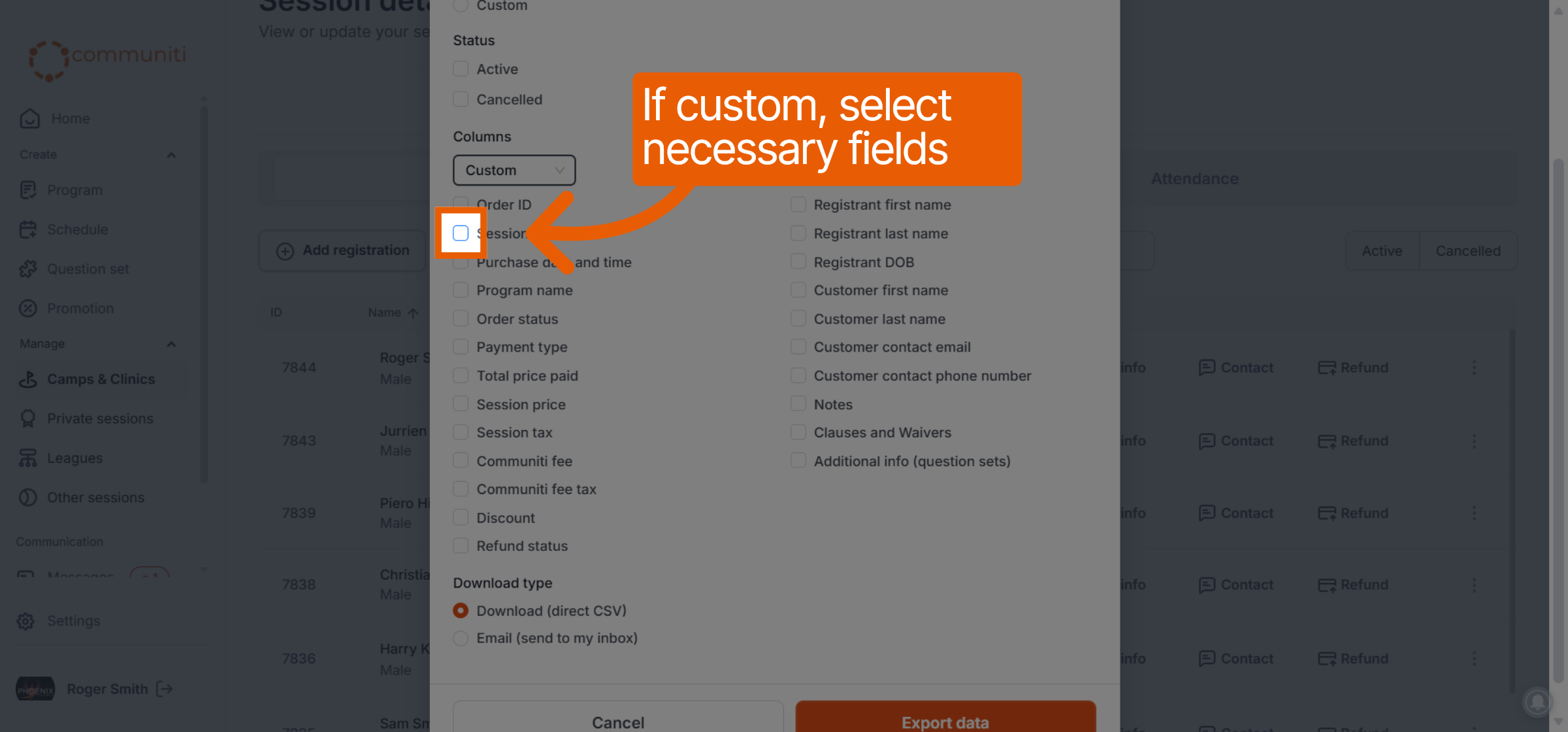
If you select Custom, check the boxes for the specific fields you need, such as Session ID, Customer first name, or Customer contact email.
4. Finalize the Export
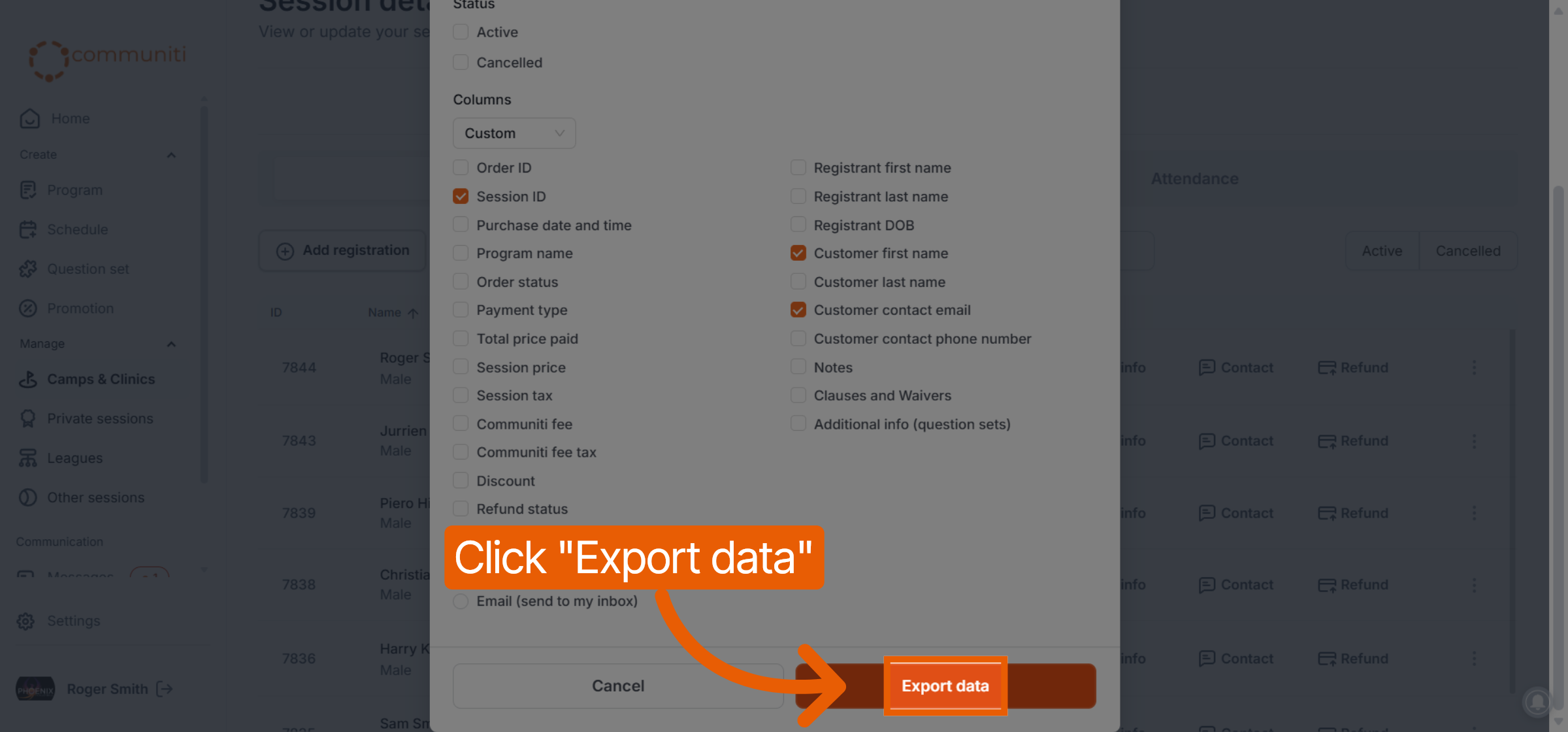
Download Type: Choose to download the CSV file directly to your computer or have it sent to your registered email address.
Click the orange Export data button to generate your file.
Was this helpful?
Still need help? Ask the team