How to Create a Private Session Template
Create the template for your private lessons, with how many participants you allow and a price for each package.
Written By communiti
Last updated About 3 hours ago
A private session template holds what stays the same every time you offer the lessons: the name, description, photos, address, maximum participants and prices. You make it bookable afterwards by scheduling it.
1. Start a New Template
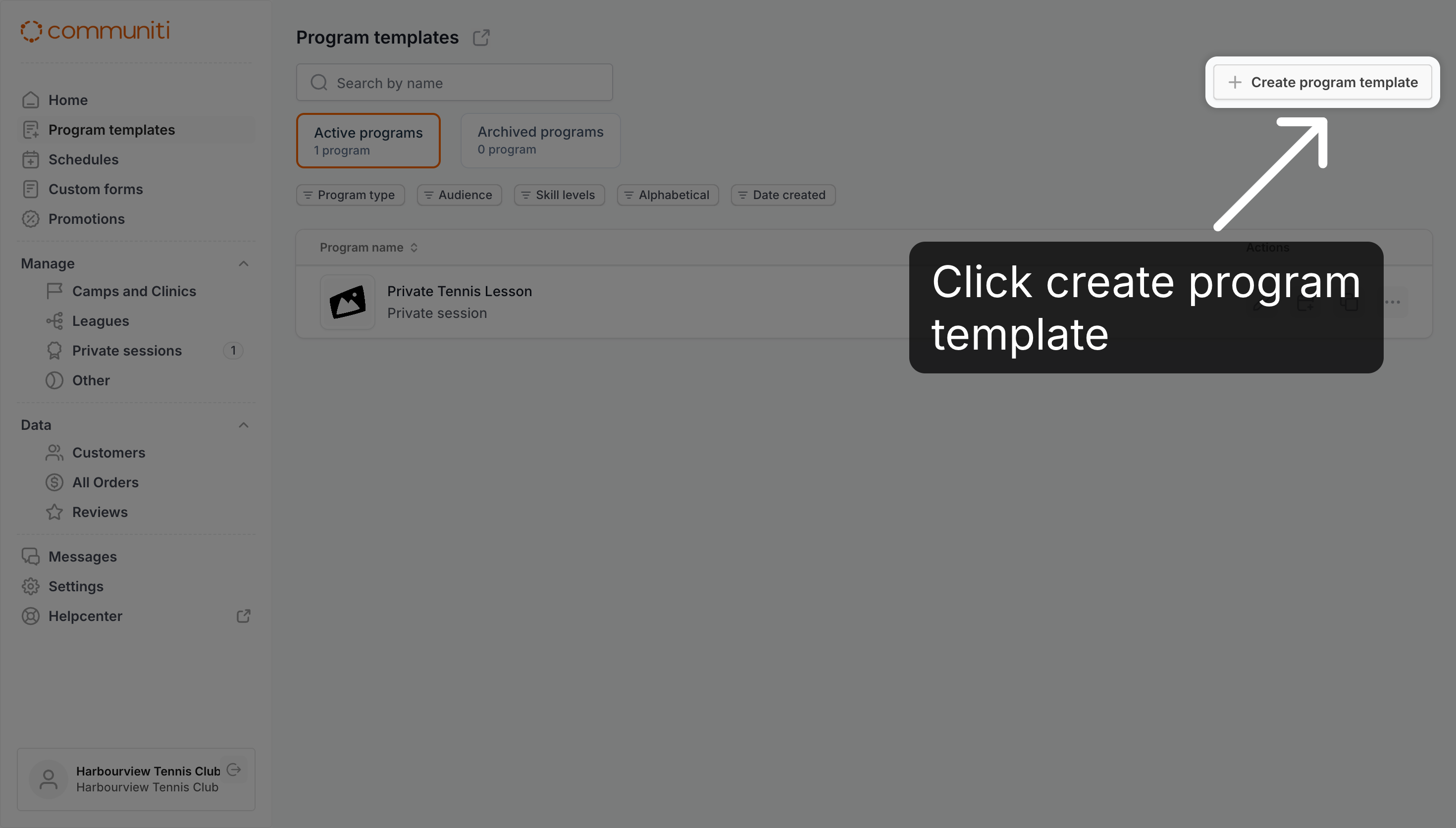
Begin from the Program templates page in the left menu.
Click Program templates, then click Create program template.
2. Choose the Private Session Type
Fill in the Program info section.
Program type: Select Private session. You can't change the type later.
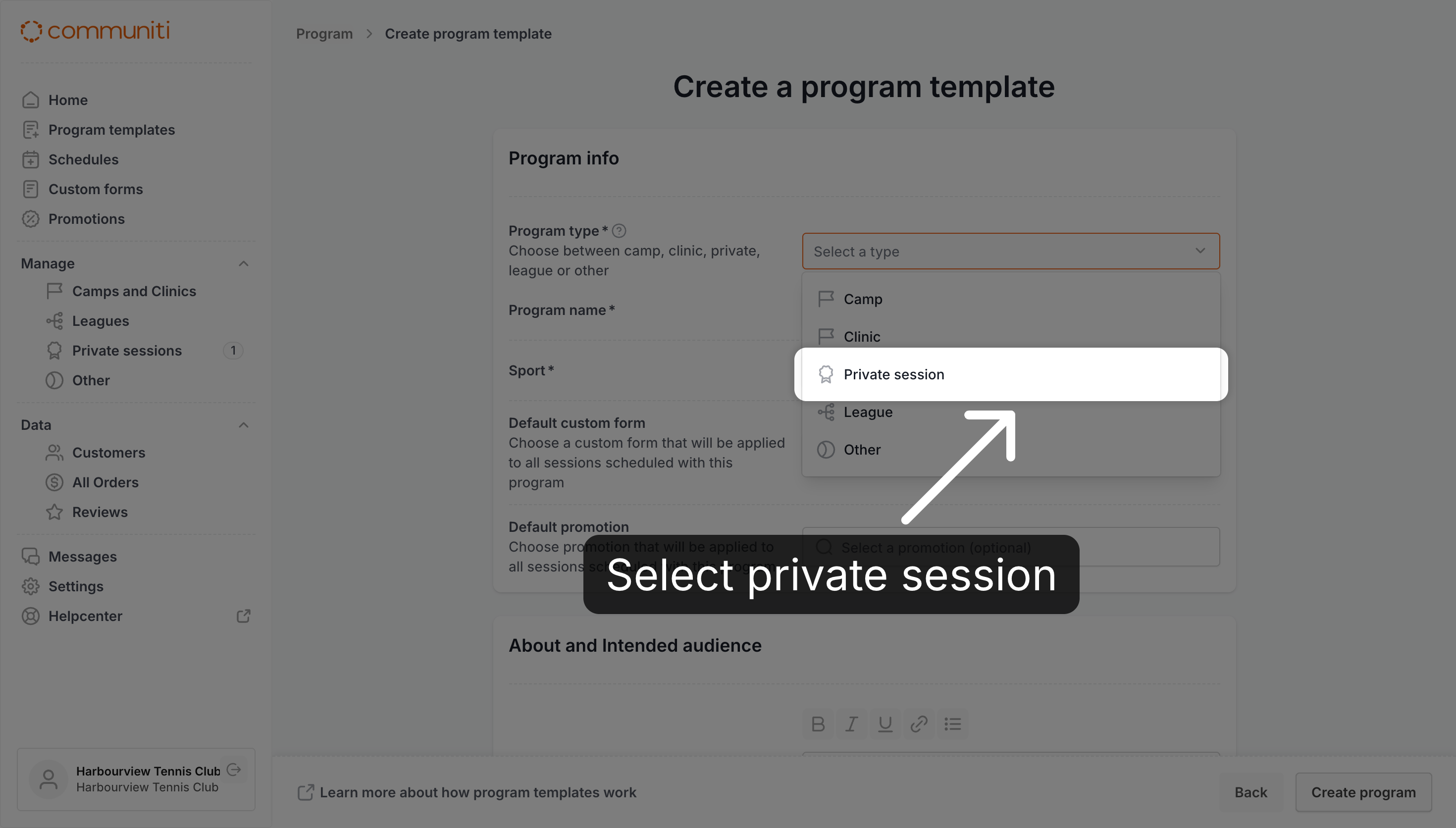
Program name and Sport: Enter the name customers see and choose your sport.
Fill in the description, who it's for and the address, as for any program template.
3. Set Participants and Prices
Under Price and maximum registrations, set who can book and what they pay.
Maximum participants: Select up to 5 participants per lesson.
Collect local taxes: Turn on Collect taxes if you want us to collect applicable taxes for you.
Set individual and package prices: Enter a price in each row of the 1 session column.
Click Add a package, enter the number of sessions (for example 5) and a price for each row.
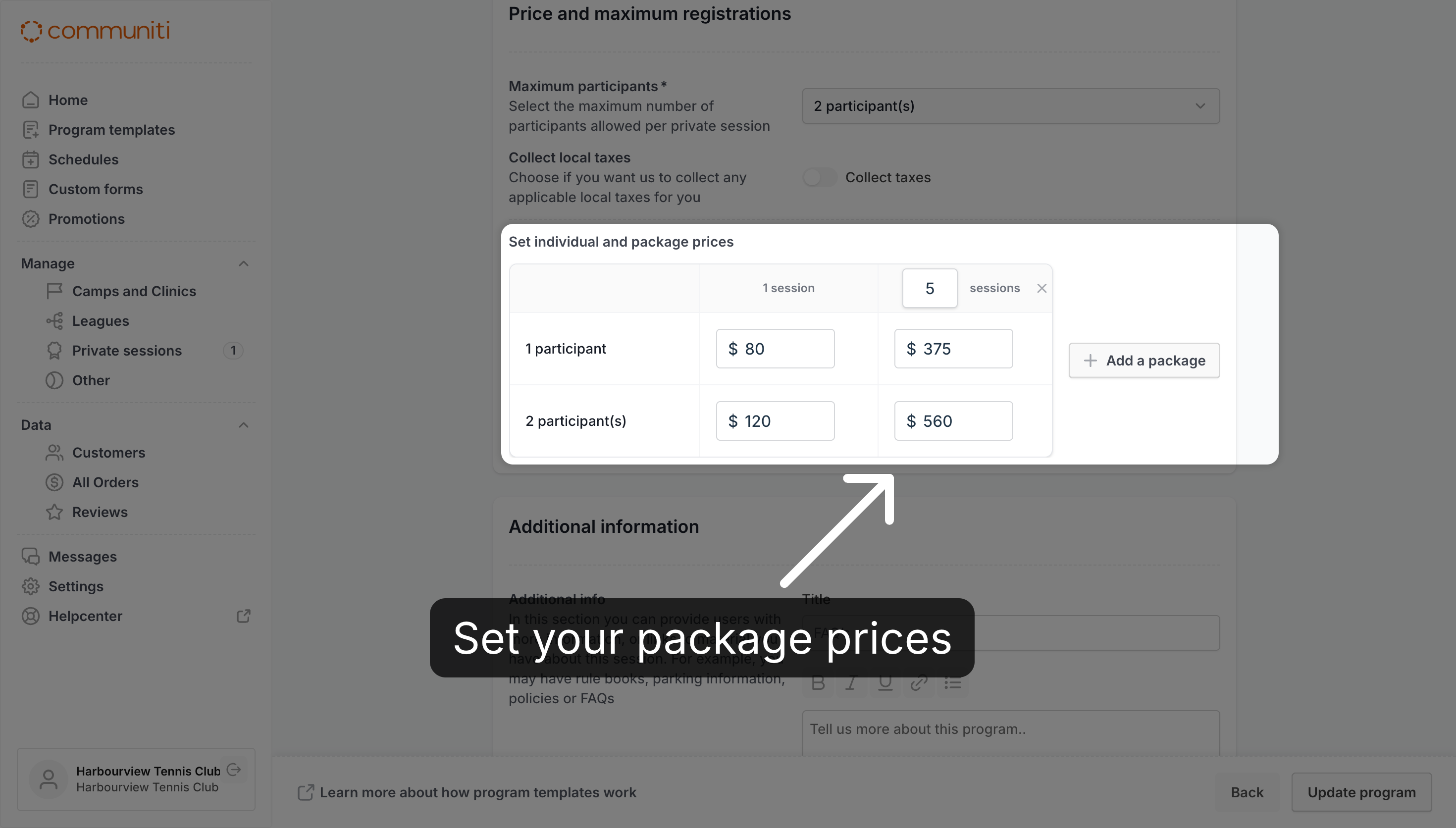
Note: Each price is the total for the whole package. For example, $375 in the 5 sessions column for 1 participant means the customer pays $375 for all five lessons, plus a platform fee and any tax added on top at checkout.
4. Save the Template
Add at least one photo, then save.
Scroll to Photos and upload at least one image.
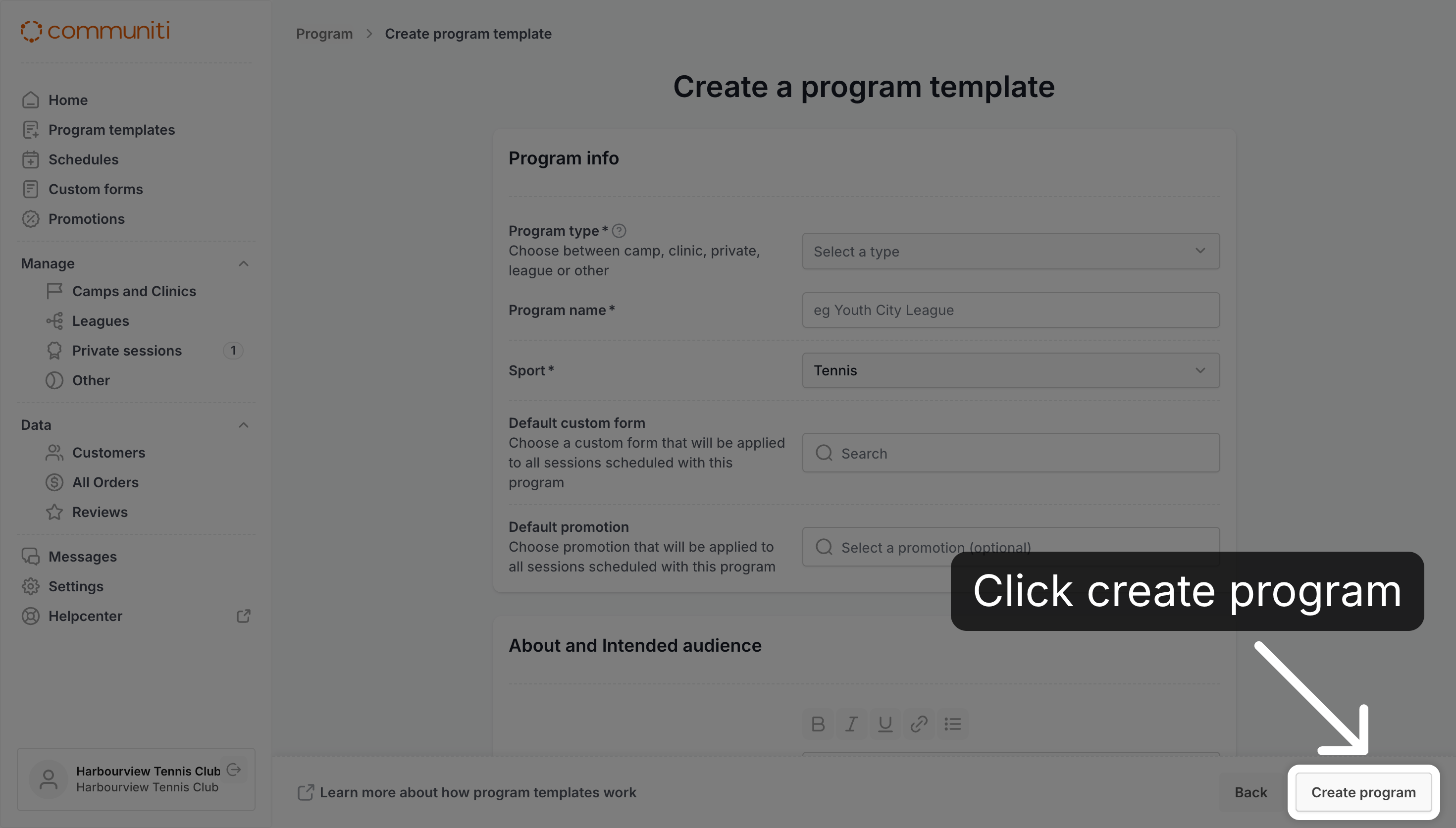
Click Create program at the bottom of the page.
What happens next?
Your template is listed on Program templates as a Private session. It isn't bookable yet: schedule it to add your calendar, dates and hours.
Related articles: Understanding Private Sessions · How to Schedule a Private Session · Creating a Program
Was this helpful?
Still need help? Ask the team