Understanding Private Sessions
Private sessions let customers book one-on-one or small-group lessons at times that are free in your Google calendar, sold as single lessons or lesson packs.
Written By communiti
Last updated About 3 hours ago
What Is a Private Session?
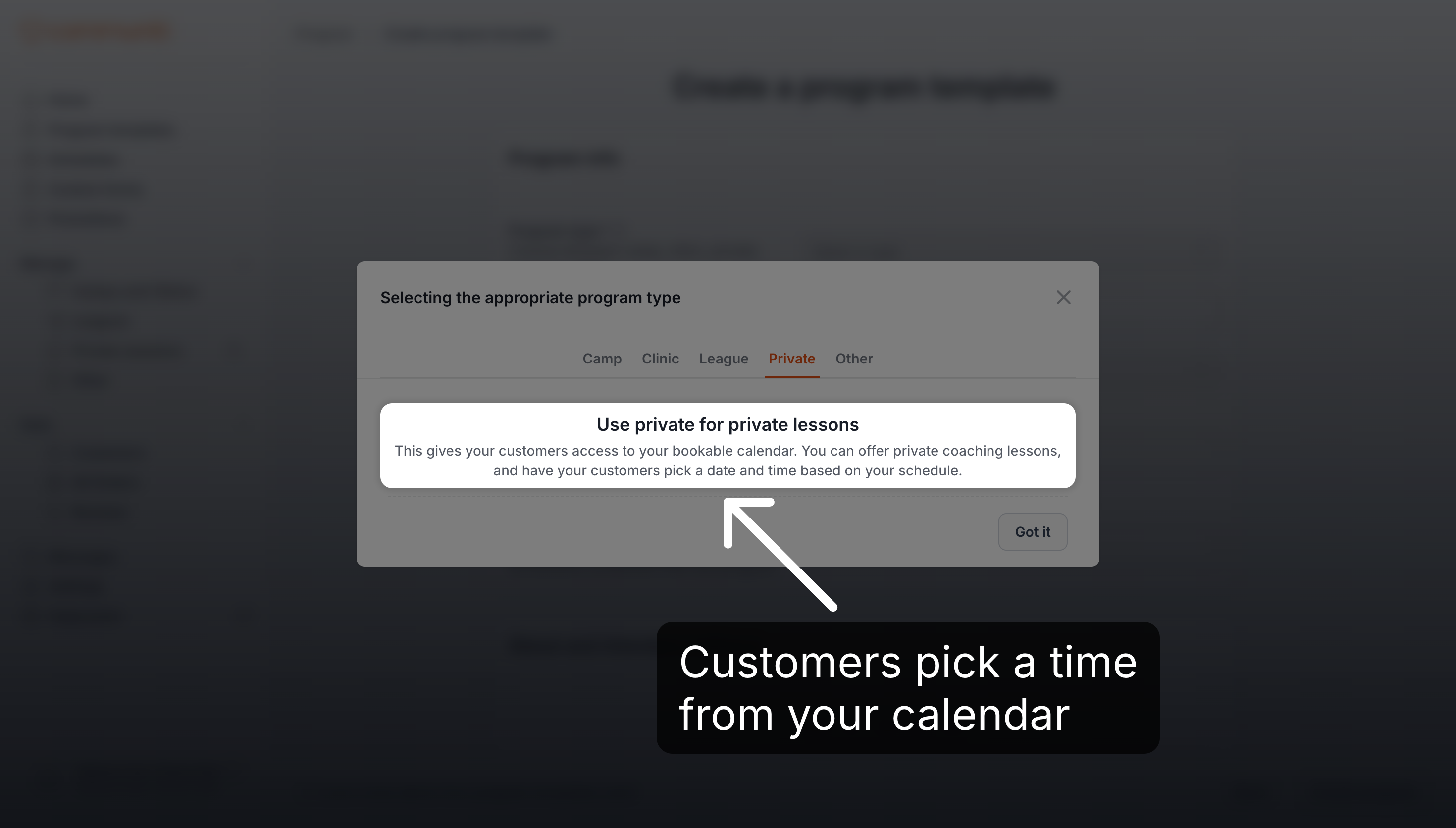
A private session is a program type for lessons booked one time slot at a time, at a time your customer picks.
Customers book times that are free in one connected Google calendar, and each booking is added to that calendar.
A lesson lasts 30, 60, 90 or 120 minutes, for 1 to 5 participants.
You sell lessons as packages: a single lesson or a lesson pack (for example 5 lessons). Each price is the total for the whole package and number of participants. A platform fee, and tax if you collect taxes, is added on top, so customers pay a little more than the price you enter.
Customers see your private sessions as Private lesson on your club page.
How It Works
Setting up a private session takes three steps, each covered in its own article.
Connect your calendar: connect your Google account in Settings → Connected accounts.
Create a template: create a program template of type Private session with your prices.
Schedule it: add your calendar, dates and weekly hours on Schedules. It's bookable straight away.
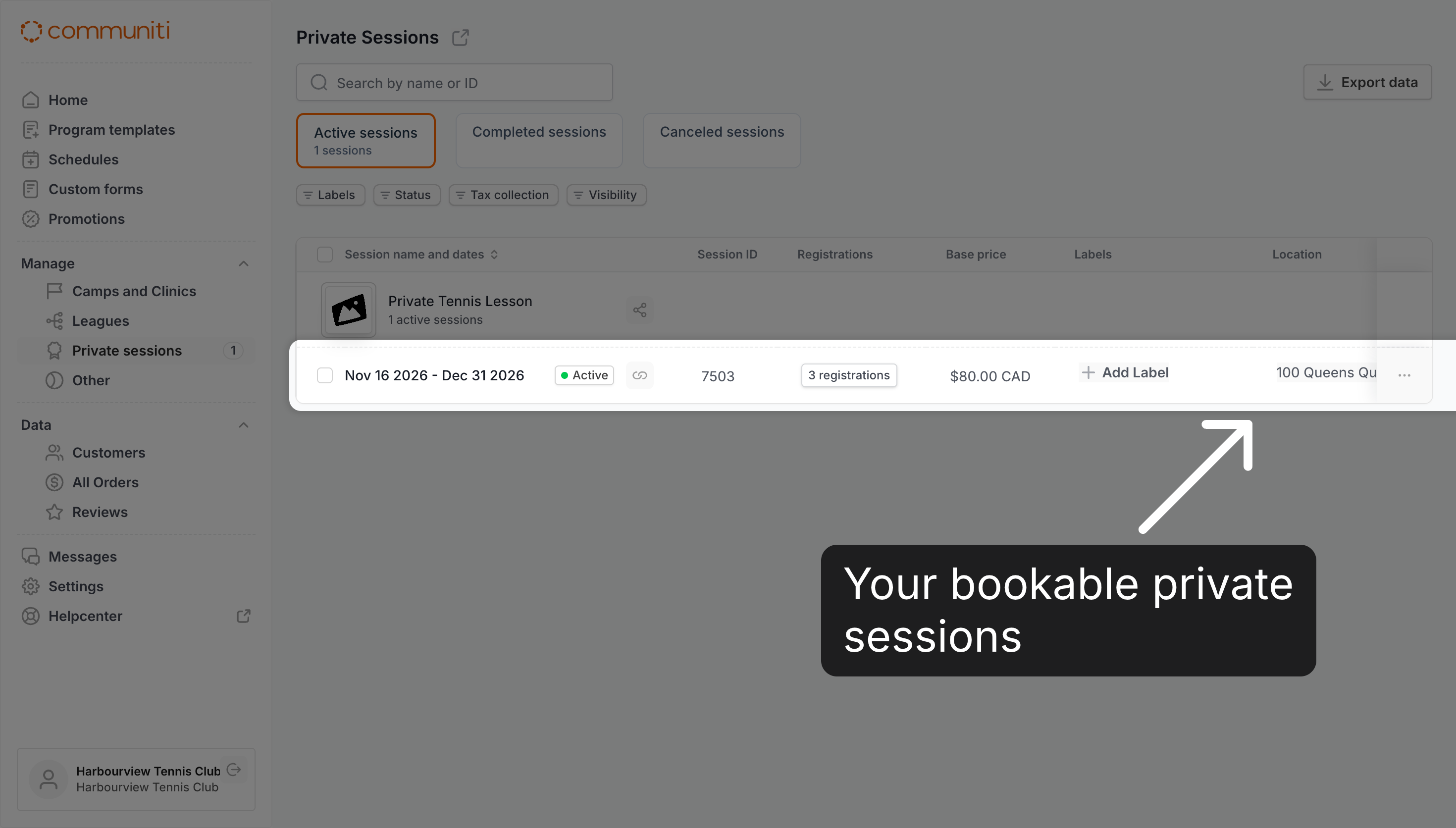
Your scheduled private sessions are listed under Manage → Private sessions.
What Customers Do
Customers book and pay in the booking app.
They click See available dates, pick a day and time, then choose the number of participants and a package.
They pay in full when they book. Payment plans and partial deposits aren't offered for private sessions.
Only the first lesson is booked at checkout. The other lessons of a pack show as TBD until you book them.
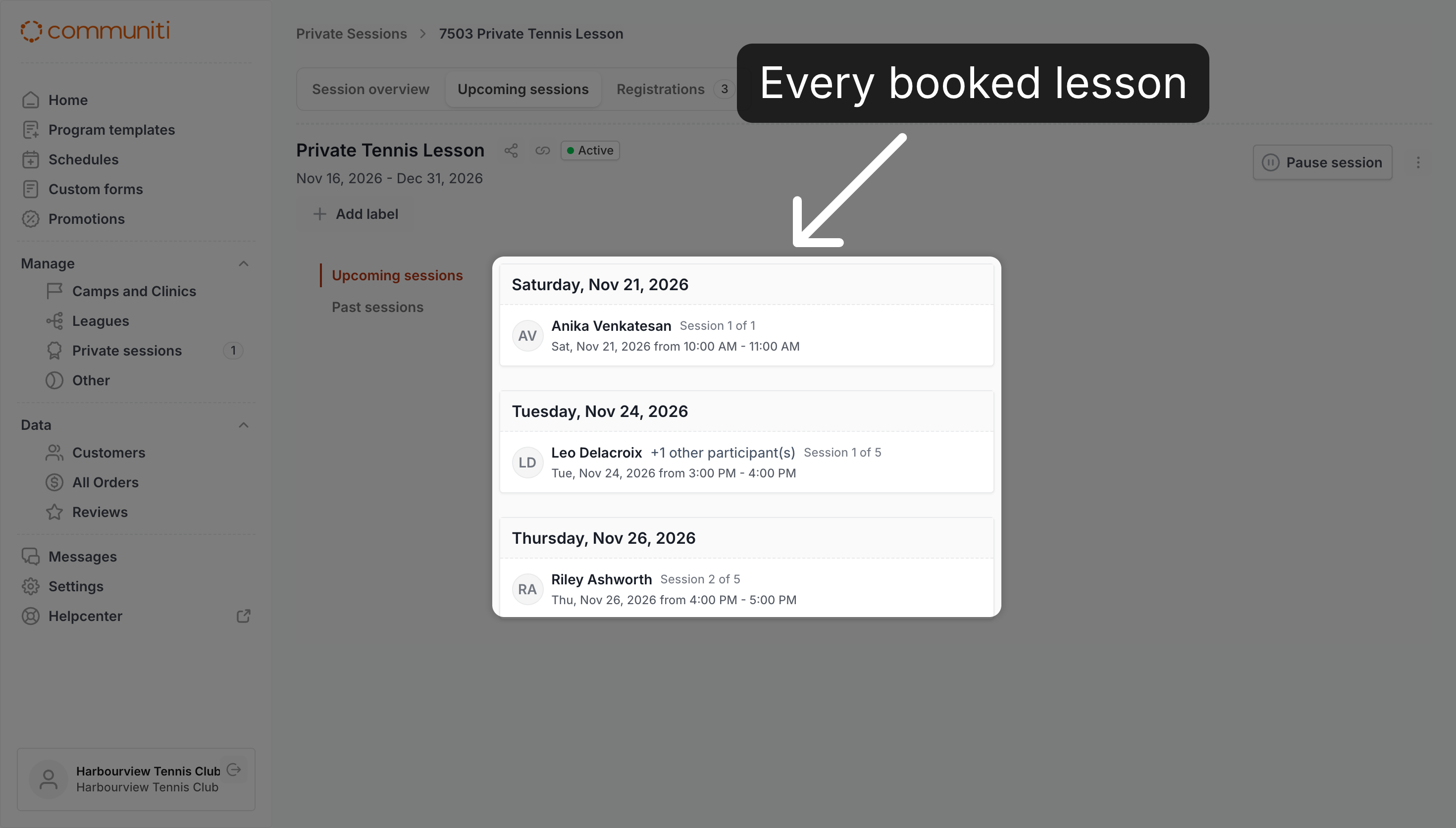
You'll see each booked lesson on the session's Upcoming sessions tab.
What You Do for Customers
Customers can't book the rest of their pack, reschedule or cancel in the booking app. They contact you, and you do it for them.
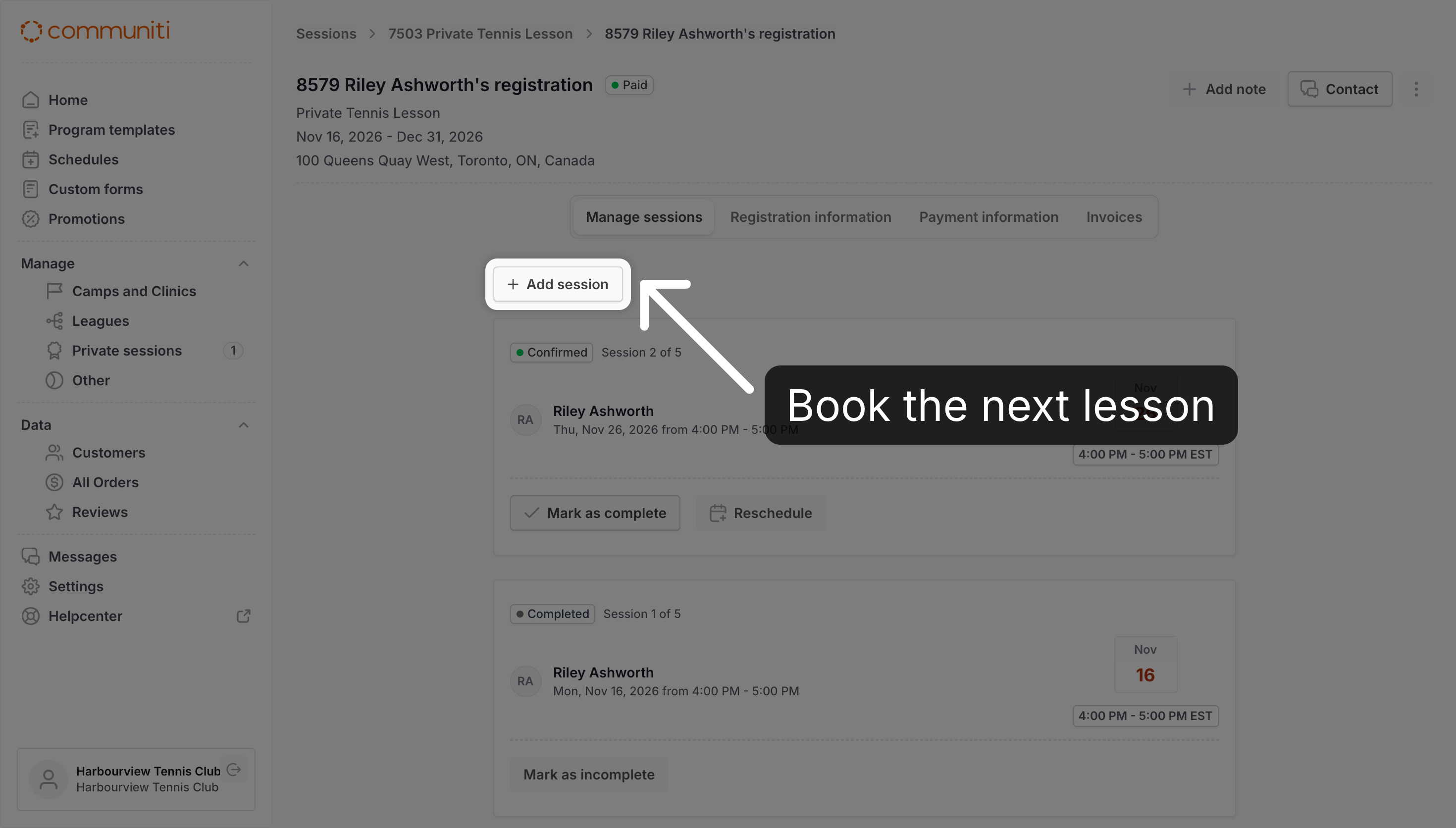
Open the customer's registration and go to Manage sessions.
Click + Add session to book their next lesson, or Reschedule to move one.
Click Mark as complete after each lesson.
Unused lessons don't expire, but they can only be booked within the session's dates.
Note: There's no cancellation deadline and no automatic refund. You can't cancel a single lesson, but you can Reschedule it. Cancel registration cancels every lesson in the package and removes them from your calendar, without a refund. Refund each payment yourself with Refund transaction.
What happens next?
Customers get a confirmation email when they book. Each lesson is added to your calendar with the customer as a guest, so they also get a calendar invitation for every lesson, including the ones you add or move for them.
Related articles: How to Connect Your Google Calendar · How to Create a Private Session Template · How to Schedule a Private Session · How to Manage a Customer's Private Sessions · How to Cancel a Registration · How to Issue Refunds
Was this helpful?
Still need help? Ask the team