How to Connect Your Google Calendar
Connect your Google account so customers can book private sessions at times that are free in your calendar, and so each booking is added to it.
Written By communiti
Last updated About 20 hours ago
Private sessions need a connected Google calendar. Connect it in Settings before you schedule your first private session.
1. Open Connected Accounts
Your calendar connections are in Settings.
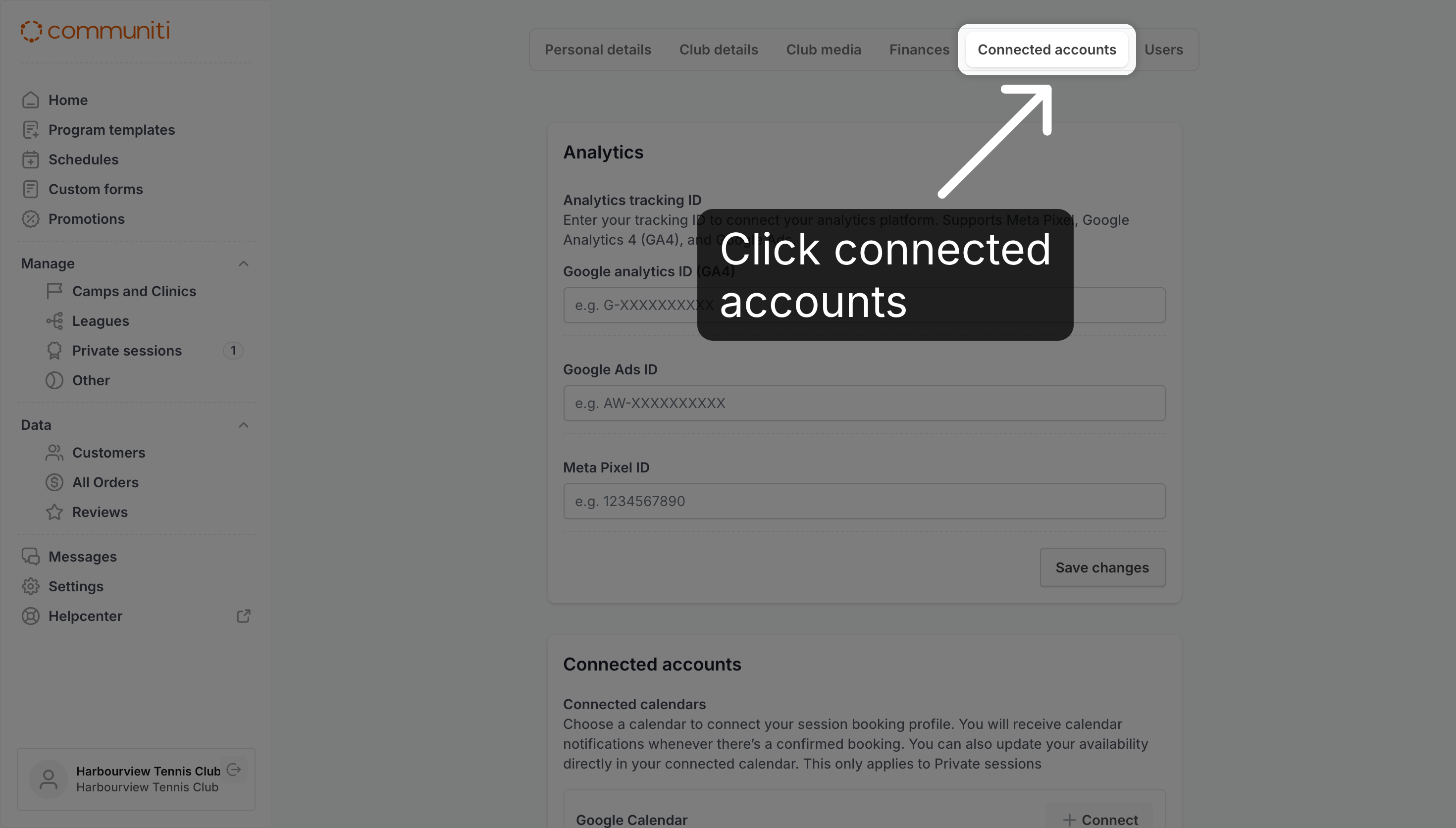
Click Settings in the left menu, then click Connected accounts.
2. Connect Your Google Account
Sign in to the Google account whose calendar you want customers to book into.
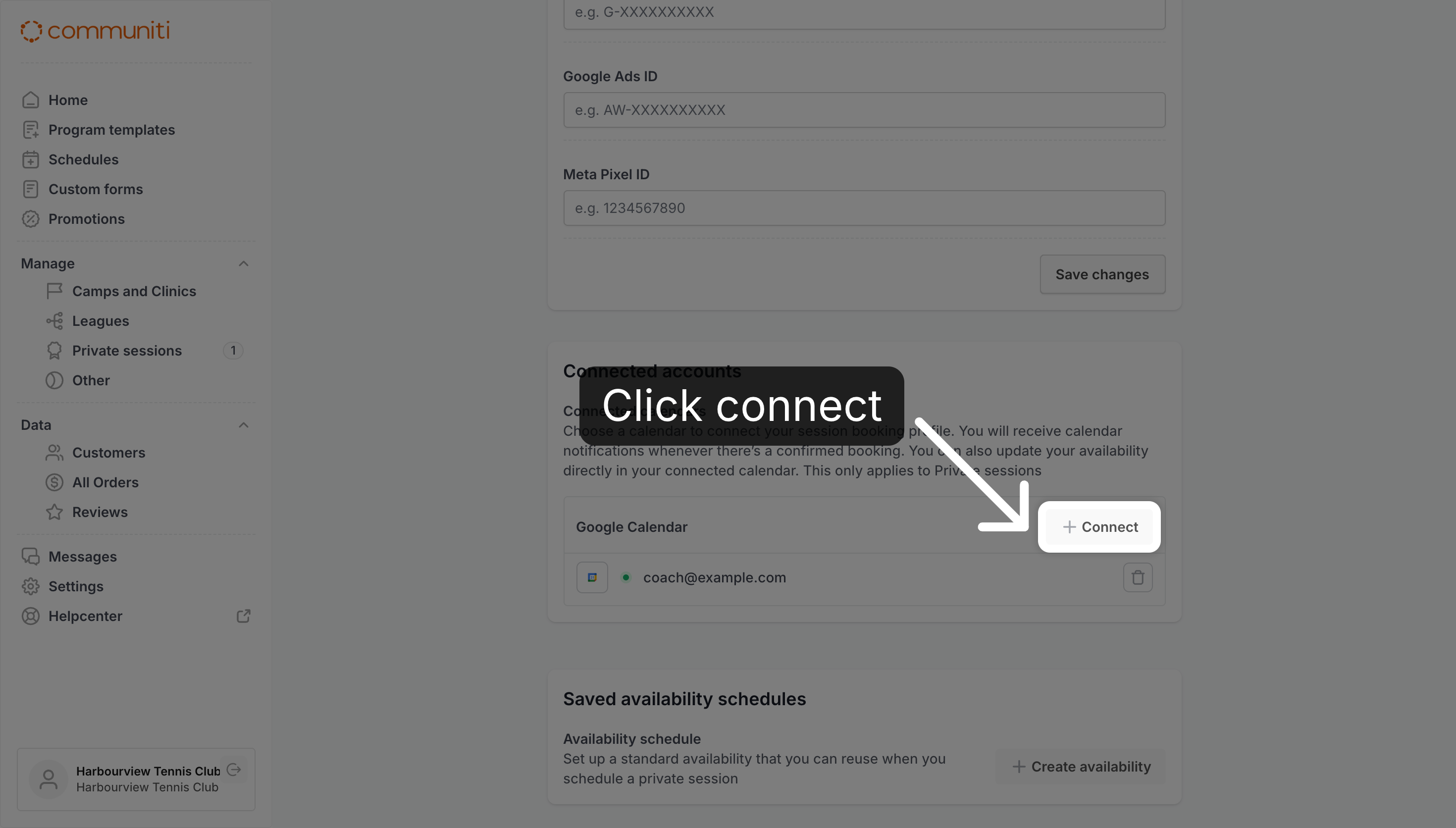
Under Connected calendars, click Connect next to Google Calendar.
Sign in to Google and allow access to your calendar.
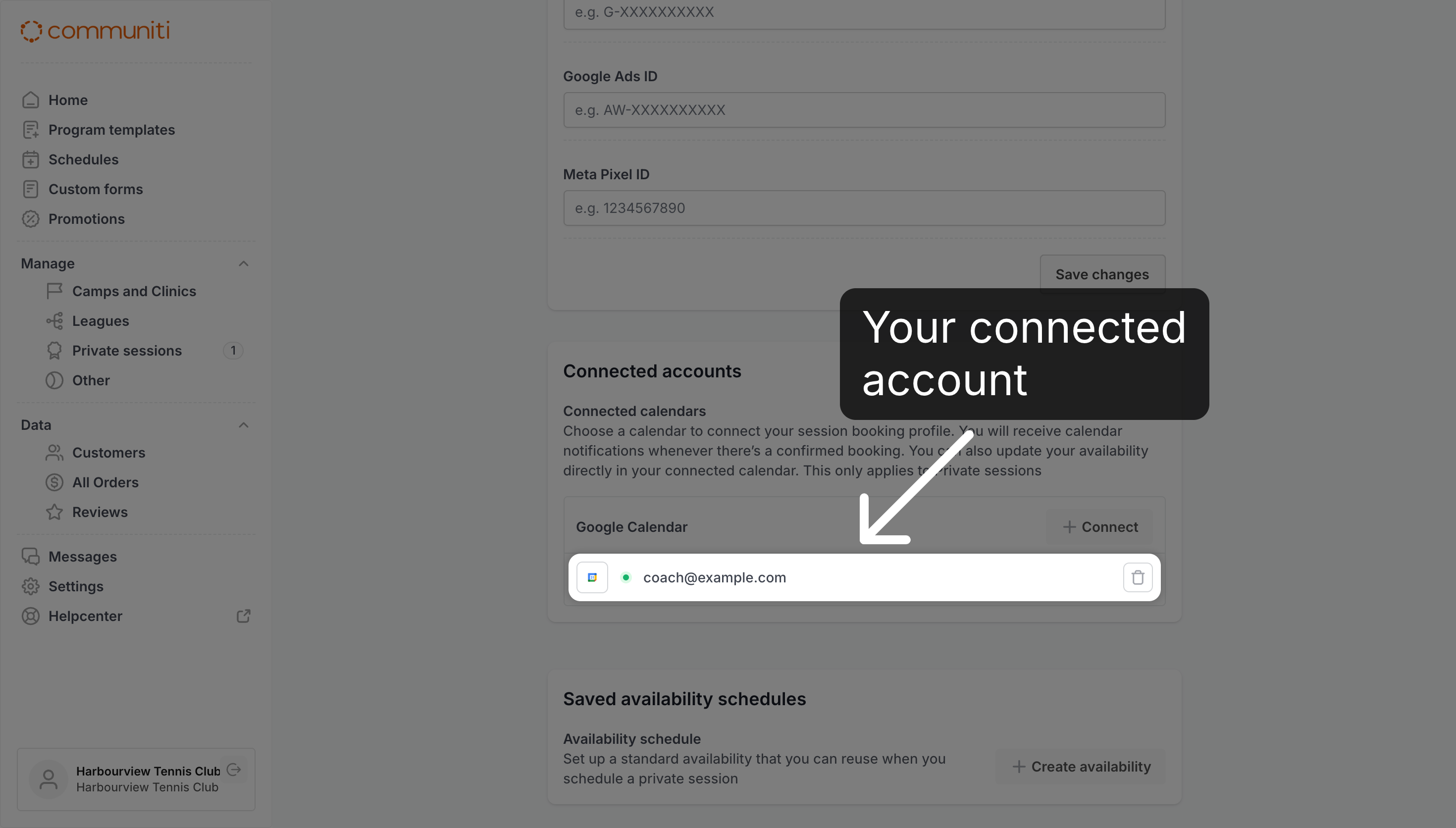
You come back to Connected accounts, where your account is listed with a green dot.
Note: Connect your calendar here, in Settings. The Connect button on the scheduling page doesn't save the connection.
3. Add Another Account (Optional)
You can connect more than one Google account, for example one for each coach.
Click Connect again and sign in with the other Google account.
When you schedule a private session, you choose one account and one of its calendars.
What happens next?
Your Google account is ready to use. Next, create a private session template and schedule it. If you use a separate calendar for each court, create those calendars in this same Google account.
Was this helpful?
Still need help? Ask the team