How to Manage a Customer's Private Sessions
Book the rest of a customer's lesson pack, move a lesson to another time and mark lessons complete.
Written By communiti
Last updated About 20 hours ago
Customers book only their first lesson when they pay, and they can't book the rest of a pack, reschedule or cancel in the booking app. When they ask, you do it for them from their registration.
1. Open the Customer's Registration
Each customer's lessons are on their registration.
Go to Manage → Private sessions and open the session.
On the Registrations tab, click the customer's registration. It opens on Manage sessions.
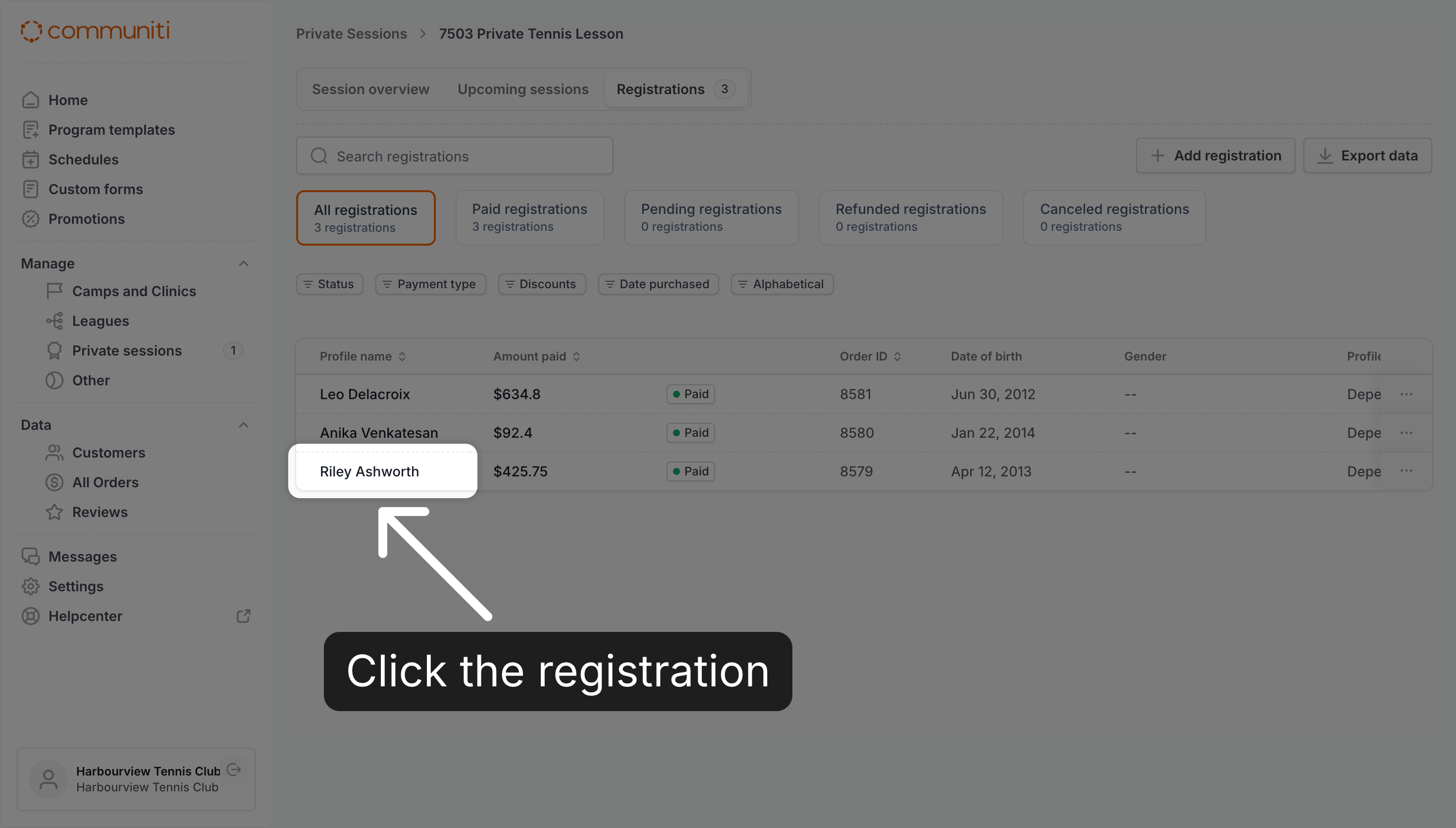
You can also click a lesson on the Upcoming sessions tab to open its registration.
2. Book Their Next Lesson
Use Add session for each lesson of the pack that isn't booked yet.
Click + Add session.
Select a date, then one of the Available times. Only times that are free in your calendar are shown.
Click Add session.
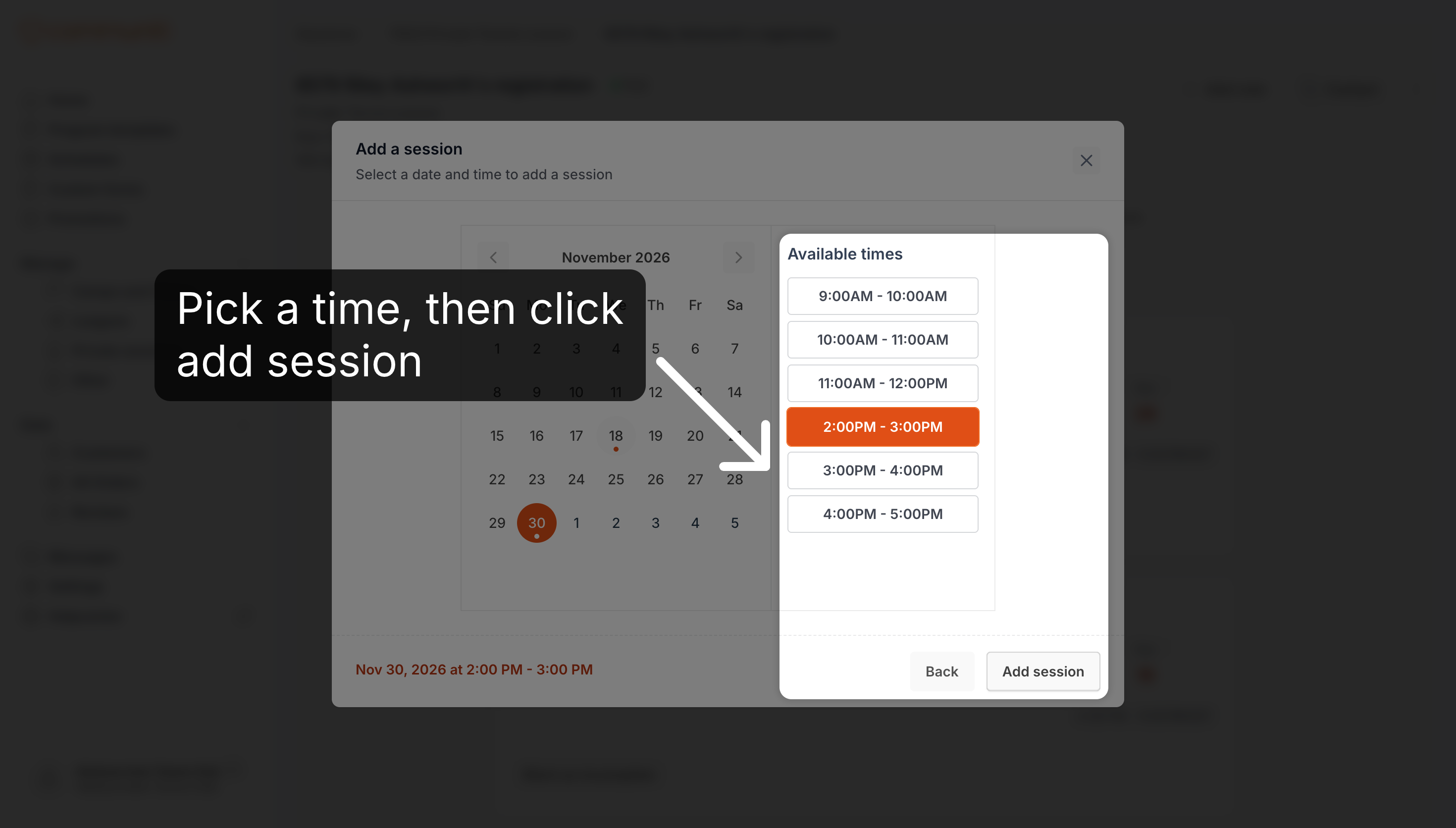
When every lesson of the pack is booked, you'll see "Already booked maximum number of sessions."
3. Move a Lesson
You can't cancel a single lesson, but you can move it.
On a Confirmed lesson, click Reschedule.
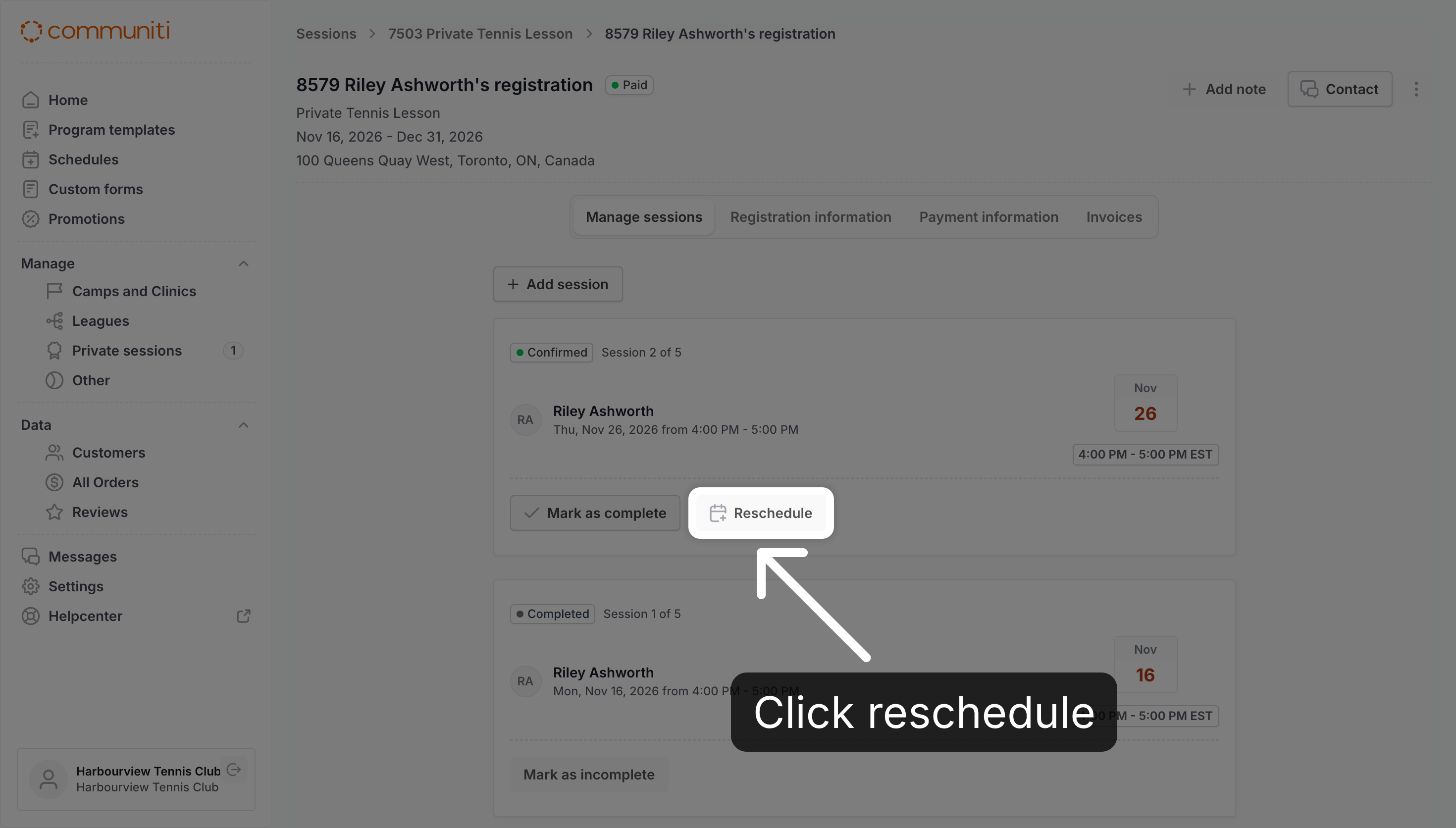
Select the new date and time, then click Add session.
4. Mark Lessons as Complete
Keep track of the lessons that have taken place.
After a lesson, click Mark as complete. It moves to Completed here and to Past sessions on the session.
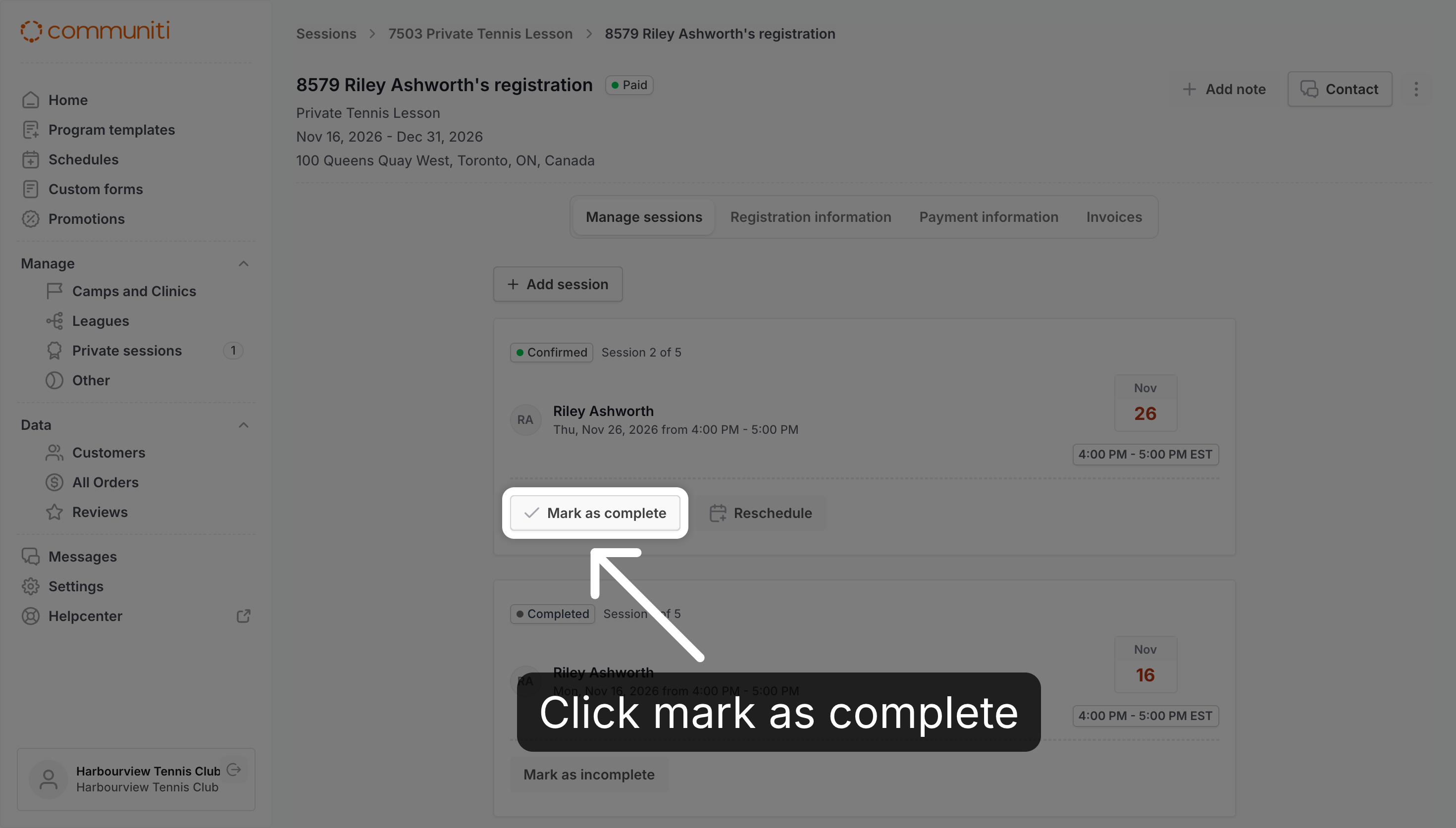
Clicked by mistake? Click Mark as incomplete.
Note: A lesson stays under Upcoming sessions until you mark it complete, even after its date has passed.
What happens next?
You see "Event has been scheduled successfully." Each lesson you add or move is added to your calendar with the customer as a guest, so they get a calendar invitation for it.
Was this helpful?
Still need help? Ask the team