How to Change a Private Session's Availability or Prices
Pause a private session to change its dates, hours, calendar or prices, then resume it.
Written By communiti
Last updated About 20 hours ago
You can change a private session after it's scheduled: its dates, weekly hours, lesson length, calendar, maximum participants and prices. You pause it first, so no one books while you edit.
1. Pause the Session
A session must be paused before you can edit it.
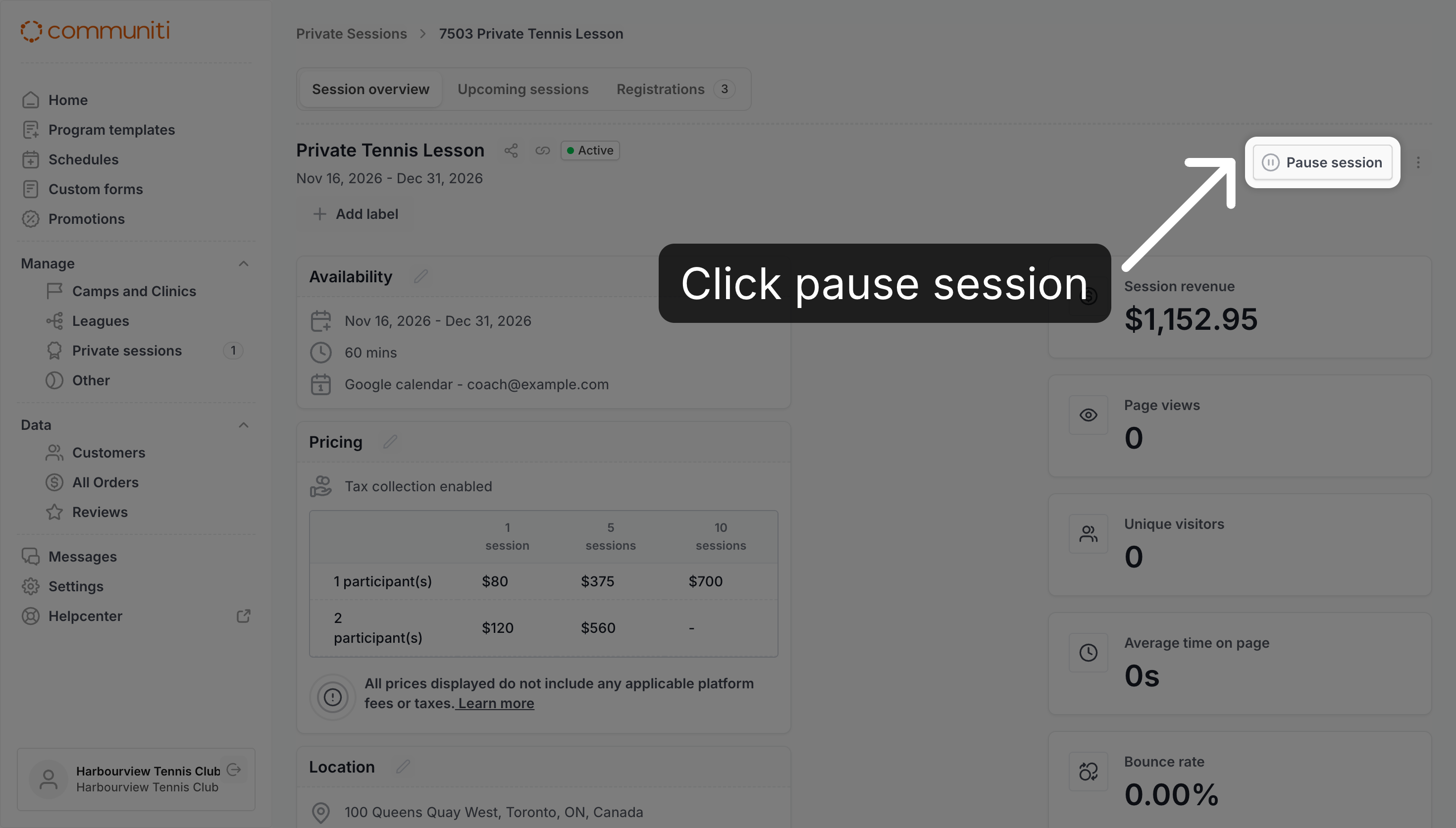
Go to Manage → Private sessions and open the session.
Click Pause session. While it's paused, customers can't book new lessons.
2. Change Your Availability
Edit when customers can book.
On Session overview, click the pencil next to Availability.
Change what you need: the calendar, the Availability start and end date, the Session duration or the weekly hours.
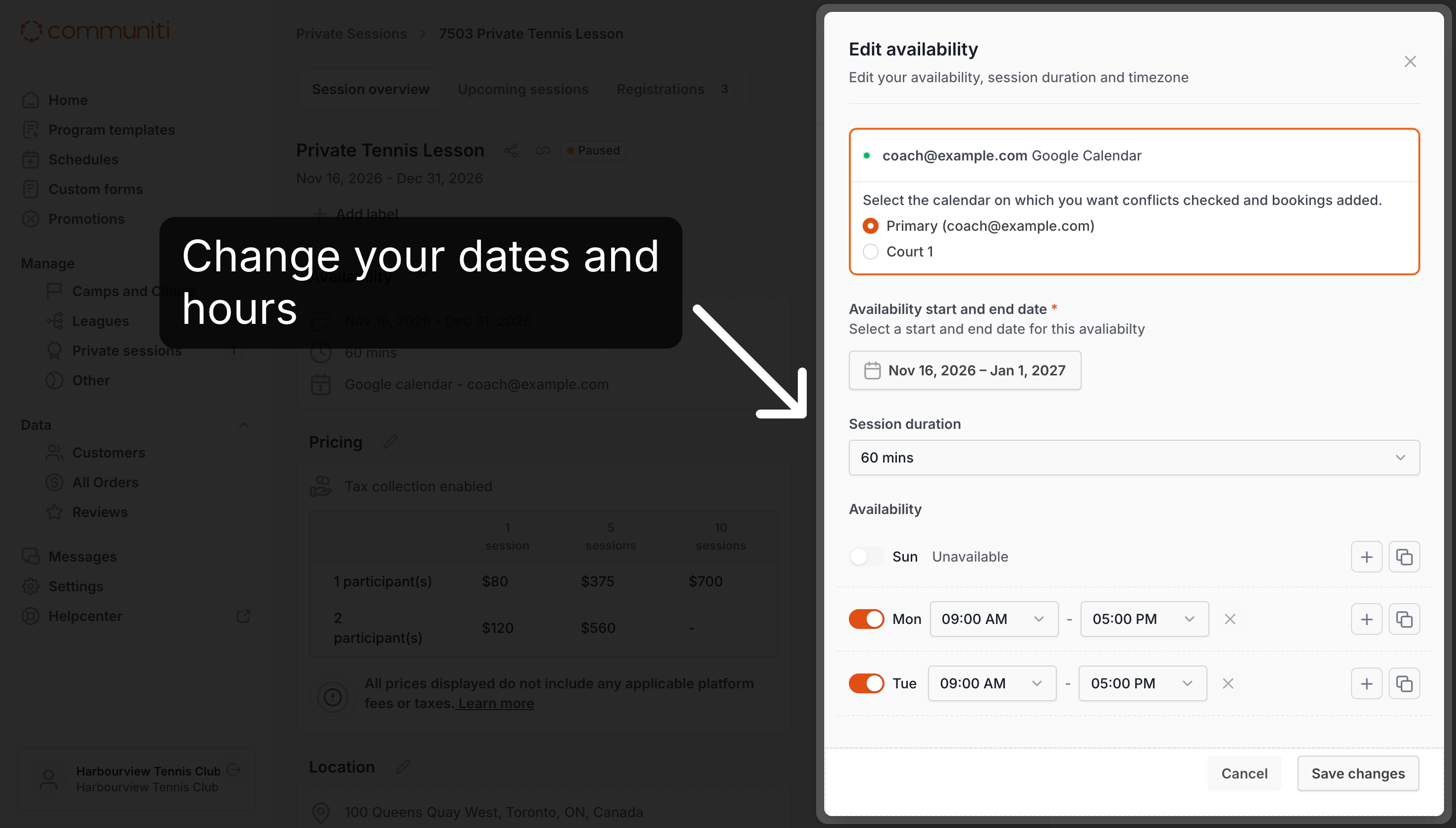
Click Save changes.
3. Change Your Prices
Edit who can book and what they pay.
Click the pencil next to Pricing.
Change the Maximum participants, Collect taxes or the prices under Pricing packages. Each price is the total for the whole package. A platform fee, and tax if you collect taxes, is added on top, so customers pay a little more than the price you enter.
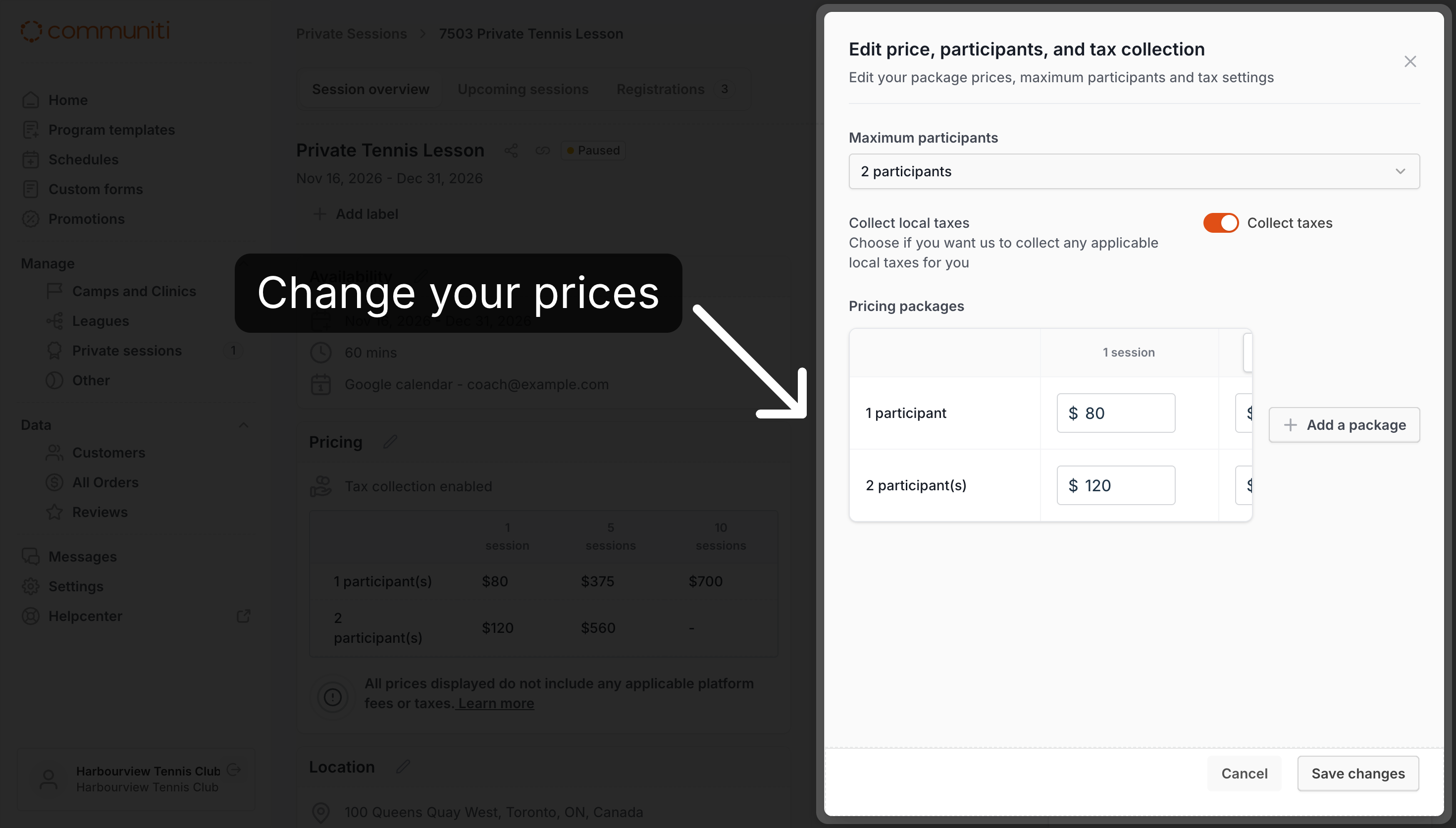
Click Save changes.
4. Resume the Session
Open the session for bookings again.
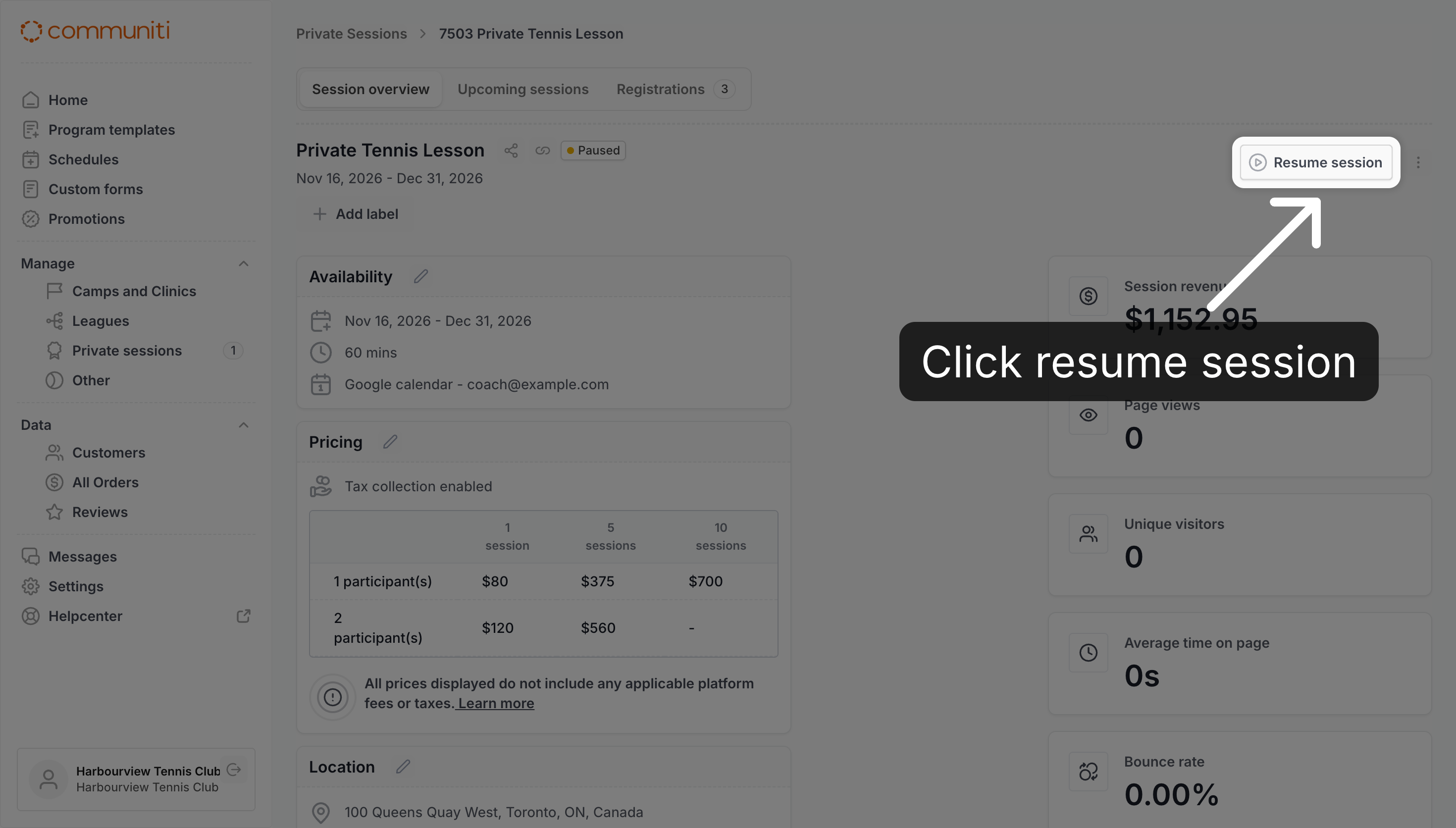
Click Resume session.
Note: Changes apply to new bookings. Lessons that are already booked aren't moved, and customers who already paid keep the package they bought.
What happens next?
You see "Session updated successfully!" after each change and "Session resumed successfully." when you resume. Customers can book again straight away.
Was this helpful?
Still need help? Ask the team