How to Schedule a Private Session
Make a private session template bookable by adding your dates, hours, prices and the one calendar that bookings go into.
Written By communiti
Last updated About 20 hours ago
Before you start, connect your Google calendar in Settings → Connected accounts and create a program template of type Private session. Customers see your private sessions as "private lessons" when they book.
1. Start a New Schedule
Begin from the Schedules page in the left menu.
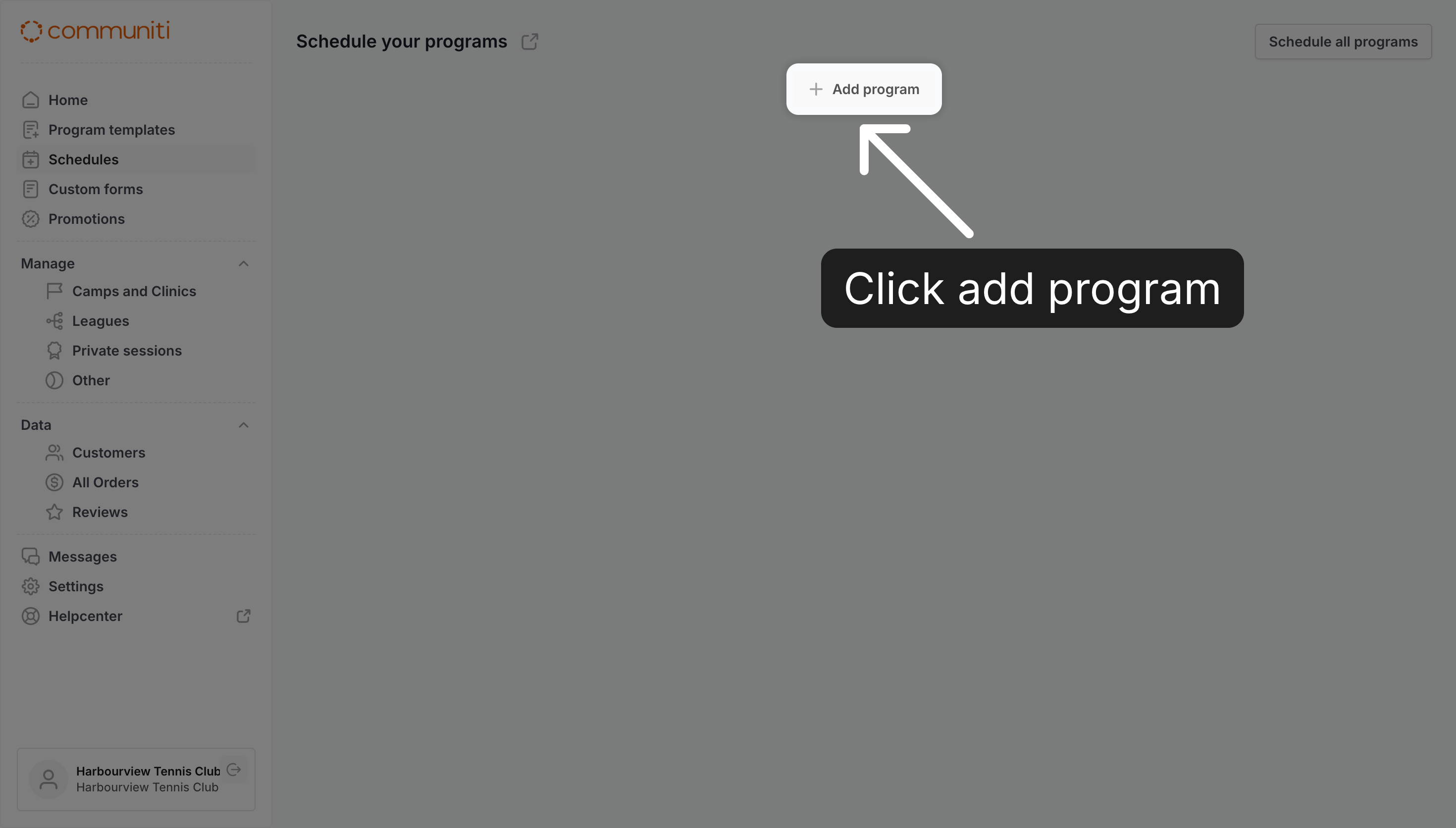
Click Schedules, then click Add program.
Under Program name, select your private session template. Its address, prices and maximum participants fill in for you.
2. Choose Your Calendar
Each private session uses one calendar. Customers book times that are free in that calendar, and each booking is added to it.
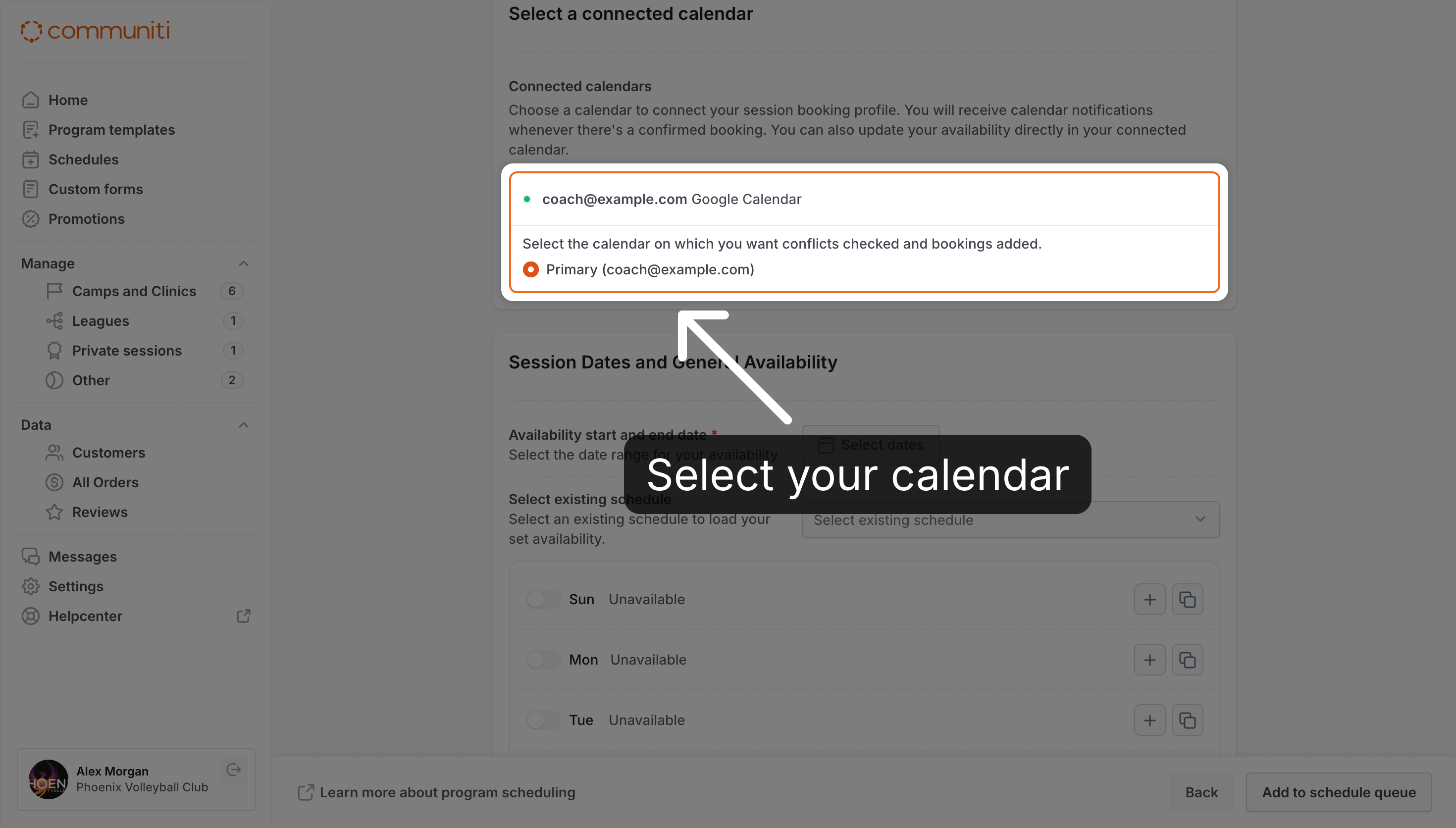
Under Select a connected calendar, click your Google account.
Select the calendar for this session. Your main calendar, shown as Primary, is selected for you.
3. Set Your Availability
Tell customers which dates and hours they can book.
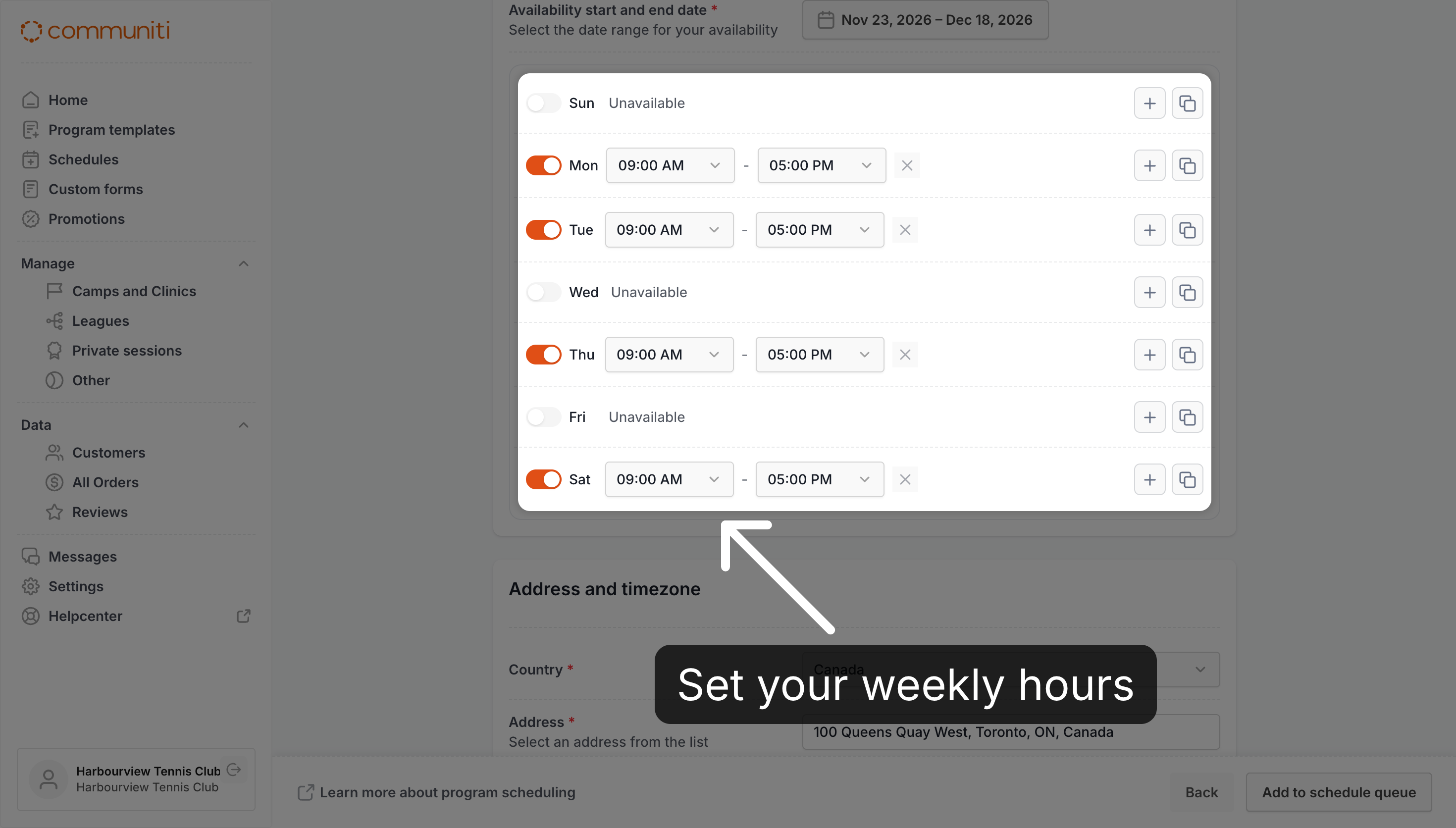
Availability start and end date: Select the date range for your availability.
Turn on each day you're available and set the Start Time and End Time. Days left off show as Unavailable.
Tick Remember this availability and give it a name to reuse these hours next time.
4. Set the Location, Length and Prices
Check the details customers see before they book.
Under Address and timezone, check the address and the Timezone.
Select the Session Duration (30 to 120 mins) and the Maximum participants.
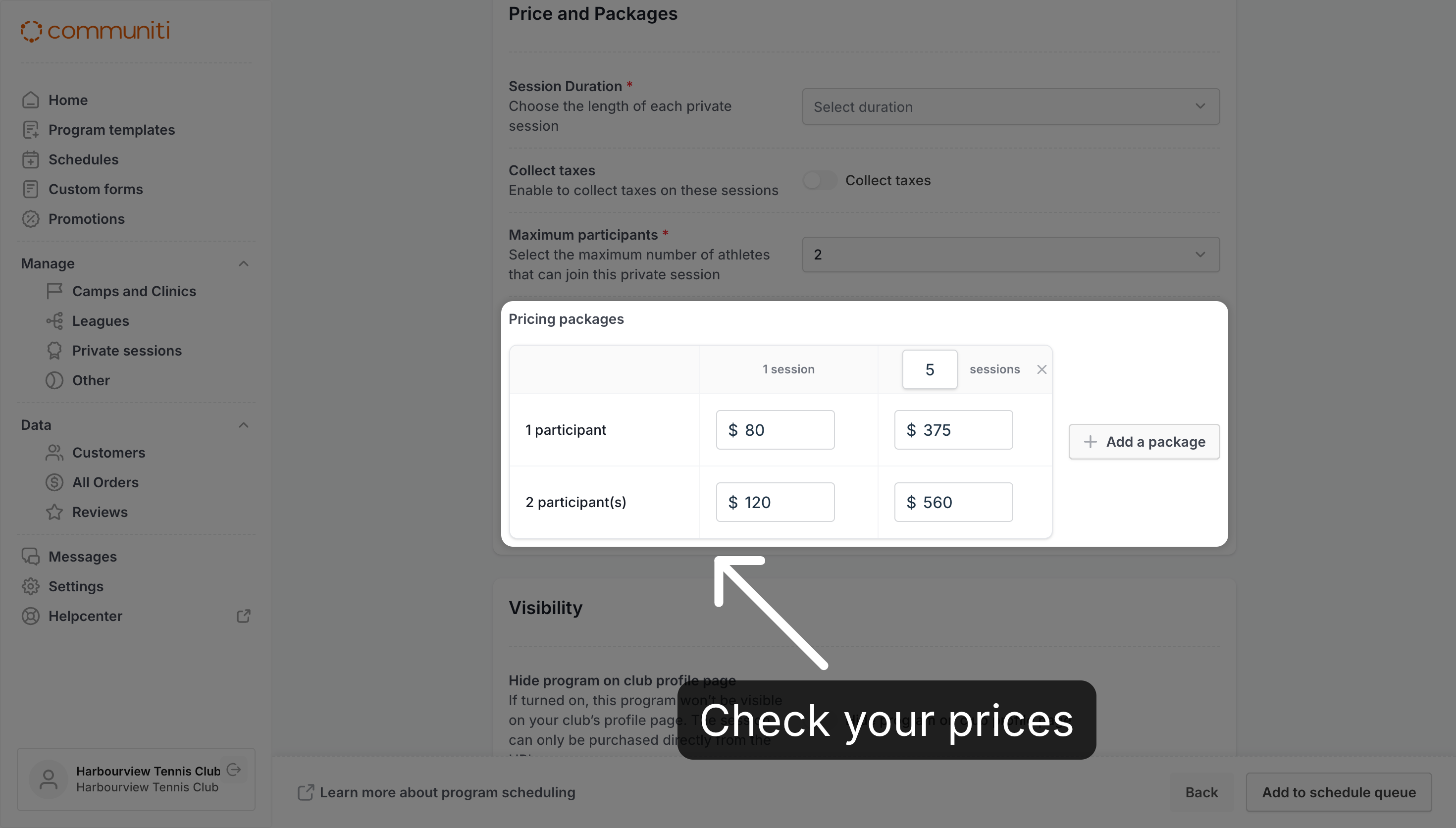
Check your prices under Pricing packages. Each price is the total for the whole package. A platform fee, and tax if you collect taxes, is added on top, so customers pay a little more than the price you enter.
5. Schedule the Session
Your session goes into a queue first, then you schedule it.
Click Add to schedule queue at the bottom of the page.
On the Schedule your programs page, click Schedule all programs.
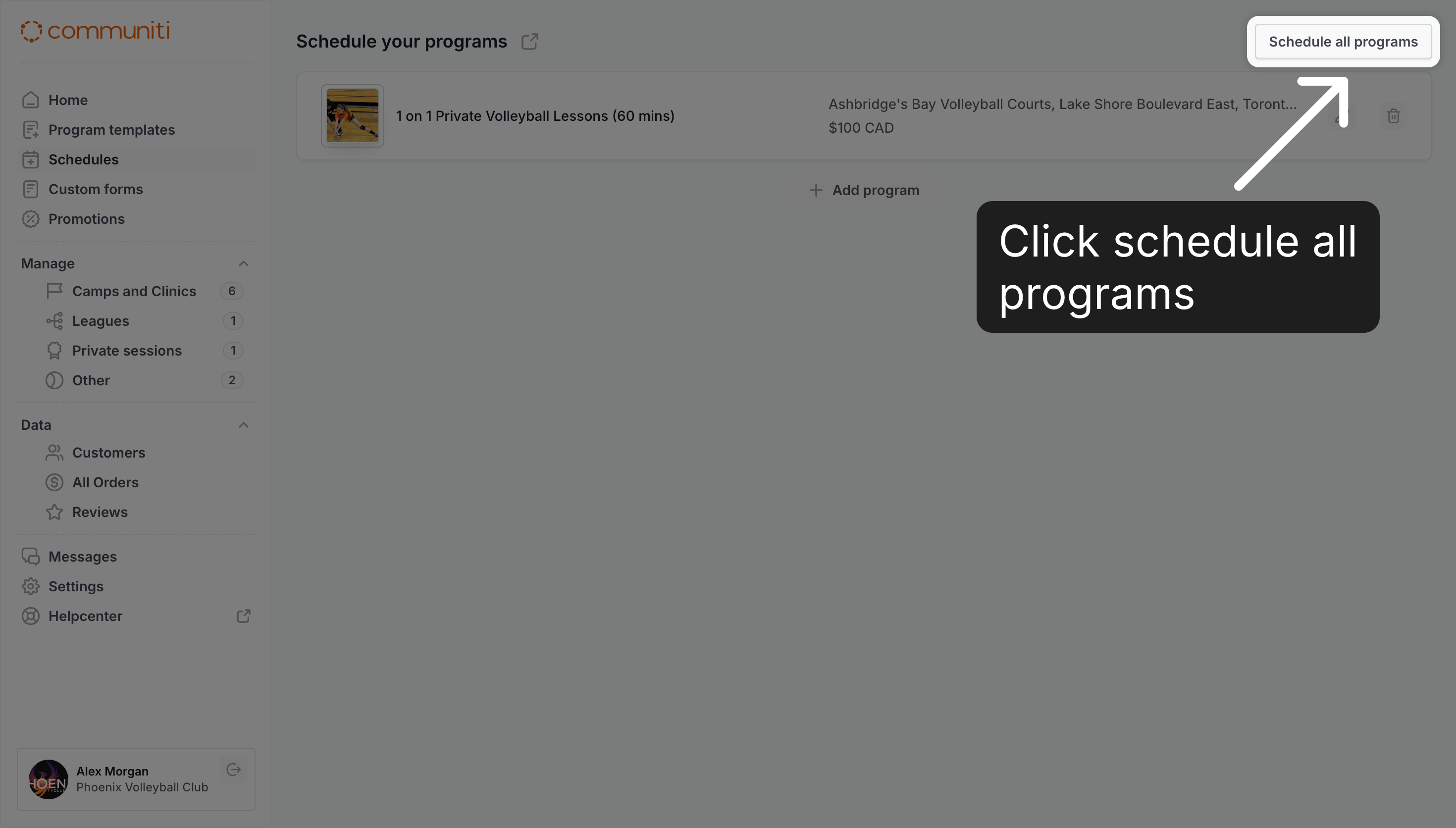
Note: Your session isn't bookable until you click Schedule all programs. The queue is kept only in the browser you used, so finish scheduling on the same computer.
What happens next?
You see "Session scheduled successfully." and the session is bookable straight away. You'll find it under Manage → Private sessions. When a customer books a private lesson, it's added to the calendar you chose.
Was this helpful?
Still need help? Ask the team