How to Group and Filter Sessions Using Labels
Labels allow you to categorize your sessions, making it easier to manage large schedules and find specific groups of events quickly.
Written By communiti
Last updated About 22 hours ago
1. Add Labels to a Session
Assigning labels helps you organize sessions by season, location, or any custom category you choose.
Select the Manage menu in the left sidebar and choose your program category (e.g., Camps & Clinics).
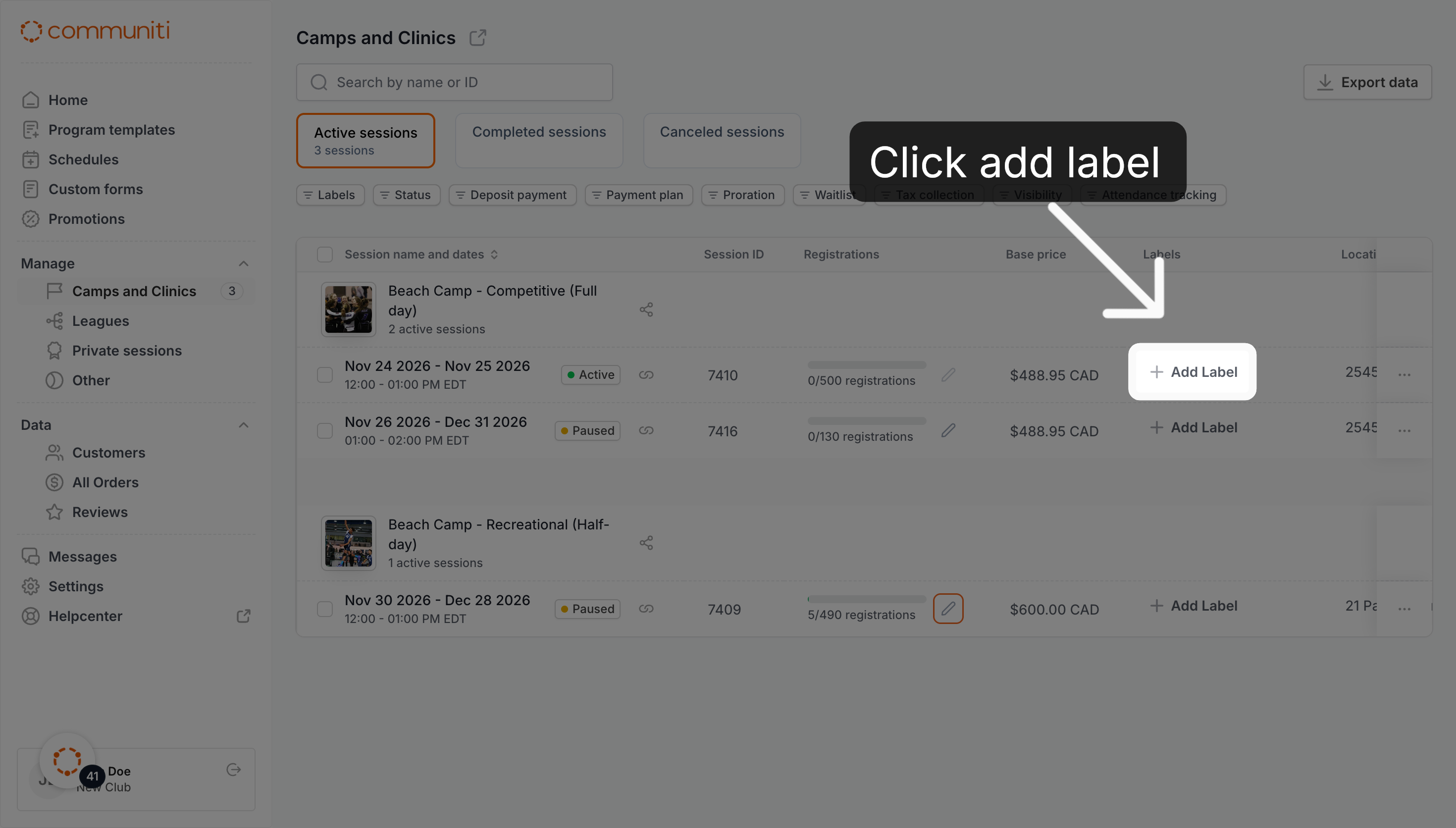
Locate the specific session and click the Add label button in its row.
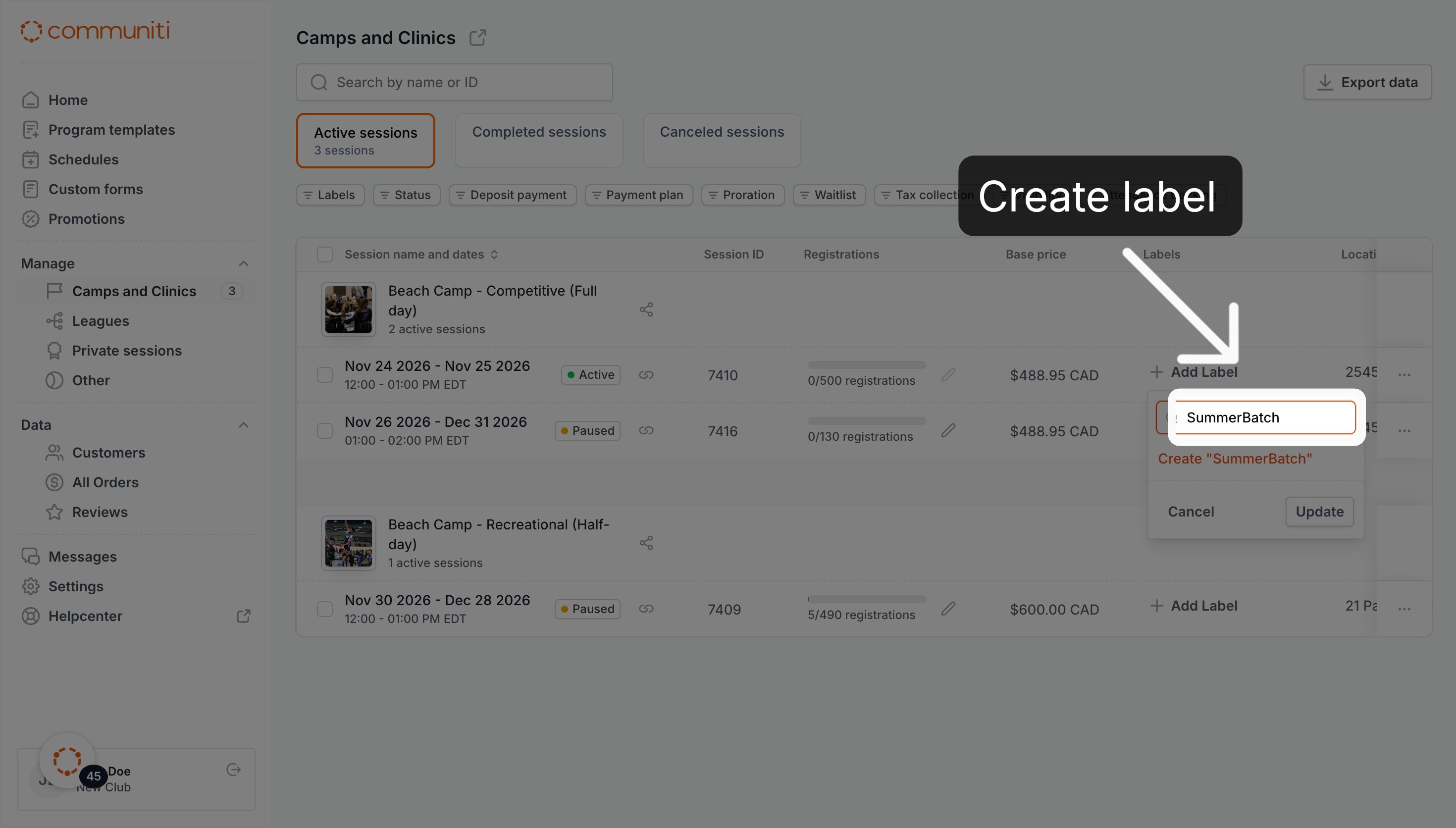
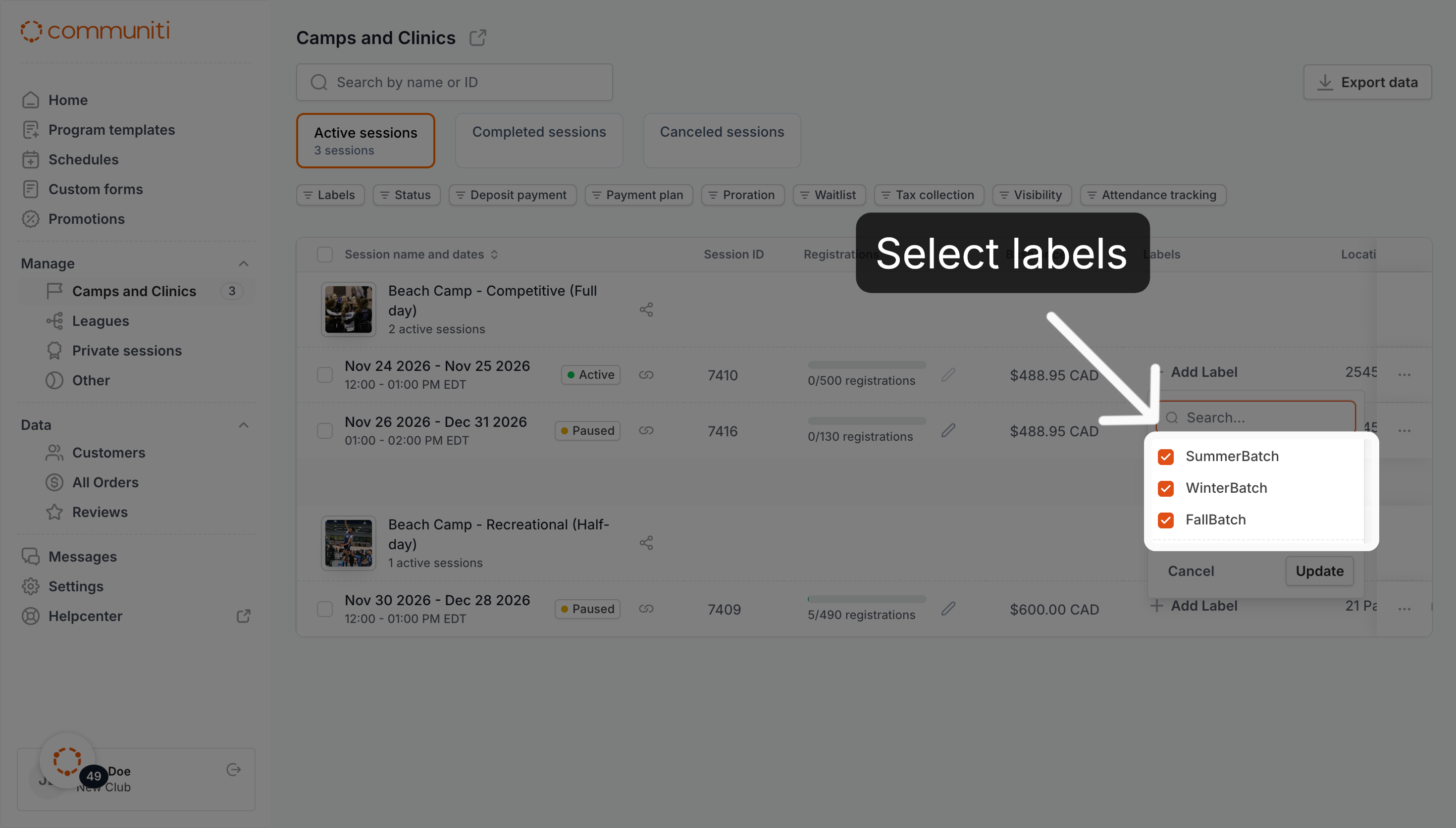
Use the search bar to create new labels or select existing ones from your list.
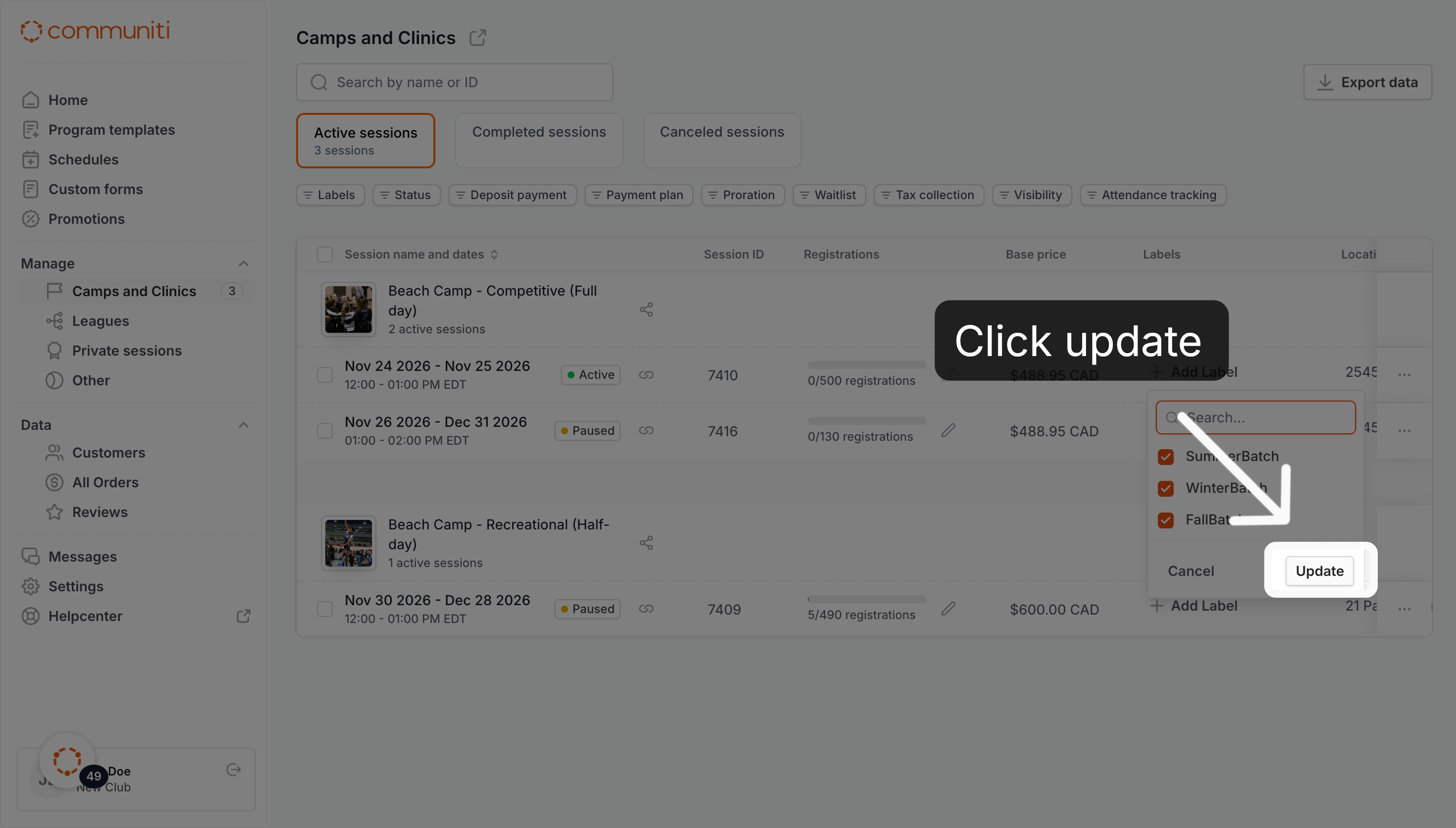
Click the Update button to save the labels to that session.
2. Filter Sessions by Labels
Once your sessions are tagged, you can use those labels to refine your view on the manage page.
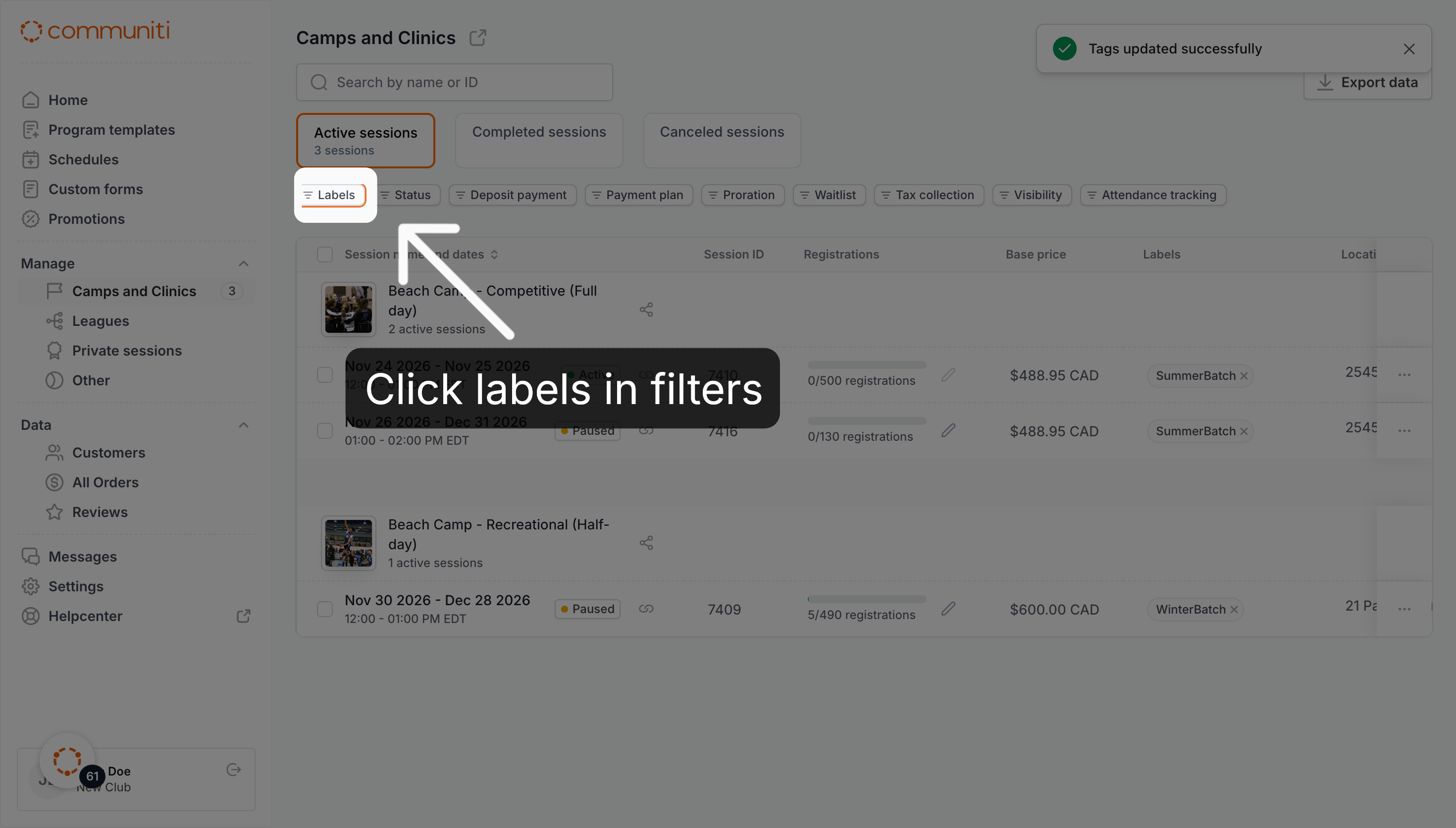
Click the Labels filter button at the top of your session list.
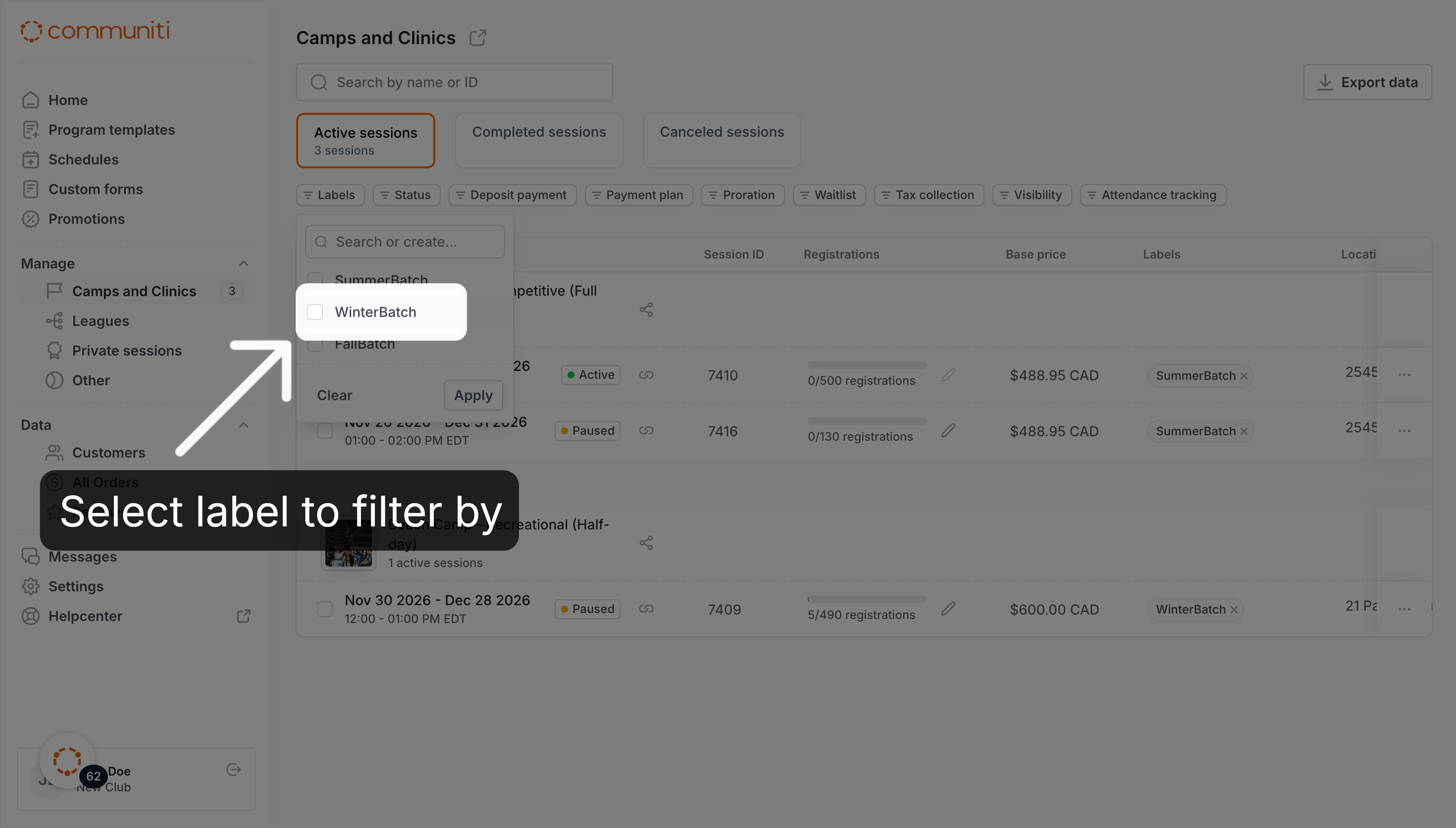
Select the checkboxes for the specific labels you want to filter by.
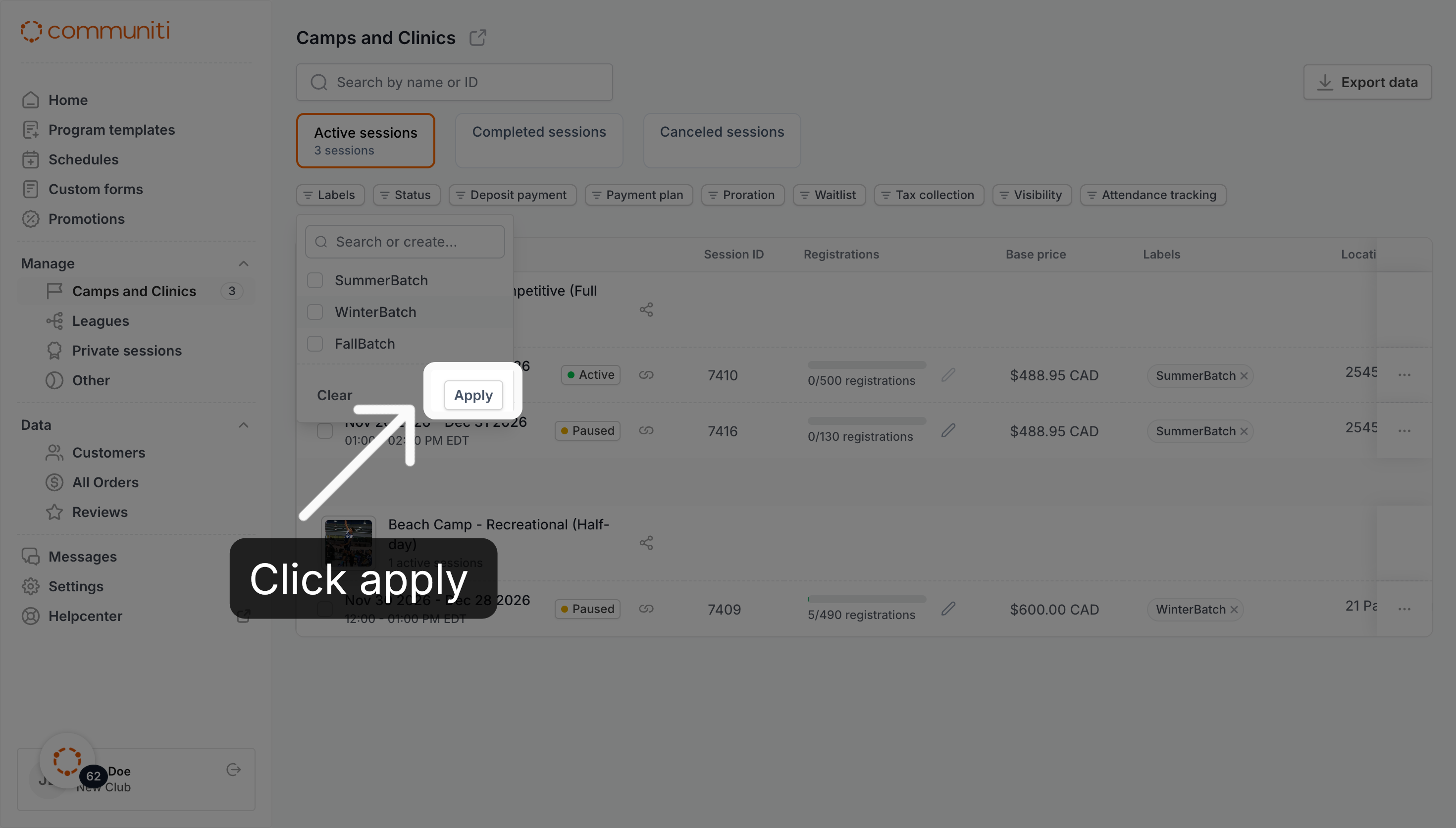
Click the orange Apply button to update your view to show only the sessions matching those labels.
3. Manage and Clear Filters
Easily adjust your view as you work through different session groups.
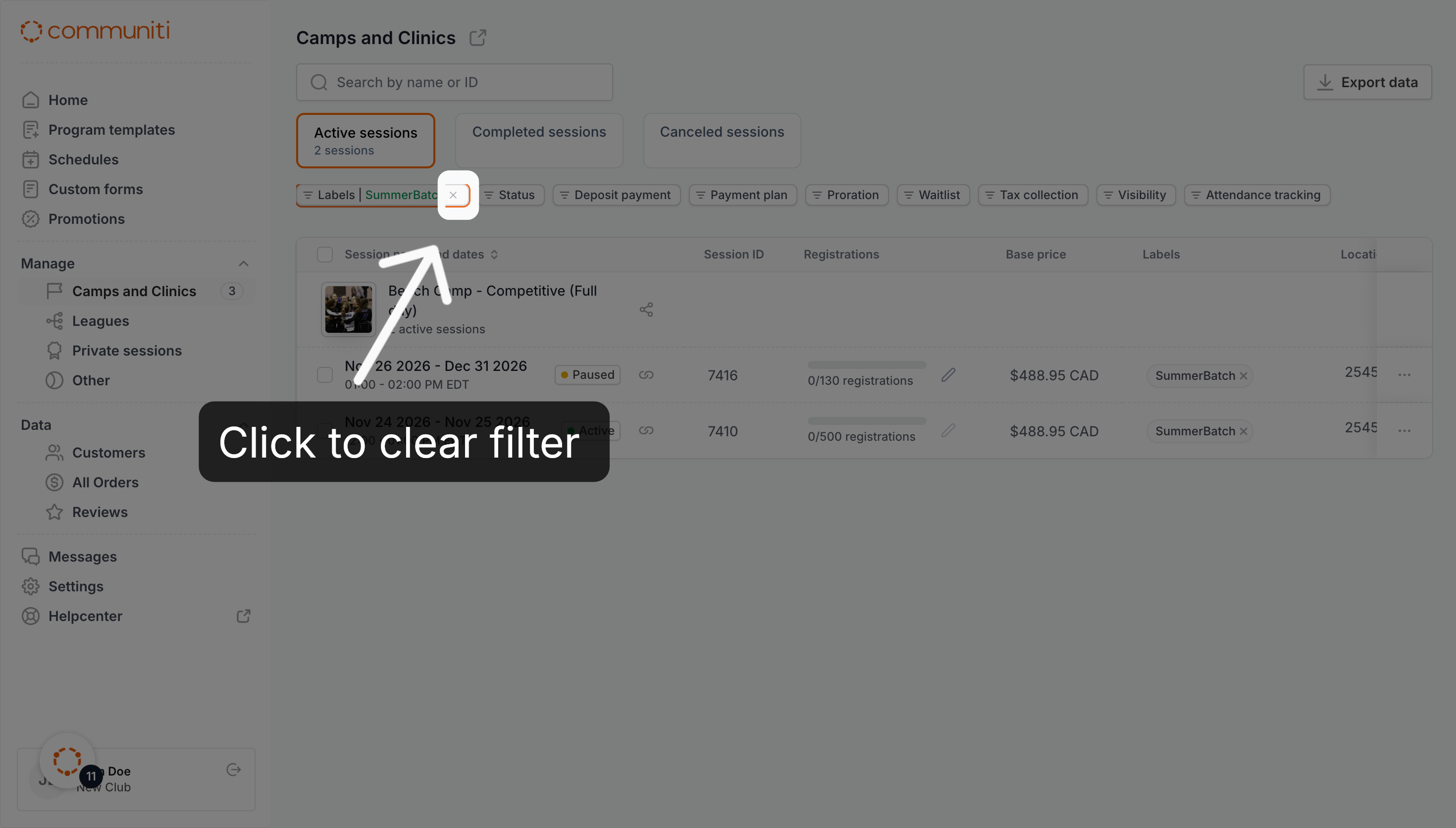
Active filters will be displayed at the top of the page for quick reference.
You can remove individual labels or click Clear all filters to return to the full session list.
Was this helpful?
Still need help? Ask the team